


 ビデオコンバーター究極
 スクリーンレコーダー
 ビデオ修復
ビデオ修復
 安全なダウンロード
Web Launch Recorder –ダウンロードせずに画面上のアクティビティをキャプチャする4つの無料の方法
人気のゲームビデオ、ビデオ通話ログ、会議ビデオなどのビデオを録画して、コレクションとして保存する簡単な方法はありますか?無料のWeb起動レコーダーは、画面上のアクティビティをキャプチャするためのWebベースのサービスである画面ビデオをキャプチャするための最初の選択肢です。画面記録機能をオンラインで起動するための優れたWeb起動レコーダーの詳細をご覧ください。

パート1:トップ4の無料オンラインWeb起動レコーダー
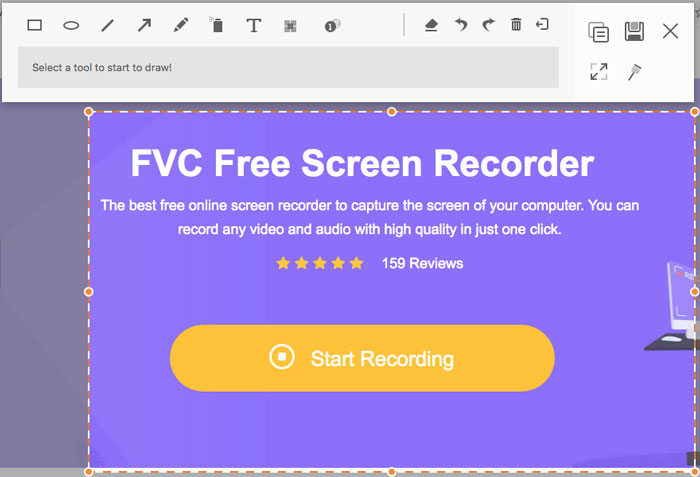
トップ1:FVC無料スクリーンレコーダー
FVC Free Screen Recorder は、あらゆる Web ブラウザーで利用できる無料の Web 起動型レコーダーです。あらゆる動画や音声をウォーターマークなしで録画できます。全画面や画面の一部など、録画エリアを自由にカスタマイズしてビデオを録画できます。さらに、録画したファイルは MP4 や WMV など、さまざまなファイル形式で書き出すことができます。
1.登録やその他の制限のない無料のオンラインスクリーンレコーダー。
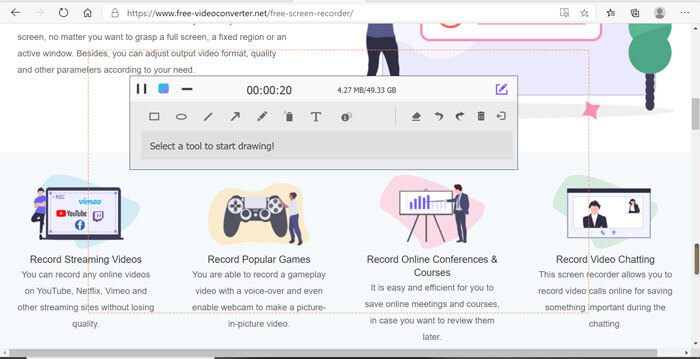
2.リアルタイムの行とテキストを追加して、画面の記録に注釈を付けます。
3.Webカメラとマイクのオーディオをスクリーンキャストに入れます。
4.記録履歴リストから以前のすべての記録ファイルを表示します。
トップ2:スクリーンキャスト-O-Matic
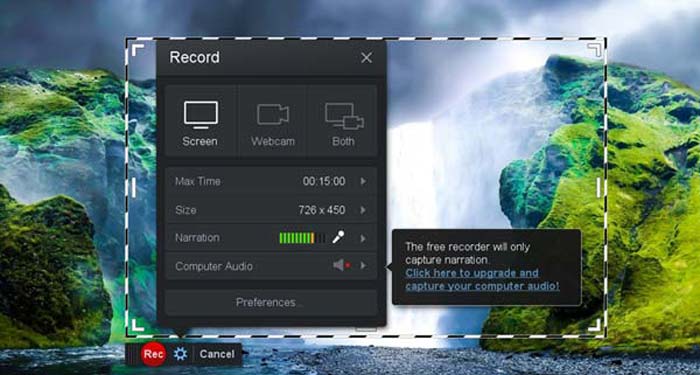
Screencast-O-Matic は、画面上の任意の領域を簡単に録画できる Web ベースのスクリーンレコーダーです。録画した動画を、そのまま動画ホスティングプラットフォームへ直接アップロードできます。さらに、スクリプトツールや自動キャプションなど、ほかにも多くの機能が利用できます。
長所
- 1.画面全体または画面の一部などの記録領域をカスタマイズします。
- 2.録音をScreencast-O-Matic、Googleドライブなどにアップロードします。
- 3.音声ナレーション、ストックミュージック、キャプションなどをより簡単に追加します。
短所
- 1.録音の品質が十分ではありません。
- 2.このオンラインスクリーンレコーダーには時間制限があります。
トップ3:クリップチャンプ
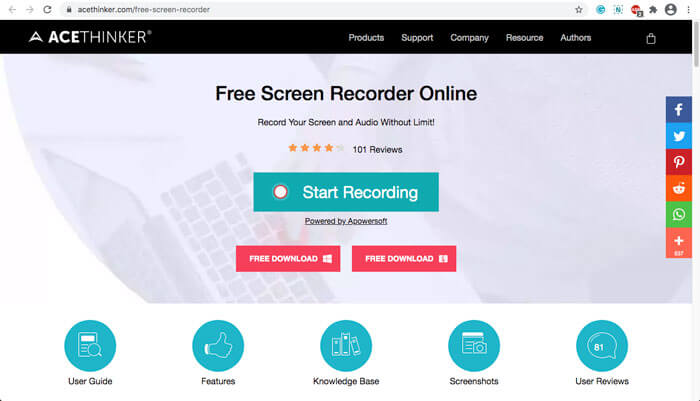
Clipchamp は、とても便利な無料のオンライン Web 起動型レコーダーです。録画した動画をアップロードできるだけでなく、元の画質を損なうことなく動画を圧縮することもできます。また、外部マイクへの対応やさまざまな解像度設定など、多くの機能が備わっています。
長所
- 1.画面全体、プリセットの記録領域、またはカスタマイズした記録領域を記録します。
- 2.録画したビデオを他の一般的なビデオ形式に変換できるようにします。
- 3.マイクからナレーションとナレーション付きのビデオをキャプチャできます。
短所
- 1.完全な機能を使用するには、Proバージョンにアップグレードする必要があります。
- 2.オンラインメディアライブラリ内の記録を直接編集することはできません。
パート2:Web LaunchRecorderを使用して画面をキャプチャする方法
Web 起動型レコーダーで画面動画をキャプチャする方法については、ここでは FVC Free Screen Recorder を例にとって説明します。以下の手順で、詳しい操作方法を確認してください。
ステップ 1: 画面を無料でキャプチャしたい場合は、Web 起動型レコーダーのページにアクセスし、ホームページにある Start Recording ボタンをクリックします。すると Web 起動型レコーダー用のランチャーがダウンロードされますので、インストールしてからパソコン上で起動します。
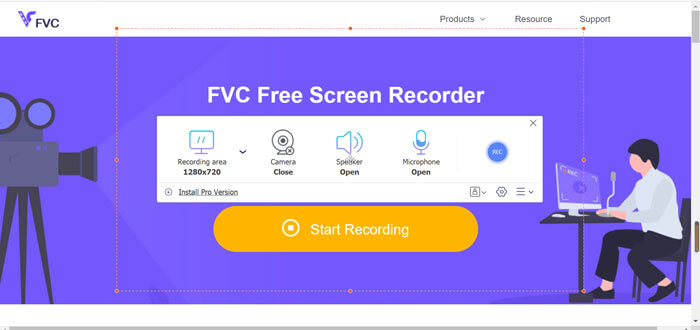
ステップ 2: アプリケーションを起動すると、録画設定画面が表示されます。ここで Recording area オプションをクリックして、全画面または部分的な画面録画を選択したり、Speaker メニューをオンにして音声ファイルを録音したりできます。ナレーション付きの動画を録画したい場合は、Webcam オプションをオンにするだけです。
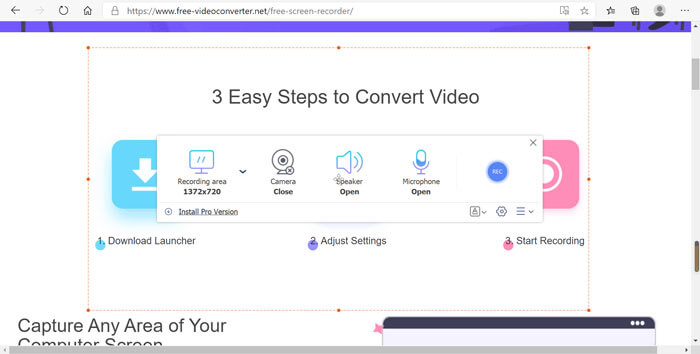
ステップ 3: さらに細かいファイル設定を変更したい場合は、Web 起動型レコーダー右下にある Gear アイコンをクリックしてオプションをカスタマイズします。表示される設定ウィンドウで、録画ファイルの保存場所や出力ファイル形式などを変更できます。
ステップ 4: 準備ができたら、REC ボタンをクリックして録画を開始します。録画が完了したら、Stop ボタンをクリックして一連の操作を終了します。Web 起動型レコーダー画面下部の三本線アイコンをクリックすると、録画済み動画の一覧を開いて管理できます。
パート3:Web LaunchRecorderに関するFAQ
1. Webカメラで画面を記録するにはどうすればよいですか?
Web 起動型レコーダーが起動している状態で、インターフェースからウェブカメラ機能を探して有効にし、ウェブカメラウィンドウのサイズを調整してからメイン画面に戻り、REC アイコンをクリックすれば、内蔵ウェブカメラで映像の録画を開始できます。
2.画面の記録に音が出ないのはなぜですか?
プログラムのメインインターフェイスには、システムサウンドとマイクのオプションがあります。録音する前にそれらをオンにするのを忘れるかもしれません。録画する前に、このオプションが有効になっていることを確認して、音声付きの録画ビデオを取得できるようにしてください。
3.マイビデオをYouTubeにアップロードするにはどうすればよいですか?
無料のWeb起動レコーダーを起動し、インターフェイスの右下隅にある3本線のアイコンを見つけてクリックします。次に、ポップアップ録画リストからアップロードするビデオを見つけて、下の共有アイコンをクリックします。最後に、メディアプラットフォームからビデオを選択すると、記録されたビデオを任意のプラットフォームで簡単に共有できます。
結論
要約すると、この記事では、市場で最も人気のある4つの無料オンラインWeb起動レコーダーを紹介し、最高のオンラインアプリの1つであるFVC Free ScreenRecorderのビデオ録画方法を詳しく紹介します。品質を損なうことなく、無料でビデオとオーディオを録音するのに役立ちます。
-
 デスクトップとオンラインで見逃してはならない6つの最高のWAVレコーダー
 この記事で共有する最高のWAV録音ソフトウェアには、プロのようにオーディオと音声をキャプチャするのに役立つさまざまな便利な機能があります。
-
 QuickTimeスクリーンレコーディング–MacとPCでオーディオ付きのビデオを録画する
 Macで音声付きの録音画面が便利です。内蔵プレーヤーであるQuickTimePlayerがそれを実行できます。彼の投稿を読んで、MacとPCで音声付きの画面をキャプチャする方法を知ってください。
-
 DU Recorder Review 2021:Safety&Price&Functions&Use&Ratings
 DU Recorderは、iPhoneおよびAndroid用のスクリーンおよびオーディオレコーダーです。ダウンロードする価値はありますか?安全ですか?レビュー全体を読んで、アプリがあなたに適しているかどうかを確認してください。
