


 ビデオコンバーター究極
 スクリーンレコーダー
 ビデオ修復
ビデオ修復
 安全なダウンロード
Facebookのスクリーンショットの撮り方:6つの効果的な方法
Facebookのようなソーシャルメディアプラットフォームを日常的に利用していると、情報をシェアすることは全体的なSNS体験の欠かせない一部になっています。おもしろい情報を探しているとき、友達の投稿やニュースを共有できることは重要で、そのための最も手軽な方法のひとつが Facebook のスクリーンショットを撮ることです。スクリーンショットを撮る場面がどのような内容であっても、操作自体はとても簡単です。本ガイドでは、モバイルからデスクトップまで、さまざまなデバイスを使ってFacebookのスクリーンショットを撮る方法を詳しく解説していきます。その手順を知る過程で、どのデバイスでもあらゆる種類のスクリーンショットが撮影できる、信頼性の高いサードパーティ製ソフトの使い方もあわせて紹介します。このソフトについてさらに詳しく知りたい場合は、この記事を最後まで読んで、プロのようにFacebookのスクリーンショットを活用しましょう。

パート1. さまざまなデバイスでFacebookのスクリーンショットを撮る方法
Facebookの投稿をスクリーンショットする方法を詳しく見ていく前に、まず使用するデバイスを決める必要があります。今回は、Windows、Mac、iPad/iPhone、Samsung Galaxy、Androidと、デバイスごとにステップバイステップのガイドを用意しました。デバイスによってスクリーンショットの撮り方が若干異なる場合があり、Facebookのようなソーシャルメディアプラットフォームではなおさらです。
ウィンドウズ
Windowsの場合、Windows 7以降を使用しているかどうかに関係なく、Facebookでスクリーンショットを撮る方法は複数あります。以下の手順に従えば、最も簡単な方法で効果的にスクリーンショットを撮ることができます。また、以下の手順では、WindowsのSnipping Tool機能を使用してFacebookのスクリーンショットを撮っています。
ステップ1.Windowsのスタートメニューから検索して、「Snipping Tool(切り取り & スケッチ)」ソフトを開きます。
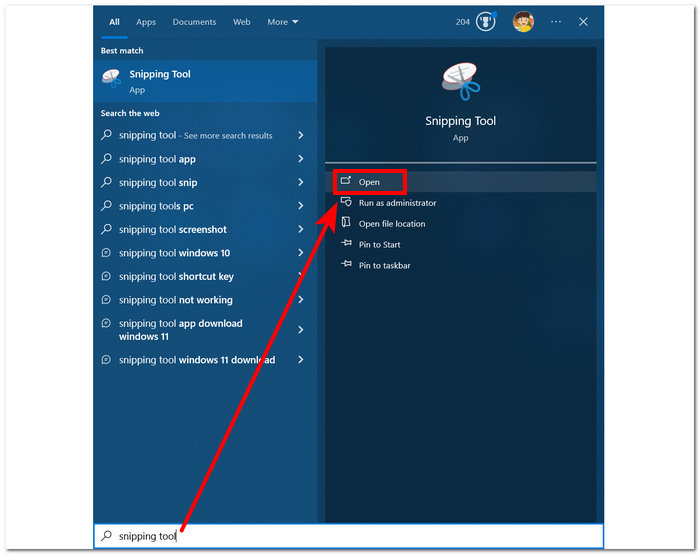
Snipping Tool ソフトウェアは Windows にすでにプリインストールされています。
ステップ2.Snipping Tool を起動したら、スニッピング機能にアクセスするために、モードのドロップダウンボタンをクリックします。ここでは、四角形の領域切り取りを選択できます。
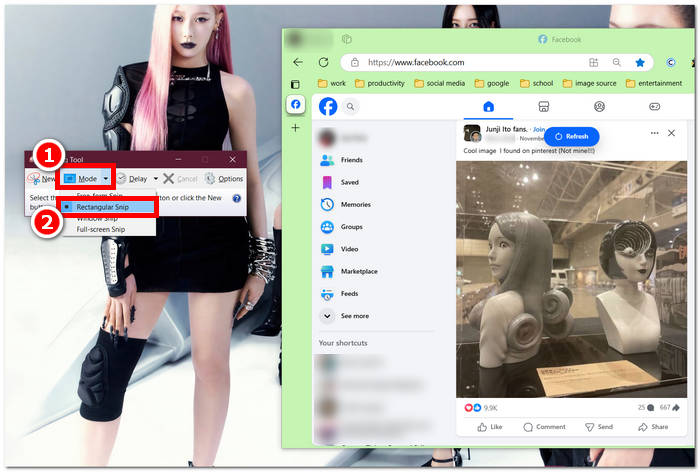
スナップショットに任意の形状の領域を指定したい場合は、「自由形式の領域切り取り」を選択します。長方形のスクリーンショット領域を指定したい場合は、「長方形の領域切り取り」を選択します。特定のウィンドウまたはタブのスクリーンショットをキャプチャしたい場合は、「ウィンドウ領域切り取り」を選択します。Windows 画面全体のスナップショットをキャプチャしたい場合は、「全画面領域切り取り」を選択します。
ステップ3.「四角形の領域切り取り」をクリックしたら、Facebook の画面上でスクリーンショットに含めたい範囲をドラッグして選択します。選択が完了すると、指定した部分が表示された Snipping Tool のウィンドウが開きます。その中で、テキストやハイライト、注釈などを追加してスクリーンショットをカスタマイズできます。
ステップ4.最後に、Snipping Tool ウィンドウ上部の保存ボタンをクリックして完了です。
![[保存]ボタンをクリックします](/images/2025/04/click-save-button.jpg)
マック
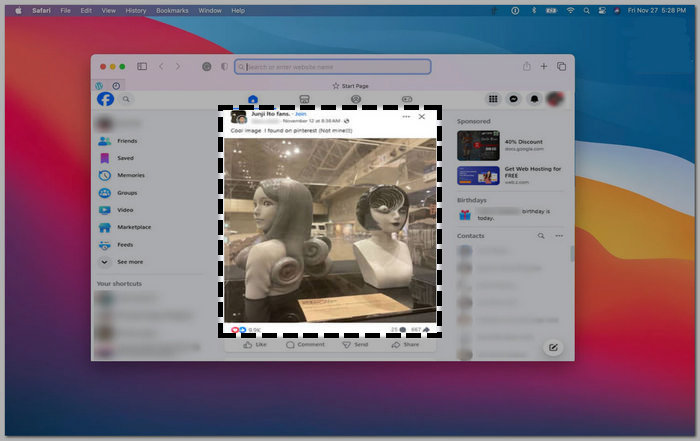
Facebookコンテンツのスクリーンショットの撮り方は、MacデバイスではWindowsとは異なる場合があります。ただし、ここではMacキーボードの基本的なショートカットキーコマンドに従うことのみを説明します。
ステップ1.Mac デバイスで Safari ブラウザを開き、Facebook のサイトにアクセスします。
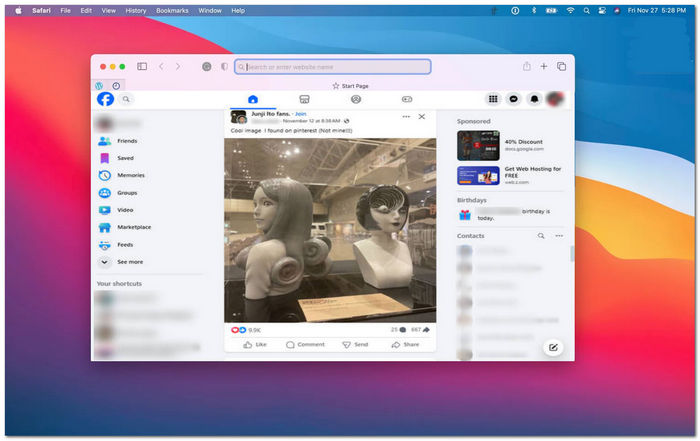
ステップ2.Mac のキーボードで Facebook のページをスクリーンショットするには、command + shift + 4 を同時に押します。
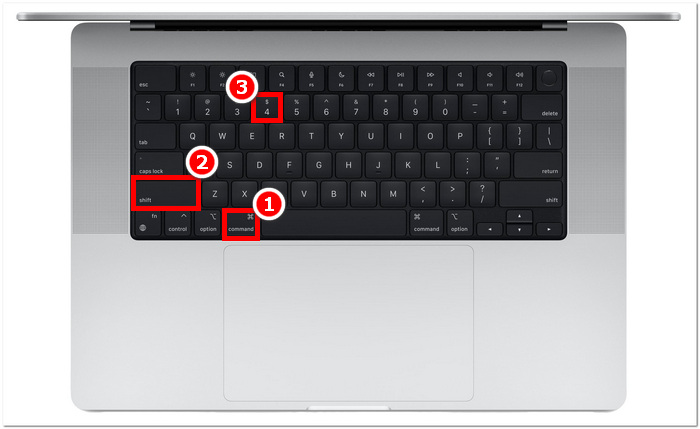
ステップ3.カーソルを使って、クリックしたままドラッグし、キャプチャしたい範囲を選びます。
ステップ4.カーソルを離すと、Mac の Safari ブラウザ上の Facebook 画面がすぐにスクリーンショットとして保存されます。
iPad/iPhone
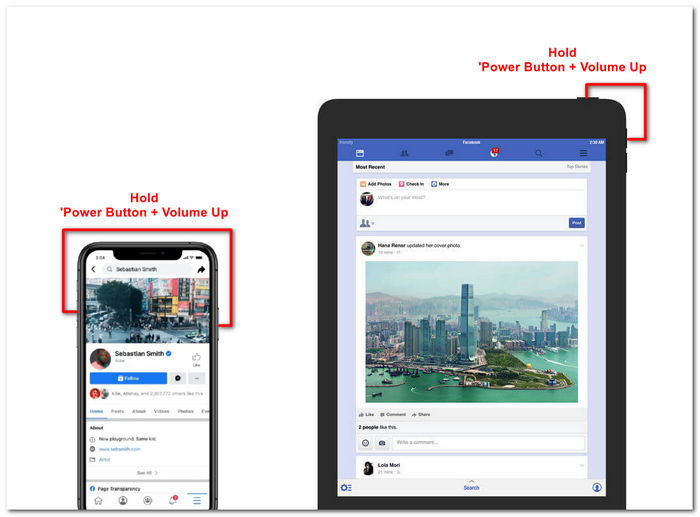
iPadやiPhoneのような持ち運びやすいデバイスでは、電源ボタンと音量アップボタンを併用するだけでスクリーンショットを撮れるので簡単です。iPadでもiPhoneでも、以下の手順に従ってください。
ステップ1.iPhone または iPad で Facebook アプリを開き、フィードを閲覧して、投稿やストーリーなど、スクリーンショットを撮りたいコンテンツを見つけます。
ステップ2.準備ができたら、Facebook コンテンツのスクリーンショットを撮ります。デバイスの電源ボタン + 音量を上げるボタンを同時に押し、撮影した画像は「写真」アプリに保存されます。
サムスンギャラクシー
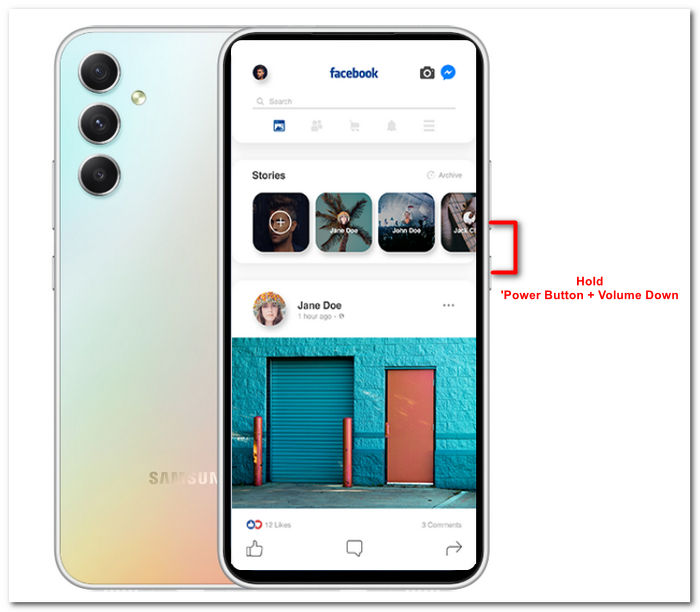
Samsung Galaxyデバイスをご利用で、Facebookアプリ内でスクリーンショットを撮る方法がわからない場合は、以下の手順が役立ちます。
ステップ1.Samsung Galaxy デバイスで Facebook アプリを開き、スクリーンショットとして保存したいコンテンツを探します。
ステップ2.キャプチャしたい Facebook コンテンツが見つかったら、電源ボタン + 音量を下げるボタンを同時に押して、効果的にスクリーンショットを撮ります。
また、S23 のような Samsung 専用モデルでのスクリーンショットの撮り方にも役立ちます。あらゆるスクリーンショットに関するお悩みを、このツールひとつで解決できます。
アンドロイド
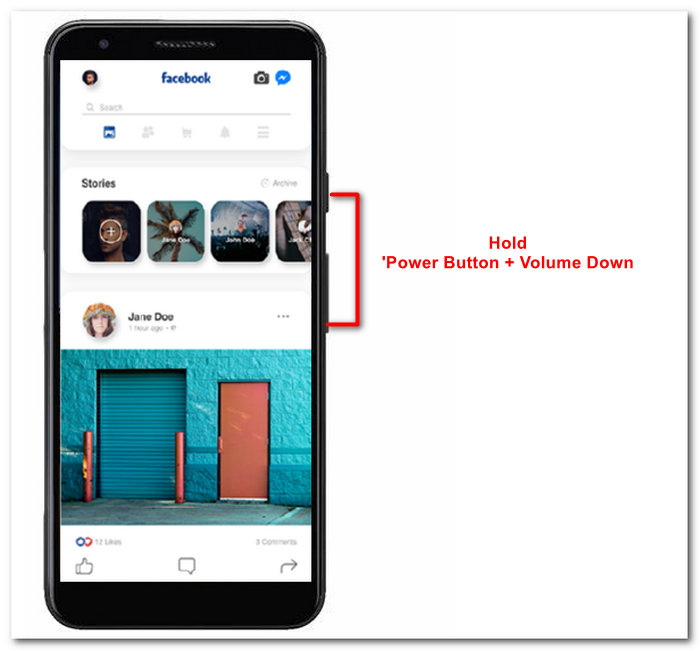
スクリーンショットの撮影方法はAndroidとiOSで異なります。Androidでは音量アップボタンではなく音量ダウンボタンを使用します。Facebookの画面を簡単にキャプチャするには、以下の手順に従ってください。
ステップ1.Android デバイスで Facebook モバイルアプリを開き、ギャラリーにスクリーンショットとして保存したいコンテンツを、タイムラインから探します。
ステップ2.保存したいコンテンツが見つかったら、電源ボタンと音量を下げるボタンを同時に押してスクリーンショットを撮り、そのままギャラリーアプリに保存されます。
パート2:デスクトップ上のすべてをキャプチャできる優れたスクリーンレコーダー
もし、Facebook の画面をより便利にスクリーンショットし、すぐに編集・注釈・ハイライト・トリミングなどを行いたいのであれば、FVC 厳選の画面録画ソフトの利用をおすすめします。この無料の画面録画ツールは、リアルタイムで画面を録画できるだけでなく、簡単にスナップショットを撮ってコンテンツを素早く共有できる、二刀流のツールです。さらに、4種類のスクリーンショット設定を備えており、Mac でのスクリーンショットはもちろん、Dell など、あらゆるスクリーンキャプチャのニーズに対応できます。Facebook での利用にも非常に便利です。ここでは、この FVC 厳選画面録画ソフトが提供するスクリーンショット機能の使い方を、手順を追って紹介します。
ステップ1.デスクトップで、FVC 厳選画面録画ソフトをダウンロードしてインストールし、アプリケーションを起動します。
無料ダウンロードWindows 7以降に対応安全なダウンロード
無料ダウンロードMacOS 10.7以降に対応安全なダウンロード
ステップ2.お好みのブラウザで Facebook のサイトを開きます。画面録画ツール側で「スナップショット」のドロップダウンメニューをクリックし、Facebook 画面をキャプチャするためのスクリーンショットタイプを選択します。
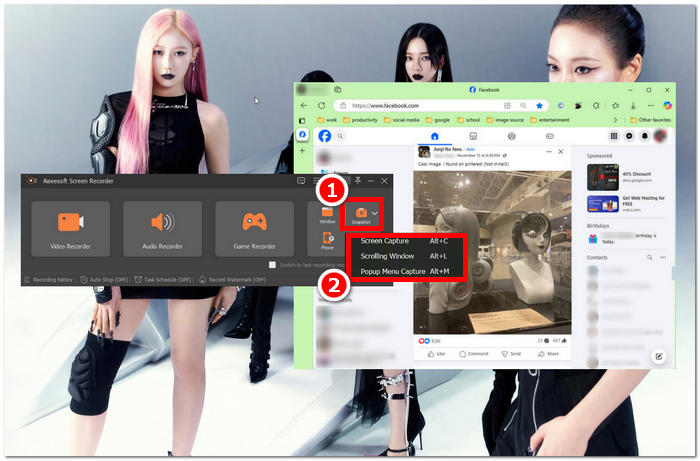
スクリーンキャプチャを使用すると、ホームページ全体のスクリーンショットを保存できます。スクロールウィンドウ機能は、ホームページ全体を上から下までスナップショットとして保存します。ポップアップメニューキャプチャを使用すると、ユーザーはウェブページの一部を選択しながら、カスタマイズしたスクリーンショットを撮影できます。
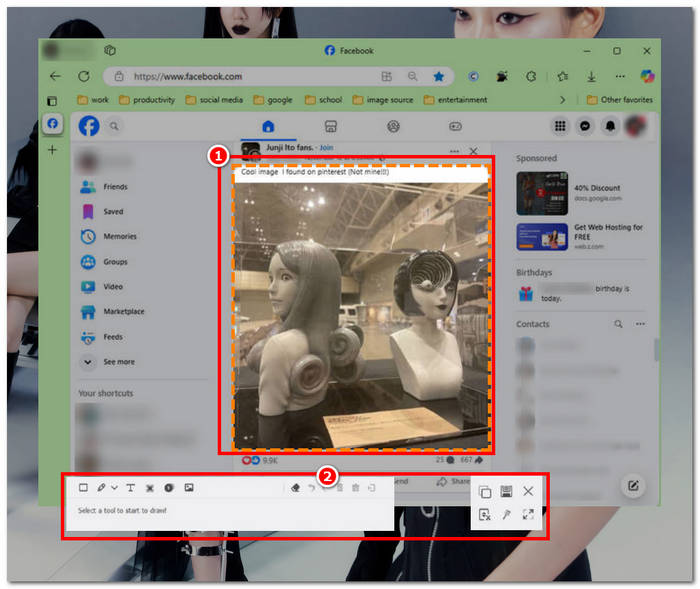
ステップ3.Facebook のタイムライン上で、キャプチャしたいコンテンツ部分にカーソルを合わせ、クリックしたままドラッグして範囲を選択します。
ステップ4.選択後は、画面下部に表示される各種ツールを使ってスクリーンショットを編集し、そのうえでデスクトップのダウンロードフォルダに保存できます。
パート3. Facebookのスクリーンショットに関するよくある質問
プロフィール、投稿、または写真をスクリーンショットした場合、他の人に見られてしまうのでしょうか?
いいえ、他のユーザーのFacebookプロフィールのスクリーンショットを撮っても、通知は届きません。スクリーンショットを相手と共有しない限り、あなただけが閲覧できます。
Messenger のスクリーンショットは検出可能ですか?
いいえ、セキュリティとデータ漏洩の懸念があるため、Facebook は会話のスクリーンショットを撮ったことを他のユーザーに通知しません。
Facebook のコンテンツをスクリーンショットすることは合法ですか?
Facebookのコンテンツのスクリーンショットは、公開投稿は誰でも閲覧できるため、違法ではありません。ただし、他人のコンテンツや投稿を許可なく利用して利益を得ることは違法です。
結論
Facebook のスクリーンショットを撮ることは、コンテンツを保存したり、ほかのユーザーと素早く共有したりするのに最適な方法です。とても便利な機能であると同時に、デスクトップからモバイルまで、さまざまなデバイスでの撮り方を知っておくとより役立ちます。本ガイドでは、お手持ちのどんなデバイスからでも Facebook のスクリーンショットを撮るための、複数のアプローチを学ぶことができます。なかでも、FVC 厳選画面録画ソフトを使えば、スクリーンショットをその場でトリミングしたりハイライトしたりできるため、後から別のアプリで編集する手間が省けるのが大きな利点です。
-
 アルカテルでスクリーンショットを撮って瞬間を捉える方法
 Alcatel デバイスでスクリーンショットを撮るのに苦労していませんか? この携帯電話とデスクトップのソフトウェア ソリューションを試して、画面を保存し、オフラインで表示できるようにしてください。
-
 Minecraft でスクリーンショットを撮る方法: 最も簡単なゲーム画面キャプチャ
 Minecraft でスクリーンショットを撮る最も簡単な方法を学びましょう。組み込みツールとスクリーン レコーダー ソフトウェアを使用して、Minecraft の作成物を保存してみましょう。
-
 Chromebook でスクリーンショットを撮る方法 [ステップバイステップ ガイド]
 この包括的なステップバイステップ ガイドで、Chromebook でスクリーンショットを簡単にキャプチャする方法を学びましょう。ガイドに従って、今すぐ完璧なスクリーンショットを撮りましょう。
