


 ビデオコンバーター究極
 スクリーンレコーダー
 ビデオ修復
ビデオ修復
 安全なダウンロード
[解決済み] Android でスクリーンショットを撮る 4 つの方法
スクリーンショットを撮ることは、今ではスマートフォンで最もよく行う操作のひとつです。画面をスクロールしているときに表示された画像やテキスト、投稿などを保存したいとき、私たちはその画面のスクリーンショットを撮ります。もしあなたがAndroid端末を使っていて、そのスクリーンショット機能をどう活用すればよいか知りたいなら、ここでしっかり解説します。本記事では、Androidでスクリーンショットを撮る4つの方法を学び、端末の機能を最大限に活かしましょう。画面を保存しておきたいコンテンツがあるときは、ぜひスクリーンショットを活用してください。

パート1: Androidスマートフォンでスクリーンショットを撮る方法
不思議に思うかもしれませんが、Android でスクリーンショットを撮る方法は、デバイスの製造元とオペレーティング システムのバージョンによって異なります。したがって、Android ユーザーで、スクリーンショットを撮るときにどの方法を使用すればよいかわからない場合は、以下の手順を確認してください。
方法 1: ハードウェア ボタンを使用する
Android デバイスでスクリーンショットを撮る最も一般的な方法は、ハードウェアまたは物理ボタンを使用することです。これは、そのアクセスしやすさと利便性から、Android でスクリーンショットを撮る際に最もよく使用される方法です。
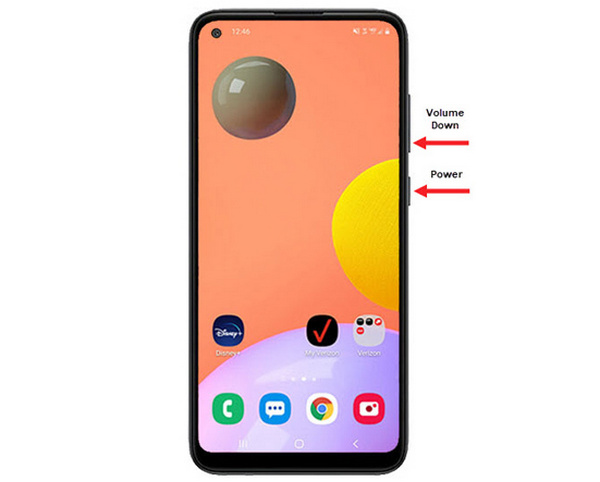
手順1. まず、Androidスマートフォンで音量ダウンボタンと電源ボタンを同時に押します。スクリーンショットが撮影されるまで押し続けてください。
手順2. その後、撮影したスクリーンショットは「ギャラリー」アプリから確認できます。
したがって、ハードウェア ボタンが正常に動作している場合は、この方法に従って Android で簡単にスクリーンショットを撮ることができます。
方法2: ショートカットを使用する
現在、一部の Android デバイスには、クイック設定パネルにスクリーンショット機能が組み込まれており、スクリーンショットをすばやく撮るのに便利です。
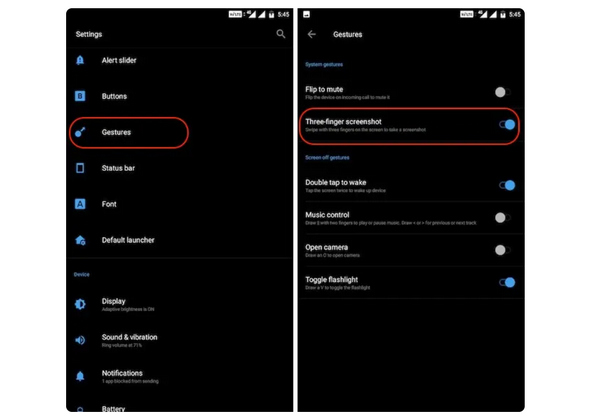
手順1. まず、Androidスマートフォンで「設定」を開きます。少し下にスクロールして、ジェスチャーまたはボタンという項目を選択します。
手順2. そこからスクリーンショットというオプションを探し、オンに切り替えます。
手順3. あとは、この機能を使ってスクリーンショットを撮るには、保存したい画面上で3本指で上から下にスワイプするだけです。
この方法は、スクリーンショットを撮るためにボタンを押したくない場合に最適です。ただし、最初に設定でこれを設定する必要があります。そのため、慣れていない場合は、上記の手順に従ってください。
方法3: Googleアシスタントを使用する
一方、Android スマートフォンに Google アシスタントが搭載されている場合は、それを使用して簡単にスクリーンショットを撮ることができます。
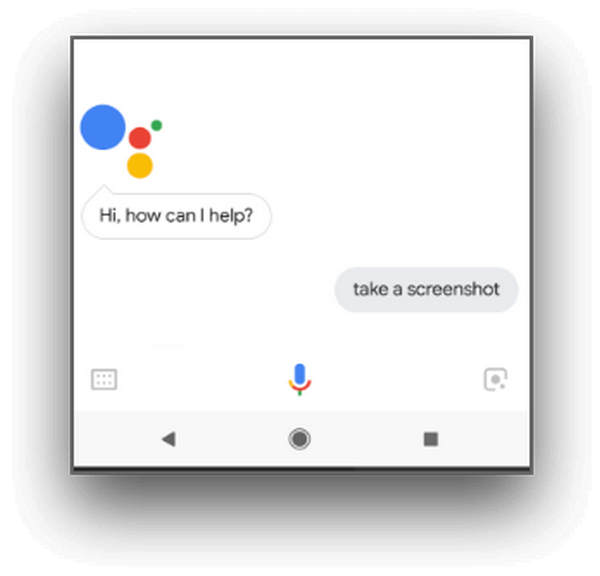
手順1. まず、ホームボタンを押すか、「OK」「ヘイ Google」などの音声コマンドを使ってGoogleアシスタントを起動します。
手順2. 起動したら、「スクリーンショットを撮って」または「スクリーンショット」と言います。
注意:スクリーンショットが撮影されると、アニメーションが表示されるか、撮影完了を知らせる音が鳴ります。
手順3. 撮影したスクリーンショットは、スマートフォンの「ギャラリー」アプリ内のスクリーンショットフォルダからアクセスできます。
注意:この方法はすべてのAndroid端末で使えるわけではありません。お使いのスマートフォンに、音声コマンドでスクリーンショットが撮れるGoogleアシスタント機能がある場合のみ、ここで紹介した手順に従ってください。
パート2: Androidタブレットでスクリーンショットを撮る方法
Android タブレットをお持ちで、それを使用してスクリーンショットを撮る方法がわからない場合は、次の手順に従ってください。
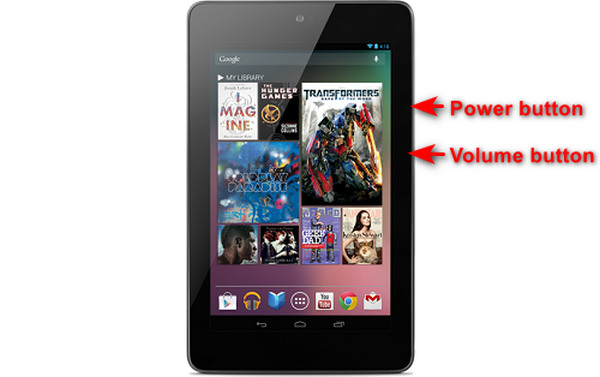
手順1. Androidタブレットで、電源ボタンと音量ダウンボタンを同時に数秒間押し続けます。
注意:スクリーンショットが撮影されると、通知などで知らせてくれます。
手順2. その後、撮影したスクリーンショットはタブレットのギャラリーアプリ内のスクリーンショットフォルダから確認できます。
この方法が Android タブレットで機能しない場合は、次に Google Play ストアからサードパーティ製アプリを使用してスクリーンショットを撮る必要があります。
パート3:コンピューターを使ってAndroidのスクリーンショットを撮る方法
もし、これまで紹介した方法がうまく使えず、パソコンからAndroidでスクリーンショットを撮りたい場合は、最適なツールがFVC Screen Recorderです。このツールは、パソコンにミラーリングしたスマートフォン画面のスクリーンショットを撮るために設計されており、Android端末との相性も抜群です。Phone Recorder機能を利用すれば、パソコンから手軽にAndroid画面のスクリーンショットを撮ることができます。さらに、市販されている多くのサードパーティーツールと比べても、このツールは直感的で使いやすいインターフェースを備えているため、操作に困ることはほとんどありません。
ステップ1. まず、パソコンにFVC Screen Recorderをダウンロードして起動します。
無料ダウンロードWindows 7以降に対応安全なダウンロード
無料ダウンロードMacOS 10.7以降に対応安全なダウンロード
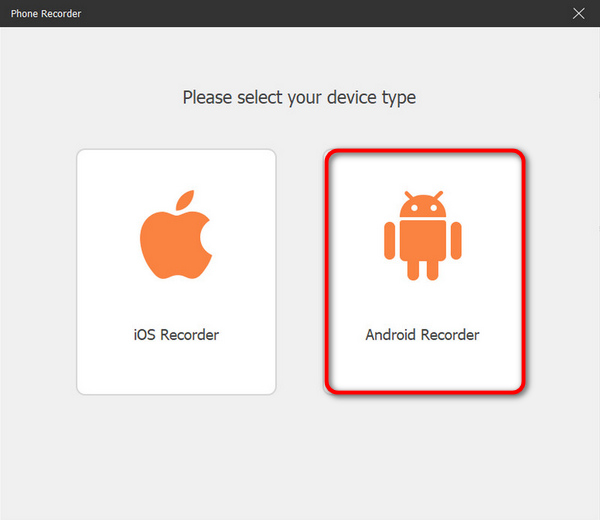
手順2. 画面右側に表示されている4つのオプションの中から、Phone recorderオプションをクリックします。
手順3. 次に、Android Recorderをクリックします。
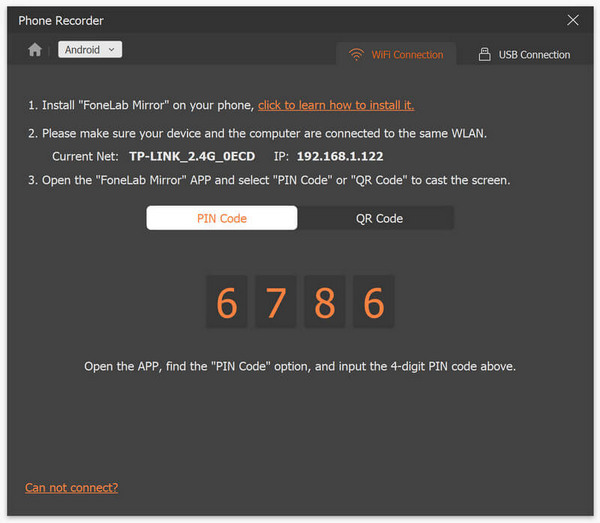
手順4. スマートフォンの画面をキャストするには、Wi‑FiまたはUSB接続を利用できます。Wi‑Fiを選ぶ場合は、PINコードまたはQRコードを使って、簡単にパソコン上のPhone recorder機能にスマートフォン画面をキャストできます。
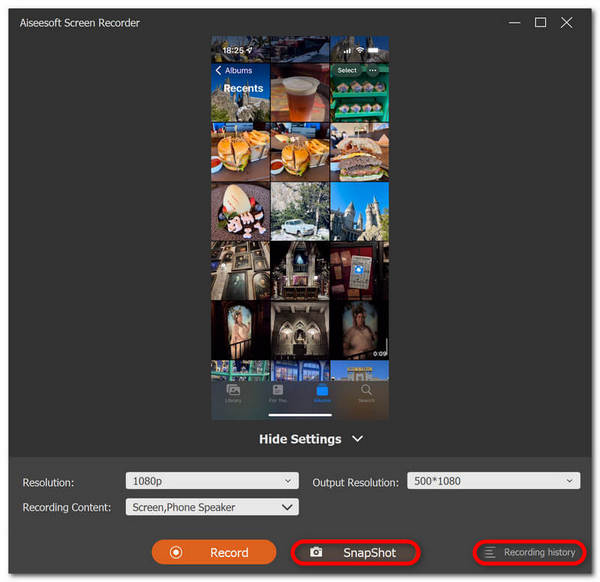
手順5. ミラーリングが有効になったら、Android画面のスクリーンショットをパソコンで撮るには、スナップショットアイコンをクリックするだけです。
手順6. 最後に、撮影したスクリーンショット画像は、Windowsパソコン上の指定されたフォルダから直接確認できます。
FVC スクリーン レコーダーは、コンピューターを使用して Android のスクリーンショットを撮りたい場合に最適なツールです。電話の録画機能を使用すると、デバイスの設定から実際のスクリーンショットの撮影まで、すべてが簡単になります。このツールには必要なものがすべて揃っています。
パート4:Androidでスクロールスクリーンショットを撮る方法
Android で Web ページや長い会話のスクリーンショットを、複数回撮るのではなく 1 回で撮りたい場合は、次の手順に従ってください。
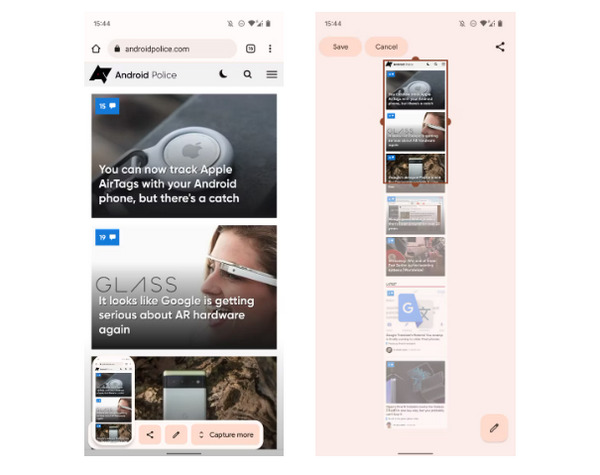
手順1. まず、Androidスマートフォンで通常どおりスクリーンショットを撮ります。
手順2. 次に、スクリーンショットのプレビューをタップしたあとで、Capture Moreボタンをタップします。
注意:スクリーンショットを拡張するウィンドウを利用するとき、より正確に操作できるよう、システムは拡大鏡を表示します。
手順3. 最後に、保存をタップしてスクリーンショットを保存します。
ウェブページ全体やスクリーンショットの会話全体を表示するためだけに、大量のスクリーンショットを撮る必要がなくなります。
パート 5: Android でのスクリーンショットの撮影に関する FAQ
Android デバイスのデフォルトのスクリーンショット フォルダーを変更できますか?
はい。必要に応じて、デフォルトのスクリーンショット フォルダーを変更できます。Android スマートフォンでスクリーンショット用に新しいフォルダーを作成するか、別のフォルダーを選択するだけです。
Android スマートフォンのハードウェア ボタンが機能しない場合にスクリーンショットを撮るにはどうすればよいでしょうか?
まず、Android スマートフォンのハードウェア ボタンが機能していない場合でもスクリーンショットを撮ることができるかどうか疑問に思っている場合、答えは「はい」です。したがって、このような場合は、FVC スクリーン レコーディングなどのサードパーティのスクリーン レコーディング ツールを使用するのが最適です。これにより、ユーザーは電話レコーダー機能を使用するだけで、Android スマートフォンでスクリーンショットを撮ることができます。
Android デバイスでスクリーンショットに注釈を付けたり編集したりできますか?
はい。Android デバイスでスクリーンショットや写真に注釈を付けたり編集したりできます。これは、組み込みの編集機能を使用してスクリーンショットを撮った後に直接行うことができます。スクリーンショットにテキスト、描画、矢印、図形を追加したり、切り取り、サイズ変更、フィルターを適用したりできます。
結論
以上で、Androidでスクリーンショットを撮る方法はもうとても簡単になりました。自分の端末に合った方法さえ分かれば、あとはスムーズに使いこなせます。さっそく自分に合うやり方を選んで、Androidで思い出の瞬間をどんどんキャプチャしていきましょう。
-
 この基本ガイドでMacで簡単にスクリーンショットを撮る方法
 Mac でスクリーンショットを撮りたいけれど、やり方がわからない? 大丈夫です! 画面のスクリーンショットを撮って画像を保存する最も簡単で素早い方法を紹介します。
-
 この基本ガイドでMacで簡単にスクリーンショットを撮る方法
 Mac でスクリーンショットを撮りたいけれど、やり方がわからない? 大丈夫です! 画面のスクリーンショットを撮って画像を保存する最も簡単で素早い方法を紹介します。
-
 この基本ガイドで簡単にビデオのスクリーンショットを撮る方法 [2024]
 これらの簡単な方法で、ビデオからスクリーンショットを簡単に撮る方法を学びましょう。ガイドに従って、今すぐお気に入りのビデオのスクリーンショットを撮り始めましょう。
