


 ビデオコンバーター究極
 スクリーンレコーダー
 ビデオ修復
ビデオ修復
 安全なダウンロード
Google Chromeで簡単にスクリーンショットを撮る方法
今日のデジタル社会では、スクリーンショットを撮ることがとても便利になっています。重要な情報を保存したり、おもしろいミームを共有したり、会話の記録を残したりと、画面に表示されているものをすばやくキャプチャする方法を知っていると、生活がぐっと楽になります。Google Chrome は、その高速性とシンプルさで多くの人に選ばれている定番ブラウザです。そこで本ガイドでは、Chrome でスクリーンショットを撮る方法を、いくつかの簡単な手順でご紹介します。Chrome を使い始めたばかりの方も、長年使っている方も、ここで紹介するコツを押さえれば、あっという間にスクリーンショットの達人になれます。準備はいいですか? さっそく見ていきましょう!

パート1. ショートカットを使用してGoogle Chromeでスクリーンショットを撮る方法
Google Chrome でスクリーンショットを撮るには、キーボード ショートカットを使用するのが依然として最も人気があります。その理由はいくつかあります。まず、非常に高速かつ効率的で、ブラウジングの速度を落とさずに必要なものを簡単にキャプチャできます。これらのショートカットは、Windows、macOS、Chrome OS などのさまざまなオペレーティング システムで機能するため、どのデバイスを使用していても問題ありません。さらに、Chrome に組み込まれているため、他のソフトウェアや拡張機能をダウンロードする必要はありません。
これを行うには、Google Chrome で簡単にスクリーンショットを撮るために覚えておく必要があるショートカットは次のとおりです。
Windowsの場合
全画面スクリーンショット: Ctrl + PrtScn または Windows キー + PrtScn を押します。
アクティブウィンドウのスクリーンショット: Alt + PrtScn を押します。
macOSの場合
全画面スクリーンショット: Command + Shift + 3 を押します。
アクティブウィンドウのスクリーンショット: Command + Shift + 4 を押したあとに スペースバー を押します。その後、キャプチャしたいウィンドウをクリックまたは選択します。もしMac でスクリーンショットをトリミングしたい場合は、クイックツールバーを使用する必要があります。
Chrome OSの場合
全画面スクリーンショット: Ctrl + Show Windows F5 を押します。
部分スクリーンショット: Ctrl + Shift + Show Windows を押してから、クリック&ドラッグしてキャプチャしたい範囲を選択します。
これらのショートカットを使用すると、Google Chrome でスクリーンショットをキャプチャするための一貫性のある信頼性の高い方法が確保され、潜在的な不具合を最小限に抑えることができます。これらは、障害のある人を含むすべての人が利用できるように設計されています。つまり、キーボード ショートカットは、あらゆるレベルのユーザーにスピード、アクセシビリティ、信頼性を提供する頼りになる方法です。
パート2. スクリーンレコーダーを使用してGoogle Chromeでスクリーンショットを撮る方法
キーボード ショートカットを使用すると、Google Chrome でスクリーンショットをすばやく効率的にキャプチャできますが、スクリーン レコーダー ソフトウェア ツールを使用すると独自の利点が得られるため、スクリーンショットを撮るニーズには魅力的な代替手段となります。
FVC Screen Recorder は多機能であることから、Google Chrome 上でスクリーンショットを撮るための包括的なソリューションとして際立っています。ユーザーは JPG や PNG など、複数の形式でスクリーンショット画像を保存できます。
これを使用するには、以下の簡単な手順に従ってください。
ステップ1. まず FVC Screen Recorder をダウンロードしてインストールします。
無料ダウンロードWindows 7 以降に対応安全なダウンロード
無料ダウンロードMacOS 10.7 以降に対応安全なダウンロード
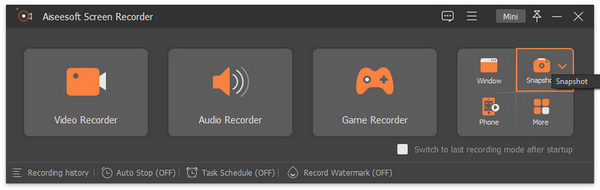
ステップ 2. ダウンロード後、ツールを起動し、右端にあるスナップショットアイコンをクリックします。次に、Screen Capture(画面キャプチャ)を選択します。
ステップ 3. その後、Google Chrome で動画を再生している間に、スクリーンショットを撮りたい動画の範囲をドラッグして選択します。
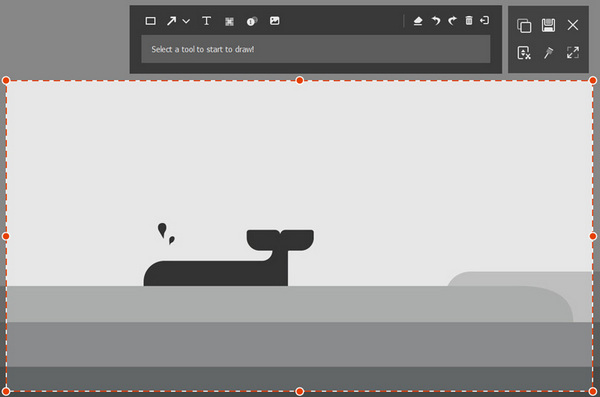
ステップ 4. 選択が終わったら、保存ボタンをクリックするだけです。お好みの画像形式を選ぶのを忘れないでください。
Aiseesoft Screen Recorder の簡単なセットアップとナビゲーションにより、ユーザーはスクリーンショットのプロセスを効率化でき、複雑な設定や構成に煩わされることなくコンテンツのキャプチャに集中できます。
パート3. Google Chrome拡張機能でスクリーンショットを撮る方法
スクリーンショットに Google Chrome 拡張機能を使用すると、ブラウザ内で直接コンテンツをキャプチャするための便利で統合されたソリューションが提供されます。この目的のための注目すべき拡張機能の 1 つが Awesome Screenshot です。これは、豊富な機能でスクリーンショットのエクスペリエンスを強化します。
Awesome Screenshot を使用すると、ユーザーは Google Chrome でスクリーンショットをキャプチャし、テキスト、図形、矢印で注釈を付けて、簡単に保存または共有できます。
ステップ 1. Chrome ウェブストアから Awesome Screenshot 拡張機能を入手します。
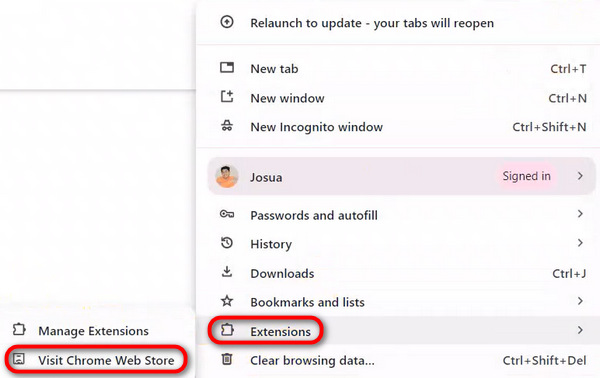
ステップ 2. 次に、検索バーで Awesome Screenshot 拡張機能を検索します。

ステップ 3. その後、Chrome に追加 をクリックします。
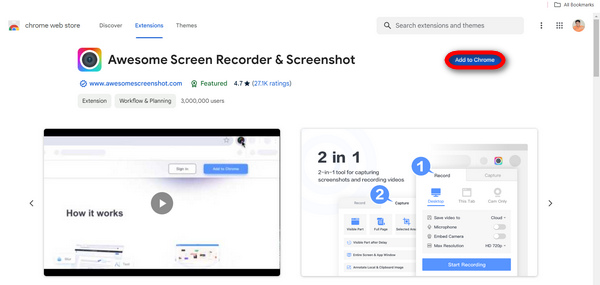
ステップ 4. 続いて Capture タブを選択し、使用したいキャプチャの種類を選びます。
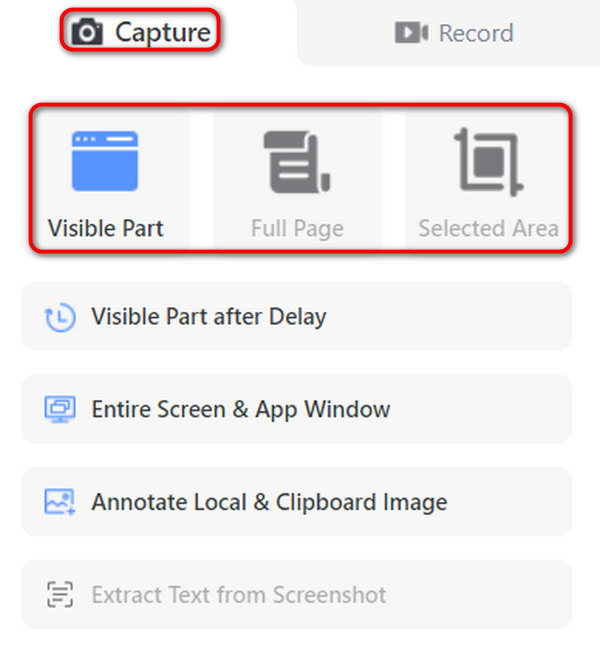
ステップ 5. 必要に応じてスクリーンショットをカスタマイズまたは編集します。完了すると、自動的にデバイスに保存されます。
それだけです! Awesome Screenshot を使用すると、Google Chrome でスクリーンショットをすばやく簡単にキャプチャして共有できます。
パート4. Google Chromeスクリーンショットに関するよくある質問
Google Chrome でキーボード ショートカットや拡張機能を使用してスクリーンショットをキャプチャする前に、調整する必要があるブラウザ設定や環境設定はありますか?
Google Chrome でスクリーンショットを撮るためのキーボード ショートカットや拡張機能を使用する場合、通常、特定のブラウザ設定や環境設定を調整する必要はありません。ただし、ショートカットや拡張機能との互換性の問題を回避するために、ブラウザが常に最新であることを確認することをお勧めします。
ドロップダウン メニューやポップアップ ウィンドウなど、Web ページ内の特定の要素のスクリーンショットをキャプチャすることは可能ですか?
はい。特定の拡張機能を使用するか、キーボード ショートカットを使用して目的の領域を選択することで、Web ページ内の特定の要素のスクリーンショットをキャプチャできます。Awesome Screenshot などの拡張機能では、多くの場合、ページ全体をキャプチャするか、キャプチャする特定の部分を選択するかを選択できます。
Google Chrome のキーボード ショートカットや拡張機能を使用してキャプチャしたスクリーンショットのサイズや解像度に制限はありますか?
Google Chrome のキーボード ショートカットや拡張機能を使用してキャプチャしたスクリーンショットのサイズや解像度には、通常、固有の制限はありません。ただし、スクリーンショットの品質は、ディスプレイの解像度や、使用する拡張機能やキーボード ショートカットの設定などの要因によって左右されることがあります。
パスワードや個人データなどの機密情報がスクリーンショットに記録されないようにするにはどうすればよいですか?
スクリーンショットに機密情報が写り込まないようにするには、キャプチャする領域を選択する際に注意し、保存または共有する前にコンテンツを確認してください。また、拡張機能によっては、ぼかしツールや機密情報を切り取る機能などの機能を備えている場合があります。
追加のソフトウェアや拡張機能を使用せずに、スクリーンショットを保存または共有する前に、Google Chrome 内で直接編集できますか?
Google Chrome 自体にはスクリーンショットを編集する機能が組み込まれていませんが、Awesome Screenshot などの一部の拡張機能では、ブラウザ内で直接基本的な編集ツールが提供されます。これらのツールには、スクリーンショットを保存または共有する前に、注釈、テキスト、図形を追加したり、機密情報をぼかしたりするオプションが含まれている場合があります。または、外部の画像編集ソフトウェアを使用して、デバイスに保存されたスクリーンショットを編集することもできます。
Google Chrome でのスクリーンショットの撮り方を身につけることは、オンラインコンテンツを効率よくキャプチャして共有するうえで非常に重要です。キーボードショートカット、画面録画ツール、ブラウザ拡張機能など、好みに応じて選べるさまざまな方法があります。本記事で紹介した手順に従い、よくある疑問点を解消することで、ブラウジング体験と生産性を向上させることができます。
ワークフローを改善し、今日から Chrome でのスクリーンショット活用を始めましょう!
-
 [詳細ガイド]コンピュータで再生されないGoogleドライブビデオを修正する方法
 Google ドライブのビデオが「このビデオの再生中に問題が発生しました」というエラーで再生されません。これは、Google ドライブ自体または Chrome の問題が原因である可能性があります。この記事では、6 つの解決策を詳しく紹介します。
-
 Windows/Mac/モバイル向けのベスト 8 スクリーン レコーダー [オンライン & オフライン]
 WindowsおよびMac用の最も優れたスクリーンレコーダーを見つけてください。この記事を読んで、最高の無料のオンラインおよびオフラインのスクリーンレコーダーを知ってください。
-
 ShareXスクリーンレコーダーのレビューとShareXで画面を記録する方法
 ShareXスクリーンレコーダーは何に使用されますか? ShareXで画面を記録するにはどうすればよいですか?この投稿はShareXのレビューを提供し、ShareXで画面を記録する方法を示しています。
