


 ビデオコンバーター究極
 スクリーンレコーダー
 ビデオ修復
ビデオ修復
 安全なダウンロード
東芝のノートパソコンでスクリーンショットを撮る3つの効率的な方法
Keeping track of all the information you need just got a lot simpler. When you're swamped with data, snapping a quick screenshot can save the day, letting you hold onto crucial bits for later. The great news? Every device out there, Toshiba laptops included, comes with the built-in ability to take screenshots. This article is going to show you how to take a screenshot on a Toshiba laptop. We'll cover using nifty software, keyboard shortcuts, and the Snipping Tool to make the process a breeze. Keep reading to get all the smart ways to take screenshots on your Toshiba laptop.

パート 1. FVC が選んだスクリーン レコーダーを使用して東芝のラップトップでスクリーンショットを撮る方法
How do I screenshot on a Toshiba Laptop? Fret not, as FVC carefully browses the internet just for you Toshiba laptop users. FVC came up with their picked Screen Recorder that will surely fit and cater to your screenshot demand in your device. This software helps users to take screenshot tasks into a whole new experience as this software makes screenshots of specific areas, long page screenshots, and popup menus screenshots possible through its Snapshot feature located in its main interface. This software gives users the control and freedom to edit, annotate, crop, and highlight their screenshots right away, and you can choose the saving format of your screenshots as JPG, PNG, GIF, etc.
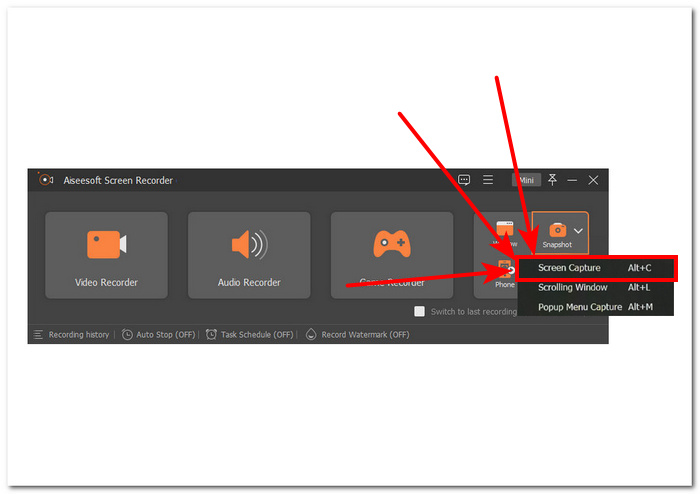
このソフトウェアを使用して東芝のノートパソコンの画面でスクリーンショットを撮るときにショートカット キーを使用することもできます。スクリーン キャプチャの場合は ALT + C、長いページのスクリーンショットの場合は ALT + L、ポップアップ メニューのスクリーンショットの場合は ALT + M の組み合わせキーを押すことで、時間を節約できます。これにより、1 つのソフトウェアで複数のタスクを一度に対象とするため、ユーザーは機能を柔軟に使用できます。
Step 1. Install the screen recorder software on your computer through their official website.
無料ダウンロードWindows 7以降に対応安全なダウンロード
無料ダウンロードMacOS 10.7以降に対応安全なダウンロード
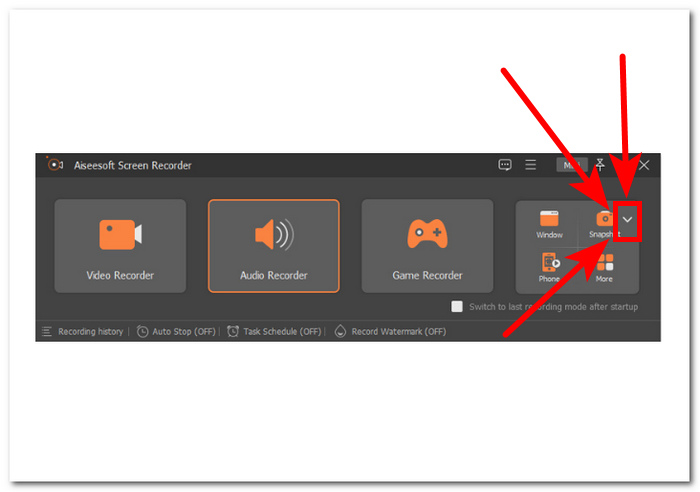
Step 2. Open the software, and in the main interface, click on the Snapshot arrow down button located on the right side of the software interface.
Step 3. Click and choose the Screen Capture option located from your drop-down menu to start taking screenshots on your Toshiba laptop screen.
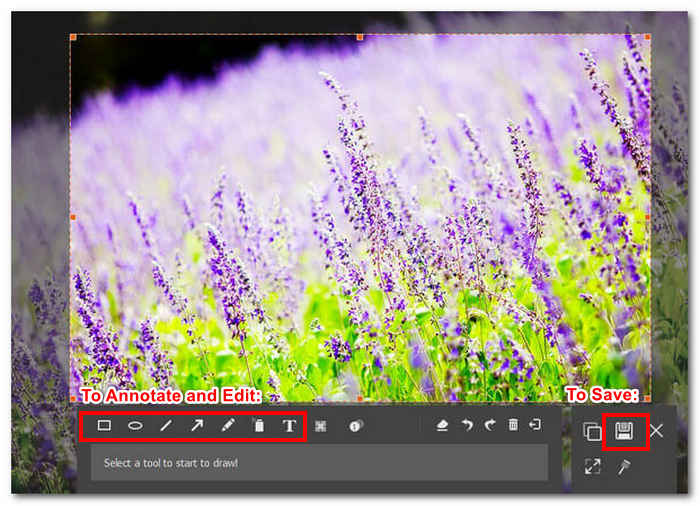
Step 4. You can finally choose the area you want to include in your screenshot by manually dragging the red rectangle field onto your Toshiba screen. To save your screenshot, click on the Save icon located on the lower-right side of your screenshot settings.
ソフトウェア スクリーンショットの左下にあるツールを使用して、スクリーンショットを保存する前に、トリミング、テキストの追加、注釈の追加などの編集を行うことができます。
In conclusion, the Screen Recorder allows users to perform screen capture on a Toshiba laptop effortlessly. As time passes, older Toshiba laptop models tend to slow down. However, there's no need to worry. FVC-picked software is lightweight and compatible with all laptops that run on Windows 7/8/10/11. With this software, you can use all its features without compromising your laptop's performance or worrying about the size of the software download file. Additionally, it is worth noting that this software isn’t just made for one purpose as it can also be used to take long page screenshots also known as scrolling screenshots, and popup menus screenshots with editing features. What’s more, the FVC-picked Screen Recorder is one of the best screen recorders to capture gameplay, make tutorials, and record online meetings.
パート2. ショートカットを使って東芝のノートパソコンでスクリーンショットを撮る方法
スクリーンショットを撮ることは、多くのラップトップ ユーザーにとってデフォルトのタスクです。東芝のラップトップは、シンプルで使いやすいショートカット キーを備えているため、スクリーンショットを撮るのがとても簡単です。東芝のラップトップ画面でスクリーンショットを撮る場合、他のラップトップと同様にスクリーンショットを撮るための専用キーがあるため、ショートカット キーの使用はこれまでになく簡単になりました。
Step 1. First, browse and open the content you want to screenshot using your Toshiba laptop.
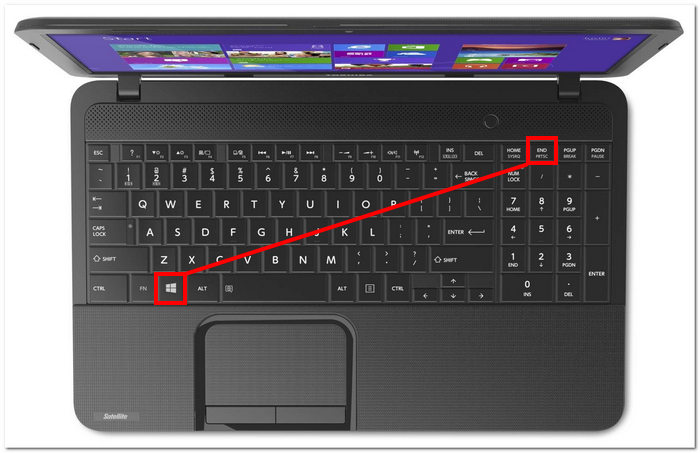
Step 2. When you open the content or information you want to screenshot simultaneously, press the Win + PrtSc key from your keyboard.
この方法では、東芝のノートパソコンの画面のスクリーンショットを単純に撮るだけであり、スクロールスクリーンショットやポップアップメニュースクリーンショットなどの機能は使用できません。他の種類のスクリーンショットの使用を検討している場合は、スクリーンレコーダーソフトウェアまたはSnipping Toolの使用を検討する必要があります。
Step 3. Your screenshot will be saved automatically from your Toshiba laptop's local storage. This local storage for screenshots is, by default, located in your Pictures folder in your File Explorer.
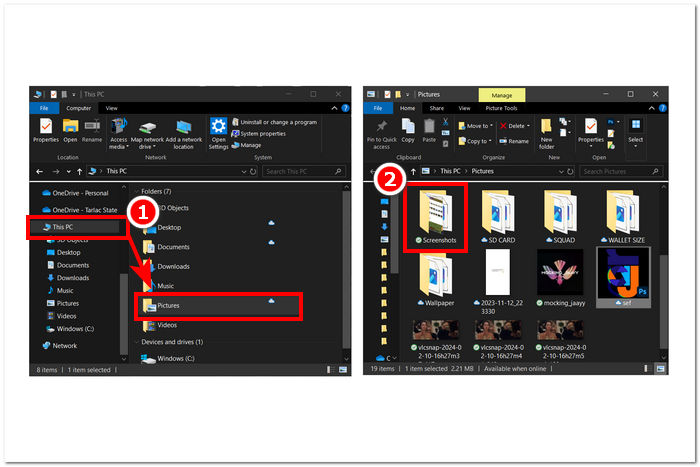
つまり、東芝のノートパソコンのホットキーは、頻繁にスクリーンショットを撮る必要がある人にとっては優れた選択肢であり、ショートカットキーによってプロセスが高速、シンプル、かつ効率的になります。その結果、スクロール スクリーンショットやポップアップ メニュー スクリーンショットなどのスクリーンショット モードがないことが欠点となり、スクロール スクリーンショットを実行したり、スクリーンショット内の特定の領域を選択したりする必要がある場合、ユーザーは 1 つのスクリーンショット モードしか使用できなくなります。
パート3. スニッピングツールを使用して東芝のノートパソコンでスクリーンショットを撮る方法
スクリーンショットを撮るには、時間のかかるソフトウェアをダウンロードしたくない、また、スクリーンショットから直接編集できないとわかったときにショートカット キーを使用するという面倒を避けたい場合に、Snipping Tool を使用することもできます。また、Snipping Tool は両方の方法を組み合わせたものです。同時に、Toshiba ラップトップにプリインストールされており、スクリーンショットに注釈を付けたり、テキストを入れたりするためのエントリーレベルのスクリーンショット編集機能を備えています。
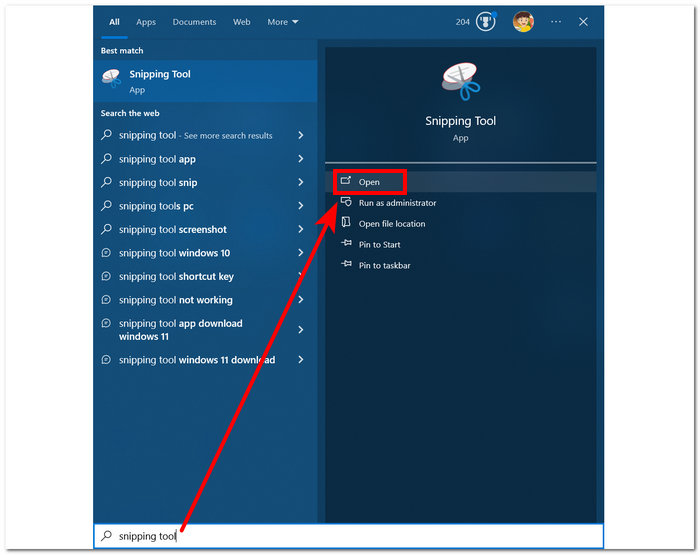
Step 1. Search for the Snipping Tool on your laptop or locate it on your Windows Start Menu.
Step 2. Then, open the Snipping tool from your Toshiba Laptop.
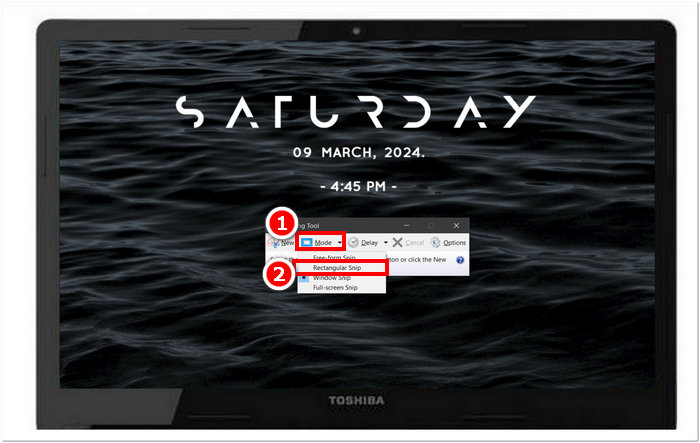
Step 3. Select a Mode located in the upper part of the tool and choose among the available options in the tool.
Choose Free-form Snip if you want a custom-shape area in your screenshot.
Choose Rectangular Snip if you want a rectangular screenshot area.
Choose Window Snip if you want to take a screenshot of a specific window or tab.
Choose Full-screen Snip to take a screenshot of your whole Toshiba laptop screen.
Step 4. After selecting the area you want to capture using the chosen mode, you can save the screenshot by clicking on the Save icon located in the upper part of the tool. This action will allow you to choose the storage location for your screenshots, making it easier for you to locate them later.
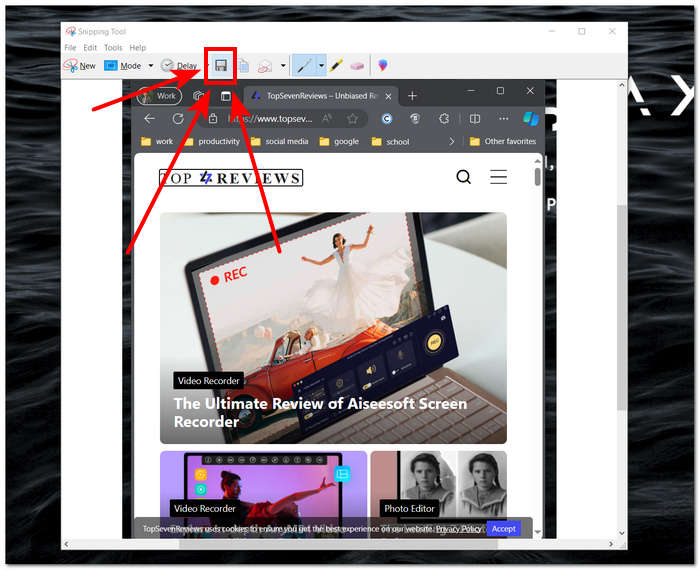
スニッピング ツールは、最初の 2 つの方法の機能を組み合わせたツールです。ただし、最初のツールに比べて編集機能が不足しているため、その適合性はユーザーのニーズと好みによって異なります。どのツールが最も効率的かを判断するには、まずすべての方法を試してみることをお勧めします。
パート4.東芝でスクリーンショットを撮るのに最適な方法はどれですか
| 方法 | 可用性 | スクリーンショット編集 | その他の機能 |
| スクリーンレコーダー(FVC 厳選ソフトウェア) | – 無料でダウンロードできます。 – Windows 7 以降をサポートします。 | – 高度なスクリーンショット編集機能 (注釈、切り抜き、ハイライト、消しゴム、テキストの追加、画像の追加) | – スクロールスクリーンショット: これにより、ユーザーは 1 回の撮影で長いページのスクリーンショットを撮ることができます。 – ポップアップメニューのキャプチャ: この機能により、ユーザーはスクリーンショットを撮る特定のポップアップ ウィンドウまたはタブを簡単に選択できるようになります。 – ビデオ録画: これにより、ユーザーは東芝のノートパソコンの画面でリアルタイムにビデオ録画を行うことができます。 – 録音: これは、ラップトップ内のリアルタイムオーディオやマイクが聞いているものを録音するために使用されます。 – ゲーム録画: これはビデオとオーディオの両方の録画を使用するため、ユーザーは画面とオーディオの両方を同時に録画できます。 |
| ショートカットキー | – ダウンロードする必要はありません。 – Windows のすべてのデバイスがサポートされています。 | – 編集機能なし | – その他の機能はありません。 |
| スニッピングツール | – ダウンロードする必要はありません。 – すべての Windows にプリインストールされています。 | – 基本的な編集機能(ペン、蛍光ペン、消しゴムツール) | – 自由形式のスニップ: これにより、ユーザーは、スクリーンショットを撮りたい対象をトレースして、東芝のノートパソコンの画面上で任意の形状のスクリーンショットをキャプチャできるようになります。 – Windows スニップ: これにより、画面上で開いている特定のウィンドウまたはタブがキャプチャされます。 – 全画面スニップ: これにより、東芝のノートパソコンの画面上のすべての内容が直接キャプチャされます。 |
結論として、3 つの方法はどちらも優れており、それぞれの方法でその能力を発揮しています。可用性の点では、ショートカット キーを使用する方法が 2 つの方法よりも優れていました。これは、ユーザーがスクリーンショットを撮るために何かをダウンロードする必要がないためです。どの方法が最も強力であるかという点では、FVC が選んだソフトウェアが間違いなくその称号を得ます。高度な機能が豊富で、スクリーンショットに注釈を付けたり、テキストを入れたり、ビデオやオーディオを録音したりする編集機能も提供しているため、さまざまなスクリーン キャプチャ タスクに対応する柔軟なツールになっています。最後に、3 つの方法の中で最も便利な方法も FVC が選んだソフトウェアです。このソフトウェアは、2 つのソフトウェアが提供する機能よりもはるかに多くの機能を提供し、すべて無料でありながら、FVC が選んだソフトウェアがスクリーンショット タスクを最もうまく実行できます。
パート5.東芝のノートパソコンでスクリーンショットを撮る方法に関するよくある質問
他のアプリを使用して東芝のノートパソコンでスクリーンショットを撮ることはできますか?
Yes, you can download different apps to help you take screenshots on your Toshiba laptop, such as FVC-picked Screen Recorder, Icecream, Snagit, etc. These apps offer more features like scrolling screenshots, popup menu screenshots, and even audio and video recording, and ways to personalize your screenshots than the standard options.
東芝のノートパソコンにはスクリーンショットを撮るツールがありますか?
はい、他のラップトップと同様に、スクリーンショットを撮るためのツール、またはより正確にはデフォルトの方法があります。これは、キーボードのショートカット キーを使用するもので、ラップトップにスニッピング ツールがプリインストールされている場合は、スクリーンショットを撮るために使用する追加の組み込みツールになることもあります。
東芝のノートパソコンで特定のウィンドウまたは画面の一部をキャプチャするにはどうすればよいですか?
Toshiba ラップトップで特定のウィンドウのスクリーンショットを取得したり、画面の特定の部分のスクリーンショットを撮ったりするには、FVC が選んだスクリーン レコーダーをダウンロードし、ショートカット Alt+C を使用して、キャプチャするウィンドウまたは領域を選択し、[保存] ボタンをクリックします。
東芝のノートパソコンでスクロールスクリーンショットを撮ることは可能ですか?
はい、Snipping Tool または FVC が選んだスクリーン レコーダーを使用して、東芝のラップトップでスクロール スクリーンショットを撮ることができます。これらのツールはスクロール スクリーンショット機能を提供しており、ユーザーはページの最後まで自動的にスクロールしてすべてを 1 枚のスクリーンショットにキャプチャできます。
東芝のノートパソコンでスクリーンショットに描画したり変更したりできますか?
いいえ、東芝のノートパソコンには通常、スクリーンショットに描画したり編集したりするオプションが組み込まれていません。ただし、FVCpicked Screen Recorder、Microsoft Paint などのさまざまなアプリ、または Pixlr や Canva などのオンライン ツールを使用して、スクリーンショットにメモを追加したり変更を加えたりすることができます。
結論
Taking screenshots on your Toshiba laptop can make work easier and help you manage information better. You have the choice to use different software, keyboard shortcuts, or the integrated Snipping Tool. Learning these methods can make your tasks quicker. Try out different options to find what works best for you.
-
 Firefox でスクロールスクリーンショットを簡単に撮る方法
 Firefox でスクロール スクリーンショットを撮って、Web ページ全体を瞬時にキャプチャする方法を学びます。この機能の利用方法については、簡単なステップ バイ ステップのチュートリアルに従ってください。
-
 Windows Media Player で効率的にスクリーンショットを撮る方法
 Windows Media Player でスクリーンショットを簡単にキャプチャする最も簡単な方法をご紹介します。当社の包括的なガイドで、スクリーン キャプチャ体験を向上させましょう。
-
 手のひらでSamsung S23のスクリーンショットを撮る方法
 Samsung S23 でスクリーンショットを撮る方法について知っておくべきすべてのこと。シームレスなスクリーン キャプチャ エクスペリエンスを実現するために、フラッグシップ デバイスの機能を最大限に活用します。
