


 ビデオコンバーター究極
 スクリーンレコーダー
 ビデオ修復
ビデオ修復
 安全なダウンロード
M4A と MP3 の詳細なレビューと 2 つのオーディオ形式の比較
デジタル音楽の普及により、適切なオーディオ形式を選択することがこれまで以上に重要になっています。 M4A と MP3 は広く使用されていますが、両者には重要な違いがあります。 MP3 は音楽ファイルの事実上の標準ですが、M4A は優れたオーディオ品質のために頻繁に使用されます。
M4A 対 MP3 の比較では、M4A と MP3 という 2 つのファイル形式の違いを詳しく見ていき、どちらを選ぶべきか判断できるようにします。さらに、音質、互換性、ファイルサイズなどの観点から、両ファイルタイプの違いと共通点を総合的に解説します。音楽好きの方やプロのミュージシャンであれば、どの形式が自分に最適か知るために、ぜひ読み進めてください。

パート 1. M4A 対 MP3
以下は、情報に基づいた決定のために、さまざまな重要な側面でこれらの形式を比較した簡単な表です。下の表をご覧ください。
| M4A | MP3 | |
| 音の質 | 高い | 良い |
| ファイルサイズ | 大 | 小さい |
| 互換性 | 限定 | 幅広い互換性 |
| メタデータ | サポートされています | 限定 |
| DRM保護 | はい | 番号 |
| 人気のある用途 | 音楽、オーディオブック、ポッドキャスト | 音楽、ポッドキャスト、着信音 |
パート 2. M4A と MP3 の紹介
MP3対M4Aの戦いで十分です。しばらく立ち止まって、それぞれの簡単な紹介を通じて、これらの形式について詳しく学びましょう。
M4A とは
Apple 独自のデジタル オーディオ形式は、MPEG-4 Audio (略して M4A) です。多くのビットレートとサンプル レートに対応できるため、音楽、オーディオブック、ポッドキャストに最適なオーディオ形式です。 M4A ファイルは、iTunes、QuickTime、およびその他のメディア プレーヤーで開くことができるため、Apple デバイスに最適です。
MP3 とは
「MPEG-1 Audio Layer 3」の略である MP3 は、デジタル オーディオ形式であり、その普及と低ビット レート圧縮により、圧縮オーディオの標準となっています。 MP3 ファイルは、他のオーディオ形式に比べてサイズが小さいため、音楽、ポッドキャスト、着信音に最適です。それらはさまざまなデバイスで再生でき、インターネットからすばやく簡単にダウンロードできます。一方、MP3 ファイルは、多くの場合、M4A などの代替形式よりも音質が劣ります。
パート 3. M4A は MP3 より優れていますか?
M4A と MP3 には異なる長所と短所があります。 M4A は優れた音質で知られており、音楽愛好家やプロに好まれています。一方、MP3 はファイル サイズが小さく、さまざまなデバイスやメディア プレーヤーと広く互換性があります。
M4A と MP3 のどちらを選択するかは、どちらが重要かによって異なります: 高音質か、ファイル サイズと互換性が小さいかです。
パート 4. MP3 と M4A の違い
一般的なデジタル音楽フォーマットの MP3 と M4A には、それぞれ異なる特徴があります。以下は、MP3 と M4A の違いの詳細な説明です。
音質: M4A は、MP3 と比べて優れた音質で知られています。M4A はより高度な圧縮アルゴリズムを採用しており、より広いビットレートとサンプリングレートに対応します。また M4A は元の音声品質を保つ可逆圧縮(ロスレス圧縮)もサポートしていますが、MP3 は非可逆圧縮(ロッシー圧縮)で、ファイルサイズを小さくする代わりに音質が劣化します。
ファイルサイズ: 一般的に MP3 ファイルは M4A ファイルよりもサイズが小さくなります。これは MP3 が、音質に大きな影響を与えずにファイルサイズを抑えられる、効率的な圧縮アルゴリズムを採用しているためです。一方で M4A は、MP3 ほど効率的ではない圧縮方式を使うことが多く、その結果としてファイルサイズは大きくなりますが、音質はより良くなります。
互換性: MP3 はデジタルオーディオの業界標準として広く認知されており、スマートフォン、タブレット、パソコンなど、さまざまなデバイスやメディアプレーヤーで再生できます。一方 M4A はそれほど広くは対応しておらず、主に iTunes や QuickTime など、Apple 製デバイスやソフトウェアで使われています。
メタデータ: M4A は MP3 よりも多くの種類のメタデータをサポートしています。つまり、M4A ファイルにはアルバムアート、歌詞、トラック情報など、音声に関するより多くの情報を保存できます。
DRM 保護: M4A は DRM(デジタル著作権管理)保護をサポートしており、著作権者が音声ファイルの利用や配布を制御できるようになっています。一方 MP3 は DRM 保護をサポートしていません。
パート 5. M4A を MP3 に、または MP3 を M4A に変換する方法
これら 2 つのオーディオ形式を比較して確認するだけでなく、M4A から MP3 に、またはその逆に変換する方法を学ぶことも重要です。使用できるプログラムの一部を次に示します。
オンラインでもオフラインでも、Video Converter Ultimate は M4A と MP3 の相互変換に使える優れたツールです。このユーティリティには、さまざまな便利機能が搭載されています。複数ファイルの一括変換に対応しているため、音楽ファイルをまとめて変換することができます。さらに注目すべき点として、音声ファイルの出力設定を細かく調整できることが挙げられます。以下の手順を見ながら、このツールの使い方を確認してみましょう。
ステップ 1. まず、いずれかの 無料ダウンロード ボタンをクリックしてダウンロードを開始し、画面の指示に従ってインストールします。その後、アプリを起動し、シンプルなインターフェースに慣れていきましょう。
無料ダウンロードWindows 7 以降対応安全なダウンロード
無料ダウンロードMacOS 10.7 以降に対応安全なダウンロード
ステップ 2. メイン画面の 追加 ボタンをクリックし、変換したい音声ファイルを選択します。アップロードが完了すると、UI 上にファイルのプレビューが表示されます。フォルダをアップロードすれば、複数の M4A を一度に MP3 に変換することもできます。
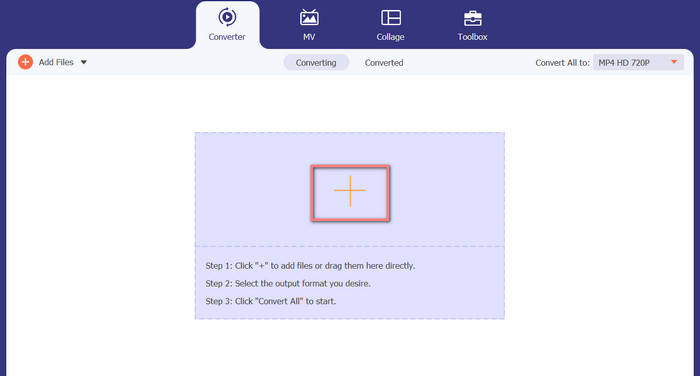
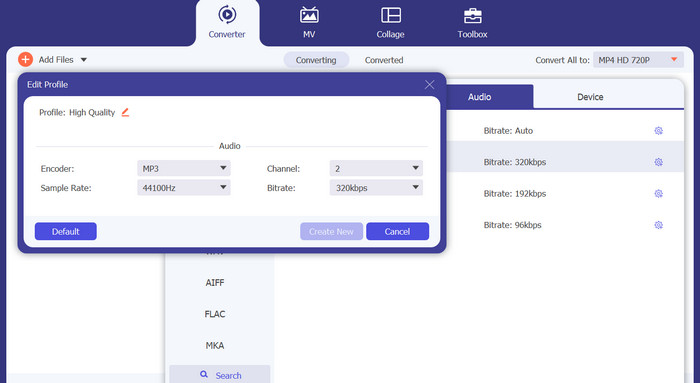
ステップ 3. ツールの出力形式を変更するには、画面右上付近にある プロフィール メニュー内の オーディオ タブを開きます。ここで M4A ファイルを MP3 ファイルへ、あるいはその逆へ変換できます。
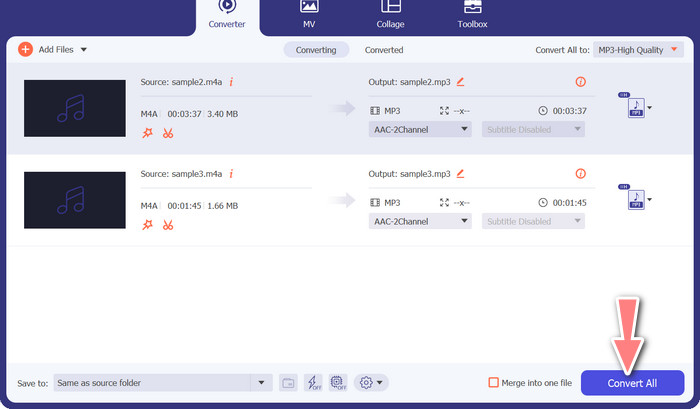
ステップ 4. 画面一番下で、保存先となる場所を選択します。最後に すべて変換 をクリックすると、変換が開始されます。
無料のビデオ コンバーター オンライン (オンライン)
ソフトをインストールする余裕がない場合でも心配はいりません。ウェブベースのコンバーターを使えば、ソフトをダウンロードせずに変換できます。Free Video Converter Online は、ブラウザ上で直接変換を行えるオンラインツールです。多くの種類の音楽・動画ファイル形式をサポートしており、一括変換にも対応しています。さらに、出力される音声ファイルの各種設定をユーザー側で調整することができます。ここでは、MP3 を M4A にオンライン変換する方法を説明します。
ステップ 1. まず、お使いのウェブブラウザを起動し、Free Video Converter Online の公式サイトにアクセスします。
ステップ 2. 変換するファイルを追加 をクリックし、変換したい M4A ファイルを選択します。
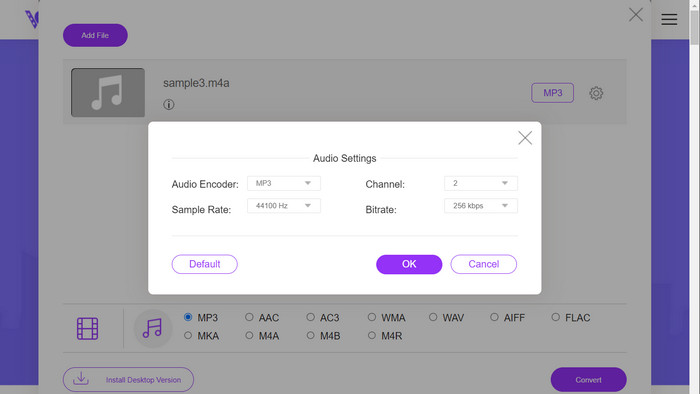
ステップ 3. オーディオ 形式メニューから出力形式として MP3 を選択します。また、MP3 ファイルのビットレートや出力音質を調整することも可能です。
ステップ 4. 変換 ボタンをクリックすると、変換処理が開始されます。以上が、ウェブ上で M4A を MP3 に変換する手順です。
さらに詳しく読む:
M4A を WAV に変換する方法ガイド【Windows/Mac】
パート 6. M4A と MP3 に関する FAQ
メタデータに関して、MP3 と M4A とは何ですか?
M4A は MP3 よりも幅広いメタデータをサポートします。つまり、M4A ファイルはオーディオに関するより多くの情報を保存できます。
MP3 または M4A ファイルを編集できますか?
さまざまなオーディオ編集ソフトウェアを使用して、MP3 および M4A ファイルを編集できます。
ポッドキャストには、MP3 と M4A のどちらが適していますか?
MP3 は、ファイル サイズが小さく、互換性が広いため、ポッドキャストに適しています。
結論
MP3 対 M4A を理解しておくことで、自分にとって最適なデジタルオーディオ形式を選ぶ助けになります。音楽をストリーミングする場合でも制作する場合でも、適切な形式を選ぶことは、可能な限り高い音質と互換性を確保するうえで非常に重要です。
-
 MP3 VS MP4:MP3とMP4の違いは何ですか
 MP3またはMP4、どちらが良いですか? MP3とMP4の違いは何ですか?この記事では、イメージできるすべての側面からMP3とMP4を比較します。
-
 M4Aプレーヤー–Androidおよびコンピューター用のトップ5M4Aプレーヤー
 Android携帯でM4Aファイルを再生する方法は?どのプレーヤーがM4Aを再生できますか?この投稿では、Android、Mac、PC向けの5つの最高の無料M4Aプレーヤーを共有しています。
-
 WindowsとMacでMP3メタデータを修正および編集するための4つの最良の方法
 MP3メタデータを簡単に編集する秘訣を知りたいですか?このブログでは、簡単にアクセスできるさまざまなツールを使用したさまざまなテクニックを紹介します。
