


 ビデオコンバーター究極
 スクリーンレコーダー
 ビデオ修復
ビデオ修復品質を損なうことなくMac / Windows / LinuxでM4VをMKVに変える3つの効果的な方法
iTunesにダウンロードしたM4Vビデオをオンにする必要があります。 MacでM4VをMKVに変換し、後でテレビで使用する方法がわかりましたか?
This problem is widespread, especially on M4V videos downloaded on iTunes because this format is under Apple's Fair Play Policy, and it is protected. Therefore, you can't play the .m4v videos instantly on other devices without converting them. This article will provide facts about the converters you can use and succeed in converting the M4V format. Without any more delays, let's start to learn the efficient method of changing M4V to MKV on Mac or Windows.

パート1。MacとWindowsでiTunesM4VをMKVに変換する[最も選ばれた]
There are many free M4V to MKV converters on the market that you can download, and one of them is the FVC Video Converter Ultimate. But this ultimate tool provides a more effective conversion than the other converters due to its lightning speed conversion, unlimited upload to convert, and intuitive interface. Are you amazed at the ultimate converters? Or do you want to know more about the converter? In that case, here below are the key features you will see if you attain this converter.

FVCビデオコンバーターアルティメット
2,999,368以上のダウンロード- 複数のiTunesM4VをMKVに、またはMOV、AVI、MP4などの200以上のメディア形式に変換できます。
- 超高速変換により、M4Vを瞬時に変換するプロセス
- ビデオをさらに良くするために、高度な編集機能を利用できます。
- ツールボックスの下で、圧縮、サイズ変更、GIFメーカーなどのすばらしい機能を設定します。
無料ダウンロードWindows 7 以降に対応安全なダウンロード
無料ダウンロードMacOS 10.7 以降に対応安全なダウンロード
これらすべての機能を1つのツールで実現できるのは驚くべきことではありませんか?これ以上時間を無駄にせず、以下の手順に従って、このツールがiTunesM4VをMKVに効果的に変換する方法を決定しましょう。
Step 1. First, download the ultimate converter on your drive by clicking the download button below. Choose the platform you are currently using, follow the installation process, press Start Now to proceed. Remember, you will need to be more familiarized with the tool's interface to avoid difficulties.
無料ダウンロードWindows 7 以降に対応安全なダウンロード
無料ダウンロードMacOS 10.7 以降に対応安全なダウンロード
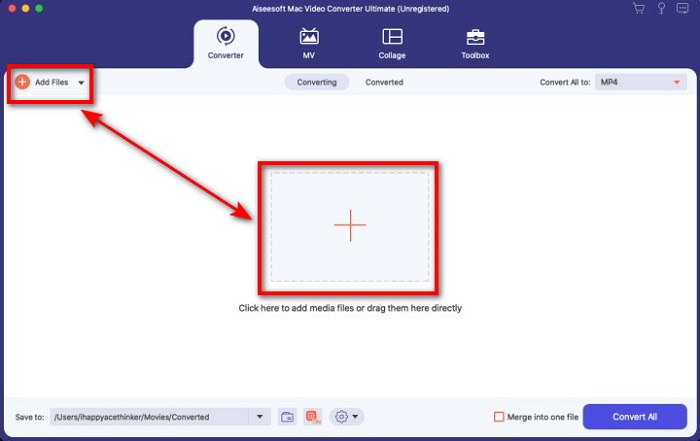
Step 2. Upload the M4V File on the interface by clicking the Add Files or the + button. After that, a computer folder will open on your screen, browse the .m4v File, and press Open.
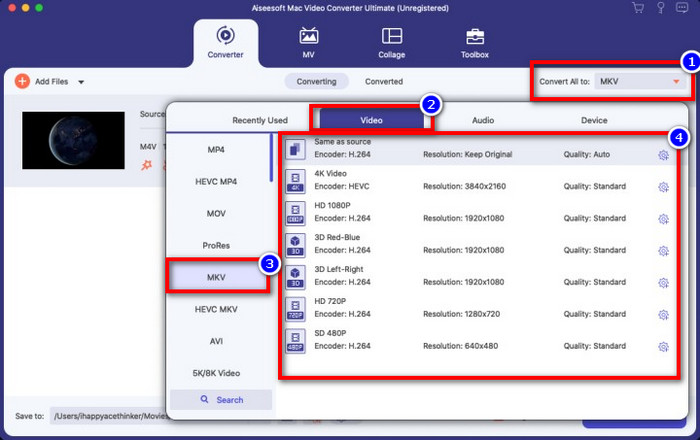
Step 3. Pick out the MKV format under the Convert All to and click it.
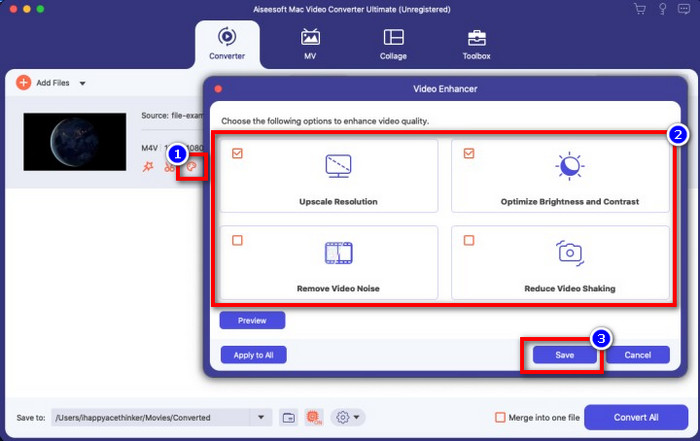
Optional. The effectiveness of this is, without a doubt doing great so far. But did you know that this tool also offers video enhancers? If you click the enhance video option, a dialog box will display; tick the box you want to improve on your video, and to apply it click Save.
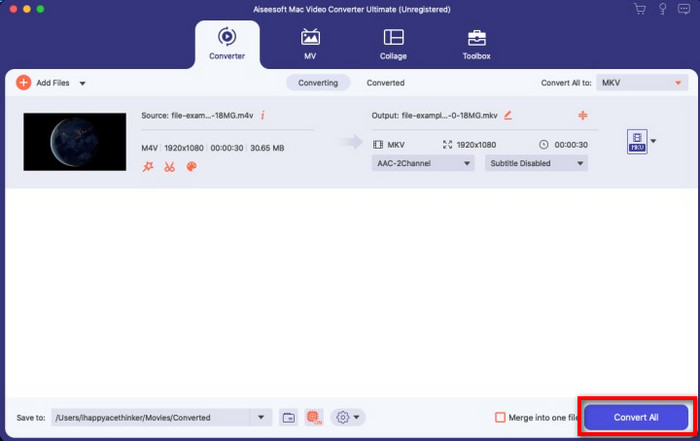
Step 4. By clicking the Convert All button, converting will begin within a short period. Here it is; with that, the file extension of your video is now .mkv.
パート2。M4VをMKVオンラインに変換する
Doesn't want to pay to convert M4V files; instead, want to convert M4V to MKV online? If that is the case, FVC Free Video Converter Online is an online converter that guarantees your converting process efficiency even on the web. A converter can finish the job without purchasing the converter itself or even downloading it. Also, there are no ads or even registration needed to use this. Even though the converter is free, the features presented here only focus on converting. Unlike the ultimate tool, it provides wide-scale and amazing features. Furthermore, if you need to convert your M4V files online, use this converter and copy the steps below.
Step 1. Kindly click this link to open the FVC Free Video Converter Online.
Step 2. Press Add Files to Convert option to launch and upload the M4V File you need to convert.
ファイルを一括変換するには、デスクトップ版をダウンロードしてください。
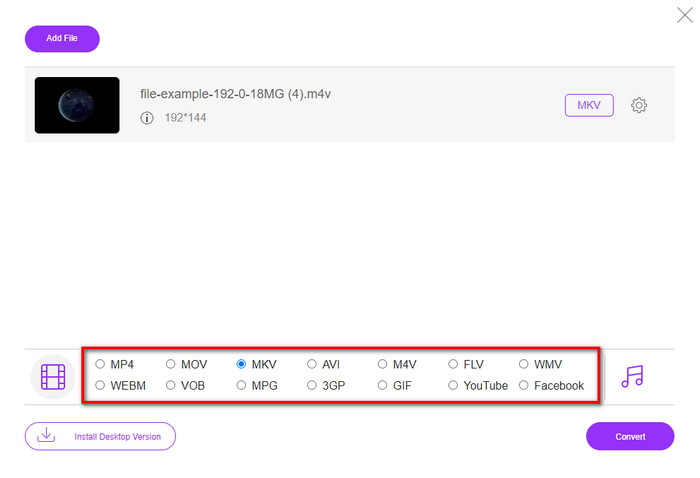
Step 3. Select the MKV format below or the other format you want to have.
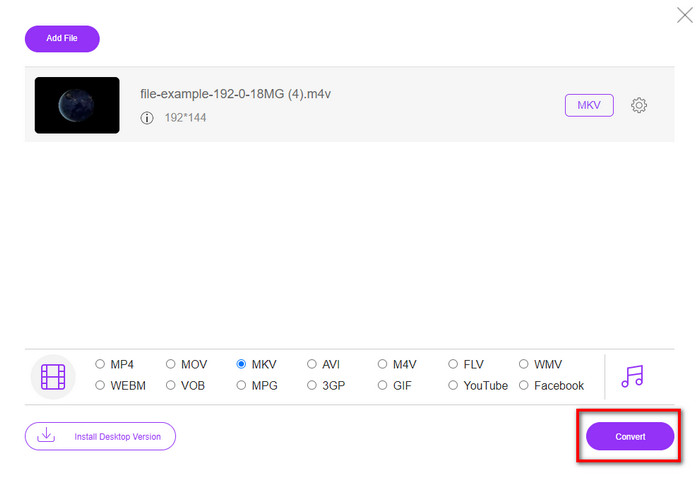
Step 4. Hit Convert for the process to begin.
パート3。M4VをMKVに無料で変換
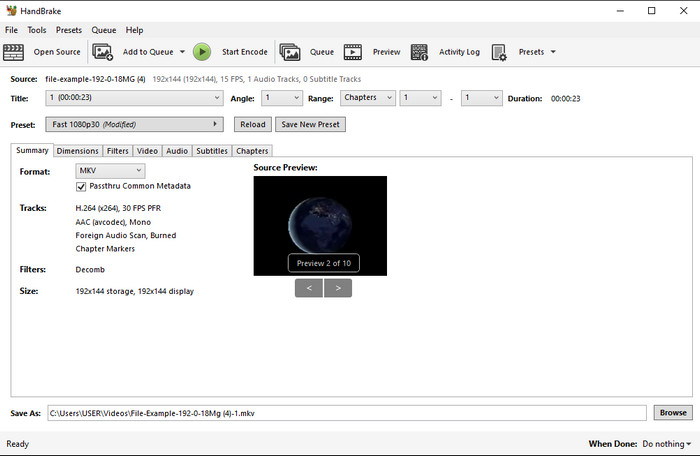
Handbrake provides a swift and efficient converting process like the other converter presented here. However, the format this tool supports is limited, which means you have no less choice option of choosing which format you want it to be. But if you want to use and convert M4V to MKV in Handbrake, apply the steps below.
Step 1. Download the Handbrake on your desktop. Upload the .m4v file by dragging and dropping it on the interface. You can also click File, locate the file on the computer folder, and press Open.
Step 2. Click Format and choose MKV.
Step 3. Click Start Encode for converting the process to begin.
パート4。M4VとMKVの類似点と相違点は何ですか
M4VとMKVを比較する前に、これら2つのフォーマットの類似点を理解しましょう。 M4VとMKVは、どちらもメディアコンテンツと要素のコンテナです。また、これら2つの形式は、HDビデオや4kなどの最高のビデオ品質の1つを保存することが知られています。また、メタデータなどの要素を含めるのにも適しています。さらに、以下の詳細は、2つの形式の違いです。
M4VはMP4形式と非常によく似ています。ただし、この形式はDRMコピー防止の対象であるため、自由に使用することはできません。ただし、ダウンロード可能なM4Vの一部には無許可のライセンスがあるため、すべてのM4VファイルがAppleで保護されているわけではありません。システムに感染する悪意のあるウイルスを回避するために、iTunesで.m4vファイルをダウンロードしてください。このフォーマットには制限がありますが、iTunesでダウンロードしたビデオを視聴するために、いくつかのメディアプレーヤーでこのフォーマットを使用できます。さらに、Macで保護されたデザインが必要な場合は、この形式が最適です。
それどころか、MKVは、1つのファイルに複数のメディアコンテンツと要素を含めることに固有のものです。このフォーマットは無料で使用でき、M4Vよりも柔軟性があるため、この機能はMKVでのみ使用できます。さらに、MacまたはWindowsでM4VをMKVに変更する理由はたくさんありますが、その1つは、ビデオファイルを無制限にすることです。
M4VとMKV
M4VはAppleによって開発されており、MPEG 4も使用しています。M4Vファイルは、音楽ビデオやTVエピソードなど、AppleiTunesストアからダウンロードしたビデオを保存するためによく使用されます。 AppleのFairPlayDRM著作権保護。
2002年にリリースされたMatroskaマルチメディアコンテナ形式は、多数のビデオ、オーディオ、画像、および字幕トラックを含めることができるオープンソース形式です。そのため、短いビデオクリップ、テレビ番組、および映画を簡単に保存するために使用できます。アニメファンサブで大人気。
パート5。M4VからMKVへの変換に関するFAQ
M4VとMOVのどちらが編集に適していますか?
The two said format is one of the Apple formats, so you will notice that there is no significant gap between M4V and MOV. However, MOV is much better at editing because this format often contains a series of video playback that is the best choice for professional editing. Maybe you think you should make your M4V into a MOV for editing purposes. If so, click this link to know more about converting M4V to MOV with a comprehensive understanding of it.
M4VとMP4は同じですか?
M4VとMP4は、構造とビデオ品質の点で非常に同じです。ただし、Apple Playsで保護されているため、M4Vのサポート範囲は狭く、ビデオを再生したり、.m4v拡張子で編集したりすることはできません。
M4Vをサポートするメディアプレーヤーは何ですか?
Not many media players support this type of format because of the DRM protection. So if you are looking for an MKV player, you will spend a lot of time and test it out, which consumes a lot of time. But if you read this article, you can download or use the top 5 MKV media players available on all platforms.
結論
The three tools presented in this article will surely give you the effective conversion you want to have by following the steps. Although the converters have a lot in common, they still have a lot of differences as well. If you read the details we presented above, you will know many about the three tools. Suppose you want to have an excellent conversion in a one-go and still achieve the efficiency of the conversion, we would recommend the FVC Video Converter Ultimate. Sounds unbelievable? Indeed it is, so download it on your desktop to try it yourself.
-
 M4VからMP3へのコンバーター–M4VファイルからMP3を抽出するための4つの最良の方法
 M4VビデオからMP3オーディオを簡単に抽出したい場合は、記事から目的のオーディオファイルを取得するための4つの最高のM4VからMP3へのコンバーターについて詳しく知ることができます。
-
 [ガイド] Windows / MacでM4VビデオをアニメーションGIFに変換する方法
 お気に入りのM4VビデオからアニメーションGIFファイルを作成する場合は、カスタマイズされた設定でM4VビデオをGIFに変換する2つの簡単で効率的な方法について学ぶことができます。
-
 MacでiTunesM4VをAVIに変換するために使用される3ビデオコンバータプログラム
 MKVをAVI形式に変換する方法がわかりませんか?この記事を読み続けると、このファイル形式の変換に役立つ3つのツールがわかります。

