


 ビデオコンバーター究極
 スクリーンレコーダー
 ビデオ修復
ビデオ修復
 安全なダウンロード
技術的な悩みを抱えずに WAV を着信音に変換する 3 つの素晴らしいプログラム
Delving into the realm of audio file formats, the WAV to ringtone conversion offers an intriguing aspect of digital audio processing. As technology advances and our audio needs evolve, being well-versed in this conversion process becomes increasingly valuable. In this exploration, we'll discover the seamless methods to convert between them. Whether you're a seasoned audio enthusiast or simply curious about the mechanics behind these formats, this journey promises to be informative and engaging. So, let's embark on this audio odyssey and expand our knowledge of WAV to ringtone conversion.

パート 1. WAV を着信音に変換する最良の方法
Looking for the ultimate solution to convert WAV to ringtone hassle-free? Enter Video Converter Ultimate - your go-to audio conversion sidekick. This tool boasts an intuitive and professional interface that even tech novices can navigate with ease. You can trim, crop, and enhance your videos without breaking a sweat. Plus, batch processing saves you time and effort when dealing with multiple files.
主な機能
◆ プリセット出力プロファイル: さまざまなデバイスやプラットフォームに合わせた事前定義された出力プロファイルの選択肢から選択し、最適な再生互換性を確保します。
◆ カスタマイズ可能な設定: 解像度、ビットレート、フレーム レートなどの調整可能な設定を使用して、特定の好みに合わせて変換プロセスを微調整します。
◆ GPU アクセラレーション: GPU のパワーを活用して変換プロセスをさらに加速し、品質を維持しながら効率を最大化します。
◆ 字幕とオーディオ トラックのサポート: ビデオに字幕と複数のオーディオ トラックをシームレスに含めることで、多言語で多用途なコンテンツを作成できます。
Video Converter Ultimate を使用すると、WAV を簡単に着信音に変換できます。それを 4 つの簡単なステップに分けてみましょう。
Step 1. Download and Install Video Converter Ultimate
Get the program by ticking one of the Free Download buttons below. You can get this program downloaded for your Windows or Mac. Therefore, you can convert WAV on Windows as well as Mac. Once the download is complete, run the installation wizard and follow the on-screen instructions to install the tool on your computer.
無料ダウンロードWindows 7 以降対応安全なダウンロード
無料ダウンロードMacOS 10.7 以降対応安全なダウンロード
Step 2. Add Audio Files to Convert
After launching Video Converter Ultimate on your computer, click on the Add Files button or simply drag and drop your WAV audio files into the tool's interface. You'll instantly see a list of the added files, and you can easily arrange them in the desired order if needed.
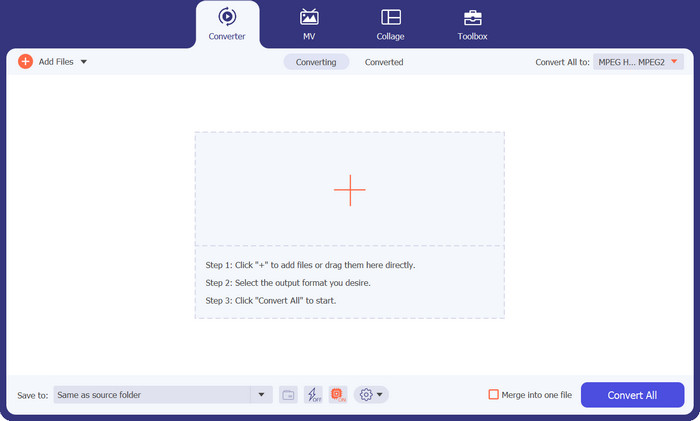
ステップ3.出力形式を選択する
Locate the Convert All to section at the upper part of the tool's interface. Click on the dropdown menu to reveal a list of supported output formats under the Audio tab. Scroll through the options and select M4R as the desired output format for your audio files.
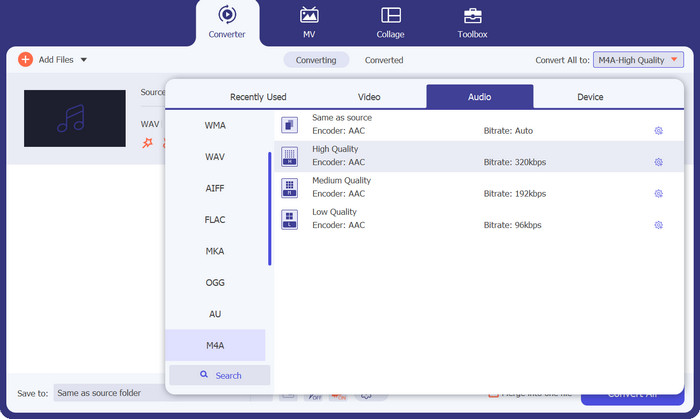
Step 4. Convert the File
With all your settings in place, you're now ready to initiate the conversion process. Choose the destination folder where you'd like the converted files to be saved. Finally, click the Convert All button, and the tool will efficiently process the conversion.
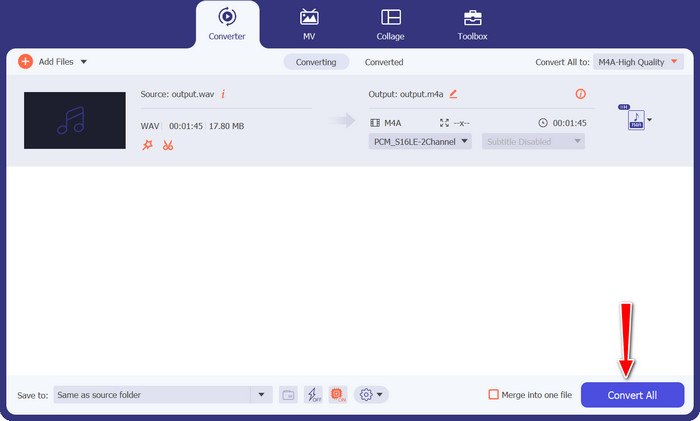
パート 2. オンラインで WAV を着信音に変換する最良の方法
Free Audio Converter Online is a simple yet powerful converter that boasts a simple interface that anyone can tackle with ease. No complex corporate jargon to worry about here! Just straightforward options that get the job done without a fuss. Oh, and did we mention? It's entirely online, so no need to clutter your computer with any software.
WAV から M4R までを完璧に処理できるだけでなく、その他の優れた機能も多数備えています。 MP3、AAC、OGG などのさまざまなオーディオ形式を変換して、あらゆるオーディオ変換のニーズに対応できます。さらに、このプロセスは超高速なので、魔法が起こるのを待って親指をいじる必要はありません。
主な機能
◆ フォーマットの柔軟性: Free Audio Converter Online は幅広いオーディオ フォーマットをサポートしており、MP3、WAV、AAC、FLAC などの一般的なフォーマット間でシームレスに変換できます。
◆ インストール不要: オンライン ツールなので、コンピューターにソフトウェアをインストールする必要はありません。 Web ブラウザからコンバータにアクセスするだけで、すぐに変換を開始できます。
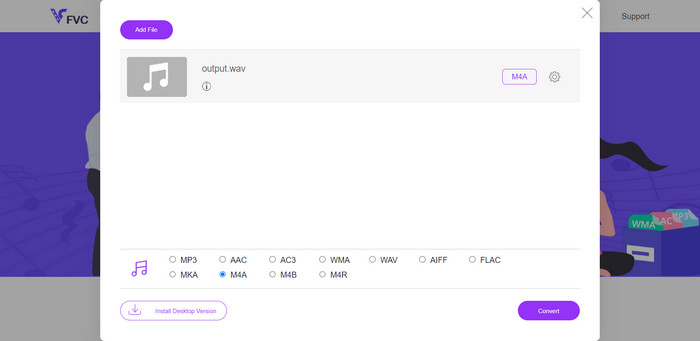
Step 1. To begin, open your web browser and navigate to the Free Audio Converter Online website. Look out for the user-friendly Add Files to Convert button.
Step 2. Now that you've got your WAV audio ready, it's time to choose the desired output format. Find M4R in the list of available formats and click on it confidently.
Step 3. With all the settings in place, it's time for the final touch. Just click the Convert button, and let the online converter work its magic. In no time, your file will be transformed into M4R format effortlessly using this free converter.
パート 3. Audacity で WAV を着信音に変換する
Audacity は、オーディオ ファイルをある形式から別の形式に変換するための頼りになります。 MP3 を WAV に変換する必要がある場合でも、FLAC を MP3 に変換する必要がある場合でも、これで対応できます。フォーマットに悩む必要はもうありません。指先でスムーズにオーディオを変換するだけです。一番良いところ? Audacityは完全に無料です!卑劣なサブスクリプションや隠れた料金はありません。ダウンロードするだけで、オーディオの冒険が始まります。次に、以下の手順に従って、Audacity で WAV を変換する方法を学びます。
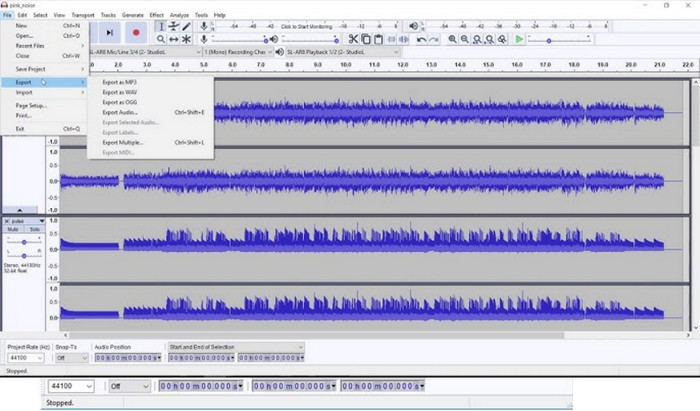
Step 1. Launch Audacity on your computer. If you don't have it yet, head to their website (provide the website URL) and download the software for free. Next, go to File in the top menu and click Open. Locate the WAV audio file you want to convert and click Open to import it into Audacity.
Step 2. With your WAV file now in Audacity, head back to the File menu and choose Export > Export as M4A. A window will pop up, allowing you to name your file and choose where you want to save it. Click Save to proceed.
Step 3. Before the conversion takes place, Audacity will present you with M4A export options. You can set the desired quality and other preferences based on your needs. Once you've configured the settings, click OK, and Audacity will convert your WAV to M4A format seamlessly.
さらに詳しく読む:
Guidelines on How to Convert M4A to WAV [PC and Mac]
How to Edit Properties of WAV Files on Windows 10/11 & Mac [Solved]
パート 4. 3 つのプログラムの比較
以下は、Video Converter Ultimate、Free Audio Converter Online、および Audacity のさまざまな側面の比較表です。
| ビデオコンバーター究極 | 無料オーディオコンバーターオンライン | 大胆さ | |
| 変換フォーマット | MP4、AVI、MOV、MP3、WAV などのビデオおよびオーディオ形式を広範にサポート。 | MP3、WAV、AAC、FLACなどの幅広いオーディオ形式をサポートします。 | WAV、MP3、FLAC、AAC などを含む幅広いフォーマットとの互換性。 |
| ユーザーインターフェース | シンプルなデザインのユーザーフレンドリーなインターフェイスで、簡単にナビゲーションできます。 | Web ブラウザからアクセスできる、シンプルで使いやすいオンライン インターフェイス。 | 初心者にも専門家にも適した直感的でわかりやすい UI |
| 変換速度 | 高速変換により、品質を損なうことなくファイルを迅速に処理します。 | 効率的かつ高速な変換により、迅速な対応が可能になります。 | 処理速度はオーディオ編集の複雑さによって異なります。 |
| 編集機能 | トリミング、クロップ、エフェクトを可能にする基本的なビデオおよびオーディオ編集ツール。 | 主にオーディオ変換に重点を置いており、高度な編集機能はありません。 | マルチトラックのサポートを含む高度なオーディオ編集機能。 |
| バッチ変換 | 複数のファイルを同時に変換するバッチ処理をサポートします。 | バッチ変換が使用できる場合は指定されません。 | バッチ変換が使用できる場合は指定されません。 |
| プラットフォームの可用性 | Windows と Mac の両方のオペレーティング システムで利用できます。 | インターネット接続があれば、どのデバイスからでもアクセスできます。 | Windows、macOS、Linux プラットフォームで利用できます。 |
パート 5. WAV から着信音への変換に関する FAQ
FFmpeg WAV を M4R に変換できますか?
はい、FFmpeg を使用して WAV を M4R に変換できます。 FFmpeg は、幅広いオーディオおよびビデオ形式をサポートする強力なオープンソース マルチメディア フレームワークであり、メディアの操作と変換のための多用途のツールです。
WAVをWMAに変換できますか?
はい、さまざまな方法やソフトウェア ツールを使用して、WAV を WMA (Windows Media Audio) に変換できます。これを行うには、Windows Media Player を使用できます。
オーディオ ファイルの変換はファイルのメタデータに影響しますか?
場合によっては、オーディオ ファイルの変換により、メタデータ (曲のタイトル、アーティスト、アルバムなど) が変更または削除される場合があります。メタデータを保持するには、MP3 や M4A など、メタデータをサポートする形式を使用します。
音声変換は合法ですか?
個人使用のためにオーディオ ファイルを変換することは、通常は合法とみなされます。ただし、著作物を許可なく再配布することは違法です。
結論
Audio file conversion plays a vital role in ensuring compatibility and flexibility with our digital media. Whether you need to convert WAV to M4R, MP3, WMA, or any other format, there are various tools and methods available to make the process seamless.
-
 2023 年に試す価値のあるトップ WAV から MP3 コンバーター
 信頼できる WAV から MP3 へのコンバーターをお探しですか?詳細なレビューを読んで、オーディオ ファイルを簡単に変換するための最適なツールを見つけてください。
-
 WAVプレーヤー– Android、iPhone、PC、Mac向けのトップ5WAVプレーヤーアプリ
 Android携帯でWAVファイルを再生する方法は?どのプレーヤーがWAVを再生できますか?この投稿では、Android、iPhone、Mac、PC向けの5つの最高の無料WAVプレーヤーを共有しています。
-
 FLAC と WAV: どちらのオーディオ形式が最適ですか
 FLAC と WAV の品質の詳細な比較について詳しくご覧ください。それぞれの長所と短所、およびファイル間で変換する効率的な方法も提供します。
