


 ビデオコンバーター究極
 スクリーンレコーダー
 ビデオ修復
ビデオ修復
 安全なダウンロード
デスクトップで最高のソフトウェアを使用して MP3 にアルバムアートを追加する方法のステップバイステップ
アルバムアートを付けておくと便利です。特に、聴き手が今聴いている音楽により愛着を持てるようにしたい場合に役立ちます。このアルバムアートがあれば、ユーザーは音楽、特にデジタル音源がどのような内容なのかを一目でイメージできます。状況によっては、MP3 に適切なアルバムアートが設定されていなかったり、ファイルに埋め込まれていなかったりします。同じような経験があるなら、デスクトップでMP3 にアルバムアートを追加する方法を知っておくことが重要です。詳しく知りたい方は、この記事を読み進めて、この問題についてのコンパクトな知識をぜひ身につけてください。

Part 1. Video Converter UltimateでMP3にアルバムアートを追加する方法【おすすめタグエディター】
MP3 にアルバムアートを追加するための決定版ソフトをお探しですか?その作業におすすめのタグエディターが FVC Video Converter Ultimate です。このソフトが推奨されるのには理由があります。他のソフトでは、MP3 音楽のカバーとしてアップロード・使用できるアルバムアートの形式が限られていることが多いですが、このツールならその心配はほとんどありません。この究極ソフトを使えば、MP3 だけでなく、WAV、WMA、AAC、FLAC、さらに 1000 種類以上の動画・音声形式にアルバムアートを追加できます。すごいと思いませんか?このツールは、アルバムに画像カバーを追加する際の第一候補となるでしょう。この究極ソフトの使い方を知りたいですか?その場合は、以下に掲載した手順デモをよく読み、順を追って進めてください。
ステップ 1. 下のダウンロードボタンをクリックし、現在使用しているオペレーティングシステムを選択します。ソフトをダウンロードしたら、続いてインストールを行ってください。すべて完了したら、[今すぐ開始]をクリックしてデスクトップ上でソフトを起動します。
無料ダウンロードWindows 7 以降に対応安全なダウンロード
無料ダウンロードMacOS 10.7 以降に対応安全なダウンロード
ステップ 2. ツールボックス セクションに進み、その中の メディアメタデータエディター をクリックします。
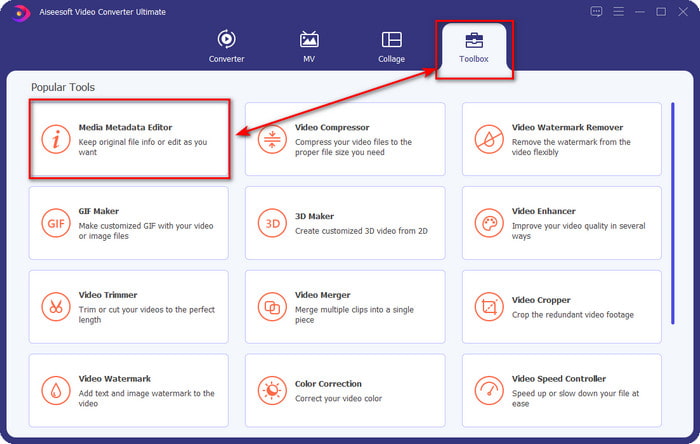
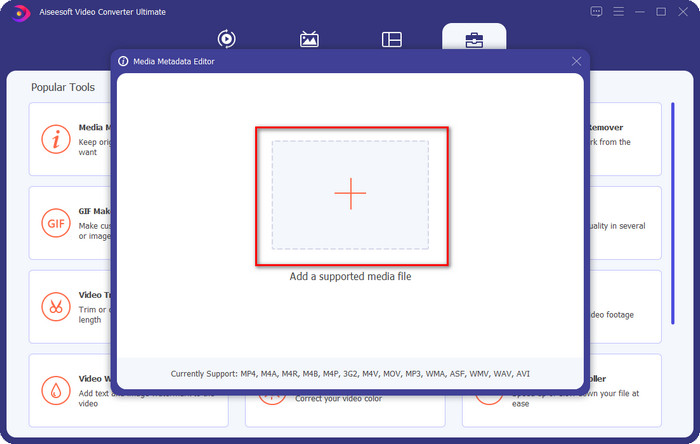
ステップ 3. [+]ボタンをクリックして、アルバムアートを追加したい音楽ファイルを選択します。選んだ音楽ファイルを挿入するには、開く をクリックします。
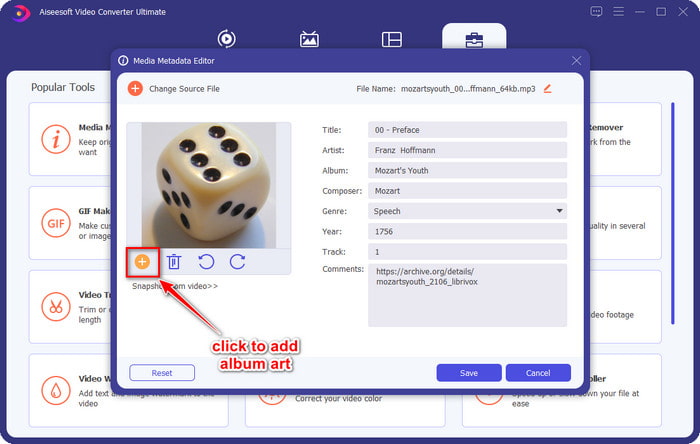
ステップ 4. 次に、インターフェース左下側にある + ボタンをクリックし、使用したいアルバムカバーを探して 開く をクリックします。必要であれば、テキストボックス に他のメタデータも追加します。
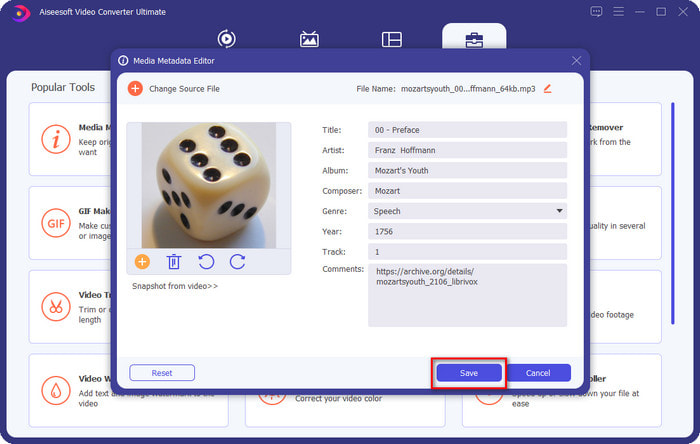
ステップ 5. MP3 ファイルへのアルバムアートとメタデータの追加が終わったら、[保存]をクリックして、アップロードした MP3 ファイルにアルバムアートを埋め込みます。簡単ですよね?この究極ツールを使えば、この問題もあらゆる作業も、可能であるだけでなく、とても簡単になります。
パート 2. VLC Media Player Free Metadata Editor を使用して MP3 にアルバム アートを追加する方法]
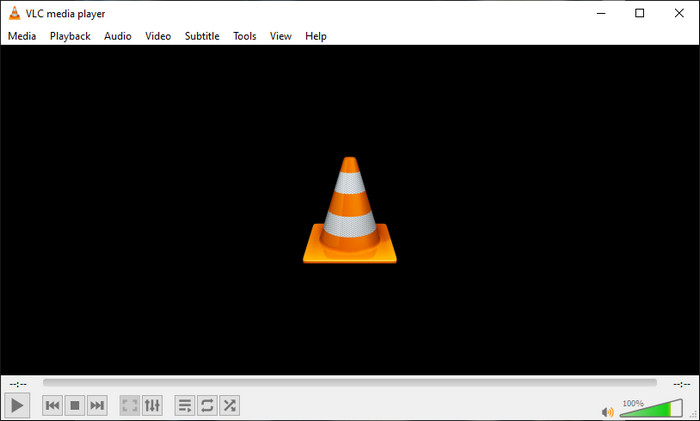
VLC Media Player は、ほとんどの人が利用している優れたメディアプレーヤーです。このツールはあらゆる動画ファイルを再生できるだけでなく、音楽ファイルにアルバムアートを追加するなど、メタデータを編集することも可能です。このメディアプレーヤーを使えば、メタデータを自由に調整・追加できます。このツールを使って Windows 10/11 や Mac で MP3 にアルバムアートを追加する手順を知りたい場合は、以下のステップを参考にしてください。
ステップ 1. デスクトップにメディアプレーヤーをダウンロードし、起動します。
ステップ 2. メイン画面で[ツール]をクリックし、その中の 情報 をクリックします。
ステップ 3. 右下隅にある VLC アイコンを右クリックし、アルバムアートを追加してから 保存 をクリックします。
パート 3. iTunes で MP3 にアルバム アートを追加する方法 [Mac のビルトイン メタデータ エディタ]
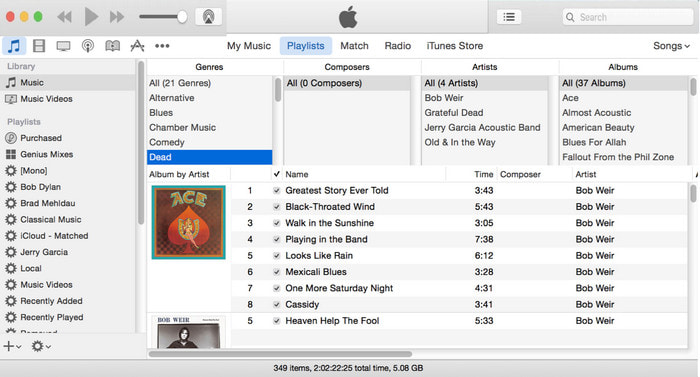
Mac ユーザーにとって、iTunes は MP3 ファイルに画像カバーを追加するための定番メタデータエディターです。この内蔵アプリは、Mac 上にあるファイルのメタデータ編集に役立ちます。ただし現在では、iTunes と同様の機能を担う 3 つの別アプリに分かれているため、一部の macOS バージョンでは iTunes を利用できません。とはいえ、古いバージョンの Mac ではまだ利用可能です。もしあなたが、iTunes で MP3 にアルバムアートを追加する方法を知りたい Mac ユーザーであれば、以下の手順に従ってください。
ステップ 1. Mac で iTunes アプリケーションを開きます。
ステップ 2. ミュージック をクリックし、次に ライブラリ を選択して、アルバムアートのない音楽ファイルを右クリックします。
ステップ 3. 上部のオプションで アートワーク をクリックし、続いて アートワークを追加 をクリックして、アップロードしたい画像を選択し、OK をクリックして適用します。
パート 4. MP3 にアルバム アートを追加する方法に関する FAQ
Audacity の MP3 にアルバム アートを追加できますか?
残念ながら、Audacity を使用して MP3 ファイルにイメージ アートを追加することはできません。このツールは、音楽エディターとして使用することを目的としているため、画像またはビデオ形式をサポートしていません。ただし、MP3 メタデータを編集する場合は、Audacity をメタデータ エディターとして使用できます。
オーディオ ファイルにアルバム アートが表示されないのはなぜですか?
オーディオ ファイルにアルバム アートが表示されない理由は 3 つあります。最初の理由は、ダウンロードするファイルにアルバム アートが含まれていないことです。これが著作権侵害である場合は特にそうです。 Web でダウンロードした音楽ファイルのほとんどには、コピーライティングの問題を回避するためのアルバム アートが含まれていません。次に、画像が適切に添付されていなかったため、ファイルが失われました。一部のユーザーはこの問題に遭遇し、それを処理するのは難しいため、プロのアルバム アート アダーを使用することが不可欠です。最後に、イメージが破損しています。アップロードしたファイルがアルバム アートとして利用できない場合、または音楽ファイルが破損している場合は、これが原因である可能性があります。
使用できる最適なメタデータは何ですか?
上で紹介したメタデータエディターだけでは物足りない場合は、このリンクをクリックして別の記事に移動し、利用可能なおすすめのメタデータエディター一覧を確認してください。
結論
MP3 にアルバム アートを追加するというアイデアが得られたので、次は最適なツールを選択します。 Mac ユーザーで、デスクトップにソフトウェアをダウンロードしたくない場合は、iTunes を選択する必要があります。しかし、iTunes は Mac の最新バージョンでは段階的に廃止されています。音楽にカバーを追加するのに役立つ無料のツールをダウンロードしたい場合は、VLC が最適です。ただし、このツールは専門的なツールではありません。そのため、Windows と Mac の両方のオペレーティング システムで利用できるこのタスクに対応できるエキスパート ソフトウェアが必要な場合は、究極のソフトウェアを使用してください。上記のダウンロード ボタンをクリックして、デスクトップにソフトウェアをダウンロードし、専門的なツールをすぐに利用できるようにします。
-
 iOSで写真やビデオのメタデータを簡単に表示する方法
 iPhoneとiPadでメタデータを表示する方法を知りたいですか?次に、この記事を読むと、この問題を簡単に解決できる場合があります。
-
 iTunesでiD3タグを編集するためのベストテクニック[効果的なヒント]
 iTunesでタグを編集する方法を知る必要がありますか?その後、あなたは正しい場所にいます。方法について説明したように、iTunesを使用してタグを編集することができます。
-
 Windows10/11およびMacでWAVファイルのプロパティを編集する方法[解決済み]
 Windows 10/11でWAVファイルのプロパティを編集する方法をお探しですか?この記事を読み続けると、この質問に対する答えが得られます。
