


 ビデオコンバーター究極
 スクリーンレコーダー
 ビデオ修復
ビデオ修復Adobe Video Resizerを使ってビデオファイルのサイズを簡単に変更する方法
動画には様々なサイズがあり、これらのサイズは様々なプラットフォーム、デバイス、解像度に適合するように設計されています。しかし、動画のサイズがプラットフォームの要件に適合しない場合があり、多くの場合、トリミング、黒いバー、再生品質の低下などの問題が発生します。そのため、動画のサイズを変更することが必要になります。
もし動画でこのような問題が起きていても、心配する必要はありません!この記事では、Adobe Video Resizer を使って、動画のサイズを簡単に変更する方法をご紹介します。このツールを使えば、動画のアスペクト比を変更でき、使用するプラットフォームの仕様にぴったり合うように調整できます。

パート1. Adobe Premiereとは
Adobe Premiere Proは、Adobe Systemsが開発した、プロ仕様のビデオ編集ソフトウェアとして広く知られています。このアプリケーションは、様々なビデオの編集や制作に熟練したユーザーに広く知られています。その理由は、このツールがビデオとオーディオの編集に特化した包括的なツールと機能を備えているため、技術的な知識のないユーザーにとっては使いこなすのが難しいからです。
Adobe Premiere Proは、1991年にMac OS向けにPremiereという名称で発売されました。コンピューターで利用できるノンリニア編集システムとしては、最も初期のものの一つでした。2003年にPremiere Proにブランド名が変更され、その後のすべてのバージョンでこの名称が使用されています。Premiere Proの初期のバージョンには、Premiere Pro 1からPremiere Pro 7まで通し番号が付けられていました。Adobe Video Resizerとしての主な機能は以下の通りです。
主な機能:
• ユーザーは、プラットフォーム固有の要件を満たすために、カスタム寸法を手動で設定したり、定義済みのアスペクト比を選択したりできます。
• ユーザーは簡単なコントロールを使用してビデオを拡大または縮小できます。
• ビデオのフレームの整合性を維持し、不要な歪みや切り取りを防止します。
• 高画質出力でビデオのサイズを変更
パート2. Adobe Video Resizerを使用してビデオのサイズを変更する方法[Adobe Premiere Pro]
Adobe Premiere Proは、単なる標準的なビデオ編集ツールではありません。強力なAdobeビデオリサイズツールとしても機能します。さらに、このアプリを使えば、様々なプラットフォームや用途に合わせて、ビデオのサイズとアスペクト比を簡単に調整できます。初心者にとっては使い方が複雑に感じるかもしれませんが、一度インターフェースに慣れてしまえば、Premiere Proでのビデオのリサイズは非常に効率的なプロセスになります。
Adobe Video Resizer を使って動画サイズを変更する手順は次のとおりです。
ステップ1. Adobe Premiere で動画をタイムラインに読み込みます。その後、フレームサイズに合わせてスケールしたいクリップを右クリックします。
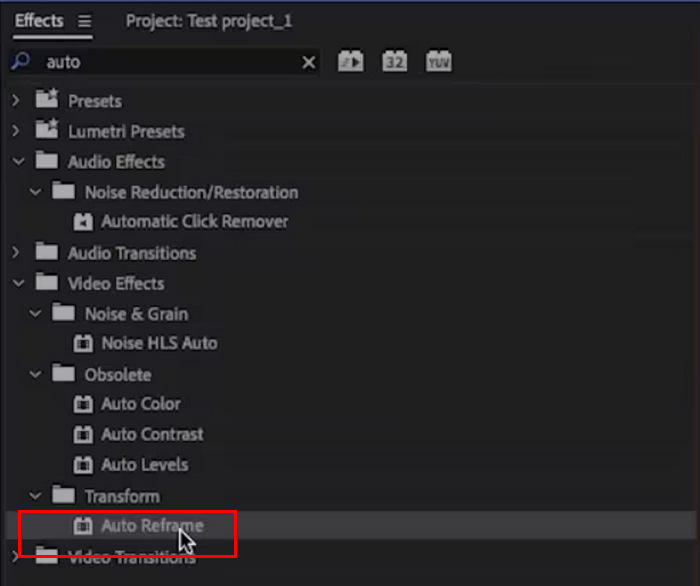
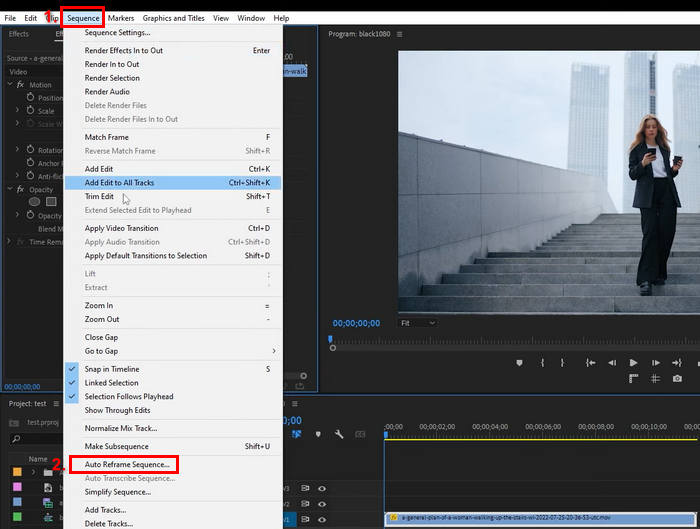
ステップ2. 次に、シーケンス タブに進み、自動リフレームシーケンス を選択します。
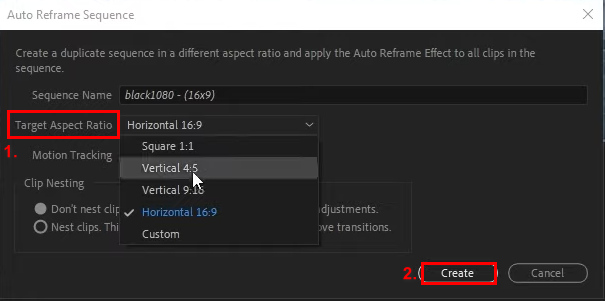
ステップ3. ここで、希望するアスペクト比を選びます。正方形(1:1)、縦型 4:5、縦型 9:16、横型 16:9、カスタムなどから選択できます。選択が完了したら、作成 ボタンをクリックします。
注意: Adobe Video Resizer で複数のクリップをリサイズする場合は、同じ設定を一括で適用することで時間を節約できます。1つのクリップに対して「フレームサイズに合わせてスケール」または「自動リフレームシーケンス」オプションを使ってリサイズした後、その調整内容をコピーして他のクリップに貼り付けることができます。あるいは、リサイズ用の設定をプリセットとして作成し、タイムライン上の複数クリップに適用することで、プロジェクト全体でアスペクト比とサイズの一貫性を保てます。
Adobe Premiere Pro に興味がある場合は、動画のウォーターマークを削除する方法について、こちらをクリックして詳しく確認してください。
パート3. Adobe Video Resizerのベスト代替品
Adobe Video Resizerが複雑すぎると感じたり、動画のサイズ変更に慣れていない方には、Aiseesoft Video Converter Ultimateがおすすめです。このオールインワンの動画変換ツールは、動画の変換だけでなく、サイズの変更も可能です。ツールボックスには、動画クロッパーをはじめとする様々な機能が搭載されています。このソフトウェアアプリのこの機能を使えば、動画のアスペクト比を1:1、9:16、4:3、16:10、21:9などに簡単に変更できます。さらに、カスタマイズも可能です。
主な機能:
• ユーザーはビデオのサイズを 1:1、9:16、4:3、16:10、21:9 などに簡単に変更できます。
• ユーザーは特定のニーズに合わせてカスタムアスペクト比を設定できます。
• フォーマット、解像度、ビットレートなどのカスタマイズなど、包括的なビデオおよびオーディオ出力設定。
・MP4 のリサイズ のほか、MOV、WMV、AVI、MKV、GIF を動画出力形式としてサポートしています。
Aiseesoft Video Converter Ultimate を使って動画サイズを変更する方法は次のとおりです。
手順1. まず、Aiseesoft Video Converter Ultimate をパソコンにダウンロードしてインストールします。
ステップ2. ツールボックス タブに進み、そこから ビデオクロッパー を選択します。
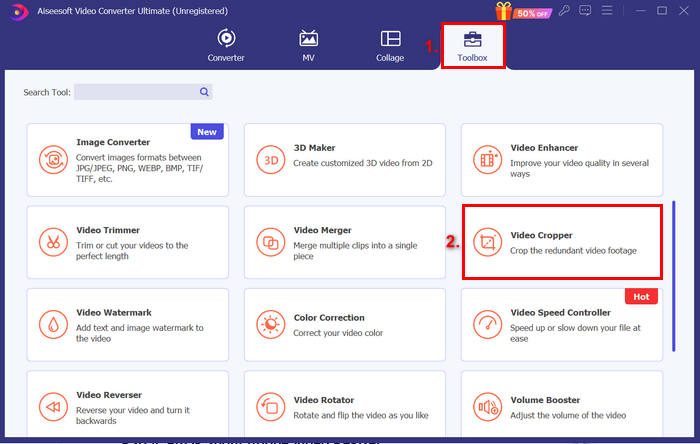
ステップ3. 次に、ビデオクロッパーに動画を追加 をクリックして、リサイズしたい動画ファイルを読み込みます。
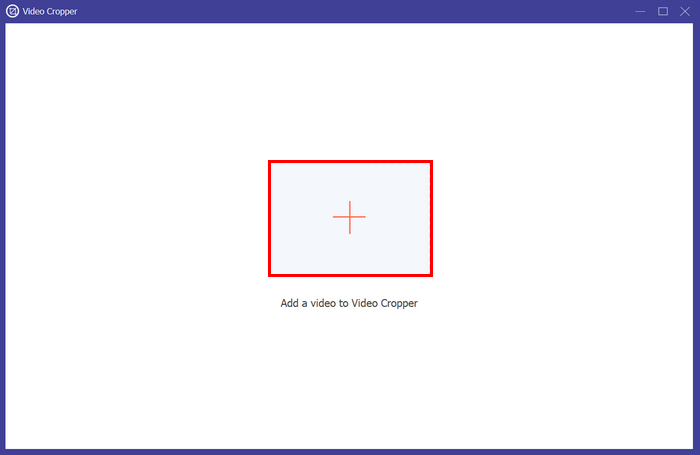
ステップ4. 画面下部に アスペクト比 のオプションが表示されます。それをクリックして、動画をどのような比率にリサイズしたいかを選択します。設定が完了したら、エクスポート ボタンをクリックします。
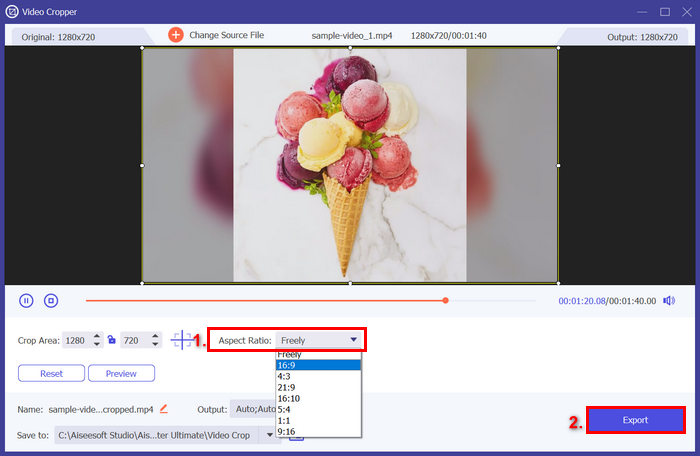
Aiseesoft Video Converter Ultimateは、Adobe Video Resizerの優れた代替品です。操作は非常に簡単で、この機能専用のツールボックスも用意されています。より簡単にプロフェッショナルな動画サイズに変更したい場合は、ぜひお試しください。
パート4. Adobe Video Resizerに関するよくある質問
Adobe Premiere Pro で複数のビデオのサイズを一度に変更できますか?
はい。Adobe Premiere Proでは、複数のビデオファイルのサイズを変更できます。「フレームサイズに合わせてスケール」または「オートリフレームシーケンス」機能を使用して1つのクリップのサイズを変更した後、その設定をコピーして他のクリップに適用できます。また、複数のビデオ間で一貫性を保つためにプリセットを作成することもできます。
Adobe Premiere Pro でビデオのサイズを変更するときに、どのようなアスペクト比を選択できますか?
Adobe Premiere Proには、1:1(正方形)、縦4:5、縦9:16、横16:9など、様々なアスペクト比があらかじめ用意されています。また、特定のプラットフォームの要件に合わせてアスペクト比をカスタマイズして作成することもできます。
Adobe Premiere Pro は、ビデオのサイズを変更したい初心者に適していますか?
Adobe Premiere Proは豊富な機能を備えたプロ仕様のツールですが、初心者にとっては習得が大変です。しかし、一度インターフェースに慣れれば、動画のリサイズを効率的に行うことができます。よりシンプルなリサイズ作業には、初心者にはAiseesoft Video Converter Ultimateのような代替ツールが適しているかもしれません。
Adobe Video Resizer の代替品はありますか?
はい、もちろんです!Aiseesoft Video Converter Ultimateは、動画のサイズを簡単に変更できる機能が豊富に揃っているので、ぜひお試しください。
結論
Adobe Video Resizer を使えば、インターフェースに慣れるにつれて動画のリサイズ作業はぐっと簡単になります。しかし、よりシンプルでありながら高品質に動画をリサイズできる代替ツールを探している場合は、Aiseesoft Video Converter Ultimate もおすすめです。
さっそく動画のリサイズを始めてみませんか?Adobe Video Resizer を試してみるか、より手軽なオプションとして Aiseesoft を検討してみてください!
-
 トリミングが簡単に: TikTok ビデオをトリミングして完全なエンゲージメントを得る方法
 簡単なチュートリアルで TikTok 動画をクロップする方法を学びましょう!数回のタップとスワイプだけで、視覚的に魅力的なビデオを作成できます。
-
 Instagramコンテンツを最適化するためのトップInstagramビデオリサイザー
 Instagramのビデオのサイズを変更するためのガイドをご覧ください.世界で最も人気のあるソーシャル メディア プラットフォームでコンテンツを磨き、エンゲージメントを高める方法を学びましょう。
-
 ビデオのサイズを簡単に変更: ビデオ リサイザーの包括的なレビュー
 使いやすいビデオのサイズ変更ツールで完璧なショットを手に入れましょう。数回クリックするだけで、プロジェクトに最適なサイズにビデオのサイズを変更できます。
