


 ビデオコンバーター究極
 スクリーンレコーダー
 ビデオ修復
ビデオ修復
 安全なダウンロード
AVIビデオを1つに結合するための上位6つのAVI合併
DVD用に複数のAVIファイルを組み合わせるのに最適なAVIジョイナーは何ですか?オンラインでいくつかのAVIクリップをダウンロードした場合、不要な部分をトリミングしたり、フェードイン/フェードアウト効果を適用したり、DVDのAVIファイルにビデオ透かしを追加したりする必要があります。AVIファイルをどのように結合する必要がありますか?高度な機能を備えた6つの最高のAVIマージを以下に示します。記事から詳細を学び、要件に応じて目的のAVIを選択できます。

パート1:AVIビデオファイルに参加する2つの最良の方法
1.オンラインで無料のAVIファイルを簡単にマージする方法
FVC Free Online Merger は、多機能なAVI結合ツールで、AVI動画ファイルを完全無料でオンライン結合できます。AVIだけでなく、MP4、MKVなどの動画形式も本数制限なく結合可能です。さらに、解像度や画質など、さまざまなパラメーターをニーズに合わせて調整できます。
- 1.AVIを含む任意の形式のビデオファイルをマージします。 MKV、およびその他のファイルはオンラインで無料です。
- 2.ビデオコーデック、解像度、ビデオ品質、およびその他のパラメータを調整します。
- 3.結合したAVIファイルをコンピューターに保存するか、ソーシャルメディアサイトで共有します。
- 4.プライバシーを保護するために、24時間以内にビデオファイルを削除します。
ステップ1: 任意のブラウザーで FVC Free Online Joiner を開きます。Add Files to Merge ボタンをクリックしてプラグインをインストールし、その後もう一度 Add Files to Merge ボタンをクリックして、結合したいAVIファイルを選択します。

ステップ2: AVI動画ファイルを順番どおりに追加したら、format をAVIに設定し、1920*1080p resolution を選択して高画質を維持します。
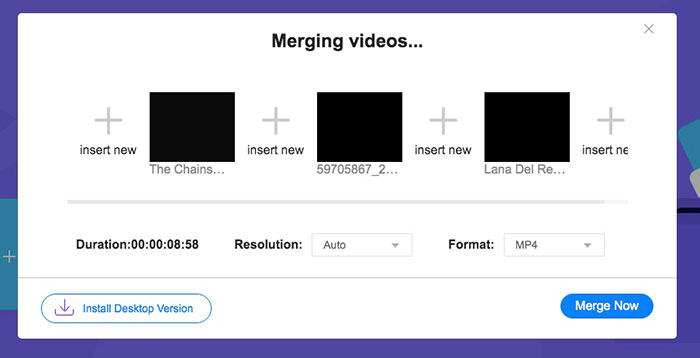
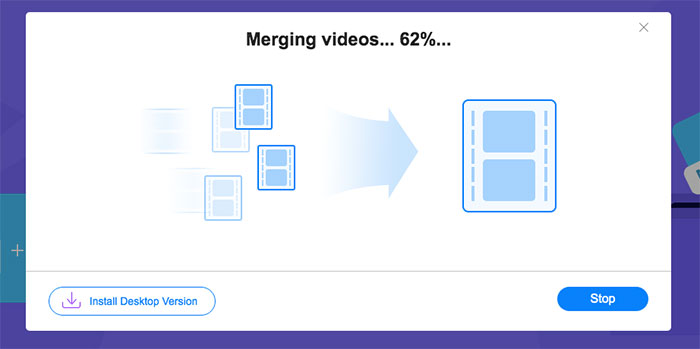
ステップ3: Merge Now ボタンをクリックすると、AVI動画ファイルの結合が自動的に開始されます。
2.品質を損なうことなくAVIファイルを結合する専門的な方法
Video Converter Ultimate は、AVI動画ファイルを結合できるだけでなく、AVI動画を編集してDVDを作成することもできます。必要な部分だけをトリミングしたり、解像度を向上させたり、ビデオコーデックを調整したり、魅力的なフィルターを適用したり、ビデオテーマを変更したり、さらにはAVIファイルでビデオコラージュを作成することも可能です。数クリックで印象的なムービーを作成できる、オールインワンのAVI結合ツールです。
- 1. AVI、MKV、MP4などを含む任意の形式の複数のビデオファイルを結合します。
- 2.元の高品質を維持するために詳細なビデオパラメータを調整することができます。
- 3. SNSにアップロードするより魅力的なビデオを作成するために、プロの編集ツールを提供します。
- 4.AVIファイルをマージして数分で新しいファイルを作成するための30倍の速度。
無料ダウンロードWindows 7 以降に対応安全なダウンロード
無料ダウンロードMacOS 10.7 以降に対応安全なダウンロード
画質を落とさずにAVIファイルを結合する方法
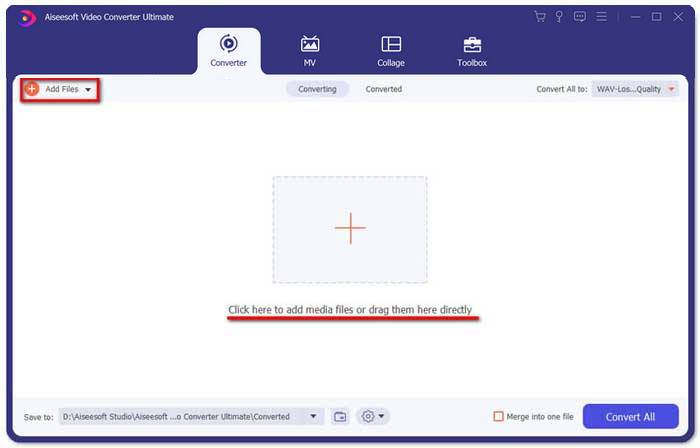
ステップ1: Windows/Mac 用の Aiseesoft Video Converter Ultimate をダウンロードして起動します。右上の Add Files ボタンをクリックして結合したいAVI動画を選択し、ドラッグしてAVIファイルの順番を調整します。
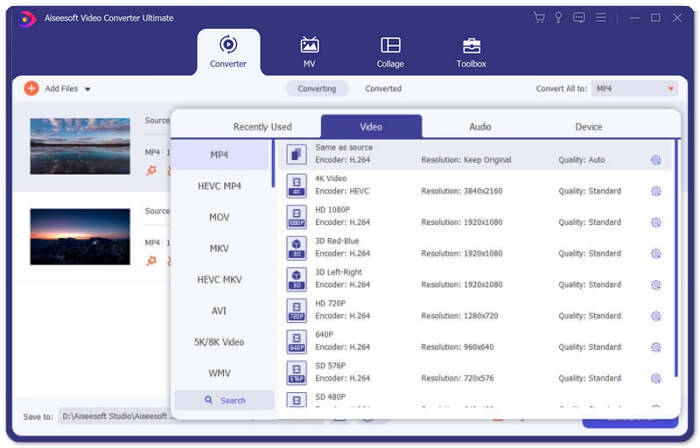
ステップ2: 次に Convert All to ボタンをクリックし、Video 欄から AVI format を選択します。その後、Same as Source ボタンを選んで元の画質を保ちます。
ステップ3: Edit ボタンをクリックし、Effect & Filter ボタンを選んで、さまざまなエフェクトを追加します。完了したら OK ボタンをクリックして保存します。
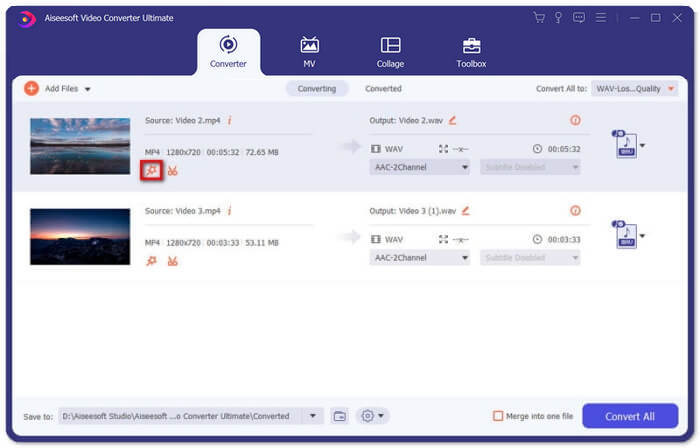
ステップ4: 保存先フォルダーを選択したら、Merge into one file にチェックを入れ、Convert All ボタンをクリックしてAVIファイルの結合を開始します。
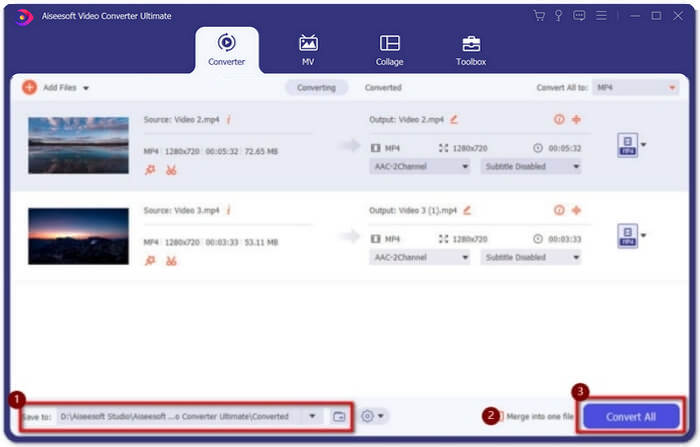
AVI動画を1本のムービーにまとめる方法
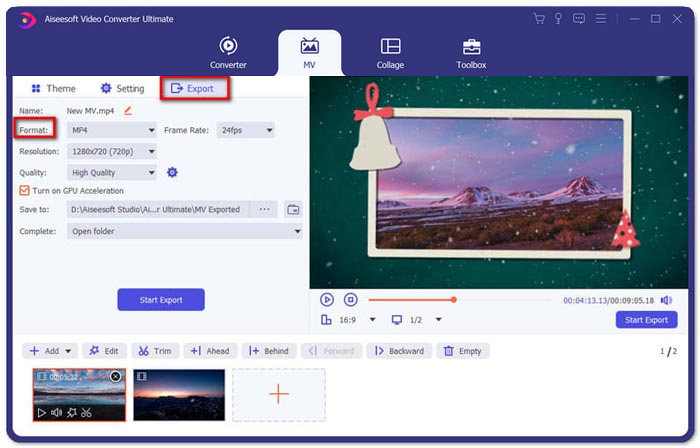
ステップ1: プログラムを起動したら、MVメニューを選択して MV 作成画面に入ります。ウィンドウ左下の Add ボタンをクリックして、AVIファイルをプログラムに読み込みます。
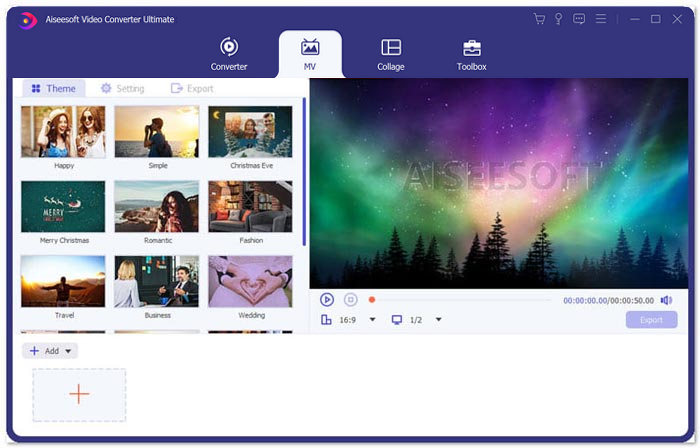
ステップ2: その後、AVIファイルの順番を調整したり、動画の必要な部分だけをトリミングしたり、動画を編集したりできます。さらに、AVIファイルを結合する際のテーマを選ぶことも可能です。
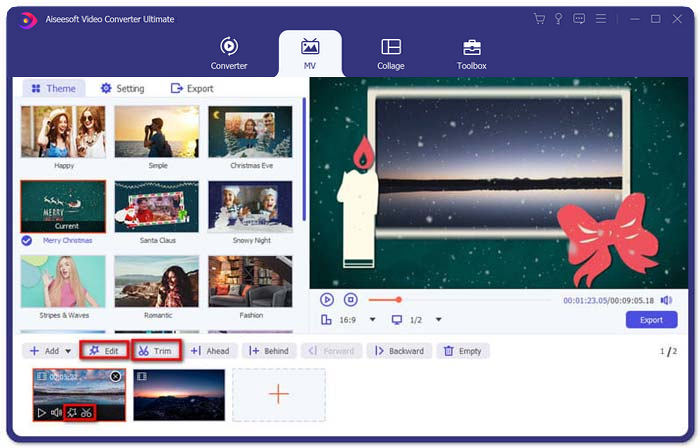
ステップ3: 結合したAVIファイルを別の動画形式で保存したい場合は、フォーマットアイコン横の下向き矢印をクリックして、希望の形式を選択します。その後、[Export]タブに移動してプロジェクト名を入力し、保存先を設定します。
パート2:AVIファイルをマージするための4つのAVIジョイナー
1.簡単なビデオジョイナー
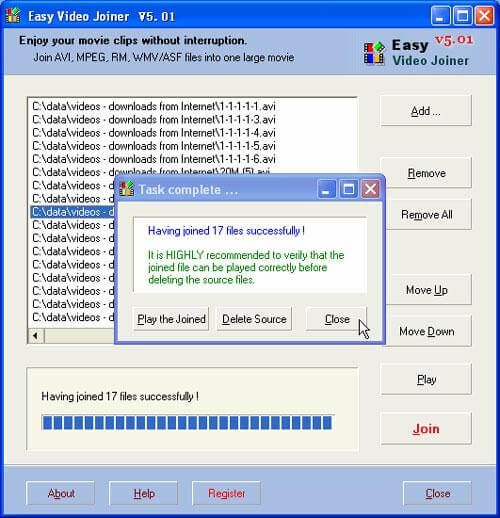
これは、さまざまなスタイルのAVIビデオファイルを結合するための非常に単純なビデオマージです。また、さまざまなビデオ形式、フレームレート、フレームサイズをサポートしています。
長所
- 並べて、上下に、そして次々に、さまざまなスタイルのAVIビデオをマージすることができます。
- 複雑な手順なしで簡単に使用できます。
短所
- ほとんどの人にとって、魅力的な動画を作成するのは基本的すぎます
システムOS:WindowsおよびMac
2.ImTOOビデオジョイナー
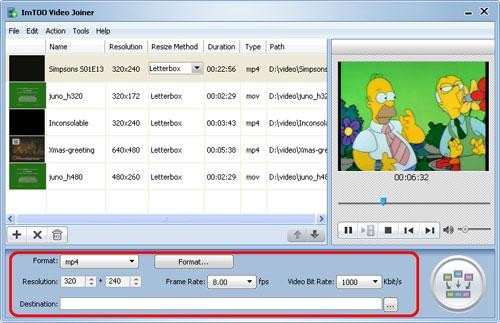
このデスクトップツールは、任意の形式の複数のビデオファイルを1つに結合するのに役立ちます。また、ビデオにいくつかの効果を追加するための編集機能も提供します。
長所
- ASF、DATなどのいくつかの珍しい形式でビデオに参加することができます。
- マージする前に、元のビデオファイルをプレビューします。
短所
- 自由に使用することはできません。 30日間の無料トライアルしかありません。
システムOS:Windows
3.Boilsoftビデオジョイナー
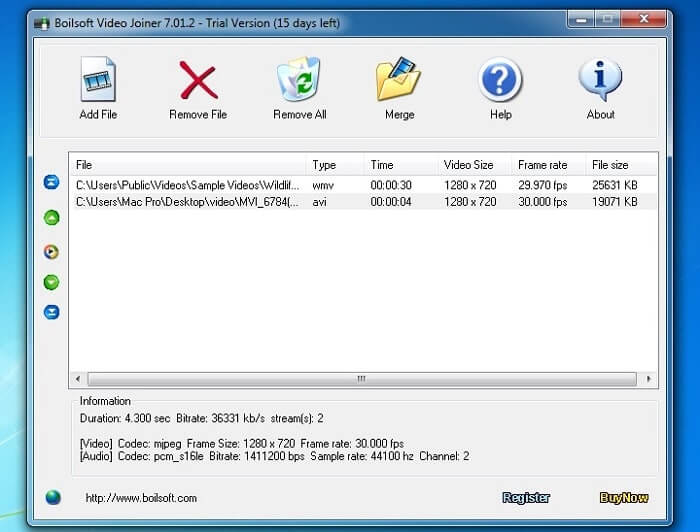
このビデオジョイナーは、以前はAVI / WMV / MPEGファイルをマージするためにのみ使用されていましたが、現在は、さまざまな形式の多数のビデオを結合できます。
長所
- さまざまな形式の多数のビデオをすばやく1つにまとめます。
- RealMediaやASFなどの一般的でない形式の入力をサポートします。 ((ASFファイルに参加する ここに。)
短所
- ビデオファイルのみをマージできますが、パラメータを編集または調整することはほとんどできません。
システムOS:WindowsおよびMac
4.クイックAVIジョイナー
これは、AVIファイルを大きなビデオファイルにマージできる非常にシンプルなAVIジョイナーです。さらに、さまざまなサイズ、解像度のAVIファイルの結合をサポートします。
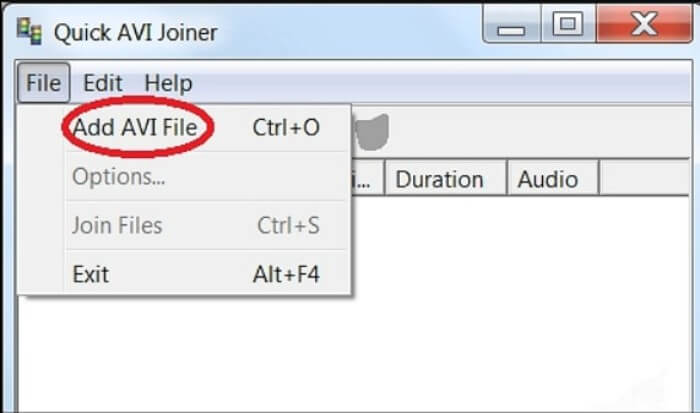
長所
- すべてのレベルのユーザーが簡単に使用できます。
- 異なるフレームサイズと解像度のAVIファイルをマージすることができます。
短所
- 他のジョイナーのように高い画質を維持することはできません。
システムOS:Windows
パート3:AVIファイルの結合に関するFAQ
1. 2つのAVIビデオを並べてマージできますか?
はい。 AVIビデオにサイドバイサイド効果を追加する場合、Video Converter Ultimateは、さまざまなモードでAVIビデオを並べて結合するのに役立ちます。さらに、さまざまなテンプレートを選択して、さまざまなテンプレートを作成できます。
2. AVIファイルを結合するためのビデオ品質を維持するにはどうすればよいですか?
特に同じソースからではなく、AVIファイルを組み合わせる必要がある場合は、一部のAVIファイルのビデオ品質を向上させる必要があります。その後、参加する前に、同様のフレームレート、ビットレート、およびその他のパラメーターを設定できます。
3. AVIファイルをVLCと組み合わせることができますか?
はい。Media メニューをクリックして、Open Multiple File を選択します。File タブの下にある Add オプションをクリックし、結合したいファイルを追加します。その後、Play ボタンに進み、メニューから Convert ボタンをクリックすると、VLC を使ってAVIファイルを結合できます。
結論
この記事では、AVIファイルをベスト2のビデオマージで結合するための詳細な手順を紹介しました。また、他の4つの最高のAVIジョイナーの特別な機能についても学ぶことができます。必要に応じて最適なものをお選びいただけます。
-
 M2TSファイルを無料で結合する方法
 ビデオカメラでキャプチャしたM2TS / MTSファイルを無料でマージしたいですか?この投稿では、2つのM2TSファイルを再エンコードせずに1つに結合する効率的な方法を共有しています。
-
 初心者のためのトップ6ベストMP4ジョイナー
 さまざまなMP4クリップを接続するために利用できるMP4ジョイナーはたくさんあります。この記事では、Windows10 / 8/7およびMac用の無料のMP4ジョイナーをいくつか選びました。
-
 WindowsとMacで複数のMPGビデオファイルを1つに結合する方法
 複数のMPGクリップを1つのファイルに結合することはあなたにとって問題かもしれません。この記事では、コンピューター上でMPGビデオをマージする方法について詳しく学ぶことができます。
