


 ビデオコンバーター究極
 スクリーンレコーダー
 ビデオ修復
ビデオ修復
 安全なダウンロード
MPEGビデオファイルを1つに組み合わせる方法–知っておくべき2つの究極の方法
MPEGファイルを結合する方法 古いテレビシリーズをMPEG形式でダウンロードしたとします。例えば短い8話構成で、それぞれに同じオープニングとエンディングが付いているような場合です。これらのMPEGファイルを、1本の映画のように結合するにはどうすればよいでしょうか。単純に動画を1本にまとめたい場合でも、高度な機能を使ってMPEGファイルを結合したい場合でも、絶対に見逃せない効率的な方法を2つご紹介します。

パート1:MPEGファイルをオンラインで無料で組み合わせる方法
FVC Free Online Video Merger は、MPEGやMP4、AVIなどの動画ファイルをサイズ制限なしで結合できる無料のオンラインMPEG結合ツールです。複数のMPEGファイルを、ウォーターマークなしの見栄えのする動画にまとめることができます。さらに、アップロードしたファイルはプライバシー保護のため24時間以内に削除されます。
手順1: 任意のウェブブラウザでFVC Free Online Video Mergerにアクセスします。ページ中央のUpload Videos to Mergeボタンをクリックしてインストーラーを入手します。その後、再度同じボタンをクリックして、結合したいMPEGファイルをオンラインプログラムにアップロードします。
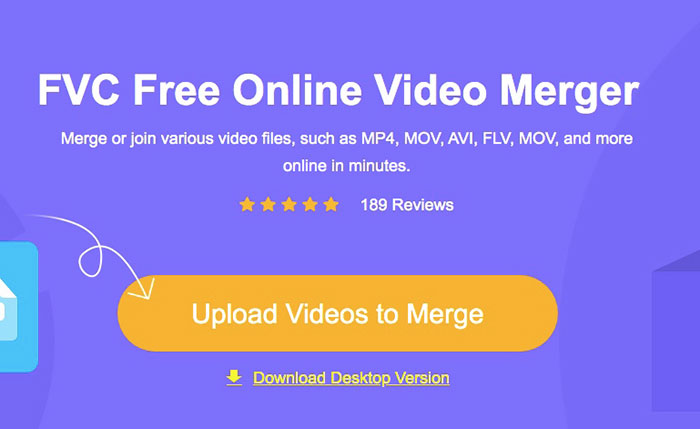
手順2: Merging videos画面に入ったら、結合したいMPEG動画の順番を並べ替えることができます。動画の位置を調整したり、ファイルを削除したり、適切な位置でinsert newボタンをクリックしてさらにMPEGファイルを追加したりできます。
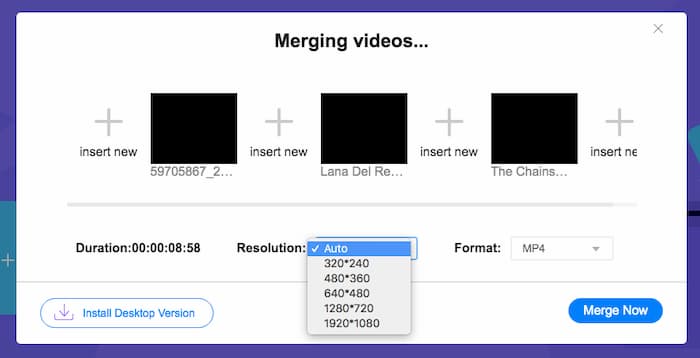
手順3: その後、出力動画の解像度と形式を選択します。MPEGファイルを1つのMP4ファイルに結合してから、Merge nowボタンをクリックして処理を開始できます。短時間で目的の動画を作成できます。
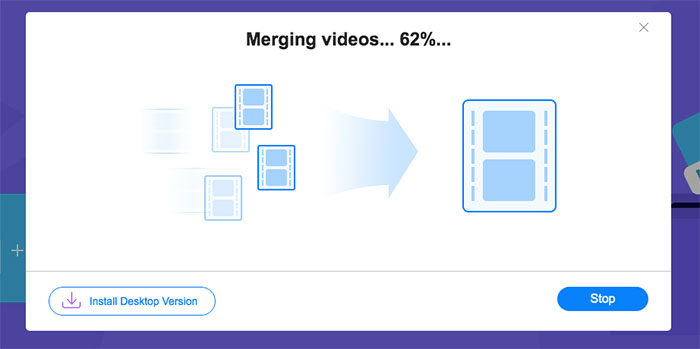
オンラインビデオコンバイナーは使いやすいです。ただし、エピソードの冗長なオープニングとエンディングをカットしたい場合は、それ以上の助けにはなりません。より強力なMPEGマージを使用する必要があります。
関連記事:
パート2:MPEGビデオをマージするための多様な方法
Aiseesoft Video Converter Ultimateは、複数のMPEGファイルの必要な部分だけを1本の映画として結合できる、プロフェッショナルなMPEG結合ソフトです。MPEGファイルから必要な部分だけをトリミングしたり、画質を調整したり、ウォーターマークをカスタマイズしたり、異なるテーマを使ってムービーを作成したりできます。
- 1. MPEGファイルをMPEG、MP4、および300を超えるビデオ形式に結合します。
- 2.ビデオの解像度を微調整するか、ファイルのマージのためにビデオの品質を向上させます。
- 3. MPEGファイルの必要な部分をトリミングし、それらを1つのビデオに結合します。
- 4.エフェクトとフィルターを追加し、MPEGビデオに透かしをカスタマイズします。
無料ダウンロードWindows 7 以降に対応安全なダウンロード
無料ダウンロードMacOS 10.7 以降に対応安全なダウンロード
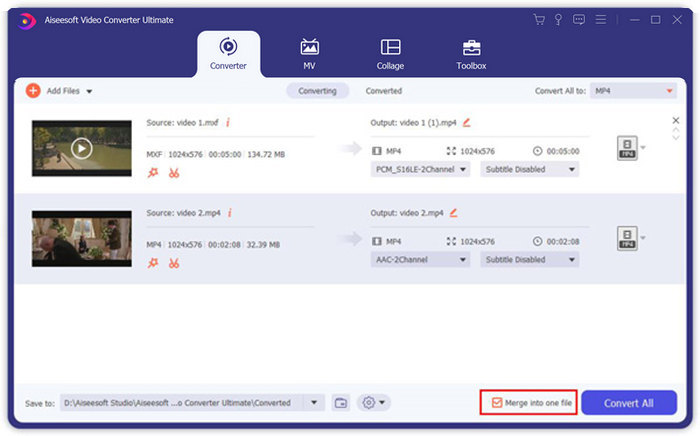
手順1: パソコンでAiseesoft Video Converter Ultimateを起動します。Converterメニューに移動し、メイン画面中央の大きな「+」ボタンをクリックして、結合したいMPEGファイルを追加します。Add Filesボタンをクリックして、まとめて結合したいすべてのファイルをインポートすることもできます。
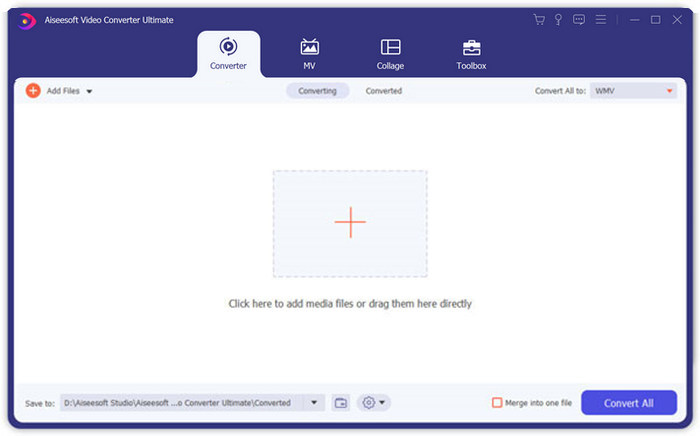
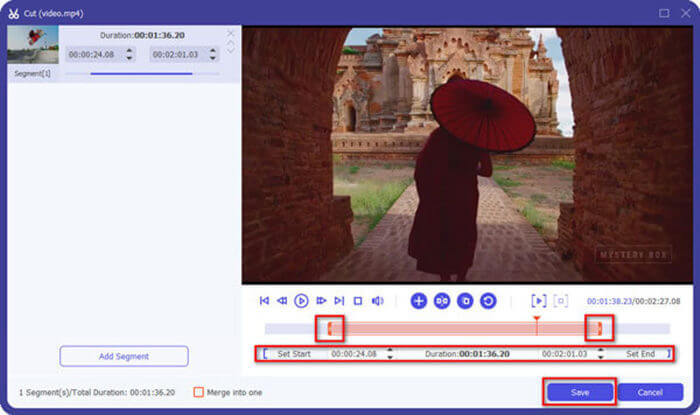
手順2: トリミングが必要なMPEGクリップの横にあるCutボタンをクリックします。開始点と終了点を設定して、MPEG動画のオープニングやエンディング部分を削除できます。その後、下部のSaveボタンをクリックしてファイルを保存します。
手順3: その後、トリミングした動画をプログラム内で並べ替えます。MPEG動画の順序を調整してください。準備ができたら、Convert Allの横にあるMerge into one fileにチェックを入れます。Convert Allボタンをクリックして、MPEGファイルの結合を開始します。
パート3:MPEGファイルの結合に関するFAQ
MPEGファイルを最高の品質でマージする方法は?
同様の品質のMPEGファイルをマージする場合は、元のビデオとしてパラメータを選択できます。ただし、MPEGファイルのビデオ品質が異なる場合は、プロのビデオコンバイナーを使用して、事前に低品質のMPEGファイルをアップスケールする必要があります。
MPEGファイルをiPhoneまたはAndroidフォンと組み合わせることができますか?
はい。 MPEGファイルを結合するためのビデオコンバイナーアプリをダウンロードする前に、アプリがMPEGまたは結合する他のビデオと互換性があることを確認する必要があります。 Adobe Premiere Clip、Viva Video、およびSplice Videoは、考慮に入れることができる推奨されるものです。
MPEGファイル形式とは何ですか?
MPEGは、MPEG-1またはMPEG-2ファイル圧縮のいずれかを使用するビデオファイル形式です。これは、インターネット上で配信される映画の一般的な形式であり、他の一般的なビデオ形式よりもストリーミングとダウンロードがはるかに高速になります。
結論
この記事では、特に余分な部分をトリミングする必要がある場合に、MPEGビデオファイルをマージする2つの効率的な方法を紹介します。 FVC Free Online Video Mergerは、MPEGファイルをオンラインでマージする簡単な方法ですが、ビデオクリップを編集することはできません。したがって、MPEGビデオをトリミングおよび編集する場合は、Aiseesoft Video ConverterUltimateが究極のソリューションになるはずです。
-
 無料でMP4ビデオを組み合わせるためのトップ6ベストMP4ビデオジョイナー
 さまざまなMP4クリップを接続するために利用できるMP4ジョイナーはたくさんあります。この記事では、Windows10 / 8/7およびMac用の無料のMP4ジョイナーをいくつか選びました。
-
 M4Vファイルをマージする方法は?これが2つの最も速い解決策です
 M4Vビデオファイルを1つにまとめるソリューションをお探しの場合は、この一節をお見逃しなく。ここでは、M4Vビデオファイルを組み合わせるための2つの最良の方法について説明します。
-
 携帯電話から1つのファイルに3GPビデオをマージする方法
 BlackBerryのいくつかの3GPビデオを1つのビデオに結合する場合は、記事から3GPファイルをマージする2つの効率的な方法について詳しく知ることができます。
