


 ビデオコンバーター究極
 スクリーンレコーダー
 ビデオ修復
ビデオ修復
 安全なダウンロード
動画から iSkysoft のロゴを削除するための挑戦的な方法
iSkysoft は多くの優れた機能を備えた素晴らしいアプリケーションで、他のソフトと比べても際立った存在です。動画形式を別の形式に変換したり、簡単な動画編集を行ったりできるシンプルなアプリケーションです。ただし、このソフトウェアの最も残念な点は、このアプリを使用した後の動画に大きな iSkysoft のウォーターマークが入ってしまうことです。大きなウォーターマーク/ロゴが付いた動画は、視聴していてあまり気持ちの良いものではありません。幸いなことに、iSkysoft のロゴ/ウォーターマークのような邪魔なオブジェクトを削除できる信頼性の高いアプリケーションがいくつかあります。動画から iSkysoft のロゴを削除する 最適な方法を知りたい場合は、本記事をぜひお読みください。

パート 1: デスクトップのビデオから iSkysoft ロゴを削除する
画面上の iSkysoft のロゴは、特にお気に入りの動画を見ているときには、本当に煩わしいものです。しかし、もう心配する必要はありません。Video Converter Ultimate を使えば、そのロゴを取り除くことができます。この信頼できるソフトウェアは、「動画ウォーターマークリムーバー」ツールと「動画クロッパー」ツールという2つの簡単な方法で、動画から iSkysoft のロゴを削除する手助けをしてくれます。これらのツールを使えば、動画から簡単に iSkysoft のロゴを取り除くことが可能です。もし iSkysoft のロゴが動画の隅にある場合は、動画クロッパー ツールの使用をおすすめします。一方、ロゴが動画の中央付近にある場合は、動画ウォーターマークリムーバー ツールを利用できます。こうすることで、ロゴに邪魔されることなく、お気に入りの映画や動画を視聴できるようになります。
さらに、ビデオから透かしを削除するだけでなく、Video Converter Ultimate にはさらに多くの機能があります。ビデオ エンハンサー、ビデオ マージャー、クロッパー、トリマー、ローテーター、コンバーターなどがあります。さらに、このアプリケーションの主な機能の 1 つは、さまざまなビデオ ファイル形式を変換することです。シンプルなインターフェースを備えているため、プロ以外のユーザーもこのアプリケーションを利用できます。ビデオから iSkysoft のロゴを削除する方法を知りたい場合は、このアプリケーションが提供する 2 つの簡単な方法を紹介します。
ビデオ透かしリムーバーの使用
ステップ1:この優れたソフトウェアを使用するには、まずデスクトップに Video Converter Ultimate をダウンロードする必要があります。ダウンロード後、インストール手順に従い、アプリケーションを起動します。
無料ダウンロードWindows 7 以降に対応安全なダウンロード
無料ダウンロードMacOS 10.7 以降に対応安全なダウンロード
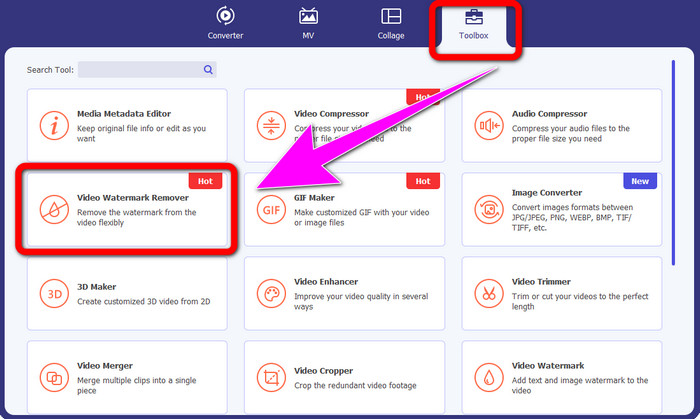
ステップ2:ソフトウェアを起動したら、「ツールボックス」パネルに進み、「動画ウォーターマークリムーバー」ツールを選択します。すると、新しいインターフェースが画面に表示されます。
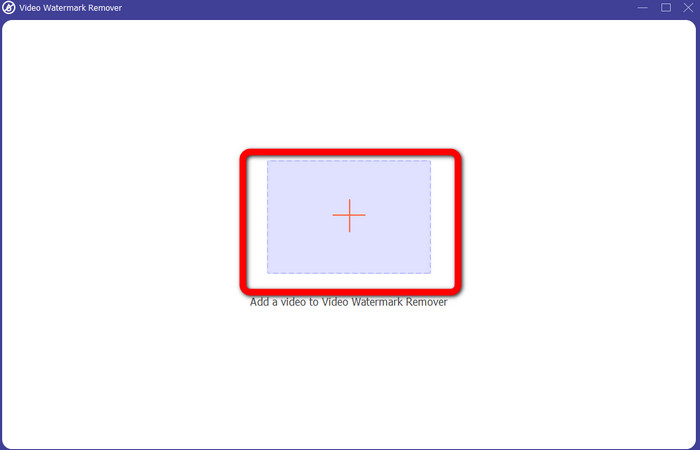
ステップ3:新しいインターフェースが表示されたら、プラスアイコンをクリックし、削除したい iSkysoft のロゴが入っている動画を追加します。
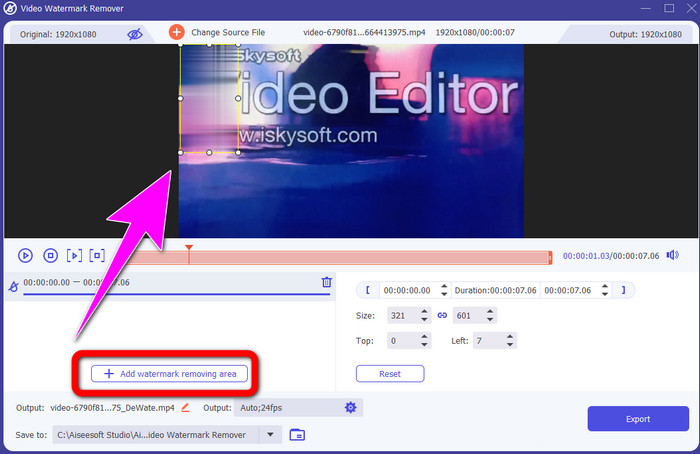
ステップ4:次に、「ウォーターマーク削除エリアを追加」ボタンをクリックします。動画上でボックスを移動させ、iSkysoft のロゴを覆うように配置します。
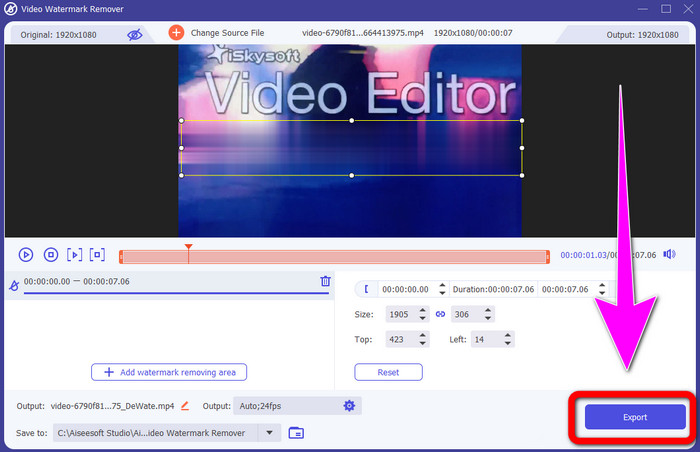
ステップ5:最後に「エクスポート」ボタンをクリックして、編集後の動画を保存します。
ビデオクロッパーの使用
この部分では、ビデオ クロッパー ツールを使用してビデオから iSkysoft のロゴを削除する方法を紹介します。
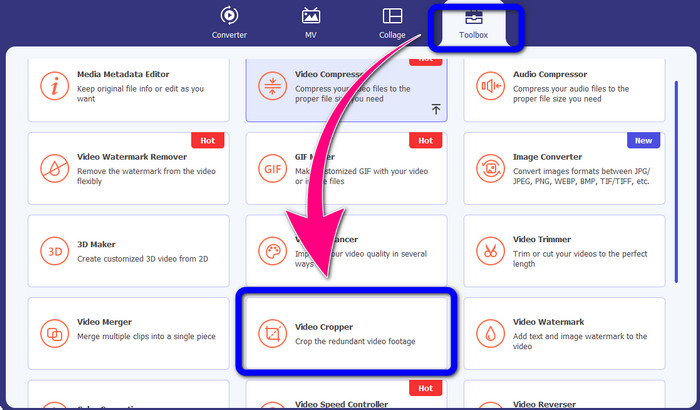
ステップ1:デスクトップでアプリケーションを起動します。「ツールボックス」パネルの中から「動画クロッパー」ツールをクリックします。先ほどのツールと同様に、新しいインターフェースが画面に表示されます。
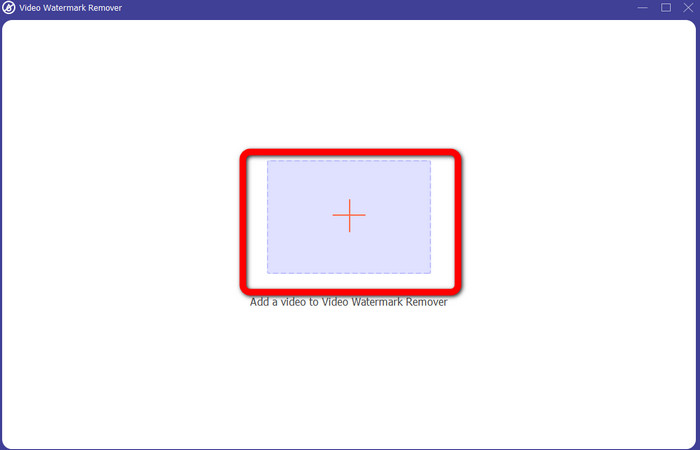
ステップ2:プラス(+)ボタンをクリックして、iSkysoft のロゴが入っている動画をインポートします。
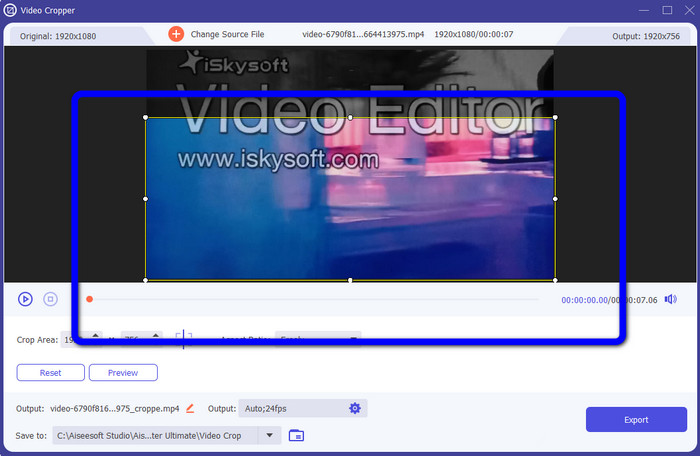
ステップ3:ここでは、動画をトリミングして、動画から iSkysoft のロゴを削除できます。マウスを使って動画の端をドラッグし、範囲を調整します。
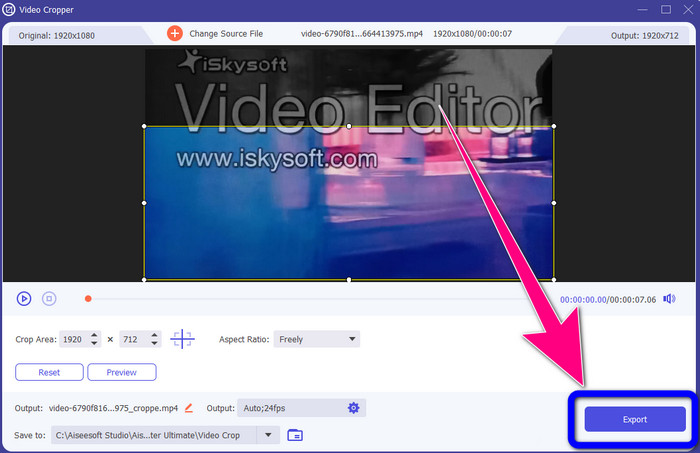
ステップ4:最後のステップとして、「エクスポート」ボタンをクリックし、デスクトップに出力ファイルを保存します。
パート 2: ビデオ オンラインから iSkysoft ロゴを削除する方法
HitPawの使用
iSkysoft のロゴはオンラインでも削除できます。利用できる優れたツールのひとつが HitPaw です。このオンラインアプリケーションを使うと、動画からロゴを簡単に取り除くことができます。デスクトップ版とオンライン版の両方で使用できるため、誰にとっても便利です。また、HitPaw は安全に利用できます。編集した動画が自分以外に見られないよう配慮されています。さらに、このソフトウェアにはロゴ削除に関する制限がありません。ロゴを削除するために購入する必要はなく、無料で利用できます。ただし、ロゴやその他の
動画に不要な要素がある場合は、もう少し待つ必要があります。このアプリケーションの削除手順は遅く、ユーザーにとっては時間がかかります。また、それはあなたのインターネット接続に依存します。高速接続があれば、うまく機能します。ただし、接続が遅い場合は、多少の遅延が予想されます。以下の簡単な手順に従って、動画から iSkysoft のロゴを削除してください。
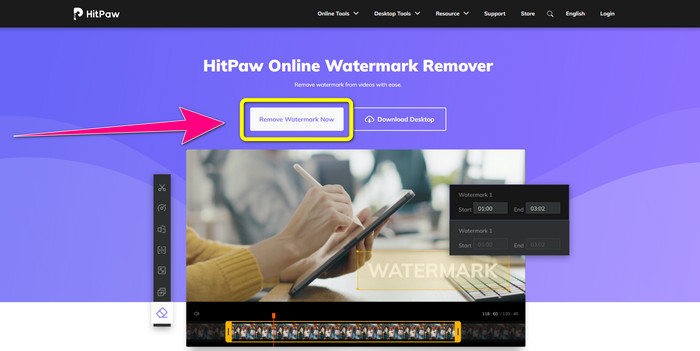
ステップ1:HitPaw のウェブサイトにアクセスします。「Remove Watermark Now - Choose File(今すぐウォーターマークを削除 - ファイルを選択)」ボタンをクリックし、削除したい iSkysoft のロゴが入った動画を挿入します。
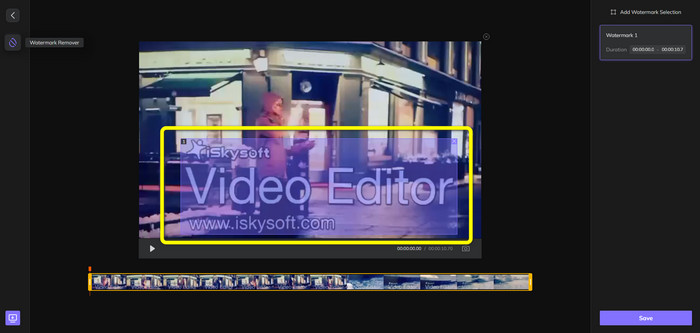
ステップ2:動画ファイルを追加すると、画面上に青いボックスが表示されます。このボックスを使って iSkysoft のロゴを覆います。ボックスのサイズは自由に変更できます。
ステップ3:動画上の iSkysoft のロゴを覆い終えたら、「保存」ボタンをクリックします。削除処理が完了するまで待ち、動画を保存します。
![[保存]ボタンをクリックします](/images/2022/10/click-save-button-3.jpg)
ビデオ透かしリムーバーをオンラインで使用する
もうひとつ利用できるオンラインツールが「Video Watermark Remover Online」です。このアプリケーションを使用すると、動画から iSkysoft のロゴを削除できます。操作も簡単で、専門知識のないユーザーにも適しています。さらに、動画の画質を落とさずに、動画内の不快な要素を取り除くことができます。ただし、無料版を使用する場合、ロゴ削除の回数に制限があります。ロゴやウォーターマークを削除できるのは5本の動画までです。Video Watermark Remover Online でさらに多くの動画を処理したい場合は、有料プランを購入する必要があります。また、出力を別の形式で保存することはできません。同じ形式でしか保存できないため、その点はあまり良くありません。最後に、処理速度が遅いという欠点もあります。以下の簡単な手順に従って、動画から iSkysoft のロゴを削除してください。
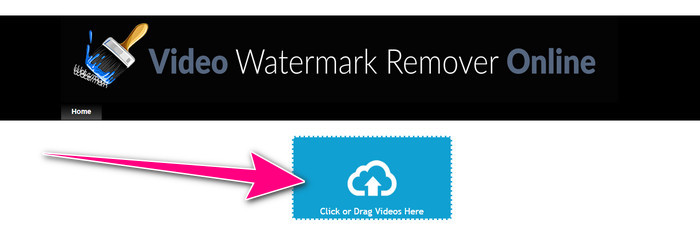
ステップ1:Video Watermark Remover Online のウェブサイトにアクセスします。「Click or Drag Videos Here(ここをクリックまたは動画をドラッグ)」ボタンを選択し、削除したい iSkysoft のロゴが入った動画ファイルをインポートします。
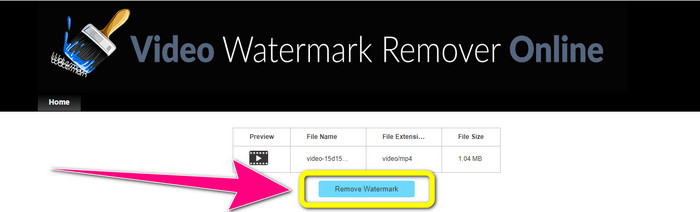
ステップ2:次に「Remove Watermark(ウォーターマークを削除)」ボタンをクリックし、削除処理が完了するまで待ちます。
関連記事:
Adobe Premiere Pro で動画からロゴを削除する最速の方法
Windows ムービー メーカーを使って動画からロゴを削除する方法
パート 3: iSkysoft ロゴの削除に関する FAQ
写真からロゴを削除できますか?
はい、「FVC Free Watermark Remover」を使って、画像からロゴを簡単かつ素早く消すことができます。
透かしの削除は違法ですか?
米国著作権法第 1202 条によると、所有者の許可なしに透かしを削除することは違法です。
ロゴを無料で削除するにはどうすればよいですか?
Video Converter Ultimate の無料試用版を使用して、ビデオからロゴを無料で削除できます。
結論
この記事では、デスクトップ用およびオンラインツールを使って、動画から iSkysoft のロゴを削除する優れた方法を紹介しました。もし、使いやすく高性能なロゴ削除ツールを探しているのであれば、Video Converter Ultimate をダウンロードしてみてください。このアプリケーションは、ロゴ削除の処理が高速で、すべてのユーザーにとって扱いやすいのが特長です。
-
 8つの優れたビデオ透かしリムーバーオンラインおよびオフライン
 Windows、Mac、iPhone、および Android フォンで使用できる最高の無料のビデオ透かし除去ソフトウェアを探している場合は、この記事が役に立ちます。
-
 ビデオからバイト可能な透かしを削除する方法に関する最良の方法
 この記事では、最も信頼性が高く、優れた噛むことができるウォーターマーク リムーバーを紹介します。これらの素晴らしいアプリケーションは、この種の問題を解決するのに役立ちます
-
 ビデオからロゴを削除するための学習しやすい手順
 最高で簡単なビデオ ロゴ リムーバーをお探しですか?それなら、この記事はあなたにぴったりです。この機会に、ビデオからロゴを削除する方法を学びましょう。
