


 ビデオコンバーター究極
 スクリーンレコーダー
 ビデオ修復
ビデオ修復
 安全なダウンロード
Windows ムービー メーカーを使用してビデオからロゴを削除する最も簡単な方法
「Windows Movie Maker を使って動画からロゴを削除する方法」は、お気に入りの映画や動画クリップ、スライドショーなどを楽しむ人たちから最もよく寄せられる質問です。ロゴが表示されたまま動画を見るのはあまり気持ちのよいものではありません。しかし、もう心配する必要はありません。Windows Movie Maker を使って動画からロゴを取り除く効果的な方法を紹介します。さらに、Windows Movie Maker 以外にもロゴ削除に使える別のツールがあります。この別アプリや簡単な手順について知りたい場合は、そのままこの記事を読み進めてください。

パート 1: Windows ムービー メーカーを使用してビデオからロゴを削除する方法
Windows ユーザーであれば、動画からロゴを削除するためにぜひ Windows Movie Maker を試してみてください。また、このツールではロゴ、ウォーターマーク、テキスト、スタンプなど、さまざまな要素を動画から削除する方法が用意されています。加えて、Windows Movie Maker はユーザーが動画を作成・編集できる動画編集ソフトです。インターフェースもシンプルで操作しやすく、非プロフェッショナルユーザーにも最適です。ロゴを削除する際は、画像やテキストなど別の要素を重ねて置き換えることができます。さらに、このアプリケーションにはカット、結合、回転、トリミングなど、多くの編集ツールが備わっています。トランジションやテキスト、エフェクトなどを追加することも可能です。この簡単な方法を知りたい場合は、以下の手順に従ってください。
ステップ1: まず最初に、Windows に Windows Movie Maker をダウンロードします。インストールが完了するまで待ち、その後アプリケーションを起動します。
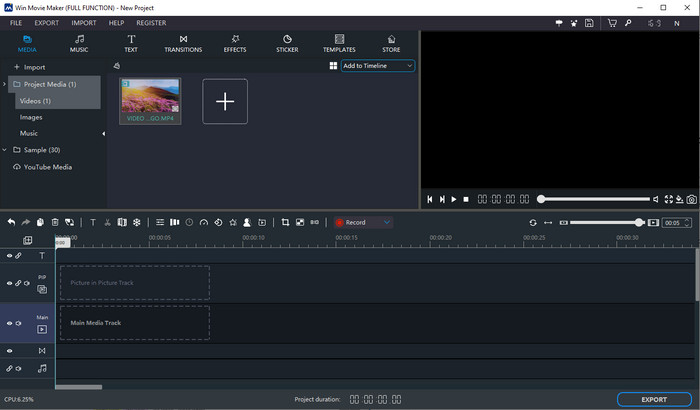
ステップ2: ロゴ入り動画を追加するために、プラス のアイコンをクリックします。動画が読み込まれたら、ドラッグして Main Media Track(メインメディアトラック) 上に配置します。
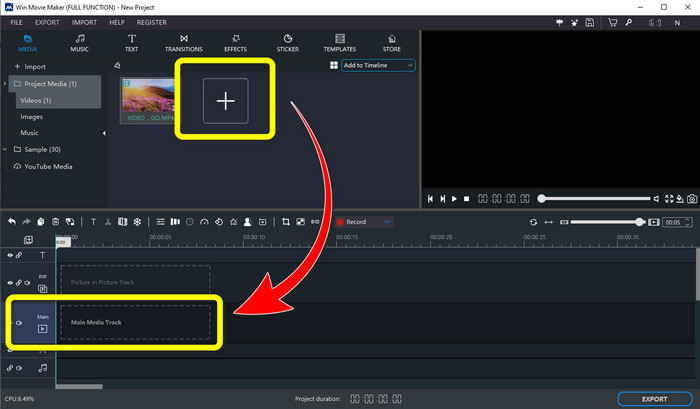
ステップ3: ロゴを置き換えるには、Sticker(ステッカー) ボタンをクリックします。好みのステッカーやその他の要素を選択し、ロゴ部分を覆うように配置します。
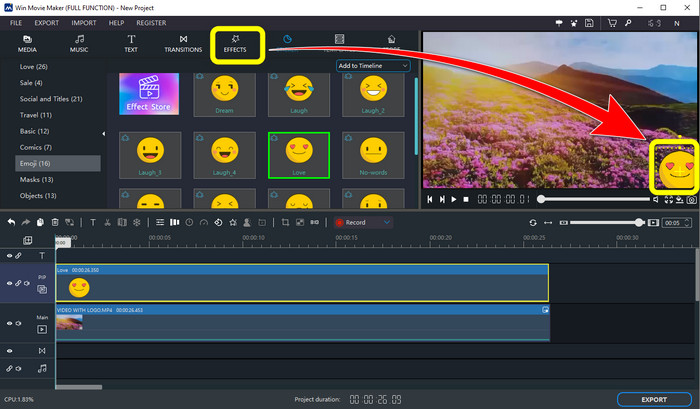
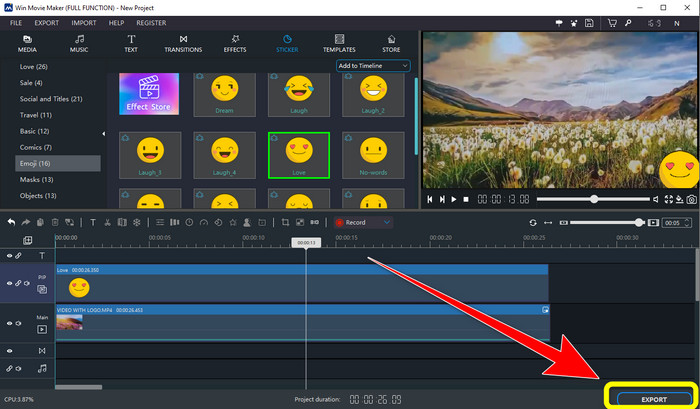
ステップ4: 最後のステップとして、動画内のロゴをすべて隠し終えたら、Export(エクスポート) ボタンを選択して、最終的な動画を保存します。
パート 2: ビデオからロゴを削除する最良の代替方法
Video Converter Ultimate は、Windows Movie Maker の優れた代替ソフトの一つで、動画からロゴを簡単に削除できます。このアプリケーションでは、ウォーターマーク、ロゴ、署名、スタンプなど不要な要素を削除可能です。さらに、動画の端やコーナーに配置されたロゴを削る場合は、クロップ(トリミング)ツールを使うこともできます。Video Converter Ultimate はわかりやすく直感的なインターフェースを備えており、非プロフェッショナルユーザーにも適しています。ロゴの削除以外にも、さまざまな編集ツールを利用できます。動画圧縮、動画速度コントローラー、GIF メーカー、コラージュメーカー、ウォーターマークの追加・削除、動画回転など、多機能です。対応形式も MP4、MKV、FLV、MOV、XVID、DIVX、TRP、MTS など多数に対応しています。最後に、Video Converter Ultimate は Windows と Mac の両方に対応しており、ユーザーにとって便利です。ここからは、「Video Watermark Remover(動画ウォーターマーク削除)」と「動画クロップ」を使ってロゴを削除する詳しい手順を紹介します。
ビデオ透かし除去機能を使用する
ステップ1: まず、Video Converter Ultimate をダウンロードし、Windows または Mac にインストールします。
無料ダウンロードWindows 7 以降に対応安全なダウンロード
無料ダウンロードMacOS 10.7 以降に対応安全なダウンロード
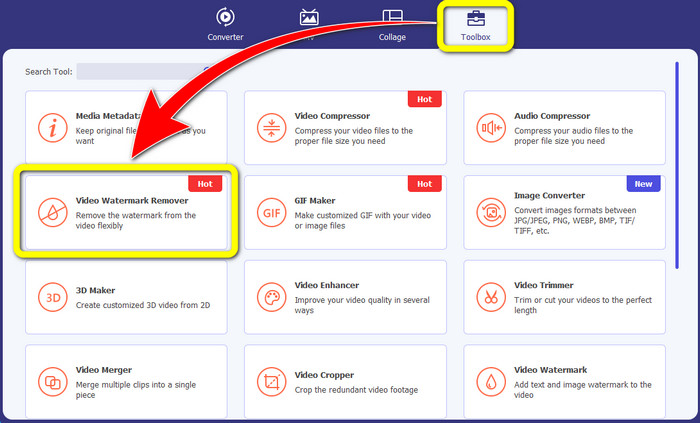
ステップ2: アプリケーションを起動したら、ツールボックス(Toolbox) パネルを開き、Video Watermark Remover を探して選択します。
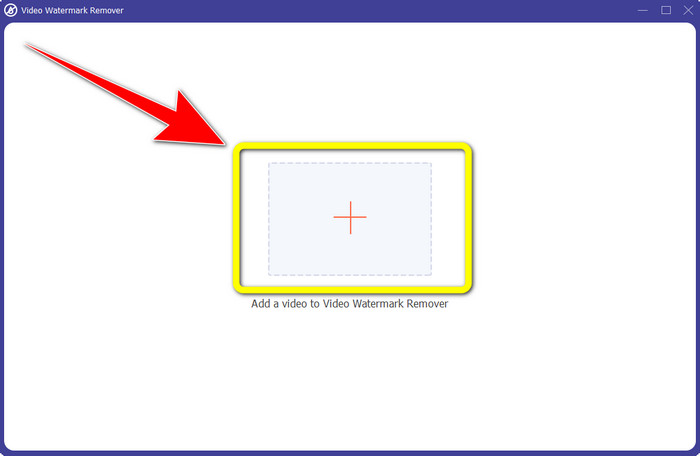
ステップ3: その後、新しい画面が表示されます。ロゴを削除したい動画を追加するために、プラスアイコンをクリックします。
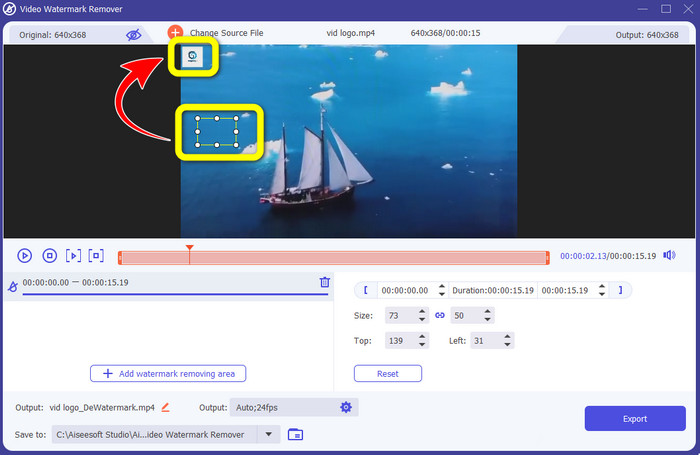
ステップ4: ファイルを読み込むと、画面上に ミニボックス が表示されます。このボックスをドラッグしてロゴ部分を覆います。
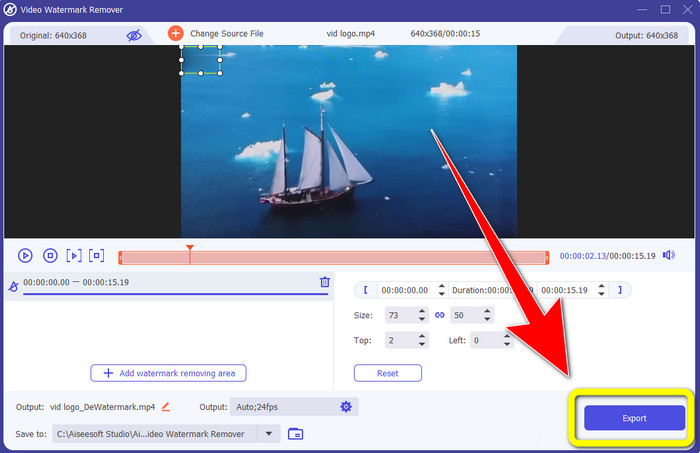
ステップ5: 動画からロゴの削除が完了したら、Export(エクスポート) ボタンを選択して、ロゴなしの動画を出力・保存します。
ビデオクロッパー機能を使う
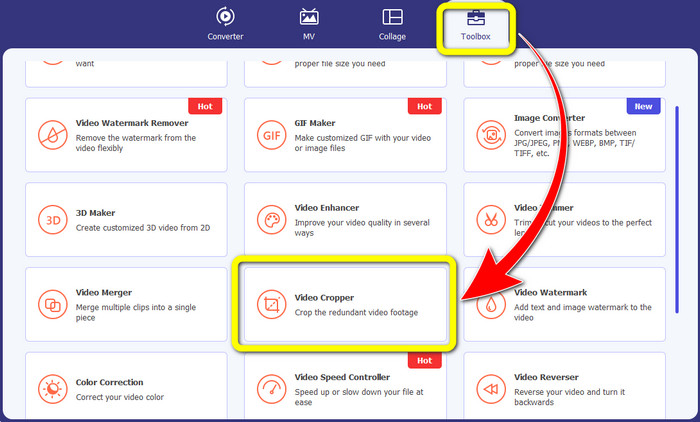
ステップ1: まず最初に、ツールボックス(Toolbox) パネルをクリックします。その後、Video Cropper ツールを見つけて選択します。
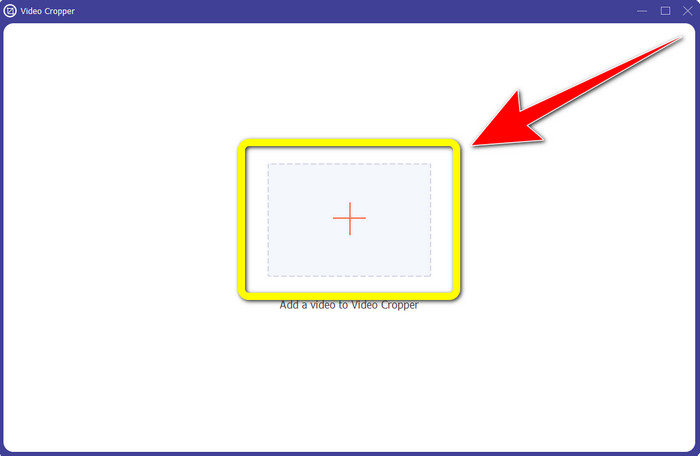
ステップ2: 次に、プラス ボタンをクリックして、ロゴ入り動画を読み込みます。
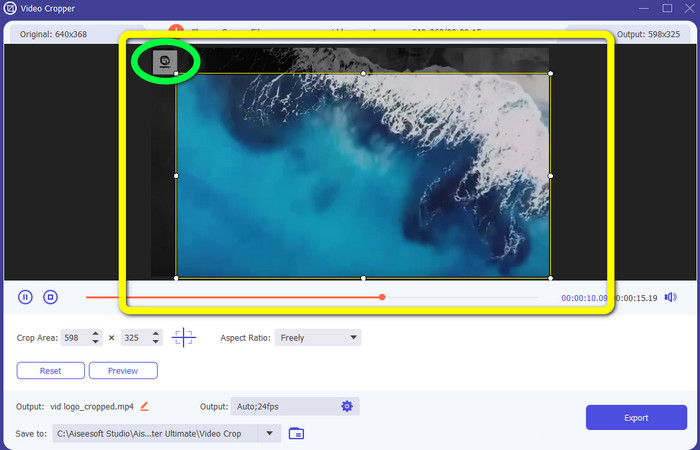
ステップ3: この機能では、左右両側、または動画の上下をカットすることで、動画からロゴを削除できます。
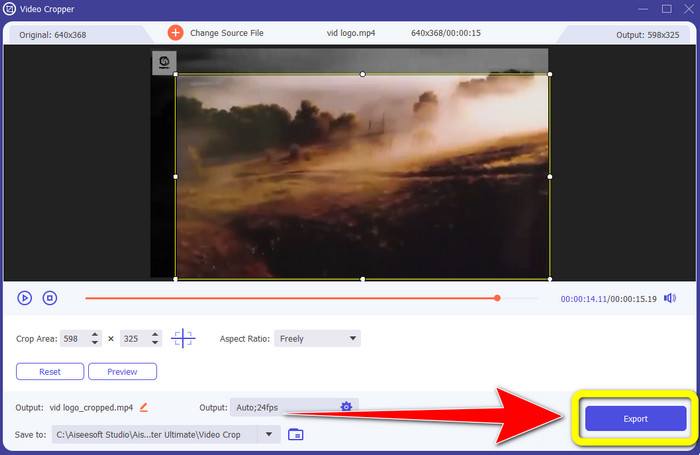
ステップ4: 最後のステップとして、Export(エクスポート) ボタンをクリックし、動画をパソコンに保存します。
パート 3: Windows ムービー メーカーを使用したビデオからのロゴの削除に関する FAQ
ロゴを削除した後、Windows ムービー メーカーでビデオをエクスポートするのにどのくらいかかりますか?
Windows ムービー メーカーを使用すると、ロゴを削除した後、わずか 1 分でビデオをエクスポートできます。
ビデオからロゴを削除するのに最適なアプリケーションはどれですか?
ロゴ削除機能を備えた、最も優秀で信頼できるアプリケーションを探しているなら、Video Converter Ultimate を使用してみてください。このアプリケーションを使えば、ロゴを取り除いた後の動画を存分に楽しむことができます。
携帯電話を使用して動画からロゴを削除するのに役立つアプリケーションはありますか?
はい、もちろんあります。PicLab アプリを使うことができます。Android と iPhone の両方で利用可能です。一般的な手順は以下のとおりです。
1. スマートフォンに PicLab をダウンロードして起動します。
2. ファイルを読み込み、マーカーツールを選択します。
3. 削除したい部分を指定し、「消去(erase)」を押して保存します。
品質を落とさずに動画からロゴを削除することはできますか?
はい、可能です。最もおすすめのアプリケーションは Video Converter Ultimate です。
ビデオからロゴを削除するために使用できるオンライン ツールはありますか?
もちろん可能です。動画からロゴを削除できるオンラインツールも多数あります。たとえば Apowersoft Online Watermark Remover を利用できます。以下はこのツールの簡単な使い方です。
1. Apowersoft Online Watermark Remover の公式サイトにアクセスし、remove watermark from video ボタンをクリックします。
2. ファイルをアップロードし、ボックスでロゴ部分を覆います。
3. Erase をクリックし、処理後の動画をダウンロードします。
結論
本記事では、パソコンで Windows Movie Maker を使って動画からロゴを削除する方法 を詳しく紹介しました。また、Windows Movie Maker 以外にも、ロゴ削除に使える優れた代替ソフトとして Video Converter Ultimate を提案しました。この信頼できるアプリケーションでは、2 つの簡単な方法でロゴを取り除くことができます。1 つは Video Watermark Remover ツール、もう 1 つは Video Cropper ツールです。
-
 Bandicam透かしを簡単に削除する方法[3つの効果的な方法]
 Bandicamの透かしを削除するにはどうすればよいですか?ツールを使用して、効果的に対処する方法をここに追加します。
-
 最も効果的な方法を使用してiStockウォーターマークを削除する方法
 ビデオや画像のiStock透かしを削除するにはどうすればよいですか?透かしを取り除く方法を探しているなら、これを読んでください!
-
 完全なチュートリアルを使用して、エクスポートされたビデオのDaVinciResolve透かしを削除します
 Davinci Resolve透かしを削除するには、ツールを使用するか、その公式バージョンを購入する必要があります。詳細については、これを読み続けてください。
