


 ビデオコンバーター究極
 スクリーンレコーダー
 ビデオ修復
ビデオ修復ビデオをオンラインで高速化する方法:インターネットで利用可能な広範なアプローチ
オンライン授業は、特にパンデミック以降、ブレンデッドカリキュラムで用いられるもう一つの指導方法であり、同期型授業の代替として動画プレゼンテーションを提供する手段にもなっています。しかし、1時間もかかる動画プレゼンテーションの多くは、視聴していて退屈です。そのため、授業の要点だけを拾うために、動画を倍速にしたり早送りしたりせざるを得ない学生もいます。この記事は、こうした学生の多くが抱える問題を改善するのに最適です。ここでは、オンラインで動画を倍速再生する方法の具体例を紹介します。

パート1。ビデオ再生速度を上げるために利用できるさまざまな方法
動画を速く再生するというと、少し変に聞こえるかもしれません。というのも、通常はどの動画も標準速度で再生されるからです。しかし、中には動画クリップを標準の2倍速で視聴したい人もいます。たとえば、人によっては、映画を再視聴するときなどに、作品を退屈にしてしまう不要なシーンを飛ばしたい、という理由があります。会話シーンを飛ばして、アクションやクライマックスの部分だけを見たい、といった具合です。一方で、単に動画を手早く視聴したい人もいます。こうしたニーズに応える編集アプリの中には、使用前に購入が必要なものもあり、悩みの種になることがあります。しかし、以下で紹介するソフトとWebツールを使えば、無料でオンライン動画を倍速再生することができます。
方法1.Clideoを使用する
動画マーケティングソフトウェアのClideoは、オンラインのほぼあらゆる視聴者向けに、動画の作成・編集・圧縮・配信用のパッケージ化を行えるツールです。編集ツールボックス、カスタマイズエンジン、豊富な対応形式など、多くの機能を備えています。そのツールの一つとして、動画を早送りしてスピードアップできる機能があります。使い方が気になる方のために、ここではClideoの利用手順を説明します。
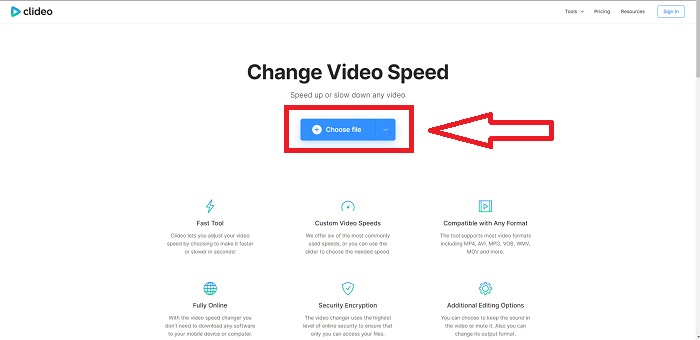
ステップ1: ClideoのインターフェースでChoose Fileをクリックし、倍速にしたい動画クリップをアップロードします。
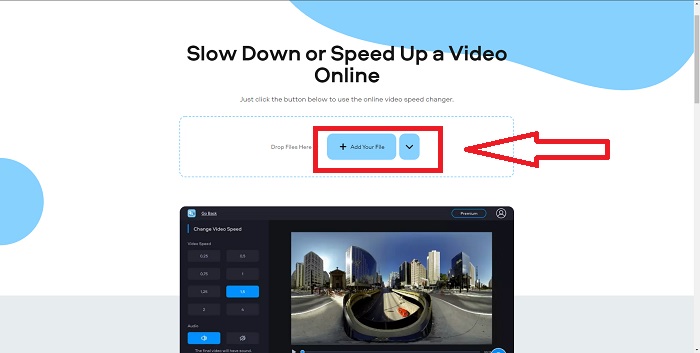
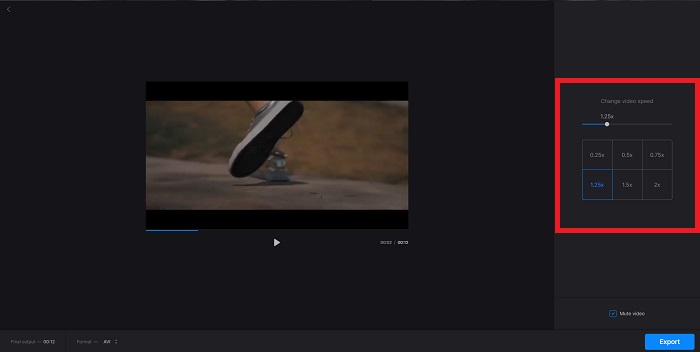
ステップ2: 動画をアップロードしたら、画面右側で希望する再生速度を選択して、動画ファイルに適用します。動画を速く再生することも、実際の速度より遅くすることもできます。また、動画全体をミュート(無音)にすることも可能です。
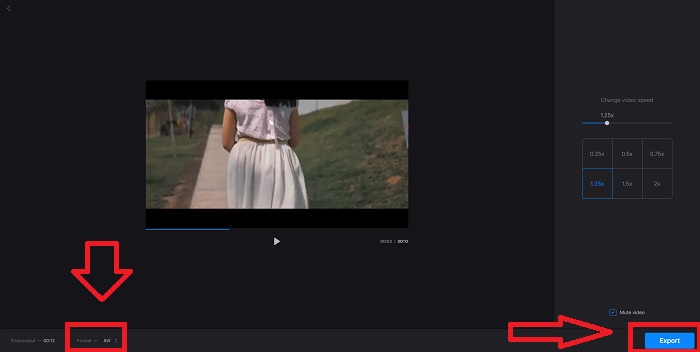
ステップ3: 動画の再生速度に満足したら、動画に適した保存形式を選択します。利用できる形式はAVI、3G2、3GP、F4V、ASF、FLV、M2TSなどです。すべての準備が整ったら、Exportをクリックしてファイルを書き出し、続いてDownloadを押して、ファイルをデスクトップへ保存します。
方法2.Fastreelを使用する
動画編集ツールのFastreelは、短いクリップの作成、動画編集、テンプレートの利用による効率的な制作を可能にします。このサービスの提供元の一社であるMovaviは、動画編集ソフトや動画変換ソフトでよく知られています。Firefox、Google Chrome、Opera、Safariなど、任意のブラウザで動作するため、FastreelはWindowsおよびMacユーザーにとって、デスクトップソフトの優れた代替手段と言えます。最初に紹介したWebツールと同様に、Fastreelにも、オンラインで動画を倍速再生するのに役立つ機能があります。以下の手順に従ってください。
ステップ1: FastreelのインターフェースでUse Online Toolsをクリックし、利用可能なすべてのツールを表示します。
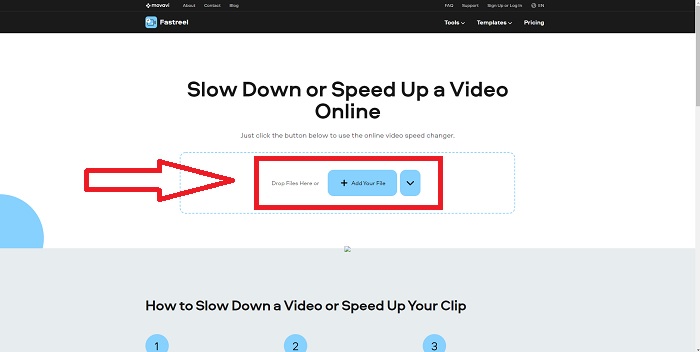
ステップ2: その後、Fastreelのすべての機能概要が表示されます。スクロールしてEffects(エフェクト)セクションを見つけ、Change Video Speedをクリックして動画クリップの編集を開始します。続けてAdd fileをクリックし、編集を進めます。
![[ビデオ速度の変更]をクリックします](/images/2021/10/click-change-video-speed.jpg)
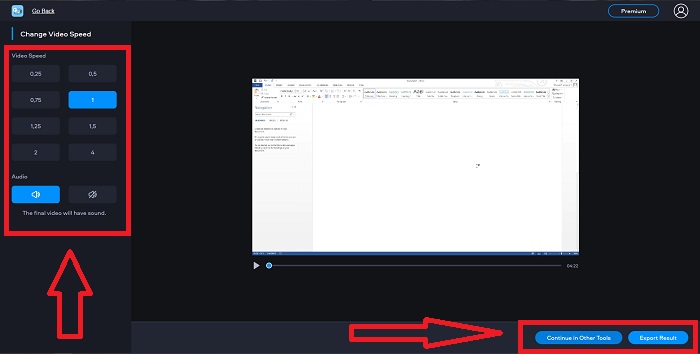
ステップ3: 最後に、再生速度を上げるか下げるか調整します。ファイルを書き出すか、あるいはFastreelの別ツールを続けて使用するかを選択できます。なお、Premiumをクリックすると、その他すべての機能を解放できます。
方法3.Flixierを使用する
次に紹介するWebツールは、再生速度を編集するときのファイルサイズ制限がなく、大容量の動画でもオンラインで倍速再生できます。Flixierを試してみてください。これは、ブラウザ上で完結するオンライン動画エディターで、非常に簡単な操作で動画を作成できます。テキストや画像を動画に追加するのも、エディターにドラッグ&ドロップするだけです。トリミング、カット、クロップなどの作業を行うのに、ソフトをダウンロード・インストールする必要はありません。経験の有無にかかわらず、短時間で高品質なコンテンツを制作できます。以下で手順を紹介します。
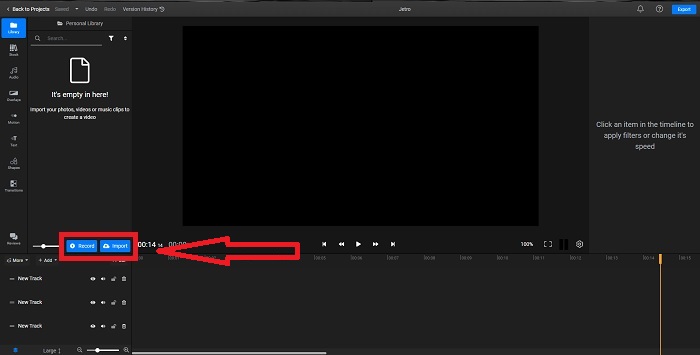
ステップ1: 別タブでFlixierを開き、Importをクリックしてデスクトップから動画クリップを読み込むか、Recordをクリックして録画を開始します。読み込んだ動画をタイムライン上のトラックにドラッグし、編集を開始します。
ステップ2: 右側の編集ツールにあるVideoタブを表示します。スクロールしてVideo Speedをクリックし、読み込んだ動画クリップの再生速度を調整します。0.5倍速、1.5倍速、2倍速などから選択するか、Sliderをドラッグして、任意の再生速度に細かく設定することもできます。
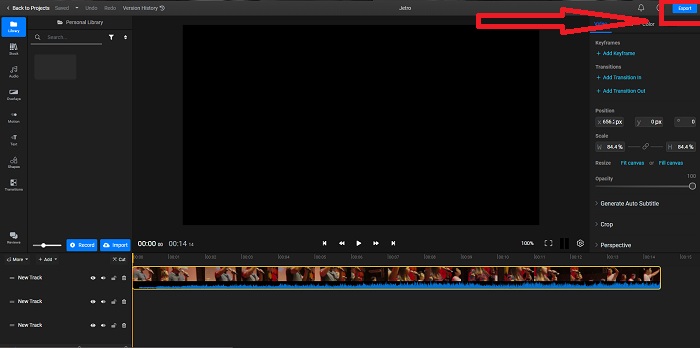
ステップ3: 画面右上のExportをクリックしてクリップを書き出します。その後、別の画面が表示されます。この画面で書き出すファイル名を変更したり、アップロード先のソーシャルメディアやクラウドストレージを選択したりできます。
方法4.VideoConverterUltimateを使用する-最も簡単な方法
もし「どのツールが動画を速くするのに一番良いか」で迷っていて、オンラインのWeb編集ツールではなくダウンロード型ソフトを使いたい場合は、Video Converter Ultimateを試してみてください。このソフトを使えば、動画編集に加えて再生速度も自由にカスタマイズできます。
ステップ1: Free Downloadオプションをクリックして、ソフトをパソコンのハードドライブに保存します。その後、インストールと設定を行い、システム環境に合わせてカスタマイズします。
無料ダウンロードWindows 7 以降に対応安全なダウンロード
無料ダウンロードMacOS 10.7 以降に対応安全なダウンロード
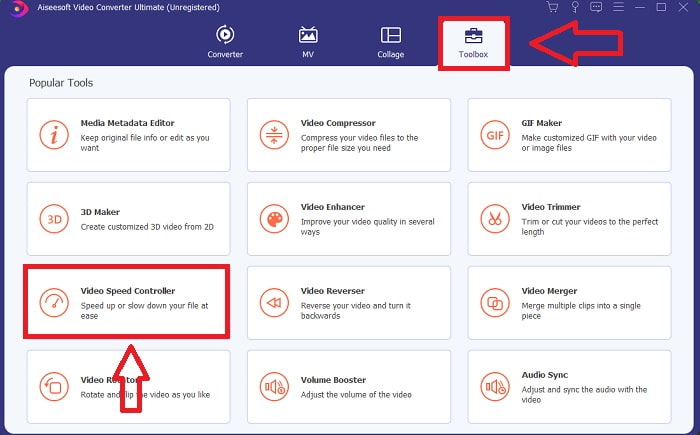
ステップ 2: インストールが完了したらソフトを起動し、メニューバーからツールボックスを選択し、表示された一覧から動画スピード管理をクリックします。
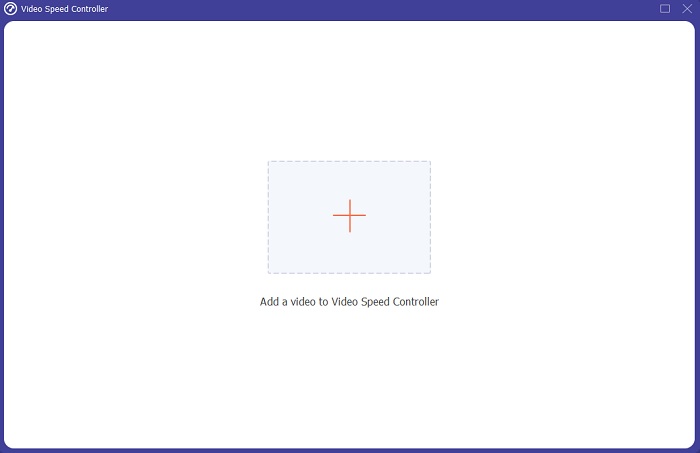
ステップ3: 画面上の+ボタンをクリックしてファイルを追加し、動画の編集を続けます。
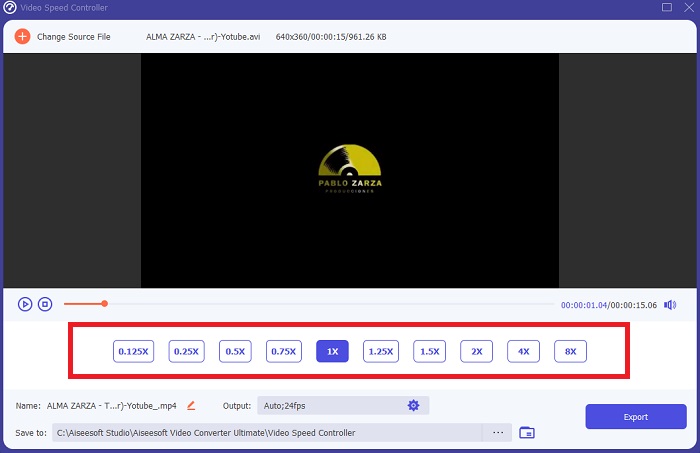
ステップ4: 動画の速度を何倍速にするか、あるいはどの程度遅くするかを選択して、再生速度を調整します。
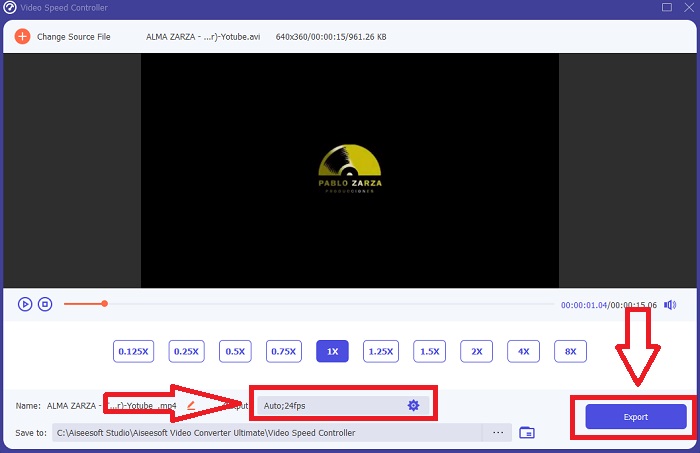
ステップ5: 動画クリップの再生速度の編集が終わったら、フォーマットや解像度、画質などを編集して、出力形式を選択します。Exportをクリックし、ファイルの保存先を指定します。
関連記事:
iPhone向けおすすめ動画プレーヤー
パート2。ビデオをオンラインで高速化する方法に関するFAQ
再生速度を上げると、動画のファイルサイズが小さくなりますか?
ビデオの再生速度を上げたり下げたりするたびに、フレームのみが分割されます。 0.5倍速くすると、フレームは1/120秒あたり60フレームになります。つまり、ビデオのフレームレートがすでに低い場合を除いて、ビデオに影響を与えることはできません。
ビデオを高速化するのにはるかに使いやすいツールはどれですか?
すべてのツールは無料で使用することも、無料でダウンロードすることもできます。ただし、Video Converter Ultimateは、この記事の前半で説明したすべてのWebツールに最適な代替手段です。このツールには多くの機能があり、可能な限りアクセス可能な方法でビデオを改善するのに役立ちます。
ツールはすべての形式を受け入れますか?
いいえ、提供されているツールの中には、限られた数のフォーマットしかサポートできないものがあります。それらのいくつかは、出力を別の形式に変換できます。ただし、Video Converter Ultimateはさまざまな形式をサポートでき、すべてのデバイスで利用できます。ほとんどのメディアプレーヤーはmp4形式をサポートできるため、オンラインでmp4ビデオを高速化することもできます。
結論
ビデオを高速化することは、ほとんどの人にとって奇妙な考えである可能性があり、それはいくつかの変わった目的につながるだけでした。ただし、それでも、ビデオを高速に変換するというアイデアを求める人々にはメリットがあります。この記事は、ビデオの編集を検討し、ビデオクリップの高速化に関するすべての質問に答える一握りの人々に役立つ記事になる可能性があります。
-
 MKVファイルをPS3でスムーズに再生するように変換する方法[解決済み]
 PS3でMKVビデオを再生したいですか?ただし、PS3はMKVファイルを直接再生することはできません。この記事では、MKVビデオをPS3でサポートされているビデオ形式に変換して、面倒なことなくPS3で再生する方法を紹介します。
-
 Android DVDプレーヤー–AndroidモバイルでDVDビデオを再生する方法
 Android携帯でDVDファイルを再生する方法は? Android DVDプレーヤーはありますか?この記事では、外部ドライバーの有無にかかわらず、AndroidモバイルでDVDビデオを再生する3つの方法について学習します。
-
 HD / 4Kビデオを再生するためのベスト10無料AndroidMP4プレーヤー
 AndroidモバイルにはMP4ビデオを再生するためのデフォルトのプレーヤーがありますが、再生設定やその他の機能の調整はサポートされていません。したがって、この記事からベスト10のAndroidMP4プレーヤーについて学ぶことができます。
