


 비디오 컨버터 궁극
 스크린 레코더
 비디오 수리
 안전한 다운로드
몇 초 만에 HEIC를 PNG로 빠르게 변환하는 7가지 쉬운 방법
HEIC 파일을 다른 기기에서도 폭넓게 호환되게 만들고 싶으신가요? 그렇다면 여기에서 찾으실 수 있습니다! 이 글에서는 HEIC 파일을 어렵지 않게 PNG로 변환하는 최고의 방법을 소개합니다. 지금부터 HEIC를 PNG로 손쉽게 변환하는 가장 좋은 방법들을 알아보겠습니다.

1부. HEIC를 PNG 형식으로 변환하는 이유
HEIC 파일 형식은 Apple에서 만든 이미지 형식입니다. Apple 장치에서 일반적으로 사용하는 이미지 형식입니다. 고품질 해상도를 가지고 있지만 장치에서 너무 많은 공간을 차지하지 않습니다. 그러나 HEIC 파일은 Apple 이외의 장치와 호환되지 않습니다. 이에 반해 PNG는 Portable Graphics Format의 약자로 GIF 형식을 대체하기 위해 만든 이미지 파일 형식입니다.
압축되지 않은 이미지 형식으로 가장 많이 사용되는 형식으로 파일 크기가 매우 큽니다. 그럼에도 불구하고 거의 모든 장치가 이 이미지 파일 형식을 지원합니다. 따라서 Apple 이외의 다른 장치에서 HEIC 이미지를 열려면 PNG 파일 형식으로 변환하는 것이 좋습니다.
파트 2. 온라인에서 HEIC 파일을 PNG 파일로 변환하는 5가지 쉬운 방법
HEIC를 PNG로 변환하는 가장 좋은 방법을 찾는 것은 매우 어렵습니다. 그러나 HEIC를 PNG 파일 형식으로 변경하는 가장 간단하고 좋은 방법을 찾았습니다.
FVC 무료 HEIC를 PNG 변환기로 사용
HEIC를 PNG로 변환하는 가장 뛰어난 방법은 변환 도구를 사용하는 것입니다. 우리가 인터넷에서 찾아본 도구 중 가장 좋은 것은 FVC Free HEIC to PNG Converter입니다. 이 변환기는 온라인 도구로, HEIC 파일을 편리하게 PNG 형식으로 변환해 줍니다. 또한 HEIC 파일을 PNG로 일괄 변환하고 싶다면, 이 도구에는 그런 기능도 포함되어 있습니다.
또한 거의 모든 일반 브라우저에서 액세스할 수 있으므로 브라우저 제한 도구가 없습니다. 또한 간단한 소프트웨어 인터페이스와 파일 크기 제한이 없으므로 파일 크기를 고려하지 않고 HEIC 파일을 변환할 수 있습니다. 따라서 이 온라인 HEIC-PNG 변환기 사용에 관심이 있는 경우 아래의 간단한 가이드를 따르십시오.
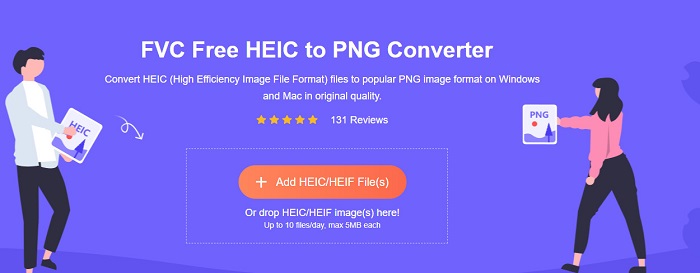
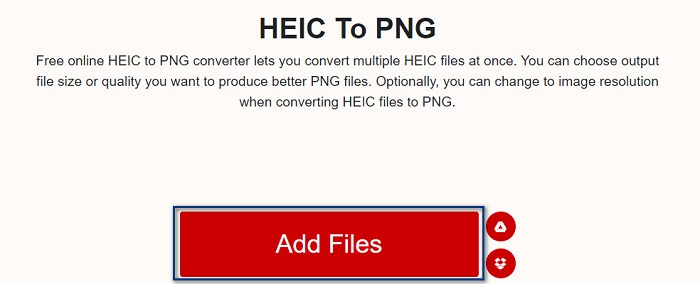
1단계. 브라우저에서 FVC Free HEIC to PNG Converter를 검색합니다. 또는 이 링크를 눌러 웹페이지로 바로 이동할 수 있습니다. 첫 화면은 다음과 같습니다:
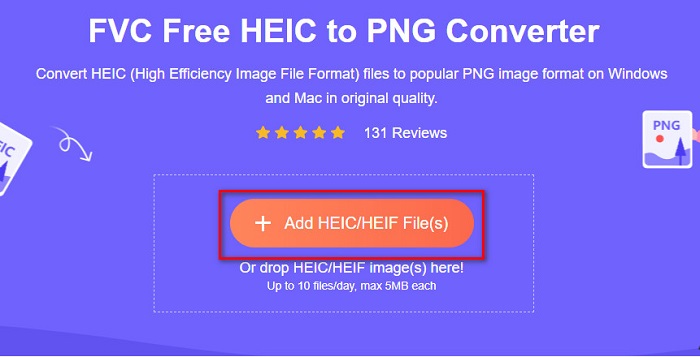
2단계. 다음으로 Add HEIC/HEIF File(s) 버튼을 클릭합니다. 그러면 컴퓨터 폴더가 열리고, 여기에서 HEIC 파일을 선택합니다.
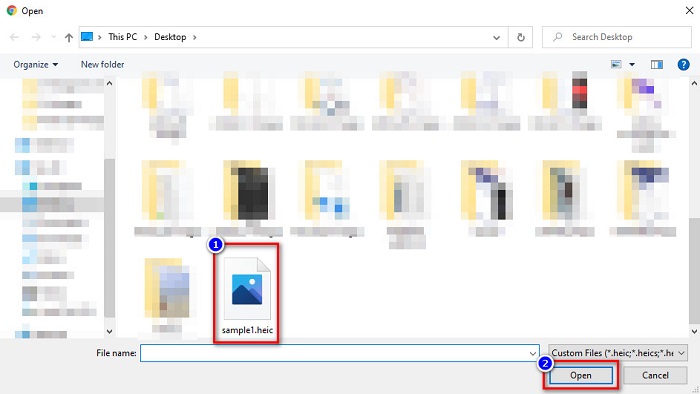
3단계. 다시 컴퓨터 폴더가 나타나면, 변환할 HEIC 파일을 선택합니다. Open을 누르면 HEIC에서 PNG로의 변환이 시작됩니다.
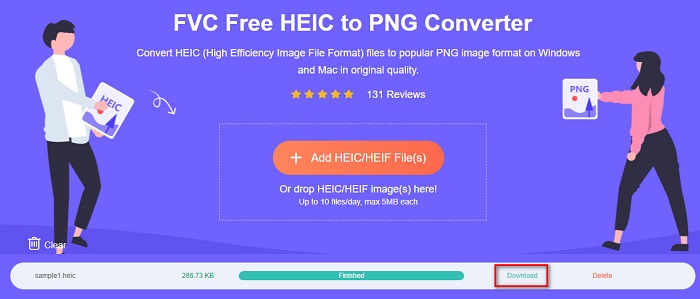
4단계. 마지막으로 프로그램 화면에서 Download 버튼을 눌러 PNG 파일을 다운로드합니다.
간단하지 않나요? 다음의 간단한 단계에 따라 HEIC 파일을 PNG 파일로 변환할 수 있습니다.
Xconvert.com 사용
Xconvert는 HEIC 파일을 PNG 파일로 손쉽게 변환할 수 있는 무료 온라인 HEIC to PNG 변환기입니다. 이 온라인 변환기는 초보자에게도 편리한 직관적인 화면 구성을 갖추고 있습니다. 또한 이 온라인 변환기를 사용할 때 이미지 해상도를 변경할 수도 있습니다. 다만 인터넷 의존형 도구이기 때문에, 인터넷이 느릴 경우 변환 속도가 느려질 수 있습니다. 광고가 포함되어 있어 다소 거슬릴 수도 있습니다.
1단계. 브라우저에 Xconvert.com을 입력해 검색합니다. 웹사이트에 접속한 뒤 Add Files 버튼을 클릭하면 컴퓨터 파일 창이 열리므로, HEIC 파일을 선택합니다.
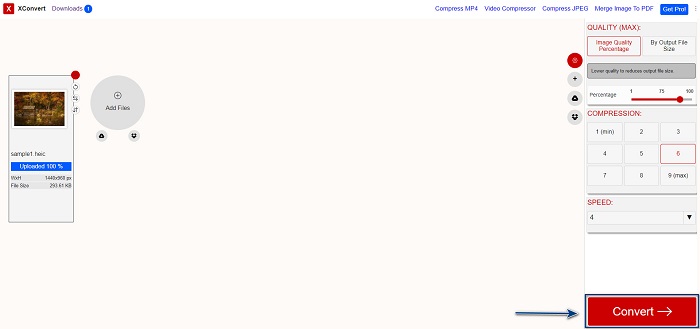
2단계. 선택한 이미지는 프로그램 화면으로 업로드됩니다. 업로드가 끝나면 화면 오른쪽 아래에 있는 Convert 버튼을 클릭합니다. 파일이 다운로드 준비가 될 때까지 기다렸다가 다음 단계로 진행합니다.
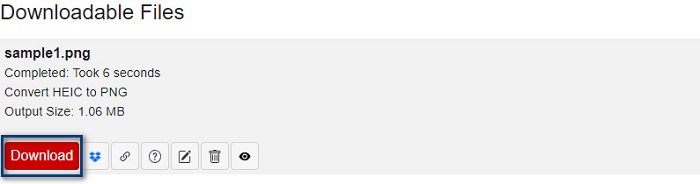
3단계. 파일이 준비되면 Download 버튼을 눌러 PNG 파일을 다운로드합니다. 다운로드 버튼 위에서 출력 파일의 용량과 변환에 걸린 시간도 확인할 수 있습니다.
잠자르 사용
온라인에서 HEIC를 PNG로 변환하는 또 다른 방법은 Zamzar 온라인 변환기를 이용하는 것입니다. HEIC to PNG 변환기를 검색해 본 적이 있다면 이 변환기를 본 적이 있으실 겁니다. 이 변환기는 대부분의 브라우저에서 접속할 수 있습니다. 게다가 사용자 인터페이스가 단순해 사용하기도 쉽습니다. 다만, 변환 중 인터넷 연결이 끊기면 파일이 손상될 수 있습니다. 그럼에도 불구하고 많은 사용자가 HEIC를 PNG 파일로 바꾸기 위해 이 변환기를 이용합니다.
1단계. 사용하는 브라우저에서 Zamzar를 검색합니다. 웹사이트에 접속한 뒤 Add Files 버튼을 클릭합니다. 컴퓨터 파일 창이 뜨면 HEIC 이미지를 업로드합니다.
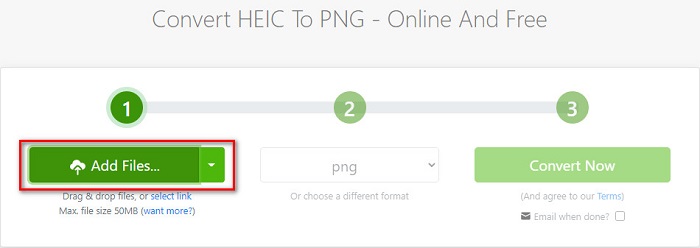
2단계. HEIC 파일을 업로드한 뒤 드롭다운 버튼을 클릭하고, 출력 형식으로 PNG를 선택합니다.
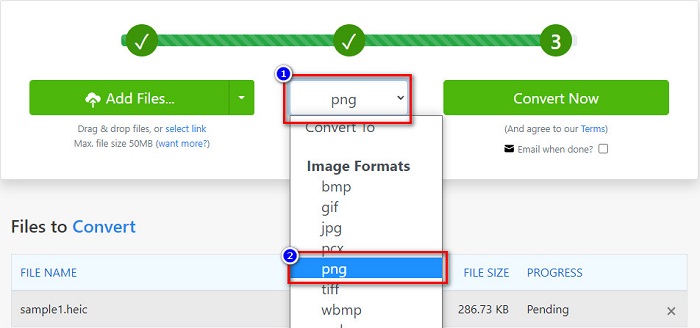
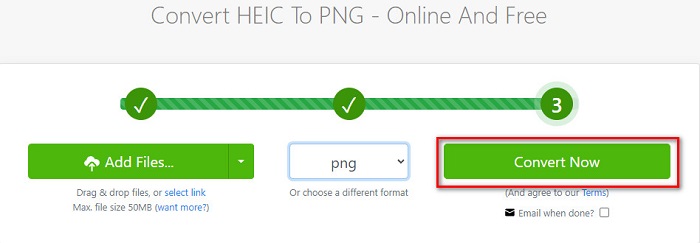
3단계. 마지막으로 Convert Now 버튼을 눌러 HEIC 파일을 PNG 형식으로 변환합니다. 그런 다음 PNG 파일을 다운로드합니다. 몇 초만 기다리면 완료됩니다!
변환 Tools.io 사용
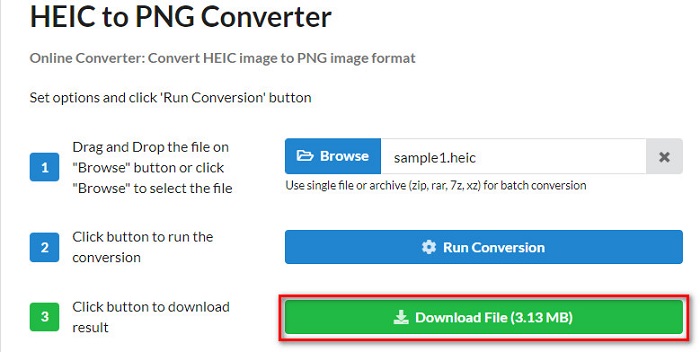
Conversion Tool은 간단한 인터페이스를 가진 온라인 HEIC to PNG 변환기입니다. HEIC 파일을 빠른 속도로 PNG로 변환할 수 있습니다. 또한 다른 온라인 변환기에 비해 광고가 많지 않습니다. 하지만 하루에 10개 파일만 변환할 수 있고, 파일 크기 제한이 있다는 단점이 있습니다. 그렇지만 작은 파일을 변환하는 정도라면 이 도구가 적합할 수 있습니다.
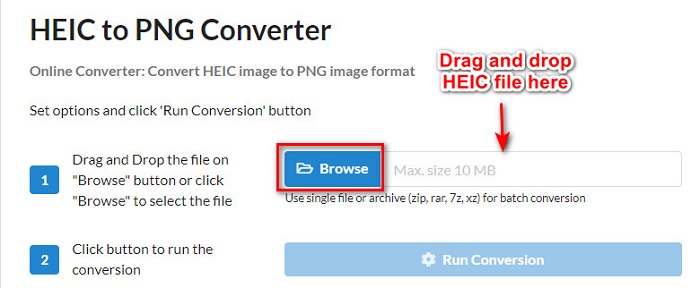
1단계. 브라우저에서 Conversion Tools.io를 검색합니다. 그런 다음 프로그램 메인 화면에서 Browse 버튼을 클릭하거나, drag and drop 기능으로 HEIC 파일을 Browse 버튼 위로 끌어다 놓습니다.
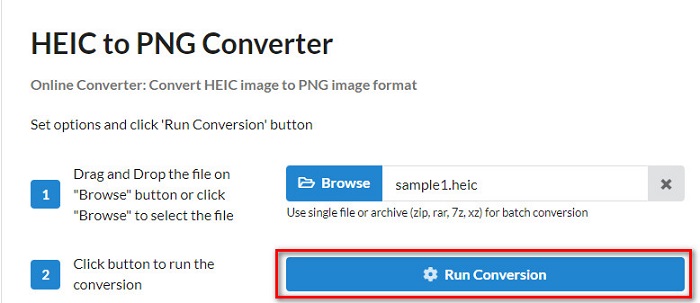
2단계. 이후 Run Conversion 버튼을 클릭해 HEIC 파일을 PNG 파일로 변환하기 시작합니다. 이미지 파일이 로드될 때까지 기다린 뒤 다음 단계로 진행합니다.
3단계. 마지막으로 Download 버튼을 눌러 PNG 파일을 다운로드합니다.
CDKM 사용
마지막으로 소개할 도구는 CDKM입니다. 이 도구를 사용하면 몇 번의 클릭만으로 HEIC 파일을 PNG로 변환할 수 있습니다. 다만 인터넷 속도에 따라 이 온라인 변환기의 변환 시간이 몇 초 정도 소요될 수 있습니다. 또한 광고가 포함되어 있어 다소 성가실 수 있습니다. 그럼에도 파일 크기 제한이 없기 때문에 한 번 사용해 볼 만한 도구입니다.
1단계. 브라우저에서 CDKM online converter를 검색합니다. 프로그램 메인 화면에서 Choose Files 버튼을 클릭하면 컴퓨터 폴더가 열리므로, 업로드할 HEIC 파일을 선택합니다.

2단계. 다음으로 Start Conversion 버튼을 눌러 변환을 시작합니다.

3단계. 마지막으로 화면을 조금 아래로 스크롤하면 Download 버튼이 보입니다. 이 Download 버튼을 클릭해 PNG 파일을 다운로드합니다.

3부. Mac에서 HEIC를 PNG로 변환
Apple 장치는 HEIC 파일 형식을 지원하며 Mac을 사용하면 기본적으로 HEIC 파일을 열 수 있습니다. 그러나 HEIC 파일을 PNG로 변환하려면 Mac의 사진 앱을 사용하여 변경할 수 있습니다. 따라서 Mac 사용자라면 이 부분을 잘 읽어보시기 바랍니다.
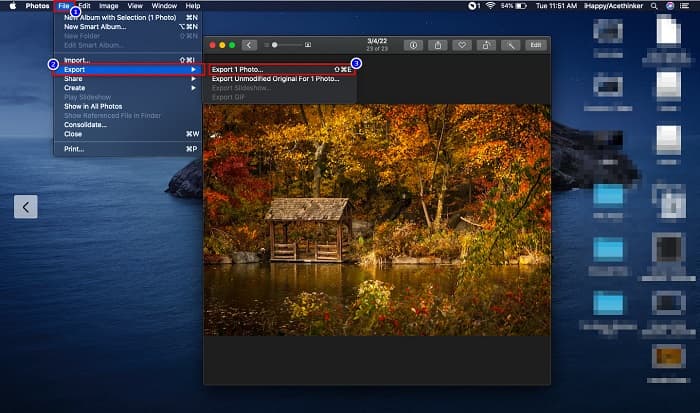
1단계. 먼저 HEIC 파일을 사진(Photos) 앱으로 drag and drop 합니다. 그런 다음 HEIC 사진을 미리 본 뒤 상단 메뉴에서 파일(File) > 내보내기(Export) > 1장 사진 내보내기를 클릭합니다.
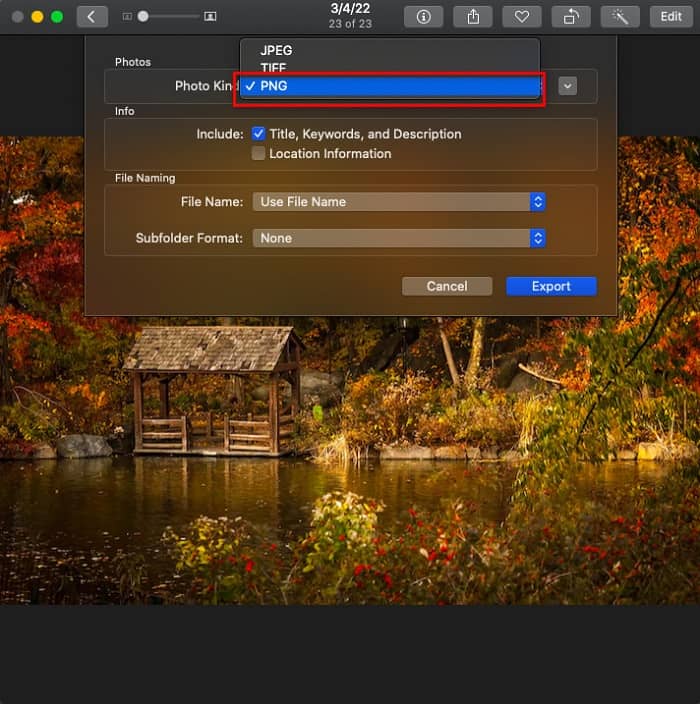
2단계. 이후 사진 형식(Photo Kind) 항목에서 원하는 출력 형식을 선택합니다. 여기서 PNG 형식을 선택합니다.
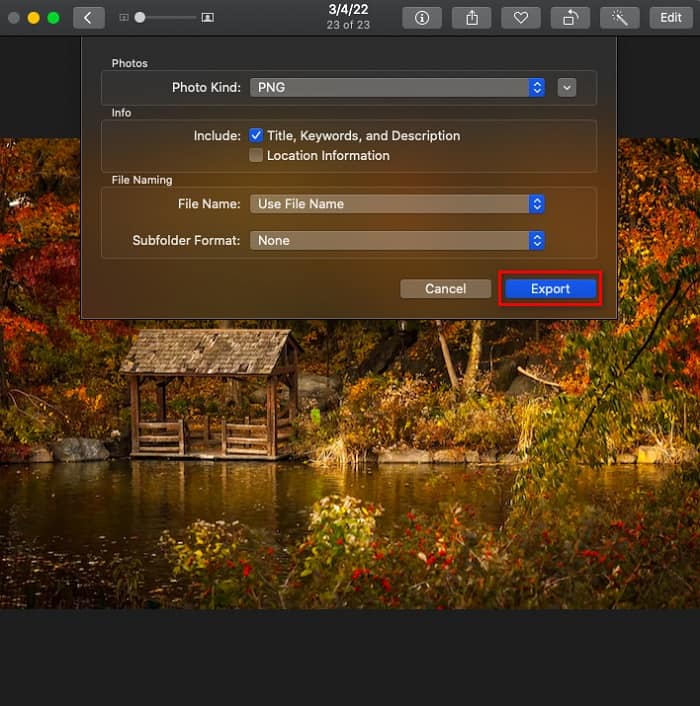
3단계. 그리고 나서 Export 버튼을 클릭한 뒤, 출력 파일이 저장될 위치를 선택합니다. 이렇게 하면 HEIC 파일이 PNG 형식으로 변경된 것을 확인할 수 있습니다.
4 부분. iPhone에서 HEIC 파일을 PNG로 변환
iPhone을 사용하는 경우 장치에서 HEIC 파일을 열 수 있습니다. 그러나 iPhone 장치를 사용하여 HEIC 파일을 PNG로 변환하려면 방법이 있습니다. 아래의 간단하고 쉬운 단계를 따르면 HEIC를 PNG로 쉽게 변환할 수 있습니다.
1단계. iPhone의 사진(Photos) 앱에서 화면 상단에 있는 선택(Select) 버튼을 탭합니다. 그런 다음 HEIC 파일을 선택하고 공유(Share) 아이콘을 탭합니다.
2단계. 화면을 위로 살짝 올리면 Copy Photo 옵션이 보입니다. 이 옵션을 탭합니다.
3단계. 마지막으로 파일(Files) 앱으로 이동해 탐색(browse) 버튼을 탭하고 원하는 저장 위치(iCloud Drive 또는 내 iPhone)를 선택합니다. 그런 다음 HEIC 파일을 그 위치에 붙여넣기 합니다.
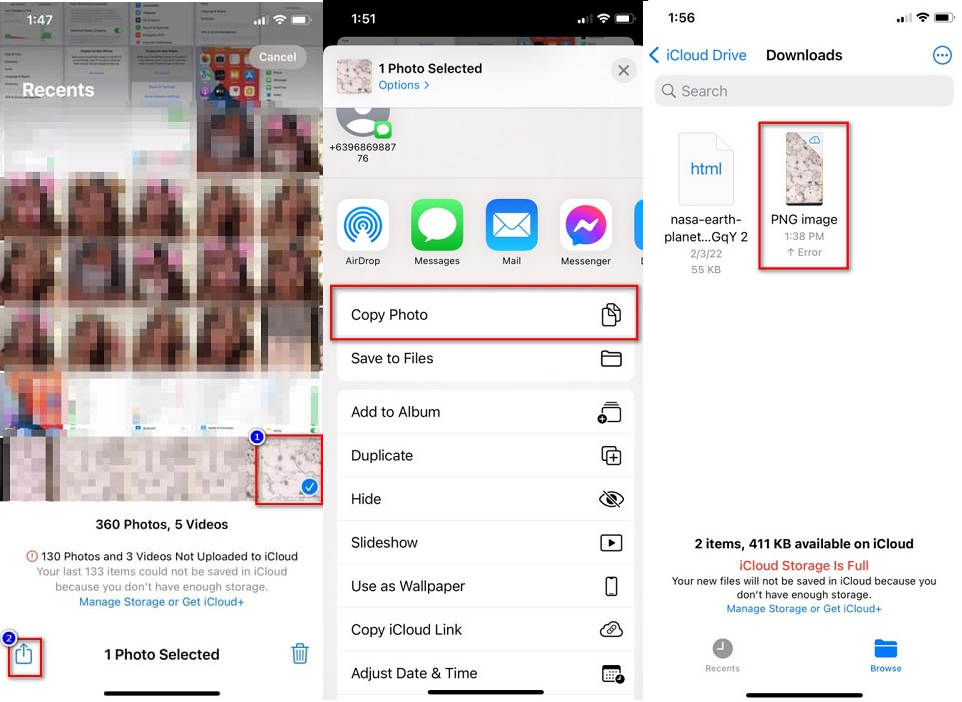
파일을 붙여넣고 나면 파일이 자동으로 PNG 파일로 변환되는 것을 볼 수 있습니다.
5부. HEIC 파일 및 PNG 파일에 대한 확장된 지식
HEIC 파일을 PNG로 변환할지 여전히 확신이 서지 않는 경우 이 두 파일의 차이점을 구별하는 데 도움이 되는 비교 차트를 제공합니다. 또한 HEIC 및 PNG 특성에 대한 명확한 개요를 제공합니다. HEIC 파일과 PNG 파일의 차이점을 알기 위해 주의 깊게 읽으십시오.
| HEIC | PNG | |
| 호환성 | Apple 장치만 이 파일 형식을 지원합니다. | Apple, 장치를 포함하여 거의 모든 장치가 이 파일을 지원합니다. |
| 파일 크기 | 작은 파일 크기. | 거대한 파일 크기를 얻을 수 있습니다. |
| 이미지 품질 | 높은 이미지 품질. | 품질은 좋지만 HEIC 파일보다 좋지는 않습니다. |
| 압축/비압축 | 압축 | 비압축 |
| 편집 | 편집할 때 이미지 품질을 유지합니다. | 편집 시 화질이 떨어질 수 있습니다. |
6부. HEIC를 PNG로 변환하는 방법에 대한 FAQ
HEIC를 PNG로 변환하면 파일 크기에 영향을 줍니까?
네. HEIC를 PNG로 변환하면 높지는 않지만 파일 크기가 늘어납니다.
Adobe Photoshop에서 PNG 파일을 열 수 있습니까?
틀림없이. Adobe Photoshop은 PNG 파일 형식을 지원하므로 Adobe Photoshop에서 PNG 파일을 열 수 있습니다.
기본적으로 Apple 장치에서 PNG 파일 형식을 열 수 있습니까?
네. iPhone에서 스크린샷을 찍으면 자동으로 카메라 롤에 PNG 파일로 저장됩니다.
결론
드디어! 이제 우리의 여정도 끝에 다다랐습니다. 이 글에서는 HEIC 파일을 PNG 형식으로 변환할 수 있는 최선의 해결책들을 소개했습니다. 위에서 살펴본 모든 온라인 HEIC to PNG 변환기는 파일을 손쉽게 변환해 줍니다. 또한 Mac이나 iPhone 사용자라면 사용할 수 있는 다른 방법들도 함께 제시했습니다. 하지만 탁월한 기능을 갖춘 최고의 HEIC to PNG 변환기를 찾고 계시다면, FVC Free HEIC to PNG 변환기가 가장 좋은 선택입니다.
-
 Windows, Mac 및 온라인에서 HEIC 파일을 여는 방법
 HEIC 파일을 여는 방법을 찾고 있습니까? 이 기사에서는 Windows, Mac 및 온라인에서 HEIC 파일을 여는 최상의 솔루션을 제공합니다.
-
 JPG VS GIF: JPG를 GIF로 변환하는 손쉬운 3가지 방법
 JPG와 GIF의 차이점을 알고 싶습니까? 아니면 JPG를 GIF 애니메이션 형식으로 전환하시겠습니까? 그런 다음이 기사를 읽고 아이디어를 얻으십시오.
-
 이미지를 애니메이션 GIF로 변경하는 5가지 가장 좋은 방법 [2022년 업데이트]
 GIF로 변환하는 이미지가 필요하십니까? 이 기사에서는 시장에서 찾을 수 있는 5가지 최고의 변환기를 제공합니다. 따라서 이 기사를 읽고 이러한 도구에 대해 알아보겠습니다.
