


 비디오 컨버터 궁극
 스크린 레코더
 비디오 수리
 안전한 다운로드
6개의 효과적인 소프트웨어 [무료]를 사용하여 사진에서 개체 제거
수많은 사진가들, 심지어 입문자들까지도 석양, 해변, 관광 명소, 달 등 다양한 풍경을 여러 번 촬영합니다. 우리는 이미지를 통해 진정한 ‘나’를 표현할 수 있습니다. 한 번의 간단한 스냅샷으로도 모두의 창의력과 내면에 숨은 예술성을 자극할 수 있습니다. 그러나 촬영할 때마다 항상 완벽한 사진이 나오는 것은 아니며, 때로는 사진에 들어가서는 안 될 특정 객체를 지워야 할 때도 있습니다. 사진에서 객체를 제거하는 도구가 필요하신가요? 여기서는 방금 찍은 이미지에서 불필요한 객체를 즉시 제거할 수 있는 다양한 방법과 도구를 소개합니다.

1부. 최고의 개체 제거제를 사용하여 사진에서 개체 제거 [웹 서비스]
FVC Free Watermark Remover는 온라인에서 무료로 사진 속 객체를 제거할 수 있는 첫 번째 추천 도구입니다. 이 도구를 이용하면 데스크톱에 소프트웨어를 설치할 필요도 없고, 이런 종류의 편집 경험이 전혀 없어도 완벽한 이미지를 방해하는 요소를 즉시 지울 수 있습니다. 이 도구는 단지 제거하려는 객체를 강조 표시하기만 하면, 이미지에서 흔적 없이 제거해 줍니다. 우리는 이 도구가 사진 속 필요 없는 요소를 제거하는 데 재미있고 효과적이라고 느꼈습니다. 이 도구를 사용해 보고 싶다면, 아래에 정리한 단계를 그대로 따라 하세요.
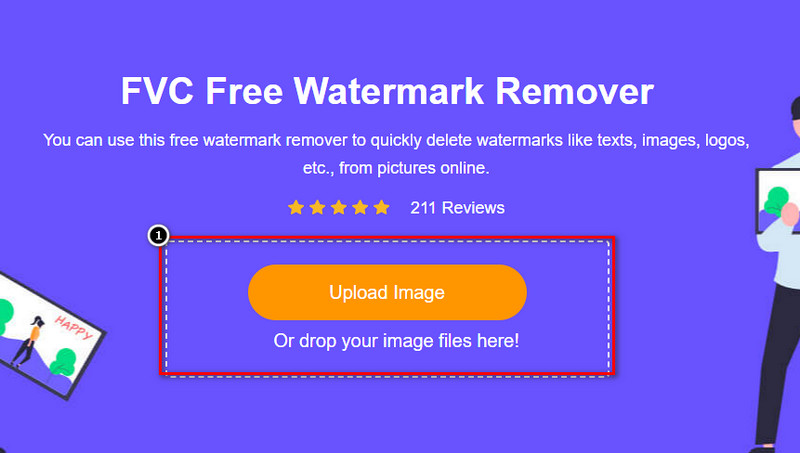
1단계. 객체를 불러오고 제거 작업을 시작하려면, 이 링크를 클릭하여 공식 웹사이트를 엽니다.
2단계. Upload Image를 눌러 불필요한 객체가 포함된 사진을 불러옵니다.
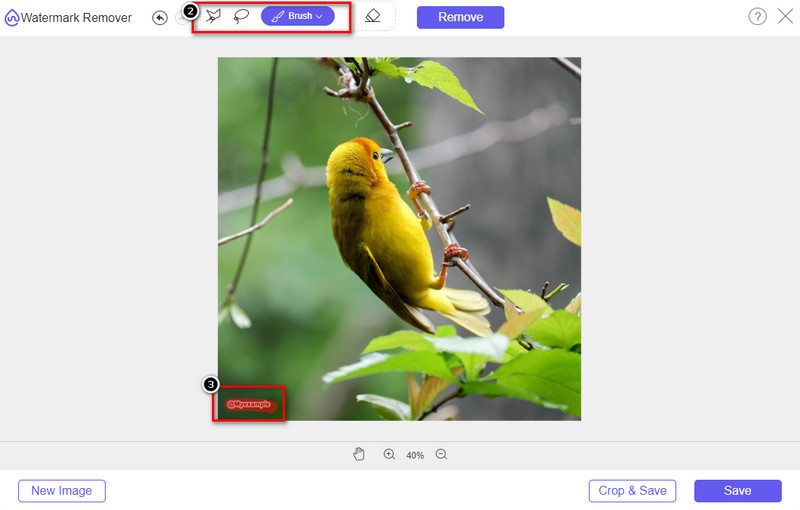
3단계. 화면에 있는 도구를 사용해 제거하려는 객체를 강조 표시합니다.
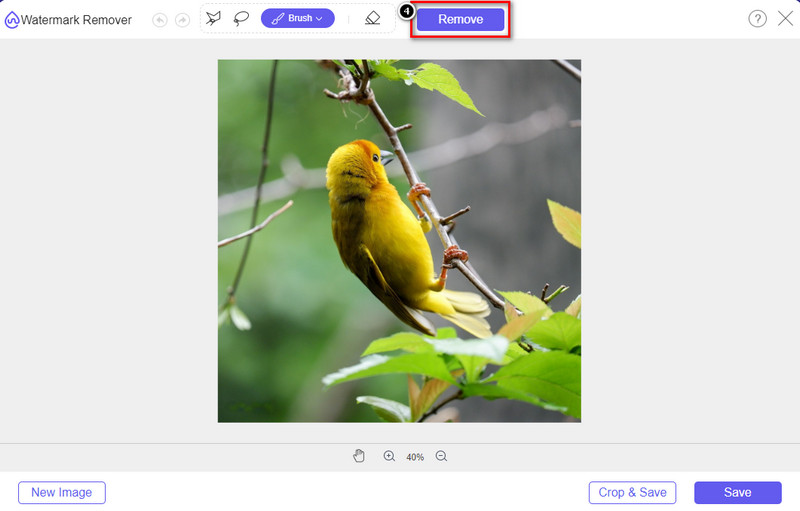
4단계. Remove 버튼을 눌러, 이 도구가 지원하는 AI 기술의 도움으로 객체를 제거합니다.
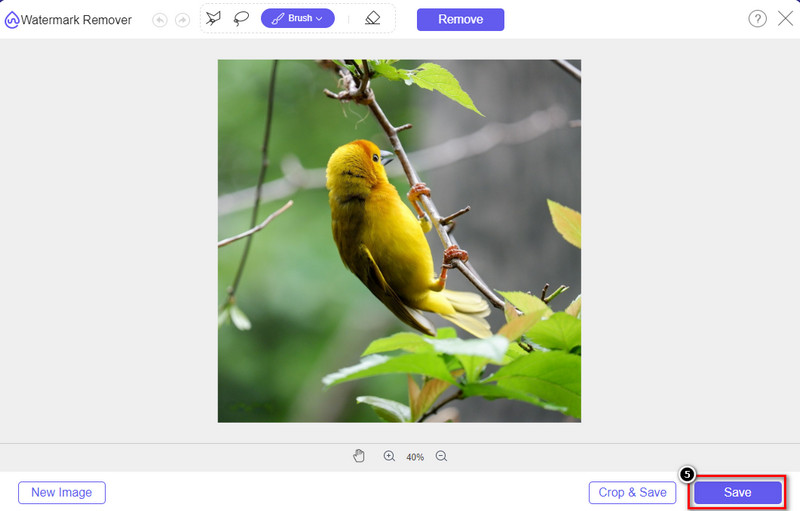
5단계. 편집을 마친 완벽한 이미지를 다운로드하려면 Save를 클릭합니다.
2부. 데스크탑 프로그램을 사용하여 전문적으로 사진에서 개체 제거 [Windows 및 Mac]
포토샵
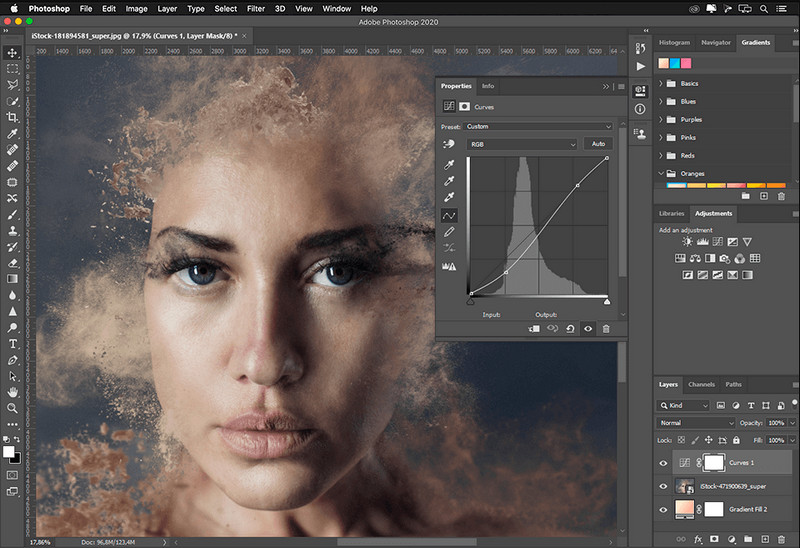
사진에서 개체를 제거하는 전문 도구가 필요하다면 Photoshop이 답입니다! 이 도구는 Adobe가 자랑스럽게 제공하는 완전한 이미지 편집기입니다. 그 특징과 기능으로 이미지를 놀랍게 보이게 하는 것을 막는 것은 없습니다. 전문가들 사이에서 인기가 높기 때문에 많은 초보자가 이 소프트웨어를 사용하여 이미지를 편집하고 만들려고 합니다. 따라서 이 전문 도구를 사용하는 방법을 알고 싶다면 아래에 추가한 자습서를 따르십시오.
1단계. Adobe 공식 웹사이트를 열어 데스크톱에 Photoshop을 다운로드합니다.
2단계. File을 클릭한 뒤 Open을 눌러 편집하려는 이미지를 불러옵니다.
3단계. 왼쪽 도구 모음에서 Magic Wand Tool을 선택해 이미지 속 객체를 자동으로 선택합니다.
4단계. 상단의 Edit 메뉴로 이동한 뒤, 그 아래에 있는 Content-Aware Fill을 선택합니다.
5단계. 창이 열리면 워터마크가 자동으로 제거되며, 완료 후 OK를 클릭합니다.
단
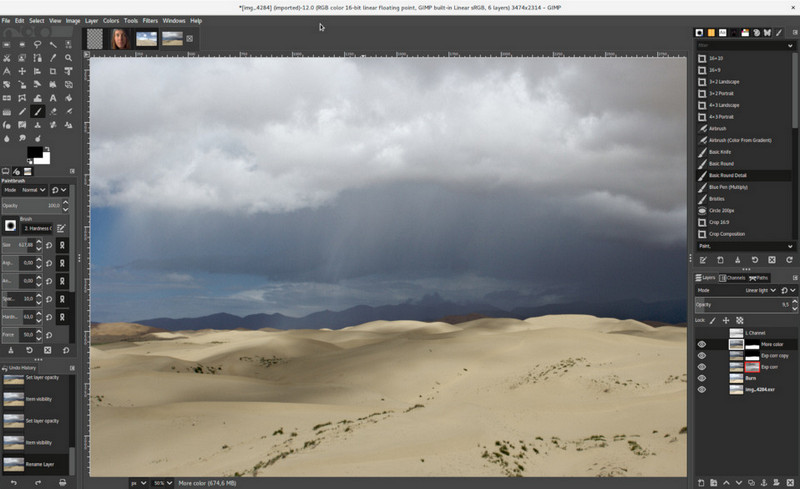
GIMP는 Mac, Linux, Windows에서 무료로 사용할 수 있는 완전한 이미지 편집기로, 사진 속 객체를 제거하는 데 활용할 수 있습니다. Photoshop처럼 신뢰할 수 있는 도구이며, Adobe Photoshop의 대안으로 자주 거론될 만큼 높은 평가를 받고 있지만, 현재도 활발히 개발이 진행 중입니다. 이 도구를 사용하면 이미지를 강력하게 편집해 보는 이의 시선을 사로잡는 사진을 만들 수 있습니다. 또한 작업을 더 쉽게 하기 위해 인터페이스를 원하는 대로 커스터마이즈할 수 있습니다. 이 도구를 전문적인 편집 목적으로 설치할까 고민 중이라면, 원하는 수준의 결과를 얻을 수 있다고 자신 있게 말씀드릴 수 있습니다. 오픈 소스 편집기이지만 GUI는 여전히 개발 중이어서 마무리가 덜 된 부분이 있을 수 있습니다. 이 도구를 사용해 GIMP에서 사진 속 객체를 제거하고 싶다면, 아래 단계가 그 과정을 안내해 줄 것입니다. 아래 제공된 단계를 따라 진행하세요.
1단계. 소프트웨어를 다운로드해 실행한 후, 편집할 이미지를 불러옵니다. 또한 Resynthesizer 플러그인도 함께 다운로드하세요.
2단계. 왼쪽 도구 모음에서 Free Select를 선택하고 모드를 Add Current Selection으로 변경합니다.
3단계. 제거하려는 객체를 따라 그린 뒤, 정확히 선택이 끝나면 키보드에서 Enter를 누릅니다.
4단계. 다운로드한 플러그인을 사용하려면, 상단의 Filter 메뉴에서 Enhance로 이동한 후 Heal Selection을 클릭합니다.
5단계. 대화 상자가 나타나면 필요에 따라 sampling width를 변경하고, sample을 all-around로, Filling Order를 random으로 설정합니다. 마지막으로 OK를 눌러 이미지 안의 객체를 합성·제거하기 시작합니다.
Mac용 사진 앱
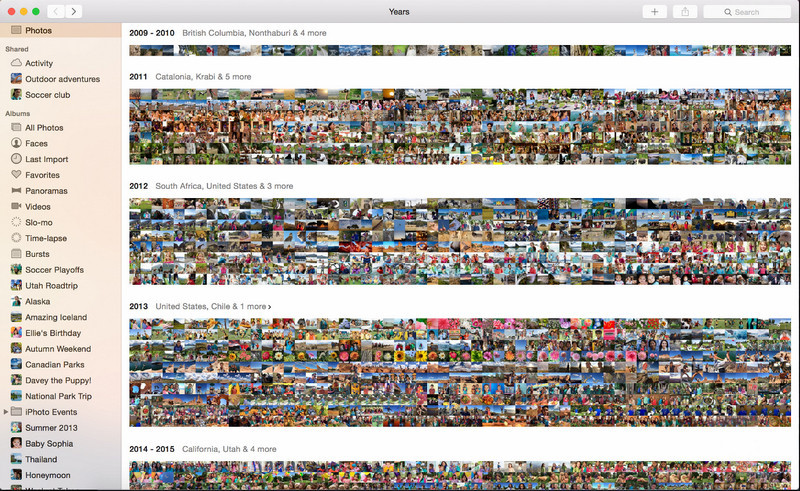
Photo App은 최신 Mac과 같은 Apple 제품에 기본 탑재된 기능입니다. 이 앱은 미리 설치되어 있으므로 별도의 다운로드 없이 바로 사용할 수 있습니다. 이 소프트웨어는 본래 이미지 편집기라기보다는 Mac 또는 iOS 기기에서 사진을 관리하고 감상하는 라이브러리 및 뷰어 역할을 합니다. 하지만 Mac에 전문 이미지 편집기가 없어도 이 앱의 기능을 활용하면 클릭 몇 번으로 전문가 수준의 결과를 얻을 수 있습니다. Photo App에서 객체를 제거하고 싶다면, 아래 단계에 따라 진행해 보세요.
1단계. Mac에서 사진 앱을 열고 불필요한 객체가 있는 이미지를 선택합니다.
2단계. 오른쪽 상단에서 Edit 버튼을 클릭해 편집을 시작합니다.
3단계. 오른쪽 패널에서 Retouch 옵션을 찾은 뒤, 이 기능을 사용하기 위해 클릭합니다.
4단계. 제거하고 싶은 영역을 마우스로 클릭 후 드래그합니다.
5단계. Done 버튼을 눌러 이미지에 적용한 변경 사항을 저장합니다.
3 부분. Android 및 iOS의 응용 프로그램을 사용하여 사진에서 개체 제거
포토샵 수정
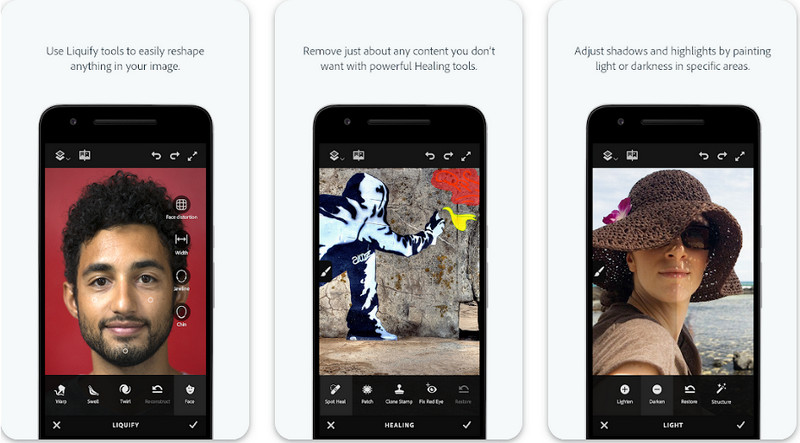
Photoshop FIX는 안드로이드에서 작동하는, 사진 속 객체를 전문적으로 제거하면서도 사용법이 쉬운 강력한 앱입니다. Play 스토어에서 기기에 무료로 다운로드할 수 있는 오픈 소스 앱입니다. 오픈 소스임에도 불구하고 객체 제거 기능은 의심의 여지 없이 뛰어납니다. 이 작업을 위해 안드로이드 기기에서 많이 다운로드되는 앱 중 하나이기도 합니다. 이 앱 사용 방법이 궁금하다면, 아래 내용을 계속 읽어 보세요.
1단계. 안드로이드 기기에 앱을 다운로드합니다.
2단계. On My Phone을 눌러 라이브러리에 있는 모든 이미지를 표시한 다음, 편집할 이미지를 선택합니다.
3단계. 이 앱의 객체 제거 기능을 사용하려면 Healing을 클릭합니다.
4단계. 여기서 두 가지 옵션으로 제거할 수 있습니다. 브러시로 객체를 지우려면 Spot Heal을 선택하고, 픽셀을 복제하고 싶다면 Clone Stamp를 선택해야 합니다. 원하는 옵션을 선택해 워터마크를 강조 표시하세요.
5단계. 편집이 끝난 이미지를 카메라 롤에 저장하면 완료입니다!
사진 보정
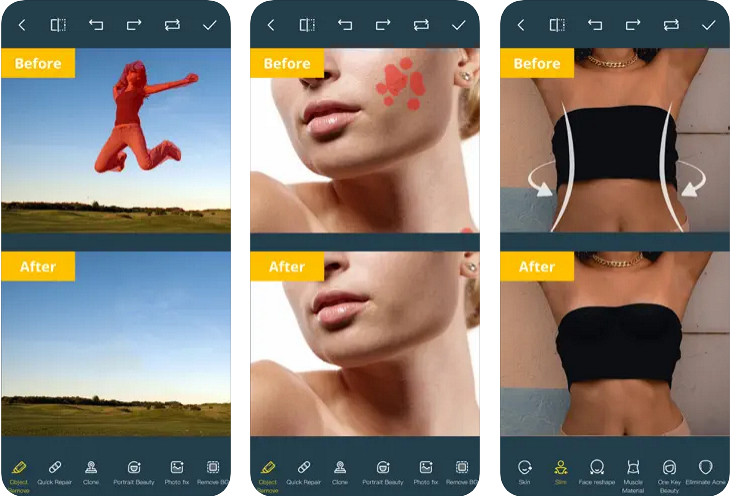
Photo Retouch는 아이폰에서 사진 속 객체를 손쉽게 제거할 수 있는 신뢰할 만한 앱입니다. 이미지에서 객체를 제거하는 데 익숙하지 않더라도, 이 앱을 사용하면 효과적으로 제거할 수 있습니다. 사용해 보고 싶다면 App Store에서 무료로 다운로드할 수 있습니다. 필요하다면 사진의 배경이나 워터마크도 함께 제거할 수 있습니다. 이제 이 앱으로 이미지 속 객체를 없앨 준비가 되었다면, 아래 단계들을 따라 진행해 보세요.
1단계. 공식 앱을 다운로드한 뒤 실행합니다.
2단계. Photo Eraser를 클릭하고 이어서 Photo를 선택합니다. 제거하려는 불필요한 배경이 있는 이미지를 선택하는데, 해당 이미지가 반드시 아이폰의 Photos에 저장되어 있어야 합니다.
3단계. 하단에서 Object Removal 옵션을 선택합니다.
4단계. 이 앱에서 지원하는 브러시를 사용해 제거하려는 객체를 따라 그린 후, GO를 눌러 객체를 제거합니다.
관련 항목:
4 부분. 사진에서 개체를 제거하는 방법에 대한 FAQ
사진에서 개체를 제거해야 하는 이유는 무엇입니까?
우리가 무언가를 포착하는 수많은 시간이 있으며 Photobombers가 있습니다. 이 개체는 캡처한 이미지를 강조 표시하지 않기 때문에 다른 사람에 대한 대부분의 전문가에게 문제입니다. 따라서 이미지를 다시 찍는 대신 사진에서 물체를 제거하는 다음과 같은 이상적인 방법을 읽을 수 있습니다.
이미지를 잘라서 개체를 제거할 수 있습니까?
그래 넌 할수있어. 사진 측면에서 개체를 제거하려는 경우 내장 편집기로 이미지를 자르려고 할 수 있습니다. 그러나 이 선택은 특히 개체가 캡처한 이미지의 중간 부분이나 근처에 있는 경우 옵션이 아닙니다. 이미지를 자르면 사진이 잘리므로 이 옵션을 사용하려는 경우 다시 생각하는 것이 좋습니다.
이미지를 업로드하여 개체를 제거할 수 없는 이유는 무엇입니까?
이미지를 업로드할 수 없습니다. 이미지가 손상되었거나 이미지 확장자가 지원되지 않습니다. 이미지가 손상된 경우 수정할 수 있는 방법이 있습니다. 웹에서 검색하면 찾을 수 있습니다. 일반적으로 이미지의 파일 확장자일 수 있습니다. 이 문제를 해결하려면 변환해야 합니다.
결론
이 기사에서 사용하는 도구와 앱 덕분에 사진에서 개체를 쉽게 제거할 수 있습니다. 그렇다면 어떤 도구를 가장 선호합니까? 우리가 추가한 이 가이드가 문제를 쉽게 해결하는 데 도움이 되기를 바랍니다.
-
 온라인에서 저해상도 이미지를 고해상도로 변환하는 방법
 온라인에서 저해상도 이미지를 고해상도 이미지로 변환하는 방법을 배우고 싶다면 이 문서가 적합합니다. 방법을 배우려면 완전히 읽으십시오.
-
 슛 방지 워터 마크를 제거하는 방법에 대한 쉬운 방법
 이 쉬운 방법에 따라 Shootproof 워터마크를 제거하십시오. 이 놀라운 워터마크 제거기를 사용하여 이미지에서 Shootproof 워터마크를 쉽게 제거하십시오.
-
 반디캠 워터마크를 손쉽게 제거하는 방법 [3가지 효과적인 방법]
 반디캠 워터마크 제거는 어떻게 하나요? 도구를 사용하여 여기에 추가하여 효과적으로 처리하는 방법을 알 수 있습니다!
