


 비디오 컨버터 궁극
 스크린 레코더
 비디오 수리
 안전한 다운로드
컴퓨터에서 속도 증가를 수행하는 방법에 대한 안내
속도 램핑(Speed Ramping) 방법을 찾고 계신가요? 많은 사람들이 영상이나 영화의 속도를 점진적으로 변경할 수 있는 도구를 찾습니다. 영상에 속도 램핑을 적용하는 것은 영상 편집자들 사이에서 인기가 높은데, 영상에 극적인 변화를 줄 수 있기 때문입니다. 하지만 속도 램핑 기능을 제공하는 애플리케이션은 그리 많지 않습니다. 그렇다고 걱정할 필요는 없습니다. 속도 램핑을 할 수 있는 유명한 영상 편집 소프트웨어가 있기 때문입니다. 이 안내서를 계속 읽으면서 속도 램핑을 하는 방법을 배워보세요.

1부. 속도 램핑이란?
비디오 속도 램핑은 특히 영화를 만들 때 많은 비디오 편집자들에게 인기가 있습니다. 그러나 속도 램핑은 무엇입니까?
속도 램핑은 비디오의 속도를 점진적으로 조정하여 비디오에 큰 영화 효과를 주는 것입니다. 또한 비디오의 가속 및 감속으로 넣을 수 있습니다. 영화에서 악당이 영웅을 쏘려고 하는 시나리오를 상상해 보십시오. 총알이 발사되었을 때 속도 증가를 수행하여 상당한 영화적 효과를 생성할 수 있습니다.
간단히 말해서, 속도 램핑은 강력한 효과를 만들기 위해 키프레임을 더 잘 제어하여 비디오의 속도를 변경합니다. 게다가, 그것은 당신이 당신의 비디오에 할 수 있는 표준 비디오 편집 기능입니다. 따라서 비디오에서 속도 램핑을 수행하는 방법을 배우려면 다음 부분을 종합적으로 읽으십시오.
2부. Premiere에서 속도 증가를 수행하는 방법
Adobe Premiere는 비디오 속도를 높이고 싶을 때 사용할 수 있는 가장 뛰어난 비디오 편집 소프트웨어 중 하나입니다. Adobe Premiere에는 비디오 파일을 편집하거나 향상시키는 데 사용할 수 있는 많은 편집 기능이 있습니다. 또한 고해상도 및 고품질의 강력한 출력을 생성할 수 있습니다. 또한 비디오 속도를 높일 때 유용한 무제한 멀티캠 앵글을 제공합니다. 그리고 최신 업데이트 이후로 비디오를 장치로 가져오고 내보내는 것이 더 쉬워졌습니다.
또한 Adobe Premiere는 응답 속도가 빠른 프로그램을 원하는 경우 훌륭한 응용 프로그램입니다. 많은 전문가들이 Adobe Premiere를 사용하여 비디오 또는 영화를 편집하는 것을 선호합니다. Adobe Premiere에는 비디오 편집에 필요한 많은 구성 도구가 있기 때문입니다. 또한 이 프로그램은 Windows 및 Mac을 포함한 모든 미디어 간 플랫폼에서 다운로드할 수 있습니다.
Adobe Premiere에서 속도 램핑을 수행하는 방법:
1단계. 컴퓨터에 Adobe Premiere를 다운로드하여 설치합니다. 프로그램 설치를 마쳤다면 장치에서 Premiere를 실행하세요. 가장 먼저 해야 할 일은 속도 램핑을 적용할 영상 파일을 가져오는 것입니다. 파일 탐색기에서 프로젝트 창으로 영상을 클릭해서 끌어다 놓으면 가져올 수 있습니다.
2단계. 다음으로, 클립을 타임라인(Timeline)으로 드래그하여 시퀀스를 생성합니다. 그러면 Adobe Premiere가 속도 램핑에 필요한 설정이 적용된 시퀀스를 자동으로 만들어 줍니다.
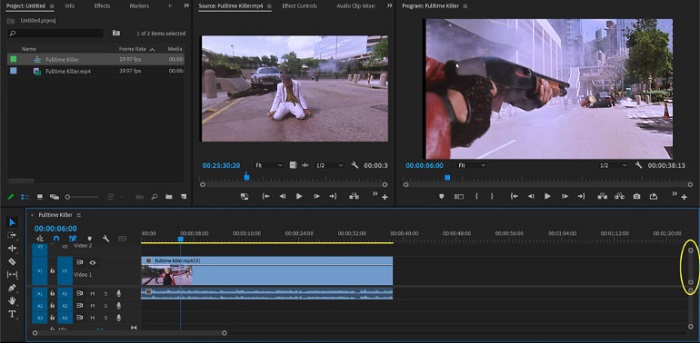
3단계. 이제 속도 램핑을 적용하고 싶은 구간을 선택합니다. 원하는 부분만 따로 떼어내는 한 가지 방법은 인·아웃 포인트를 설정하는 것입니다. Command + K를 눌러 해당 시점에서 클립을 잘라낼 수 있습니다. 또 다른 방법은 레이저 블레이드 도구(razor blade tool)를 사용해 클립을 여러 구간으로 나누는 것입니다.
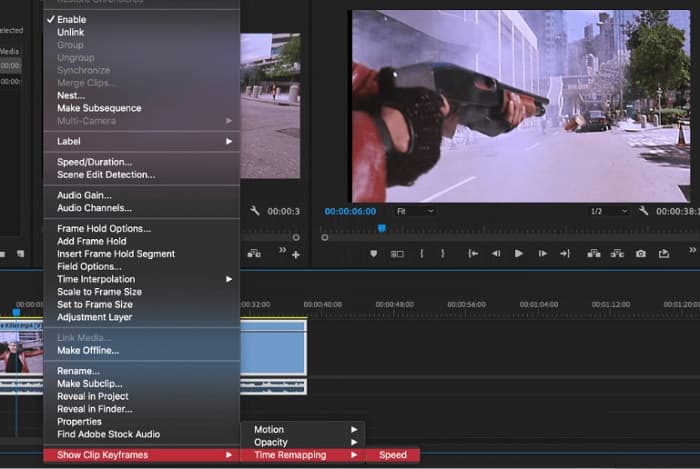
4단계. 다음 단계에서는 키프레임을 만들겠습니다. 하지만 키프레임을 설정하기 전에, 키프레임이 보이도록 설정해야 합니다. 비디오 클립을 마우스 오른쪽 버튼으로 클릭한 뒤 Show Clip Keyframes,> Time Remapping > Speed를 선택합니다.
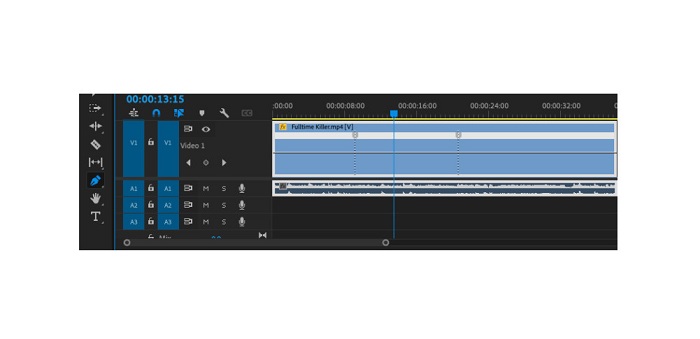
5단계. 도구 막대(Toolbar)에서 펜(Pen) 도구를 선택합니다. 그런 다음, 비디오 클립을 가로지르는 흰 선을 클릭해 키프레임을 생성합니다. 영상에 속도 램핑을 적용하려면 두 개의 키프레임이 필요합니다. 첫 번째 키프레임은 속도 램핑을 시작할 위치에, 두 번째 키프레임은 램핑을 끝내고 싶은 위치에 설정하세요.
6단계. 이제 속도 램핑을 적용할 구간의 속도를 조정해 보겠습니다. 설정한 키프레임 사이의 흰 선을 클릭한 후, 흰 선을 위나 아래로 드래그합니다. 위로 드래그하면 속도가 빨라지고, 아래로 드래그하면 느려지며 영상의 재생 속도가 변경됩니다.
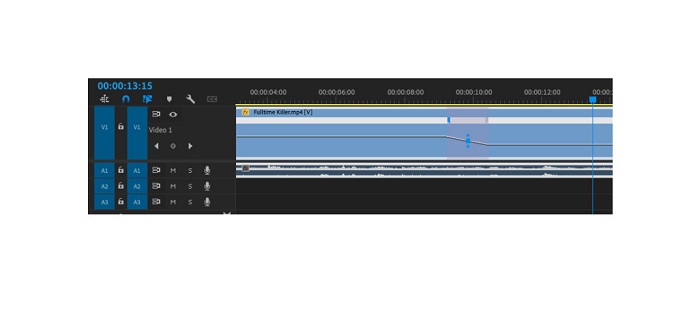
Adobe Premiere에서 비디오 속도를 높이려는 경우 알아야 할 자습서입니다.
3부. 속도를 높이는 더 쉬운 방법
Adobe Premiere는 고품질로 놀라운 출력을 생성할 수 있지만 초보자에게 친숙한 도구는 아닙니다. 따라서 속도 램핑이 처음이라면 다른 방법을 찾는 것이 좋습니다. 운 좋게도 비디오 속도를 높이는 데 사용할 수 있는 이 훌륭한 응용 프로그램을 찾았습니다. 이 응용 프로그램에 대해 자세히 알아보려면 아래 설명을 읽으십시오.
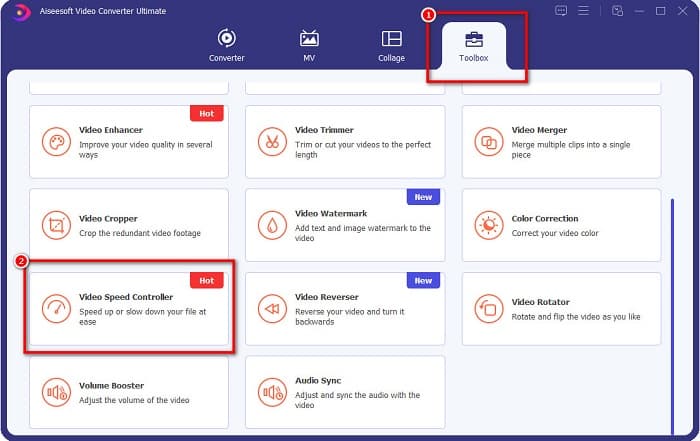
Video Converter Ultimate는 다양한 고급 편집 기능을 갖춘 뛰어난 소프트웨어입니다. 영상을 속도 램핑하고 싶을 때 이 프로그램을 사용할 수 있습니다. 또한 인터페이스가 직관적이고 사용하기 쉬워서 초보자도 간편하게 다룰 수 있습니다. MP4, AVI, MOV, MKV, VOB, WMV, M4V, WebM 등 모든 주요 비디오 형식과 그 외 1000개 이상의 포맷을 지원합니다. 툴박스에는 비디오 속도 컨트롤러, 비디오 병합, 워터마크 제거, 색 보정 등 다양한 편집 기능이 포함되어 있습니다.
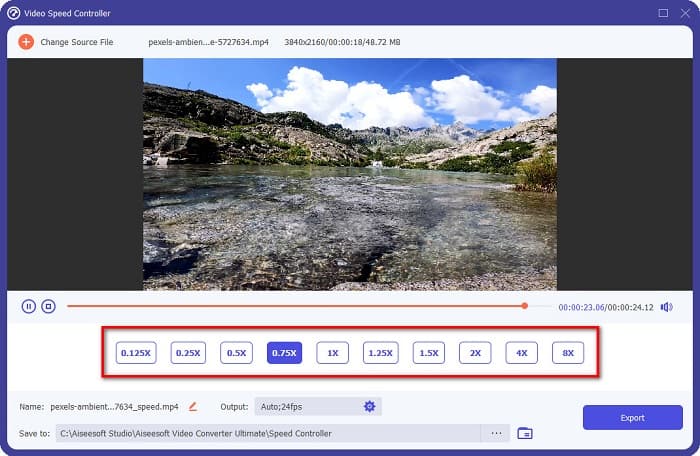
또한 비디오 속도 컨트롤러를 사용하여 비디오 속도를 높일 때 속도 사전 설정 중에서 선택할 수 있습니다. Video Converter Ultimate의 뛰어난 점은 빠른 처리 인터페이스로 많은 사용자가 편리하게 사용할 수 있다는 것입니다. Windows, Mac 및 Linux를 포함한 모든 플랫폼에서 이 앱을 다운로드할 수 있습니다. 그리고 Video Converter Ultimate의 비디오 속도 컨트롤러를 사용하려면 아래의 간단한 가이드를 따르세요.
Video Converter Ultimate를 사용하여 비디오 속도를 높이는 방법:
1단계. 먼저 아래에 있는 다운로드(Download) 버튼을 클릭하여 컴퓨터에 프로그램을 다운로드합니다. 다운로드 및 설치가 끝나면 장치에서 프로그램을 실행하세요.
Free DownloadFor Windows 7 or laterSecure Download
Free DownloadFor MacOS 10.7 or laterSecure Download
2단계. 그런 다음, 프로그램 메인 화면에서 툴박스(Toolbox) 패널로 이동하여 Video Speed Controller 기능을 선택합니다.
3단계. 속도 램핑을 적용할 영상을 불러오려면 더하기(+) 아이콘 버튼을 클릭하거나, 더하기 표시 상자로 파일을 드래그 앤 드롭하세요.

4단계. 다음 화면에서 영상에 적용할 재생 속도를 선택합니다. 0.125x, 0.25x, 0.5x, 0.75x, 1x, 1.25x, 1.5x, 2x, 4x, 8x 중에서 고를 수 있습니다.
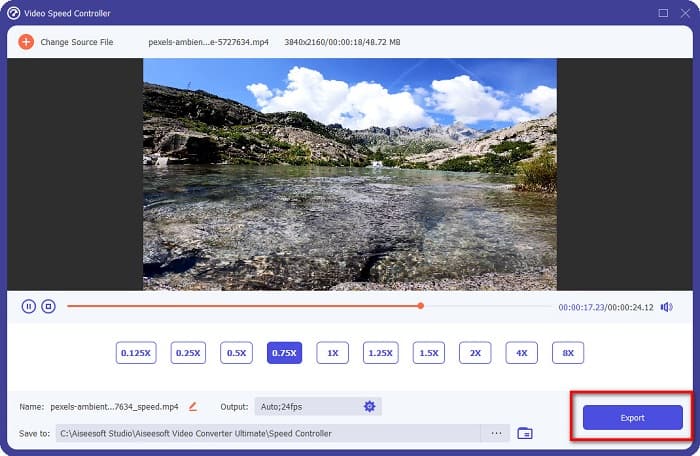
5단계. 영상 속도 조정이 모두 끝났다면, Export 버튼을 클릭하여 결과물을 장치에 저장합니다.
와 연관되다:
After Effects에서 동영상 속도 높이는 방법 [최고의 속도 조절 도구]
Sony Vegas에서 동영상 속도 높이는 방법 [쉬운 단계별 안내]
4부. 속도 증가에 대한 FAQ
iPhone에서 영상 속도를 높일 수 있습니까?
예. iPhone에서 속도를 높이고 싶다면 iMovie 앱을 사용할 수 있습니다. iMovie는 여러 범위로 비디오 속도를 높이거나 낮출 수 있는 알려진 iPhone용 비디오 편집 앱입니다.
Adobe Premiere는 무료입니까?
아니요. Adobe Premiere는 무료 앱이 아닙니다. 앱을 사용하려면 월 US$20.99에 앱을 구매해야 합니다. 그러나 7일 무료 평가판으로 무료로 다운로드할 수 있습니다.
CapCut에서 속도 램프를 사용할 수 있습니까?
CapCut은 비디오 속도를 높일 수 있는 비디오 편집 앱입니다. 속도 곡선 도구를 사용하여 비디오 속도를 높이거나 낮추어 편집할 수 있습니다.
결론
속도 램핑은 영상에 독특한 시네마틱 효과를 주는 훌륭한 기법입니다. 전문적으로 영상 편집을 한다면, Adobe Premiere는 속도 램핑에 가장 적합한 도구입니다. 하지만 무료로 영상을 속도 램핑하고 싶다면, Video Converter Ultimate가 적합한 애플리케이션입니다.
-
 Premiere Pro 및 대안으로 비디오 속도를 높이는 방법
 Premiere Pro를 사용하여 비디오 속도를 높이는 방법을 알고 싶습니까? 그런 다음 단계 및 기타 저렴한 대안을 제공하므로 올바른 기사에 있습니다.
-
 Windows Movie Maker에서 슬로우 모션 비디오를 만드는 쉬운 방법
 비디오에 극적인 효과를 주어 슬로우 모션으로 강조하거나 최소한 클립을 나머지 클립보다 돋보이게 만들고 싶지만 방법을 모르십니까? 더 자세히 알아보려면 이 기사를 계속 읽으십시오.
-
 TikTok에서 비디오 속도를 높이는 방법에 대한 2가지 손쉬운 방법
 TikTok에서 비디오 속도를 높이는 방법에 대한 비밀을 알고 싶습니까? 그런 다음 이 기사를 읽고 이를 수행하는 방법에 대한 아이디어를 얻고 도움이 될 다른 2가지 도구가 무엇인지 알아보십시오.
