


 비디오 컨버터 궁극
 스크린 레코더
 비디오 수리
 안전한 다운로드
3가지 효과적인 방법으로 PPT를 MP4로 변환하세요
PPT는 학교, 직장 등에서 프레젠테이션을 할 때 유용한 도구입니다. 가끔 프레젠테이션이 끝난 후 참고용으로 PPT 자료 사본을 요청하는 사람들이 있습니다.
그러나 일부 사람들은 장치에 애플리케이션이나 소프트웨어 도구가 설치되어 있지 않아 파일에 액세스할 수 없다는 점을 인정하는 것이 중요합니다. 이를 통해 대부분의 발표자는 모든 사람과 자료를 쉽게 공유할 수 있도록 프레젠테이션의 변환된 MP4 버전을 보유합니다.
So, if you’re looking for a way to convert your PPT to MP4 for quick sharing and accessibility of the file material, you’re on the right page. Therefore, continue reading this article and immerse yourself in learning the 3 different methods of how you can turn your PPT file into a video.

1부: PPT 내에서 PowerPoint를 MP4로 변환하는 방법
PowerPoint 프레젠테이션을 사용하면 사용자는 PPT를 MP4로 쉽게 변환할 수 있습니다. 편의성과 유연성을 위한 훌륭한 내장 기능입니다.
Step 1. Open your presentation using the PowerPoint presentation software tool on your device.
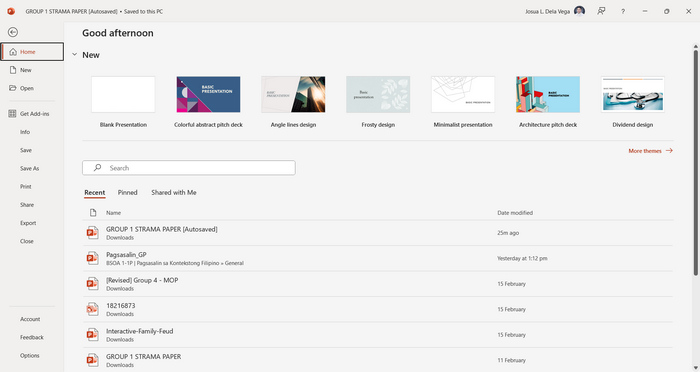
Step 2. Proceed to the File tab, look for the Export button, and click on it.
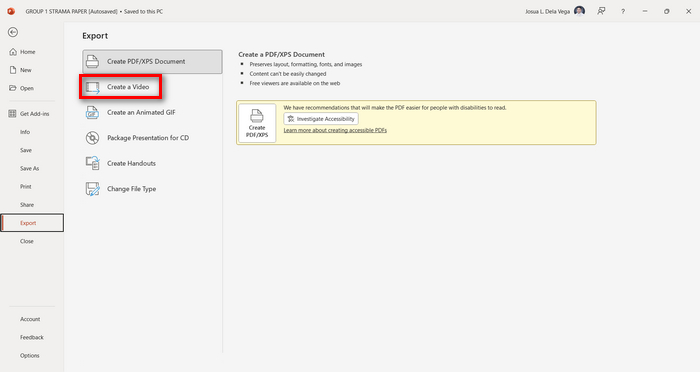
Step 3. Once you’re on the Export tab, click on the Create a Video option.
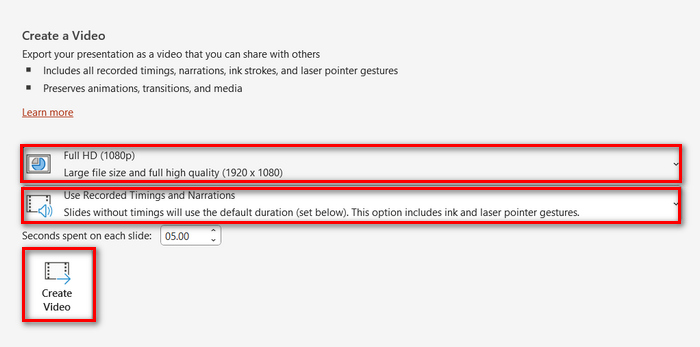
Step 4. Now, set your preferred video resolution. You can choose between 480p to 4K. Also, in the Use Recorded Timings and Narrations option, you can manually set the timing of your slides. After that, click on the Create Video button.
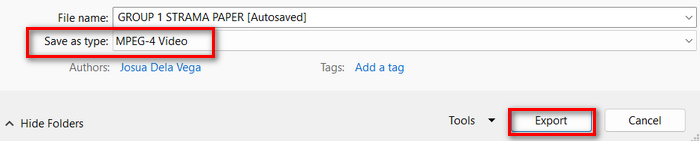
Step 5. After clicking the Create a Video button, there will be a new Window where you can check the format of your file output and where you want it to be saved. When set, just click the Export button and wait for it to be finished.
It is indeed convenient to convert PowerPoint to MP4 using its built-in feature. However, it lacks the customization feature if you want to add some background music. Nevertheless, if your goal is just for sharing purposes, then this is not a problem for you.
2부: PPT를 오디오 온라인 무료와 함께 MP4로 변환
PPT 파일이 있고 장치에 PowerPoint 프레젠테이션 소프트웨어 앱이나 도구가 없어서 온라인으로 변환하고 싶다면 MagicSlides를 사용할 수 있습니다. 이 온라인 변환 도구를 사용하면 파일을 시스템에 가져오기만 하면 PowerPoint를 MP4로 쉽게 변환할 수 있습니다.
Step 1. Upload the PPT file that you want to convert into MP4 by clicking the Upload your source file button.
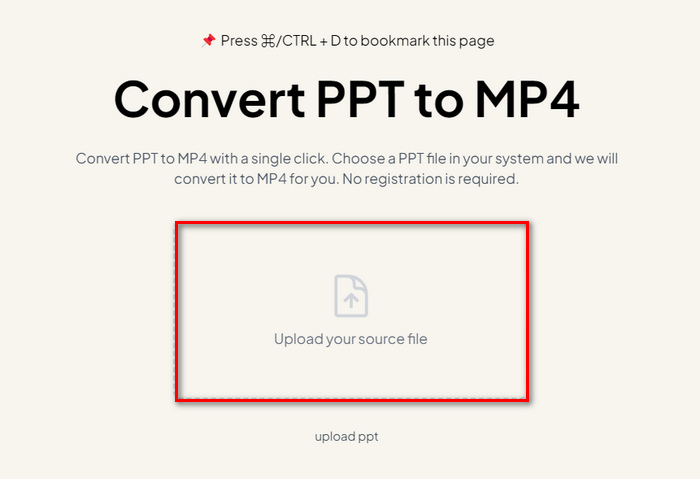
Step 2. Once the file is imported, click on the Create MP4 button to start the Conversion process.
Step 3. When it’s done, you can first preview the converted PPT file, and when you’re satisfied with the result, just click on the Download button to save it directly to your device.
이 도구는 PPT를 MP4로 변환하는 매우 간단한 단계를 제공하지만, PPT 파일을 가져오는 데는 시간이 너무 많이 걸려서 특히 서두를 때는 불안할 수 있습니다. 또한 사용자 지정 옵션이 없습니다. 문자 그대로 PPT 파일을 비디오로 변환했을 뿐입니다.
3부: 효과 및 오디오를 사용하여 PPT를 MP4로 변환하는 방법
If you want to convert your PPT to MP4, but this time with effects and audio, then this is definitely for you. With FVC Screen Recorder, you are able to turn your PowerPoint presentation into a creative and interactive MP4 file using its editing features. Moreover, you have nothing to worry about the output quality as it supports up to 4K video resolution. So, to use this, follow the guide below:
1단계. 먼저, 소프트웨어 도구를 다운로드하여 컴퓨터에 설치합니다.
무료 다운로드Windows 7 이상용안전한 다운로드
무료 다운로드macOS 10.7 이상용안전한 다운로드
Step 2. Open your PowerPoint presentation, and make sure that it is opened in full screen.
Step 3. Now, on the screen recorder tool, choose the Video Recorder feature and select the recording area as Full.
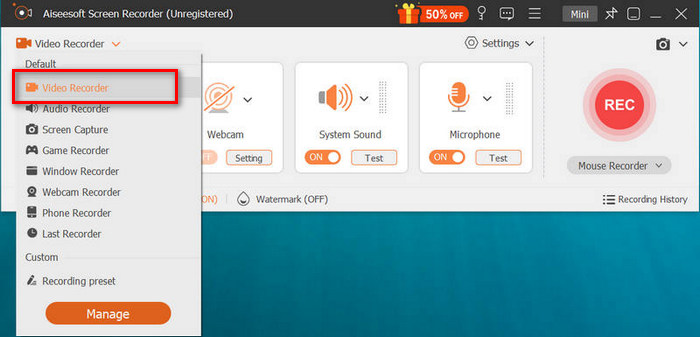
Step 4. After that, start to play the PowerPoint slideshow. Likewise, click the REC button to start recording the PowerPoint.
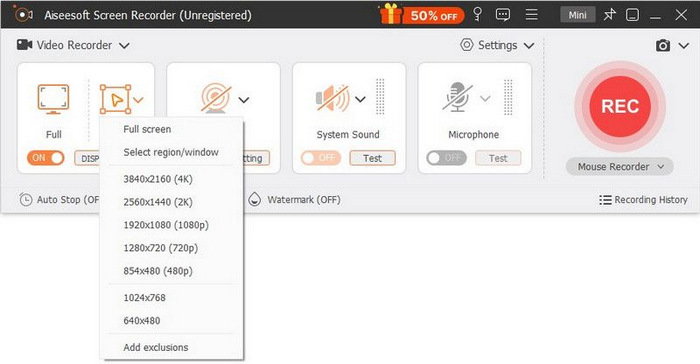
Step 5. When done, just click the Stop button, and it will bring you to the preview interface. From there, you can find in the bottom corner the editing features that you can utilize to edit audio and effects in converting your PPT to MP4.

Step 6. Lastly, you can access your file by clicking on the Open Folder button.
PowerPoint를 MP4로 변환하는 데 FVC Screen Recorder를 사용하는 것의 장점은 슬라이드의 타이밍과 페이싱을 제어할 수 있다는 것입니다. 게다가 기본 변환만 제공하는 다른 도구와 달리 이 도구는 변환된 MP4 파일을 더욱 향상시키는 데 사용할 수 있는 편집 기능이 있습니다.
4부: PPT를 MP4로 변환하는 것에 대한 FAQ
PPT를 MP4로 변환하는데 얼마나 걸리나요?
변환 프로세스의 시간은 변환되는 파일 크기에 따라 다릅니다. 하지만 일반적으로 간단한 프레젠테이션은 변환하는 동안 많은 시간이 걸리지 않습니다.
PPT를 MP4로 변환할 때 애니메이션과 전환 효과를 유지할 수 있나요?
네. 내장된 기능을 사용하면 사용자가 변환 프로세스 중에 애니메이션과 전환을 유지할 수 있습니다. 이는 전환 및 애니메이션과 같은 프레젠테이션의 시각적 요소가 MP4 형식으로 변환되는 동안 유지되도록 하기 위한 것입니다. 그러나 애니메이션과 전환의 호환성은 사용된 PowerPoint 버전과 적용된 효과의 복잡성에 따라 다를 수 있다는 점에 유의하는 것이 중요합니다.
MP4로 변환하면 PowerPoint 프레젠테이션의 품질이 유지되나요?
네. PowerPoint 프레젠테이션은 최대 4K 비디오 해상도를 지원합니다. 따라서 더 높은 해상도를 선택하면 프레젠테이션의 품질을 유지하는 데 도움이 됩니다. 또한 비트레이트와 압축 설정을 조정하여 비디오 품질을 더욱 최적화할 수 있는 옵션을 제공하는 고급 변환 도구를 사용하여 PPT를 MP4로 변환하면 품질 있는 출력을 보장할 수 있습니다.
결론
Converting PPT to MP4 format indeed offers convenience and accessibility for sharing the file across various platforms and devices. Now that you have an idea of how to convert them, it's time to put this knowledge into action. Start converting today and enhance the reach and impact of your presentations!
-
 PowerPoint에서 그림 크기를 조정하는 방법 [크기를 변경하는 가장 빠른 방법]
 PowerPoint에서 그림 크기를 조정하는 방법을 배우는 것은 특히 프레젠테이션에서 사용하려는 경우 필수적입니다. 방법을 알아보려면 이 기사를 읽으십시오.
-
 Apowersoft 워터마크 리무버 검토 – 기능, 장단점 및 가격
 Apowersoft Watermark Remover는 온라인 및 오프라인을 지원하는 최고의 워터마크 제거 중 하나입니다. 자세한 내용을 보려면 여기를 클릭하십시오!
-
 PowerPoint에서 비디오가 재생되지 않는 문제를 해결하는 방법 | 빠른 가이드
 PowerPoint 비디오가 재생되지 않습니까? 현재 재생되지 않는 삽입된 비디오에 대한 좌절감을 당사의 최고의 5가지 솔루션으로 쉽게 해결해 보세요.
