


 비디오 컨버터 궁극
 스크린 레코더
 비디오 수리
 안전한 다운로드
Windows, macOS, 온라인 및 모바일 폰을 위한 M4A 파일 편집
M4A 파일은 모든 기기를 위해 설계된 형식이 아니기 때문에, 많은 오디오 편집기가 이 오디오 파일 형식을 다루는 데 어려움을 겪어 사용자가 이를 수정하기가 힘든 경우가 있습니다. 기본적으로 M4A는 거의 모든 기기에서 지원되며, 압축 형식이기 때문에 용량이 작고 기기에 부담이 적으면서도 꽤 양호한 음질을 제공합니다. 걱정하지 마세요. Windows와 macOS용으로 엄선한 소프트웨어 도구, 웹 브라우저용 온라인 도구, 그리고 모바일 애플리케이션을 활용하면 여전히 M4A 파일을 편집할 수 있습니다.

1부. Windows 11/10/8/7 및 macOS에서 M4A 파일 편집
1. 올인원 M4A 편집기
이 FVC-선정 Video Converter Ultimate는 다기능이면서 사용하기 쉬운 M4A 편집기입니다. 이 도구는 데스크톱용 소프트웨어 기반 툴로, M4A 자르기, 병합, 압축, 노이즈 제거, 볼륨 증폭 등 다양한 기능을 포함한 올인원 M4A 편집기로 평가됩니다. 단순한 인터페이스로 오디오와 비디오 편집을 모두 수행할 수 있어 Windows와 Mac 기기 모두에서 뛰어난 소프트웨어입니다. 올인원 M4A 편집기를 처음 사용하는 분들을 위해, 소프트웨어를 효율적으로 활용할 수 있도록 간단한 사용 가이드를 소개합니다.
1단계. 데스크톱에 FVC-선정 Video Converter Ultimate를 다운로드하여 설치합니다.
Free DownloadFor Windows 7 or laterSecure Download
Free DownloadFor MacOS 10.7 or laterSecure Download
2단계. 도구 인터페이스에서 파일 추가(Add Files) 버튼을 클릭해 편집할 M4A 파일을 프로그램에 불러옵니다.
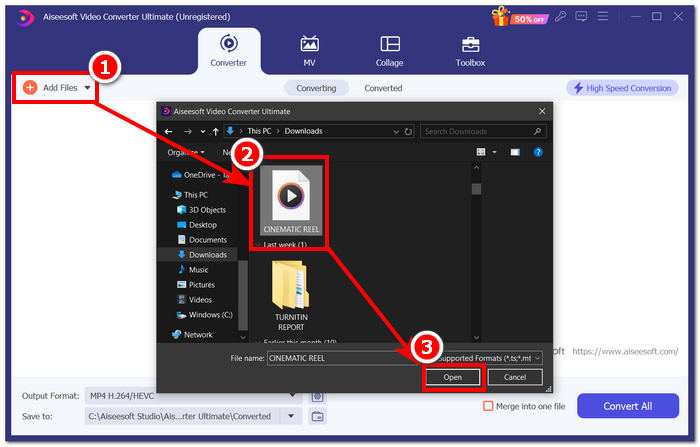
3단계. 도구에 M4A 파일이 추가되면, 업로드된 M4A 파일 옆에 위치한 편집(Edit) 및 자르기(Cut) 도구를 선택해 M4A 파일을 편집할 수 있습니다.
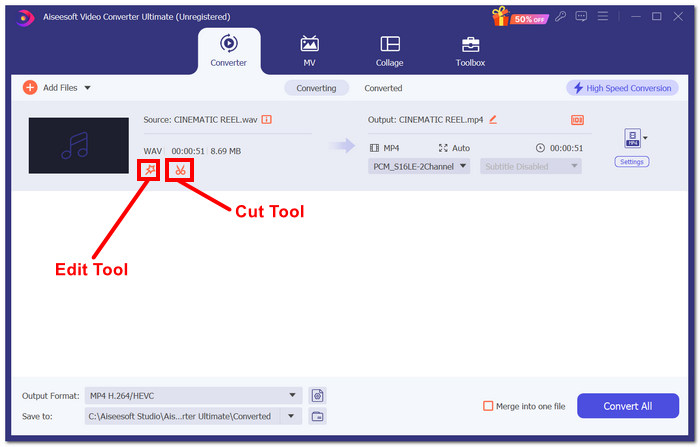
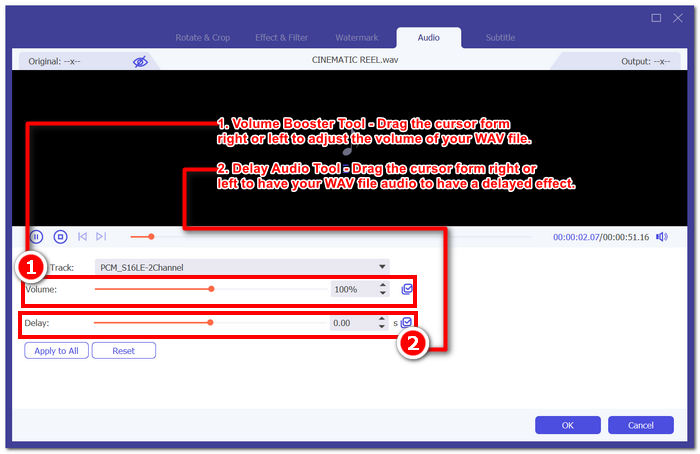
참고: M4A 파일에 볼륨 증폭(Volume Booster)과 오디오 지연(Audio Delay) 기능을 적용하고 싶다면 마법 지팡이(Magic Wand) 아이콘을 클릭하세요.
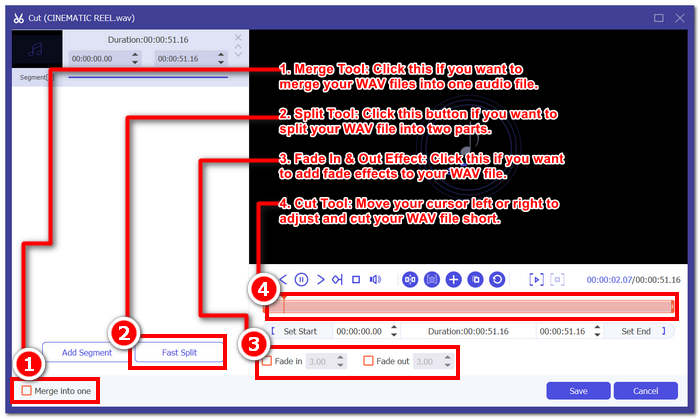
그렇지 않은 경우, 가위 아이콘을 클릭하여 M4A 파일에 페이드 추가, 잘라내기, 분할, 병합 효과 등의 기능을 사용할 수 있습니다.
4단계. 원하는 대로 M4A 파일의 편집과 자르기가 완료되면, 모두 변환(Convert All) 버튼을 클릭하여 편집된 파일을 데스크톱에서 지정한 폴더로 다운로드합니다.

FVC에서 선정한 소프트웨어는 올인원 M4A 편집 도구로서의 명성에 걸맞습니다. 이 도구는 놀랍게도 MP3, M4A, MP4, AAC, WMA, WAV 등 다양한 오디오 및 비디오 형식을 지원합니다. 또한, 이 도구는 고속 내보내기 기술을 사용하여 무제한 파일 크기 업로드를 제공하므로 사용자는 항상 고품질 내보내기를 보장받을 수 있으며, 파일의 품질을 유지하면서 WAV 파일을 더 빠르게 처리하고 내보낼 수 있습니다.
2. 오픈소스 및 강력한 M4A 편집기
오픈소스 M4A 편집기인 Audacity는 녹음에도 사용할 수 있으며, 인기 있는 Audacity 외에는 없습니다. 오디오 제작 분야에서 수년간의 전문 지식을 바탕으로 이 프로그램은 목록에서 가장 선호되고 널리 사용되는 도구입니다. 음악을 녹음하고, 편집하고, 믹싱하고, 노래를 결합하는 기능으로 잘 알려져 있습니다. 또한 팟캐스트에서 사용할 M4A 파일을 편집하고 제작하는 데 사용할 수도 있습니다. WAV, MP3, MP2 등 다른 파일 형식과 호환되므로 손쉽게 M4A를 편집하고 녹음할 수 있는 유연한 도구이기도 합니다.
1단계. 데스크톱에 Audacity를 다운로드하여 설치합니다.
2단계. Audacity 설치를 마친 뒤 프로그램을 실행합니다. 인터페이스에서 화면 왼쪽 상단에 있는 파일(File) 메뉴를 클릭하고, 열기(Open)를 선택하여 편집할 M4A 파일을 불러옵니다.
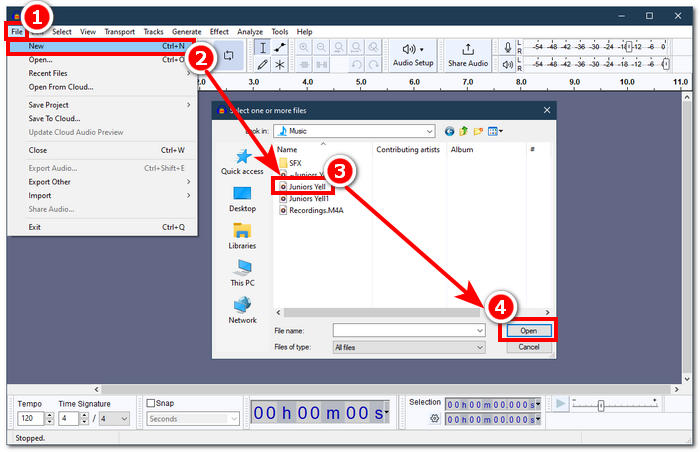
Audacity에서 M4A 파일을 사용하려면 FFmpeg 플러그인이 필요합니다. M4A 편집을 진행하기 전에 플러그인을 설치해야 합니다.
3단계. 도구에 M4A 파일이 업로드되면 제공되는 다양한 기능을 사용해 파일을 편집할 수 있습니다.
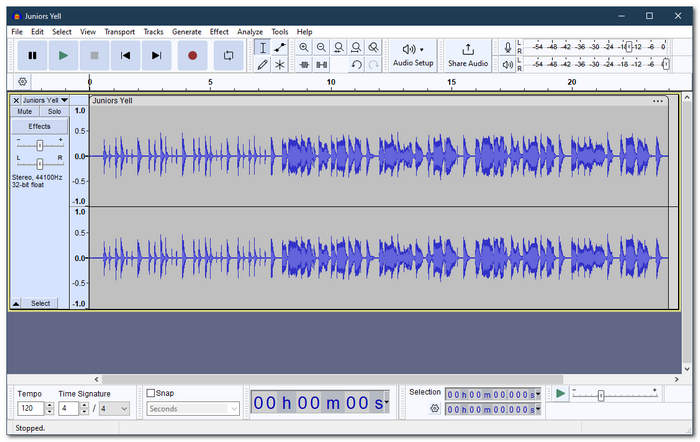
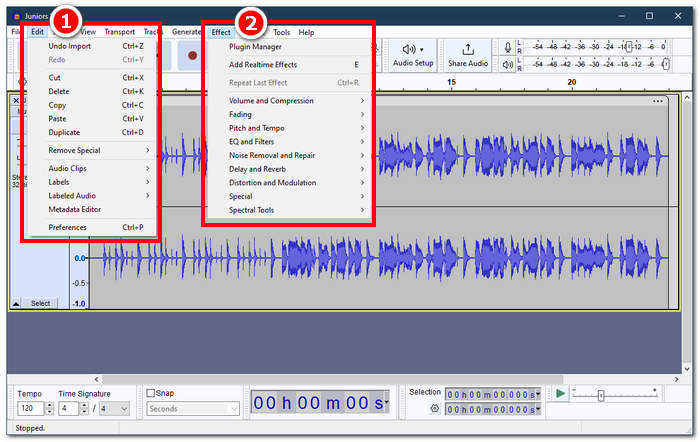
참고: 구간 자르기, 일부 삭제, 효과 적용, 복사, 붙여넣기, 복제 또는 Audacity에서 오디오 트랙 병합 등을 하려면, 도구 상단 왼쪽 메뉴에 있는 편집(Edit) 항목을 클릭하세요. 볼륨 조절, 페이드 인·아웃 효과 적용, 음정과 속도 조정 등 더 많은 기능을 사용하려면 같은 위치에 있는 효과(Effect) 항목을 클릭하면 됩니다.
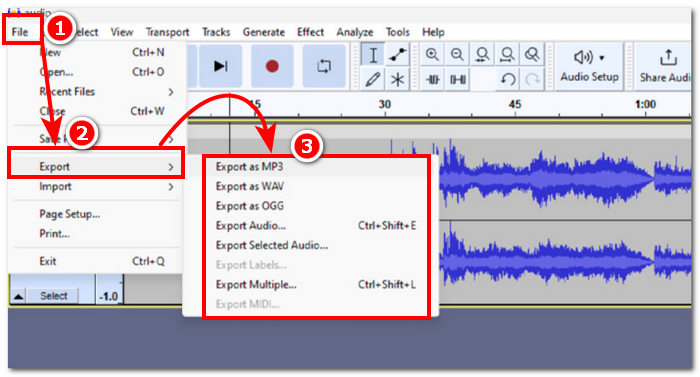
4단계. M4A 파일에 적용한 모든 변경 사항이 만족스러우면, 파일(File) > 오디오 내보내기(Export Audio)로 이동해 오디오를 내보냅니다.
간단한 M4A 편집의 경우, Audacity는 무료이고 효율적인 작업을 용이하게 하기 때문에 훌륭한 애플리케이션입니다. 또한, 레이블링 부분의 멀티트래킹을 가능하게 하기 때문에 색상 추적 특성이 유용합니다. 한 번에 여러 트랙에서 작업하는 단점은 프로그램이 한 번에 관리할 수 있는 트랙의 양이 제한되어 있다는 것입니다.
2부. M4A 파일 온라인 편집
온라인 또는 웹 기반 도구로 M4A 파일을 편집하고자 한다면, Aspose Audio Cutter가 즉석에서 빠르게 M4A를 편집할 수 있는 이상적인 솔루션을 제공합니다. 특히 M4A 파일을 정확한 구간으로 잘라내는 데 특화된 이 웹 기반 도구는 AAC, AIFF, FLAC, M4A, MP3, WAV 등 다양한 형식을 지원합니다. 이 도구는 M4A 파일을 업로드한 뒤, 잘라 저장하고 싶은 구간의 시간·길이를 지정하는 방식으로 간단하게 작동합니다.
1단계. Aspose Audio Cutter 공식 웹사이트에 접속합니다.
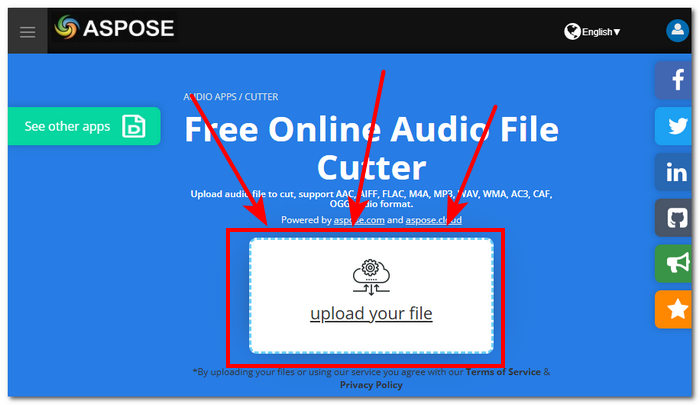
2단계. 웹사이트에 마련된 업로드 영역에 편집하려는 M4A 파일을 업로드하거나 끌어다 놓습니다.
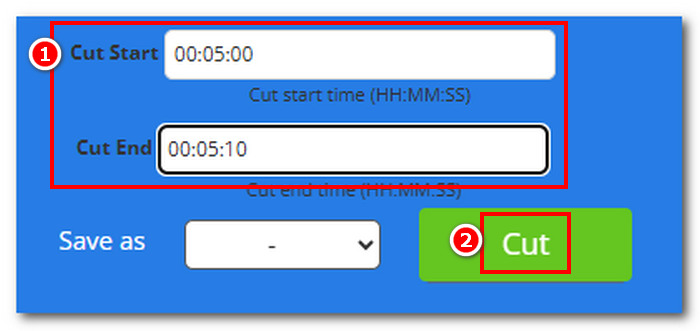
3단계. 제거하고 싶은 부분을 정확히 제외할 수 있도록 원하는 시작 지점(Cut Start)과 종료 지점(Cut End)을 입력한 뒤, 자르기(Cut) 버튼을 클릭하여 작업을 시작합니다.
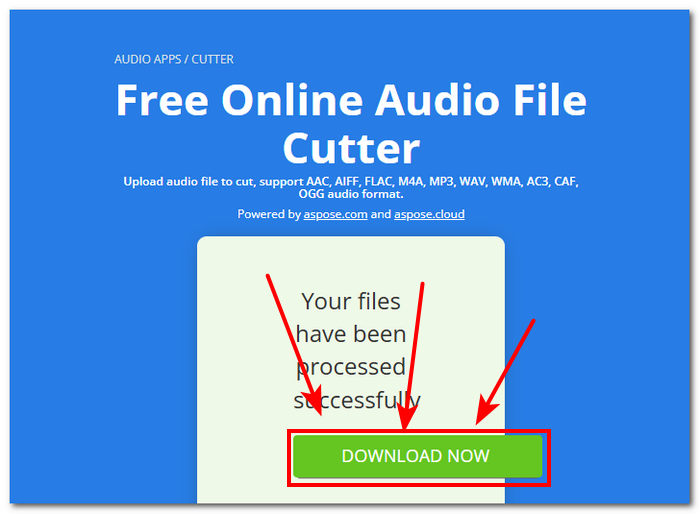
4단계. M4A 파일을 원하는 대로 잘라냈다면, 지금 다운로드(Download Now) 버튼을 클릭해 편집된 파일을 데스크톱에 저장합니다.
효과를 확인하려면 M4A 플레이어에서 파일을 열어 재생해 볼 수 있습니다.
Aspose Audi Cutter는 실제로 M4A 파일에 대한 정밀한 컷을 만들기 위해 특별히 제작된 간단한 인터페이스를 갖춘 사용자 친화적인 도구입니다. 이 서비스는 빠르고 사용하기 위해 응용 프로그램을 설치할 필요가 없습니다. 따라서 기능은 컷 기능에만 국한되며 페이드 효과 추가, 트리밍, 분할 등과 같은 다른 M4A 편집 작업은 수행할 수 없습니다.
3부. 모바일 폰에서 M4A 파일 편집
데스크톱 소프트웨어 버전에서 영감을 받은 WavePad 모바일은 동일한 인터페이스를 가지고 있어 앱에 익숙해지기가 더 쉽습니다. 이 모바일 앱은 Android 및 iOS 기기에서 무료로 다운로드할 수 있으며, 오디오 파일을 편집할 때 도구의 다양성을 보장하기 위해 오디오 형식을 광범위하게 지원합니다. 또한 M4A 편집 기능은 M4A 파일을 쉽게 자르고, 트리밍하고, 복사하고, 붙여넣고, 삽입하고, 음소거하고, 자동 트리밍하는 등 다양한 기능과 효과를 제공합니다.
1단계. 모바일 앱 스토어에 접속해 WavePad 모바일 앱을 검색한 뒤 다운로드합니다.
2단계. 앱 설치가 완료되면, 화면 상단에 위치한 열기(Open) 아이콘을 눌러 M4A 파일을 앱에 불러오고 로딩이 끝날 때까지 기다립니다.
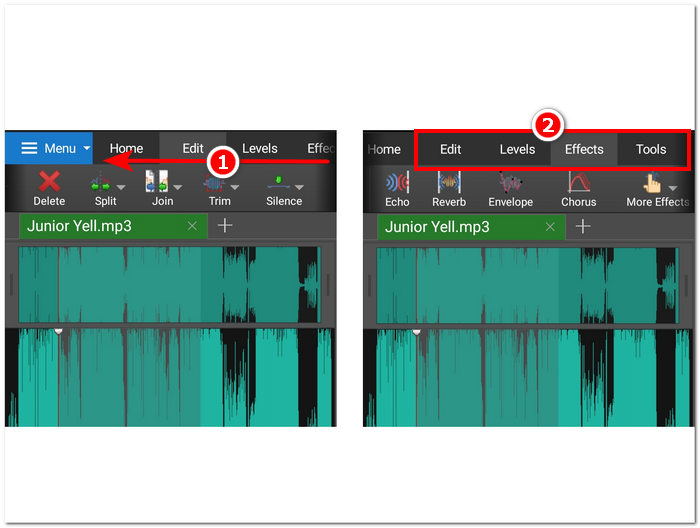
3단계. M4A 파일이 앱에 로드되면, 앱의 다양한 기능을 활용해 M4A 파일을 편집할 수 있습니다. 화면 상단 부분에 손가락을 올린 후 오른쪽에서 왼쪽으로 스와이프하면 자르기, 복사, 결합, 붙여넣기 등 여러 기능을 확인할 수 있습니다. M4A 파일에 사용하고 싶은 도구를 찾으면 해당 아이콘을 탭하여 적용하면 됩니다.
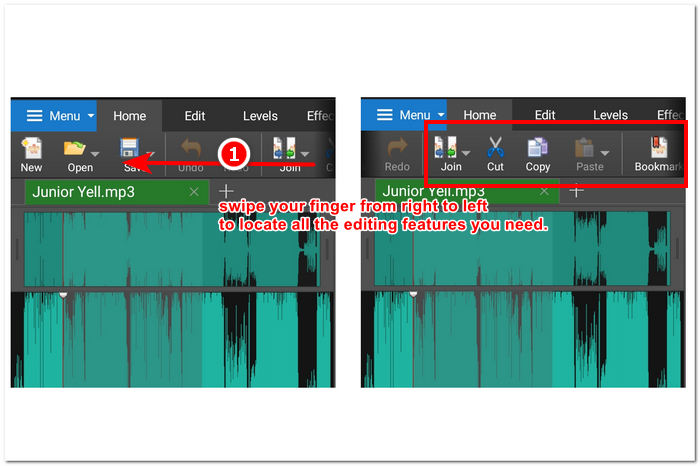
편집 섹션이 있는 필드에서 손가락을 오른쪽에서 왼쪽으로 스와이프하여 M4A 파일을 편집하는 데 사용할 수 있는 다른 효과와 기능을 탐색하고 볼 수도 있습니다. 거기에서 M4A 파일에 효과를 적용하고 더 많은 작업을 할 수 있습니다.
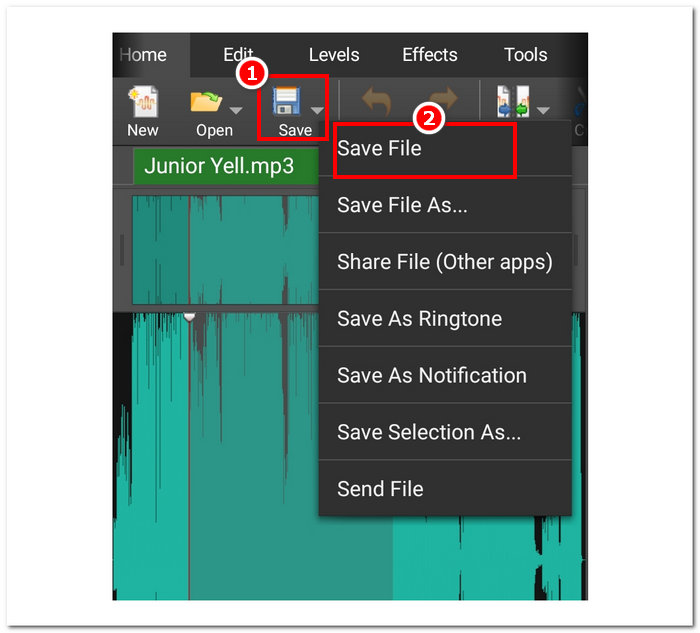
4단계. M4A 파일 편집을 모두 마쳤다면, 홈(Home) 섹션으로 돌아가 저장(Save) 버튼을 누른 뒤, 파일 저장(Save File)을 선택하여 편집된 M4A 파일을 모바일 기기에 다운로드합니다.
그럼에도 불구하고 WavePad 모바일은 확실히 강력한 모바일 M4A 편집기 앱으로, 사용자는 M4A 파일로 거의 모든 것을 할 수 있습니다. 이 앱은 모바일 기기만 가지고 있고 항상 이동 중인 사용자에게 이상적입니다.
4부. M4A 파일 편집 방법에 대한 FAQ
M4A가 MP3보다 나쁠까?
MP3보다 열등한 형식으로 보기는 어렵지만, 용도에 따라 M4A는 일반적으로 더 발전된 압축 알고리즘 덕분에 더 나은 음질과 동시에 더 효율적인 비트레이트를 제공하는 경우가 많습니다. M4A와 MP3의 자세한 차이점은 여기에서 더 확인할 수 있습니다.
M4A의 단점은 무엇인가요?
M4A 파일은 장치와 플랫폼에서 널리 지원되지 않으므로 사용하기 전에 변환 도구를 사용해야 합니다. 또한 사용자는 M4A를 오디오 파일로 사용할 때 종종 호환성 문제에 직면하기 때문에 특히 공유할 때 사용하기에 이상적인 파일이 아닙니다.
M4A를 텍스트로 변환하는 무료 소프트웨어가 있나요?
네, Google Docs Voice Typing 및 Otter.ai와 같이 M4A를 변환하는 무료 소프트웨어가 많이 있습니다. 이러한 도구는 음성 인식 기술을 통합하여 이 M4A 파일의 오디오 파일을 텍스트로 변환하기 때문에 신뢰할 수 있습니다.
편집 후 M4A 파일을 다른 형식으로 변환할 수 있나요?
네, FVC가 선택한 Video Converter Ultimate와 같은 많은 M4A 편집기에는 사용자가 편집한 M4A 파일을 다양한 오디오 형식으로 저장하거나 내보낼 수 있는 변환 도구가 내장되어 있습니다.
편집한 M4A 파일의 품질이 유지되도록 하려면 어떻게 해야 하나요?
편집된 M4A 파일을 저장할 때 항상 최고 품질의 내보내기를 보장하려면 과도한 압축을 피하고 손실 없는 내보내기 품질을 지원하는 신뢰할 수 있는 도구를 사용해야 합니다.
결론
호환성 문제와 특정 오디오 편집기의 제한적인 지원으로 인해 Windows, macOS, 인터넷 도구, 모바일 폰을 포함한 여러 플랫폼에서 M4A 파일을 편집하는 것은 어려울 수 있습니다. M4A 파일은 품질과 압축 간에 훌륭한 절충안을 제공하여 널리 받아들여지는 WAV와 같은 형식과 달리 적절한 오디오 충실도를 유지하면서도 저장에 효과적입니다. 그러나 FVC Video Converter Ultimate의 데스크톱 버전, Aspose Audio Cutter의 웹 버전, WavePad의 모바일 버전과 같은 올바른 도구와 프로그램을 사용하면 M4A 파일을 쉽게 편집하여 고품질 출력과 다양한 편집 선택 사항을 보장할 수 있습니다.
-
 Windows 및 Mac을위한 최고의 5 가지 최고의 마우스 및 키보드 레코더
 다음은 마우스 움직임과 키보드 클릭을 저장하고 이벤트를 반복 할 수있는 최고의 마우스 및 키보드 레코더 프로그램 5 가지입니다.
-
 화면 비디오를 AVI 파일로 캡처하는 상위 4 개의 무료 AVI 스크린 레코더
 고품질 AVI 파일로 화면을 녹화하기 위해이 기사에서는이 게시물에서 상위 4 개의 무료 AVI 화면 레코더를 식별하고 공유했습니다. 그에 따라 원하는 것을 찾으려면 자세한 내용을 알아보십시오.
-
 동작! 스크린 레코더 검토 – 단점, 장점 및 최상의 대안
 Action Screen Recorder가 게임 플레이 비디오를 캡처하는 데 필요한 게임 녹화 소프트웨어입니까? 기사에서 리뷰와 대안에서 자세한 내용을 알아보십시오.
