


 비디오 컨버터 궁극
 스크린 레코더
 비디오 수리
 안전한 다운로드
Vudu 디스크를 디지털로 변환: DVD를 쉽게 변환하는 방법 알아보기
DVD를 소장하고 있고 디지털로 변환하고 싶다면 Vudu의 Disc to Digital 서비스를 이용하면 간편하게 변환할 수 있습니다. 공간을 많이 차지하는 부피가 큰 DVD 케이스를 보관할 필요 없이, DVD 플레이어 없이도 좋아하는 기기에서 영화를 간편하게 감상할 수 있습니다. 몇 가지 간단한 단계만 거치면 DVD를 디지털 파일로 변환하여 Vudu 라이브러리에 저장하고 언제든지 스트리밍할 수 있습니다.
따라서 이 가이드에서는 Vudu Disc to Digital이 무엇인지와, 이를 어떻게 변환할 수 있는지 살펴보겠습니다. 또한, 그 대체 프로그램들을 사용해 디스크를 변환하는 단계도 안내해 드리겠습니다. 더 궁금하신가요? 계속 읽어 보세요.

1부. Vudu Disc to Digital이란?
Vudu는 월마트가 소유한 미국의 유명 디지털 비디오 스토어이자 스트리밍 서비스 플랫폼입니다. 이 도구를 사용하면 영화를 구매하거나 대여할 수 있으며, 때로는 무료로 시청할 수도 있지만 선택의 폭이 제한적입니다. 하지만 그 외에도 Vudu의 가장 큰 특징 중 하나는 Vudu 디스크를 디지털로 변환하는 서비스입니다. 이 기능을 사용하면 macOS 및 Windows용 블루레이 또는 DVD 리퍼를 사용하여 실제 디스크를 디지털 사본으로 변환할 수 있습니다.
가격:
• DVD에서 SD 또는 표준 화질로: 변환당 $2
• DVD에서 HDX 또는 고화질로: 변환당 $5
• Blu-ray에서 HDX로: 변환당 $2
2부. Vudu 디스크를 디지털로 변환하는 것은 여전히 가능할까요?
안타깝게도 Vudu Disc to Digital 서비스는 2019년 12월 31일부터 더 이상 제공되지 않습니다. 라이선스 계약 변경 및 기술 업데이트로 인해 데스크톱 기반 서비스 유지에 어려움이 있었기 때문입니다. 따라서 Vudu To Go 소프트웨어를 사용하여 데스크톱 컴퓨터에서 직접 디스크를 변환하는 옵션은 더 이상 제공되지 않습니다. 하지만 DVD 및 블루레이 컬렉션을 계속해서 디지털화하려는 분들에게는 좋은 소식이 있습니다. Vudu의 모바일 Disc to Digital 기능은 여전히 완벽하게 작동합니다. 모바일 Disc to Digital 서비스를 통해 사용자는 호환되는 스마트폰이나 태블릿에서 Vudu 앱을 사용하여 물리적 디스크를 변환할 수 있습니다.
3부. 디지털 DVD에 대한 Vudu 대안
Vudu Disc to Digital이 더 이상 지원되지 않으므로 DVD를 디지털화하는 다양한 방법이 있습니다. 이러한 대안은 동일한 서비스를 제공하지만 기능과 리핑 프로세스가 다릅니다. 그럼에도 불구하고 다음 도구들은 DVD 디지털화에 훌륭한 대안입니다.
AnyMP4 DVD 리퍼
Vudu Disc to Digital의 가장 좋은 대안 중 하나로 AnyMP4 DVD Ripper가 꼽혔습니다. 이 제품은 MP4, MOV, AVI, MKV 등 널리 사용되는 비디오 출력 형식을 지원하는 안정적인 DVD 리핑 도구입니다. 사용자는 이 도구를 사용하여 DVD를 원하는 형식으로 리핑할 수 있습니다. 내장된 편집 기능을 통해 DVD 콘텐츠를 리핑하기 전에 타이틀, 오디오 트랙, 자막 등 원하는 대로 수정할 수 있습니다. 또한, Blu-Hyper 기술과 같은 첨단 기술을 지원하여 더욱 빠르고 효율적인 DVD 디지털화를 지원합니다.
AnyMP4 DVD Ripper를 사용하여 DVD를 디지털화하는 방법:
1단계. 먼저 AnyMP4 DVD Ripper를 설치한 뒤, DVD를 DVD 드라이브에 넣습니다.
무료 다운로드Windows 7 이상용안전한 다운로드
무료 다운로드macOS 10.7 이상용안전한 다운로드
참고: 다음 단계로 넘어가기 전에 컴퓨터의 DVD 드라이브에 DVD를 삽입하고, 인식될 때까지 몇 분 정도 기다려야 합니다.
2단계. 프로그램이 DVD를 자동으로 감지하고 분석합니다. 로딩이 완료되면, 제목, 자막 등을 필요에 따라 편집할 수 있습니다.
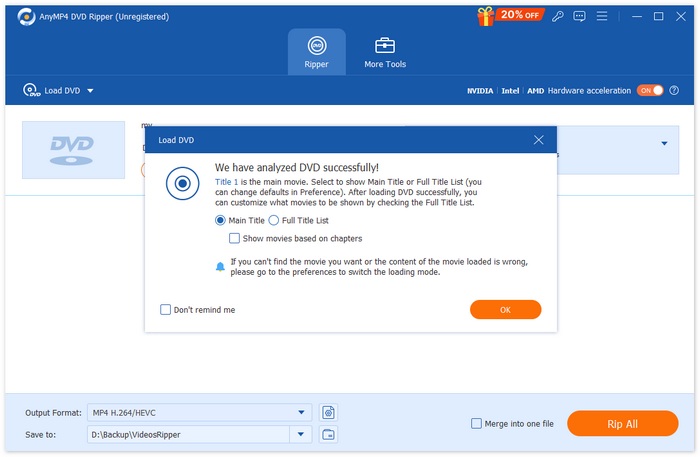
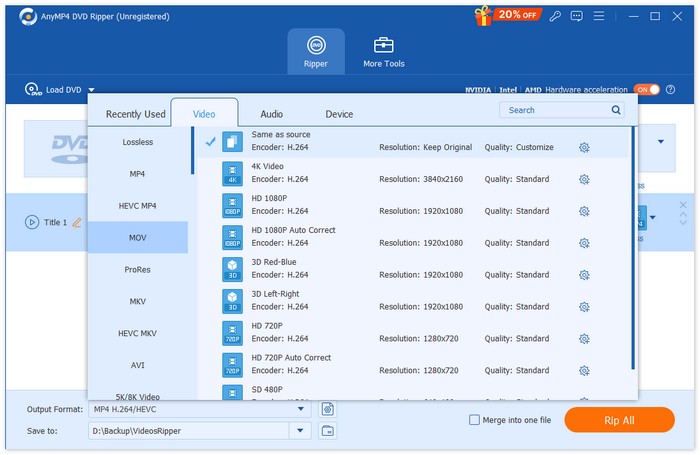
3단계. 그런 다음, 아래에 있는 "Output Format" 버튼을 클릭하고, 동영상 탭에서 원하는 디지털 형식을 선택합니다. 선택을 마쳤다면, “Rip All” 버튼을 클릭하여 DVD 리핑을 시작합니다.
AnyMP4 DVD Ripper는 특히 Vudu 디스크를 디지털로 변환하는 대안으로 획기적인 제품입니다. 다양한 포맷의 DVD를 더욱 쉽게 디지털화할 수 있도록 해주며, 최첨단 기술과 알고리즘 덕분에 최상의 품질을 유지할 수 있다는 점이 가장 큰 장점입니다.
무료 다운로드Windows 7 이상용안전한 다운로드
무료 다운로드macOS 10.7 이상용안전한 다운로드
DVD팹
DVDFab 역시 뛰어난 DVD 리핑 소프트웨어로, Vudu Disc to Digital의 대안이 될 수 있습니다. 사용자가 보유한 물리적 DVD를 다양한 디지털 형식으로 리핑할 수 있는 유연성을 제공하기 때문입니다. 또한 MP4, MKV, AVI 등 폭넓은 출력 형식을 지원해, 여러 미디어 플레이어와의 호환성을 보장합니다.
DVDFab을 사용해 DVD를 디지털화하는 방법:
1단계. 컴퓨터에 DVDFab을 다운로드하여 설치합니다.
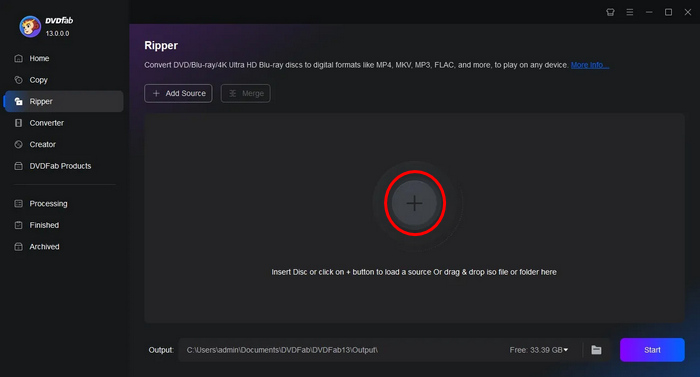
2단계. 그다음 프로그램을 실행한 후 Plus 버튼을 클릭해 기기에서 DVD를 불러옵니다.
3단계. 그런 다음, 출력 형식을 선택하기 위해 Choose Other Titles를 클릭합니다.
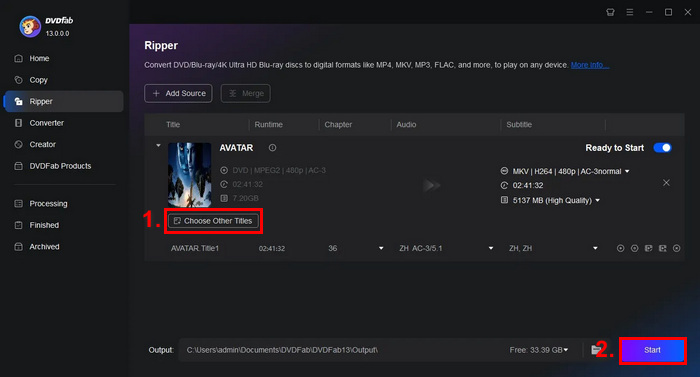
4단계. 마지막으로 Start 버튼을 눌러 DVD 디지털 변환을 시작합니다.
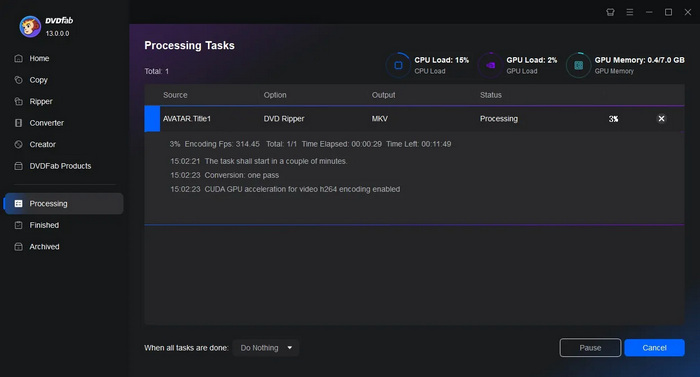
DVDfab은 DVD를 쉽게 디지털화하려는 사용자에게 매우 유용합니다. 주요 기능은 다소 복잡하지만, 일단 사용법을 익히면 리핑 과정이 정말 간편해집니다.
수동 브레이크
HandBrake는 널리 사용되는 오픈 소스 비디오 변환 도구로, Vudu Disc to Digital의 훌륭한 대안이 될 수 있습니다. 이 도구는 가장 일반적으로 쓰이는 다양한 비디오 형식을 지원하므로, DVD와 블루레이를 디지털 파일로 리핑하는 작업을 쉽고 효율적으로 할 수 있습니다. 따라서 HandBrake DVD Ripper를 사용할 때, 물리 디스크를 손쉽게 디지털 파일로 변환해 여러 기기에서 편리하게 보관하고 재생할 수 있습니다.
HandBrake로 DVD를 디지털화하는 방법:
1단계. 먼저 컴퓨터에 HandBrake를 다운로드하여 설치합니다.
2단계. 다음으로 도구를 실행한 뒤, DVD-ROM에 DVD를 삽입하고 Source Selection에서 해당 DVD를 선택합니다. 그러면 도구가 DVD 영화 타이틀을 스캔하기 시작합니다.
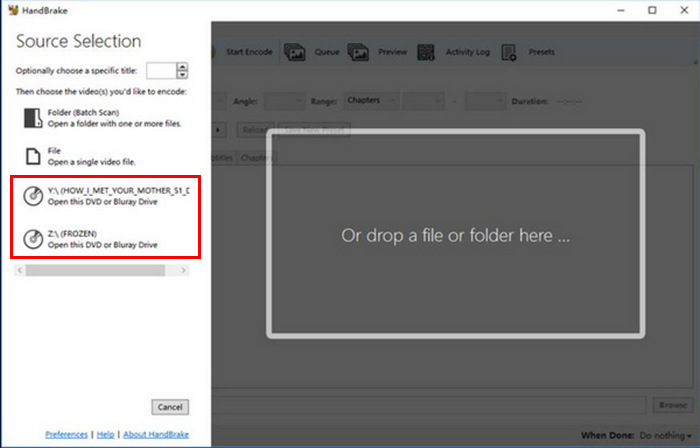
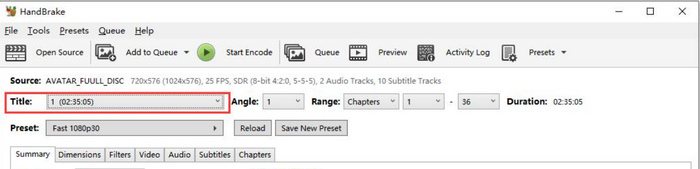
3단계. DVD가 열리면, 제목 드롭다운 메뉴에서 리핑하고 싶은 타이틀을 선택합니다.
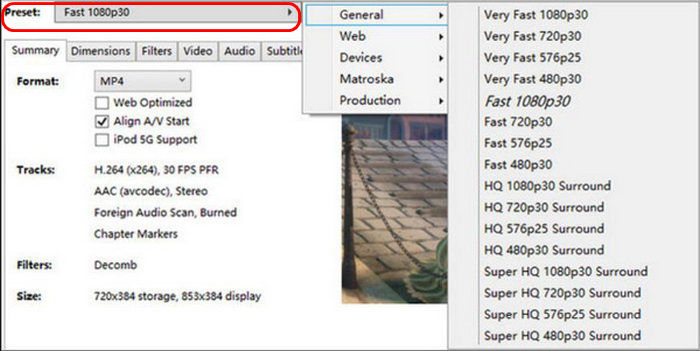
4단계. 다음으로 출력 파일의 품질을 결정해야 합니다. Preset 버튼을 클릭해 설정을 사용자 지정하면 됩니다. Apple TV, 안드로이드폰, PlayStation 등 필요한 거의 모든 환경에 맞는 프리셋이 준비되어 있습니다.
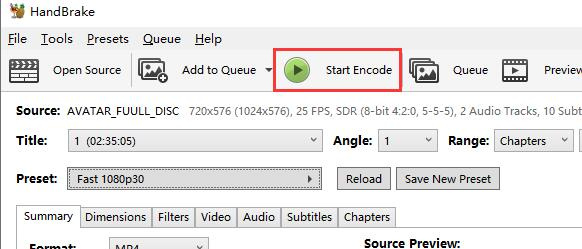
5단계. 이름과 프리셋을 선택했으면, 이제 창 상단의 Start Encode 버튼을 클릭하여 DVD 리핑을 시작합니다. 창 하단에 리핑 완료까지 남은 시간을 알려주는 진행 막대가 표시됩니다.
참고: 고화질로 리핑할수록 시간이 더 오래 걸리므로, 컴퓨터를 한동안 계속 켜 두어야 할 수 있습니다.
HandBrake의 장점은 오픈 소스라는 점이지만, 디지털화된 DVD의 대안으로 사용하는 것은 초보자에게는 어려울 수 있습니다.
4부. Vudu Disc에 대한 FAQ
DVD가 긁히거나 손상된 경우 디지털로 변환할 수 있나요?
손상 정도에 따라 다릅니다. 사소한 긁힘은 변환 과정에 영향을 미치지 않을 수 있지만, 심하게 긁히거나 손상된 DVD는 오류를 유발할 수 있습니다.
Vudu의 모바일 디스크-디지털 기능을 사용하려면 인터넷 연결이 필요합니까?
변환 과정. 디지털 사본은 Vudu 라이브러리에 추가되어 온라인으로 이용하실 수 있습니다.
Vudu의 모바일 디스크를 디지털로 변환할 수 있는 DVD 수에 제한이 있나요?
변환할 수 있는 디스크 수에는 엄격한 제한이 없지만, 각 변환에는 비용이 발생하며 위치 기반 제한 및 지원되는 제목 등 Vudu에서 설정한 규칙을 준수해야 합니다.
결론
Vudu Disc to Digital 서비스는 더 이상 제공되지 않지만, 여기에서 소개한 대안 프로그램들을 활용하면 여전히 DVD를 디지털화할 수 있습니다. 모바일 버전은 아직 사용 가능하지만, 데스크톱 버전만큼 효율적이거나 편리하지는 않을 수 있습니다. 그럼에도 AnyMP4 DVD Ripper, DVDFab, HandBrake는 전체 과정에 큰 도움을 줄 수 있습니다. 이제 망설이지 말고 DVD 디지털화를 시작해 보세요!
-
 Windows/MacOS/Linux용 최고의 무료 DVD 리퍼 5가지 [리뷰]
 디스크용 무료 DVD 리퍼를 찾고 계신가요? 이 글에서는 DVD 변환 비용을 절감해 줄 5가지 DVD 리퍼 도구에 대해 알아보세요.
-
 최고의 외장 CD/DVD 드라이브 4가지: 종합 리뷰
 최고의 외장 CD/DVD 드라이브를 찾고 계신다면, 바로 여기가 정답입니다. 이 글에서는 최고의 제품 3가지를 엄선하여 각 제품을 꼼꼼하게 검토했습니다.
-
 VideoByte BD-DVD 리퍼란 무엇이고 어떻게 사용하나요? [리뷰]
 VideoByte BD-DVD Ripper를 사용해 DVD를 리핑하려는 경우, 이 기사를 읽고 해당 제품의 기능, 가격, 사용 방법에 대한 자세한 내용을 알아보세요.
