


 비디오 컨버터 궁극
 스크린 레코더
 비디오 수리
 안전한 다운로드
Windows 7/8/10에서 Windows Media Player가 작동하지 않는 문제를 해결하는 5 가지 방법
Windows Media Player가 작동을 멈췄습니다. 문제로 인해 프로그램이 올바르게 작동하지 않습니다. 또한 오디오는 재생되지만 비디오는 재생되지 않습니다. 이 문제를 해결하는 방법?
Windows Media Player의 작동이 중지되면 특정 정보없이 "Window Media Player가 작동을 멈췄습니다."라는 오류 메시지가 표시되거나 "파일 형식이 지원되지 않습니다."라는 메시지가 표시 될 수 있습니다. 메시지가 표시되지 않고 클릭이 작동하지 않습니다.
Windows Media Player가 작동하지 않는 데에는 여러 가지 이유가 있습니다. 가장 흔한 문제는 파일 형식이 지원되지 않는 경우로, 이로 인해 영상은 나오지만 소리가 안 나거나, 소리는 나오지만 화면이 안 나오거나, 자막이 표시되지 않는 등의 현상이 발생합니다. 그 밖의 원인들은 별다른 경고 없이 매우 다양하게 나타날 수 있습니다. 이러한 상황에서는 아래 글에 정리된 모든 문제 요인을 하나씩 점검해 이 복잡한 오류를 해결해야 합니다. 물론, 가장 간단한 방법으로는 다른 동영상 플레이어를 사용하여 어떤 영상이든 문제와 제약 없이 재생하는 방법을 선택할 수도 있습니다.

1 부 : 놓치지 말아야 할 최고의 대체 미디어 플레이어
Windows Media Player가 작동하지 않는 문제를 피하려면, 전문적인 대체 프로그램을 선택하는 것이 좋습니다. FVC Free Video Player는 Windows Media Player 사용 중 발생할 수 있는 모든 문제를 해결해 주는 무료 온라인 동영상 플레이어입니다. 형식과 해상도의 제한 없이 동영상을 재생할 수 있으며, 다른 소프트웨어를 따로 설치하지 않아도 모든 동영상 형식을 부드럽게 재생할 수 있습니다.
- 1. FLV, MKV, RMVB 및 DVD 또는 Blu-ray 파일을 포함한 거의 모든 형식의 재생을 지원합니다.
- 2. 4K 해상도에 도달하는 고품질 비디오를 재생합니다.
- 3. 오디오 트랙과 자막을 다른 언어로 조정할 수 있습니다.
- 4. 동영상을 재생할 때 언제든지 스크린 샷을 찍습니다.
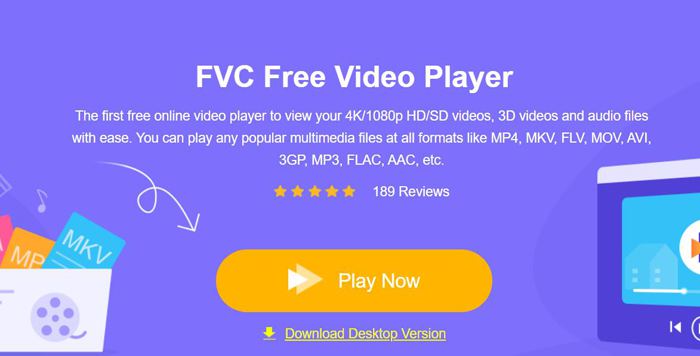
1단계: 어떤 브라우저에서든 FVC Free Video Player 웹사이트로 이동합니다. 그런 다음 'Play Now' 버튼을 클릭해 실행 프로그램(런처)을 설치합니다. 몇 분 후, 다시 한 번 Play Now 버튼을 클릭해 FVC Free Video Player를 실행합니다.
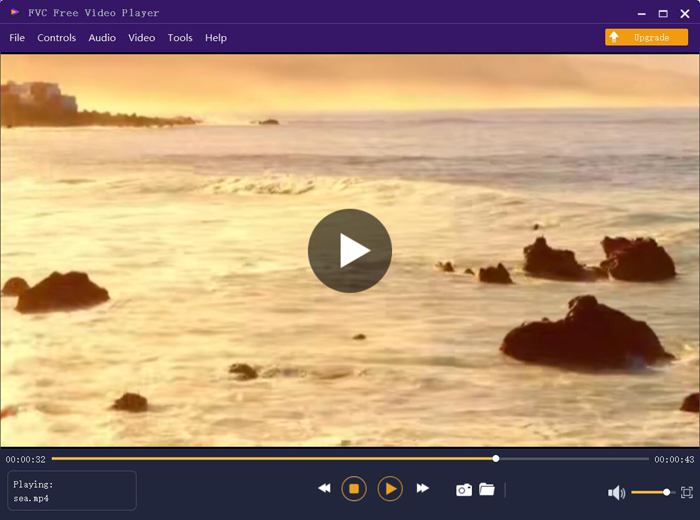
2단계: Open Files 버튼을 클릭해 재생하려는 동영상을 선택합니다. 그러면 자동으로 재생이 시작됩니다. Control 메뉴에서 볼륨을 조절하는 단축키를 확인할 수 있으며, 필요에 따라 오디오/비디오 트랙도 선택할 수 있습니다. 또한 Tools 버튼을 클릭해 Effect 옵션을 선택하면 색조, 밝기, 명암, 채도, 감마까지 세부적으로 조정할 수 있습니다.
2 부 : Windows 7/8/10에서 작동하지 않는 Window Media Player를 수정하는 방법
앞서 언급했듯이 여러 가지 이유로 인해 Windows Media Player가 작동하지 않을 수 있으며 다양한 상황에서이 문제를 해결하는 세 가지 방법이 있습니다.
방법 1 : Window Media Player의 문제 해결사 시작
클릭 후에도 Windows Media Player가 응답하지 않는 경우이 방법이 문제를 해결하는 데 도움이됩니다.
1단계: 키보드에서 Windows 키와 R 키를 함께 눌러 실행 창을 엽니다. 그런 다음 검색창에 msdt.exe -id WindowsMediaPlayerConfigurationDiagnostic를 복사해 붙여넣습니다. 확인(OK) 버튼을 클릭해 Windows Media Player 설정 문제 해결사로 이동합니다. 이후 Next 버튼을 클릭해 문제 해결을 시작합니다.
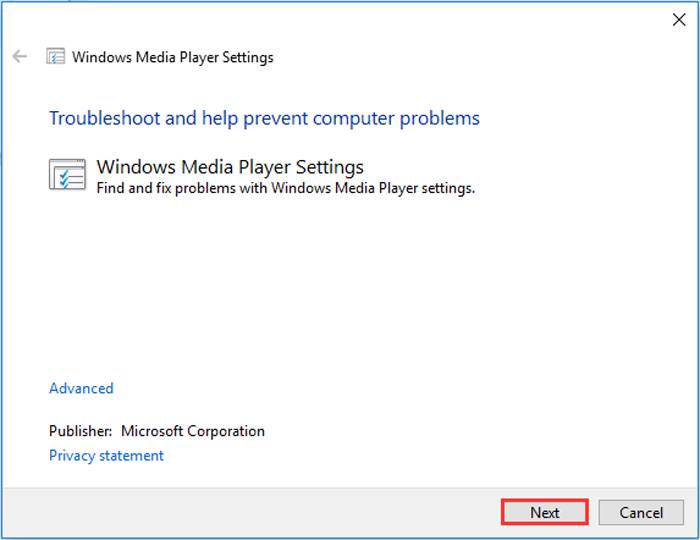
2단계: 새 창이 뜨면 Apply this fix 버튼을 클릭해 Windows Media Player를 기본 설정으로 초기화합니다. 그런 다음 Windows Media Player를 다시 실행해 봅니다.
방법 2 : Windows Media Player에 다른 디코더 설치
Windows Media Player가 일부 특수 비디오 또는 오디오에서 작동하지 않는 경우 응답 디코더를 다운로드하여 이러한 비디오를 재생할 수 있습니다.
1단계: 컴퓨터에서 Microsoft Store를 엽니다. 검색(Search) 버튼을 클릭한 뒤, 검색창에 Video Extension을 입력합니다. 원하는 비디오 확장 기능(코덱 팩 등)을 선택하여 컴퓨터에 다운로드합니다.
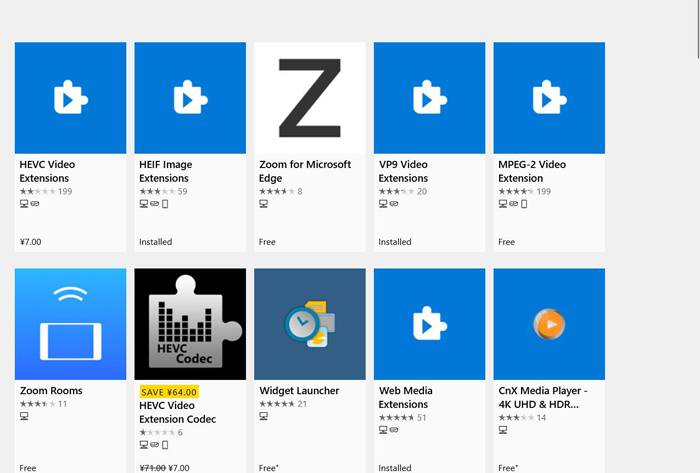
2단계: 설치가 완료되면 Windows Media Player로 다시 영상을 열어 봅니다. 다만 FLV, RMVB 등 여전히 지원되지 않는 형식이 많다는 점은 염두에 두어야 합니다.
방법 3 : Windows Media Player를 다시 설치합니다.
언급 된 방법이 작동하지 않으면 Windows Media Player가 작동을 멈출 때 소프트웨어를 다시 설치해야합니다.
1단계: 키보드에서 Windows 키와 R 키를 눌러 실행 창을 엽니다. 그런 다음 검색창에 optionalfeatures.exe를 입력합니다. 확인(OK) 버튼을 눌러 Windows 기능 켜기/끄기 창을 연 뒤, 목록에서 Windows Media Player 항목의 체크를 해제합니다.
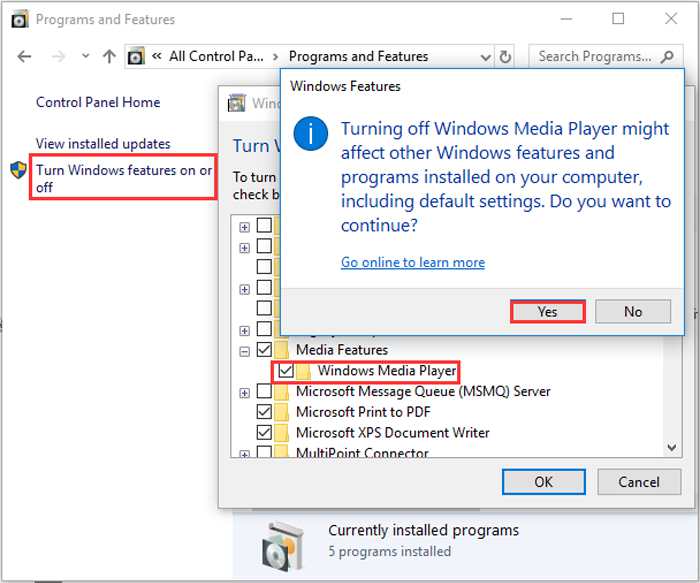
2단계: 컴퓨터를 다시 시작한 후, 방금 과정을 한 번 더 반복합니다. 이번에는 Windows Media Player 항목에 체크를 다시 합니다. 그 후 컴퓨터를 다시 한 번 재부팅하면 Windows Media Player가 자동으로 다시 설치됩니다.
이러한 문제를 제외하고 Windows Media Player에는 많은 단점이 있습니다. 비디오 재생 속도를 조정할 수 없으며 핫키는 항상 쓸모가 없습니다. 그렇다면 모든 문제를 해결하기 위해 무료 온라인 비디오 플레이어를 선택하지 않으시겠습니까?
파트 3 : 작동하지 않는 Windows Media Player의 FAQ
1. Windows Media Player에서 FLV 비디오 파일을 재생할 수없는 이유는 무엇입니까?
Windows Media Player는 일부 비표준 형식의 동영상을 재생하기 위해 여러 디코더(코덱)를 추가로 설치하는 것을 지원하지만, FLV 형식은 여전히 지원하지 않습니다. 이런 경우에는 Windows Media Player 대체 프로그램을 사용하거나, 동영상 형식을 다른 형식으로 변환하는 방법을 시도할 수 있습니다.
2. Windows 10 업데이트 후 Windows Media Player가 작동하지 않는 이유는 무엇입니까?
업데이트 후 Windows Media Player가 손상되었을 수 있습니다. 언급 된 방법 3을 사용하여 Windows Media Player를 다시 설치할 수 있습니다.
3. Window Media Player에서 자막 트랙을 선택하는 방법은 무엇입니까?
불행히도 Windows Media Player에서 다른 자막, 비디오 및 오디오 트랙을 선택할 수있는 옵션이 없습니다. 비디오를 재생할 다른 대안을 선택할 수 있습니다.
결론
Windows Media Player가 작동하지 않는 이유는 매우 복잡하여이 문제를 해결하기 어렵습니다. 따라서 최상의 대체 미디어 플레이어 인 FVC Free Video Player를 다운로드하여 고품질로 원활하게 비디오를 재생할 수 있습니다. 이렇게하면 Windows Media Player가 영원히 작동하지 않는 것을 방지 할 수 있습니다.
-
 2021 년 Windows Media Player에서 DVD를 재생하는 방법
 Windows Media Player에서 DVD가 재생되지 않는 이유는 무엇입니까? Windows 7 미디어 플레이어에서 DVD를 재생하는 방법은 무엇입니까? 이 게시물은 WMP를 사용하거나 사용하지 않고 DVD를 재생하는 3 가지 방법을 공유합니다.
-
 Chrome에서 재생되지 않는 동영상을 수정하는 6 개의 검증 된 솔루션
 동영상이 Chrome에서 재생되지 않는 문제를 해결하려면 문제 해결을 읽고 확인 된 솔루션을 하나씩 수행하기 만하면됩니다.
-
 iPad에서 재생되지 않는 비디오를 수정하는 5 100% 작동 솔루션
 동영상이 iPad에서 재생되지 않습니까? 이 문제를 해결하는 데 도움이되는 다섯 가지 솔루션은 다음과 같습니다. 좋아하는 비디오를 핸드셋에서 쉽게 즐길 수 있습니다.
