


 비디오 컨버터 궁극
 스크린 레코더
 비디오 수리
최고의 M4A to WAV 변환기를 위한 Plump 온라인 및 오프라인
M4A format is known as MPEG 4 Audio, it is a type of container used to store audio only files just like the MP3. Unlike any audio format this M4A is still in the development stage. It means, some of the media players can't play M4A format because of the technology behind it. Because it stores a good quality of audio but in a small size. Thus, to play M4A you'll need to convert it to a playable format like the WAV. Maybe you're thinking why WAV, it is simply because it is supported on a lot of platforms. So, let's study on how to change the M4A to WAV and which tool is the best in this converting problem. To know more about the tool individually check the description below with some provided steps on how to convert.

1부. M4A를 WAV 온라인으로 변환하는 방법 [웹 기반]
1. FVC 무료 오디오 변환기
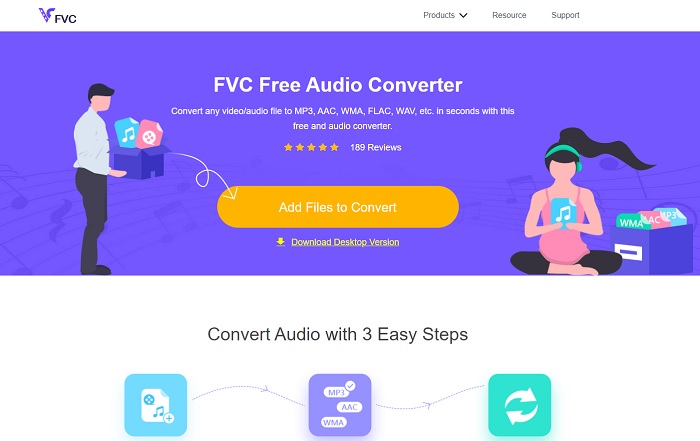
FVC brings the best converter online, the FVC Free Audio Converter. Learn how to convert M4A files to WAV online with this tool as it brings the best output. But the major features of its premium version aren't presented here because this is the only free version. But let us tell you this, converting any files in here is safe, easy, and efficient as FVC wants you to have. Also, you can change the bitrate, fps, and resolution unlike the other online tools that are listed here and even outside this article. To know how to use the web tool, then you must copy the steps provided below and let's get started.
Step 1. Click the hyperlink provided above to go to the main website.
Step 2. To start the tool, click the Add Files to Convert button and click allow.
일괄 변환을 위해 데스크톱 버전을 다운로드하세요.
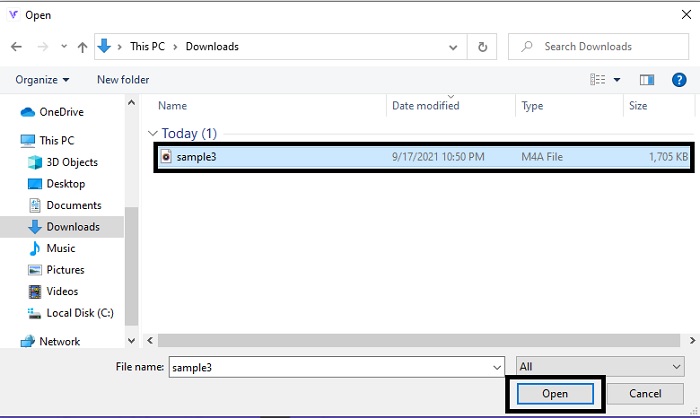
Step 3. Choose your M4A file and click open to insert the M4A file.
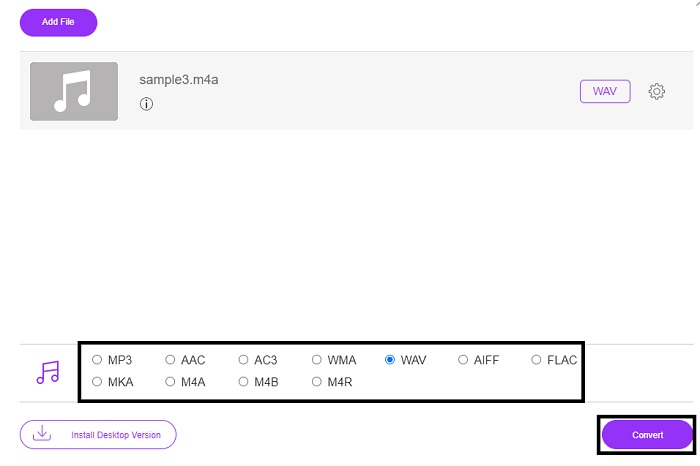
Step 4. To change the M4A format to WAV, select which format you want below. After that click the Convert button to start the process.
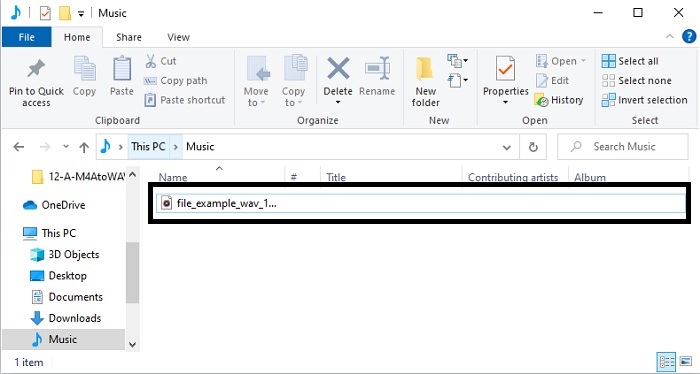
Step 5. After the file is done, go to the file manager to check the converted audio you just made earlier.
2. 잠 자르
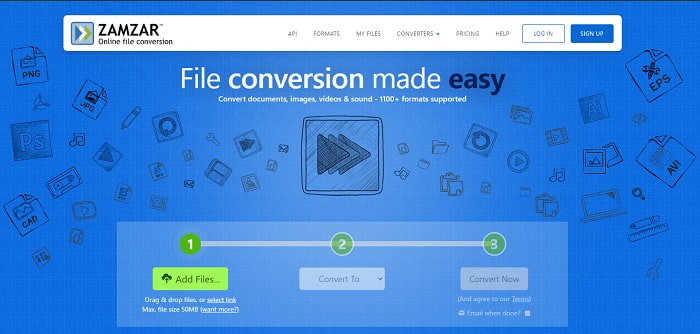
If we will talk about one of the best tools to convert M4A to WAV on Windows 10 online then make way for Zamzar. This tool is the easiest way to convert a media file into a new format as you can choose from its drop-down. Although, this tool has a lot of formats supported like the FVC Free Audio Converter. But the down-side of using this is that you can't modify the file that will fit you the best. Settings in here aren't presented and this would not be the best tool to be used by the pro. Who wants to have the best audio quality after conversion.
3. FreeConvert.com
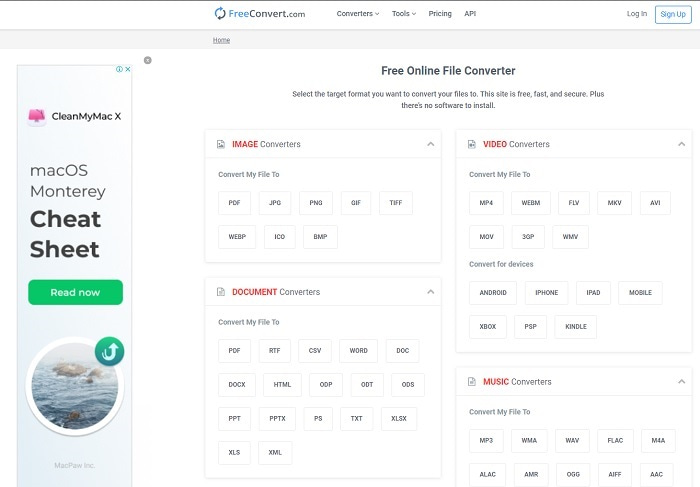
Convert any files in FreeConvert.com as it supports different varieties of file formats. Whether it is images, audios, videos, and documents as well. Another advantage of using this is that you don't need to download the tool to function just like the first two tools above. Although it is one of the ideal converters you can use, the ads on this tool are everywhere. So, be careful not to click them because most of the ads carry viruses inside of them. But no need to worry because the ads here are restricted to rated PG at least.
2부. M4A를 WAV 오프라인으로 전환하는 3가지 방법 [데스크톱 기반 및 기본 앱]
1. FVC 비디오 컨버터 궁극
Convert M4A to WAV on Mac and PC with the help of the best converter in town, the FVC Video Converter Ultimate. This is used by millions of users as their personal choice converter because of its fast conversion process and efficiency as well. Even if you combine all of the tools presented here still this tool will stand out. Having difficulties because your converter doesn't provide enough features like enhancing and audio boosting? Don't worry because we provide this feature. As to the loyal users of this tool, who's standard is high FVC Video Converter Ultimate is always there to make you satisfied. So, without any more delays, let's start on how this ultimate converter works by following the steps accordingly below.
Step 1. Before you can convert M4A to WAV you must download the tool first. Install it and change the set-up after it is done click the finish to save.
Free DownloadFor Windows 7 or laterSecure Download
Free DownloadFor MacOS 10.7 or laterSecure Download
Step 2. After launching the tool, go to the Add Files to insert the file or you can also click the plus sign if you want, they both open the file folder to insert files. If the file is more than two then you must drag and drop it to the interface.
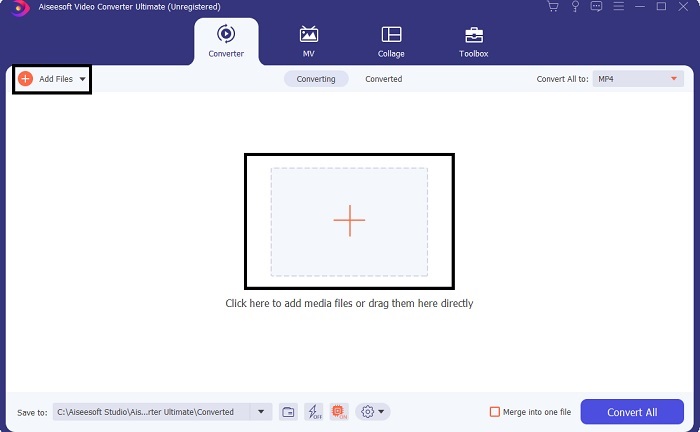
Step 3. After the selection, click the drop-down to change the audio format and choose the format you like.
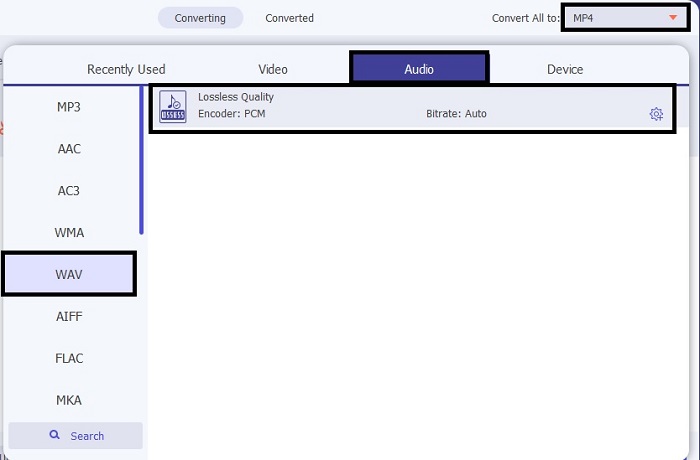
Step 4. If you're done choosing the final output. Click now the Convert All to start the process of conversion.
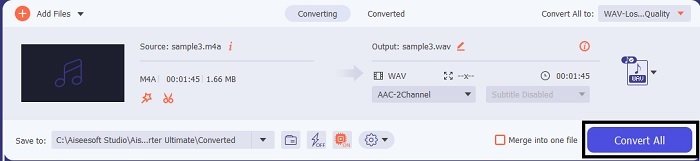
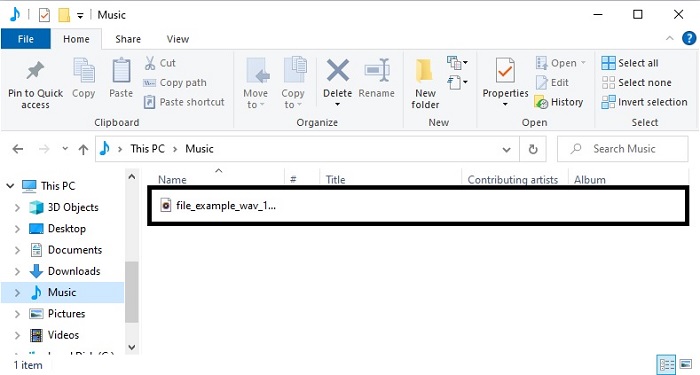
Step 5. If the conversion is done, a folder where your file has been saved will be opened into the screen. Click it and listen to the converted file you just did earlier. Additionally, if you want to make your audio sounds better then go to the Toolbar and find the Audio Booster first before you convert.
By the way, this tool also lets you change the M4A videos to MP3, OGG, AAC, or other popular audio formats without harming quality.
2. 대담함
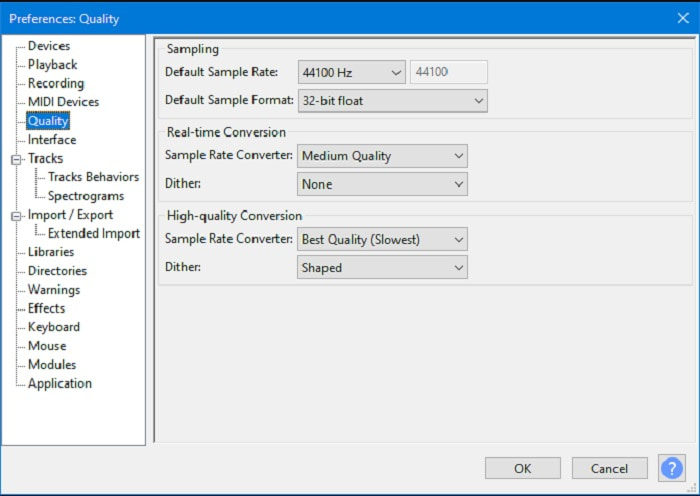
Using Audacity as your converter is not a mistake as this provides a good conversion as well. You can convert M4A to WAV on Audacity even if it is offline. But this tool is not that cheap compared to the first tool above and the user interface of it is such a lame. Looking at it makes us somehow feel tired and bored. The process of conversion here is slower than it may seem. Not only that the formats also are limited but if we talk about the best converters Audacity still can be at least at the top 15.
3. 아이튠즈
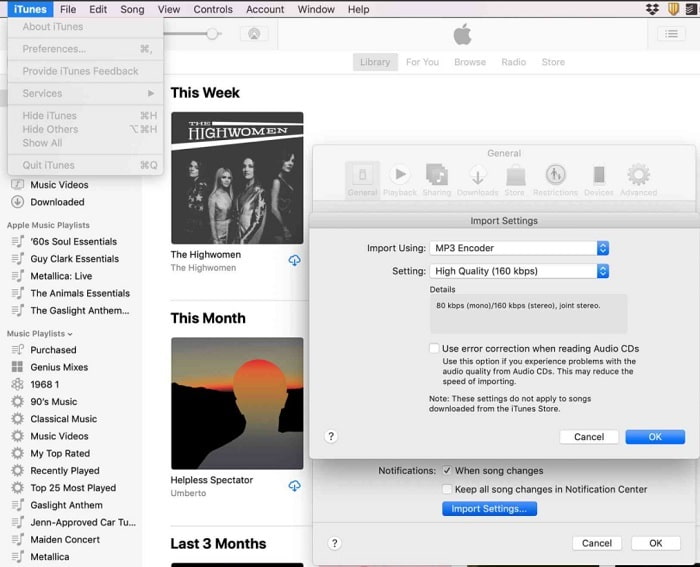
The default media player of all Apple users now has a converter and yes iTunes can do conversion as well. Although, learning how to convert M4A to WAV in iTunes is a bit stiff because it has a lot of process to do. Unlike any other tool presented here, even the web tools, this tool is very hard to use as a converter because of the process you need to fulfill. And in some cases, you can't convert a file into your desired format because it is limited. Also, you can't access iTunes if you don't use Apple products. But if you want to try converting your format here then this must be your chance if you are a fan of Apple.
M4A 대 WAV
이 Apple 형식은 실제로 오디오만 저장하는 MPEG-4 형식입니다. 이 경우 MPEG-4의 파일은 MPEG-4 Audio의 약자인 .m4a 확장자로 저장됩니다. 이름 변경은 MPEG-4 비디오 파일 형식인 MP4와 구별하기 위한 것입니다.
WAVE 형식이라고도 하는 WAV는 RIFF(Resource Interchange File Format)를 기반으로 합니다. 1990년대 초 Microsoft와 IBM이 함께 개발했습니다. Microsoft Windows에서 압축되지 않은 원시 오디오를 저장하기 위한 옵션입니다. 따라서 WAV 파일은 Windows 컴퓨터에서 더 자주 재생됩니다.
3부. M4A에서 WAV로의 FAQ
VLC를 사용하여 변환할 수 있습니까?
Yes, you can use VLC media player to convert. Although you can convert, expect limited resources of formats here if you start converting. But it is worth to convert M4A to WAV on VLC even though it is an audio format but remember don't expect a lot if you use this as your converter.
M4A와 WAV의 차이점은 무엇입니까?
M4A와 WAV는 모두 매우 높은 품질의 오디오를 저장할 수 있는 기회를 제공합니다. 그러나 둘의 차이점은 설명할 것이 많지만 주요 차이점을 구별해 보겠습니다. M4A는 무손실 압축을 사용하는 오디오 압축 파일입니다. 그리고 MP3 형식의 후계자라고 할 수 있는 대용으로 널리 사용됩니다. 그러나 WAV는 압축되지 않고 최고의 품질을 제공하기 때문에 많은 전문가들이 오디오를 저장하고 녹음하는 데 사용합니다.
M4A와 MP4 중 어느 것이 더 낫습니까?
As said earlier in this article, M4A can only contain audio files. On the other hand, MP4 is widely used because it is a multi-purpose container that can contain both audio and video. If you want to store audio then go to M4A and if you want to store video and audio then use the universal MP4 format. Want to convert MP4 to M4A, click here to learn more details.
결론
문제를 끝내려면 다른 타사 도구를 사용하여 문제를 해결할 필요가 없도록 장기적인 솔루션을 선택해야 합니다. FVC Video Converter Ultimate와 마찬가지로 여기에서 사용할 수 있는 기능으로 인해 미래에도 사용할 수 있도록 설계되었습니다. 위의 어떤 도구와 달리 이 궁극적인 도구로 변환하는 것은 눈에 눈가림이 있어도 변환 프로세스를 계속 수행할 수 있는 경우에도 매우 쉽습니다. 사실, 이 도구의 놀라운 점은 다목적이기도 하다는 것입니다. 이에 대한 예를 들자면 변환용일 뿐만 아니라 여기에서 파일을 향상, 생성 및 편집할 수도 있습니다. 따라서 시내 최고의 변환기만 사용하면 FVC Video Converter Ultimate입니다.
-
 데스크탑 또는 온라인에서 MP4를 WAV로 무료로 변환하는 방법 [2021]
 MP4를 WAV로 변환하기 위해 열심히 노력하고 있습니까? 어떤 변환기가 한 푼도 지불하지 않고 완벽하게 도움이 될 수 있는지 모르십니까? 이 게시물을 읽으면 모든 질문에 대한 답변을 얻을 수 있습니다.
-
 WAV to MP3 – WAV를 MP3로 변환하는 5 가지 무료 변환기
 이 페이지는 컴퓨터에서 WAV를 MP3로 변경하기위한 무료 WAV to MP3 변환기 (iTunes, Audacity, VLC, Windows Media Player 및 무료 오디오 변환기)의 긴 목록입니다.
-
 FLV를 WAV로 – 온라인에서 무료 및 Mac / PC에서 FLV를 WAV로 변환
 FLV 파일을 변환하려면 어떻게 해야 합니까? VLC가 YouTube FLV를 WAV로 변환할 수 있습니까? 이 게시물은 품질 손실 없이 FLV를 WAV로 변환하는 3가지 무료 방법을 알려줍니다.

