


 비디오 컨버터 궁극
 스크린 레코더
 비디오 수리
 안전한 다운로드
MPEG를 MP4로 변환하는 방법 [무료 및 온라인 방법 포함]
MPEG(Moving Picture Experts Group)는 사용자가 오디오와 비디오를 효율적으로 저장, 전송 및 스트리밍할 수 있도록 하는 멀티미디어 압축 표준 형식입니다. 또한, 파일 크기를 줄이면서도 품질을 유지하는 고급 압축 기술을 사용합니다.
On the other hand, MP4 is a video format known for its flexibility and compatibility. Compared to MPEG, this format is more versatile, as it supports video and audio, subtitles, images, and metadata. Moreover, it offers better compression efficiency. With this, converting MPEG to MP4 becomes a necessity. To learn this, dive into this article and discover five easy ways to convert your MPEG files to MP4.

1부. MPEG 비디오를 MP4로 변환하는 방법 [일괄 변환]
One of the best ways to convert MPEG video to MP4 is using the FVC-picked Video Converter Ultimate. This full-featured video converter tool allows users to quickly convert their video files to various preferred output formats, as it supports more than 1,000 input and output formats combined. Moreover, if you have several MPEG video files that need to be converted, this video converter tool will allow you to convert them all at once using its batch compression feature.
Here’s how to batch-convert MPEG video to MP4:
Step 1. First, download and install the FVC-picked Video Converter Ultimate on your computer.
무료 다운로드Windows 7 이상용안전한 다운로드
무료 다운로드MacOS 10.7 이상용안전한 다운로드
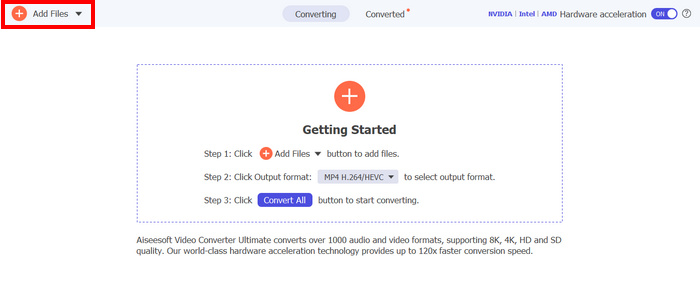
Step 2. Now, to import the MPEG files you want to compress in batch into MP4, click the Add Files button.
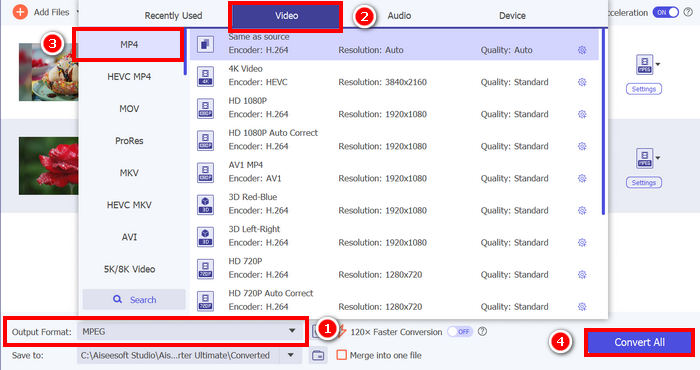
Step 3. Lastly, on the Output Format below, click on it and go to the Video tab. From there, select the MP4 from the list. Once selected, click the Convert All button to batch-compress the MPEG videos to MP4.
FVC Video Converter Ultimate를 사용하면 MPEG 비디오를 MP4로 빠르게 변환할 수 있습니다. 2~3단계만 거치면 되며, 사용자 인터페이스는 직관적이고 매우 사용하기 편리합니다. 또한, 고급 인코딩 기술을 통해 변환된 MPEG 파일이 최적의 압축률을 유지하면서도 고품질을 유지할 수 있습니다.
2부. MPEG를 MP4로 변환 [무료]
MPEG 비디오를 MP4로 변환하는 데 사용할 수 있는 무료 변환 도구가 있는지 궁금하시다면, 정답입니다! 이 무료 비디오 변환 도구를 사용하면 비디오 파일을 원하는 비디오 형식으로 변환할 수 있습니다. 하지만 무료이기 때문에 사용할 때 고려해야 할 사항이 있다는 점에 유의해야 합니다. 무료 MPEG-MP4 변환 도구는 다음과 같습니다.
VLC 미디어 플레이어를 사용하여 MPEG를 MP4로 변환
I know you’re very familiar with VLC Media Player, as it is widely used as a media player on various devices. But did you know that this media player can also convert MPEG videos to MP4? The answer is yes. VLC can also be useful when it comes to converting video files to various video formats like MP4, AVI, MKV, and more. It’s a free and simple option for basic video conversion, though it lacks advanced features found in dedicated video converters.
Here’s how you can turn your MPEG videos into MP4 using VLC Media Player:
Step 1. First, you need to download and install the VLC Media Player on your computer.
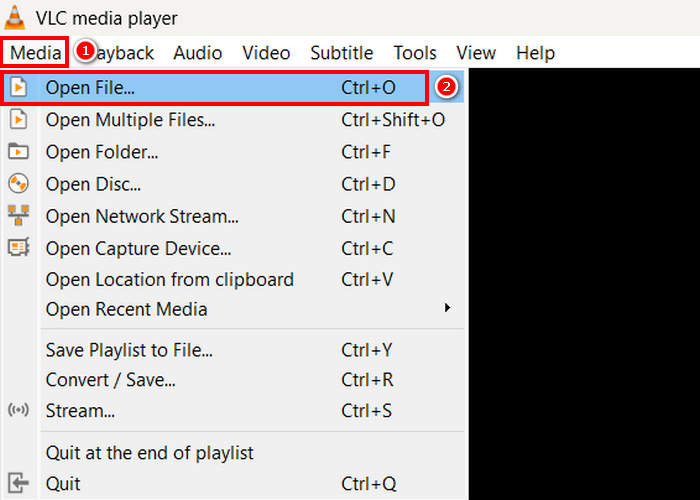
Step 2. Next, go to the Media tab and below that, click on the Open File. From there, import the MPEG video that you want to convert to MP4.
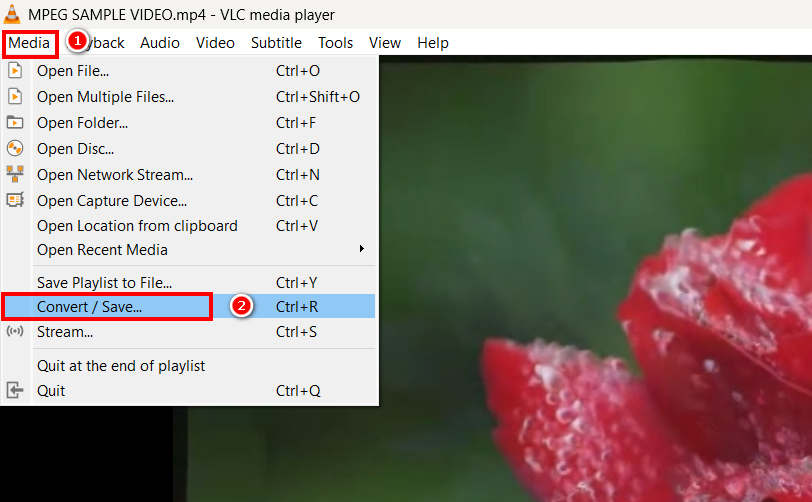
Step 3. After that, go back again to the Media tab, and this time select the Convert/ Save below.
Step 4. Now, click on the Profile and select the MP4 as your output format. Once selected, click the Start button below to begin converting the MPEG video to MP4.
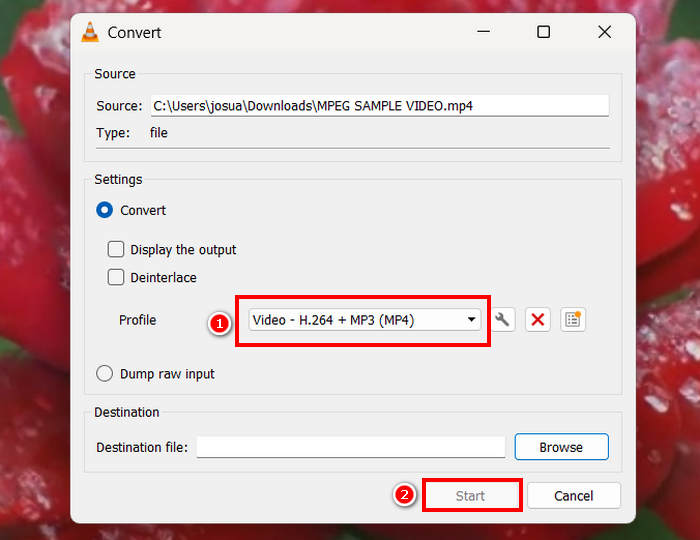
VLC 미디어 플레이어는 MPEG 비디오를 MP4로 무료로 변환할 수 있지만, 전용 비디오 변환 도구와 달리 VLC는 고급 인코딩 옵션, 일괄 변환 및 기타 필수 기능이 부족합니다. 또한 파일 형식 지원이 제한적이어서 빠른 처리 속도와 더 많은 사용자 지정 기능을 원하는 사용자에게는 효율적이지 않습니다.
HandBrake를 사용하여 MPEG를 MP4로 변환
MPEG를 MP4로 무료로 변환하는 또 다른 도구는 HandBrake입니다. 이 도구는 사용자가 DVD를 리핑할 수 있는 오픈소스 비디오 트랜스코더로 알려져 있습니다. 하지만 MPEG 파일을 MP4와 같은 형식으로 효율적으로 변환하는 데에도 사용할 수 있습니다.
Here’s how you can turn your MPEG videos into MP4 using HandBrake:
Step 1. First, download and install HandBrake on your computer.
Step 2. Now, launch the tool on your computer and click the Open Video File in the left corner to import the MPEG video file that you want to convert to MP4 format.
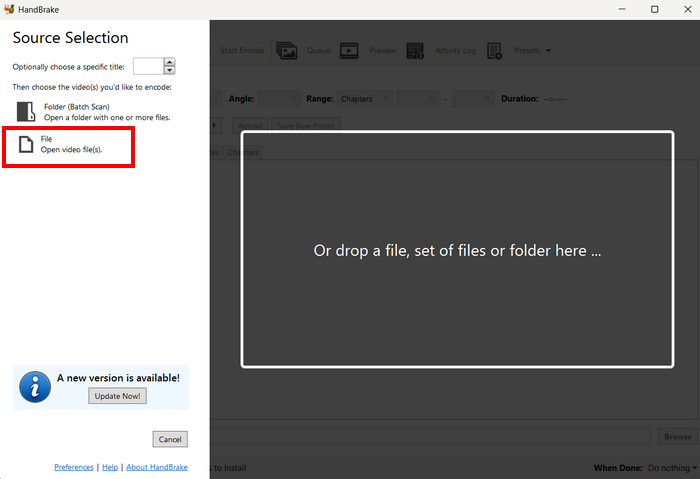
Step 3. After that, click the Format and choose MP4.
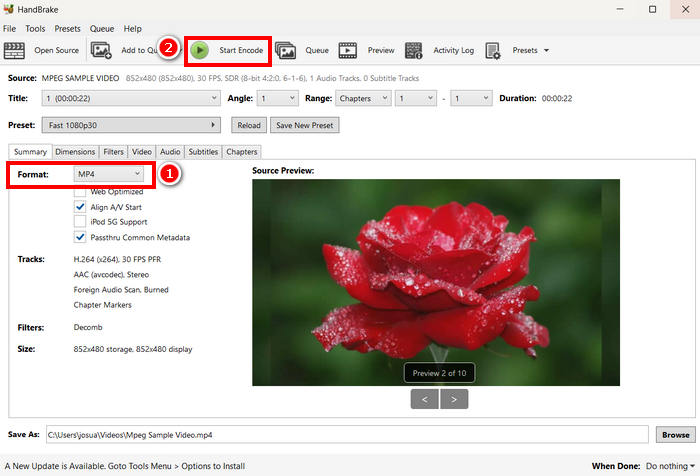
Step 4. Once done, click the Start Encode button to begin converting your MPEG video to MP4.
HandBrake is one of the best free video converter tools that can be used to turn MPEG videos into MP4. However, this tool only supports 3 output formats that might feel limited in terms of format options. HandBrake only supports MP4, MKV, and WebM, which may not be ideal if you need other formats.
3부. MPEG를 MP4로 온라인에서 변경하는 방법
MPEG를 MP4로 변환하는 또 다른 완벽한 방법은 온라인을 이용하는 것입니다. 온라인 비디오 변환 도구를 사용하면 사용자가 온라인으로 MPEG 비디오를 변환할 수 있습니다. 소프트웨어 애플리케이션과 비교했을 때, 온라인 변환기는 설치가 필요 없기 때문에 사용하기가 더 쉽습니다. 하지만 파일 크기 제한이 있을 수 있으며 안정적인 인터넷 연결이 필요할 수 있습니다.
FVC 무료 비디오 변환기 온라인을 사용하여 MPEG를 MP4로 온라인으로 변환하세요
FVC Free Video Converter Online is a free online multimedia converter tool. It’s perfect for those who need to convert MPEG to MP4 as it supports various video formats such as MP4, FLV, MKV, MOV, M4V, and more. Moreover, this tool supports batch conversion, allowing users to convert a bunch of video files all at once.
Here’s how to convert MPEG to MP4 using FVC Free Video Converter Online:
Step 1. On your Chrome, type in and look for FVC Free Video Converter Online.
Step 2. Once you are on its page, click the Add Files to Convert button to import the MPEG files that you want to convert to MP4.
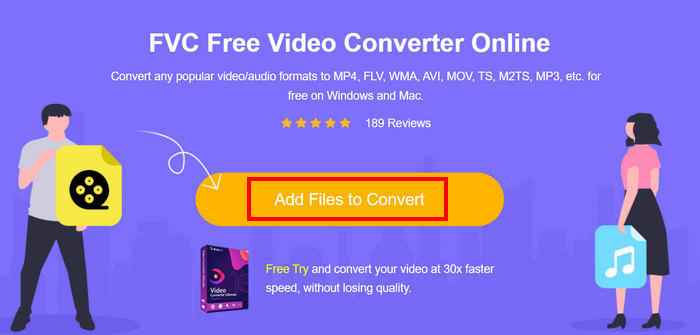
Step 3. After that, just choose MP4 as your output format and click Convert once done.
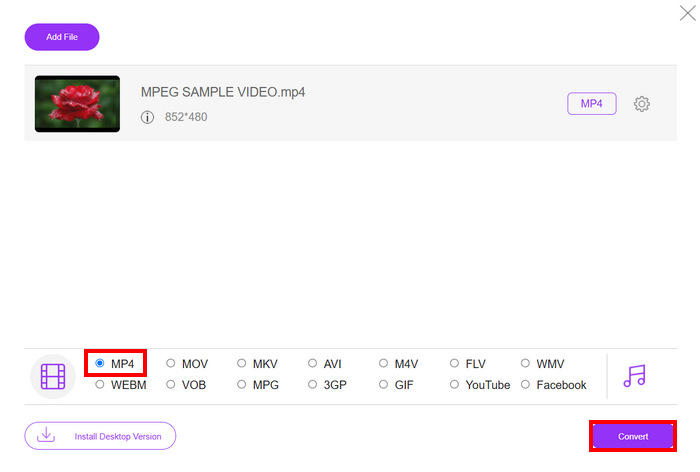
FVC 무료 온라인 비디오 변환기를 사용하면 소프트웨어 애플리케이션을 설치하는 번거로움 없이 MPEG 비디오를 MP4로 쉽게 변환할 수 있습니다. 또한, MPEG 및 MP4를 포함한 다양한 비디오 형식을 지원합니다. 마지막으로, 사용하기 매우 쉬워 초보자에게도 적합합니다.
Cloud Convert를 사용하여 MPEG를 MP4로 변환
반면, Cloud Convert는 MPEG를 MP4로 변환하는 또 다른 신뢰할 수 있는 온라인 도구입니다. 다양한 미디어 형식을 지원하며 사용자가 MPEG 비디오 파일을 쉽게 변환할 수 있습니다.
하지만 이 도구는 완전히 무료로 이용할 수는 없습니다. 무료 플랜에는 몇 가지 제한이 있기 때문입니다. 하루에 최대 25개의 비디오 파일을 변환할 수 있지만, 각 파일의 크기는 1GB 미만이어야 합니다. 또한, 동시에 최대 5개의 변환만 처리할 수 있습니다. 변환할 MPEG 파일이 여러 개라면 Cloud Convert를 사용해 볼 만한 좋은 옵션입니다.
Here’s how to convert MPEG to MP4 using Cloud Convert:
Step 1. First, you need to visit the official website of Cloud Convert.
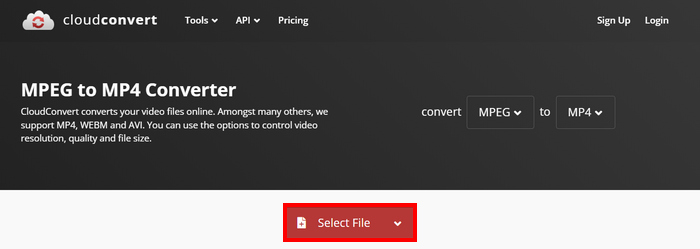
Step 2. Once you’re on the official website of the tool, click the Select File button to import the MPEG video that you want to convert to MP4.
Step 3. Next, on the Format option below, select MP4. Once done, click the Convert button.
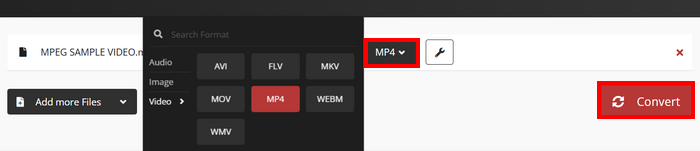
Cloud Convert를 사용하면 MPEG 비디오를 MP4로 쉽게 변환할 수 있습니다. 하지만 이 도구를 완전히 무료로 사용할 수는 없습니다. 무제한 변환이나 대용량 파일 지원이 필요한 경우, 유료 플랜으로 업그레이드해야 할 수도 있는데, 이는 비용이 많이 듭니다.
4부. MPEG를 MP4로 변환하는 것에 대한 FAQ
품질 저하 없이 MPEG를 MP4로 변환할 수 있나요?
네. FVC Video Converter Ultimate나 HandBrake와 같은 고품질 비디오 변환기를 사용하면 화질 저하 없이 MPEG를 MP4로 변환할 수 있습니다. 이러한 도구를 사용하면 인코딩 설정을 조정하여 원본 화질을 유지할 수 있습니다.
MPEG는 MP4와 같은가요?
아니요. 둘 다 비디오 형식이지만 MPEG는 MPEG-1, MPEG-2, MPEG-4와 같은 압축 표준 그룹을 지칭하는 반면, MP4는 비디오, 오디오, 자막을 담을 수 있는 컨테이너 형식입니다.
여러 개의 MPEG 파일을 MP4로 일괄 변환할 수 있나요?
네. MPEG 비디오를 MP4로 일괄 변환할 수 있습니다. FVC에서 추천하는 Video Converter Ultimate를 사용하면 다양한 비디오 포맷의 일괄 변환을 지원하므로, 이를 통해 일괄 변환을 할 수 있습니다.
결론
Converting MPEG to MP4 is still widely practiced for many reasons, and now that you know how exactly it is to convert MPEG to MP4 using various methods, what’s next is to choose what works best for you. So, what are you waiting for? Choose the best tool for you and start converting your MPEG files to MP4.
-
 MPEG-4 파일을 온라인으로 압축하는 방법 – 다운로드 없음, 워터 마크 없음
 MPEG-4 파일을 모두 보관할 수있는 파일 저장 공간이 충분하지 않습니까? 다음은 비디오 파일을 작게 만드는 데 도움이되는 몇 가지 솔루션입니다.
-
 Windows/Mac/Android/iPhone용 최고의 4가지 MPG/MPEG 플레이어 [2025]
 좋아하는 MPG 또는 MPEG 파일을 원활하게 재생하고 싶으십니까? 이 기사에서는 컴퓨터 및 휴대폰용 상위 4가지 MPG/MPEG 플레이어에 대해 설명합니다.
-
 MPEG를 AVI 형식으로 변환하는 5가지 최고의 선택 [온라인 및 오프라인]
 MPEG용 변환기를 찾는 데 어려움을 겪고 계십니까? 그런 다음 자세한 단계를 통해 MPEG를 AVI 형식으로 변경하는 방법을 배우면서 이 기사를 읽으십시오.
