


 비디오 컨버터 궁극
 스크린 레코더
 비디오 수리
MPG를 FLV로 변환하는 모든 궁극적인 방법을 알게 됨 [해결됨]
MPEG-1 or MPEG-2 video formats can combine audio formats in MPG, a video format. It compresses VHS-quality raw digital videos without losing quality. The MPG standard supports Mac, Windows, and other operating systems. However, many online videos and audio streaming services use FLV, a Flash-compliant video container. Although Adobe Flash Player is required to view FLV files in a web browser, many other media players do as well. This article talks about everything about these two video formats and converting MPG to FLV; that's why you need to read more to know these things.

1부. MPG와 FLV란 무엇입니까?
MPG 파일은 동영상 전문가 그룹의 표준화된 MPEG(디지털 비디오 형식)을 활용하는 비디오 파일 유형입니다. 비디오, 오디오 및 메타데이터를 결합합니다. MPG 파일을 사용하여 웹 기반 동영상을 만들 수 있습니다. MPG 파일에는 일반적으로 MPEG-1 또는 MPEG-2를 사용하여 압축된 오디오 및 비디오가 포함됩니다. MPEG-1은 다양한 비디오 및 오디오 응용 프로그램에서 광범위하게 지원되기 때문에 전 세계적으로 가장 널리 사용되는 손실 비디오/오디오 형식 중 하나입니다. MPEG-2의 목적은 2채널 오디오 압축 시스템과 고해상도 비디오 요구에 대한 불충분한 지원을 특징으로 하는 MPEG-1의 단점을 해결하는 것입니다. MPG 파일은 프로그램 스트림 컨테이너인 PS 또는 MPEG-PS로 알려진 형식을 저장할 수 있습니다. 이 형식은 효율적인 전달을 위해 단일 오디오, 비디오 및 메타데이터 스트림을 유지합니다.
한편, Adobe Flash(FLV) 컨테이너 형식으로 저장된 동영상 파일은 FLV 파일입니다. 오디오 및 비디오 데이터 스트림은 표준 Flash와 유사하게 인코딩됩니다. SWF 형식 및 메타데이터 패킷. Flash Video Exporter 플러그인(Adobe Animate에 포함) 또는 FLV 파일을 지원하는 다른 응용 프로그램을 사용하여 사용자는 Flash 비디오 내용을 FLV 파일로 내보낼 수 있습니다. QuickTime 및 Windows Media 외에도 Adobe Media Encoder는 다른 비디오 형식도 인코딩할 수 있습니다.
이제 이 두 가지 비디오 형식에 대한 자세한 정보를 얻었습니다. 또한 MPG를 FLV로 변환하는 데 도움이 되도록 오프라인 또는 온라인에서 사용할 수 있는 이 두 변환기를 알아야 합니다.
2부. MPG를 FLV로 변환하는 데 사용하는 빠르고 쉬운 팁 [오프라인]
VLC 및 기타 비디오 변환기에 대한 최상의 대안으로 Video Converter Ultimate를 권장합니다. 이 프로그램은 1000개 이상의 형식과 장치를 지원하므로 번개처럼 빠른 속도로 무손실 품질 변환이 가능합니다. 파일 사용자 지정을 위한 내장 편집기가 있으며 사용자는 여러 파일을 동시에 변환할 수 있습니다. 올바르게 사용하기 위해 따라야 할 단계는 다음과 같습니다.
Step 1: You can download the software on both Windows and Mac by clicking the Free Download below. After you download it to your computer, you can now install it and run it after.
Free DownloadFor Windows 7 or laterSecure Download
Free DownloadFor MacOS 10.7 or laterSecure Download
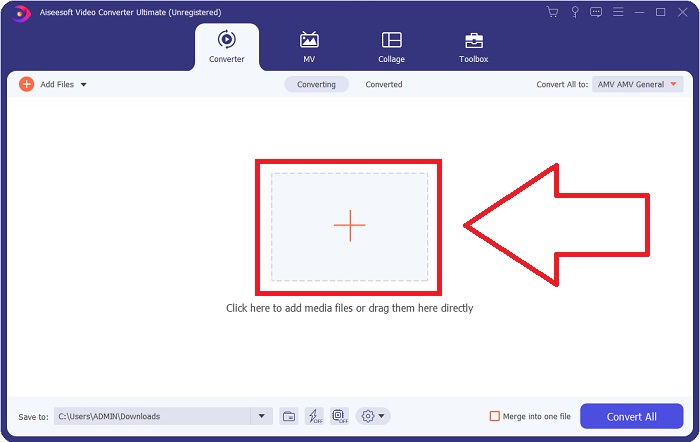
Step 2: Proceed with importing video files by clicking the + at the middle of the window that will appear after you run the software. You can also drag the files directly from your computer transferring them to the software.
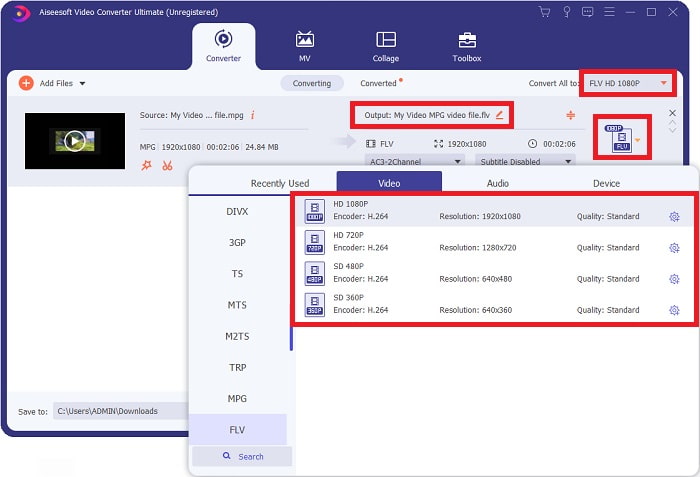
Step 3: Then, after that choose FLV video format to the drop-down menu. You can also encounter the different choices of qualities the software will offer and pick what video qualities do you prefer.
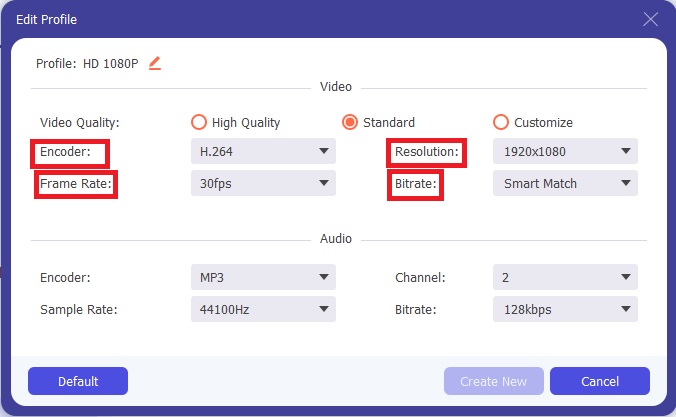
Step 4: But what if you don't see your preferred quality on the choices, you can click the gear icon right next to your selected video quality and edit all the specifications that will appear, like the resolution, frame rate, bitrate, etc. Click OK if you finish adjusting.
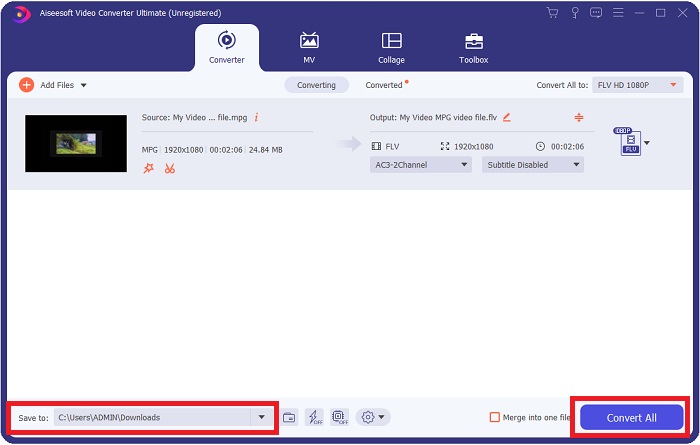
Step 5: Before you will convert the file you have to choose the location of your video output. By doing this, click the drop-down button of the Save to locate at the bottom left of the window. If you have already secured the location of your converted files, you can now convert the video by clicking the Convert All.
관련 항목:
3부. MPG를 FLV로 변환하는 데 사용할 수 있는 최상의 대안 [온라인]
Free Video Converter Online is a multimedia converter that is free to use and supports video and audio formats that include MP4, FLV, MKV, MOV, M4V, MTS, TS, M2TS, WMV, ASF, VOB, and more; as well as MP3, and AAC. HD videos can be converted to MP4, FLV, and other popular formats in a matter of seconds without losing any of their original quality. If you have a lot of videos or audio that you want to convert, you can do so without losing quality. Buckle up and set your mind ready to learn all the procedures on how to convert MPG to FLV with this online converter.
Step 1: Click this link to access the Free Video Converter Online. Proceed with clicking the Add files to Convert button, a small window will pop up that dictates Download on your screen. Click it to download the launcher and install it. Click the Add files to Convert button again to import files you need to convert.
일괄 변환을 위해 데스크톱 버전을 다운로드하세요.
Step 2: Choose the FLV video player on the video format selection located below and adjust its specifications by clicking the gear icon right next to your chosen video format.
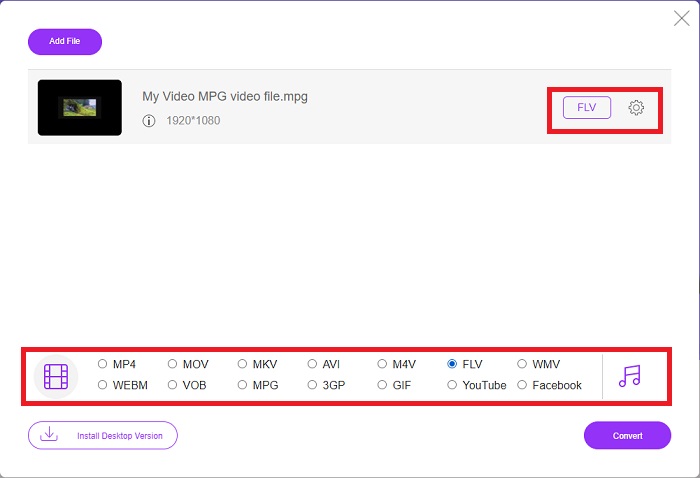
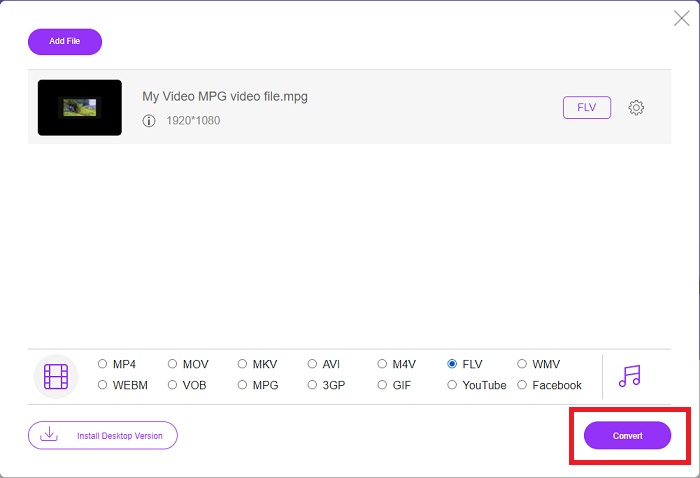
Step 3: Now that you selected the video format and adjusted all the specifications you want to change on video quality settings, your video file is ready to convert. And by doing this, click the Convert button and wait for it to download for a while.
MPG 대 FLV
MPEG(Moving Picture Experts Group)에서 만든 MPG는 비디오, 오디오 및 메타데이터 정보를 저장하는 일반적인 디지털 비디오 형식입니다. 인터넷에서 공유할 동영상을 만들 때 매우 유용합니다. MPG의 이러한 파일에는 일반적으로 MPEG-1 또는 MPEG-2 비디오/오디오 압축이 포함되어 있습니다.
Adobe Flash Player는 FLV를 사용하여 영화 및 TV 프로그램과 같은 비디오 콘텐츠를 제공했습니다. 요즘 Adobe는 더 이상 플레이어를 개발하지 않으며 보안상의 이유로 사용자가 제거할 것을 권장합니다. 그러나 Adobe/Macromedia가 아닌 많은 프로그램에서 FLV 형식을 계속 사용할 수 있습니다.
4부. MPG를 FLV로 변환하는 방법에 대한 FAQ
MPG 파일 형식은 무엇을 사용합니까?
MPG(또는 .mpg) 파일 확장자는 인터넷과 많은 비디오 공유 웹사이트를 통해 배포되는 영화에 널리 사용되는 형식인 MPEG 비디오 파일 형식을 나타냅니다. 그들은 일반적으로 사용되는 다른 비디오 형식보다 훨씬 빠르게 비디오를 스트리밍하고 다운로드할 수 있는 특정 유형의 압축을 사용합니다.
MPG 파일은 압축되어 있습니까?
MPG는 각각 MPEG-1 및 MPEG-2 비디오 및 오디오 압축 형식과 가장 관련이 있습니다. 그 목적은 오디오와 비디오를 다운로드에 적합한 형식으로 압축하는 것입니다. 이 확장자를 사용하는 영화는 더 작고 품질이 높지만 품질이 원본 VCR 비디오와 일치하지 않습니다. 이 파일 형식은 Mac, Windows 컴퓨터 및 기타 휴대용 장치에서 열고 사용할 수 있습니다.
FLV는 고품질 비디오 형식입니까?
보고서에 따르면 FLV 및 MP4는 비디오 및 오디오 디지털 코딩을 고품질로 저장할 수 있습니다. 사람들마다 FLV를 다르게 보고 FLV의 장단점은 파일 형식 자체의 품질에 대해 논의할 수 있습니다. MP4는 더 높은 속도로 압축할 때 품질 손실이 적기 때문에 구별됩니다.
결론
이제 이 주제와 최종 생각에 대해 많은 것을 배웠습니다. 위에서 언급한 권장 변환기는 분명히 전문적인 도움과 사용을 제공했습니다. 이러한 변환기는 다른 변환기와 동일하지 않습니다. 이는 지원되는 형식과 기타 경이적인 기능 외에도 무료이고 사용하기 쉽기 때문입니다.
-
 MPG를 GIF 형식으로 변환하는 방법 [온라인 및 오프라인]
 훨씬 더 나은 감정을 표현하고 싶습니까? 그런 다음 대신 GIF를 사용해야 합니다. 이 글은 MPG 파일을 GIF로 변환하여 감정을 훨씬 더 잘 표현하는 방법을 알려줍니다.
-
 MPG를 AVI로 변환하는 데 도움이 되는 MPG에서 AVI로의 인기 있는 변환기 [2022]
 MPG를 비디오 플레이어에서 재생하기 위해 AVI 비디오 파일로 변환하는 방법에 대해 생각해 본 적이 있습니까? 다음은 위의 문제에 대해 설명하는 최고의 기사입니다.
-
 Windows / Mac에서 MOV 파일을 FLV로 변환하는 2 가지 쉬운 방법
 무료로 MOV를 FLV로 변환하는 방법? 다음은 한푼도 지불하지 않고 몇 초 만에 MOV 파일을 FLV로 변환하는 데스크톱 및 온라인 최고의 비디오 변환기입니다.

