사용자 설명서

비디오 변환 솔루션

시작하다

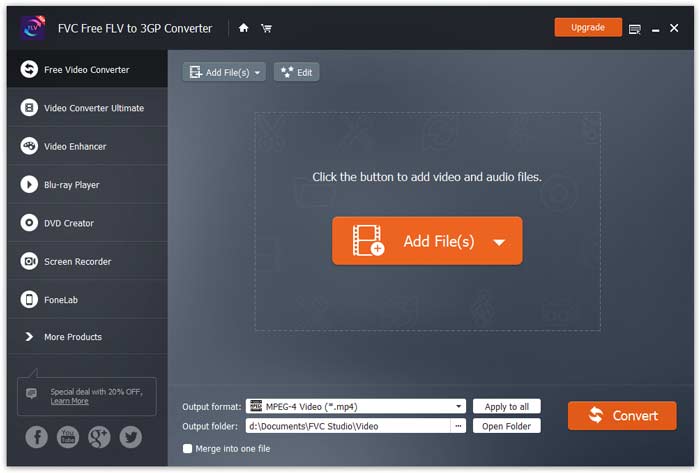
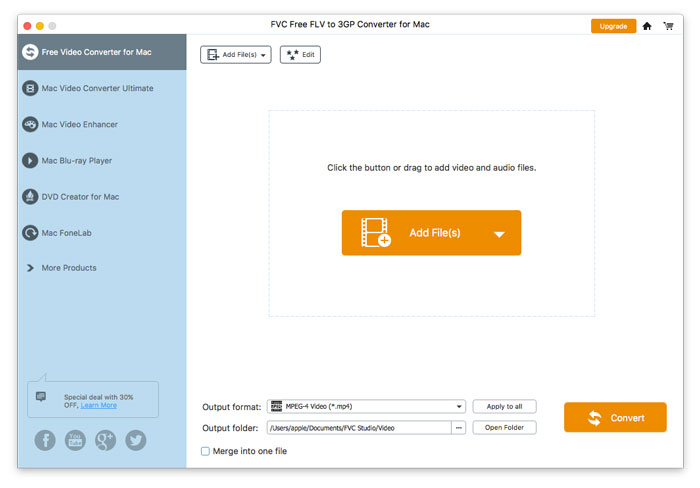
FVC Free FLV to 3GP Converter는 몇 번의 클릭만으로 Flash 비디오 파일을 3GP로 변환 할 수있는 간단하지만 강력한 데스크톱 응용 프로그램입니다. 이 프로그램은 일괄 변환을 허용하므로 한 번에 여러 파일을 변환 할 수 있습니다.
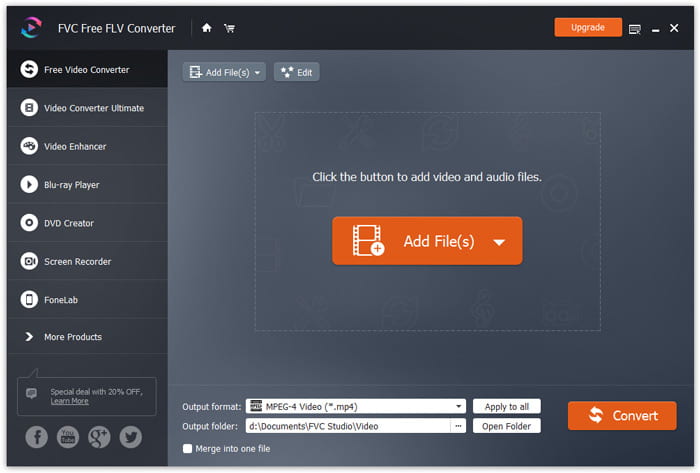
메인 인터페이스

다운로드 및 설치

컴퓨터에 대한 설치를 다운로드하십시오. 다운로드 한 파일을 두 번 클릭하고 설치 지침을 따른 다음 응용 프로그램을 실행합니다.

환경 설정

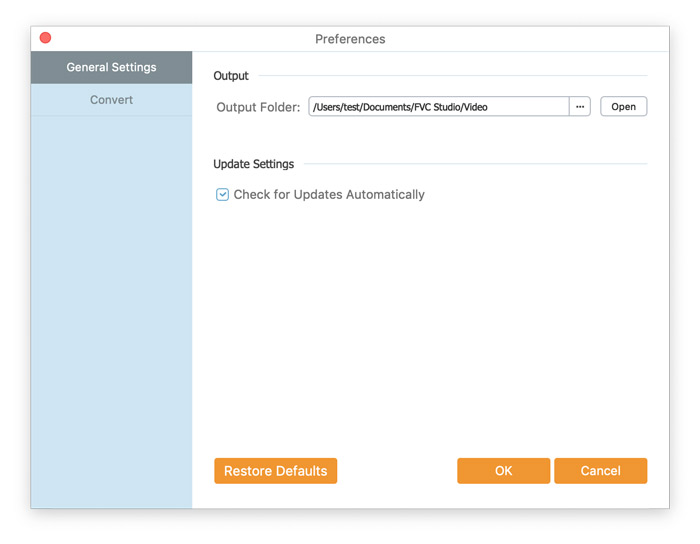
변환 설정을 구성하려면 기본 설정으로 이동 한 다음 출력 폴더를 선택하고 CPU 선호도 등을 선택할 수 있습니다.
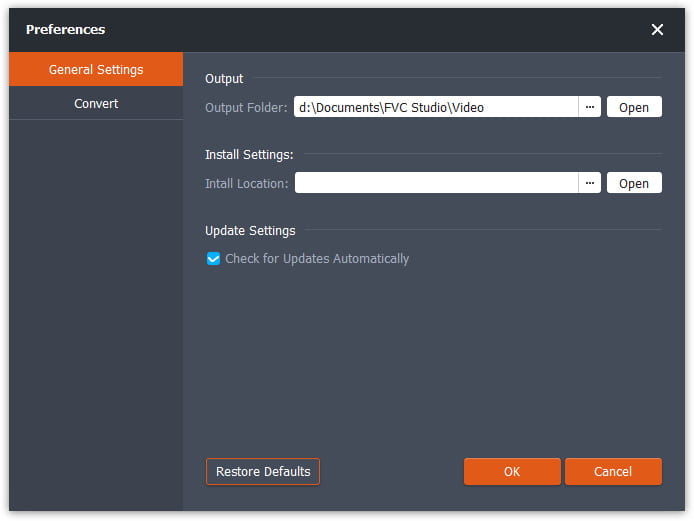
환경 설정

FLV에서 3GP로 변환

Step 1. Add a FLV file you want to process

Launch the converter, click Add File(s) in the top-left corner of the window and find the files your want to convert, select them, and click Open.

FLV 파일 추가

Step 2. Edit the Files

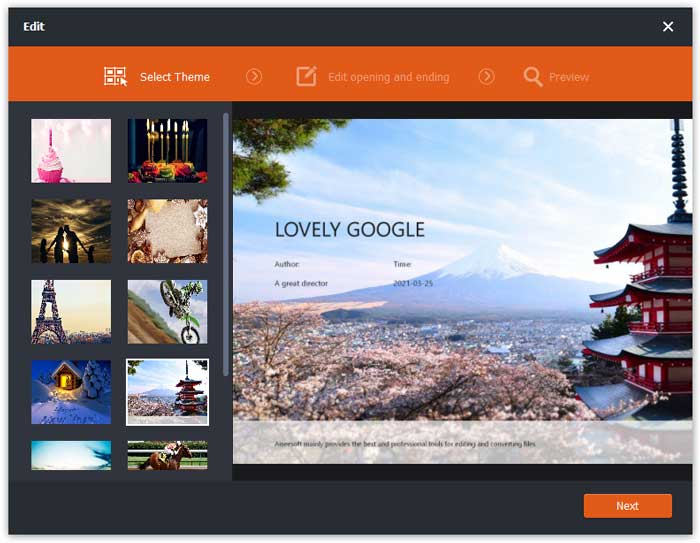
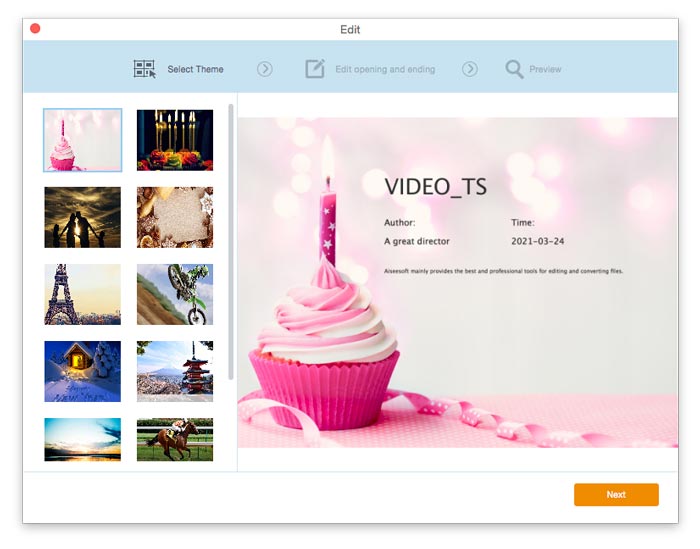
You can edit the files you’ve imported to the program by accessing the built-in editor via the Edit button on the top menu bar. Then, choose a theme to beautify your video.

테마 선택

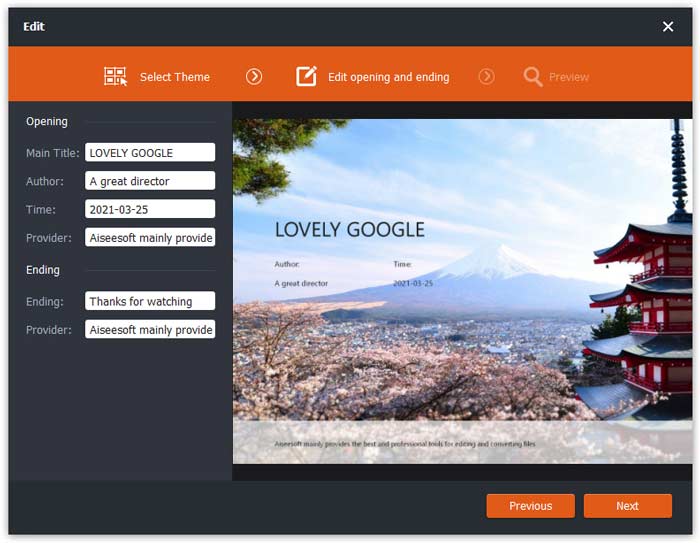
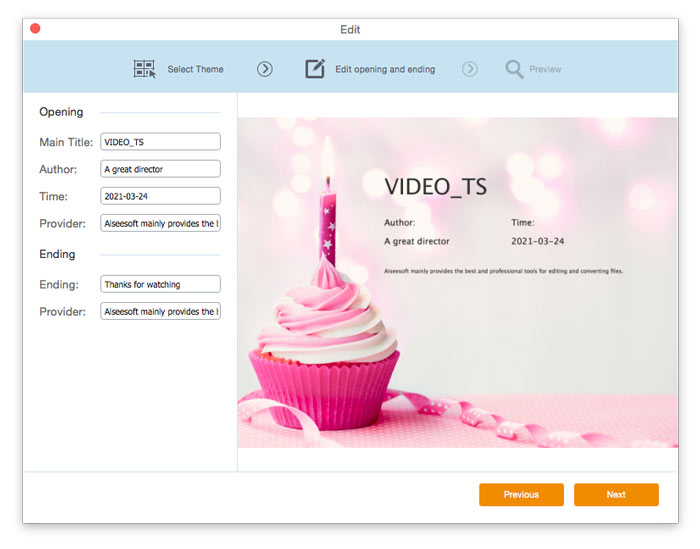
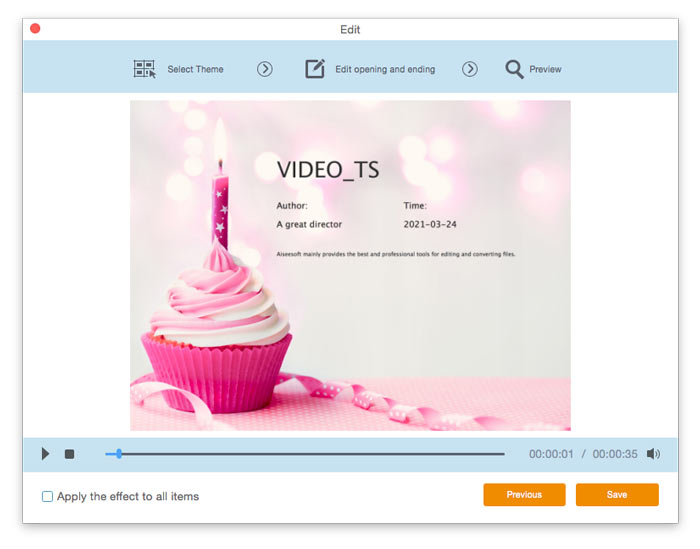
Then, click Next to move on. Here you can define the main title, author, time, and provider in the opening and ending of the video.

테마 설정 변경

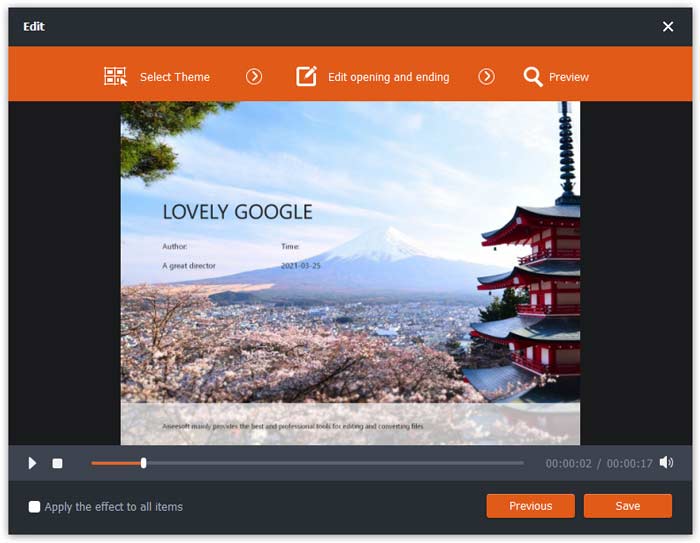
Click on Next to preview it in advance. After that, click the Save button to save the settings.

테마 설정 저장

Step 3. Set the target format

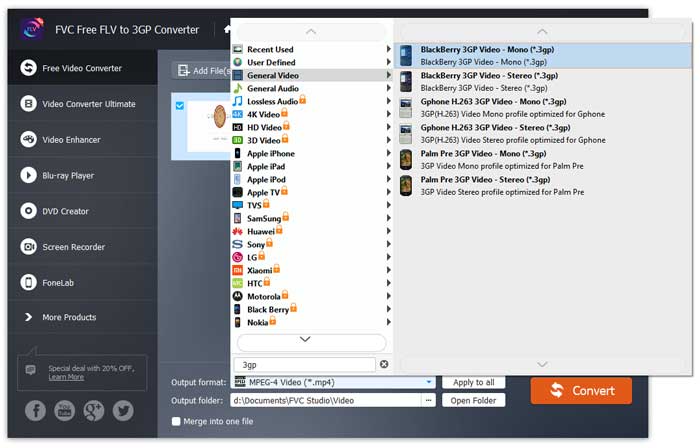
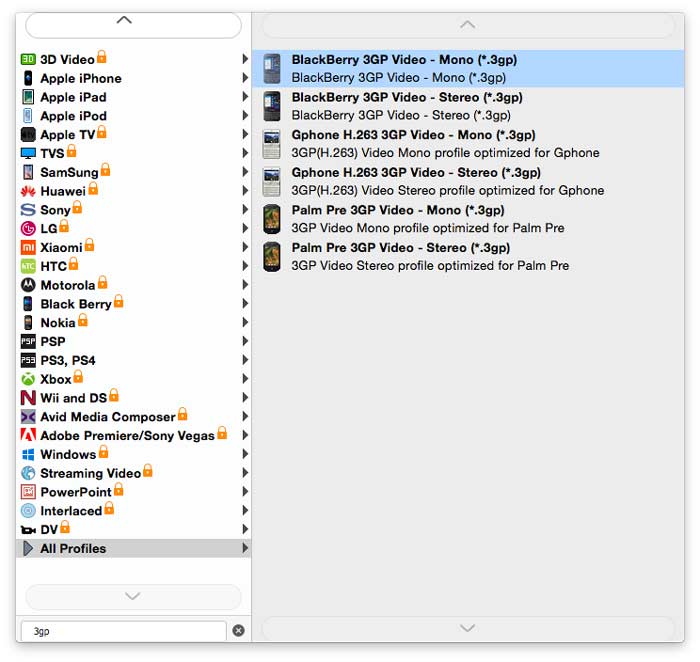
Navigate to the Output format field, and choose 3GP from the lists of presets that will appear on the screen.

3GP 선택

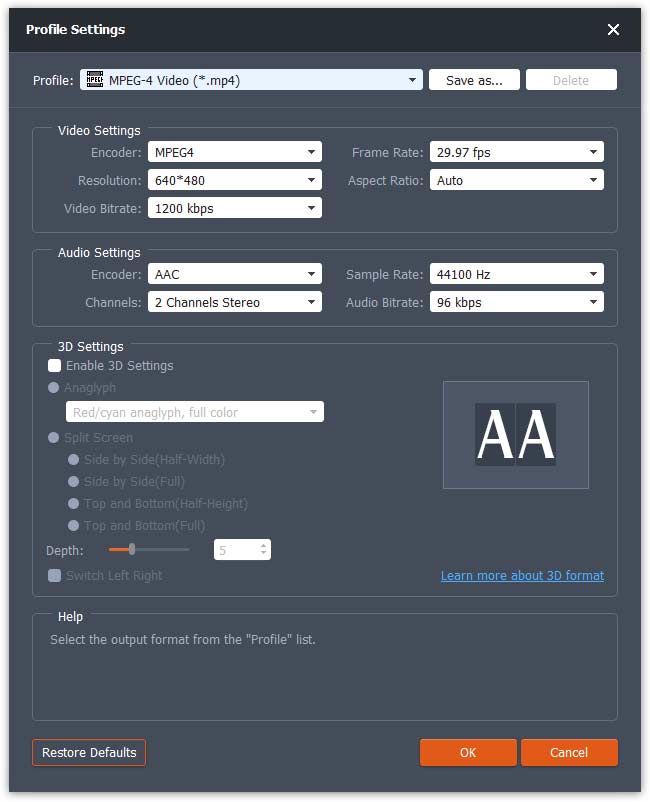
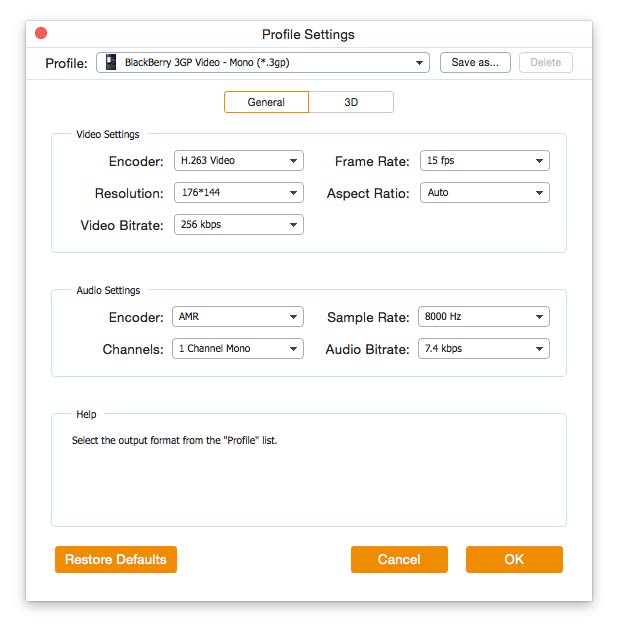
Hit the Cogwheel icon and adjust the video and audio parameters as needed. Then click OK.

프로필 설정

Step 4. Start converting FLV to 3GP

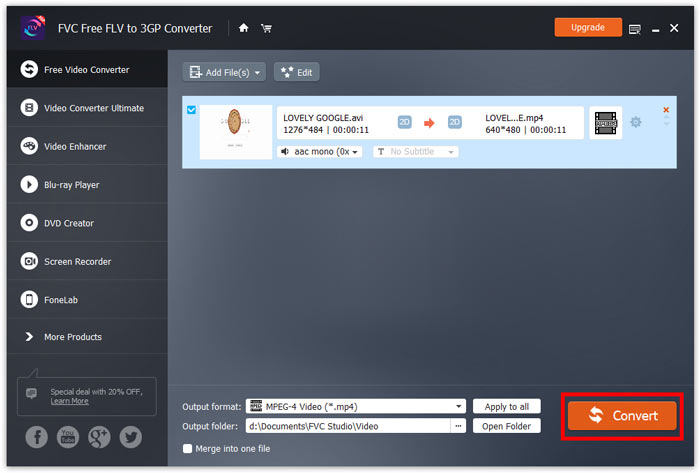
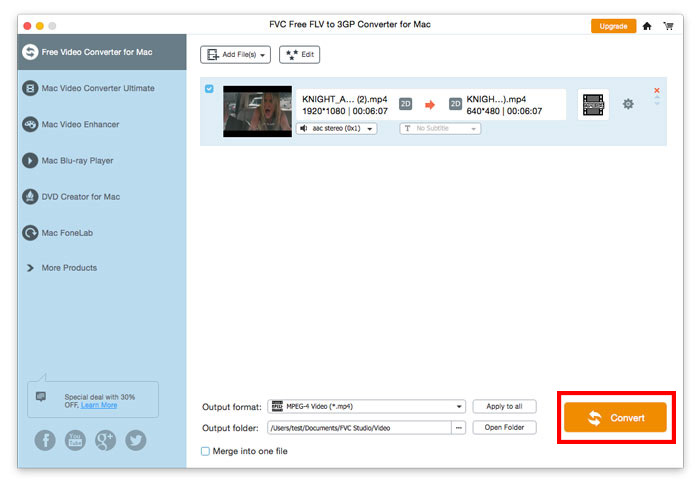
Go to the Output folder field and choose the folder for export. Next, click Convert and wait until the conversion is complete.

변환 시작

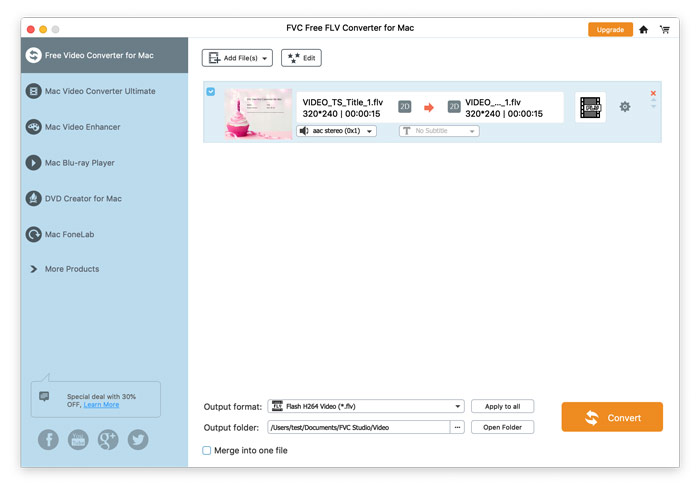
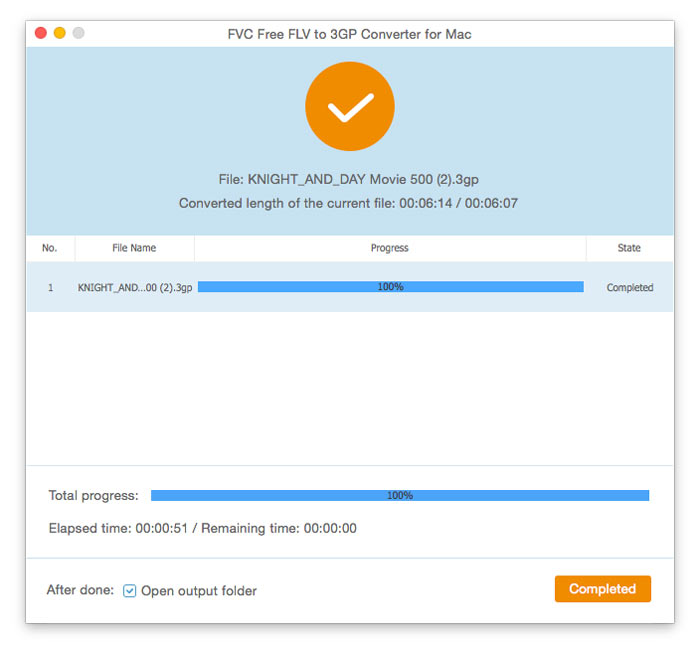
변환이 완료되면 폴더가 자동으로 열리고 비디오를 즐길 수 있습니다.
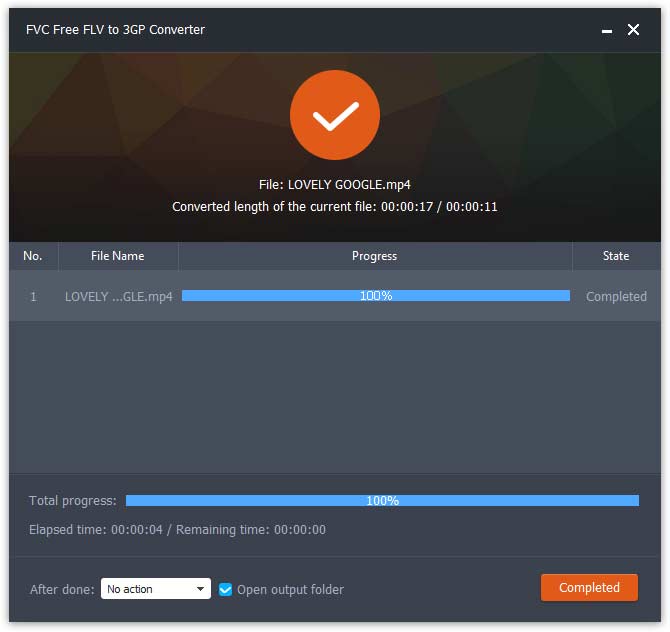
변환 완료

사용자 설명서

비디오 변환 솔루션

시작하다

FVC Free FLV to 3GP Converter는 몇 번의 클릭만으로 Flash 비디오 파일을 3GP로 변환 할 수있는 간단하지만 강력한 데스크톱 응용 프로그램입니다. 이 프로그램은 일괄 변환을 허용하므로 한 번에 여러 파일을 변환 할 수 있습니다.

메인 인터페이스

다운로드 및 설치

컴퓨터에 대한 설치를 다운로드하십시오. 다운로드 한 파일을 두 번 클릭하고 설치 지침을 따른 다음 응용 프로그램을 실행합니다.

환경 설정

변환 설정을 구성하려면 기본 설정으로 이동 한 다음 출력 폴더를 선택하고 CPU 선호도 등을 선택할 수 있습니다.

환경 설정

FLV에서 3GP로 변환

Step 1. Add a FLV file you want to process

Launch the converter, click Add File(s) in the top-left corner of the window and find the files your want to convert, select them, and click Open.

FLV 파일 추가

Step 2. Edit the Files

You can edit the files you’ve imported to the program by accessing the built-in editor via the Edit button on the top menu bar. Then, choose a theme to beautify your video.

테마 선택

Then, click Next to move on. Here you can define the main title, author, time, and provider in the opening and ending of the video.

테마 설정 변경

Click on Next to preview it in advance. After that, click the Save button to save the settings.

테마 설정 저장

Step 3. Set the target format

Navigate to the Output format field, and choose 3GP from the lists of presets that will appear on the screen.

3GP 선택

Hit the Cogwheel icon and adjust the video and audio parameters as needed. Then click OK.

프로필 설정

Step 4. Start converting FLV to 3GP

Go to the Output folder field and choose the folder for export. Next, click Convert and wait until the conversion is complete.

변환 시작

변환이 완료되면 폴더가 자동으로 열리고 비디오를 즐길 수 있습니다.

변환 완료