사용자 설명서

비디오 / 오디오 변환 솔루션

시작하다

오디오 변환기에 FVC 무료 FLV는 오디오 변환기에 대한 최고의 무료 비디오입니다. FLV 비디오 파일에서 오디오 트랙을 추출 할 수 있습니다. 또한 다양한 오디오 형식 간의 오디오 파일 변환을 지원합니다.
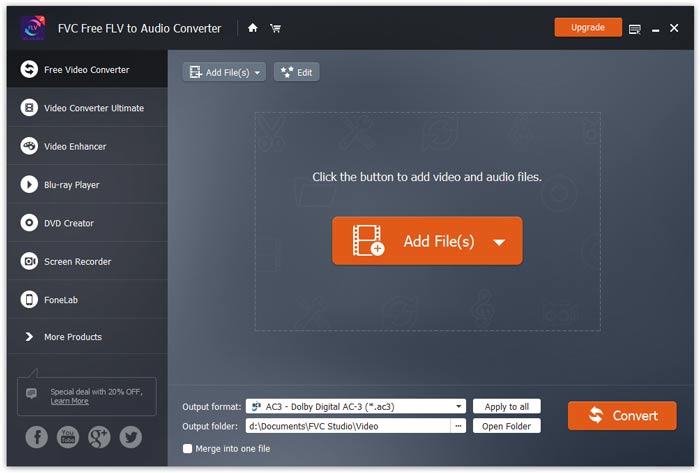
메인 인터페이스

다운로드 및 설치

컴퓨터의 운영 체제에 따라 설치 패키지를 다운로드하십시오. 그런 다음 설치 파일을 두 번 클릭하고 화면의 지시에 따라 프로그램을 설치합니다.

환경 설정

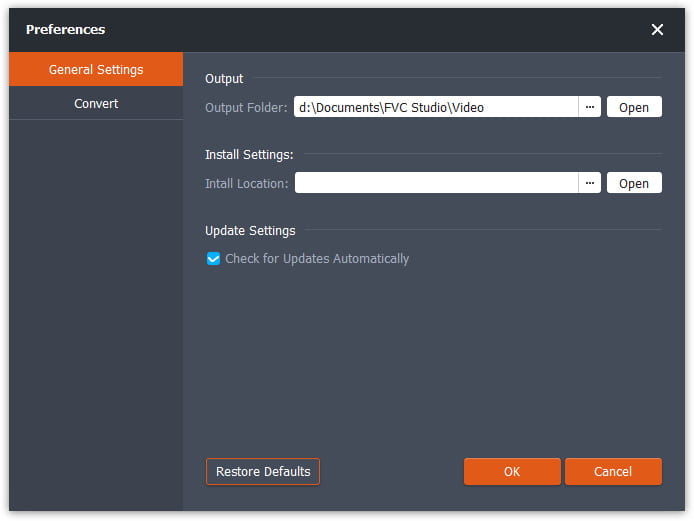
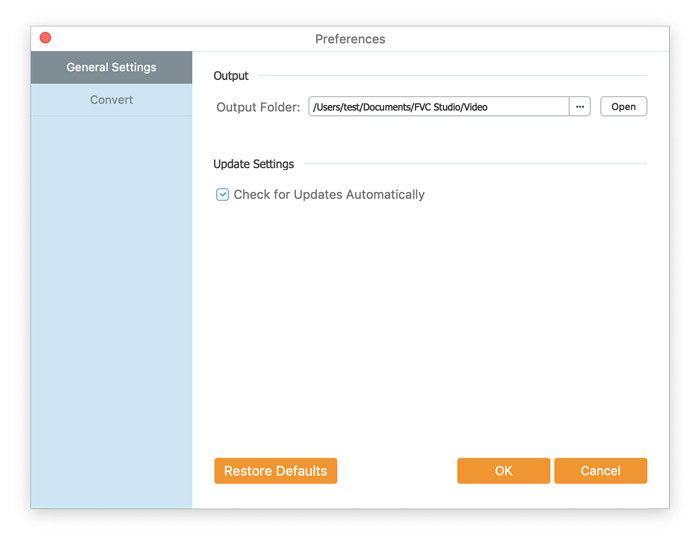
Before you start the conversion, it’s recommended to tweak the default settings. You can click the Menu icon and click on Preferences… to configure the specific settings. For example, you are free to choose the output folder to store your converted files.

환경 설정

FLV를 오디오로 변환

이제 다음 단계에 따라 FLV 파일을 오디오 형식으로 변환 할 수 있습니다.

Step 1. Launch FVC Free FLV to Audio Converter

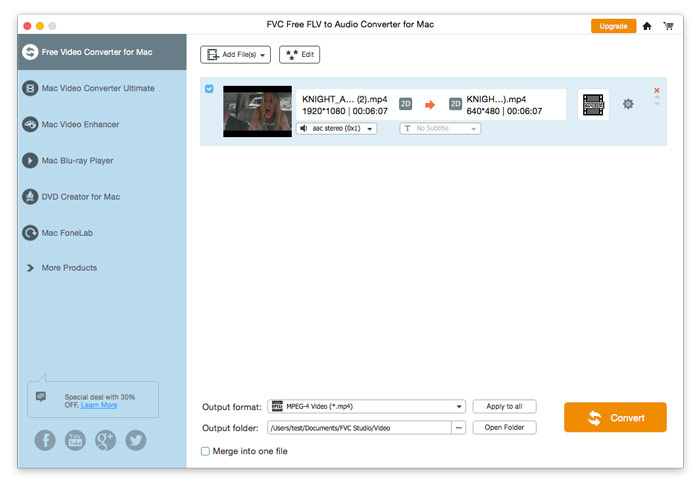
FVC Free FLV to Audio Converter를 시작하면 깨끗한 인터페이스가 표시됩니다.

메인 인터페이스

Step 2. Add an FLV file into the program

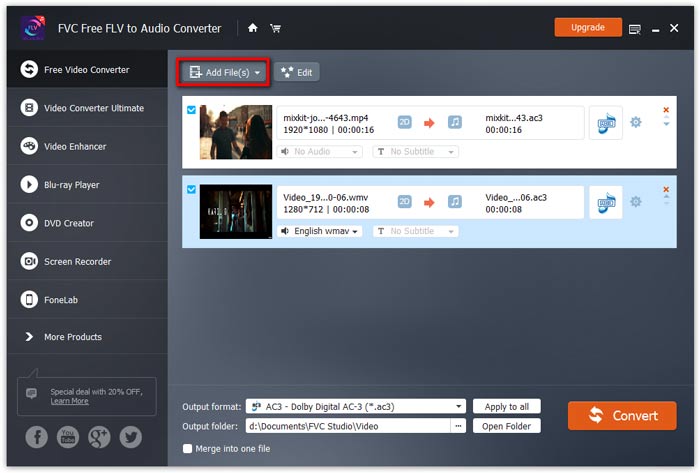
Click the Add File(s) button and choose FLV files you want to process in the dialogue opening subsequently. After the files are added to the program, they will be displayed on the file list.

FLV 파일 추가

Step 3. Select the output format

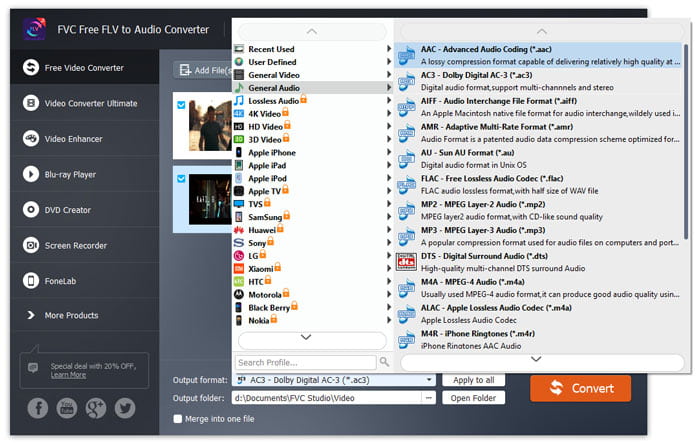
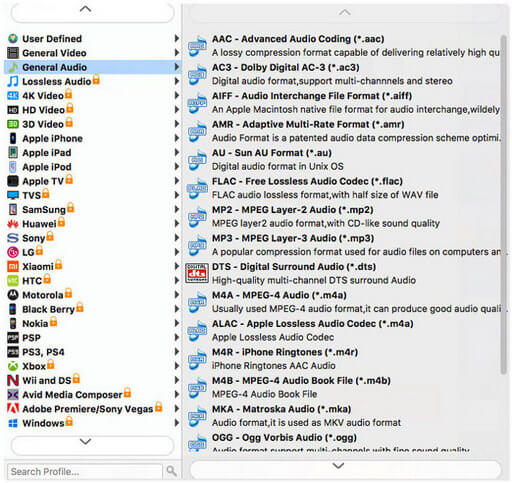
Click to open Output format drop-down list, then choose the audio format from the General Audio profile list. It can convert your FLV files to MP3, WMA, AAC, M4A, and so on.

오디오 형식 선택

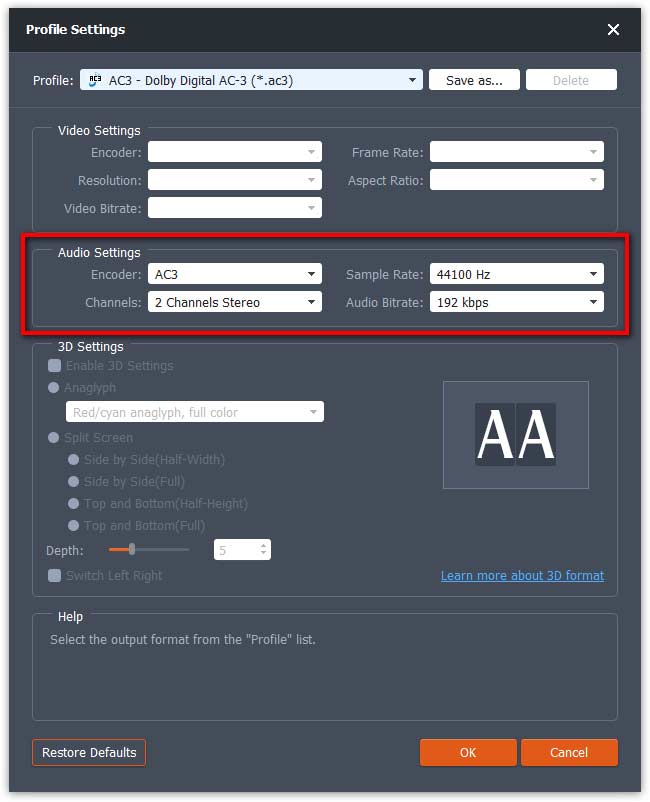
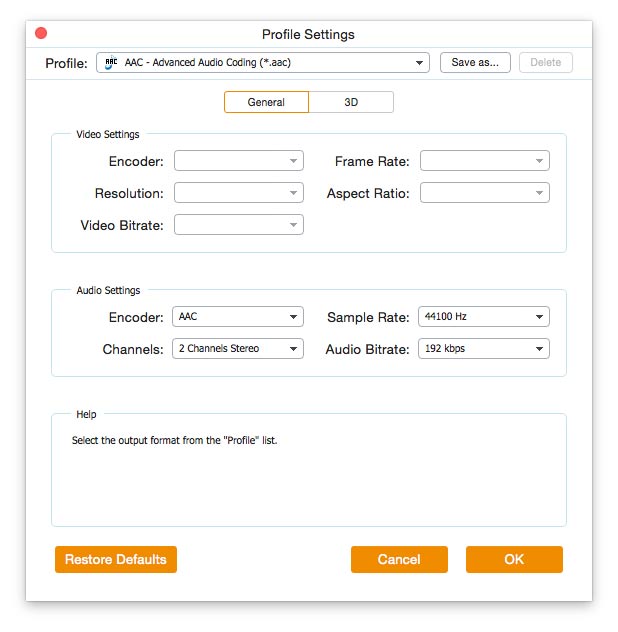
If you’re not satisfied with the original profile parameter settings, you can click the Cogwheel icon and adjust the encoder, channel, sample rate, and audio bitrate in the Profile settings window.

프로필 설정

Step 4. Start converting FLV to Audio

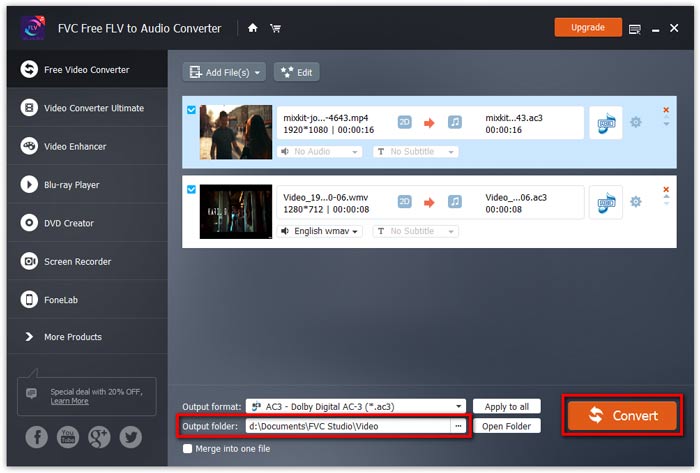
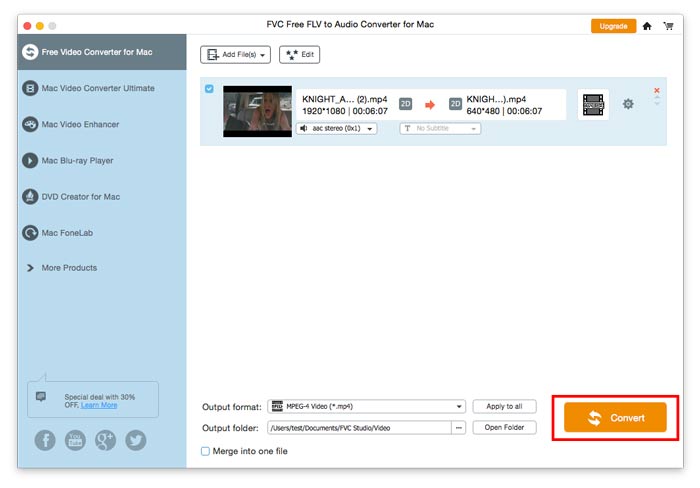
Go to Output folder to choose the destination folder for saving output files, and then click OK button to return to the main window. Finally, click the Convert button to start the conversion.

변환 시작

사용자 설명서

비디오 / 오디오 변환 솔루션

시작하다

오디오 변환기에 FVC 무료 FLV는 오디오 변환기에 대한 최고의 무료 비디오입니다. FLV 비디오 파일에서 오디오 트랙을 추출 할 수 있습니다. 또한 다양한 오디오 형식 간의 오디오 파일 변환을 지원합니다.
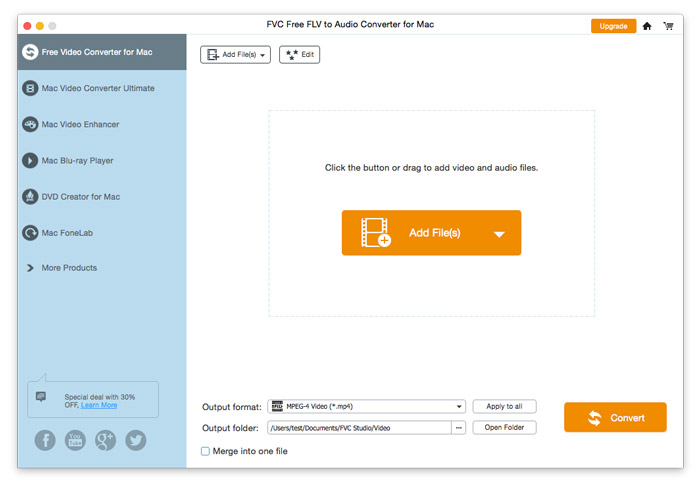
메인 인터페이스

다운로드 및 설치

컴퓨터의 운영 체제에 따라 설치 패키지를 다운로드하십시오. 그런 다음 설치 파일을 두 번 클릭하고 화면의 지시에 따라 프로그램을 설치합니다.

환경 설정

Before you start the conversion, it’s recommended to tweak the default settings. You can click the Menu icon and click on Preferences… to configure the specific settings. For example, you are free to choose the output folder to store your converted files.

환경 설정

FLV를 오디오로 변환

이제 다음 단계에 따라 FLV 파일을 오디오 형식으로 변환 할 수 있습니다.

Step 1. Launch FVC Free FLV to Audio Converter

FVC Free FLV to Audio Converter를 시작하면 깨끗한 인터페이스가 표시됩니다.

메인 인터페이스

Step 2. Add an FLV file into the program

Click the Add File(s) button and choose FLV files you want to process in the dialogue opening subsequently. After the files are added to the program, they will be displayed on the file list.

FLV 파일 추가

Step 3. Select the output format

Click to open Output format drop-down list, then choose the audio format from the General Audio profile list. It can convert your FLV files to MP3, WMA, AAC, M4A, and so on.

오디오 출력 선택

If you’re not satisfied with the original profile parameter settings, you can click the Cogwheel icon and adjust the encoder, channel, sample rate, and audio bitrate in the Profile settings window.

프로필 설정

Step 4. Start converting FLV to Audio

Go to Output folder to choose the destination folder for saving output files, and then click OK button to return to the main window. Finally, click the Convert button to start the conversion.

변환 시작