


 비디오 컨버터 궁극
 스크린 레코더
 비디오 수리
 안전한 다운로드
2023년 GIF에 텍스트를 넣을 수 있는 5가지 놀라운 솔루션
A picture is worth a thousand words, but wait until GIF exists. These moving pictures have taken the world of social media to a different level by allowing people to express themselves like they were talking in real time, face-to-face. However, if you want to add a little more kick to creating funny and catchy GIFs, adding text will be a great help. This guide will help you how to add GIF text online, offline, and using mobile applications.

1부: 오프라인으로 GIF에 텍스트 추가
1. 비디오 컨버터 궁극
Whatever your purposes are for making GIFs, adding text to it is pretty much simple and doable with Video Converter Ultimate. This program goes beyond transcoding one format to another, for it can also help you with photo manipulation. Using the toolbox in the program, you can access a wide selection of features like Video Merger, Audio Enhancer, Compressor, and, of course, the GIF maker. If you want to pull off how to add text over GIF, here is what you need to do.
Step 1. Install the Best GIF Maker
First, choose the Free Download button, which is appropriate for your device. Once done, click the file and follow the installation wizard to launch the program on your screen.
무료 다운로드Windows 7 이상용안전한 다운로드
무료 다운로드MacOS 10.7 이상용안전한 다운로드
Step 2. Add GIF file
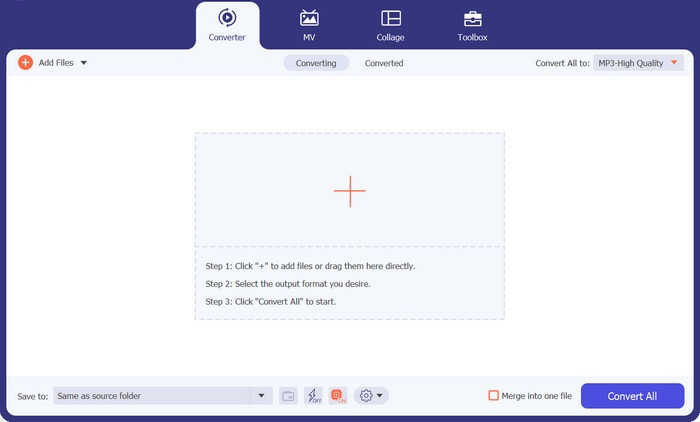
From the main interface of the program, hit the Plus sign button to add your GIF file.
Step 3. Add Text to GIF
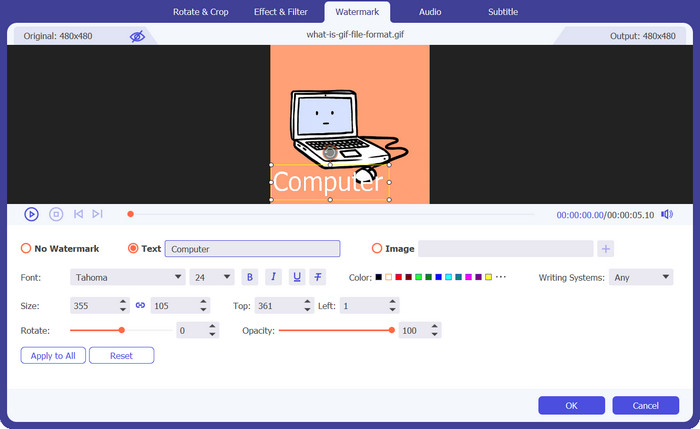
To add text on your GIF, click the Magic Wand button and you will be directed to the editor. Tick the Watermark tab and type the words you want to lay in, and you can also change your text's font, color, and design.
Step 4. Save Output
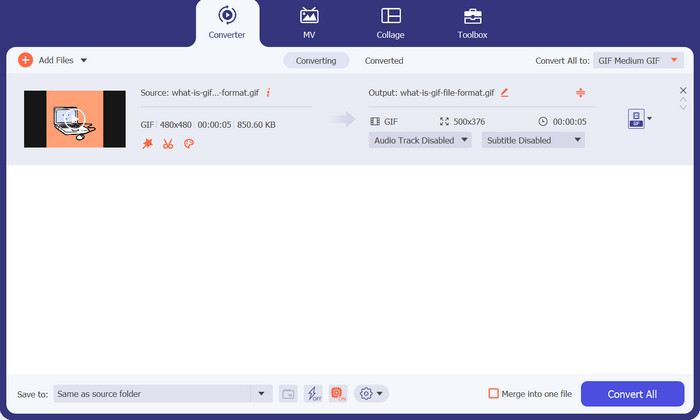
Once you are satisfied with your work, it’s time to save your GIF file on your computer. To do this, hit OK to confirm the changes. On the conversion tab, look for GIF format under the Video tab and hit the Convert All button.
2. 간편한 GIF 애니메이터
Easy GIF Animator는 시도해 볼 만한 또 다른 오프라인 솔루션입니다. 이 도구는 GIF를 다른 어떤 도구와도 다르게 바꿔줍니다. 비디오에서 배너, 버튼, 애니메이션 사진, 심지어 GIF까지 만들 수 있습니다. 게다가 이 도구는 GIF를 온라인으로 친구들과 공유하기 전에 GIF에 텍스트를 추가하는 데 가장 효과적입니다. 또한 프레임 크기를 완벽하게 제어하고, 파일에 움직이는 텍스트 효과를 만들고, 시각적 또는 애니메이션 효과를 추가할 수 있습니다.
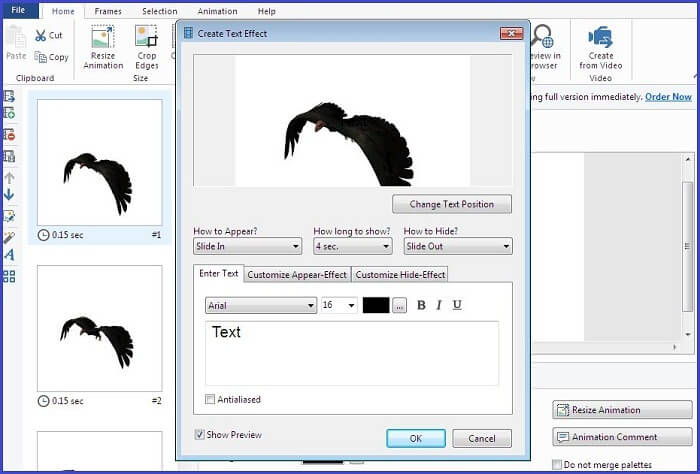
Step 1. First, import your GIF on the program by pressing the F3 on your keyboard to access your computer directory.
Step 2. Once your GIF appears on the editing panel, tap the Text button and wait for the Text Box to show. From there, put the text you wish to overlay.
Step 3. To save your edited GIF, go to the File tab and hit Save.
2부: 온라인으로 GIF에 텍스트 추가
1. CapCut 무료 GIF 메이커
온라인 프로그램을 사용하여 텍스트로 애니메이션 GIF를 만드는 또 다른 방법이 있습니다. 목록의 첫 번째는 Capcut입니다. 이 도구는 비디오 조작 이상의 기능을 수행하여 GIF에 불을 붙이는 데 도움을 줄 수 있습니다. 사용자가 GIF에 코미디를 추가하려는 경우 FastMO 및 SlowMo 기능을 즐길 수 있습니다. 텍스트 외에도 스티커와 기타 효과를 소중한 디지털 파일에 첨부할 수도 있습니다.
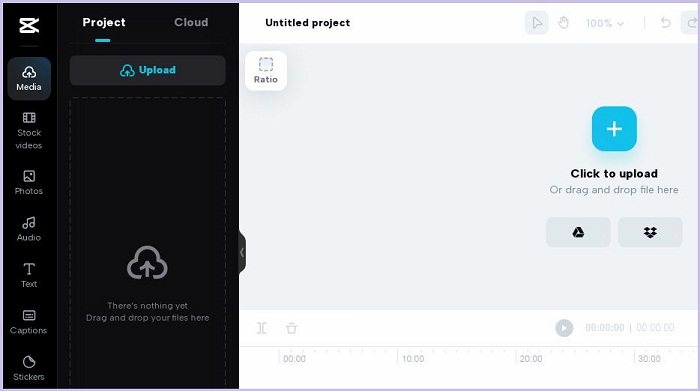
Step 1. First, land on the main webpage of CapCut. Afterward, upload your GIF file by clicking the Upload GIF button.
Step 2. After you add text to GIF online with Cap Cut, click the Text button to start adding your caption.
Step 3. Finally, hit the Save button to download your file once you are finished.
장점
- 이 프로그램은 무료 평가판을 제공하며 가입 절차가 필요하지 않습니다.
단점
- CapCut 무료 GIF 메이커는 모바일 장치 및 태블릿에서 액세스할 수 없습니다.
2. 이지움
EZGIF를 사용하여 수행해야 하는 모든 GIF 조작을 다루면 필요한 모든 것을 갖게 됩니다. 이 온라인 프로그램은 비디오를 GIF로 변환하고 GIF 크기를 다른 프레임 비율로 조정하는 데 가장 적합합니다. 반면에 EZGIF에는 GIF를 분할하고, 텍스트를 추가하고, 회전하고, 자르고, 복구할 수 있는 최적화 기능이 있습니다.
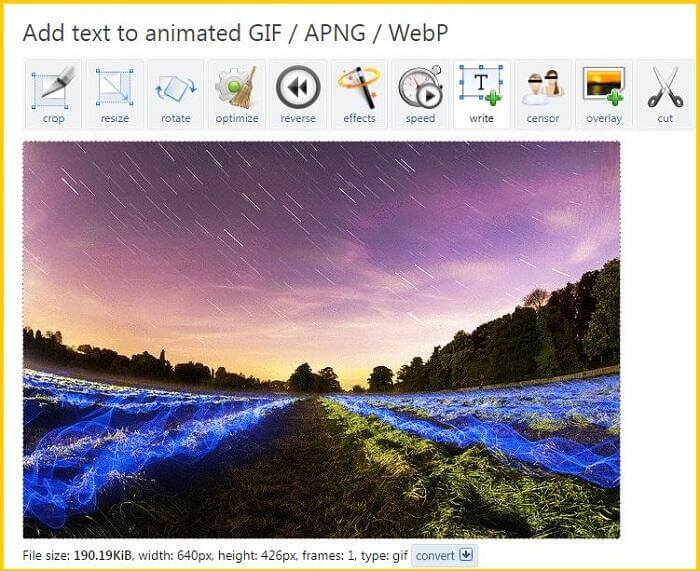
Step 1. After entering the main page of EZGIF, you will see a panel where the tools and functions of the program are shown. From there, choose Add GIF.
Step 2. Choose the Choose File button and upload your target GIF. In the same way, you can copy and paste the URL of your file that is uploaded online.
Step 3. Finally, type the words you wish to add to the Text box. Once you are satisfied, hit the Download button.
장점
- 초보자도 쉽게 프로그램을 사용할 수 있습니다.
- 등록비는 필요하지 않습니다.
단점
- 프로그램의 메인 페이지에 팝업 광고가 너무 많습니다.
3. GIF
아마도 GIFGIFs는 모든 유형의 상황에 맞게 GIF 파일을 다운로드할 수 있는 최고의 프로그램 중 하나일 것입니다. 이 프로그램에는 동물, 휴일, 생물, 스포츠 등을 포함한 수백 개의 GIF 카테고리가 포함되어 있습니다. 그 외에도 이 온라인 솔루션은 GIF에 텍스트 추가 기능을 포함하여 GIF 리버서, 최적화기, GIF 분할 등과 같은 다양한 GIF 편집 기능을 제공합니다. 이 도구를 사용하여 GIF에 텍스트를 추가하는 방법을 알아보려면 아래에 만든 가이드를 따르세요.
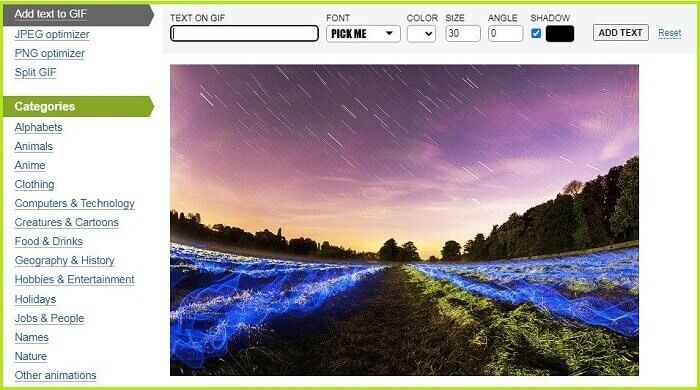
Step 1. First, click the Add Text button on the top corner of the tool’s interface and import your GIF.
Step 2. Next, you can tap anywhere from the screen, and the tool will automatically show the Text box. You can also move GIF text when you press the Text Box.
Step 3. Finally, click Download to save your edited GIF file.
장점
- 이 도구는 GIF 파일을 무료로 저장하는 데 가장 적합한 옵션입니다.
단점
- 온라인에서만 액세스할 수 있습니다.
3부: iPhone 및 Android에서 GIF에 텍스트 추가
1. GIF 메이커 및 편집기 - GifBuz
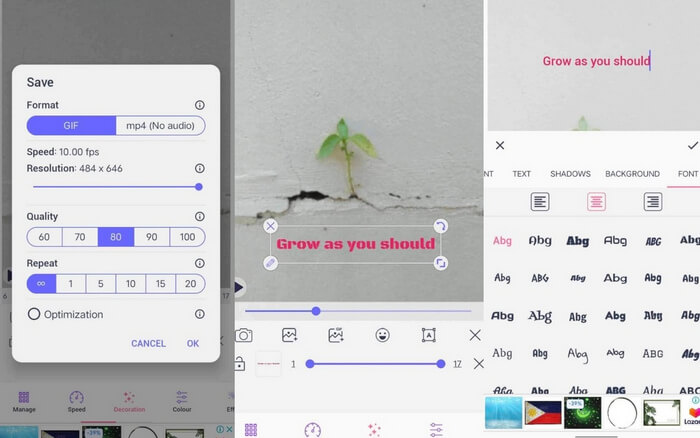
처음부터 GIF를 만들든, 사진이나 비디오를 만들든, GifBuz의 GIF Maker & Editor는 원스톱 애플리케이션이 될 것입니다. GIF의 속도를 조정할 수 있는 직관적인 기능을 제공합니다. 동시에 몇 번의 클릭만으로 GIF에 텍스트를 추가할 수 있습니다. 게다가, 원하는 대로 다양한 글꼴과 색상으로 텍스트를 GIF로 편집할 수 있습니다. iPhone 및 Android에서 GIF에 텍스트를 추가하는 방법을 알아보려면 이 가이드를 따르세요.
Step 1. Upon launching the app on your device, tap the Edit GIF and choose your file.
Step 2. To add text, tap the Manage button and choose the Add Text button. After entering your text, you can adjust the text's shadow, background, color, and font.
Step 3. To save your file, tap the Check icon on the upper corner of the screen, set your output Format and resolution, and hit OK.
추가 읽을거리:
3 Easiest Ways to Add Watermark to a GIF Online & Offline
How to Split GIFs and Customize Favorite Animated GIF Files
4부: 인기 있는 GIF 텍스트 글꼴 상위 3개
가장 좋은 점은 GIF에 어떤 글꼴을 배치할지에 대한 가이드가 필요한 경우 오늘 가장 권장되는 글꼴 3가지를 소개합니다.
| GIF 글꼴 | 최고의 대상 |
| 무수한 프로 글꼴 | 쉽게 읽을 수 있는 텍스트 GIF를 추가하기 위한 탁월한 옵션입니다. |
| 칼리브리 | GIF 제작자는 Tumblr에서 이 글꼴을 널리 사용합니다. |
| 몬세라트 | Google에서 사용하는 인기 글꼴은 GIF에 클래식한 분위기를 더하는 데 적합합니다. |
파트 5: GIF 위에 텍스트에 대한 FAQ
Instagram에서 GIF에 텍스트를 추가할 수 있나요?
확실히 맞아요. Instagram의 GIF에 텍스트와 스티커를 추가하여 스토리와 게시물에 직접 업로드할 수 있습니다.
GIF에 움직이는 텍스트를 추가할 수 있나요?
오프라인 및 온라인 도구를 사용하여 GIF에 움직이는 텍스트를 추가할 수 있습니다. 일부 응용 프로그램은 GIF 파일에 생기를 더하기 위해 움직이는 텍스트 기능을 제공합니다.
김프는 GIF를 편집합니까?
김프는 사진을 래스터화하도록 만들어졌지만 이를 활용하여 GIF를 편집할 수도 있습니다. 뿐만 아니라 김프를 사용하여 만들 수도 있습니다.
GIF를 서로 겹쳐서 표시할 수 있나요?
분명하게 예입니다! 하나 이상의 GIF를 오버레이할 수 있습니다. GIF 파일이 투명한지 확인하여 편집한 후에 표시되도록 하세요.
결론
And all has been given on how to put text on a GIF. All the mentioned tools in this post were tried and tested. From offline to online tools, you can now lay in text, either static or moving, anytime without a sweat.
-
 오프라인 및 온라인에서 최고의 GIF 결합기를 사용하여 GIF 결합
 소셜 미디어 게시물이나 마케팅 캠페인에 약간의 재미를 더하고 싶습니까? 최고의 온라인 및 오프라인 GIF 컴바이너만 있으면 됩니다!
-
 기능 및 대안에 대한 포괄적인 Ezgif 검토
 Ezgif를 사용해 왔지만 아직 무슨 일이 일어나고 있는지 모르는 경우. 이 Ezgif 리뷰는 그러한 우려에 도움이 될 것입니다. 자세히 알아보려면 계속 읽어보세요.
-
 데스크톱, 온라인 및 모바일 즐거움을 위한 최고의 도구 공개
 GIF 편집기가 제공하는 것이 무엇인지 알아보고 온라인 업로드를 위한 인상적이고 창의적인 GIF를 만드는 데 사용할 수 있는 최고의 도구에 대해 알아보세요.
