


 비디오 컨버터 궁극
 스크린 레코더
 비디오 수리
이미지에서 배경을 제거하는 6가지 무료 도구: 빠르고 정확
이처럼 손쉽게 이미지에서 배경을 제거할 수 있게 되면서 사진 편집 업계에 큰 변화가 일어났습니다. 또한, 자신의 요구에 잘 맞고 이를 충족해 줄 수 있는 적절한 도구를 찾는 일 역시 사용자라면 우선시해야 할 부분입니다. 사용자가 손쉽게 이미지 배경 제거를 하고, 이후 이를 시각적으로 강렬한 작품으로 변신시킬 수 있게 해 주는 혁신적인 도구를 떠올려 보세요. 이 글에서는 배경 제거의 기술을 다루며, 잘 알려진 도구부터 저평가된 도구까지 여섯 가지 최고의 배경 제거 도구를 살펴봅니다. 더불어 각 도구의 기능과 간단한 사용 단계를 안내하여, 여러분이 효과적으로 배우고 자신에게 맞는 도구를 선택할 수 있도록 도와드립니다. 망설일 이유가 있을까요? 지금 이 글을 읽고, 이미지에서 배경을 제거해 시간과 노력을 아껴 주는 변화의 힘을 직접 확인해 보세요.

1부. 이미지에서 배경을 제거하는 방법
FVC 무료 배경 제거제
FVC Free Background Remover는 배경 제거를 위한 경제적인 솔루션을 찾는 사용자를 위해 설계된 웹 도구입니다. 이 사용자 친화적인 툴은 예산이 넉넉지 않은 개인도 사용할 수 있도록 하면서, 유료 도구에 못지않거나 그 이상에 해당하는 기능을 제공합니다. FVC는 직관적인 인터페이스로 잘 알려져 있어 누구나 편안하게 이용할 수 있습니다. 또한 다양한 기기와 플랫폼에서 사용할 수 있도록 접근성을 우선시했습니다. 더불어 FVC Free Background Remover는 보안에도 중점을 두어, 사용자가 안심하고 이미지를 향상시킬 수 있는 안정적인 환경을 제공합니다. 아래에는 FVC Free Background Remover의 주요 기능과 사용 방법을 정리했습니다.
◆ 자동 AI 배경 제거기. AI를 활용해 이미지에서 배경을 제거하며, 이미지의 어느 부분을 제거해야 할지 자동으로 분석하고 지능적으로 판별하는 방식으로 작동합니다. 이 AI는 최대한 완성도 높은 결과를 제공할 수 있도록 철저한 테스트를 거쳤습니다.
◆ 배경 제거 및 변경 기능. 단순히 배경을 제거하는 것에 그치지 않고, 이미지를 단색 배경으로 변경할 수도 있습니다. 덕분에 매우 다목적으로 활용할 수 있는 도구입니다.
◆ 편집 기능 지원. 이 사용하기 쉬운 도구는 자르기, 회전, 뒤집기 등 기본 편집 기능을 지원해, 작은 디테일을 조정함으로써 전체 결과물을 더욱 완성도 있게 다듬을 수 있습니다. 사용자는 처리된 이미지를 미리 보고 바로 편집할 수 있습니다.
◆ 고품질 다운로드. 배경 제거 기능을 사용한 후에도 높은 출력 품질을 유지할 수 있습니다. 배경 제거가 완료된 뒤 결과물을 저장할 때 원본 품질을 최대한 보존합니다.
◆ 다양한 포맷 지원. JPG, JPEG, PNG 형식의 이미지를 입력으로 지원하며, 출력은 PNG로 제공되어 데스크톱에 저장할 때 무손실 품질을 유지합니다.
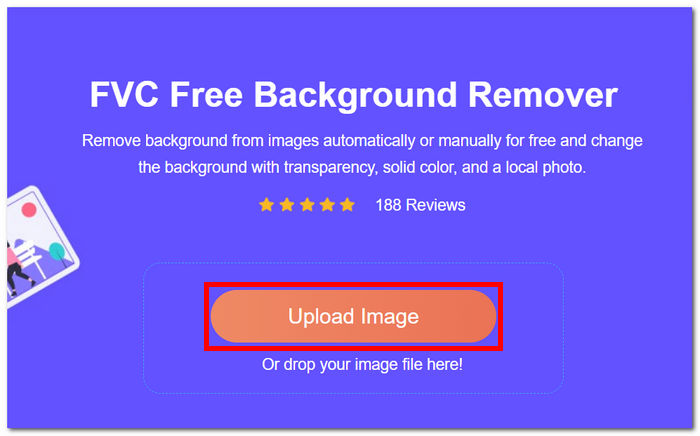
1단계. 먼저 FVC Free Background Remover 웹사이트에 접속한 뒤, Upload Image라고 표시된 영역에 원하는 이미지를 업로드합니다.
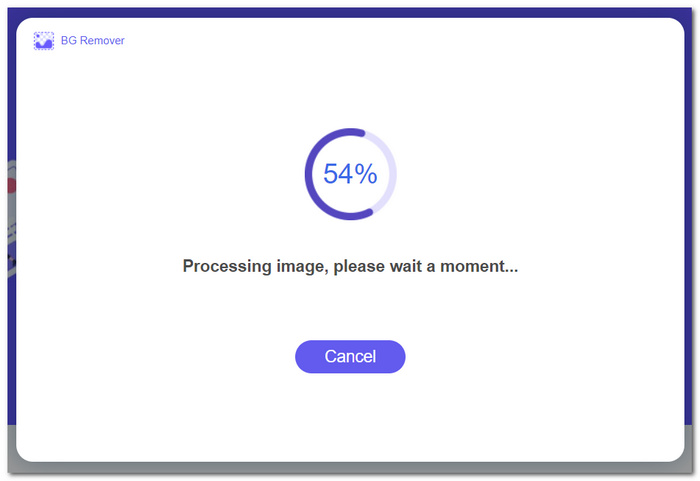
2단계. AI 기능이 작동하도록 잠시 기다리면, 도구가 업로드한 이미지에서 배경을 자동으로 인식해 제거합니다.
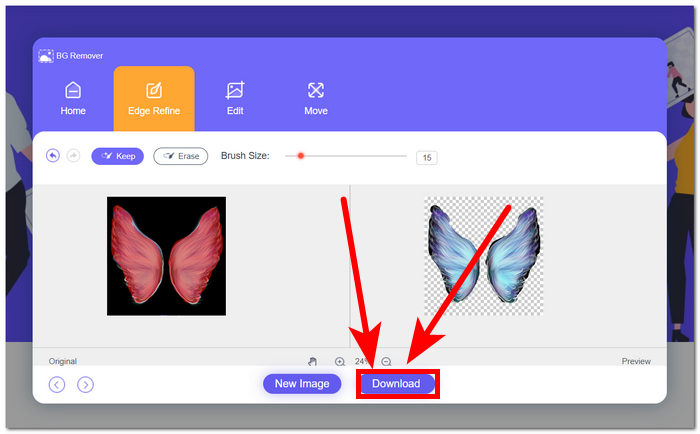
3단계. 배경 제거가 완료되면 Download 버튼을 클릭해 배경이 제거된 이미지를 저장합니다.
FVC 무료 배경 제거제는 과소평가된 도구로 눈에 띄며 많은 사용자가 간과하는 경우가 많습니다. 덜 알려진 지위에도 불구하고 이 숨겨진 보석은 가치 있는 무료 서비스를 제공하여 그 기능을 발견한 사용자의 창의적인 노력에 기여합니다. 단순성과 효율성을 수용하면서 이미지 편집 프로세스의 전담 파트너로 남아 있습니다.
칸바
창의성의 한계가 없는 Canva! 직관적인 플랫폼을 통해 사용자는 이미지에서 배경을 쉽게 제거하여 디자인 가능성의 세계를 열 수 있습니다. Canva의 이미지에서 배경을 제거하는 것은 인터페이스에 익숙하지 않은 사용자에게는 어려울 수 있습니다. 이는 Canva가 편집 소프트웨어이기 때문입니다. 이는 이미지 배경 제거 소프트웨어에 사용자를 압도할 수 있는 많은 도구가 있다는 것을 의미합니다. 따라서 AI가 도구를 실행하고 지원하므로 배경 제거 프로그램은 소프트웨어 범주에서 최상위 계층으로 간주됩니다. 다음은 Canva를 사용한 배경 제거 기능 및 단계 중 일부입니다.
◆ 배경 제거기. 배경 제거 기능이 매우 빠르게 작동하며, 이미지 다듬기를 위한 매직 지우개와 매직 교체 기능까지 제공해 도구 안에서 효과적으로 이미지를 정교하게 수정할 수 있습니다.
◆ AI 통합 기술. 강력한 AI가 이미지 속 방해 요소를 인식해 즉시 제거해 줍니다.
◆ 멀티 에디터 소프트웨어. 프레젠테이션 제작, 사진·영상 편집, 문서 작성, 배경 제거 등 거의 모든 작업을 하나의 도구로 수행할 수 있습니다.
1단계. 데스크톱에 Canva를 다운로드 및 설치하거나, 웹 버전 사이트에 접속합니다.
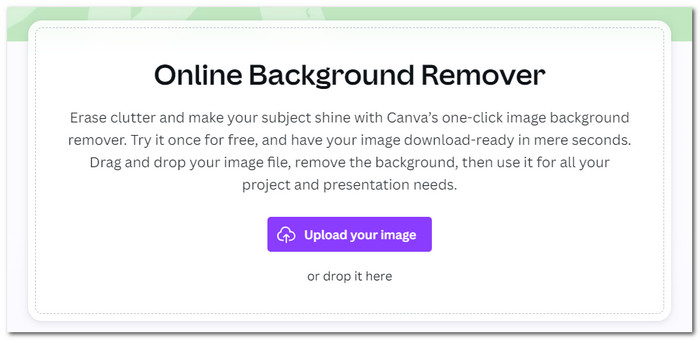
2단계. 메인 화면에서 제공된 업로드 영역에 이미지를 Upload합니다.
3단계. Canva에 이미지가 로드되면, BG Remover를 클릭해 이미지의 배경을 즉시 제거합니다.
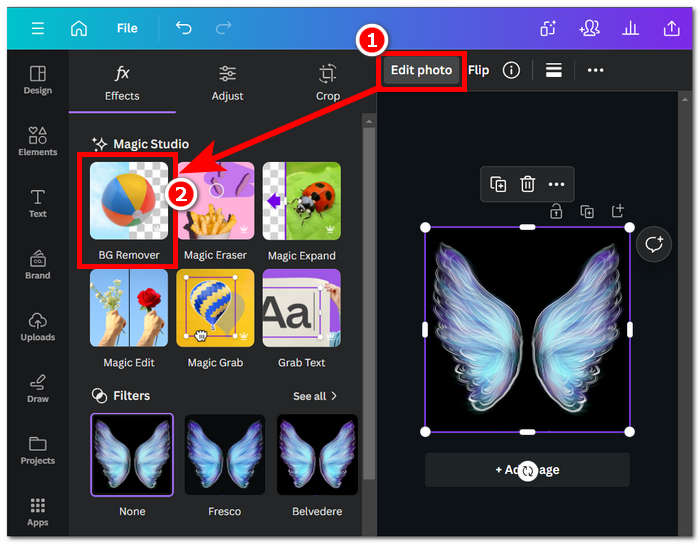
4단계. 처리가 완료되면 화면 오른쪽 상단에 있는 공유 아이콘을 클릭한 뒤, Download를 선택해 데스크톱에 저장합니다.
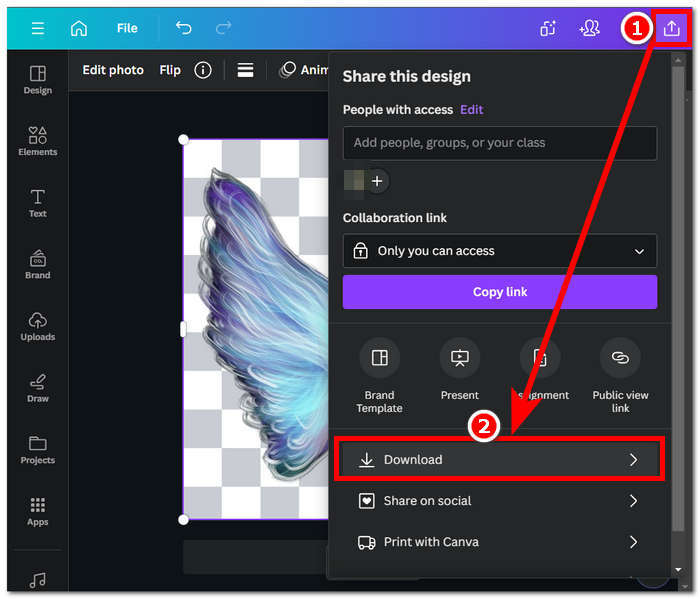
Canva의 인터페이스를 탐색하려면 배경 제거 작업에 시간이 걸릴 수 있지만, 인상적인 소프트웨어 기능을 경험해 볼 가치가 있습니다. 그러나 소프트웨어는 유료 구독을 제공하고 소프트웨어 무료 사용에 대한 워터마크가 제한되어 있으므로 무료 사용자는 백그라운드 제거에서 Canva의 잠재력을 극대화하지 못할 수 있습니다.
어도비 익스프레스
Adobe Creative Cloud 제품군의 동적 기능인 Adobe Express는 강력한 배경 제거 기능으로 이미지 편집을 재정의합니다. 사용자 친화적인 접근성을 위해 설계된 이 도구는 이미지에서 배경을 손쉽게 제거할 수 있는 원활한 환경을 제공합니다.
◆ 전문가 수준의 배경 제거기. 이 도구는 전문가가 작업한 것처럼 빠르고 매끄러운 과정으로 이미지의 배경을 제거합니다.
◆ 직관적인 인터페이스. 매우 단순한 인터페이스 덕분에 누구나 쉽게 사용할 수 있습니다. 별도의 Adobe 전문 지식이 필요 없습니다.
◆ 정밀한 배경제거(Cutout) 기능. 이미지 속 피사체를 또렷하게 강조해, 배경만을 정밀하게 잘라내는 결과를 제공합니다.
1단계. 로컬 브라우저에서 Adobe Express Background Remover 웹사이트에 접속한 뒤, 화면에 표시된 ‘Upload your photo’를 클릭합니다.
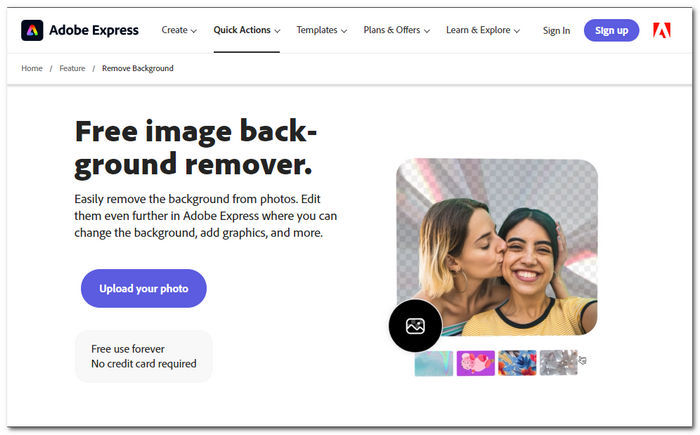
2단계. ‘Upload your photo’를 클릭한 다음, ‘browse image’ 영역을 눌러 사용할 이미지를 업로드합니다.
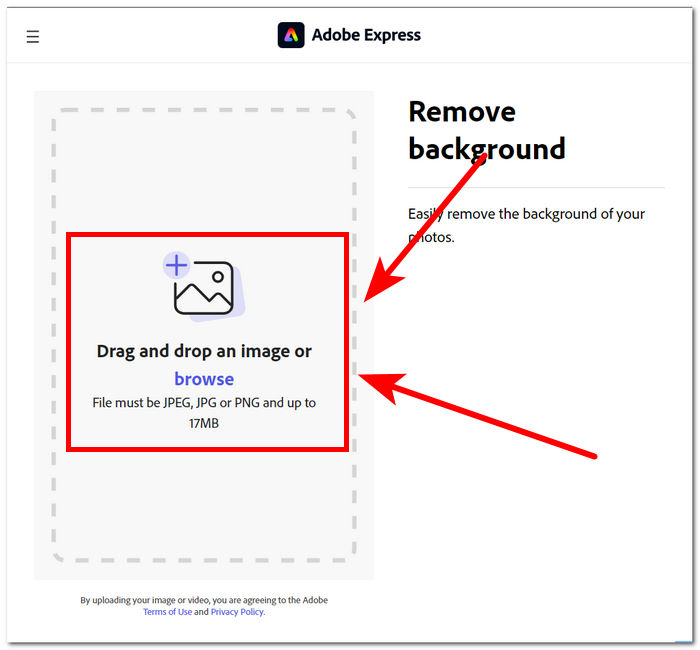
3단계. 이미지가 업로드되는 동안 배경이 자동으로 제거됩니다.
4단계. 이미지 오른쪽 옆에 위치한 Download를 클릭해 데스크톱에 저장합니다.
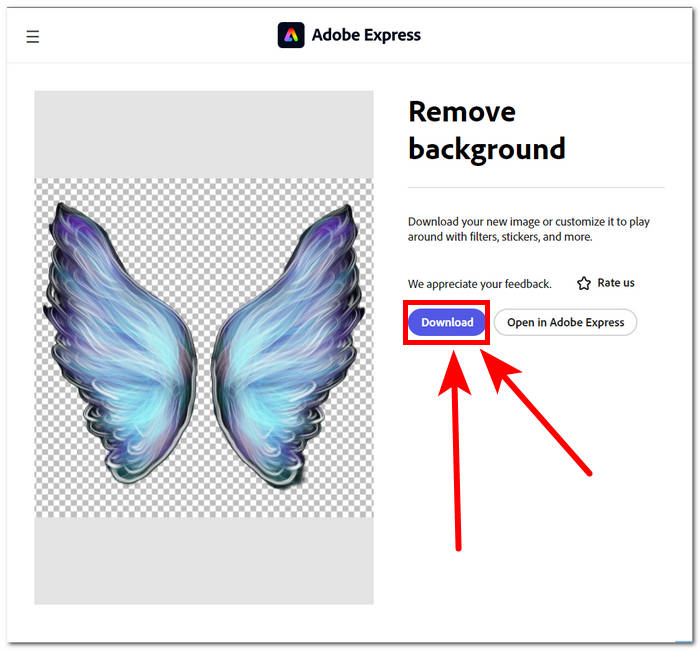
결론적으로, Adobe Express는 이미지 배경의 아주 작은 디테일까지 제거할 수 있을 만큼 강력한 전문가급 도구로 등장했습니다. 이 도구는 배경 제거 프로세스에 대한 인터페이스에서 간단한 접근 방식을 가질 수 있지만 이미지를 데스크탑에 저장하려면 여전히 등록이 필요합니다.
2부. 이미지 데스크탑에서 배경을 제거하는 방법
어도비 포토샵
Adobe Photoshop은 이미지 보정, 합성 등 이미지 편집 분야에서 최상급 소프트웨어로 꼽히며, 배경 제거 작업에서도 강력한 성능을 자랑합니다. 하나의 프로그램 안에서 거의 모든 작업을 수행할 수 있을 만큼 다양한 고급 도구와 기능을 제공합니다. 완벽한 배경 제거를 위해서는 피사체와 배경을 정확히 구분하는 올바른 컷아웃 선택이 중요하므로, 배경 제거 기능을 최대한 활용하려면 포토샵에서 컷아웃을 사용하는 방법도 함께 익혀 두는 것이 좋습니다.
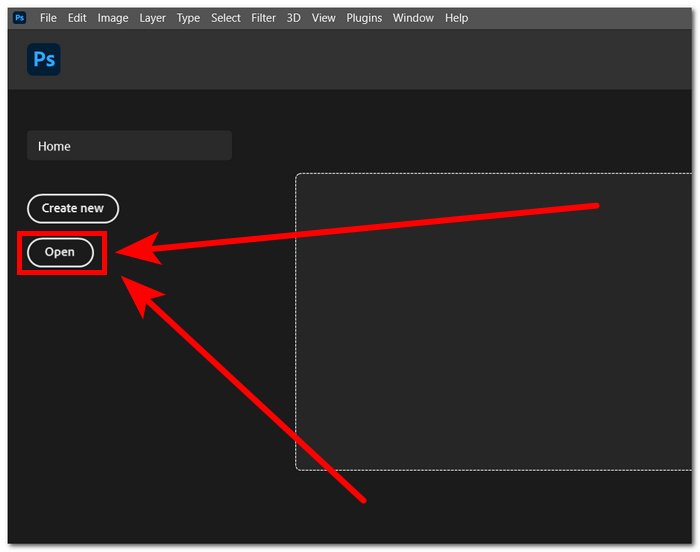
1단계. 데스크톱에서 Adobe Photoshop을 실행한 뒤, 소프트웨어 인터페이스에 있는 Open 버튼을 눌러 사진을 불러옵니다.
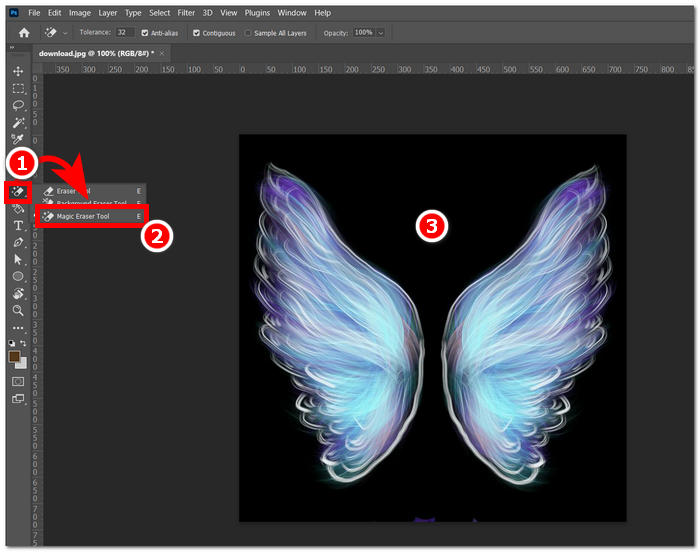
2단계. 이미지가 열리면 왼쪽 도구 모음에서 Eraser Tool을 찾은 다음, 그 안에서 Magic Eraser Tool을 선택합니다.
3단계. Magic Eraser Tool이 선택되면 이미지의 배경 부분을 클릭해 배경을 자동으로 제거합니다.
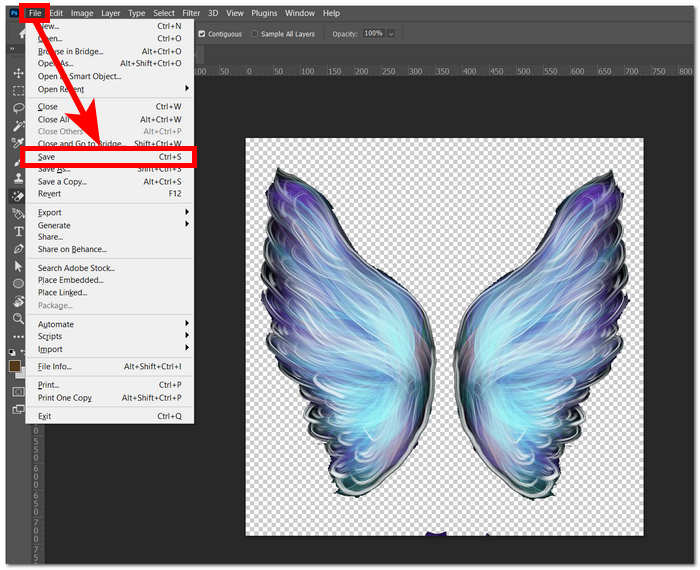
4단계. 배경 제거가 끝나면 화면 왼쪽 상단의 파일(File) 메뉴로 이동해 ‘Save’ 또는 ‘Export’를 클릭해 이미지를 데스크톱에 저장합니다.
고급 기술과 기능의 조합을 통해 Photoshops는 모든 사용자의 내면에 있는 창작자의 역량을 강화하고 발휘할 수 있도록 해줍니다. Adobe는 직관적인 인터페이스를 통해 이미지에서 배경을 제거하므로 Adobe 소프트웨어에서 어려운 작업이 불가능한지 확인합니다.
단
GIMP는 사용자가 이미지에서 흰색 배경이나 원치 않는 배경을 제거할 수 있는 오픈 소스 애플리케이션으로, 그래픽 매니아와 이미지 편집 초보자에게 이상적인 선택입니다. 배경 제거 기능 외에도 GIMP는 다양한 도구 및 기능 세트를 자랑하며, GIMP의 GIMP 기능을 탐구하면 배경 제거를 극대화하고 탁월하게 할 수 있으며 시각적 향상 및 조작의 더 넓은 스펙트럼을 촉진할 수 있습니다.
1단계. GIMP를 실행한 뒤, 화면 왼쪽 상단의 파일(File) 메뉴에서 Open을 클릭해 이미지를 불러옵니다.
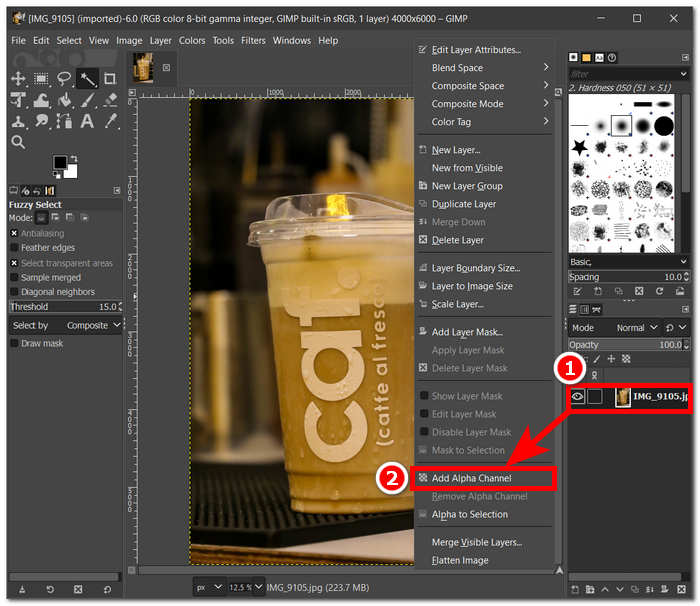
2단계. 이미지가 나타나면, 화면 오른쪽 아래에서 해당 레이어를 선택하고 마우스 오른쪽 버튼을 눌러 설정에서 Add Alpha Channel을 선택합니다.
3단계. 화면 왼쪽 상단 도구 모음에서 Fuzzy Select 도구를 클릭합니다. 선택 후 제거하고 싶은 영역을 드래그해 지정합니다.
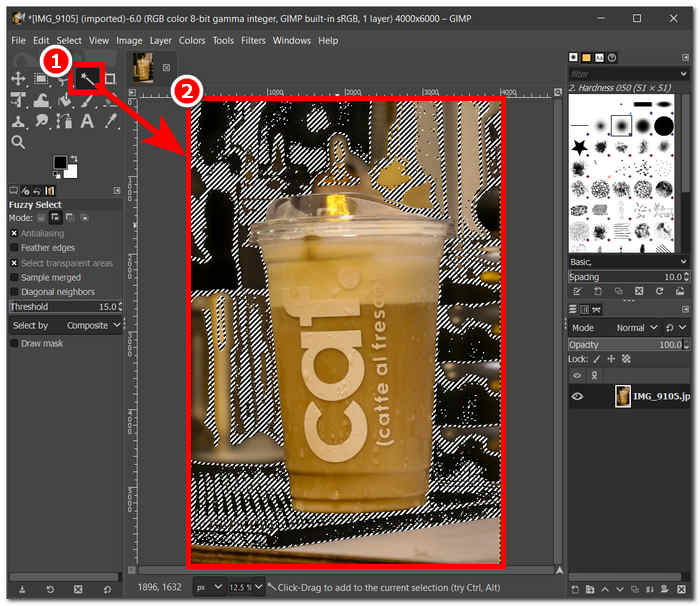
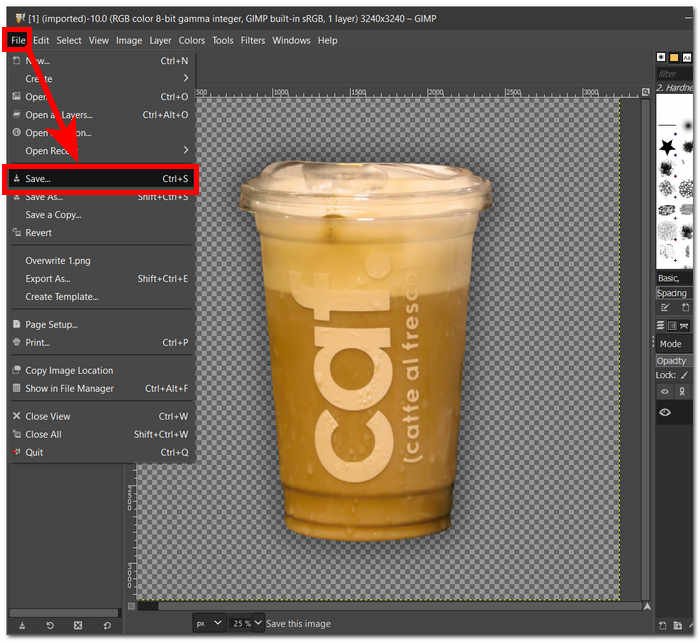
4단계. 선택된 영역에는 점선 윤곽이 생기며, 키보드의 Del 키를 눌러 배경을 삭제합니다. 결과가 만족스럽다면, 화면 왼쪽 상단의 파일(File) 메뉴에서 저장(Save)을 찾아 클릭해 이미지를 데스크톱에 다운로드합니다.
GIMP는 직관적인 인터페이스 덕분에 숙련된 전문가와 초보자 모두에게 적합한 도구로 자리 잡았습니다. 사용자의 취향에 따라 여러 가지 배경 제거 옵션을 제공하며, 컬러 도구, 패스 도구, 레이어 마스킹, 퍼지(Fuzzy) 도구 등 다양한 기능을 갖추고 있어 매우 다재다능한 소프트웨어입니다.
픽사트
Picsart는 모바일 장치의 애플리케이션 버전으로 인기 있는 초보자용 도구입니다. 제거 도구는 간단하고 즉각적인 결과를 제공합니다. 배경 제거의 정확성과 빠르고 효율적인 제거 방법은 사용하는 AI에서 나왔습니다. 배경 제거 외에도 이 도구의 기능 중 하나는 이미지의 배경을 교체하거나 추가할 수 있다는 점이며, 이 점이 이 도구를 선호하게 만듭니다. 이미지의 배경을 삭제하는 방법은 무엇입니까? 더 이상 걱정하지 말고 아래 나열된 쉬운 단계를 따르십시오.
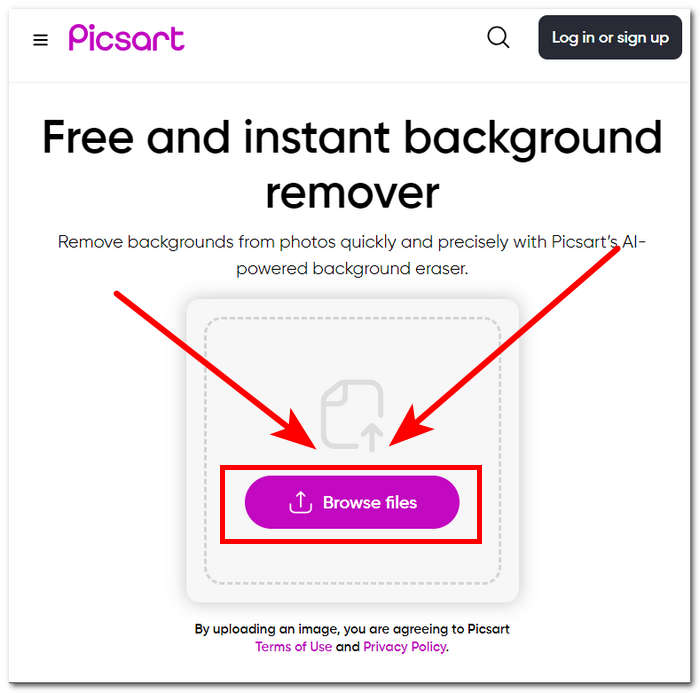
1단계. 로컬 브라우저에서 Picsart Background Remover 도구에 접속한 뒤, Browse Files를 클릭해 이미지를 업로드합니다.
2단계. 업로드가 시작되면, 도구가 이미지를 자동으로 분석·인식하며 이 과정에서 배경을 제거합니다.
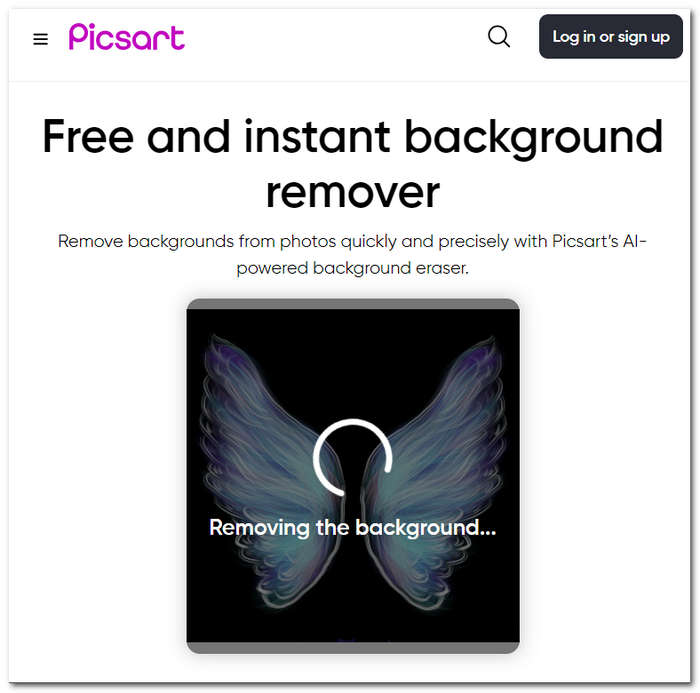
3단계. 처리가 완료되면 결과 이미지를 미리 보고 편집할 수 있으며, 결과가 마음에 들면 Download 버튼을 눌러 이미지를 저장합니다.
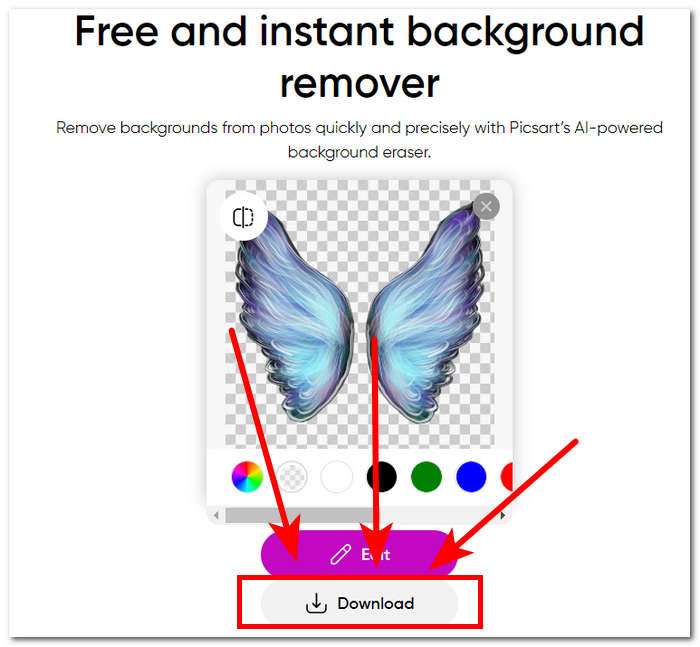
결론적으로, Picsart는 이미지 편집용 애플리케이션으로서 인기를 얻었으며 모든 유형의 시각적 편집 요구 사항을 충족하는 도구를 만드는 데 투자했습니다. 배경 제거제는 확실히 즉시 정밀하게 작업을 수행합니다. 따라서 이미지를 고해상도로 완전히 다운로드하려면 가입해야 합니다. 그렇지 않으면 저해상도 결과가 나올 수 있습니다.
3부. 이미지에서 배경을 제거하는 방법에 대한 FAQ
이미지 배경을 자동으로 제거할 수 있나요?
예, FVC Free Background Remover, Adobe Express 및 Canva를 포함한 많은 고급 이미지 편집 도구는 인공 지능 알고리즘을 활용하여 이미지에서 배경을 자동으로 감지하고 제거합니다. 이 기능은 편집 프로세스를 간소화하여 사용자가 더 빠르고 효율적으로 작업할 수 있도록 해줍니다.
이미지 배경을 자동으로 제거할 수 있나요?
예, FVC Free Background Remover, Adobe Express 및 Canva를 포함한 많은 고급 이미지 편집 도구는 인공 지능 알고리즘을 활용하여 이미지에서 배경을 자동으로 감지하고 제거합니다. 이 기능은 편집 프로세스를 간소화하여 사용자가 더 빠르고 효율적으로 작업할 수 있도록 해줍니다.
JPG 이미지의 배경을 제거할 수 있나요?
물론, 배경 제거 도구는 JPG 이미지 형식을 지원합니다. 도구의 다양성은 다양한 이미지 형식으로 확장되므로 사용자는 JPEG 파일을 쉽게 편집하고 향상할 수 있습니다. 따라서 일부는 JPG 형식 등의 배경을 제거하려면 구독이 필요하기 때문에 사용 중인 도구나 소프트웨어에 따라 다릅니다.
PNG는 투명한 배경을 지원하는 유일한 이미지 형식인가요?
PNG는 배경이 투명한 이미지에 일반적으로 사용되는 형식이지만 GIF 및 TIFF와 같은 다른 형식도 투명도를 지원합니다. 그러나 위에서 언급한 유사한 도구는 널리 사용되는 투명도 설정과의 호환성으로 인해 PNG에서 최적의 결과를 제공하는 경우가 많습니다.
이미지의 배경을 제거하려면 무엇을 사용할 수 있나요?
Adobe Express 및 Photoshop과 같은 전용 이미지 편집 소프트웨어나 FVC Free Background Remover와 같은 특수 온라인 도구를 사용할 수 있습니다. 이러한 도구는 일반적으로 사용자 친화적인 인터페이스와 고급 기능을 제공하므로 정확하고 전문적인 결과를 얻을 수 있습니다.
결론
정리하자면, 이미지에서 배경을 제거하는 과정은 특정 애플리케이션이나 소프트웨어, 도구 하나에 의존하지 않습니다. 진정한 효율성은 사용자가 각 도구에 마련된 기능을 얼마나 잘 이해하고 최대한 활용하는지에 달려 있습니다. 궁극적으로 배경 제거의 성공은 프로젝트를 원하는 대로 완성하는 데 있으며, 어떤 도구를 쓰느냐보다는 자신의 취향과 작업 방식에 맞는 도구를 선택하는 것이 더 중요합니다.
-
 PicWish 사진 향상기 검토 및 시도해 볼 수 있는 대체 도구
 PicWish 이미지 향상기가 사진 편집의 세계에 가져다 주는 마법을 발견해보세요. 심층적인 검토와 실행 가능한 대안 탐색.
-
 Windows/Mac/온라인에서 이미지에서 텍스트를 제거하는 방법
 이미지 속 산만한 텍스트는 이제 안녕! 텍스트 제거를 위해 완벽하게 설계된 부드러운 솔루션을 사용하여 이미지에서 텍스트를 지우는 방법을 알아보세요.
-
 배경 제거제 및 사진 향상제에 대한 사진 검토
 Fotor Background Remover 및 Photo Enhancer에 대해 알아야 할 모든 것. 일부 기능을 살펴보고 귀하의 필요에 맞는 제안된 대안을 확인하십시오.
