


 비디오 컨버터 궁극
 스크린 레코더
 비디오 수리
 안전한 다운로드
졸업 사진에서 워터마크를 쉽게 제거하는 방법
워터마크는 사진에서 볼 때마다 눈에 거슬리며 사진의 품질을 망칩니다. 작성자가 자신의 작품을 도난당하는 것을 원하지 않을 때마다 사진에 워터마크가 표시됩니다. 그리고 학생이라면 졸업 사진에 스튜디오 이름이나 사진을 찍은 사진 작가를 나타내는 워터마크가 표시될 것입니다.
졸업 사진에서 워터마크를 제거하려면, 워터마크를 지울 수 있는 도구가 필요합니다. 이 글에서는 가장 많이 사용되는 워터마크 제거 프로그램 3가지를 소개하며, 또한 졸업 사진에서 워터마크를 제거하는 방법을 단계별로 배울 수 있습니다.

1부. 온라인으로 졸업 사진에서 워터마크를 제거하는 방법
인터넷에서 볼 수 있는 워터마크 제거 도구가 많이 있습니다. 그러나 모두가 무료이고 사용하기 쉬운 것은 아닙니다. 또한 이 부분에서는 워터마크를 편리하고 효율적으로 제거하는 방법을 알게 됩니다.
FVC Free Watermark Remover는 온라인 워터마크 제거 도구로, 졸업 사진의 워터마크를 손쉽게 제거할 수 있게 해 줍니다. 이 온라인 도구는 사용 전에 아무것도 다운로드할 필요가 없기 때문에 인기가 많습니다. 게다가 PNG, JPG, JPEG, BMP 등 가장 일반적인 이미지 형식을 지원합니다. 또한 이미지를 다운로드할 때, 워터마크를 제거하더라도 원래와 동일한 이미지 형식으로 저장됩니다.
이 워터마크 제거기를 사용하면 워터마크 영역을 선택할 때 제거기 사전 설정에서 선택할 수 있습니다. 다각형, 올가미 또는 브러시 중에서 선택할 수 있습니다. 또한 이 도구를 사용하여 이미지에서 다른 불필요한 부분을 지울 수 있습니다.
장점
- 그것은 빠른 운영 소프트웨어 인터페이스를 가지고 있습니다.
- 사용하는 것이 안전합니다.
- 100%는 무료로 사용할 수 있습니다.
- Google, Firefox 및 Safari를 포함한 모든 웹 브라우저에서 사용할 수 있습니다.
단점
- 인터넷에 의존적입니다.
FVC Free Watermark Remover를 사용하여 졸업 사진에서 워터마크를 제거하는 방법:
1단계. 사용 중인 브라우저에서 FVC Free Watermark Remover를 검색합니다. 또는 이 링크를 클릭해 바로 웹페이지로 이동할 수 있습니다.
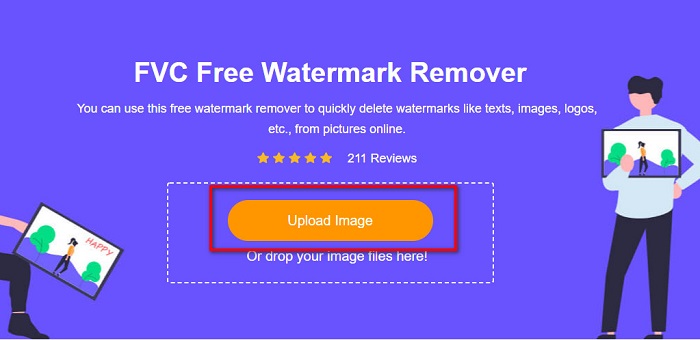
2단계. 소프트웨어의 메인 화면에서 Upload Image 버튼을 클릭합니다. 그러면 컴퓨터의 폴더 창이 나타나며, 여기서 졸업 사진을 선택해 업로드합니다.
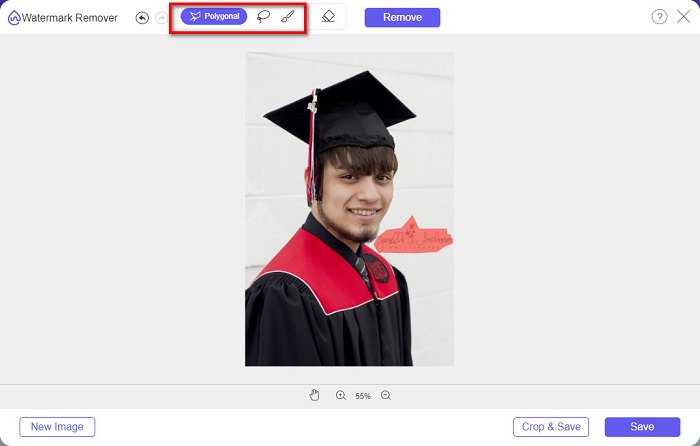
3단계. 다음으로, 워터마크를 제거하기 위해 사용할 제거 도구를 선택합니다. Polygonal, Lasso, Brush 중에서 선택한 뒤, 제거하고 싶은 워터마크 영역을 드래그하여 지정합니다.
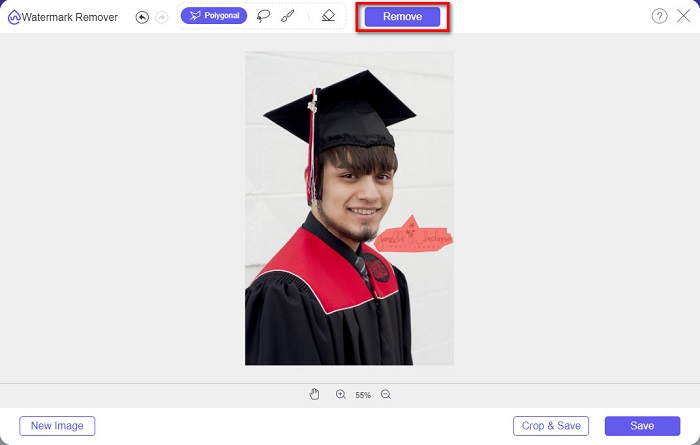
4단계. 워터마크 영역을 선택한 후 Remove 버튼을 클릭하여 워터마크를 지웁니다.
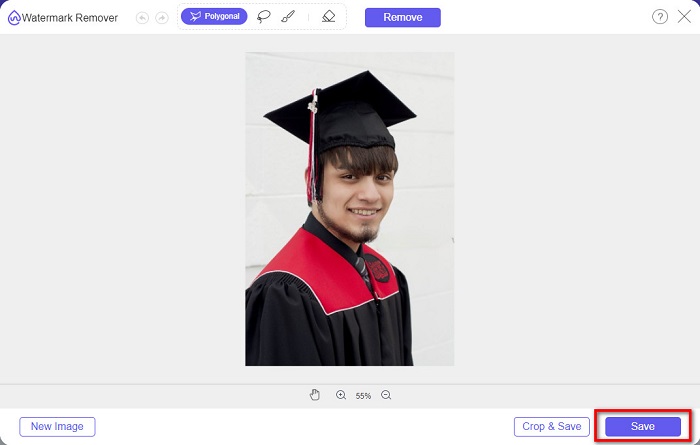
5단계. 워터마크가 제거된 것을 확인할 수 있습니다. Save 버튼을 클릭해 이미지를 기기에 다운로드합니다. 게다가 이 온라인 워터마크 제거 도구는 Photobucket 워터마크 제거 도구로도 사용할 수 있습니다.
2부. Inpaint를 사용하여 졸업 사진에서 워터마크를 제거하는 방법
사람들은 때때로 사진을 원래 모양으로 만들기 위해 워터마크를 수정합니다. 하지만 어떻게 합니까? 전문가들은 사진 편집기를 사용하여 레이블을 픽셀 단위로 페인트하므로 몇 시간이 걸립니다. 그러나 삶을 쉽게 만드는 데 도움이 되는 또 다른 도구가 있습니다. 이 부분에서는 Inpaint를 사용하는 방법과 장점을 배웁니다.
Inpaint는 졸업 사진의 워터마크를 제거하는 데 도움이 되는 또 다른 온라인 워터마크 제거 도구입니다. 이 온라인 소프트웨어는 Windows와 Mac에서 사용할 수 있는 다운로드 버전도 제공합니다. 또한 로고, 텍스트, 사물 등 사진 속에서 원치 않는 요소들을 제거할 수 있습니다. 더 놀라운 점은 오래된 사진을 복원하여 원래 품질에 가깝게 되살리는 기능도 있다는 것입니다. 제거 도구를 사용해 제거할 워터마크 영역을 선택할 수도 있습니다.
장점
- 사용하기 쉬운 소프트웨어 인터페이스가 있습니다.
- 디지털 얼굴 보정을 할 수 있습니다.
- 파노라마의 검은 부분을 채울 수 있습니다.
- Google 및 Firefox와 같은 거의 모든 웹 브라우저에서 액세스할 수 있습니다.
단점
- 인터넷에 의존적입니다.
Inpaint를 사용하여 졸업 사진에서 워터마크를 제거하는 방법:
1단계. 브라우저에서 Inpaint를 검색한 뒤, 해당 웹페이지로 이동합니다. 그런 다음 소프트웨어의 메인 화면에서 Upload Image 버튼을 클릭하여 졸업 사진을 업로드합니다.
2단계. 다음으로, 워터마크 영역을 지정하기 위해 사용할 제거 도구를 선택합니다. marker tool, lasso tool, polygonal lasso tool 중에서 선택합니다.
3단계. 선택한 도구를 사용해 제거하고 싶은 워터마크 영역을 지정합니다.

4단계. 마지막으로 Erase 버튼을 클릭해 졸업 사진에서 워터마크를 제거합니다. 그런 다음 Download 버튼을 클릭해 사진을 다운로드합니다.
3부. Photoshop을 사용하여 졸업 사진에서 워터마크를 제거하는 방법
Adobe Photoshop은 많은 전문가들이 사용하는 가장 유명한 편집 소프트웨어입니다. 그러나 많은 사용자들이 모르는 것은 이것이 단순한 편집 소프트웨어가 아니라는 것입니다. 사진에서 원치 않는 워터마크를 제거할 수도 있습니다. 사진에서 워터마크를 제거하는 방법을 배우려면 이 부분을 종합적으로 읽으십시오.
Adobe Photoshop은 다양한 편집 기능을 갖춘 가장 유명한 사진 편집 소프트웨어입니다. 많은 전문가들이 이 편집 프로그램을 사용하는 이유는, 사진을 전문적인 방식으로 다양하게 편집할 수 있기 때문입니다. 이미지를 세밀하게 편집할 수 있는 여러 도구를 포함하고 있으며, 각종 소셜 미디어 플랫폼에 공유하기에 충분히 고화질의 결과물을 만들어 줍니다.
장점
- 사용할 수 있는 고급 편집 기능이 많이 있습니다.
- 편집에 사용할 수 있는 많은 도구가 포함되어 있습니다.
- 고품질 출력물을 생성합니다.
- 인쇄 및 웹에서 이미지를 편집하고 생성할 수 있습니다.
단점
- 그것은 사용하기 어려운 소프트웨어 인터페이스를 가지고 있습니다.
- 앱을 다운로드하려면 구매해야 합니다.
Adobe Photoshop을 사용하여 사진에서 워터마크를 제거하는 방법:
1단계. 기기에 Adobe Photoshop을 다운로드하여 설치한 후 실행합니다. 메인 화면에서 편집할 이미지를 Photoshop으로 엽니다.
2단계. 워터마크가 있는 영역을 선택합니다. 이때 Pen tool, Quick Selection tool, Magic Wand tool 중 하나를 사용할 수 있습니다.
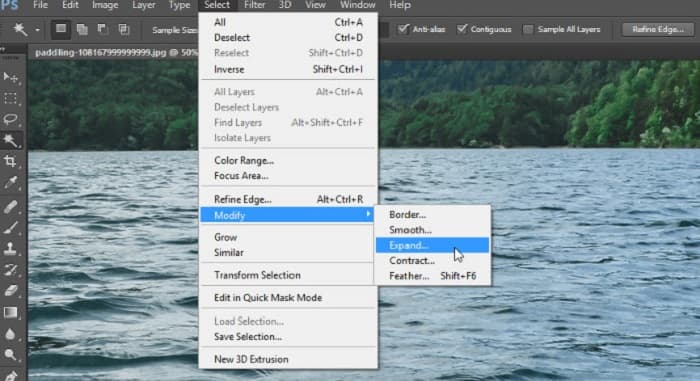
3단계. 배경 픽셀을 포함시키기 위해 Select > Modify > Expand로 이동합니다.
4단계. Edit > Fill로 이동한 후, Contents 항목에서 Content-Aware를 선택합니다.
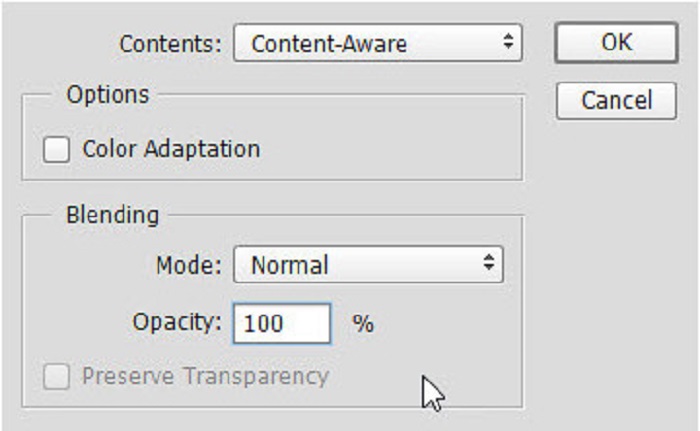
5단계. 다음으로 CTRL+D를 눌러 선택을 해제합니다. 그러면 워터마크 부분이 배경으로 채워진 것을 볼 수 있습니다. 남아 있는 워터마크 윤곽을 제거하기 위해 Clone Stamp Tool을 사용합니다.
6단계. Alt 키를 누른 상태에서 워터마크 윤곽을 따라 그려 줍니다. 모든 흔적을 제거하고 나면, 워터마크가 완전히 사라진 것을 확인할 수 있습니다.
파트 4. 졸업 이미지에서 워터마크 제거에 대한 FAQ
졸업 사진에서 워터마크를 제거하면 품질이 저하됩니까?
졸업 사진에서 워터마크를 제거한다고 해서 반드시 품질이 떨어지는 것은 아닙니다. 그러나 워터마크를 제거해도 일부 도구는 여전히 자국을 남깁니다.
Canva에서 워터마크를 제거할 수 있나요?
네. Canva에는 무료로 워터마크를 제거할 수 있는 기능이 있습니다. 워터마크 제거 버튼을 클릭하면 됩니다.
PDF에서 워터마크를 제거할 수 있습니까?
위에서 소개한 도구들을 사용하면 PDF 파일의 워터마크도 제거할 수 있습니다.
결론
이제 졸업 사진에서 워터마크를 제거하는 방법을 배웠으니, 위에 소개한 도구들을 직접 사용해 볼 수 있습니다. 워터마크 제거 도구를 사용하면 워터마크를 쉽게 지울 수 있습니다. 많은 사람들은 사용이 간편하고 편리하다는 이유로 FVC Free Watermark Remover 사용을 특히 추천합니다.
-
 Windows 및 Mac에서 Lumion 워터마크를 쉽게 제거하는 방법
 전문적으로 표현하기 위해 Lumion 워터마크를 제거해야 합니까? 글쎄, 당신이 그것을 떠나 워터 마크를 제거하는 데 도움이되는 도구가 있습니다.
-
 비디오 및 이미지에서 Weibo 워터마크를 쉽게 제거하는 방법
 내보낸 비디오 및 이미지에서 Weibo 워터마크를 제거하는 데 문제가 있습니까? 이 경우 도움이 될 수 있는 아래에 나열된 워터마크 제거제가 필요합니다.
-
 무료로 Movavi 워터마크를 제거하는 방법을 배우십시오.
 Movavi에서 비디오나 이미지를 내보내면 워터마크가 남지만 제거할 수 있습니까? 무료로 워터마크를 제거하는 방법을 가르치려면 이것을 읽으십시오.
