


 비디오 컨버터 궁극
 스크린 레코더
 비디오 수리
 안전한 다운로드
3가지 효과적인 방법을 사용하여 Lunapic에서 워터마크를 제거하는 방법 [무료 사용]
초보자가 선택할 수 있는 이미지 편집기로, 웹에서 Lunapic에 접속해 이미지를 편집해 볼 수 있습니다. 사실 이 도구는 두 가지 실용적인 기능으로 이미지에 있는 워터마크를 추가하거나 제거할 수 있습니다. 여기에서는 이미지에 적용할 수 있는 기법을 정리하고, 워터마크를 제거하는 방법을 설명하겠습니다. 아래에 추가한 단계를 따라 읽으면서 인내심을 갖고 이 글을 끝까지 보면, Lunapic에서 워터마크를 제거하는 방법을 배울 수 있습니다.

1부. Lunapic을 사용하여 이미지에서 워터마크를 제거하는 2가지 기술
Lunapic은 두 가지 방법을 사용하여 이미지의 워터마크를 제거합니다. 자르기 및 개체 제거. 그러나 어떤 방법이 더 효과적이고 어느 것이 덜 효과적입니까? 단계를 진행하기 전에 먼저 논의해 보겠습니다.
첫 번째 방법. 이미지에서 워터마크 자르기
그것이 제공하는 자르기 기능은 특별한 것이 아닙니다. 즉, 이름이 나타내는 대로 이미지를 자르는 것입니다. 워터마크가 측면에 있는 경우 이 기능을 사용할 수 있습니다. 워터마크를 자르고 이미지에서 워터마크가 없는 부분을 저장합니다. 관심이 있는 경우 추가한 단계를 따를 수 있습니다.
1단계. 브라우저에서 검색하여 Lunapic 공식 웹사이트를 연 뒤, Upload를 클릭하고 나타나는 폴더에서 이미지를 선택한 다음, Open을 눌러 업로드합니다.
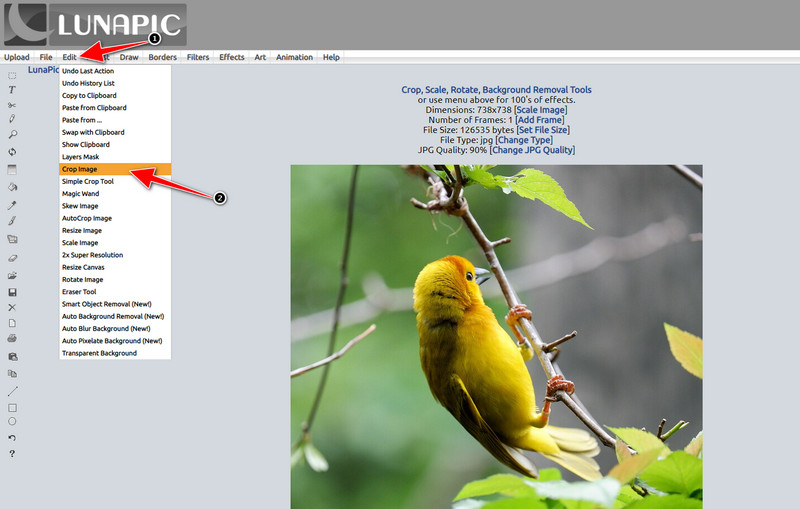
2단계. 상단 메뉴에서 Edit를 클릭한 후, Crop Image를 선택하여 크롭 기능을 사용합니다.
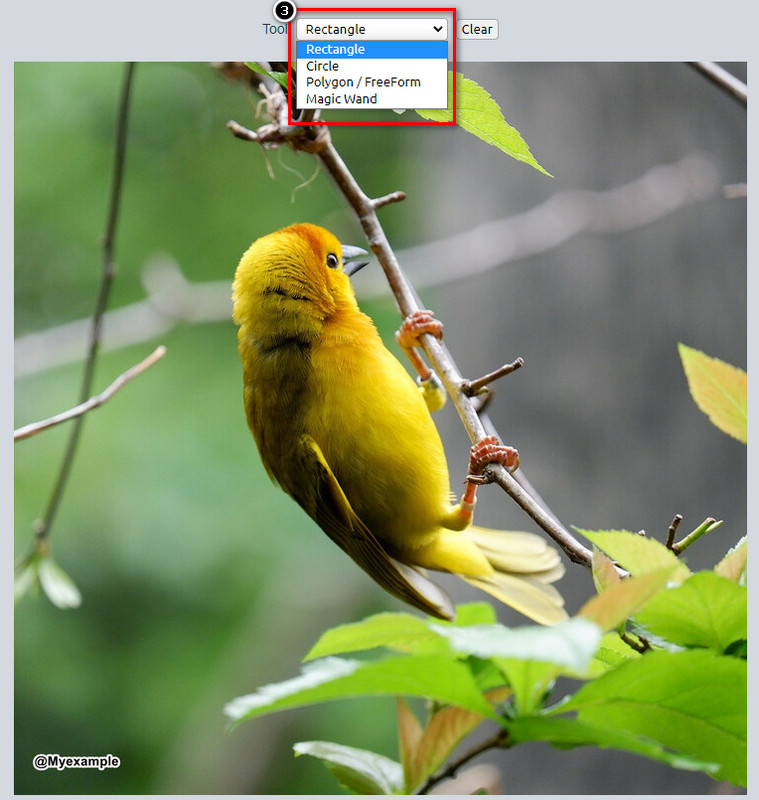
3단계. Tool 항목의 드롭다운 버튼을 눌러 사용하고 싶은 크롭 도구를 선택합니다. 워터마크가 포함되지 않도록 영역을 조정하세요.
4단계. Crop 버튼을 클릭하면, 내보내기 전에 최종 결과물이 어떻게 보일지 미리 볼 수 있습니다. 결과가 만족스럽다면 Save를 눌러 크롭된 이미지를 로컬 드라이브에 다운로드합니다.
두 번째 방법. 개체 제거로 이미지의 워터마크 제거
자르기와 달리 개체 제거는 이미지의 크기를 변경하지 않고 이미지에서 개체를 제거하는 데 더 많이 사용됩니다. 이 기능에서는 워터마크를 강조 표시해야 합니다. 그런 다음 도구로 제거할 수 있습니다. 놀랍지 않습니까? 사용하고 싶을 정도로 놀랐다면 아래 단계에서 Lunapic으로 워터마크를 지우는 완전한 방법을 제공합니다.
1단계. 워터마크가 있는 이미지를 가져오기 위해, 앞에서 설명한 크롭 기능의 첫 번째 단계를 다시 반복합니다.
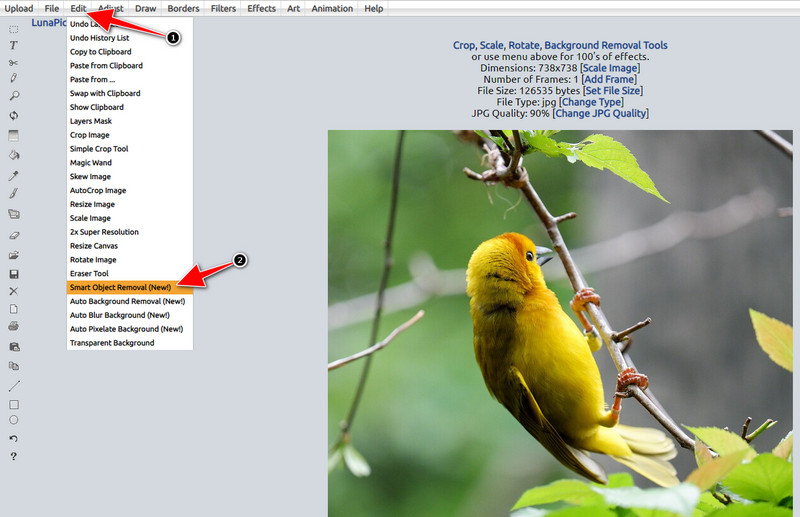
2단계. Edit를 열되, 이번에는 워터마크를 제거하기 위해 사용할 수 있는 다른 기능인 Smart Object Removal을 선택합니다.
3단계. 제공되는 브러시를 이용해 워터마크 부분을 칠해 강조 표시합니다. 필요에 따라 브러시 크기도 조절할 수 있습니다.
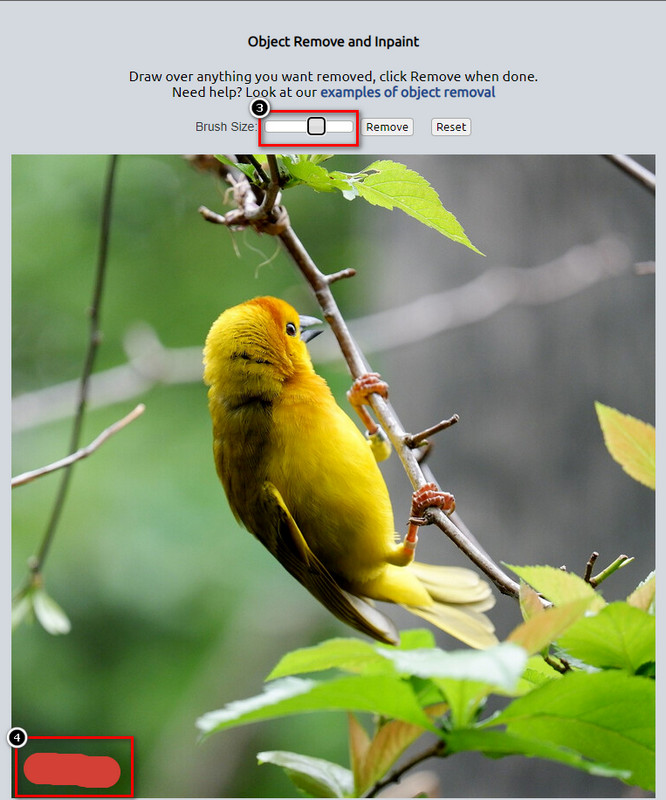
4단계. Remove 버튼을 클릭해 워터마크를 지우고, 이미지를 내보내기 전에 결과가 어떻게 보이는지 확인합니다.
5단계. Save를 클릭해 완성된 이미지를 로컬 드라이브에 다운로드합니다.
2부. 한 번의 클릭으로 무료로 워터마크를 제거하는 Lunapic의 최상의 대안
Lunapic 워터마크 제거기 대신 사용할 수 있는 도구로 FVC Free Watermark Remover가 있습니다. Lunapic과 마찬가지로, 이 도구 역시 회원가입, 프로그램 다운로드, 웹 인터페이스 내 광고 없이 웹에서 바로 사용할 수 있습니다. 사용 제한 없이 이용할 수 있으며, 서비스 시작 이후 꾸준히 뛰어난 성능을 보여 왔습니다. 이미 수백만 명의 온라인 사용자를 도와왔고, 이미지에서 객체를 제거하는 데 도움이 필요하다면 아래 단계부터 따라 해 보세요.
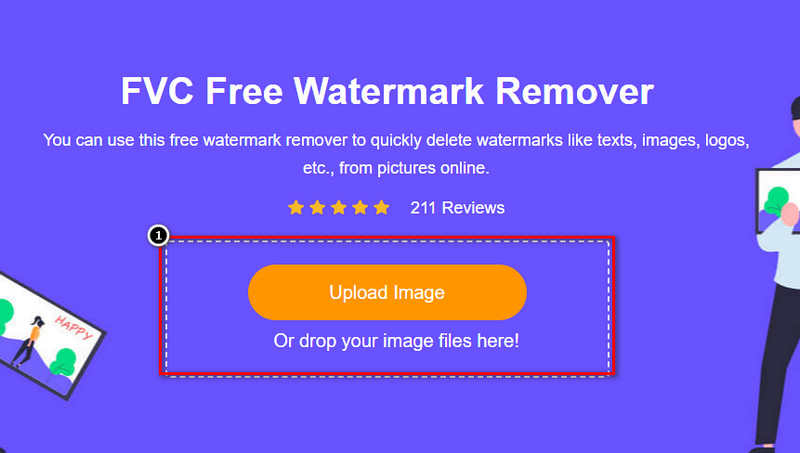
1단계. 이 링크를 클릭해 공식 웹사이트를 열면, 현재 사용 중인 브라우저의 새 탭에서 바로 열리며, 이 워터마크 제거기의 인터페이스가 표시됩니다.
2단계. Upload Photo를 누르면, 로컬 드라이브에 있는 워터마크나 제거하고 싶은 불필요한 객체가 포함된 이미지를 가져올 수 있습니다.
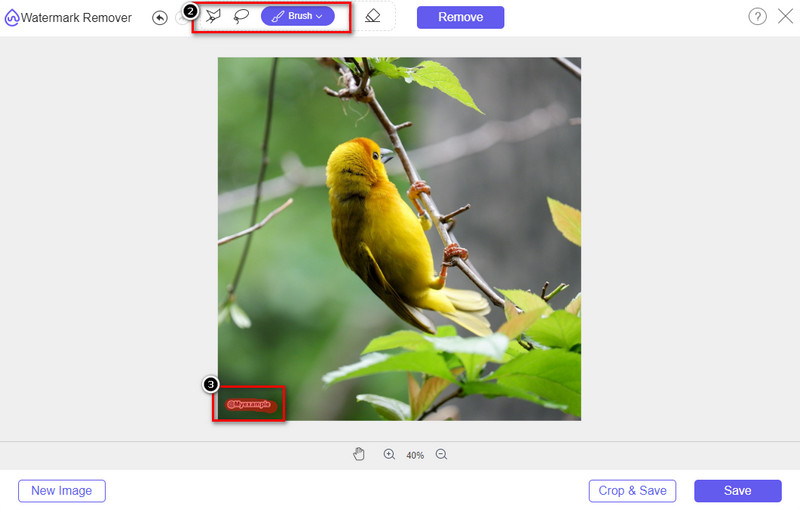
3단계. 업로드한 이미지의 워터마크를 강조 표시할 수 있는 옵션이 세 가지 제공됩니다. 이 중 하나를 선택한 뒤, 선택한 도구를 이용해 워터마크 부분을 칠해 주세요.
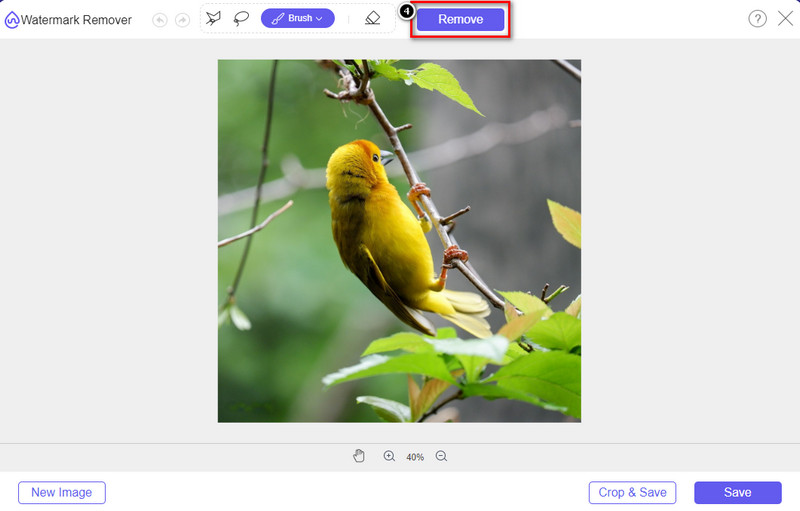
4단계. Remove 버튼을 눌러 3단계에서 강조 표시한 객체를 제거합니다. 이미지에서 표시한 모든 부분이 삭제됩니다.
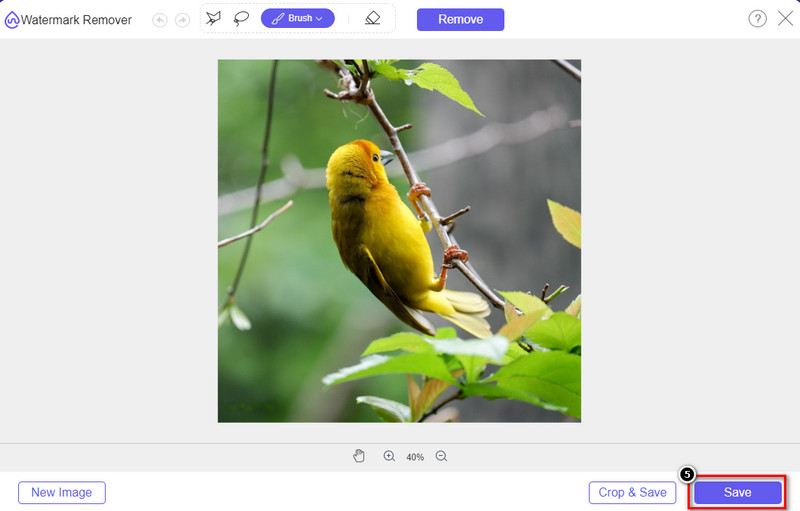
5단계. Save 버튼을 눌러 완성된 이미지를 다운로드한 뒤, 화면에 나타나는 폴더에서 저장된 파일을 확인할 수 있습니다.
추가 읽을거리:
3부. Lunapic에서 워터마크를 제거하는 방법에 대한 FAQ
Lunapic은 편집된 이미지에 워터마크를 추가합니까?
이 온라인 편집기는 웹에서 무료로 액세스할 수 있지만 여기에서 편집하는 이미지에 제품 워터마크를 포함하지 않습니다. 제공하는 프리미엄 도구를 사용하기 위해 구독이 필요하지 않습니다. 제한 없이 도구를 사용하세요! 공식 웹사이트를 방문하여 이미지 편집에 사용할 수 있는 도구를 보고 사용하십시오.
Lunapic에 워터마크를 추가할 수 있나요?
물론, 다른 사람이 이미지를 복사하기 어렵게 만들기 위해 만든 이미지에 자신의 구별을 추가할 수 있습니다. 웹사이트를 열어 업로드를 클릭하여 편집하려는 이미지를 추가하고 툴바 왼쪽에 있는 T 아이콘을 클릭한 후 업로드하는 이미지에 추가하려는 텍스트 워터마크를 추가합니다.
Lunapic에 배경 제거제가 있습니까?
네, Lunapic은 이미지의 배경을 감지하여 즉시 효과적으로 제거할 수 있는 AI 기술을 지원합니다. 기능의 이름은 자동 배경 제거입니다. 도구를 열고 편집을 클릭합니다. 이미지의 배경을 제거하는 데 도움이 될 수 있는 기능이 설명되어 있습니다. 또한 사용하려는 경우 흐린 배경 추가를 지원합니다.
Lunapic에서 사용할 수 있는 효과는 무엇입니까?
Lunapic은 이미지, 이미지, 그라디언트, 마스킹, 만화, 글리치 등을 추가하는 데 사용할 수 있는 효과 측면에서 다양한 선택을 지원하며 이미지에 적용할 수 있습니다.
결론
Lunapic을 사용하여 이미지에서 워터마크를 제거하는 것은 이 기사에 추가한 튜토리얼을 통해 매우 쉽습니다. 이 블로그에 추가한 단계에 따라 로컬 드라이브에 저장한 이미지의 워터마크를 자르거나 제거할 수 있습니다. 워터마크를 제거한 경험이 충분하지 않더라도 시간 내에 도구를 마스터할 수 있습니다. 그러나 워터마크를 자동으로 제거하는 새로운 최고를 경험하고 싶다면 이 기사에서 추가한 대안을 사용할 수 있습니다. 이름을 클릭하여 공식 웹사이트를 방문하고 우리가 놓치고 있는 이 도구의 기능을 확인하십시오. 이 블로그를 재미있게 읽으셨다면 별 5개를 평가해 주십시오.
-
 Picsart 필터 워터마크를 쉽게 제거하는 팁 및 요령
 Picsart 필터 워터마크를 제거하려면 도구가 필요합니다. 워터마크 제거제를 얻으려면 이 기사를 계속 읽으십시오.
-
 온라인에서 저해상도 이미지를 고해상도로 변환하는 방법
 온라인에서 저해상도 이미지를 고해상도 이미지로 변환하는 방법을 배우고 싶다면 이 문서가 적합합니다. 방법을 배우려면 완전히 읽으십시오.
-
 슛 방지 워터 마크를 제거하는 방법에 대한 쉬운 방법
 이 쉬운 방법에 따라 Shootproof 워터마크를 제거하십시오. 이 놀라운 워터마크 제거기를 사용하여 이미지에서 Shootproof 워터마크를 쉽게 제거하십시오.
