


 비디오 컨버터 궁극
 스크린 레코더
 비디오 수리
 안전한 다운로드
품질 손실 없이 PC에서 iPhone 비디오를 MP4로 변환하는 방법
If they can afford it, many vloggers today shoot their vlogs using an iPhone. Once you try out this handy gadget, you will understand why since this gadget always manages to capture the best angles and details. The default video format for recording videos on an iPhone is MOV or HEVC. These formats are fantastic for preserving quality. However, these formats are not supported by older media players on PCs, Android devices, and some TVs. The easiest fix is to do a video conversion. This post will help you learn how to convert iPhone videos to MP4 while maintaining good quality. That way, your videos will play smoothly on almost any device or platform.

1부. iPhone에서 MP4로 온라인 비디오를 변환하는 방법
비디오 편집과 변환을 처음 접한다면 온라인 방법을 시도해 보는 것이 가장 좋습니다.
We highly recommend the FVC Free Video Converter Online. It is a great online converter that offers a straightforward and ad-free solution for converting your iPhone video files to MP4 hassle-free. This online tool promises a smooth experience without any watermarks or interruptions. It prioritizes your privacy and security by encrypting your files, ensuring that your data remains protected. It stands out as a top-ranking converter site nationwide!
이 무료 온라인 변환기는 고급 기술을 사용하여 품질 유지 관리를 합니다. 대량의 비디오 파일을 동시에 빠르게 변환할 수 있습니다. 게다가 이 다재다능한 도구는 기본 편집 기능을 제공합니다. 비트레이트, 해상도, 프레임 속도와 같은 매개변수를 조정하여 비디오를 미세 조정할 수 있습니다. 또한 오디오 설정을 사용자 지정하여 비트레이트와 볼륨을 조정하여 특정 요구 사항을 충족할 수 있습니다. 이 온라인 도구를 사용하여 비디오 콘텐츠를 변환하려면 아래 단계를 따르세요.
iPhone 비디오를 MP4로 온라인 변환하는 단계:
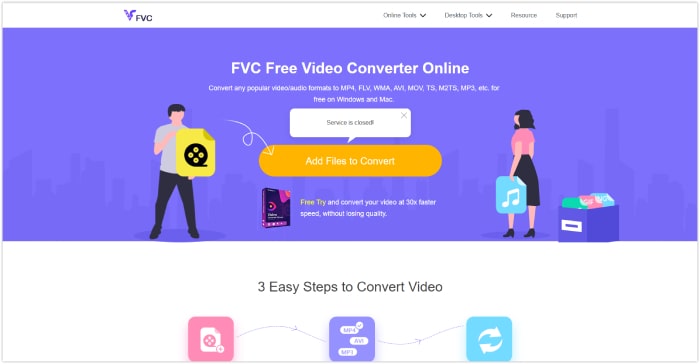
1. PC에서 좋아하는 브라우저를 엽니다. FVC Free Video Converter Online의 공식 웹사이트를 방문하여 Add Files to Convert 버튼을 클릭하여 런처를 설치합니다. 같은 버튼을 다시 클릭하여 변환해야 하는 초기 비디오 파일을 업로드합니다.
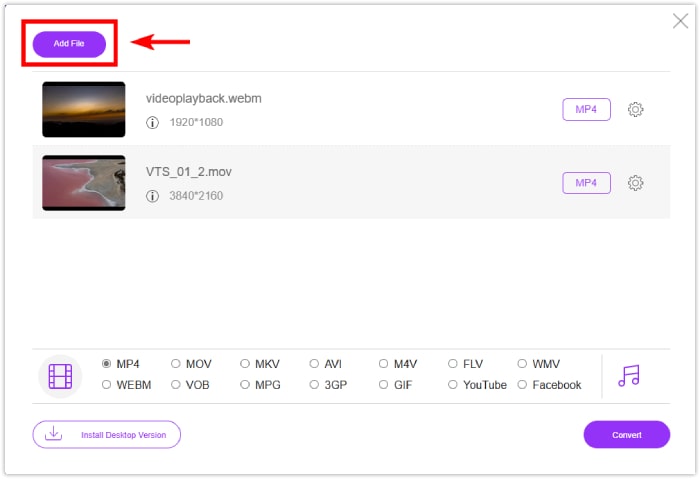
2. 최초 업로드 후, 파일 추가 버튼을 클릭하여 변환할 비디오 파일을 추가할 수 있습니다.
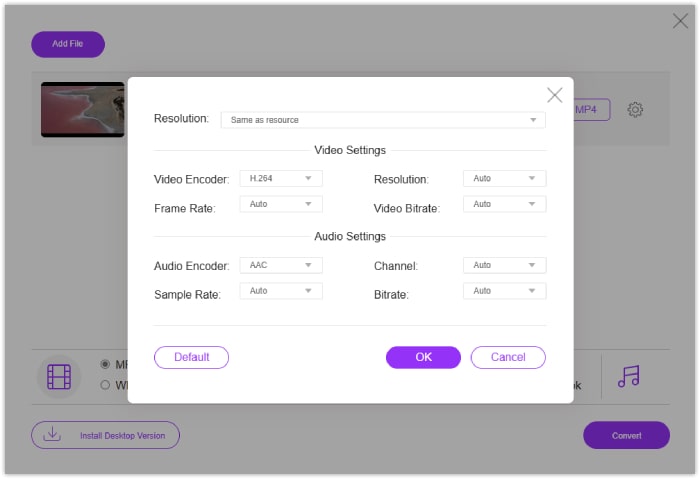
3. 사전 출력을 조정하려면 설정 아이콘을 클릭하여 사전 설정을 엽니다. 선호도에 따라 조정한 다음 확인 버튼을 클릭하여 변경 사항을 저장합니다.
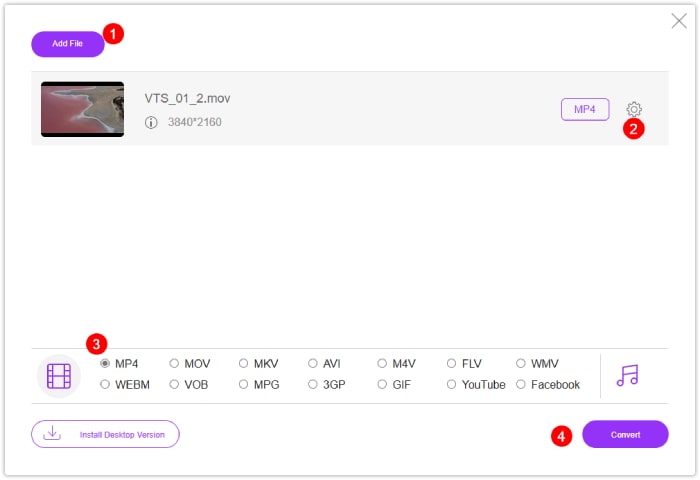
4. 출력 형식으로 파일을 MP4로 설정합니다. iPhone 비디오를 MP4로 저장하려면 변환 버튼을 클릭하세요!
2부. Windows 및 Mac에서 대량 iPhone 비디오를 MP4로 변환하는 방법
For an offline solution with more features, meet the FVC-picked Video Converter Ultimate. It is the go-to solution for converting iPhone videos to MP4 without losing quality. It features a user-friendly interface that even beginners can navigate easily. What sets it apart from other video converters is its lightning-fast conversion speed, boasting a process 120 times faster thanks to ultrafast and hardware acceleration technology.
이 궁극의 변환기는 AVI, MOV, MKV, WMV, WebM을 포함한 1000개 이상의 형식을 지원합니다. 또한 AI 기술로 강화된 강력한 편집 도구가 장착되어 원활한 향상 및 편집을 보장합니다. 초보자이든 노련한 사용자이든 FVC Video Converter Ultimate는 고급 편집 기능을 제공하는 동시에 변환 프로세스를 간소화합니다.
PC에서 iPhone 비디오를 MP4로 변환하는 단계:
1. 비디오 변환기를 데스크톱에 다운로드합니다. 아래에 제공된 다운로드 버튼을 클릭합니다. 설치 후 변환기를 실행합니다.
Free DownloadFor Windows 7 or laterSecure Download
Free DownloadFor MacOS 10.7 or laterSecure Download
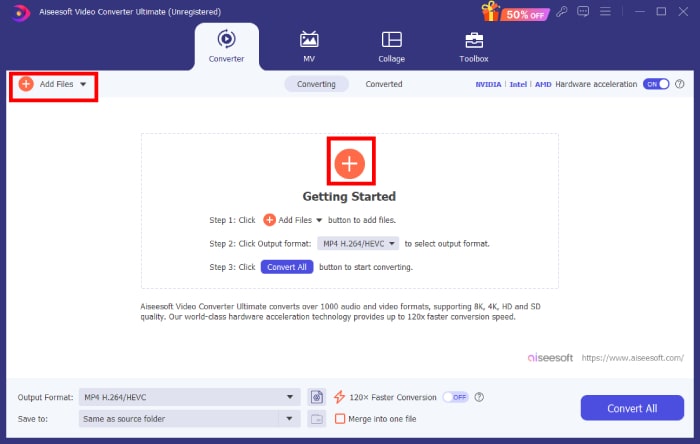
2. 인터페이스 중앙에 있는 빨간색 추가 버튼을 클릭하여 비디오 파일을 추가합니다. 또는 왼쪽 상단 모서리에 있는 파일 추가 탭을 클릭하여 여러 파일을 한 번에 업로드합니다.
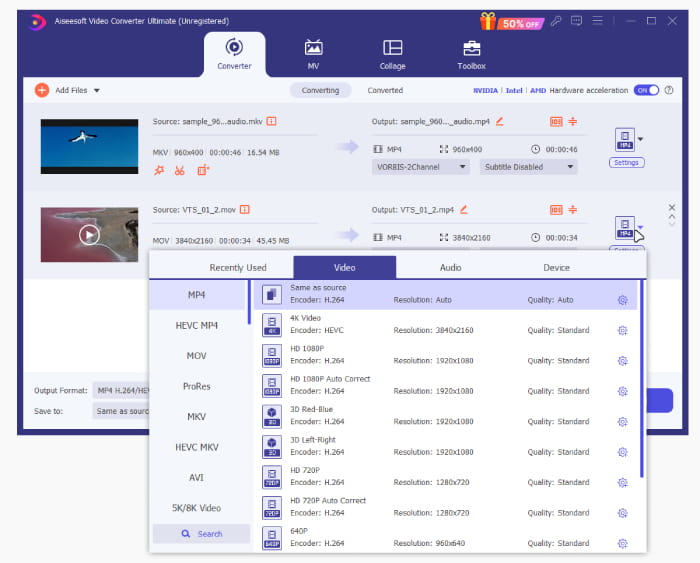
3. 파일 꼬리 부분에 있는 드롭다운 화살표 아이콘을 클릭하여 출력 형식을 선택합니다. ideo 메뉴로 이동하여 옵션에서 MP4를 선택합니다.
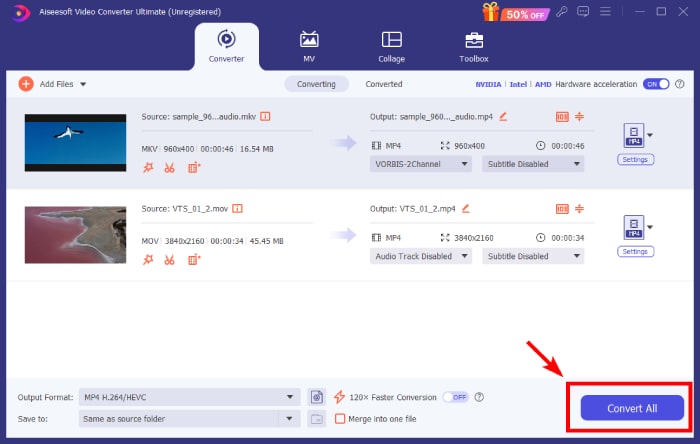
4. '모두 변환' 버튼을 클릭하여 변환 과정을 시작하세요!
3부. iPhone 비디오 변환에 대한 FAQ
iPhone 비디오를 MP4로 저장하는 방법?
By default, the iPhone saves recorded videos in MOV and MKV formats. To save the video in MP4 format, use third-party software such as FVC Video Converter Ultimate to convert the videos to MP4.
온라인 변환기를 사용하여 iPhone 비디오를 MP4로 변환할 수 있나요?
네. 많은 온라인 비디오 변환기를 사용하면 iPhone 비디오를 MP4 형식으로 변환할 수 있습니다. FVC Free Video Converter Online과 같은 웹사이트에서 이 서비스를 제공합니다.
iPhone 비디오를 iPhone에서 직접 MP4로 변환할 수 있는 방법이 있나요?
Yes, there are apps available on the App Store that allow you to convert QuickTime MOV videos to MP4 directly on your iPhone. You need to be resourceful when searching for the best app to use.
결론
This post offers the best online and offline methods to convert iPhone videos to MP4 while maintaining good quality. This gives you the confidence to step on a new journey or unlock your technical skills. Don’t hesitate to use your iPhone to record your vlog content, as you now know efficient ways to transform videos into more accessible formats like MP4!
-
 튜토리얼 – iPhone의 비디오를 새로운 비디오로 병합하는 4 가지 무료 방법
 iPhone에서 비디오를 하나로 결합하고 싶으십니까? 지원되는 모든 iPhone 모델 및 iOS 버전에서 4가지 쉬운 방법을 읽고 얻으세요.
-
 Reach 내에서 iPhone의 비디오 메타데이터를 변경하는 방법에 대한 팁
 iPhone 장치에서 비디오 메타데이터를 변경하는 데 어려움이 있습니까? 운 좋게도 이 기사에서는 iPhone에서 비디오 메타데이터를 변경하는 가장 좋은 방법에 대해 설명합니다.
-
 iPhone이 MP4로 녹음합니까? 3가지 쉬운 방법으로 답변
 MP4 형식으로 iPhone 비디오를 제작하는 방법을 살펴보겠습니다. 솔루션 외에도 이 기사에서는 다음 질문에 답할 것입니다. iPhone이 MP4로 녹음할 수 있습니까?
