


 비디오 컨버터 궁극
 스크린 레코더
 비디오 수리
 안전한 다운로드
Windows / Mac / iPhone / Android / Online에서 MP4를 MP3로 변환하는 방법
MP4 비디오의 오디오 트랙 만 유지하려는 경우 MP4를 MP3 형식으로 변환 할 수 있습니다. MP3는 거의 모든 장치, 플레이어 및 편집자가 지원하는 디지털 오디오 형식입니다. 오프라인 재생이나 추가 편집을 위해 MP4 비디오를 MP3 오디오로 변환하더라도 사운드 트랙을 추출하여 MP3 형식으로 저장할 수 있습니다. 품질 저하없이 MP4를 MP3로 변환하는 8 가지 실행 가능한 방법이 있습니다. 읽고 따르십시오.

1 부 : 무료로 MP4를 MP3 온라인으로 변환하는 방법
온라인 MP4 MP3 변환기는 편리하고 무료로 이용할 수 있는 선택입니다. 별도의 프로그램 설치 없이 MP4를 MP3 형식으로 바꿔 오디오만 추출할 수 있습니다. 다만, 대부분의 MP4 MP3 온라인 변환기는 업로드 가능한 파일 크기에 제한이 있습니다. 100MB 이상의 MP4를 MP3로 일괄 변환하고 싶다면, FVC Free Online Video Converter를 첫 번째 선택으로 사용할 수 있습니다.
• 100% 온라인에서 MP4를 MP3로 변환하는 무료.
• 일괄 변환 지원.
• 오디오 인코더, 채널, 샘플 속도 및 비트 전송률을 조정합니다.
• 직관적이고 깨끗한 인터페이스.
1단계: 공식 웹사이트에서 Add Files to Convert를 클릭합니다. 온라인 오디오 변환기를 처음 사용할 때는 런처를 다운로드해야 합니다. 몇 KB 정도밖에 되지 않습니다.
2단계: MP3로 변환하려는 MP4 영상을 선택합니다. Open을 클릭해 확인합니다.
3단계: 오른쪽 하단에 있는 Audio 아이콘을 클릭합니다. 출력 오디오 형식으로 MP3를 설정합니다.
4단계: 오디오 품질과 파일 크기를 조정하려면 기어 모양의 Settings 아이콘을 클릭합니다. 여기에서 오디오 샘플레이트, 채널, 비트레이트, 인코더를 설정할 수 있습니다. 그런 다음 OK를 클릭해 변경 사항을 저장합니다.
5단계: Convert를 클릭해 온라인에서 MP4를 MP3로 변환합니다. 100MB 이상의 MP4 파일도 무료로 MP3로 일괄 변환할 수 있습니다.
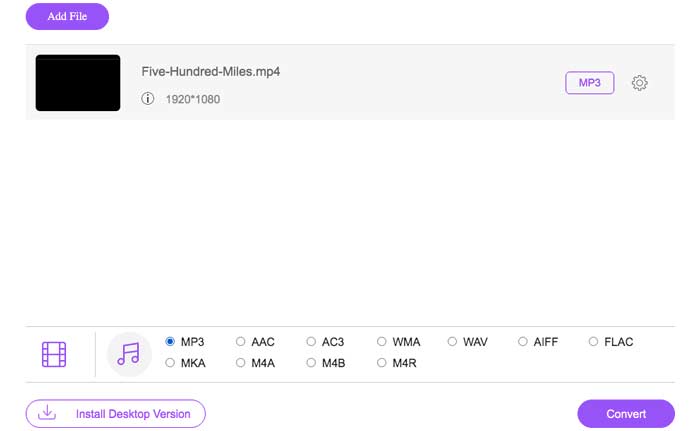
이 무료 온라인 MP4 변환기는 MP4를 M2TS, MTS, MOV, MKV, WMV, TS, GIF 등 다른 형식으로도 변환할 수 있습니다.
2 부 : Windows Media Player를 사용하여 Windows에서 MP4를 MP3로 변환하는 방법
다운로드하지 않고 MP4를 MP3로 변환하려면 Windows Media Player를 사용할 수 있습니다. Windows에서 MP4를 MP3로 무료로 바꾸는 데 도움이되는 사전 설치된 프로그램입니다. 따라서 Windows 10 / 8.1 / 7에서 Windows Media Player를 사용하여 MP4를 MP3로 변환 할 수 있습니다.
1단계: Windows Media Player를 실행합니다. 상단의 File을 클릭하고 Open을 선택해 MP4 파일을 추가합니다.
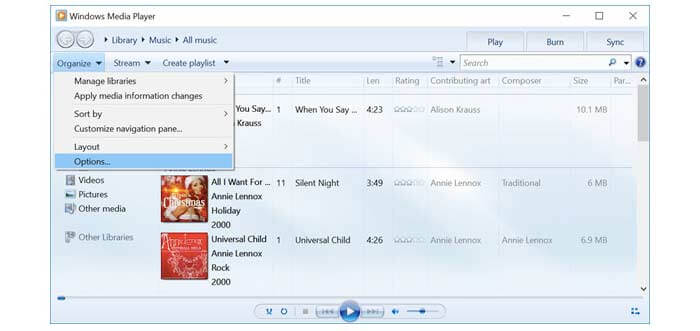
2단계: Organize를 클릭한 뒤 목록에서 Options를 선택합니다.
3단계: Options 창에서 Rip Music을 선택합니다.
4단계: Rip settings 아래의 Format 목록에서 MP3를 선택합니다.
5단계: Apply와 OK를 클릭해 Windows Media Player로 MP4를 MP3로 변환합니다.
제 3 부 : iTunes를 사용하여 Mac에서 MP4를 MP3로 변환하는 방법
iTunes는 모든 Mac 컴퓨터에 사전 설치되어 있습니다. iTunes를 사용하여 Mac에서 무료로 MP4를 MP3로 변경할 수 있습니다. MP3 버전의 사전 설정을 만드십시오. 나중에 iTunes를 사용하여 MP4를 MP3로 직접 전환 할 수 있습니다.
1단계: iTunes를 최신 버전으로 업데이트합니다. Edit 메뉴에서 Preferences를 선택합니다.
2단계: General 탭에서 Import Settings를 클릭합니다.
3단계: Import Using 옆의 목록을 펼칩니다. MP3 Encoder를 선택한 다음, OK를 클릭해 확인합니다.
4단계: MP4 영상을 iTunes 보관함에 추가합니다.
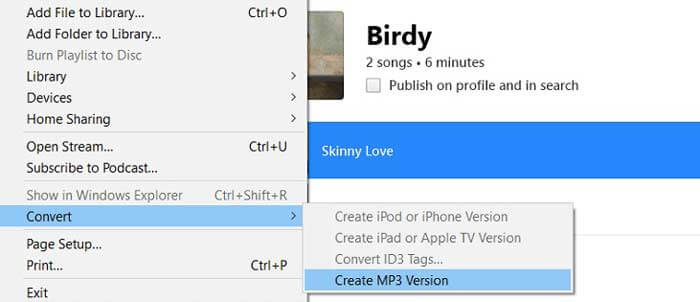
5단계: 상단의 File을 클릭합니다. Convert를 선택한 다음 Create MP3 Version을 선택합니다. 이제 Mac에서 iTunes를 사용해 MP4를 MP3로 변환할 수 있습니다.
제 4 부 : 미디어 변환기를 사용하여 iPhone에서 MP4를 MP3로 변환하는 방법
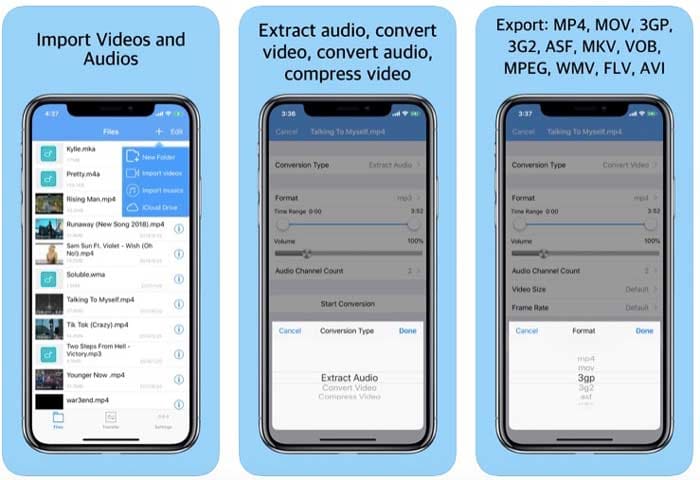
아이폰에서 MP4로부터 MP3 파일을 만들고 싶다면 Media Converter 앱을 사용할 수 있습니다. 이 앱은 MP4에서 오디오를 추출해 MP3 형식으로 저장할 수 있게 해줍니다. 또한 MP4 영상을 다른 비디오 및 오디오 형식으로 변환하는 것도 가능합니다.
1단계: 아이폰에 Media Player를 무료로 다운로드하여 설치하고 실행합니다.
2단계: 오른쪽 상단의 +를 탭합니다. Import videos를 선택해 MP4 영상을 추가합니다.
3단계: Information 아이콘을 선택합니다. Conversion Type에서 Extract Audio를 선택합니다. 출력 형식으로 MP3를 설정합니다.
4단계: Convert를 선택해 iPad와 iPhone에서 MP4를 MP3로 변환합니다.
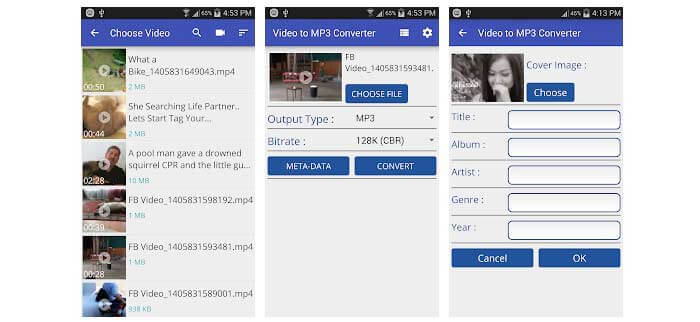
제 5 부 : 비디오를 MP3 변환기로 Android에서 MP4를 MP3로 변환하는 방법
Android 사용자의 경우 다운로드 한 MP4 비디오를 Video to MP3 Converter 앱을 사용하여 MP3로 변환 할 수 있습니다. 이름에서 알 수 있듯이 응용 프로그램은 비디오에서 MP3 오디오를 추출 할 수 있습니다. 따라서 여기에서 Android에서 MP4를 MP3 오디오로 변환 할 수 있습니다.
1단계: Video to MP3 Converter를 엽니다.
2단계: 찾아보기로 MP3로 추출하려는 MP4 영상을 선택합니다.
3단계: Output Type 목록에서 MP3를 선택합니다. 그런 다음 오디오 비트레이트를 조정합니다.
4단계: Convert를 선택해 안드로이드에서 MP4 영상을 MP3로 변환합니다.
파트 6 : VLC 미디어 플레이어를 사용하여 MP4를 MP3로 변환하는 방법
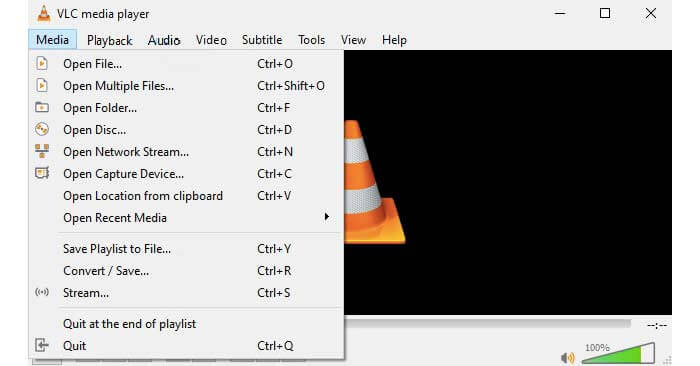
VLC는 멀티 플랫폼의 무료 오픈 소스 멀티미디어 플레이어 및 변환기입니다. 휴대폰이나 컴퓨터에서 VLC를 사용하여 MP4를 MP3로 변환 할 수 있습니다. VLC는 비디오 및 오디오 형식을 변경하는 MP4 to MP3 변환기 프리웨어가 될 수 있습니다.
1단계: VLC Media Player를 실행합니다. Media 드롭다운 목록에서 Convert/Save를 선택합니다.
2단계: Add를 클릭해 MP4 영상을 추가합니다. 그런 다음 하단 근처의 Convert/Save를 클릭합니다.
3단계: Settings 아래의 Profile을 찾습니다. MP4를 MP3로 변환하기 위해 Audio- MP3를 선택합니다.
4단계: Start를 클릭해 VLC Media Player로 MP4를 MP3로 변환하기 시작합니다.
파트 7 : HandBrake를 사용하여 MP4를 MP3로 변환하는 방법
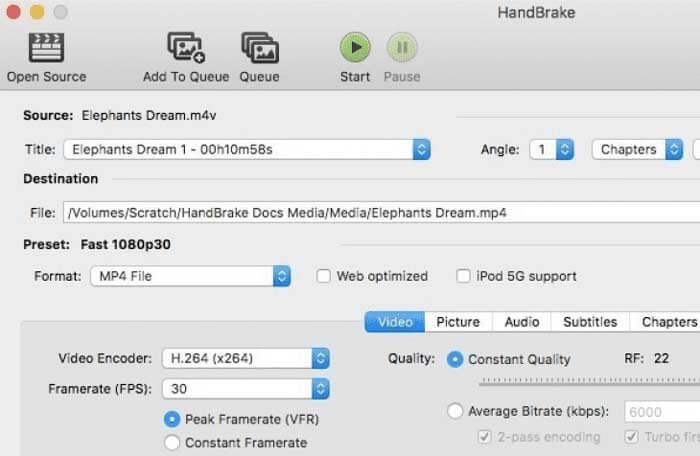
HandBrake는 Windows 및 Mac에서 MP4를 MP3로 변환 할 수있는 무료 오픈 소스 비디오 변환기입니다. MP4를 MP3 오디오로 변환하기 전에 오디오 출력 설정을 조정할 수도 있습니다.
1단계: HandBrake를 엽니다. Source를 클릭한 뒤 Open File을 선택해 MP4 영상을 HandBrake에 추가합니다.
2단계: Output Settings 섹션에서 Container 목록 중 MP3를 선택합니다.
3단계: 프로필 설정과 필터를 지정합니다.
4단계: 상단의 Start를 클릭해 HandBrake로 MP4를 MP3 형식으로 변환합니다.
파트 8 : FFmpeg를 사용하여 MP4를 MP3로 변환하는 방법
FFmpeg는 무료 MP4 to MP3 변환기 소프트웨어가 될 수도 있습니다. FFmpeg에 다음 명령 줄을 입력하십시오. 나중에 FFmpeg를 사용하여 멀티 플랫폼의 MP4에서 MP3를 추출 할 수 있습니다.
1단계: FFmpeg를 무료로 다운로드, 설치 및 실행합니다.
2단계: ffmpeg -i filename.mp4 filename.mp3 명령을 복사해 붙여넣습니다.
3단계: 키보드에서 Enter를 누릅니다.
4단계: FFmpeg를 사용해 MP4 영상을 MP3 오디오로 변환합니다.
파트 9 : MP4에서 MP3 로의 FAQ
Audacity로 MP4를 MP3로 변환 할 수 있습니까?
예. 먼저 Audacity 및 FFmpeg를 다운로드해야합니다. 나중에 Audacity를 사용하여 MP4에서 오디오를 추출 할 수 있습니다.
링크로 MP4를 MP3로 변환 할 수 있습니까?
예. 일부 온라인 변환기를 사용하면 온라인 MP4 비디오를 MP3로 변환 할 수 있습니다. Convertio, Ytmp3.cc 등을 사용할 수 있습니다. 그러나 URL에서 MP4를 MP3로 변환하는 성공률은 높지 않습니다.
파일 확장자를 .mp4에서 .mp3로 변경하는 방법은 무엇입니까?
파일 확장자를 바꾸는 방식으로도 MP4에서 MP3를 만들 수 있습니다. MP4 파일을 마우스 오른쪽 버튼으로 클릭한 뒤 Rename을 선택합니다. .mp4 부분을 선택해 .mp3로 바꾸면 MP4 파일을 MP3 파일처럼 사용할 수 있습니다.
대체로 위의 방법으로 휴대폰이나 컴퓨터에서 MP4를 MP3로 변환 할 수 있습니다. MP4 비디오에서 MP3 오디오를 대량으로 또는 개별적으로 추출하려는 경우 위의 온라인 및 오프라인 비디오 변환기 중에서 선택할 수 있습니다. 대부분의 경우 MP4에서 MP3 로의 변환은 몇 분 내에 완료 될 수 있습니다. 2 시간 이상 MP4 파일을 MP3 파일로 변환하는 경우 새 도구를 사용해야합니다. 이 작동하지 않는 오디오 추출기를 위에서 언급 한 다른 도구로 교체하십시오.
-
 품질 손실없이 MOV를 MP4로 변환하는 방법
 MOV (Apple QuickTime Movie) 파일을 MP4로 변환하고 싶으십니까? 이 게시물은 Windows 10 / 8 / 7 / XP 및 Mac OS X에서 MOV 비디오 파일을 MP4 형식으로 변환하는 4 가지 무료 방법을 공유합니다.
-
 MTS를 MP3로 무료로 변환하는 2 가지 간단한 방법
 MTS 파일에서 MP3 오디오를 추출해야하는데 방법을 모르십니까? MP3 변환기에 최고의 MTS는 무엇입니까? 이 게시물은 MTS / M2TS를 고품질 오디오로 MP3로 변환하는 데 도움이되는 2 가지 쉬운 방법을 공유합니다.
-
 데스크톱 및 온라인에서 FLV 비디오를 MP3 오디오 파일로 변환하는 방법
 FLV를 MP3 파일로 변환하는 방법? 이 기사를주의 깊게 읽고 선호하는 방법을 찾은 다음 단계별 가이드에 따라 원하는 것을 얻는 것입니다.
