


 비디오 컨버터 궁극
 스크린 레코더
 비디오 수리
QuickTime을 사용하여 슬로우 모션 비디오 재생에 대한 세부 정보 이해
Some media players supported only limited video formats to play. Other open-source media players use the QuickTime framework to provide functionality not found in the QuickTime Player's default implementation. WAV and AIFF are just a few of the audio formats that iTunes can export. These are the few instances that an issue some media players encounter, and it is a significant problem for some users who want to make their video play in slow motion in QuickTime. Read this article to know more about the good side of using QuickTime in terms of doing slow-motion videos.

1부. QuickTime을 사용하여 슬로우 모션을 재생하는 방법?
Developed by Apple Inc., QuickTime is an extensible multimedia framework capable of handling a wide range of digital media formats, including video, audio, panoramic images, and interactive elements such as text and graphics. It is also available on Windows and Mac. In addition, this media player consists of tools that can fix some faulty systems and customize settings like the playback speed of the video. There are different ways to control the playback speed of your video on the QuickTime media player, and some contain different steps of the procedure to access. Some just need shortcut keys to execute the adjustments you desire. Here is the easiest and best way to make slow-motion.
Step 1. Open the QuickTime Player and play a video you want to adjust its playback speed.
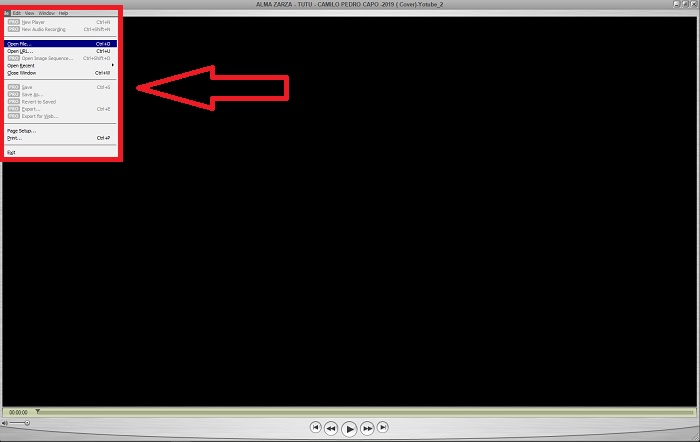
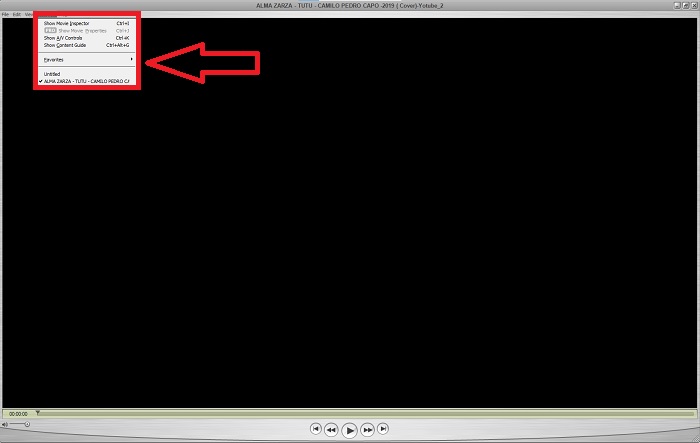
Step 2. When the video is playing, pause it first and select Windows from the top corner of the interface where you can see all the menu tabs and then proceed by pressing the Show A/V Controls or simply press CTRL + K on Windows or CMD + K on a Mac to bring up the A/V controls.
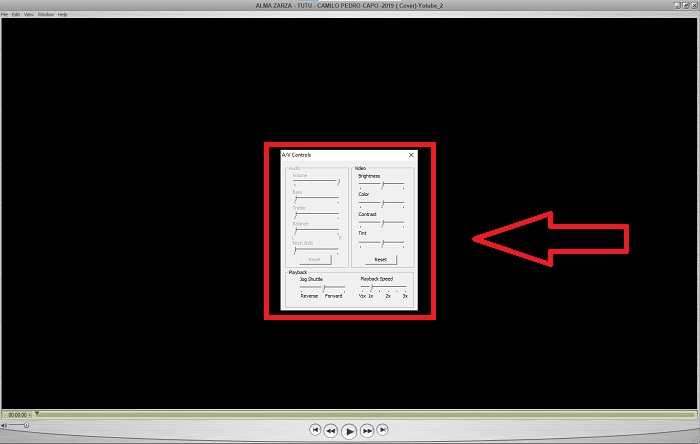
Step 3. After that, a new window or interface will appear. From that interface, you can now adjust the playback speed of your video by dragging the Slider. The A/V Controls should be closed once you are satisfied with the new playback speed and are certain that the video is already running in slow motion.
2부. 슬로우 모션으로 비디오를 재생하는 또 다른 효과적인 방법
방법 1. Video Converter Ultimate 사용
Most media players have limited supported formats to offer in converting videos; that's why we recommend using Video Converter Ultimate. This software can solve your problem with editing videos with the various tools it provides. It is also the best alternative for QuickTime media player to turn normal speed videos to slow motion. Using the Video Speed Controller, an easy-to-use tool indicated for adjusting the playback speed, you can produce a video with high quality despite customizing the video's rate. Now you know about the software, the steps below will help you learn about using the software.
Step 1. Download the Video Converter Ultimate by clicking Free Download. After you finish downloading, install it to your desktop and press Finish if it's done.
Free DownloadFor Windows 7 or laterSecure Download
Free DownloadFor MacOS 10.7 or laterSecure Download
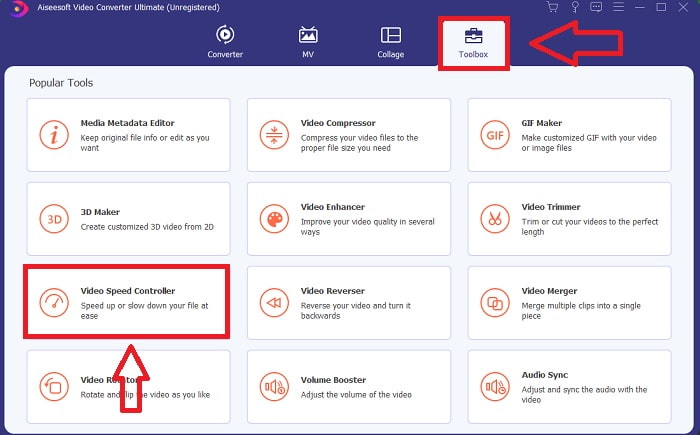
Step 2. After you installed the software on your desktop, proceed by launching it. Once you open the software, its interface will appear. Click the Toolbox tab and continue by clicking Video Speed Controller.
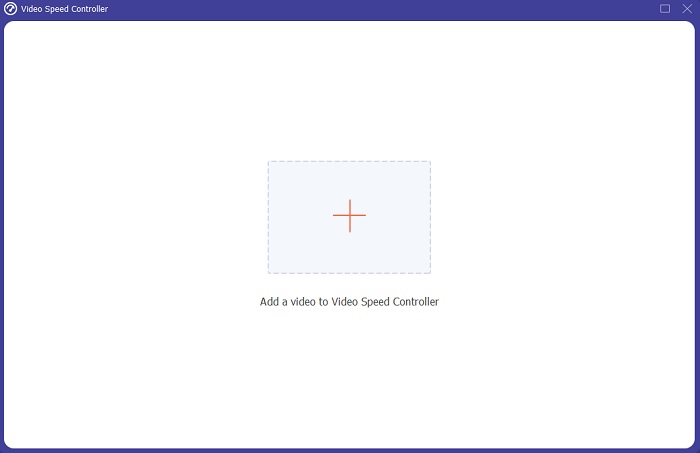
Step 3. To edit your video clip's playback speed, simply drag or click the + button to import files from your computer.
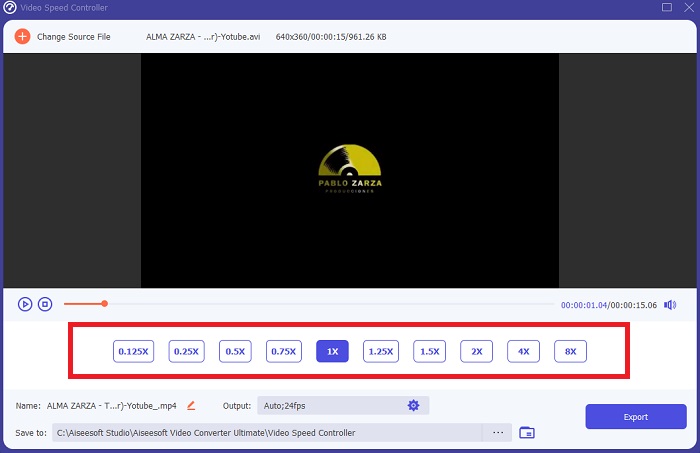
Step 4. Begin editing the playback speed of your video clip or create a slow-motion video from your normal speed video by choosing the types of speed you will apply.
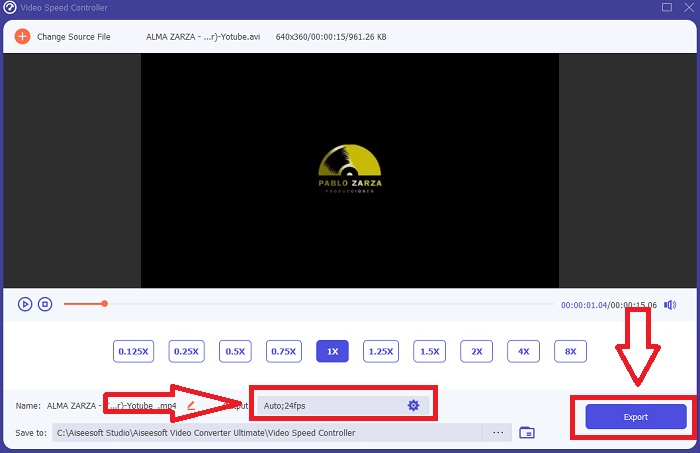
Step 5. After that, you can adjust the quality of your video output by changing its resolution, frame rate, format, etc. Finally, if everything is settled, click Export to transfer the converted file to your desktop.
방법 2. Ezgif 사용
Ezgif.com is a free, easy-to-use toolkit for creating and editing animated GIFs. Still, this online tool also supports editing and conversions for many other image formats, including animated WebP, PNG, MNG, and FLIF, and some basic video editing. Popular online tools include the GIF maker, video to GIF converter, and video speed. Video Speed is one of its best tools because it can easily adjust the playback speed of the video. Unlike the other online tools, in using Ezgif, you can customize the speed of your video until you get your desired speed. It also benefits the online tool other than some online tools available on the internet because it supports different formats. To know more about the details of the app, here are the steps-to-follow:
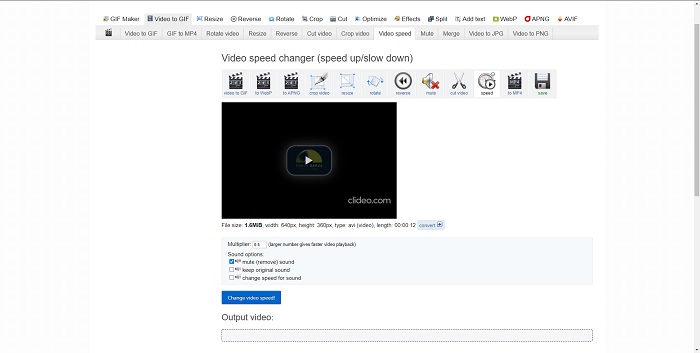
Step 1. Open your search browser and search for ezgif. Then, to start, choose the menu tab at the top corner of the interface and select Video Speed. After that, to import files, you can choose a video file from your computer or put a video link from other social media or websites that you want to adjust its speed. Proceed with clicking the Upload Video, to begin with the editing phase.
Step 2. You can now adjust the speed by putting the rate of the speed that will apply to your video. The larger you will input, the faster the video becomes. Then, you will be given a choice to mute or remove the video, keep the original sound and change its speed.
Step 3. To upload the video, click the Change video speed!
3부. QuickTime의 슬로우 모션에 대한 FAQ
QuickTime 미디어 플레이어란 무엇입니까?
QuickTime은 비디오, 사진, 사운드 및 파노라마 이미지를 처리할 수 있는 Apple Inc.의 확장 가능한 멀티미디어 프레임워크입니다. MacOS에는 QuickTime이 사전 설치된 상태로 제공됩니다. iTunes 10.5 이전에는 QuickTime이 Apple의 iTunes에 무료 다운로드로 포함되었습니다. 그러나 Windows용 QuickTime은 더 이상 지원되지 않으며 결과적으로 보안 허점도 더 이상 수정되지 않습니다.
Mac에서 QuickTime 비디오의 속도를 낮추려면 어떻게 합니까?
QuickTime Player는 슬로우 모션 비디오 렌더링을 지원합니다. 재생/일시 정지 버튼을 약 5초 동안 누르고 있으면 샘플 속도 변경 메뉴로 이동합니다. 따라서 비디오 품질에 영향을 주지 않고 비디오 재생 속도가 느려질 수 있습니다.
QuickTime에서 슬로우 모션을 끄는 방법은 무엇입니까?
재생 중에 종료 지점 마커를 비디오 파일의 시작 부분으로 끌어 슬로우 모션 효과를 취소할 수 있습니다. 인포인트 마커를 파일 끝으로 이동하려면 해당 마커를 선택하고 해당 위치로 끕니다. 이렇게 하면 나중에 사용할 수 있도록 수정된 플레이어 설정이 AAE 비디오 사이드카 파일에 저장됩니다.
결론
To sum it all up, QuickTime is one of the media players that is reliable in making normal speed videos slow-motion. It has many tools to offer as a Video Converter Ultimate has. Still, this software is more recommended because it can support big file size and video format more than the Quicktime media player. Also, in terms of tools that can make a slow-motion, they both have the same tool to make it possible but the Video Converter Ultimate can be used a lot easier and can produce a high-quality output of video.
-
 Sony Vegas에서 슬로우 모션 비디오를 만들기 위한 입증된 접근 방식
 Sony Vegas Pro 10은 슬로우 모션 동영상과 같은 뛰어난 동영상을 제작할 수 있지만 초보자에게는 복잡해 보일 수 있는 인기 동영상 편집기 중 하나입니다. 자세한 내용을 보려면 이 기사를 읽으십시오.
-
 After Effects를 사용하여 슬로우 모션 비디오를 만들 수 있는 확실한 증거
 모든 생각이나 감정은 슬로우 모션으로 무언가를 보면서 생성되거나 향상될 수 있습니다. After Effects에서 슬로우 모션을 만드는 방법을 알아보려면 이 문서를 읽으십시오.
-
 Adobe Premiere에서 슬로우 모션 비디오를 만드는 입증된 접근 방식
 Adobe의 최고의 소프트웨어 중 하나는 Premiere입니다. 슬로 모션 비디오를 만드는 것과 같이 비디오를 다음 단계로 향상시키는 데 더 많은 기능을 합니다. Adobe Premiere 및 유용한 기능에 대해 자세히 알아보려면 이 기사를 읽으십시오.
