


 비디오 컨버터 궁극
 스크린 레코더
 비디오 수리
 안전한 다운로드
DVD를 ISO 파일로 손쉽게 변환하기 [빠른 가이드]
DVD는 손상되기 쉽고, 일단 손상되면 되돌릴 수 없습니다. 표면이 긁힘이나 기타 물리적 충격에 민감하여 내부에 저장된 데이터가 손상될 수 있기 때문입니다. 백업 파일을 만드는 가장 좋은 방법은 ISO 파일을 만드는 것입니다.
ISO 파일은 DVD의 모든 데이터, 메뉴, 그리고 파일 구조를 하나의 파일에 담은 완전한 디지털 복제본입니다. 사용자는 물리적인 손상으로 인해 미디어 콘텐츠를 영구적으로 잃을 걱정 없이 손쉽게 콘텐츠에 접근할 수 있습니다. 이에 따라, 이 글에서는 DVD를 ISO로 손쉽게 변환하는 방법과, 사용 중인 컴퓨터 OS에 따라 어떤 도구를 사용하면 좋을지 안내합니다.

| DVD를 ISO로 변환 | 지원 플랫폼 | 변환 속도 | DVD 복호화 | 사용의 용이성 | 출력 품질 |
| AnyMP4 DVD 리퍼 | • 윈도우 • 맥OS | 매우 빠름 | 예 | 매우 쉬움 | 우수한 |
| WinX DVD 리퍼 플래티넘 | • 윈도우 • 맥OS | 빠른 | 예 | 쉬운 | 좋은 |
| 디스크 유틸리티 | • 맥OS | 아니 | 예 | 도전적인 | 좋은 |
| 파워ISO | • 윈도우 • 맥OS • 리눅스 | 빠른 | 예 | 보통의 | 좋은 |
1부. DVD를 ISO로 변환하는 가장 좋은 방법
DVD를 ISO 파일로 변환하는 가장 좋은 방법은 AnyMP4 DVD Ripper를 사용하는 것입니다. AnyMP4 DVD Ripper를 사용하면 실물 DVD를 ISO 이미지 파일로 빠르고 쉽게 변환할 수 있습니다. DVD의 정확한 디지털 복사본을 생성하여 메뉴, 자막, 오디오 트랙을 포함한 모든 원본 콘텐츠를 보존하고 필요에 따라 편집할 수도 있습니다.
주요 특징:
1. MP4, MKV, MOV, FLV, AVI 등 500개 이상의 형식과 장치를 지원합니다.
2. 자체 제작 DVD, 상업용 DVD, 99개 타이틀 DVD 등 모든 종류의 DVD를 지원합니다.
3. 인코더, 샘플링 속도, 채널 및 비트 전송률과 같은 조정 가능한 출력 설정.
4. 자체 제작 DVD, 상업용 DVD, 99개 타이틀 DVD, 운동 DVD를 비롯하여 DVD ISO 및 폴더 등 모든 DVD 유형을 지원합니다.
5. 내장 DVD 툴킷에는 자르기, 크롭, 워터마크 및 효과 기능이 포함되어 있습니다.
DVD를 비디오로 리핑한 뒤 ISO를 생성하는 단계:
1단계. 먼저 컴퓨터에 AnyMP4 DVD Ripper를 다운로드하여 설치해야 합니다. 이 프로그램은 macOS와 Windows OS 모두에서 사용할 수 있다는 점을 유의하세요.
무료 다운로드(Windows 7 이상용) 보안 다운로드
무료 다운로드(MacOS 10.7 이상용) 보안 다운로드
다음 단계로 넘어가기 전에 DVD를 컴퓨터의 DVD 드라이버에 넣고 감지될 때까지 몇 분간 기다려야 합니다.
2단계. 이후 AnyMP4 DVD Ripper가 자동으로 DVD를 분석하면, "Output Format" 버튼을 클릭하여 출력 형식을 선택할 수 있습니다.

3단계. "Rip All"을 클릭하여 DVD를 ISO 형식으로 변환하기 시작합니다.
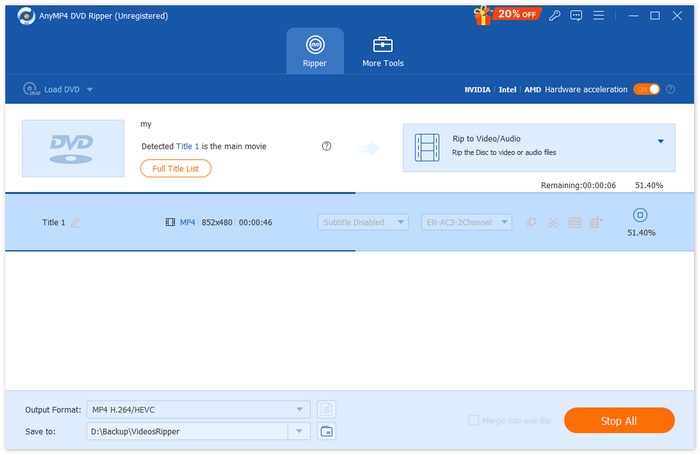
AnyMP4 DVD Ripper의 DVD를 ISO 파일로 변환하는 기능은 DVD의 정확한 디지털 사본을 쉽고 안정적으로 만들 수 있는 방법을 제공합니다. 간단한 인터페이스와 빠른 처리 속도를 자랑하는 이 프로그램은 DVD 컬렉션을 안전하게 디지털화하고 관리하려는 모든 사용자에게 편리한 솔루션입니다.
2부. Windows에서 DVD를 ISO로 변환
Windows를 사용하는 경우 DVD를 ISO로 변환하는 데 사용할 수 있는 가장 좋은 도구는 WinX DVD Ripper Platinum입니다. 이 도구를 사용하면 DVD에서 미디어 콘텐츠를 추출하여 ISO 파일로 변환할 수 있으며, 복사 방지 및 지역 코드가 있는 파일도 변환할 수 있습니다.
DVD를 비디오로 리핑한 뒤 ISO를 생성하는 단계:
1단계. WinX DVD Ripper Platinum에서 DVD Disc 아이콘을 클릭하여 ISO 파일로 만들고자 하는 DVD를 불러옵니다.
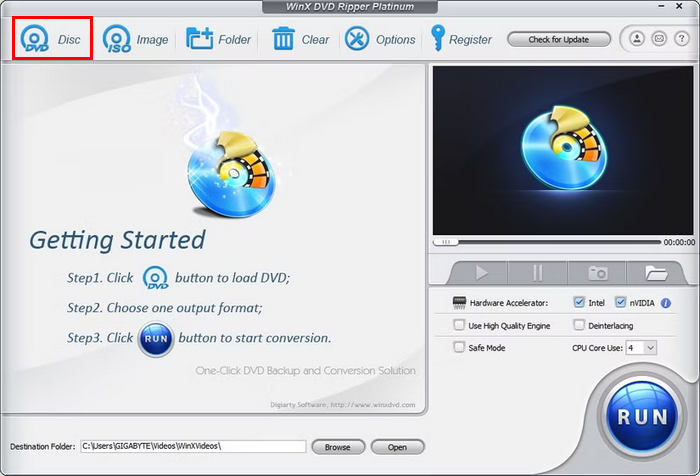
2단계. DVD 정보가 모두 로드되면 출력 프로필 창이 나타납니다. 여기에서 Output Profile을 선택한 다음 DVD Backup Profile을 고르고, DVD Backup을 클릭한 후 마지막으로 Clone DVD to ISO Image를 선택합니다.
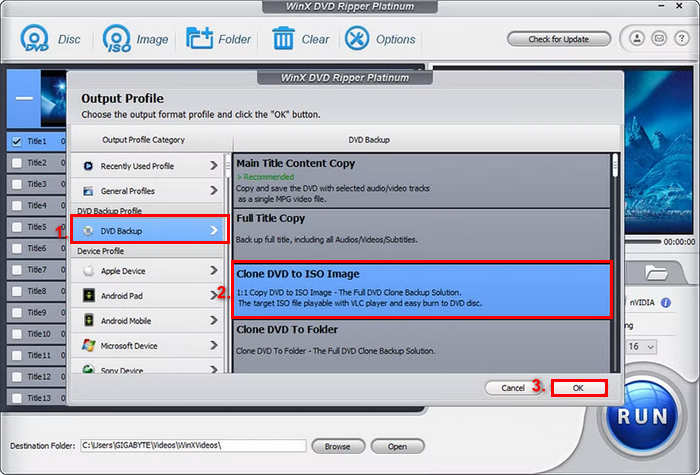
3단계. 이제 변환된 DVD ISO 이미지 파일을 저장할 폴더를 선택합니다. 마지막으로 RUN 버튼을 클릭하여 DVD에서 ISO 이미지를 리핑하기 시작합니다.
이 도구로 DVD에서 ISO 파일을 만들 수 있지만, 인터페이스가 다소 복잡해 부담스럽게 느껴질 수 있습니다. 또한 이 기능을 충분히 활용하려면 유료 구독이 필요합니다. 또는 ISO를 재생하기 위해 ISO 플레이어를 사용해 볼 수도 있습니다.
3부. Mac에서 DVD를 ISO 파일로 변환하는 방법
Mac을 사용하는 경우, Disk Utility는 DVD를 ISO로 변환하는 최고의 선택입니다. 이 도구는 macOS에 내장된 애플리케이션으로, 사용자가 저장 장치를 관리하고 디스크 이미지를 생성할 수 있도록 해줍니다. Disk Utility의 기능 중 하나는 DVD를 ISO 파일로 변환하는 것입니다. 이 기능을 통해 사용자는 DVD의 정확한 디지털 백업을 생성할 수 있습니다.
Mac에서 DVD를 ISO로 변환하는 단계:
1단계. Mac에 DVD를 드라이브에 삽입하고 로드될 때까지 기다립니다.
2단계. 다음으로 디스크 유틸리티(Disk Utility)를 열고, 로드가 완료되면 왼쪽 사이드바에서 DVD를 찾아 선택합니다.
3단계. 이제 파일(File) 탭을 클릭하고, 새 이미지(New Image)를 선택한 뒤, 디스크 이름으로부터 새 이미지(New Image from the Disk Name)를 고릅니다.
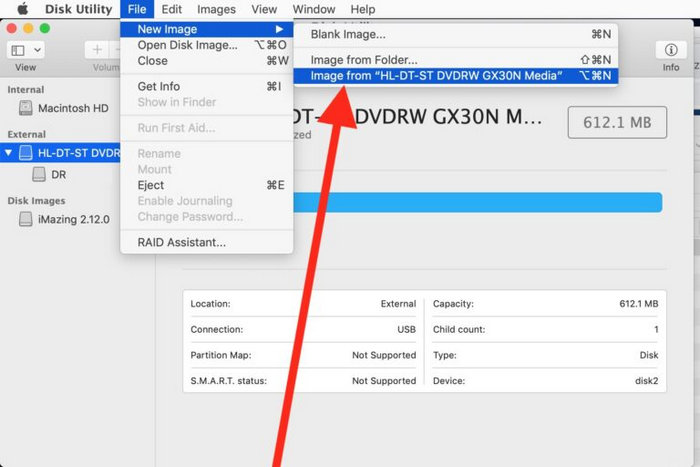
4단계. 그다음 디스크 이미지 파일을 저장할 위치와 이름을 지정한 후 저장(Save) 버튼을 클릭합니다.
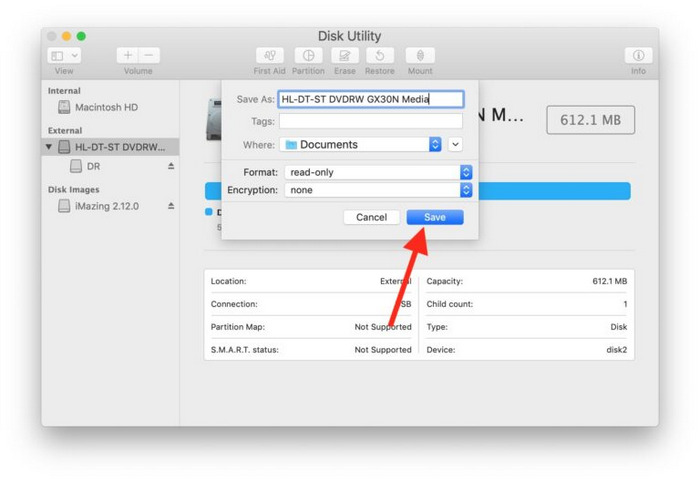
Mac에서 이 과정을 거치면 DVD가 ISO 파일 대신 DMG 파일 형식으로 변환됩니다. 터미널에서 DMG 파일을 ISO 파일로 변환하는 특정 명령을 실행해야 합니다.
4부. Linux에서 DVD를 ISO로 변환
PowerISO는 디스크 이미징 및 이미지 처리 소프트웨어입니다. 이 도구를 사용하면 DVD를 쉽게 추출하여 ISO 파일을 만들 수 있습니다. 또한, 다양한 이미지 형식을 지원하여 ISO 형식 외에도 더 많은 옵션을 제공합니다.
Linux에서 DVD를 ISO로 변환하는 단계:
1단계. 먼저 해당 도구가 장치에 설치되어 있어야 합니다.
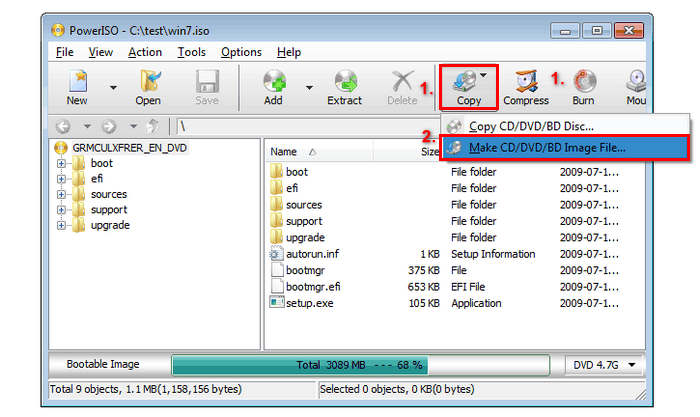
2단계. 다음으로 PowerISO를 실행하고, 도구 모음에서 Copy 버튼을 클릭한 뒤 Make CD / DVD / BD Image File을 선택합니다.
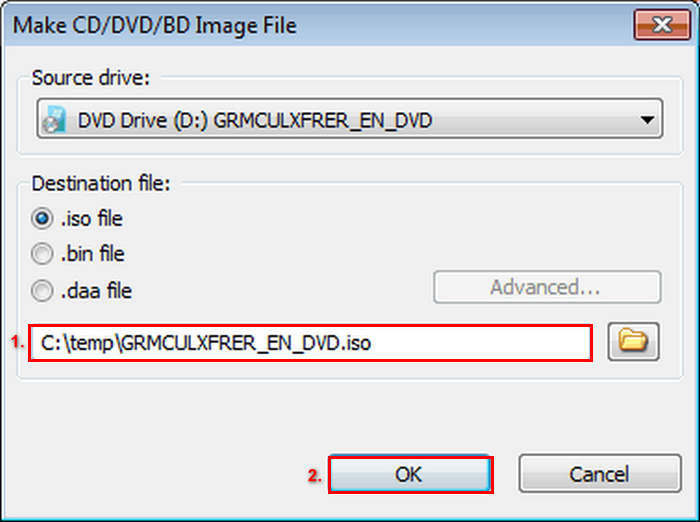
3단계. 마지막으로 ISO로 변환하려는 디스크가 들어 있는 DVD 드라이브를 선택하고, 대상 파일 형식으로 ISO를 지정합니다. 마지막으로 OK를 클릭하여 선택한 디스크에서 ISO 파일을 생성합니다.
이 ISO 파일 제작 프로그램은 DVD를 ISO로 변환하는 데 정말 탁월합니다. 변환 과정은 매우 간단하고, 단계도 쉽게 따라 할 수 있습니다. 하지만 무료 버전은 생성할 수 있는 파일 크기가 제한됩니다.
추가로 읽어보기: ISO를 MP4로 변환하는 방법을 여기에서 확인해 보세요.
5부. DVD를 ISO로 변환하는 것에 대한 FAQ
ISO 파일이란 무엇인가요?
ISO 파일은 모든 데이터, 메뉴 및 파일 구조를 하나의 파일에 담은 DVD의 완전한 디지털 사본입니다. 사용자는 실제 디스크 없이도 콘텐츠에 액세스할 수 있어 잠재적인 손상으로부터 보호할 수 있습니다.
보호된 DVD를 ISO로 변환할 수 있나요?
네. WinX DVD Ripper Platinum과 같은 일부 DVD 리핑 소프트웨어는 복사 방지된 DVD를 ISO 파일로 변환할 수 있습니다. 하지만 모든 도구가 이 기능을 지원하는 것은 아니므로 암호화를 처리할 수 있는 소프트웨어를 선택하는 것이 중요합니다.
ISO 외에 DVD를 복사하는 데 가장 좋은 포맷은 무엇입니까?
ISO 외에도 MP4는 다양한 기기와의 호환성과 효율적인 압축 덕분에 DVD 리핑에 가장 적합한 포맷입니다. FVC가 추천하는 Video Converter Ultimate는 DVD를 MP4로 변환하는 데 적합하며, 고품질 출력, 일괄 변환 및 편집 도구를 제공합니다.
결론
DVD를 ISO로 변환하는 것은 미디어를 보존하면서 물리적인 손상으로부터 보호하고, 동시에 손쉬운 접근성을 보장하는 효과적인 방법입니다. 이 글에서 소개한 방법들을 활용하면 macOS, Windows, 또는 Linux를 사용하더라도 손쉽게 DVD에서 ISO 파일을 만들 수 있습니다. 사용 중인 운영 체제에 가장 적합한 도구를 선택해 지금 바로 시작해 보세요. 이렇게 하면 좋아하는 DVD를 앞으로도 오랫동안 안전하고 편리하게 즐길 수 있습니다.
-
 DVD를 AVI로 변환: 최고의 DVD 리핑 소프트웨어 3가지 [리뷰]
 더 쉽게 재생하고 보관하기 위해 DVD를 AVI로 리핑하고 싶으신가요? 최고의 DVD-AVI 변환기에 대한 자세한 리뷰를 읽고 여러분에게 완벽한 도구를 찾아보세요.
-
 [해결됨] VLC가 DVD를 재생하지 않음, 해결 방법
 VLC에서 DVD를 재생할 수 있습니까? VLC가 내 DVD를 재생하지 않는 이유는 무엇입니까? VLC에서 Windows 10에서 DVD를 재생하려면 어떻게해야합니까? 이 게시물은 DVD가 재생되지 않는 VLC 문제를 해결하는 3 가지 팁을 공유합니다.
-
 DVD 플레이어 형식에 대해 알아야 할 모든 것
 이것은 DVD 플레이어 형식으로 파일을 여는 방법과 다른 형식으로 변환하는 방법을 포함하여 DVD 플레이어 형식에 대한 지식을 제공하는 가이드입니다.
