


 비디오 컨버터 궁극
 스크린 레코더
 비디오 수리
 안전한 다운로드
Windows, Mac, iPhone 및 Android용 궁극의 무료 스크린 레코더
Screen recorders are emerging nowadays because many people want to record their activities on their PCs. But finding a reliable screen recorder is quite hard, specifically that some screen recorders have malware and some are just for advertising purposes. Therefore, we tried some of the best screen recorders online, offline, and even mobile applications with the best features to use and are 100% free. So, read this article until the end to know the best and free screen recorders for you.

파트 1. 3 최고의 온라인 스크린 레코더
다운로드할 필요가 없는 스크린 레코더를 갖고 싶다면 온라인 스크린 레코더를 찾고 있을 것입니다. 온라인 스크린 레코더가 귀하에게 편리함을 제공할 것이므로 안심하십시오. 따라서 이 부분에서는 세 가지 최고의 무료 온라인 스크린 레코더를 알게 될 것입니다.
FVC 무료 스크린 레코더 온라인
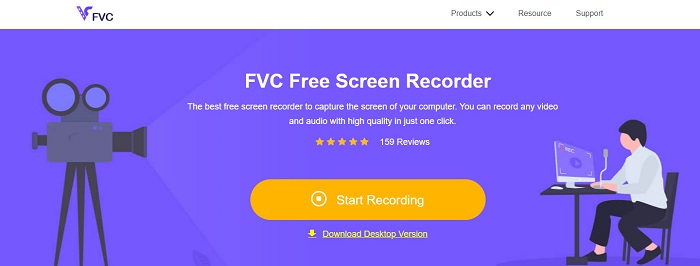
The best online screen recorder you will see on the internet is FVC Free Screen Recorder Online. This online screen recorder can record and capture your computer's activity. It can record your screen with a high-quality video. And if you just want to record a certain area of your screen, then it has a feature where you can adjust the recording area of your screen recording.
또한 매우 간단한 사용자 인터페이스를 가지고 있어 초보자에게 친숙한 도구입니다. 또한 단축키를 조정하고, 비디오 출력 형식을 선택하고, 비디오 출력의 프레임 속도를 조정할 수 있는 고급 설정도 있습니다.
따라서 이 온라인 변환기를 사용하려면 아래의 간단한 가이드를 따르십시오.
Step 1. On the browser that you use, search FVC Free Screen Recorder Online on the browser you use, or just click this link to go directly to their web page. And then launch the app.
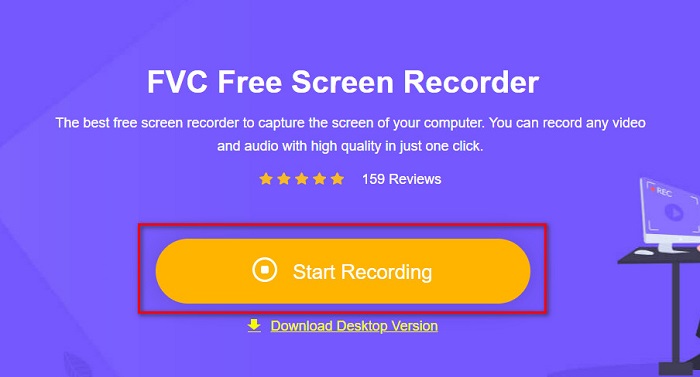
Step 2. Click the Start Recording button on the software’s main interface to start your screen recording. And then, the adjustable frame will appear.
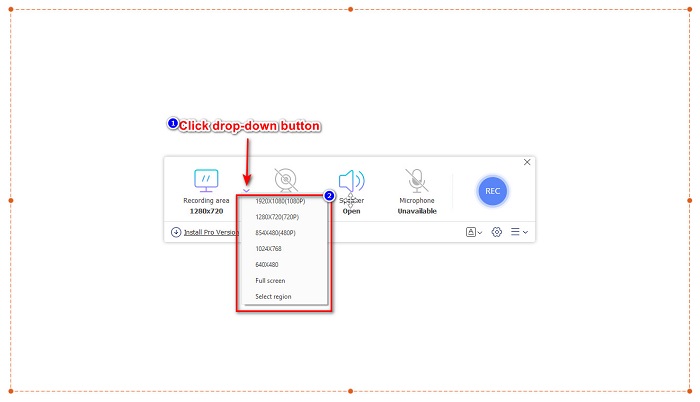
Step 3. Next, choose the region that you want to record on your screen by clicking the drop-down button on the Recording Area option. You can either record your screen or select the region you desire to record.
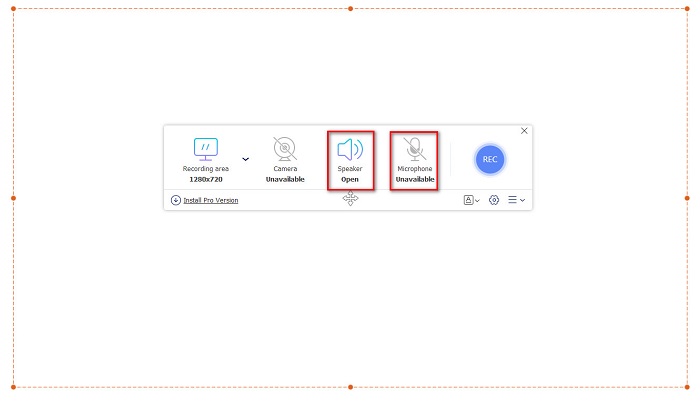
Step 4. And then, select the audio recorder you want by clicking the speaker or the microphone option.
Step 5. Lastly, click the RECec button to start recording. Then in you are done recording, click the stop sign button, and your recording will automatically be saved on the software interface.
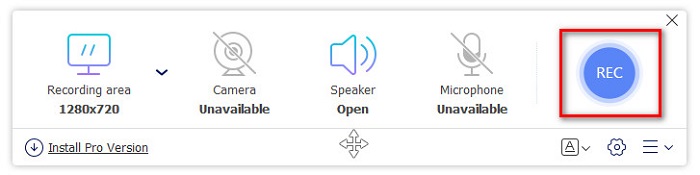
그리고 그게 다야! 위의 간단한 가이드를 수행하면 화면 활동을 쉽게 기록할 수 있습니다.
장점
- 고품질 비디오 출력으로 화면 활동을 기록할 수 있습니다.
- 비디오의 프레임 속도, 코덱 및 출력 형식을 조정할 수 있습니다.
- 사용하기 쉬운 소프트웨어 인터페이스가 있습니다.
- Google, Firefox, Safari 등을 포함한 모든 웹 브라우저에서 액세스할 수 있습니다.
단점
- 고급 기능에 액세스하려면 프로 앱을 다운로드해야 합니다.
스크린앱.IO
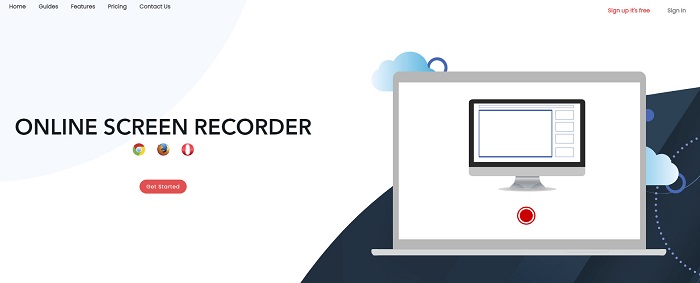
ScreenApp.IO is a free online screen recorder that allows you to record your screen activity easily. This online computer screen recorder has a simple GUI, making it user-friendly. You can also choose the audio recorder of this online tool. However, this online screen recorder only has limited features to use. Nevertheless, many people use this screen recorder for convenience purposes.
장점
- 그것은 작동하기 쉬운 소프트웨어 인터페이스를 가지고 있습니다.
- Google 및 Firefox와 같은 거의 모든 웹 브라우저에서 사용할 수 있습니다.
- 원하는 녹음기를 선택할 수 있습니다.
단점
- 로딩 속도가 느려질 수 있습니다.
- 원하는 출력 파일 형식을 선택할 수 없습니다.
클립챔프
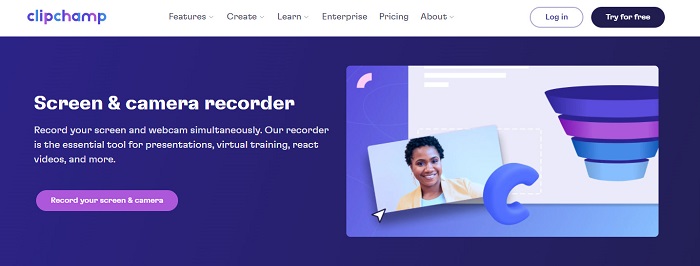
ClipChamp is one of the most popular online screen recorders available on the internet. This online tool allows you to put text on your recording and has features to adjust the frame size of your recording. Although it has a hard-to-use software interface, it is still effective for recording presentations and meetings. It also uses cookies which allows the site to have your data.
장점
- 화면을 편리하게 녹화할 수 있습니다.
- 화면 녹화의 프레임 크기를 조정할 수 있습니다.
단점
- 웹사이트에 쿠키를 사용합니다.
- 인터넷 연결이 느리면 화면 녹화에 영향을 줄 수 있습니다.
파트 2. 2 데스크탑을 위한 최고의 스크린 레코더
귀하의 PC에 가장 적합한 스크린 레코더를 찾고 계십니까? 데스크탑을 위한 최고의 스크린 레코더가 있으므로 더 이상 걱정하지 마십시오. 많은 기능을 갖춘 스크린 레코더를 찾기는 어렵지만 오프라인에서 사용할 수 있는 가장 뛰어난 스크린 레코더를 찾았습니다.
반디캠
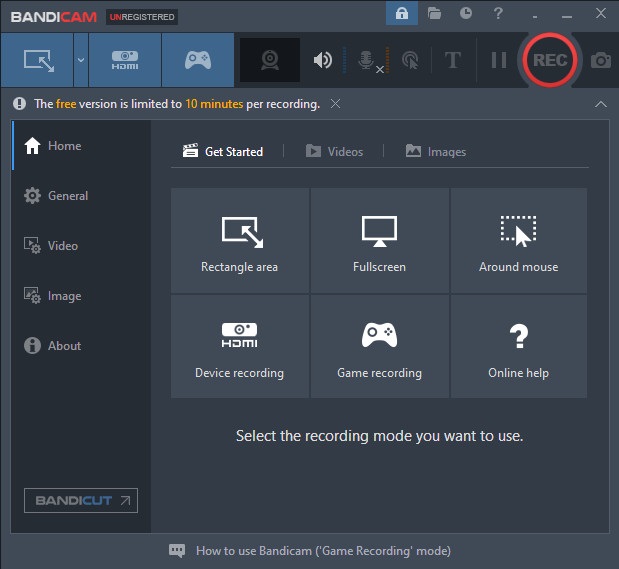
Bandicam is probably the most known desktop screen recorder with many features to use. It has advanced features like device recording where it allows you to record external video devices, like Webcam, Smartphones, Xbox, and more. You can also record your game-winning move by clicking the Game recording option. Moreover, using this converter, you can capture images while screen recording. However, its user interface is quite hard-to-use; so beginner users may find it challenging.
장점
- 더 많은 장치 녹화 및 게임 녹화 모드와 같은 고급 기능이 있습니다.
- 녹화하는 동안 이미지를 캡처할 수 있습니다.
- Windows 및 Mac을 포함한 거의 모든 크로스 미디어 플랫폼에서 사용할 수 있습니다.
단점
- 작동하기 어려운 소프트웨어 인터페이스가 있습니다.
- 특별한 기능을 사용하기 전에 앱을 구매하세요.
화면녹화
Another screen recording software that you can use is ScreenRec. This screen recorder is an easy-to-use tool that produces good quality screen records. It also allows you to adjust your recording quality by SD, HD, and 4K. Furthermore, it has a feature to take a screenshot on your screen and record your voice while screen recording. Its downside is that it has a few features to use that other desktop screen recorders have.
장점
- 간단한 사용자 인터페이스가 있습니다.
- 무료로 다운로드할 수 있습니다.
- Windows, Mac 및 Linux에서 사용할 수 있습니다.
단점
- 사용할 수 있는 몇 가지 기능이 있습니다.
3부. iPhone 및 Android용 최고의 스크린 레코더 3개
iPhone 또는 Android 장치에 내장 화면 레코더가 없는 경우 특히 전화를 사용하여 회의를 화면 녹음하려는 경우에는 불행한 일입니다. 그러나 여전히 iPhone 또는 Android 장치를 사용하여 화면 녹화를 하고 싶다면 끝이 아닙니다. 따라서 이 부분에서 iPhone 및 기타 Android 기기에 가장 적합한 화면 녹화기를 볼 수 있습니다.
AZ 스크린 레코더
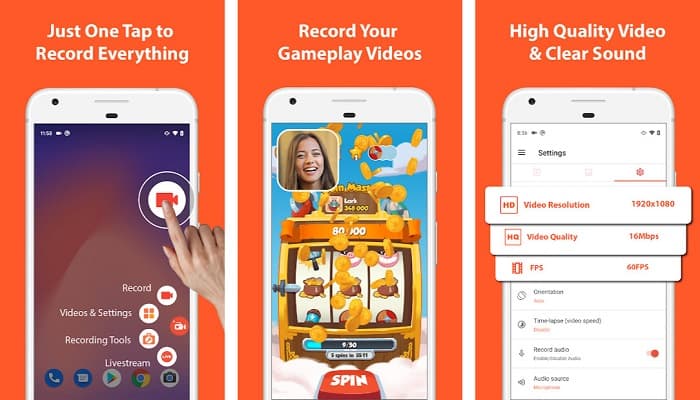
AZ Screen Recorder is proven to be one of the best screen recorders for your iPhone or Android device. If you are looking for a screen recorder that can record a time-lapse video, then this tool has that feature for you. It also allows you to change your screen recording video's resolution and bit rate. Besides, it can produce great quality video without having a hard time using it.
장점
- 타임랩스 비디오, 녹색 화면 수정, 비디오에 텍스트 및 로고 추가와 같은 고급 기능이 있습니다.
- 직관적인 사용자 인터페이스가 있습니다.
- 응용 프로그램을 무료로 사용할 수 있습니다.
단점
- 때때로 느린 로딩 프로세스가 발생할 수 있습니다.
모비즌
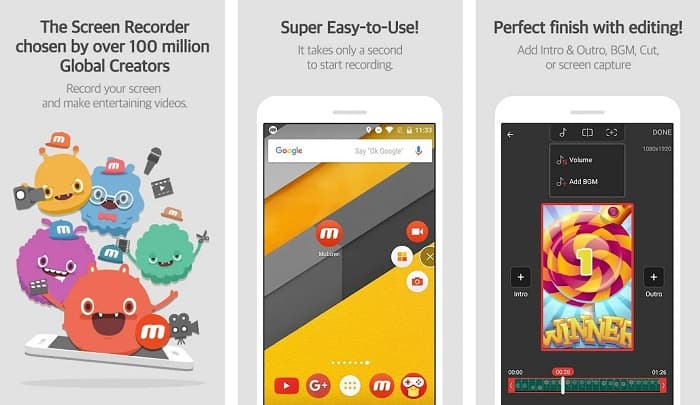
Mobizen is a screen recorder that is available on iPhone and Android phones. Among the other screen recorder for mobile phones, it has a floating button where you can access its features. In addition to that, you can adjust the video quality, resolution, and FPS (Frame Per Second) of your screen recording. With its easy-to-operate software interface, you can easily screen record activities on your screen.
장점
- 화면 녹화를 쉽게 할 수 있는 플로팅 버튼이 있습니다.
- 화면 녹화에 배경 음악을 추가하는 기능이 있습니다.
단점
- 비디오의 오디오에 때때로 결함이 있을 수 있습니다.
V 리코더
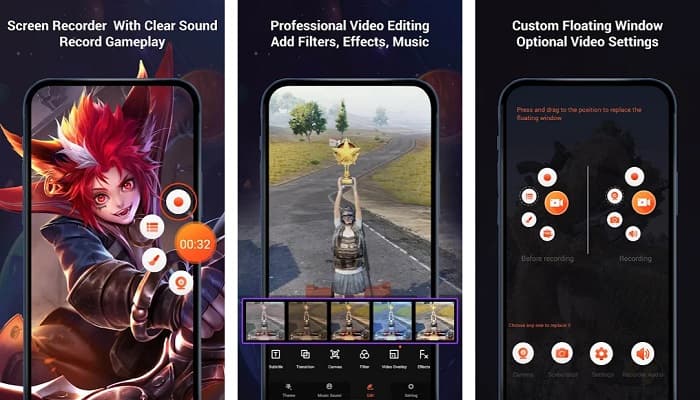
V Recorder is a screen recorder app that has a built-in video editor. This screen recorder can produce high-quality video outputs. In addition, you can record your games easily while playing. And if you are looking for a way to record your reactions while playing, this tool has a facecam recorder. However, many user reviews say that it cannot record internal and external audio. If you want to record audio on your iPhone, click here to learn more details.
장점
- 간단한 사용자 인터페이스가 있습니다.
- 그것은 당신이 당신의 비디오 녹화를 편집할 수 있습니다.
- iPhone 및 Android 기기에서 사용할 수 있습니다.
단점
- 때때로 외부 및 내부 오디오를 녹음하지 않습니다.
- 고유 기능에 액세스하기 전에 앱을 구매해야 합니다.
4부. 사용할 스크린 레코더
어떤 스크린 레코더를 사용할지 여전히 확실하지 않은 경우 아래에서 최고의 스크린 레코더 온라인, 오프라인 및 모바일 앱의 비교 차트를 제공했습니다. 또한 이 부분에서는 위에서 언급한 스크린 레코더의 기능과 특성에 대한 통찰력을 제공합니다.
| 특징 | FVC 무료 스크린 레코더 온라인 | 스크린앱.IO | 클립챔프 | 반디캠 | 화면 녹화 | AZ 스크린 레코더 | 모비즌 | V 리코더 |
| 사용하기 쉬운 소프트웨어 인터페이스 |  | |  | | | | | |
| 무료 사용 | | | | | | | | |
| 비디오 설정을 변경할 수 있습니다 | | | | | | | | |
| 안전한 사용 | | | | | | | | |
| 장치 오디오를 녹음할 수 있습니다 | | | | | | | 가끔 글리치가 있다 | 때때로 내부 및 외부 오디오를 녹음하지 않습니다 |
5부. 최고의 스크린 레코더에 대한 FAQ
iPhone 11에는 화면 녹화기가 내장되어 있습니까?
iOS 11 시스템이 설치된 모든 iPhone에는 내장 스크린 레코더가 있습니다. 따라서 iPhone 11 사용자인 경우 화면 녹화용 앱을 다운로드할 필요가 없습니다.
스크린 레코더는 얼마나 오래 녹화할 수 있습니까?
화면 녹화는 제한이 없습니다. 화면 녹화가 지속되는 시간은 기기의 사용 가능한 저장 공간에 따라 다릅니다.
QuickTime에 스크린 레코더가 내장되어 있습니까?
Yes. The native media player of Mac, which is QuickTime player, has a built-in screen recorder. Click here to learn how to screen record with QuickTime Player.
화면 녹화에 가장 적합한 파일 형식은 무엇입니까?
화면 녹화에 가장 적합한 파일 형식은 MPEG-1입니다. MPEG-1은 무손실 파일이며 YouTube를 비롯한 많은 미디어 플레이어가 이 파일 형식을 지원합니다. 따라서 다른 소셜 미디어 플랫폼에 화면 녹화를 업로드하려는 경우 비디오 파일을 MPEG-1 파일 형식으로 만드는 것을 고려할 수 있습니다.
결론
전체적으로 온라인 및 오프라인에서 사용할 수 있는 수많은 스크린 레코더가 있습니다. 그러나 항상 모든 스크린 레코더에는 제공할 고유한 기능이 있습니다. 이 기사에서는 PC, Mac, iPhone 및 Android 장치를 위한 최고의 스크린 레코더를 제공했습니다. 또한, 어떤 스크린 레코더를 선택할지는 이제 여러분의 손에 달려 있습니다.
그러나 보다 편리한 화면 녹화 방법을 찾고 있고 화면 녹화기에 필요한 기능이 있다면 많은 사람들이 사용하는 FVC Free Screen Recorder Online을 사용하십시오.
-
 Minecraft에서 에픽 스턴트, 클러치 또는 튜토리얼을 기록하는 방법 [2021]
 Minecraft에서 스턴트를 기록하는 방법을 알고 싶습니까? 그런 다음 우리가 제공하는 대로 이 기사를 읽으십시오.
-
 다양한 플랫폼에서 FLV 비디오를 캡처하는 4가지 최고의 FLV 레코더
 이 문서에는 FLV 비디오 녹화에 사용할 수 있는 솔루션이 포함되어 있습니다. 이 기사 리뷰에서 FLV 레코더 목록을 확인하십시오.
-
 4 Windows 및 Mac에서 사용할 수 있는 최신 오디오 녹음 소프트웨어
 데스크탑에 오디오 녹음 소프트웨어가 필요하십니까? 이 경우 이 기사는 최고에 대한 아이디어로 가득 차 있습니다. 따라서 필요한 경우 이 기사를 읽으십시오.
