


 비디오 컨버터 궁극
 스크린 레코더
 비디오 수리
Mac OS에서 AVI 파일을 iMovie로 가져오는 방법 이해
As we all know, iMovie is notorious for editing videos on Mac. If you use this tool, you can see why it is one of the best in editing. But as we speak about the beauty of iMovie, there are some cases where you can't import videos to edit. This incident is very common when you import AVI file format. Because of its wide scale covered codec AVI format became popular to the users. Yet, it is very challenging to use this format especially when the codec is not supported by the tool you use. So here you are wondering how to convert AVI to iMovie format to edit the video later. In the list below, here are some tools you can use to convert AVI format and learn why you can't load video files on iMovie.

1 부분. iMovie가 AVI 파일 형식을 가져오지 못한 이유
그러나 iMovie는 Mac에서만 유효하므로 Windows의 코덱이 제공하는 우선 순위가 낮을 것으로 예상하십시오. 그러나 비디오를 가져올 수 없는 몇 가지 이유가 있습니다. 여기 목록에서 다른 포맷을 iMovie로 가져올 수 없는 2가지 이유에 대해 설명합니다.
First reason: iMovie only supports a small scale of codecs. This might be the reason why you can't do editing to iMovie because of the codec compatibility. In the case of AVI format it should be encoded into MJPEG data or else the file will not be imported.
Second reason: Your iMovie is or your Mac OS is not updated. This reason is easy to understand because if your software or operating system is not up to date. Then there is a chance that it can't support up to date formats.
These are the most common reasons why you can't edit into iMovie but in every problem, there is always a solution. For that reason, here are some ways to fix this problem and you'll need to learn how to convert AVI files to iMovie accessible format and codec presented.
부품 2. 최고의 AVI 변환기의 도움으로 AVI를 iMovie 호환 형식으로 변환
1. FVC 무료 온라인 비디오 변환기
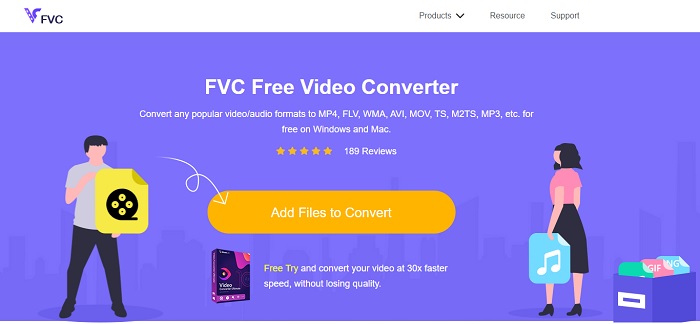
This free AVI to iMovie can do the task of converting. Unlike the tool below FVC Free Video Converter is free to access and no download needed. Also, this online tool is the free version of the tool below. As being said, they provide good compression but the difference between the two is that. This tool doesn't have the major features like the premium tool provides and the other formats to choose on. Nevertheless, it is still the best online tool compared to the other converter you can depend on. So, before anything else let's now proceed how this tool works by following these easy steps below.
Step 1. Click this link to go to the main webpage of the tool.
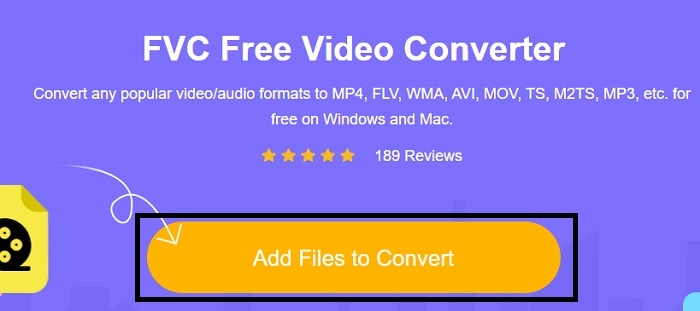
Step 2. Press the Add Files to Convert to launch the online converter.
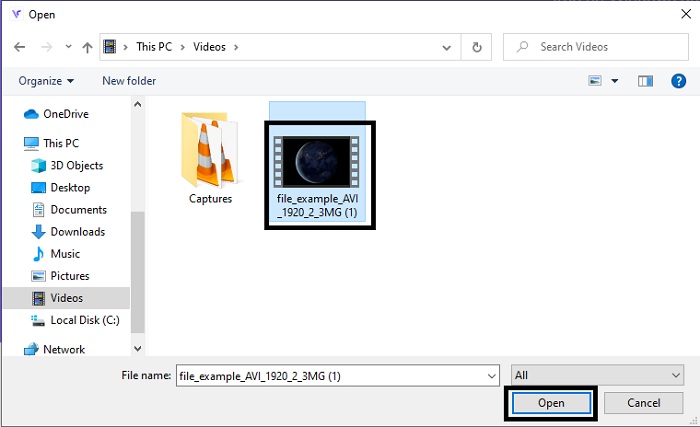
Step 3. As we proceed, cull the AVI file and press open to insert it into the interface.
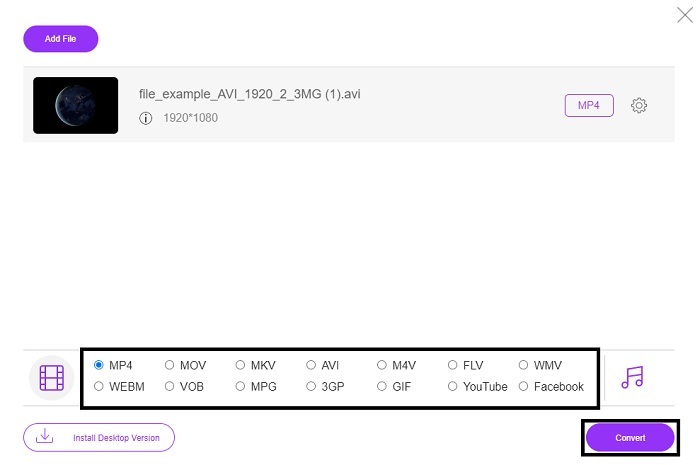
Step 4. Choose what iMovie format you want it to be. After choosing, click the Convert to start the process.
Step 5. Go to the file manager and search for the finished product.
2. FVC 비디오 컨버터 궁극
앞서 말했듯이 온라인 도구는 편집 기능과 다른 형식도 제공하지 않습니다. FVC Video Converter Ultimate는 특히 편집 시 iMovie의 대안으로 사용할 수 있습니다. 사용자와 고객이 모든 미디어 파일을 조작하고 새 버전을 향상, 편집 또는 생성할 수 있는 기능을 제공합니다. 그러나 이 도구는 비용을 지불해야 하지만 비용이 많이 들지 않으므로 이 도구에 대해 지불할 모든 페니가 여전히 가치가 있기 때문에 걱정할 필요가 없습니다.
So, after you convert AVI to iMovie format later you can enhance it before bringing it in iMovie or you can also not bring it there and do the editing here. If we talk about how perfect this tool is, we might need roughly two or more articles to explain it properly. So, without any more delay let's proceed on our journey to successfully convert AVI into a new format by copying these steps below.
Step 1. Before you can use this tool, you'll need to download it to your desktop. Choose the right operating system that supports your desktop. After the downloading process follow the set-up next and click finish to launch the tool.
Free DownloadFor Windows 7 or laterSecure Download
Free DownloadFor MacOS 10.7 or laterSecure Download
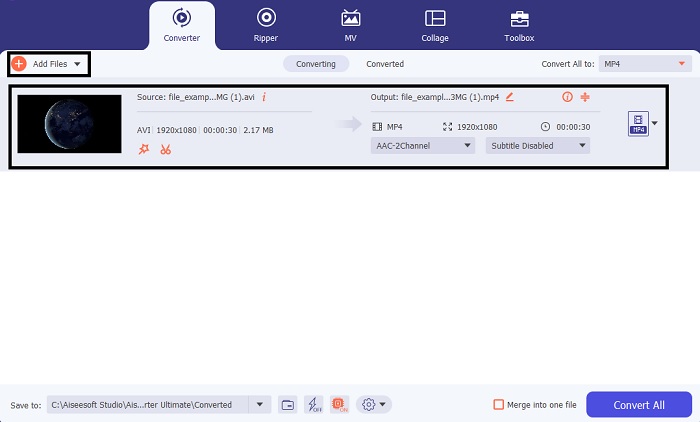
Step 2. To insert the AVI file to convert click the Add Files or the plus sign whether what you choose between the two is okay. Select the file that you wanted to be converted and click open to proceed.
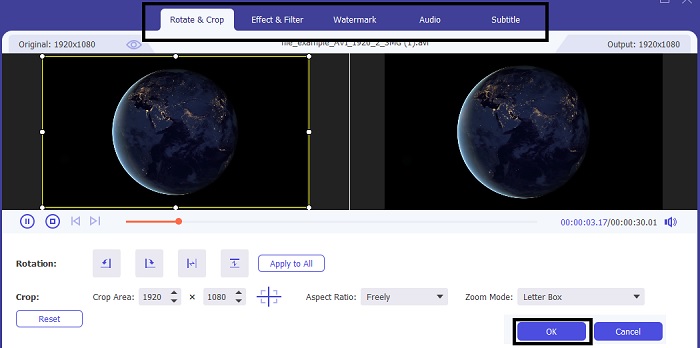
Step 3. On the interface of the FVC tool, you will see a magic wand-like shaped button there, then click it. A new interface will be shown to your screen, where you can edit the video into a better one. Reminder, this step is only a bonus if you want to do editing before you convert. So, later you will not need the iMovie to edit if you want. Press OK to save.
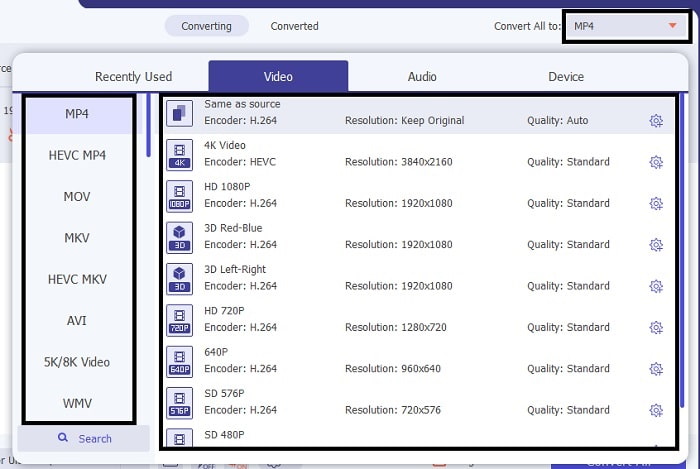
Step 4. After all the process, click the drop-down button and choose what iMovie format you want it to be. If you already choose the new AVI format you must click the Convert All to give the tool the signal to start the conversion.
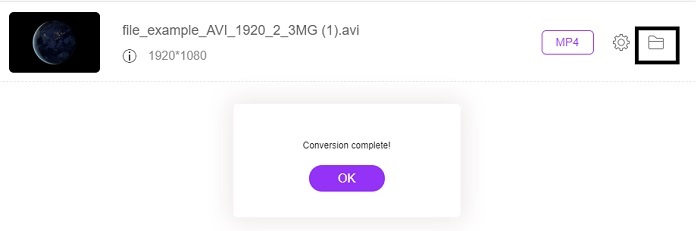
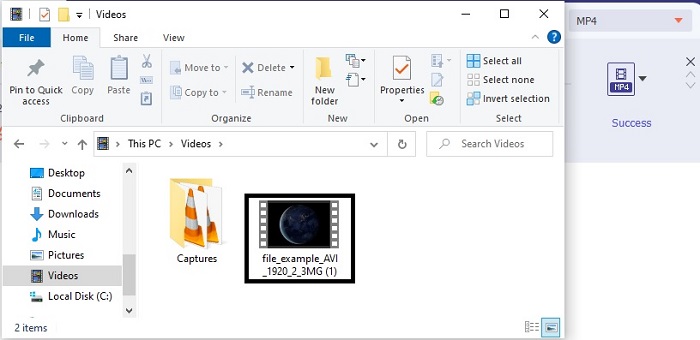
Step 5. The conversion will only take a couple of seconds, after it is done. And a folder containing your new format will be shown onto your screen. Click the file to watch it and congrats you can now edit it in iMovie.
3부. AVI to iMovie에 대한 FAQ
iMovie의 제작자는 누구입니까?
iMovie는 Apple Inc.에서 독점 편집 도구로 만들었습니다. Apple Inc.에 대한 다른 사실은 또한 Mac 사용자를 위한 기본 미디어 플레이어 및 형식으로 QuickTime 플레이어 및 MOV 형식을 개발했습니다.
Mac에서 AVI 형식에 대한 최상의 대안은 무엇입니까?
It is probably the MOV format because it was intended to be used on Mac. Do you want to know how to convert AVI files into a MOV format? Then click this link to learn more about the AVI to MOV converters.
AVI 형식을 사용할 때의 단점은 무엇입니까?
이 형식은 좋은 다른 코덱을 포함할 수 있다고 위에서 말했습니다. 그러나 AVI 형식은 압축되지 않기 때문에 2~3분 분량의 동영상은 엄청난 파일 크기를 예상합니다. 그럼에도 불구하고 AVI에 대해 더 자세히 알고 싶다면 이것을 클릭하여 AVI가 무엇인지 알아보십시오.
결론
Before we were blind and confused because we didn't have any idea how to deal with this problem. But now, it is clear to us that you will need to convert the AVI file to edit it on iMovie. So, now no more asking about how to import AVI files into iMovie and edit it later. If you have chosen the FVC Video Converter Ultimate then you deserve an applause for yourself. Because you chose the tool that provides a solution in all your converting, merging, enhancing, compressing, and more problems you may encounter in the future. Decide what's the best for you and that best is the FVC Video Converter Ultimate.
-
 무료로 AVI를 FLV로 변환하는 데 도움이되는 구체적인 가이드
 AVI를 FLV로 변환하려면 강력한 비디오 변환기가 필요합니다. 다행히도이 단일 기사에서 두 가지 및 단계별 가이드를 배울 수 있습니다.
-
 Windows / Mac에서 AVI 비디오를 애니메이션 GIF 파일로 변환하는 방법
 흥미로운 AVI 세그먼트를 선택하여 GIF 밈을 만들고 싶으십니까? 이 기사에서는 AVI 비디오를 자르고 AVI를 애니메이션 GIF 파일로 무료로 변환하는 2 가지 가장 좋은 방법에 대해 설명합니다.
-
 [2 최고의 솔루션] iPhone/iPad에서 AVI 동영상을 쉽게 재생하는 방법
 iPhone/iPad에서 AVI 영화를 재생할 수 없고 타사 비디오 플레이어를 다운로드하고 싶지 않습니까? AVI 비디오를 iPhone에서 재생하도록 변환하는 2가지 효율적인 방법을 배울 수 있습니다.
