


 비디오 컨버터 궁극
 스크린 레코더
 비디오 수리
Adobe Video Resizer를 사용하여 비디오 파일 크기를 쉽게 조정하는 방법
동영상은 다양한 크기로 제공되며, 이러한 크기는 다양한 플랫폼, 기기 또는 해상도에 맞춰 제작됩니다. 하지만 동영상 크기가 플랫폼 요구 사항을 충족하지 못하는 경우가 있는데, 이는 대개 잘림, 검은색 막대 또는 재생 품질 저하와 같은 문제로 이어집니다. 따라서 동영상 크기 조정은 필수적입니다.
동영상에서 이런 문제가 발생하고 있다면 너무 걱정하지 마세요! 저희가 도와드리겠습니다. 이 글에서는 Adobe Video Resizer를 이용해 동영상을 손쉽게 크기 조정하는 방법을 알아봅니다. 이 도구를 사용하면 동영상의 화면비(가로세로 비율)를 변경하여, 사용 중인 플랫폼의 구체적인 규격을 정확히 충족하도록 만들 수 있습니다.

1부. 어도비 프리미어란?
Adobe Premiere Pro는 Adobe Systems에서 개발한 유명한 전문 비디오 편집 소프트웨어입니다. 이 애플리케이션은 다양한 비디오 편집 및 제작에 능숙한 사용자들에게 널리 알려져 있습니다. 그 이유는 이 도구가 비디오 및 오디오 편집에 특화된 다양한 도구와 기능을 제공하기 때문에 기술적인 지식이 없는 사용자는 사용하기 어렵기 때문입니다.
Adobe Premiere Pro는 Premiere라는 이름으로 시작하여 1991년 Mac 운영 체제용으로 출시되었습니다. 컴퓨터용으로 출시된 최초의 비선형 편집 시스템 중 하나였습니다. 2003년에 이 소프트웨어는 Premiere Pro로 이름이 변경되었으며, 이후 모든 버전에 이 이름이 사용되었습니다. Premiere Pro의 초기 버전은 Premiere Pro 1부터 Premiere Pro 7까지 순차적으로 번호가 매겨졌습니다. 한편, Adobe Video Resizer의 주요 기능은 다음과 같습니다.
주요 기능:
• 사용자가 플랫폼별 요구 사항에 맞게 사용자 정의 크기를 수동으로 설정하거나 사전 정의된 종횡비에서 선택할 수 있습니다.
• 사용자는 간단한 컨트롤을 사용하여 비디오 크기를 늘리거나 줄일 수 있습니다.
• 비디오 프레임의 무결성을 유지하여 원치 않는 왜곡이나 자르기를 방지합니다.
• 고품질 출력으로 비디오 크기 조정
2부. Adobe Video Resizer를 사용하여 비디오 크기를 조정하는 방법 [Adobe Premiere Pro]
Adobe Premiere Pro는 단순한 비디오 편집 도구가 아닙니다. 강력한 Adobe 비디오 크기 조절 기능도 제공합니다. 또한, 이 앱을 사용하면 다양한 플랫폼과 용도에 맞춰 비디오 크기와 종횡비를 쉽게 조정할 수 있습니다. 초보자에게는 복잡해 보일 수 있지만, 인터페이스에 익숙해지면 Premiere Pro에서 비디오 크기를 조절하는 것이 매우 효율적인 작업이 됩니다.
Adobe Video Resizer를 사용해 동영상 크기를 조정하는 방법은 다음과 같습니다.
1단계. Adobe Premiere에서 동영상을 타임라인으로 불러옵니다. 그런 다음, 프레임 크기에 맞게 조정하려는 클립을 마우스 오른쪽 버튼으로 클릭합니다.
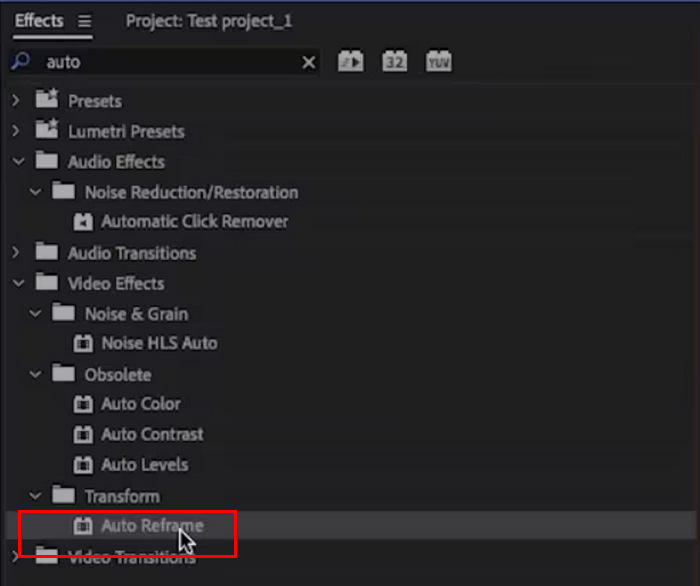
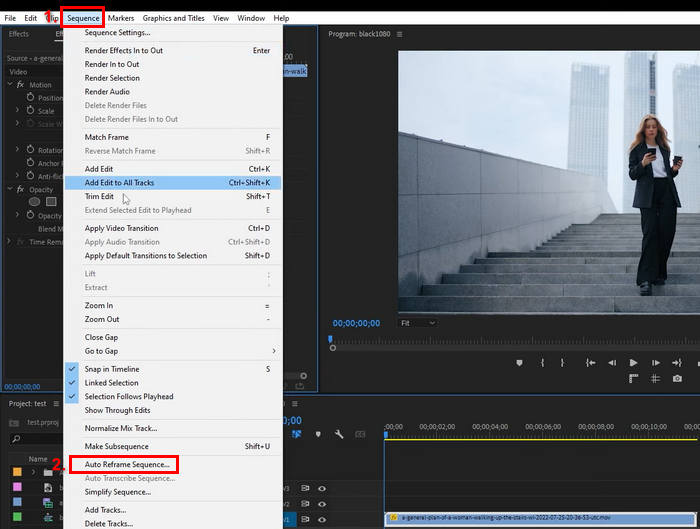
2단계. 다음으로, 상단의 Sequence 탭으로 이동해 Auto Reframe Sequence를 선택합니다.
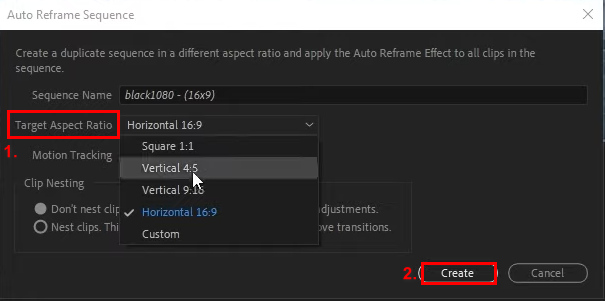
3단계. 이제 원하는 화면비를 선택합니다. 정사각형 1:1, 세로 4:5, 세로 9:16, 가로 16:9, 또는 사용자 지정 중에서 선택할 수 있습니다. 선택을 마쳤다면 Create 버튼을 클릭합니다.
참고: Adobe Video Resizer에서 여러 클립의 크기를 조정해야 할 때에는 같은 설정을 한 번에 적용해 시간을 절약할 수 있습니다. 먼저 한 클립에 Scale to Frame Size 또는 Auto Reframe Sequence 옵션으로 크기 조정을 한 뒤, 그 클립의 조정 값을 복사해 다른 클립에 붙여넣을 수 있습니다. 또는 크기 조정 설정을 프리셋으로 저장해 타임라인의 여러 클립에 적용하면, 프로젝트 전반에 걸쳐 화면비와 해상도를 일관되게 유지할 수 있습니다.
Adobe Premiere Pro에 관심이 있다면, 워터마크(로고) 제거 방법을 자세히 확인해 보세요.
3부. Adobe Video Resizer 최고의 대안
Adobe Video Resizer가 너무 복잡하거나 비디오 크기 조절 방법을 막막하다면, Aiseesoft Video Converter Ultimate를 사용해 보세요. 이 올인원 비디오 변환기는 비디오 변환뿐만 아니라 크기 조절까지 지원합니다. Toolbox를 통해 비디오 자르기(Video Cropper)를 비롯한 다양한 기능을 활용할 수 있습니다. 이 소프트웨어 앱의 특정 기능을 사용하면 비디오 종횡비를 1:1, 9:16, 4:3, 16:10, 21:9 등으로 쉽게 변경할 수 있으며, 원하는 대로 사용자 지정할 수도 있습니다.
주요 기능:
• 사용자가 비디오 크기를 1:1, 9:16, 4:3, 16:10, 21:9 등으로 쉽게 변경할 수 있습니다.
• 사용자는 자신의 특정 요구에 맞게 사용자 정의 종횡비를 설정할 수 있습니다.
• 포맷, 해상도, 비트 전송률 등을 사용자 정의하는 등 포괄적인 비디오 및 오디오 출력 설정.
• MP4, MOV, MWV, AVI, MKV, GIF 형식으로 MP4 크기 조정을 포함한 동영상 출력 포맷을 지원합니다.
Aiseesoft Video Converter Ultimate로 동영상 크기를 조정하는 방법은 다음과 같습니다.
1단계. 먼저 Aiseesoft Video Converter Ultimate을 컴퓨터에 다운로드하여 설치합니다.
2단계. Toolbox 탭으로 이동한 뒤, 거기에서 Video Cropper를 선택합니다.
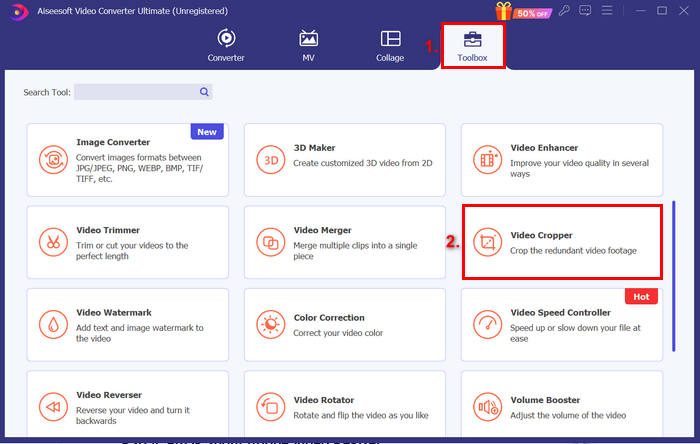
3단계. 이제 Add a Video to Video Cropper를 클릭해 크기를 조정하려는 동영상 파일을 가져옵니다.
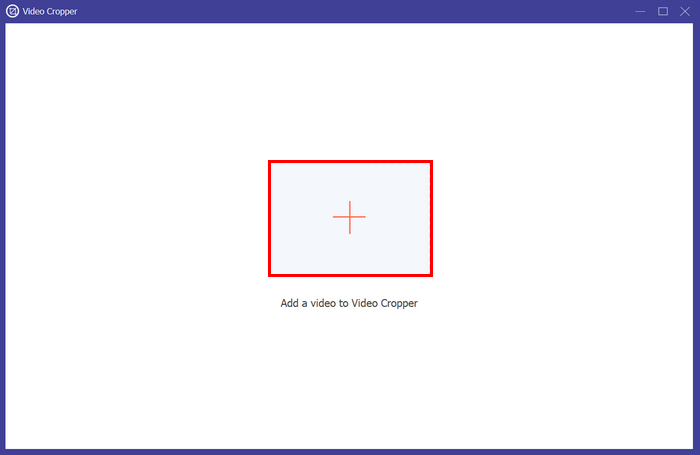
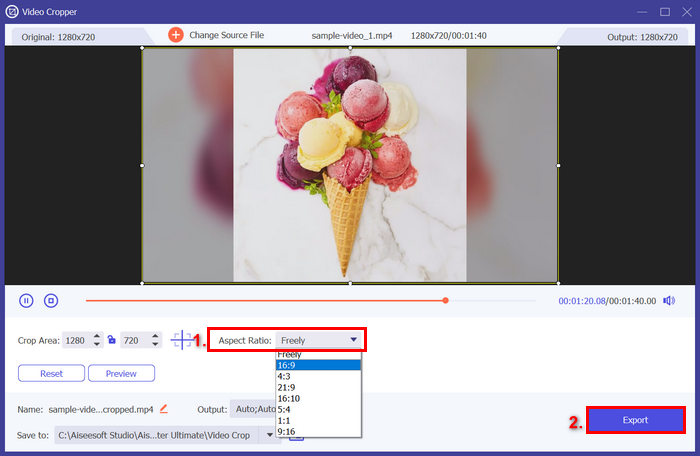
4단계. 아래쪽에서 Aspect Ratio 옵션을 볼 수 있습니다. 이를 클릭해 동영상의 크기를 어떤 화면비로 조정할지 선택합니다. 설정을 마쳤다면 Export 버튼을 눌러 내보냅니다.
Aiseesoft Video Converter Ultimate는 Adobe Video Resizer의 훌륭한 대안입니다. 사용법이 매우 간단하고, 이 특정 기능을 위한 전용 도구도 있습니다. 따라서 비디오 크기를 전문적으로 쉽게 변경하는 방법을 찾고 있다면 이 도구를 꼭 사용해 보세요.
4부. Adobe Video Resizer에 대한 FAQ
Adobe Premiere Pro에서 여러 비디오의 크기를 동시에 조절할 수 있나요?
네. Adobe Premiere Pro에서 여러 비디오 파일의 크기를 조정할 수 있습니다. 프레임 크기에 맞게 크기 조절 또는 자동 리프레임 시퀀스 기능을 사용하여 한 클립의 크기를 조정한 후, 설정을 복사하여 다른 클립에 적용할 수 있습니다. 또한, 여러 비디오의 일관성을 유지하기 위해 프리셋을 만들 수도 있습니다.
Adobe Premiere Pro에서 비디오 크기를 조절할 때 어떤 종횡비를 선택할 수 있나요?
Adobe Premiere Pro는 1:1(정사각형), 4:5(세로), 9:16(세로), 16:9(가로) 등 다양한 사전 정의된 종횡비를 제공합니다. 특정 플랫폼 요구 사항에 맞게 종횡비를 사용자 지정하고 만들 수도 있습니다.
Adobe Premiere Pro는 비디오 크기를 조절하려는 초보자에게 적합합니까?
Adobe Premiere Pro는 다양한 기능을 갖춘 전문가급 도구이지만, 초보자에게는 배우기가 다소 어렵습니다. 하지만 인터페이스에 익숙해지면 비디오 크기를 효율적으로 조절할 수 있습니다. 더 간단한 크기 조절 작업을 원하는 초보자는 Aiseesoft Video Converter Ultimate와 같은 다른 도구를 선호할 수 있습니다.
Adobe Video Resizer 외에 다른 대안이 있나요?
네, 물론입니다! Aiseesoft Video Converter Ultimate를 사용해 보세요. 동영상 크기를 쉽게 조절할 수 있는 다양한 기능을 제공합니다.
결론
Adobe Video Resizer를 사용하면, 인터페이스에만 익숙해지면 동영상 크기 조정 작업을 훨씬 수월하게 진행할 수 있습니다. 하지만 더 단순하면서도 품질을 유지할 수 있는 다른 도구를 원한다면 Aiseesoft Video Converter Ultimate를 사용해 보는 것도 좋습니다.
지금 바로 동영상 크기 조정을 시작해 보시겠어요? 보다 강력한 기능의 Adobe Video Resizer를 사용해 보거나, 더 간편한 방법을 원하신다면 Aiseesoft를 활용해 보세요!
-
 간편한 자르기: 완전한 참여를 위해 TikTok 비디오를 자르는 방법
 간단한 튜토리얼을 통해 TikTok 동영상을 자르는 방법을 알아보세요! 몇 번의 탭과 스와이프만으로 더욱 시각적으로 매력적인 비디오를 만들 수 있습니다.
-
 Instagram 콘텐츠를 최적화하는 최고의 Instagram 비디오 크기 조정기
 Instagram용 동영상 크기 조정 가이드를 확인하세요. 세계에서 가장 인기 있는 소셜 미디어 플랫폼에서 콘텐츠를 다듬고 참여를 높이는 방법을 알아보세요.
-
 손쉽게 비디오 크기 조정: 비디오 크기 조정기 종합 검토
 사용하기 쉬운 비디오 크기 조정 도구로 완벽한 샷을 얻으십시오. 몇 번의 클릭만으로 프로젝트에 맞는 완벽한 크기로 비디오 크기를 조정할 수 있습니다.
