


 비디오 컨버터 궁극
 스크린 레코더
 비디오 수리
 안전한 다운로드
AVI 비디오를 하나로 결합하는 상위 6개 AVI 합병
DVD용으로 여러 AVI 파일을 결합하는 데 가장 적합한 AVI 조이너는 무엇입니까? 일부 AVI 클립을 온라인으로 다운로드한 경우 원하지 않는 부분을 다듬거나 페이드 인/페이드 아웃 효과를 적용하거나 DVD용 AVI 파일에 비디오 워터마크를 추가해야 합니다. AVI 파일을 어떻게 결합해야 합니까? 다음은 고급 기능을 갖춘 6가지 최고의 AVI 합병입니다. 기사에서 자세한 내용을 배우고 요구 사항에 따라 원하는 것을 선택할 수 있습니다.

파트 1: AVI 비디오 파일에 가입하는 가장 좋은 방법 2가지
1. AVI 파일을 온라인에서 쉽게 병합하는 방법
FVC 무료 온라인 병합기는 AVI 비디오 파일을 완전히 무료로 온라인에서 결합할 수 있는 다기능 AVI 병합 도구입니다. AVI, MP4, MKV 및 기타 영상 형식을 개수 제한 없이 합칠 수 있습니다. 또한 필요에 따라 해상도, 비디오 화질 및 기타 다양한 파라미터를 조절할 수 있습니다.
- 1. AVI를 포함한 모든 형식의 비디오 파일 병합, MKV, 그리고 더 많은 파일을 온라인에서 무료로 제공합니다.
- 2. 비디오 코덱, 해상도, 비디오 품질 및 기타 매개변수를 조정합니다.
- 3. 결합된 AVI 파일을 컴퓨터에 저장하거나 소셜 미디어 사이트에서 공유합니다.
- 4. 개인 정보 보호를 위해 24시간 이내에 동영상 파일을 삭제합니다.
1단계: 어떤 브라우저에서든 FVC Free Online Joiner를 엽니다. Add Files to Merge 버튼을 클릭해 플러그인을 설치한 뒤, 다시 Add Files to Merge 버튼을 클릭하여 원하는 AVI 파일을 선택합니다.

2단계: AVI 비디오 파일을 순서대로 추가한 후, format을 AVI로 선택하고, 고화질을 유지하기 위해 1920*1080p 해상도를 선택합니다.
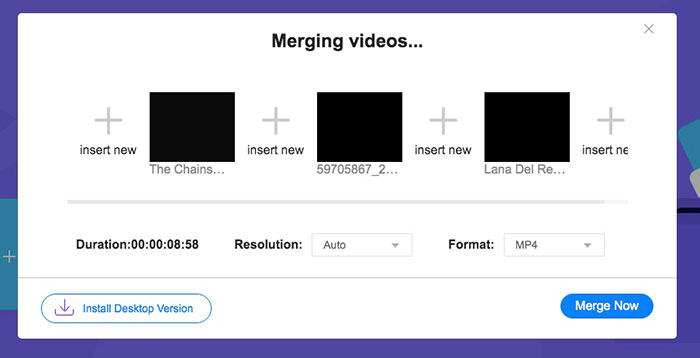
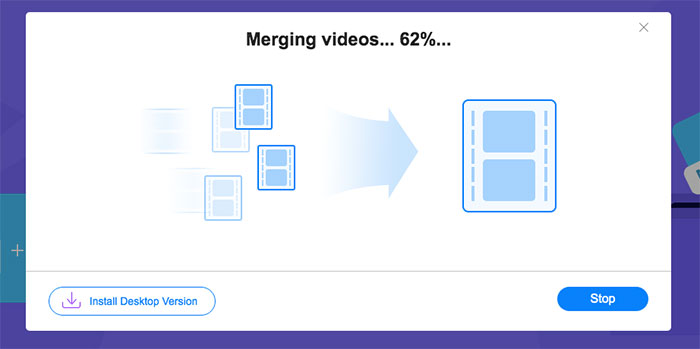
3단계: Merge Now 버튼을 클릭하여 AVI 비디오 파일을 자동으로 병합하기 시작합니다.
2. 품질 저하 없이 AVI 파일을 결합하는 전문적인 방법
Video Converter Ultimate는 AVI 비디오 파일을 병합할 수 있을 뿐만 아니라, AVI 영상을 편집해 DVD를 제작하는 것도 지원합니다. 필요한 부분만 자르거나, 영상 해상도를 향상시키고, 비디오 코덱을 조정하고, 멋진 필터를 적용하고, 비디오 테마를 바꾸거나, 심지어 AVI 파일로 비디오 콜라주를 만드는 등 다양한 편집이 가능합니다. 몇 번의 클릭만으로 멋진 영화를 만들 수 있게 해주는 올인원 AVI 결합 프로그램입니다.
- 1. AVI, MKV, MP4 등을 포함한 모든 형식의 여러 비디오 파일을 결합합니다.
- 2. 원본 고품질을 유지하기 위해 상세한 비디오 매개변수를 조정할 수 있습니다.
- 3. 보다 매력적인 영상을 제작하여 SNS에 올릴 수 있는 전문 편집 도구를 제공합니다.
- 4. AVI 파일을 병합하고 몇 분 안에 새 파일을 생성하는 30배 빠른 속도.
Free DownloadFor Windows 7 or laterSecure Download
Free DownloadFor MacOS 10.7 or laterSecure Download
화질 저하 없이 AVI 파일을 합치는 방법
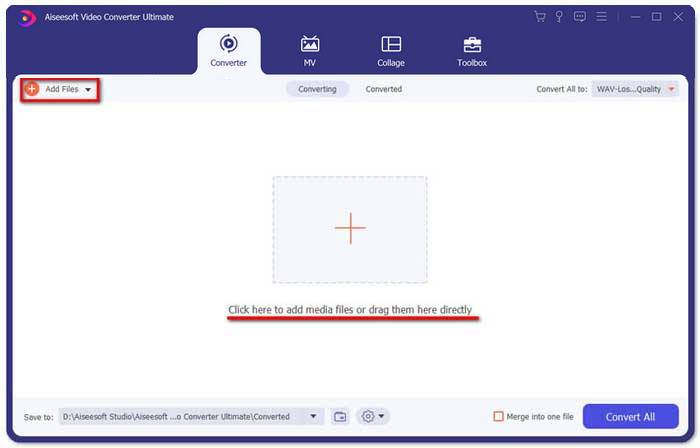
1단계: Windows/Mac용 Aiseesoft Video Converter Ultimate를 다운로드해 실행합니다. 오른쪽 상단의 Add Files 버튼을 클릭해 원하는 AVI 영상을 선택하고, AVI 파일을 끌어다 놓으며 순서를 조정합니다.
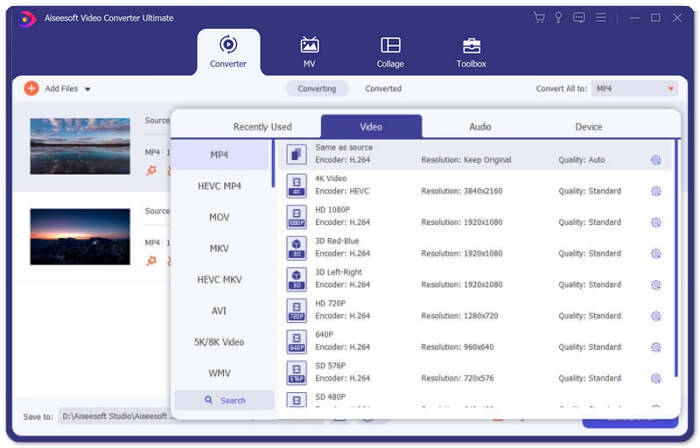
2단계: 그다음 Convert All to 버튼을 클릭하고 Video 항목에서 AVI format을 선택합니다. 그런 다음 Same as Source 버튼을 선택해 원본 영상 화질을 유지합니다.
3단계: Edit 버튼을 클릭한 뒤 Effect & Filter 버튼을 선택해 다양한 효과를 추가합니다. 그런 다음 OK 버튼을 눌러 저장합니다.
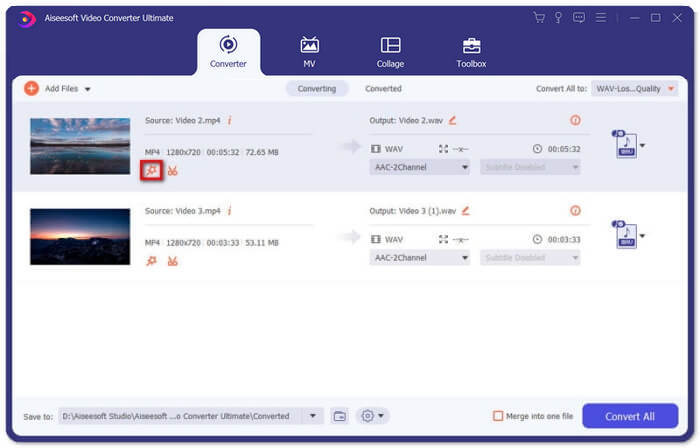
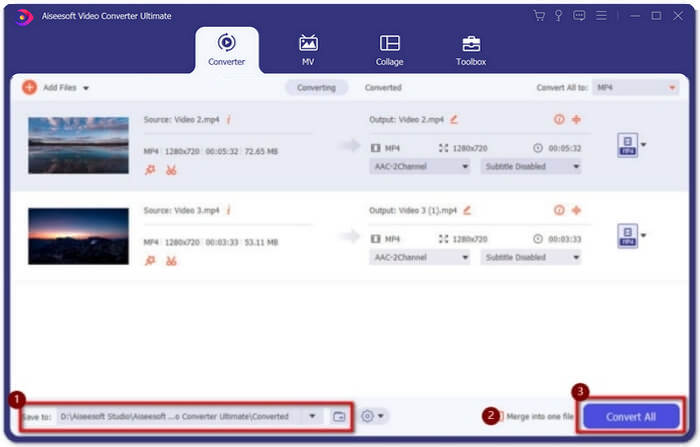
4단계: 원하는 저장 경로를 선택한 후, Merge into one file 체크박스를 선택하고 Convert All 버튼을 클릭해 AVI 파일 병합을 시작합니다.
AVI 영상을 하나의 영화로 합치는 방법
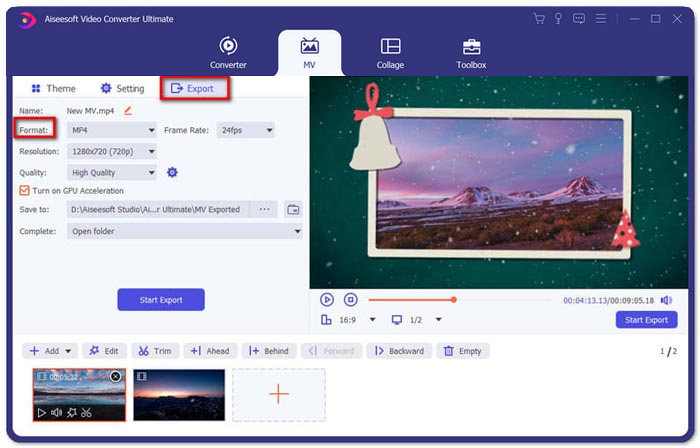
1단계: 프로그램을 실행한 뒤 MV 메뉴를 선택하여 MV 제작 인터페이스로 들어갑니다. 창 왼쪽 하단의 Add 버튼을 클릭해 AVI 파일을 프로그램에 가져옵니다.
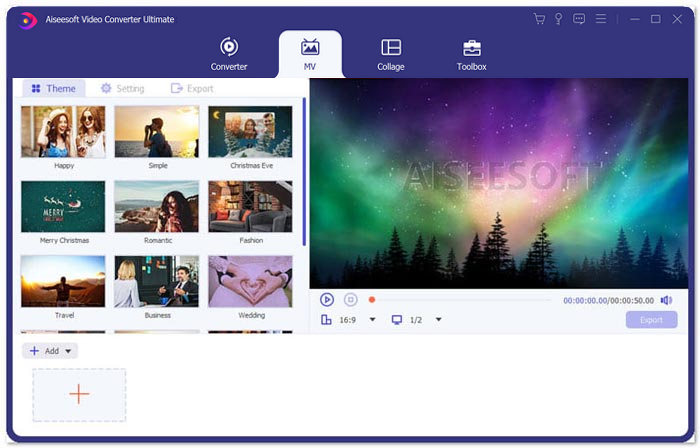
2단계: 그다음 AVI 파일의 순서를 조정하고, 영상의 필요한 부분만 자르거나, 영상을 편집할 수 있습니다. 또한 AVI 파일을 결합할 때 사용할 테마를 선택할 수도 있습니다.
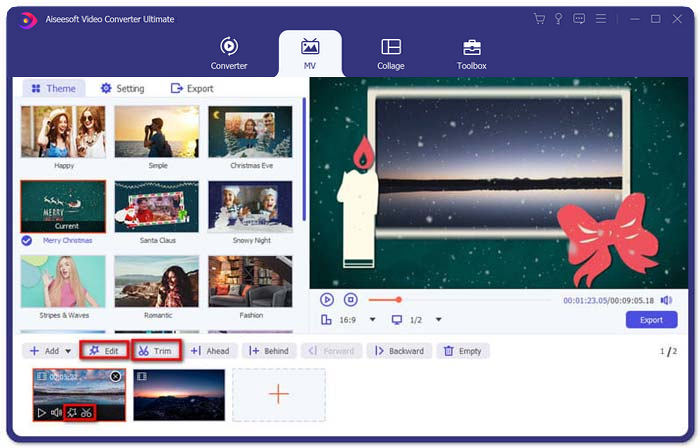
3단계: 결합한 AVI 파일을 다른 비디오 형식으로 저장하고 싶다면, 형식 아이콘 옆에 있는 아래쪽 화살표를 클릭해 원하는 형식을 선택합니다. 그 후 Export 탭으로 이동해 프로젝트 이름을 지정하고 저장 경로를 설정합니다.
파트 2: AVI 파일을 병합하기 위한 추가 AVI 조이너 4개
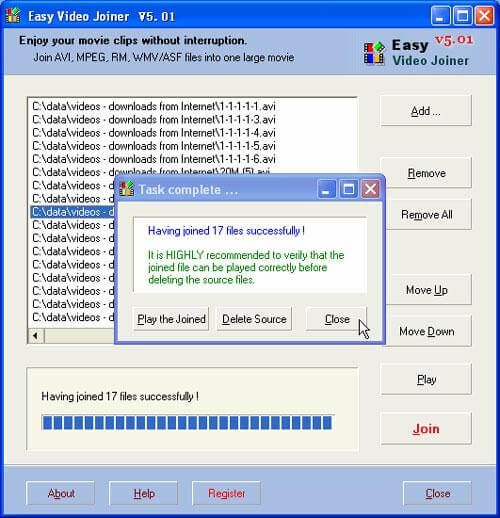
1. 쉬운 비디오 조이너
이것은 다양한 스타일의 AVI 비디오 파일을 결합하는 매우 간단한 비디오 병합입니다. 또한 다양한 비디오 형식, 프레임 속도 및 프레임 크기를 지원합니다.
장점
- AVI 비디오를 나란히, 위아래로, 하나씩 포함하여 다양한 스타일로 병합할 수 있습니다.
- 복잡한 단계 없이 사용하기 쉽습니다.
단점
- 대부분의 사람들에게 매력적인 동영상을 만드는 것은 너무 기본적입니다.
시스템 OS: Windows 및 Mac
2. ImTOO 비디오 조이너
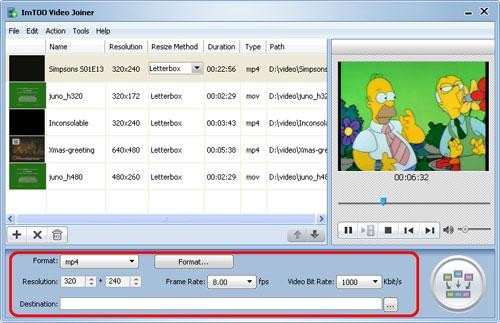
이 데스크탑 도구를 사용하면 모든 형식의 여러 비디오 파일을 하나로 결합할 수 있습니다. 또한 비디오에 일부 효과를 추가하는 편집 기능을 제공합니다.
장점
- ASF, DAT 등과 같은 흔하지 않은 형식의 비디오에 참여할 수 있습니다.
- 병합하기 전에 원본 비디오 파일을 미리 봅니다.
단점
- 무료로 사용할 수 없습니다. 30일 무료 평가판만 있습니다.
시스템 OS: 윈도우
3. Boilsoft 비디오 조이너
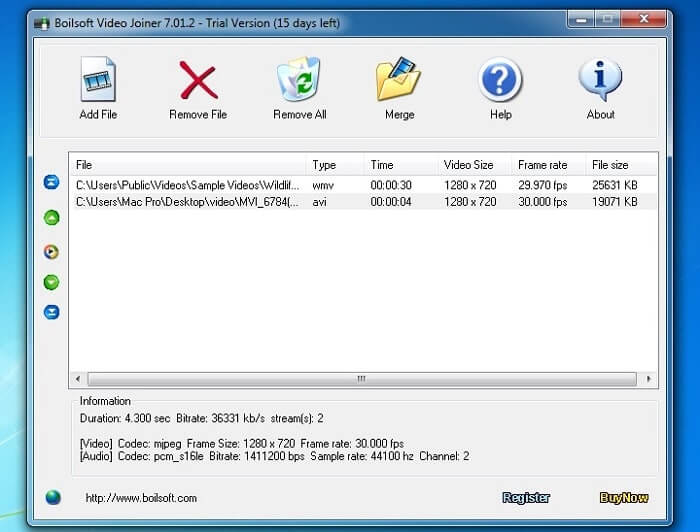
이 비디오 조이너는 이전에는 AVI/WMV/MPEG 파일을 병합하는 데만 사용되었지만 이제는 다양한 형식의 많은 비디오를 함께 결합할 수 있습니다.
장점
- 다양한 형식의 수많은 비디오를 하나로 빠르게 결합합니다.
- Real Media 및 ASF와 같은 흔하지 않은 형식 입력 지원. (ASF 파일 가입 여기.)
단점
- 비디오 파일만 병합할 수 있지만 매개변수를 편집하거나 조정할 수는 거의 없습니다.
시스템 OS: Windows 및 Mac
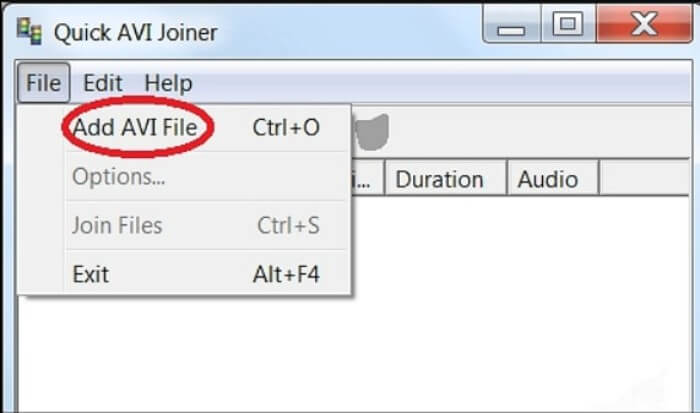
4. 빠른 AVI 조이너
AVI 파일을 큰 비디오 파일로 병합할 수 있는 매우 간단한 AVI 조이너입니다. 또한 다양한 크기, 해상도의 AVI 파일 결합을 지원합니다.
장점
- 모든 수준의 사용자가 사용하기 쉽습니다.
- 다른 프레임 크기와 해상도의 AVI 파일을 병합할 수 있습니다.
단점
- 다른 조이너처럼 고화질을 유지할 수 없습니다.
시스템 OS: 윈도우
파트 3: AVI 파일 결합 FAQ
1. 두 개의 AVI 비디오를 나란히 병합할 수 있습니까?
예. AVI 비디오에 나란히 효과를 추가하려는 경우 Video Converter Ultimate를 사용하면 다양한 모드에서 AVI 비디오를 나란히 연결할 수 있습니다. 또한 다른 템플릿을 선택하여 다른 템플릿을 만들 수 있습니다.
2. AVI 파일을 결합할 때 비디오 품질을 유지하는 방법은 무엇입니까?
특히 동일한 소스가 아닌 AVI 파일을 결합해야 하는 경우 일부 AVI 파일의 비디오 품질을 향상시킨 다음 결합하기 전에 유사한 프레임 속도, 비트 전송률 및 기타 매개변수를 설정할 수 있습니다.
3. AVI 파일을 VLC와 결합할 수 있습니까?
네. Media 메뉴를 클릭한 다음 Open Multiple File 버튼을 선택하면 됩니다. File 탭 아래의 Add 옵션을 클릭해 병합하려는 파일을 더 추가합니다. 그다음 Play 버튼으로 이동해 메뉴에서 Convert 버튼을 클릭하면 VLC로 AVI 파일을 결합할 수 있습니다.
결론
이 기사에서는 AVI 파일을 최고의 2개의 비디오 병합과 결합하는 자세한 단계를 소개했습니다. 그리고 다른 4명의 최고의 AVI 조이너의 특별한 기능에 대해서도 배울 수 있습니다. 필요에 따라 가장 적절한 것을 선택할 수 있습니다.
-
 무료로 M2TS 파일을 함께 결합하는 방법
 캠코더로 캡처 한 M2TS / MTS 파일을 자유롭게 병합하고 싶으십니까? 이 게시물은 다시 인코딩하지 않고 2 개의 M2TS 파일을 하나로 결합하는 효율적인 방법을 공유합니다.
-
 초심자를 위한 최고의 6 최고의 MP4 조이너
 서로 다른 MP4 클립을 연결하는 데 사용할 수있는 많은 MP4 결합자가 있습니다. 이 기사에서는 Windows 10/8/7 및 Mac 용 무료 MP4 결합자를 선택했습니다.
-
 Windows 및 Mac에서 여러 MPG 비디오 파일을 하나로 결합하는 방법
 여러 MPG 클립을 하나의 파일로 결합하는 것이 문제가 될 수 있습니다. 이 문서에서 컴퓨터에서 MPG 비디오를 병합하는 방법에 대해 자세히 알아볼 수 있습니다.
