


 비디오 컨버터 궁극
 스크린 레코더
 비디오 수리
파일에서 데이터를 추출하는 5가지 최신 메타데이터 추출기 [검증됨]
Metadata is composed of data that you can't see on the media file; basically, these are hidden contents. Every file has different metadata sets, and most of the time, you will need to extract the metadata on the file because it indicates crucial contents. To do this, you'll need a tool that can extract metadata from your file. Without further ado, determine which metadata extractor presents a straightforward yet effective way of removing metadata on your file.

1부. Windows 및 Mac 오프라인의 최상위 메타데이터 추출기/편집기
FVC Video Converter Ultimate is the best metadata extractor example you can use on your desktop even without an internet connection. This tool can help you extract the whole metadata on your file without exerting too much effort on doing it. Unlike the other extractor, this tool can help you remove, edit, or even create new metadata on your files. In addition to this, you can do many different things once you've downloaded the converter; want to check the key features? Check out the list below.

FVC 비디오 컨버터 궁극
5,689,200+ 다운로드- 전문가가 아니더라도 모든 비디오 및 오디오 파일에서 메타데이터를 빠르게 추출, 편집 및 추가할 수 있습니다.
- MP4, MOV, AVI, MKV, FLV 등 도구에 업로드할 수 있는 다양한 형식을 지원합니다.
- 그래픽 사용자 인터페이스는 시장에서 찾을 수 있는 다른 데이터 추출기에 비해 탁월합니다.
- 여기에서 미디어 파일을 내보낸 후에는 워터마크가 적용되지 않습니다.
- 고급 Windows 또는 Mac 장치가 없는 경우에도 가장 잘 작동합니다.
Free DownloadFor Windows 7 or laterSecure Download
Free DownloadFor MacOS 10.7 or laterSecure Download
궁극의 도구를 사용하면 이 모든 것을 가질 수 있으며 도구를 사용하여 파일에서 정보를 추출하는 방법을 알려면 아래에서 제공하는 자습서를 따르십시오.
Step 1. Download the software on your desktop by clicking the suitable operating system you are currently using, Windows or Mac. Then, click the file to install it on your desktop rapidly and launch it to begin the process of extracting the metadata.
Free DownloadFor Windows 7 or laterSecure Download
Free DownloadFor MacOS 10.7 or laterSecure Download
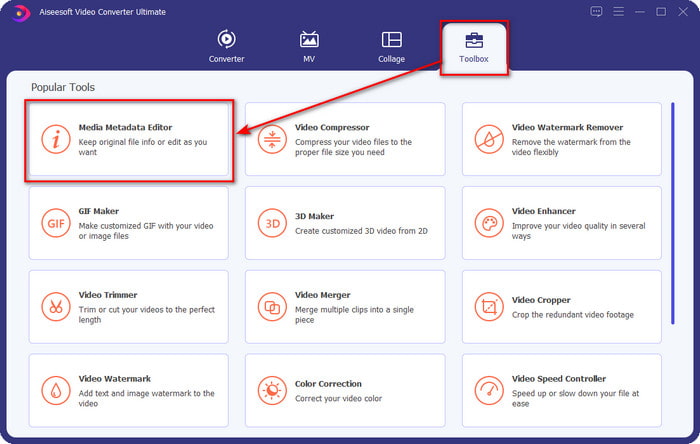
Step 2. Once you've opened the tool, you must go to the Toolbox section, look for the Media Metadata Editor, and hit it.
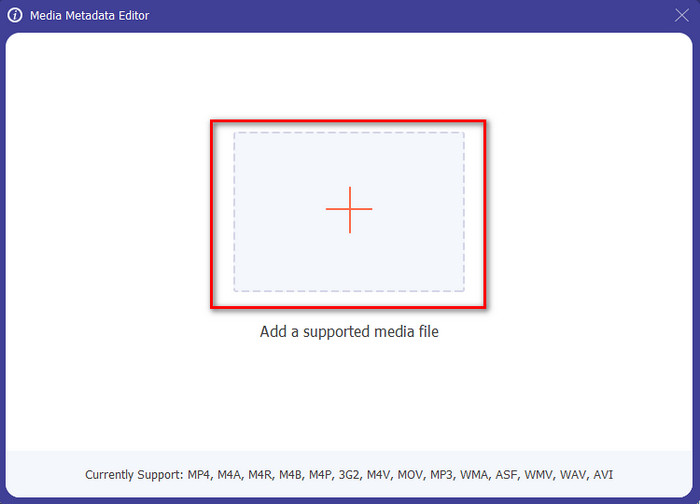
Step 3. After you click it, a new window will show, then click the + icon to upload the media file you want. Find the media file on the folder that will show, click the file, and press Open to insert it.
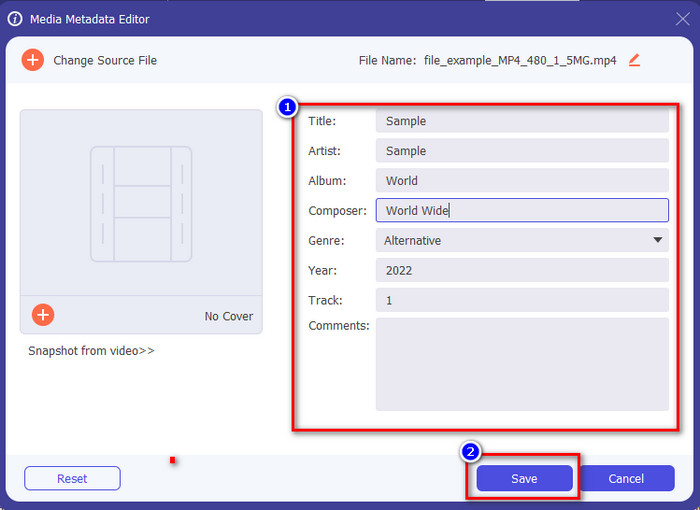
Step 4. This time you can now extract or remove the metadata you don't want to include on your file, but you can also change the metadata by filling out the text box. After doing all of this, click Save to apply the adjustment you've made on the file's metadata. Isn't it easy? Well, we already knew that this tool is easy to use, so try it out!
2부. 웹에서 사용할 수 있는 상위 4가지 메타데이터 추출기 도구
파일에서 메타데이터를 추출하는 대안을 소개하기 전에 모든 후속 추출기가 사용하거나 액세스하려면 인터넷 연결이 필요하다는 것을 알아야 합니다. 따라서 연결이 불안정한 경우 이 도구가 메타데이터를 추출하는 데 적합하지 않을 수 있습니다. 그러나 상위 4개 메타데이터 제거제에 대해 알고 싶다면 아래에서 다음 세부정보를 읽을 수 있습니다.
상위 1. 브랜드 폴더 – 메타데이터 추출기
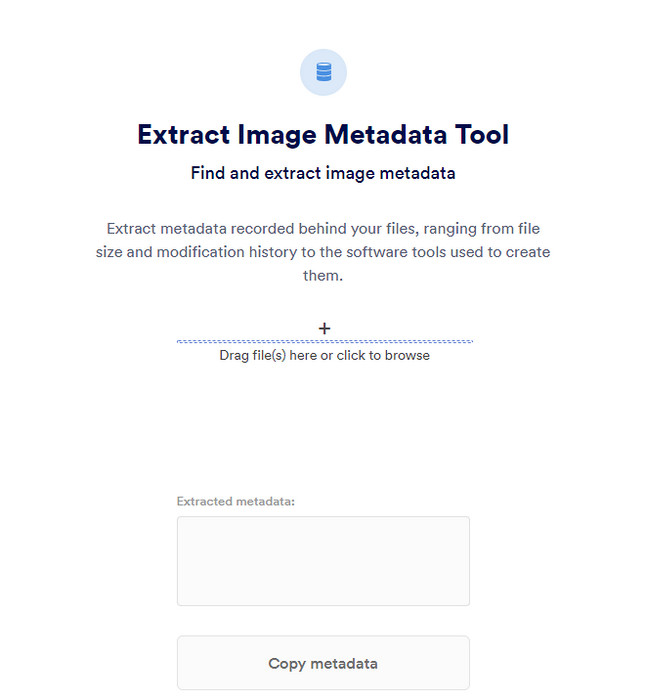
Suppose you want to use a metadata extractor that is free online, then Brand Folder – Metadata Extractor can offer this for you. This extractor online is the best choice for free, removing the data in your image or PDF, and after you extract it, you can copy it to your clipboard. Also, the web tool offers several functions you will need regarding your file. Although it is free to access, there is a drawback to using this tool; first, you can only extract a photo or PDF data 5 times a day; after that, you can't use it again.
장점
- 웹에서 무료로 액세스할 수 있는 도구입니다.
- 데이터 추출 전문가가 아니어도 사용하기 쉽습니다.
- 이미지 및 파일의 데이터를 자동으로 쉽게 추출합니다.
단점
- 하루에 다섯 번만 사용할 수 있습니다.
- 지원되지 않기 때문에 비디오 메타데이터를 추출할 수 없습니다.
- 인터넷 연결이 좋지 않아 도구를 사용할 수 없는 경우가 있습니다.
상위 2. EXIF 뷰어
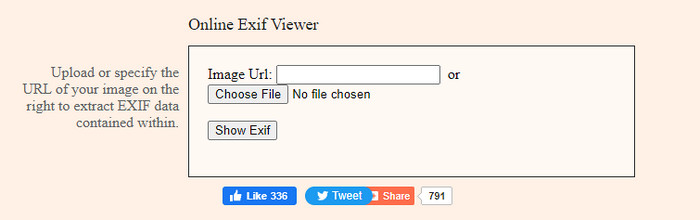
Another powerful metadata extractor online is the EXIF-Viewer. This tool allows you to view, remove, and edit your metadata on your media file for free. Although the GUI looks terrible, the tool's efficiency is great compared to the first tool on the list. However, if you access the tool, your connection isn't secured, and some might steal your information if you use this tool, so beware of the file you upload here.
장점
- 다양한 미디어 파일 형식을 지원합니다.
- 간단한 GUI가 있습니다.
- 웹에서 무료로 도구에 액세스하십시오.
단점
- 액세스하면 연결이 보호되지 않습니다.
- 웹 도구는 메타데이터를 로드하는 데 더 많은 시간이 걸립니다.
- 광고는 웹사이트에 있습니다.
상위 3. EXIFMeta
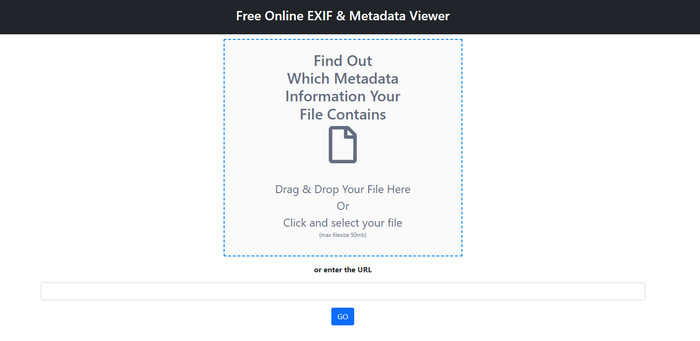
EXIFMeta is another metadata extractor example on the web you can use to show the hidden data on your files. The webtool also supports different media files you can upload, such as images, video, audio, and documents. Suppose you use this tool; you can see the basic information on your media file. Even though the webtool does offer you many things you can do on your metadata, the performance of this tool isn't as efficient as the other. In addition to that, you must make sure that your media file is less than 50MB to upload the file on the tool.
장점
- 여기에서 다양한 미디어 파일을 쉽게 업로드할 수 있습니다.
- 그것은 다른 웹 도구보다 훨씬 더 나은 GUI를 가지고 있습니다.
- 이 도구를 사용하여 미디어 파일에 포함된 메타데이터를 확인합니다.
단점
- 50MB 미만의 동영상 파일만 업로드할 수 있습니다.
- 메타데이터를 추출하려는 경우 제대로 작동하지 않는 경우가 있습니다.
상위 4. 코딩 도구 – EXIF 메타데이터
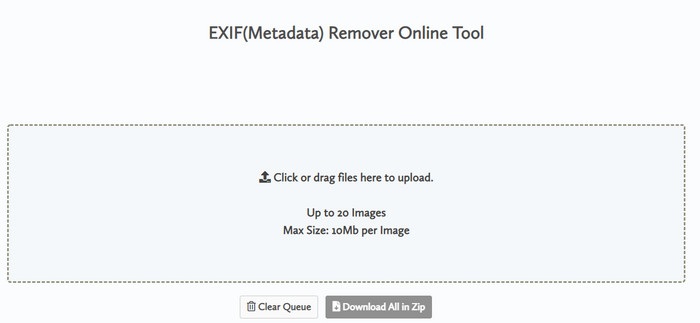
With Coding tools – EXIF Metadata, you can quickly remove the metadata on your images. This metadata extractor is free to use on the web, which means you can use the tool as long as you have an internet connection, like the other extractor above. Unlike the other web tool, this tool lets you insert multiple files and remove the metadata simultaneously. Although the web tool offers you the best extracting features, uploading the file will take time if its size is large and your network is slow.
장점
- 즐겨 사용하는 브라우저에서 안전하게 액세스할 수 있습니다.
- 간단하고 이해하기 쉬운 GUI.
- 웹 인터페이스에 광고가 없습니다.
단점
- 이미지 파일을 삭제하기 전에 1시간 동안 보관합니다.
- 대부분 업로드 시 실패합니다.
- 업로드할 수 있는 파일 크기에 제한이 있습니다.
3부. 메타데이터 추출기에 대한 FAQ
내 파일에 메타데이터를 추가할 수 있습니까?
모든 파일에 메타데이터를 성공적으로 추가하기 위해 궁극적인 도구에서 제공하는 단계를 읽을 수 있습니다.
누군가 내 메타데이터를 볼 수 있나요?
It is sad to say, but yes, if you post the media file on the internet, someone can see the metadata on your file. With the metadata, someone can know information about the images and other personal information such as location, time, data, a device used, and many more.
메타데이터를 추출해야 하는 이유는 무엇입니까?
많은 경우가 발생할 수 있지만 누군가가 우리의 개인 정보를 침해하는 것을 원하지 않기 때문에 파일에서 메타데이터를 추출합니다. 메타데이터는 좋은 측면도 있지만 단점도 있다는 점을 기억하십시오. 따라서 메타데이터는 파일에 대한 정보를 아는 데 도움이 될 수 있지만 누군가가 파일에 대한 정보를 추출하는 데 사용될 수도 있습니다.
결론
The metadata extractor we present in this article performs a great job extracting the metadata on the media file you have. Although you remove or edit the metadata, you can still view the media file without corrupting it. As we researched more about the tool's differences, we found out that the FVC Video Converter Ultimate is the ultimate aid on this task. Whether you are a pro or not, you can easily wipe out or change the metadata a few clicks away. So, if you don't have the tool to use, we strongly recommend using the ultimate tool to take this job and finish it flawlessly.
-
 최고의 온라인 및 오프라인 메타데이터 뷰어 4가지 [2025년 업데이트]
 내 파일의 메타데이터를 확인할 수 있습니까? 예, 가능합니다. 이 게시물의 도움으로 사용할 수 있는 다양한 메타데이터 뷰어를 소개합니다.
-
 2025년 최고의 비디오 메타데이터 편집기 5가지 [편견 없는 리뷰]
 비디오 메타데이터를 보시겠습니까? 그렇다면 아래 세부 정보를 읽고 주제를 완전히 파악하고 어떤 도구가 가장 적합한지 알아보세요.
-
 Windows, Mac 및 모바일 장치에서 인기 있는 7가지 음악 태그 편집기
 음악 태그는 내부 데이터에 따라 라이브러리의 음악을 정렬하는 데 널리 사용됩니다. 바꾸고 싶다면? 자세한 내용을 보려면 아래 세부 정보를 읽으십시오.
