


 Video Converter Ultimate
 Perakam Skrin
 Pembaikan Video
Cara Mudah untuk Menambah Imej pada Video dalam iMovie dengan Pantas
Menambah imej ke dalam video telah menjadi salah satu cara terbaik untuk menyampaikan mesej kepada penonton dengan lebih berkesan. Kebanyakan penyunting video boleh membantu anda melapiskan imej ke atas video dengan cepat, dan jika anda pengguna Apple, mungkin anda sudah pernah menggunakan iMovie. Ia dikenali sebagai salah satu penyunting terbaik yang boleh anda gunakan pada peranti Apple anda. Namun begitu, rata-rata pengguna Apple mendapati iMovie agak mencabar untuk digunakan kerana mereka belum mempunyai pengalaman menggunakannya. Jadi, jika anda juga pengguna Apple yang menghadapi kesukaran menggunakannya dan ingin menambah imej ke dalam video, anda boleh membaca artikel ini—mempelajari cara menambah imej pada video dalam iMovie adalah mudah jika anda membaca butiran di bawah.

Bahagian 1. Cara Menindan Gambar pada Video dalam iMovie [Mac]
Jika anda mempunyai iMovie pada Mac, anda boleh menggunakannya dan menambah imej pada video. Jadi sekarang, jika anda ingin belajar cara meletakkan foto pada video iMovie, langkah di bawah akan membantu anda.
Langkah 1. Cari iMovie dalam Finder, kemudian klik untuk membukanya.
Langkah 2. Di bahagian kiri atas iMovie, klik butang Import untuk mengimport video dan imej dengan mudah. Seret dan letakkan fail media yang anda masukkan ke Timeline.
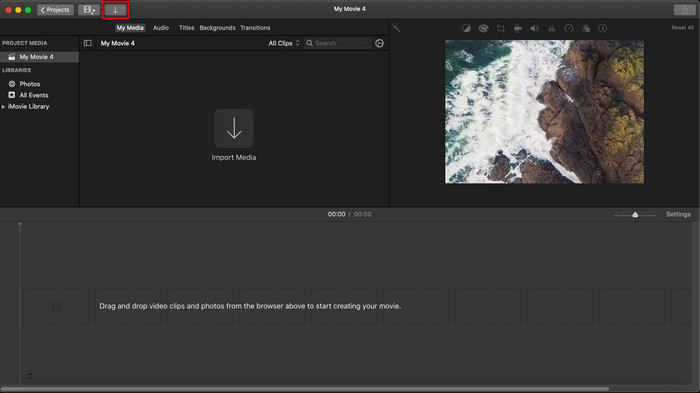
Langkah 3. Laraskan imej yang anda import dan tempoh paparan imej tersebut. Selepas itu, klik Export untuk memuat turun fail ke komputer anda.
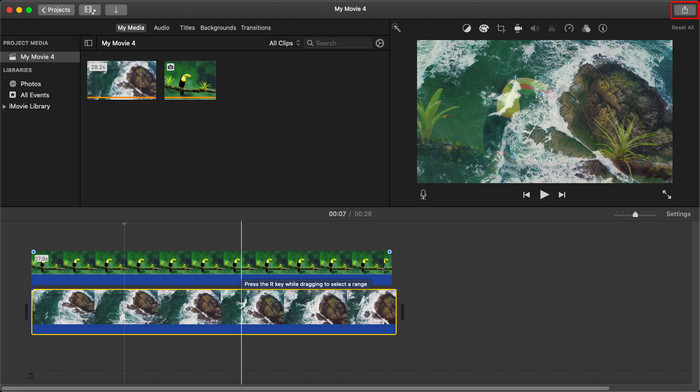
Langkah-langkah yang kami bentangkan di sini adalah daripada pengalaman praktikal menggunakan iMovie. Langkah mungkin berbeza jika terdapat kemas kini pada alat atau beberapa perubahan berlaku sebentar lagi.
Bahagian 2. Cara Memasukkan Foto pada Video dengan iMovie [iOS]
Bagaimana jika anda menggunakan peranti iOS dan mahu menggunakan iMovie sebagai editor untuk menambah imej pada video? Adakah mungkin? Ya, betul. Kami boleh mengajar anda cara meletakkan gambar dalam video iMovie pada iPhone dengan membaca butiran di bawah dengan langkah yang kami sediakan.
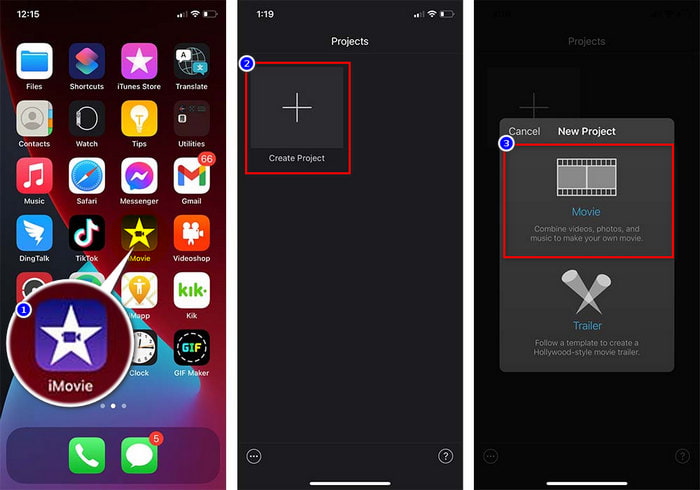
Langkah 1. Jalankan aplikasi iMovie pada peranti iOS anda, klik Create Project, kemudian Movie. Tambahkan video yang berada di dalam pustaka anda.
Langkah 2. Klik butang + untuk menambah tera air imej pada video. Cari imej tersebut dalam pustaka, klik, tekan tiga garis bertitik, dan tekan Green/Blue Screen. Ketik imej itu untuk menghapus latar belakang secara automatik.
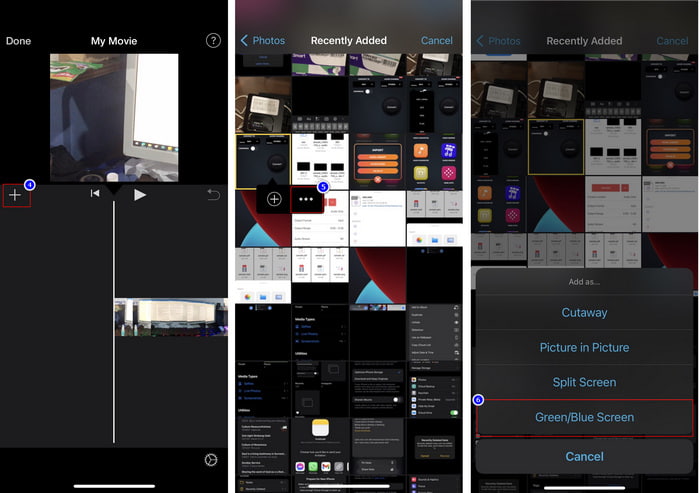
Langkah 3. Tekan Done, klik Export, kemudian Save Videos.
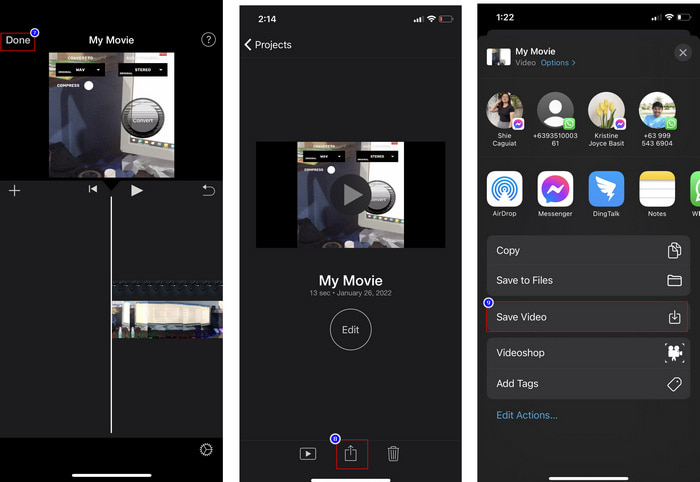
Semua langkah yang kami bentangkan di sini adalah daripada pengalaman praktikal menggunakan iMovie pada iOS. Tetapi beberapa langkah mungkin berubah jika kemas kini berlaku pada apl editor tidak lama lagi.
Bahagian 3. Penyelesaian Paling Mudah untuk Memasukkan Foto ke dalam Video dengan Perisian Tera Air Video Terbaik pada Mac
Adakah anda menghadapi kesukaran yang sama untuk menambah foto pada video dalam iMovie? Cubalah gunakan Video Converter Ultimate kerana alat ini ialah alternatif terbaik untuk iMovie. Prestasi keseluruhannya telah dipuji oleh jutaan pengguna yang sudah mencubanya. Walaupun mereka mempunyai pelbagai masalah pada video mereka, mereka tetap memilih alat “ultimate” ini untuk menyelesaikannya. Selain itu, dengan alat ini, anda hampir boleh melakukan semua perkara berkaitan video, seperti memotong, menambah imej, mencantum, memotong bingkai (cropping) dan sebagainya. Apa pun masalahnya, inilah penyelesaian sehenti untuknya. Mahu menyelesaikan masalah tersebut? Ikuti langkah-langkah yang kami tulis di bawah supaya anda boleh mengikutinya dengan mudah.
Ciri-ciri:
◆ Alat muktamad menyokong berbilang format, jadi memuat naik format anda tidak akan sukar.
◆ Ia menyokong antara muka yang mudah difahami untuk menambah imej dengan cepat pada mana-mana video dalam masa beberapa saat.
◆ Ia menyokong platform yang berbeza seperti Mac dan Windows untuk membolehkan pengguna menikmati dalam semua platform.
Langkah 1. Anda boleh memuat turun alat ini dengan mengklik butang muat turun di bawah, memasangnya dengan segera selepas muat turun, dan membukanya selepas pemasangan selesai.
Muat Turun PercumaUntuk Windows 7 atau lebih baharuMuat Turun Selamat
Muat Turun PercumaUntuk MacOS 10.7 atau lebih baharuMuat Turun Selamat
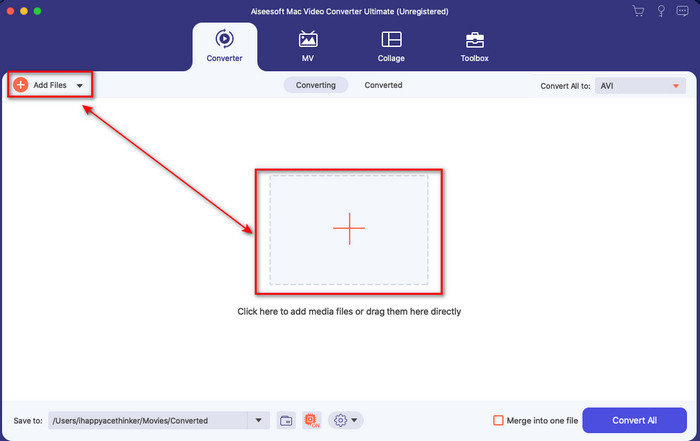
Langkah 2. Selepas membukanya, tekan butang + yang dipaparkan untuk mengimport fail video. Selepas itu, satu folder akan dibuka untuk anda mencari fail video, kemudian klik Open.
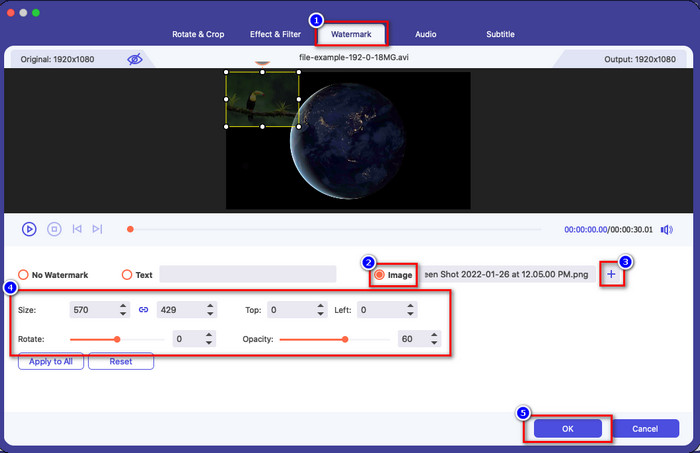
Langkah 3. Tekan butang wand untuk membuka tetingkap penyuntingan penukar tersebut. Pergi ke Watermark, klik imej, kemudian tekan add untuk memuat naik imej. Anda juga boleh mengedit opacity imej atau rotate (memutarkannya) mengikut keperluan anda, dan untuk menggunakan perubahan tersebut, klik OK.
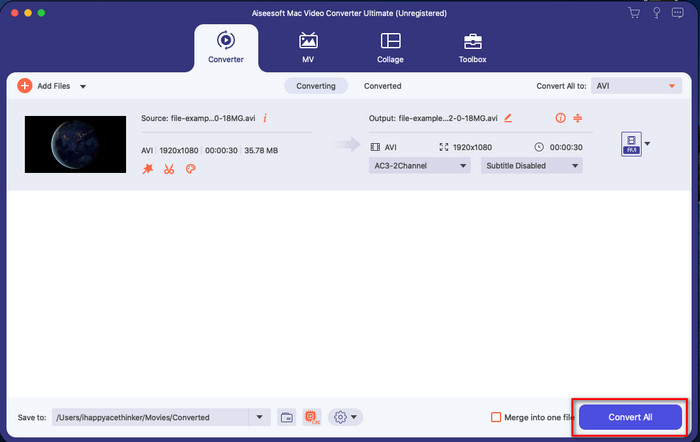
Langkah 4. Klik butang Convert All untuk mengeksport fail video. Ia akan disimpan dalam folder komputer anda selepas proses eksport, dan dengan begitu mudah anda sudah mempunyai imej tera air pada video anda. Jadi sekarang, adakah anda percaya dengan kebolehan Video Converter Ultimate? Anda sudah berjaya menambah imej tera air pada video anda secepat itu.
Berkaitan:
Cara Menambah Sarikata pada Video
Bahagian 4. Soalan Lazim tentang Menambah Foto pada Video dalam iMovie
Adakah terdapat had pada bilangan imej yang ditambahkan dalam video iMovie?
Setakat ini, kami tidak mengalami sebarang kesulitan menambah berbilang imej pada video semasa menggunakan iMovie. Walau bagaimanapun, proses pengeksportan mengambil masa jika anda menambah terlalu banyak gambar pada video, tetapi ia tidak akan ranap, mengikut pengalaman.
Apakah format imej yang boleh saya gunakan pada iMovie?
Terdapat banyak format imej pegun sokongan iMovie seperti BMP, PNG, JPG atau JPEG, HEIF, PSD, RAW TIFF dan TGA, tetapi jika anda mahukan imej animasi, anda boleh menggunakan GIF. Walaupun format ini banyak, ia masih tidak menyokong semua format imej seperti EXIF, WebP dan yang serupa.
Mengapa saya perlu menggunakan iMovie?
Bagi pengguna Apple, iMovie ialah salah satu pilihan terbaik untuk mencipta filem pendek, iklan, vlog dan banyak lagi; semua ini adalah percuma. Editor menyediakan antara muka separa lanjutan untuk membantu pengguna mempunyai pengalaman langsung tentang rupa antara muka atau alat lanjutan. Juga, perisian ini kurang teknikal, tetapi ia khusus. Ia bukan perkara biasa untuk melihat editor yang menyediakan cara penggunaan yang kurang teknikal, tetapi ia boleh membantu anda menjadi profesional dan menambah beberapa alat lanjutan teknik khusus yang ada.
Kesimpulannya
Akhirnya, boleh dikatakan kita kini mempunyai pengetahuan yang mencukupi untuk menambah foto pada video dalam iMovie dengan mudah. Dengan alat terbaik pada Apple ini, anda boleh melakukan penyuntingan yang kompleks di sini. Namun, tidak semua fungsi yang anda perlukan terdapat dalam iMovie, tetapi anda boleh menggunakan Video Converter Ultimate untuk mendapatkan penyunting yang mudah digunakan pada semua platform. Mungkin anda tertanya-tanya, mengapa anda perlu menggunakan alat “ultimate” ini? Penjelasan sebenarnya tidak begitu diperlukan jika kita membincangkan alat ini kerana kami telah membentangkan bukti di atas. Jadi, apa yang perlu anda lakukan? Anda boleh klik butang muat turun untuk mendapatkan pengalaman sendiri menggunakan alat ini dan menyelesaikan masalah ini.
-
 5 Apl Perakam Audio Paling Banyak Dipilih pada Android & iOS [2022 Dikemas Kini]
 Tidak tahu aplikasi perakam audio apa yang patut anda gunakan? Jika ya, artikel ini akan membantu anda memilih apl yang akan membantu anda dengan tugas rakaman audio anda.
-
 Memo Suara pada iOS – Kebaikan, Keburukan, Ciri & 4 Penggantian Terbaik
 Apakah Memo Suara? Adakah perakam audio terbaik pada iOS? Adakah anda mencari jawapan kepada soalan itu? Oleh itu, baca skop penuh artikel ini untuk mengetahui lebih lanjut.
-
 7 Penukar MOD Percuma Terkini untuk Menukar Fail MOD kepada Format Baharu
 Apakah Penukar MOD yang boleh anda gunakan? Terfikir soalan yang sama? Jadi di sini kami, menyediakan tujuh alat yang boleh anda gunakan untuk menukar fail MOD anda.
