


 Video Converter Ultimate
 Perakam Skrin
 Pembaikan Video
 Muat Turun Selamat
6 Cara Paling Berkesan untuk Mengubah Saiz Imej di Web & Desktop
Dengan berbilion-bilion gambar berprestij yang boleh kami muat turun, kebanyakan kita mengambil imej yang cantik, namun terdapat keadaan apabila saiznya bukan yang paling kita gemari. Pengguna cuba mengubah saiz gambar yang mereka miliki dengan melaraskan ketinggian, lebar dan nisbah bidang imej menggunakan editor, yang mengubah PPI imej. Hasilnya tidak seperti yang diharapkan oleh semua orang; imej definisi tinggi bertukar menjadi piksel.
Kenapa? Kerana penyunting yang mereka gunakan untuk mengubah saiz tidak dapat mencipta atau mengisi ruang piksel yang hilang pada versi yang telah diubah saiz. Justeru, pertanyaan tentang topik ini menjadi popular, dan kami di sini untuk membantu anda menyelesaikan masalah tersebut. Dalam hantaran blog ini, kami akan membimbing anda secara praktikal tentang cara mengubah saiz imej tanpa sebarang herotan pada hasil akhir.

Bahagian 1. Pengubah Saiz Foto Terbaik yang Boleh Anda Akses di Web untuk Mengubah Saiz Imej Dalam Talian [3 Alat Percuma]
Alat dalam talian yang kami tambahkan di sini tersedia pada penyemak imbas web berbeza yang anda ada pada peranti anda. Selain itu, ini adalah percuma, namun terdapat alat yang anda perlu beli untuk digunakan tanpa sebarang batasan. Namun begitu, ini adalah alatan dalam talian yang boleh anda akses untuk mula mengubah saiz imej yang anda miliki. Baca langkah-langkah untuk mengetahui cara menggunakannya.
1. Penskala Imej Percuma FVC - Pengubah semula Imej Terbaik di Web [Pilihan Yang Menguntungkan]
FVC Free Image Upscaler Online ialah alat web berasaskan kecerdasan buatan yang boleh mengubah saiz imej dengan pantas tanpa kehilangan kualiti. Alat web ini akan mengubah saiz setiap fail imej yang anda muat naik secara automatik. Walaupun ia alat dalam talian, prestasinya dalam mengubah saiz adalah pantas dan berkesan. Setiap imej yang anda muat naik di sini akan dipadamkan secara automatik daripada pelayan sebaik sahaja anda selesai mengubah saiznya. Selain itu, ia mempunyai pengubah saiz yang paling kemas dan serba boleh yang anda perlukan; walaupun anda menggunakan peranti berbeza, anda masih boleh mengakses alat web ini asalkan anda mempunyai sambungan internet. Mahu lihat bagaimana perisian ini berfungsi untuk tugas ini? Jika ya, baca langkah di bawah dan ikutinya untuk mengubah saiz imej dengan cepat dan berkesan.
Cara Mengubah Saiz Imej Menggunakan FVC Free Image Upscaler:
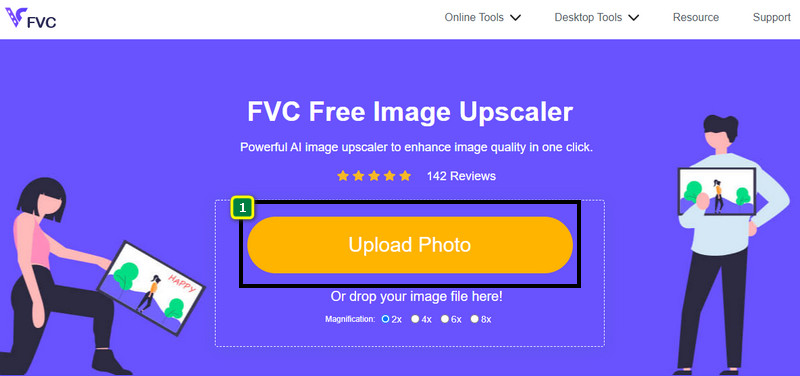
Langkah 1. Untuk mengakses alat web ini, anda boleh klik pautan ini, yang akan membawa anda terus ke laman web rasmi pengubah saiz tersebut.
Langkah 2. Klik Add Image supaya satu folder muncul pada skrin anda, pilih fail imej yang ingin anda muat naik, dan tekan Open.
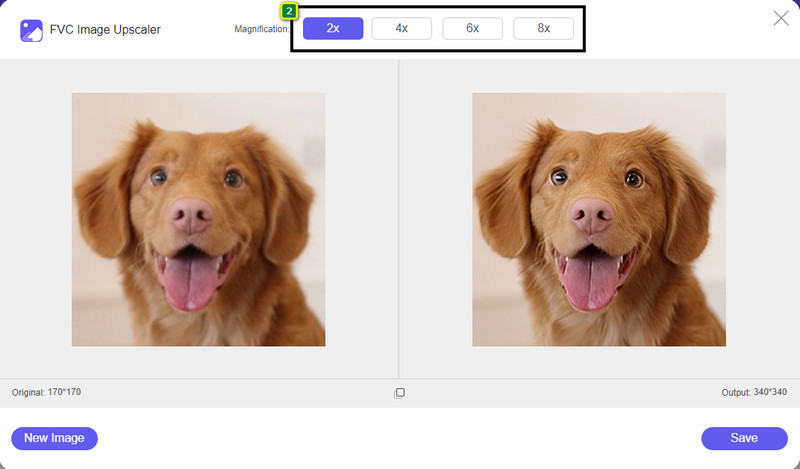
Langkah 3. Untuk menukar saiz gambar, anda perlu memilih jenis pembesaran yang ingin dikenakan pada imej anda. Anda boleh lihat dimensi keseluruhan imej berubah apabila anda cuba klik 2x, 4x, 6x, dan 8x.
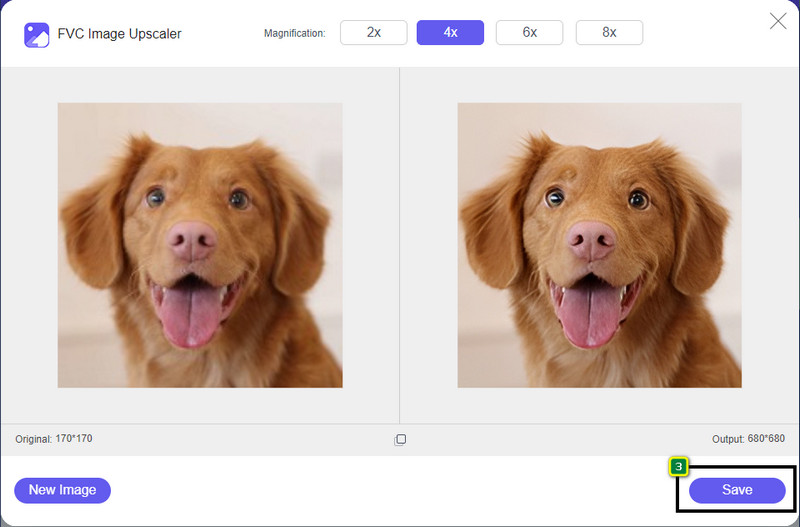
Langkah 4. Setelah anda memilih pembesaran yang ingin digunakan, voila, anda kini boleh menekan Save untuk memuat turun versi yang telah diubah saiznya ke dalam pemacu desktop anda.
2. Be Funky - Editor Foto [Percuma & Berbayar]
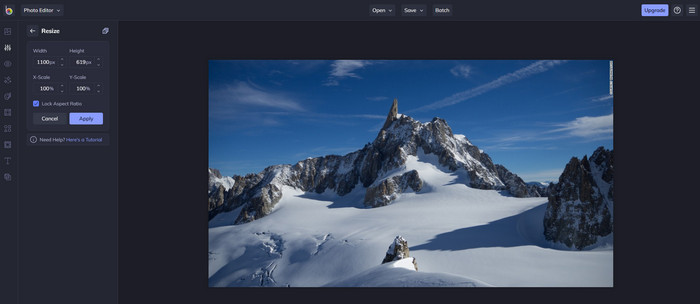
Be Funky - Photo Editor ialah platform kreatif yang boleh anda gunakan untuk menghasilkan sesuatu yang luar biasa pada imej anda. Ia boleh mengubah saiz BMP tanpa kehilangan kualiti. Alat ini dianggap salah satu penyunting imej terbaik yang boleh anda akses secara dalam talian. Walaupun antara mukanya hampir serupa dengan Photoshop, fungsi yang dibawanya ringkas dan mudah difahami, jadi boleh dikatakan ia juga mesra pengguna. Jika anda mahu mencuba alat dalam talian ini untuk mengubah saiz imej anda dengan mudah, ikut langkah yang kami sertakan di sini.
Cara Mengubah Saiz Imej Menggunakan Be Funky:
Langkah 1. Cari namanya pada pelayar web anda, kemudian klik Get Started and Edit Photo.
Langkah 2. Tekan Open untuk memuat naik BMP atau sebarang imej yang anda mahu ubah saiz di sini.
Langkah 3. Pergi ke Edit dan tekan pilihan Resize.
Langkah 4. Di sini, anda boleh bebas menukar lebar dan tinggi atau skala x dan y imej. Kemudian tekan Apply untuk melihat rupa versi yang telah diubah saiznya.
3. Resizer Imej Mudah [Percuma]
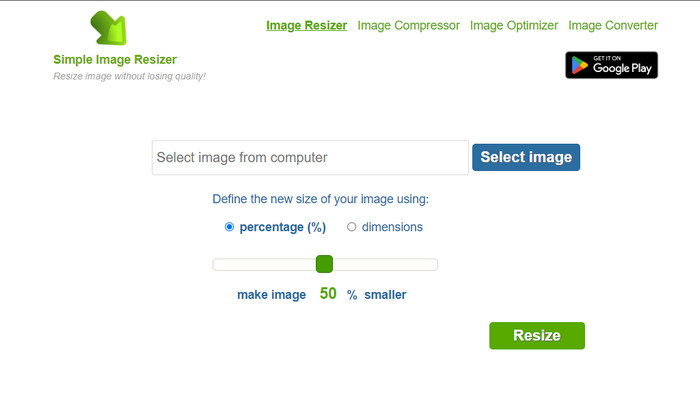
Simple Image Resizer membolehkan anda mengubah saiz imej dengan menentukan saiz baharu imej melalui perubahan peratusan atau ukuran. Ia adalah pengubah saiz imej terakhir yang kami tambah dalam artikel ini. Antara muka yang ringkas dan mudah digunakan menjadi faktor utama kenapa kami menyertakannya. Selain fungsi mengubah saiz, anda juga boleh mengoptimumkan, memampatkan, dan menukar format imej di sini secara percuma, tetapi dengan iklan web yang agak mengganggu. Jadi, jika anda ingin mencuba pengubah saiz ini dalam talian, ikut langkah di bawah.
Cara Mengubah Saiz Imej Menggunakan Simple Image Resizer:
Langkah 1. Menggunakan pelayar web anda, cari namanya untuk mula menggunakan pengubah saiz web ini.
Langkah 2. Tekan Select Image untuk menambah foto yang anda mahu ubah saiz di sini.
Langkah 3. Pilih cara yang anda mahu gunakan untuk mengubah saiz, sama ada menukar peratusan atau ukuran. Kedua-duanya memberikan kesan yang sama.
Langkah 4. Klik Resize untuk menyimpan hasil akhir ke desktop anda.
Bahagian 2. Cara Mengubah Saiz Imej pada Windows dan Mac [Luar Talian Berbayar & Percuma]
Tidak seperti alat dalam talian 3 yang disebut pertama, alatan seterusnya yang kami perkenalkan tidak bergantung pada internet, yang bermaksud walaupun anda tidak mempunyai internet, anda boleh menggunakannya tanpa menghadapi sebarang masalah. Kerana ia boleh dimuat turun atau sudah diprapasang pada desktop anda. Ketahui cara menggunakannya hari ini dengan membaca maklumat yang kami tambahkan pada setiap satu daripadanya.
1. Adobe Photoshop [Windows & Mac]
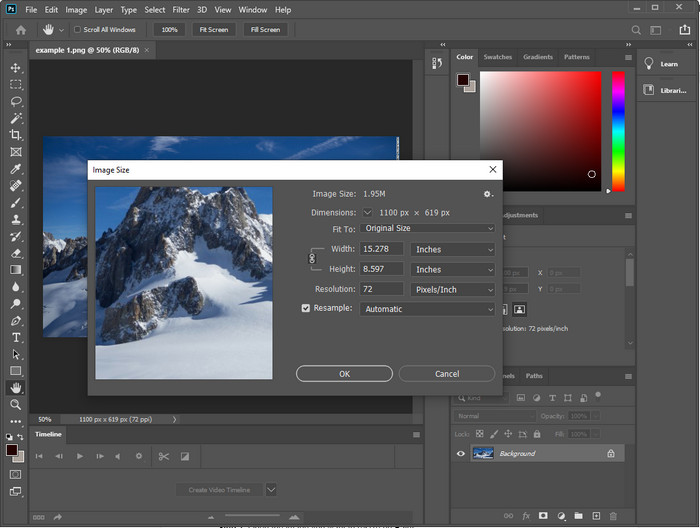
Pilihan pertama kami bagi pengubah saiz imej luar talian yang boleh anda muat turun ke peranti anda ialah Adobe Photoshop. Kenapa? Kerana ia mencipta data piksel yang baharu apabila anda mengubah saiz dan mengelakkan hasil berkualiti rendah pada akhir proses. Tambahan pula, perisian ini terkenal sebagai penyunting imej profesional yang boleh memproses imej raster dan vektor dengan mudah. Walaupun perisian ini bertaraf profesional, ia mungkin agak mahal jika anda hanya mahu menggunakannya untuk mengubah saiz. Namun jika anda berminat untuk mengetahui cara mengubah saiz imej dalam Photoshop, ikuti penerangan berikut.
Cara Mengubah Saiz Imej Menggunakan Adobe Photoshop:
Langkah 1. Muat turun dan pasang perisian pada desktop anda dengan melawati laman web rasminya.
Langkah 2. Tekan File, dan cari imej dalam folder selepas anda klik Open.
Langkah 3. Tekan menu Image di bahagian atas, kemudian pilih Image Size.
Langkah 4. Tukar ukuran Width dan Height mengikut keperluan anda, kemudian klik OK untuk mengenakan perubahan.
Langkah 5. Kembali ke File dan simpan imej ke desktop anda.
2. Cat [Apl Lalai pada Windows]
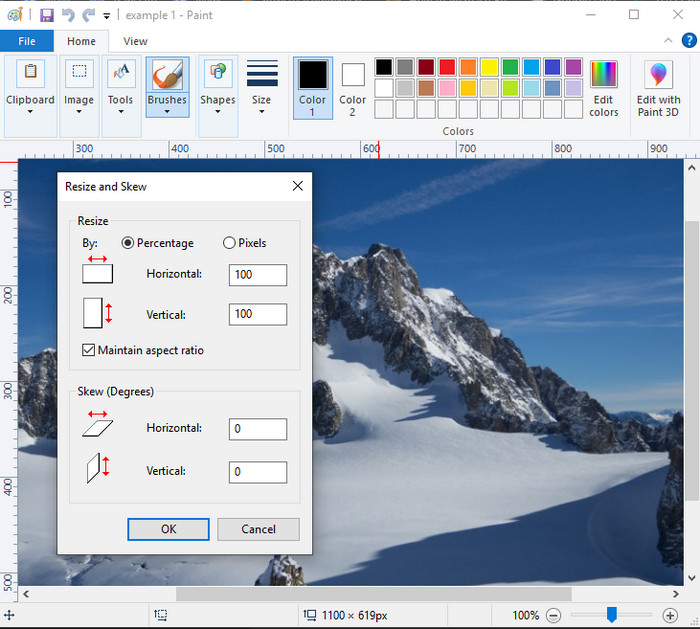
Paint dikenali sebagai aplikasi yang anda boleh gunakan untuk melukis pada kanvas kosong. Ramai pengguna Windows biasanya menggunakannya untuk mencipta sesuatu pada halaman kosong, menambah butiran pada imej, dan mengubah saiznya. Walaupun ia bukan penyunting khusus, ia tetap boleh mengubah saiz mana-mana imej raster yang anda miliki pada pemacu setempat. Kelebihan menggunakannya ialah anda tidak perlu memuat turun perisian ini pada Windows kerana ia sudah dipra-pasang. Jadi, jika anda ingin tahu cara mengubah saiz gambar beresolusi rendah dengan aplikasi ini, baca tutorial yang kami tambah di bawah.
Cara Mengubah Saiz Imej Menggunakan Paint:
Langkah 1. Buka imej yang anda ingin ubah saiz dalam Paint.
Langkah 2. Selepas membuka imej, klik ikon dua segi empat untuk mula mengubah saiz imej yang anda buka di sini.
Langkah 3. Untuk mengubah saiz imej, anda boleh menukarnya mengikut peratusan atau piksel. Selepas anda menukar nombor tersebut, tekan OK untuk mengenakan perubahan.
Langkah 4. Tekan ikon save untuk mengeksport imej yang telah anda ubah saiz di sini.
3. Pratonton [Apl Lalai pada Mac]
Preview ialah aplikasi khusus yang anda boleh harapkan dan yang boleh memandu anda tentang cara mengubah saiz imej pada Mac. Jika anda tidak suka memuat turun aplikasi pada macOS anda, maka sebaiknya gunakan aplikasi ini. Ia adalah penyelesaian yang kurang diberi perhatian, tetapi mampu mengubah saiz foto anda pada desktop. Mempelajari cara menggunakannya boleh menjadi kelebihan besar untuk anda bagi memaksimumkan potensi penuh perisian ini. Jika anda berminat bagaimana alat ini berfungsi, teruskan ke maklumat yang kami tambah seterusnya.
Cara Mengubah Saiz Imej Menggunakan Preview:
Langkah 1. Klik kanan pada imej di Mac anda, klik Open with, dan tekan Preview.
Langkah 2. Di bahagian atas, klik Tools, kemudian pilih Adjust Size.
Langkah 3. Tukar ukuran imej berdasarkan keperluan anda, kemudian tekan OK untuk menyimpan perubahan yang anda buat.
Bahagian 3. Tambahan: Resizer Imej Teratas Anda Boleh Muat Turun pada Android dan iPhone
1. Penukar Foto & Gambar [Android]
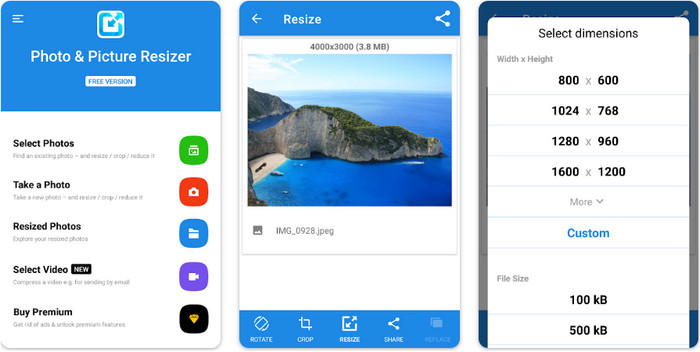
Photo & Picture Resizer ialah salah satu cara terpantas dan termudah untuk mengubah saiz imej yang anda ada pada peranti Android anda. Pengguna yang tidak berpengalaman sekali pun yang mahu mengubah saiz boleh memuat turun dan menggunakan aplikasi ini sebagai pengubah saiz imej mereka. Aplikasi ini percuma, tetapi jika anda mahu menggunakan ciri tambahannya, anda perlu membelinya. Secara keseluruhan, fungsi pengubahan saiznya sangat baik, dan anda boleh menguasainya pada cubaan pertama.
2. Imej Resizer Percuma [iPhone]
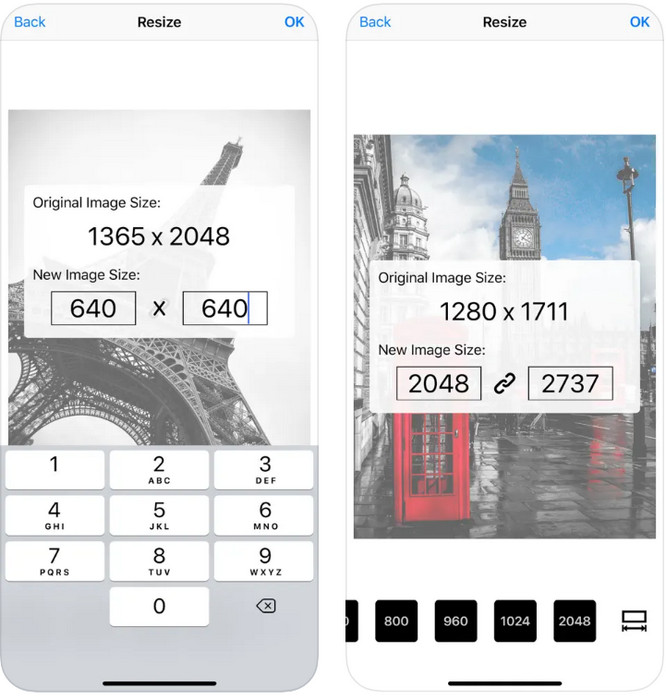
Image Resizer Free ialah aplikasi berasaskan iOS yang boleh anda muat turun pada iOS 7.0 atau lebih baharu. Aplikasi ini ialah pengubah saiz imej yang tepat dan digunakan oleh ramai pengguna iOS. Ia tidak mempunyai fungsi tambahan selain fungsi utamanya, iaitu mengubah saiz. Walaupun alat ini mesra pengguna, ramai pengguna mengadu bahawa ia tidak boleh menulis ganti imej asal kepada versi yang telah diubah saiz.
Bahagian 4. Soalan Lazim tentang Cara Mengubah Saiz Imej
Format mana yang lebih baik untuk mengubah saiz, raster atau vektor?
Format raster terdiri daripada piksel kecil untuk mencipta rupa imej, dan apabila anda menukar saiz atau dimensinya, piksel ini menjadi terbentang, menjadi kelihatan. Tidak seperti jika anda mengubah saiz imej vektor, ia dibuat khusus untuk mengubah saiz dan meningkatkan imej tanpa menimbulkan kekacauan padanya.
Bolehkah saya mengubah saiz BMP dalam talian?
Ya, anda boleh mengubah saiz BMP menggunakan penyelesaian dalam talian yang kami tambahkan di sini. Walau bagaimanapun, apabila anda membesarkan imej, BMP cenderung menjadi piksel kerana ia adalah imej raster. Jadi, jika anda ingin mengelakkan masalah mengubah saiz fail BMP, lebih baik anda memilih FVC Free Image Upscaler Online, kerana ia tidak meninggalkan pikselasi pada output akhir BMP yang diubah saiz.
Adakah saiz fail bertambah selepas mengubah saiz imej?
Ya, memang begitu. Terutamanya kerana imej yang anda ubah saiz menambah data piksel tambahan pada output sebenar. Namun, saiz failnya tidak jauh berbeza daripada saiz fail asalnya.
Kesimpulannya
Teknik mengubah saiz imej yang mana satu anda rasa paling sesuai untuk anda? Pilih antara pengubah saiz yang kami senaraikan di sini. Jika anda menghadapi masalah berkaitan sambungan internet, kami amat mengesyorkan menggunakan FVC Free Image Upscaler Online kerana prestasinya dalam mengubah saiz. Tiada kesukaran mengubah saiz jika anda menggunakan pengubah saiz ini di web.
-
 Imej 1440p – Semua Maklumat Termasuk yang Anda Perlukan [2022 Dikemas Kini]
 Adakah anda ingin tahu tentang imej 1440p? Atau di mana anda boleh mendapatkannya? Tukar imej anda kepada 1440p? Baca ini untuk mengetahui mereka semua.
-
 Tutorial untuk Menyahpiksel Imej Menggunakan 3 Penyahpiksel Foto Terbaik
 Adakah anda menghadapi masalah mengendalikan imej berpiksel? Hari ini, kami telah menyelesaikan masalah tersebut dan anda boleh menggunakan alatan yang kami tambahkan di sini.
-
 Cara Menajamkan Imej dalam Foto Menggunakan 3 Cara [Tutorial Pantas]
 Masalah dengan imej yang tidak diasah? Di sini, kami akan memperkenalkan cara menajamkan imej dalam Photoshop menggunakan tiga cara yang kami tambah.
