


 Video Converter Ultimate
 Perakam Skrin
 Pembaikan Video
 Muat Turun Selamat
Tinjauan Walk-through tentang Inpaint Watermark Remover
Adakah anda bersedia untuk belajar cara menggunakan Inpaint untuk menghapus tera air? Kami sedia membantu anda! Jika anda sedang membaca panduan ini, anda mungkin sedang mencari kaedah terbaik untuk membuang tera air daripada imej anda. Jadi, anda tidak perlu risau lagi. Artikel ini akan memberikan ulasan jujur tentang program yang perlu anda gunakan, seperti Inpaint Watermark Remover. Anda akan mempelajari maklumat yang mencukupi tentang setiap alat, termasuk ciri, kelebihan, kekurangan dan harganya. Selain itu, kami akan menawarkan alternatif terbaik kepada Inpaint untuk membuang tera air daripada foto anda. Dengan cara ini, anda mempunyai pilihan lain tentang penanggal tera air yang boleh anda gunakan. Mari baca artikel ini untuk menemui maklumat berguna tambahan.

Bahagian 1: Gambaran Keseluruhan Inpaint
Perisian hebat dan boleh dipercayai yang dipanggil Inpaint ini dikhususkan untuk membuang unsur yang tidak diingini daripada imej, seperti tera air, logo, teks, cop dan sebagainya. Terdapat banyak program penyuntingan foto canggih yang tersedia. Inpaint bukan salah satunya. Anda akan menyukai kesederhanaan dan kelajuan Inpaint jika anda seorang jurugambar kasual, pemula, atau pengguna yang sibuk yang tidak selalu mempunyai masa untuk menggunakan perisian penyuntingan gambar yang canggih seperti Photoshop. Selain itu, pengguna Windows dan Mac boleh menggunakan Inpaint. Anda boleh memuat turun aplikasinya, dan anda juga boleh menggunakannya terus dalam talian. Akhir sekali, alat penanda pintar daripada Inpaint memudahkan proses membuang objek yang tidak diingini. Di samping itu, Inpaint boleh membantu anda memulihkan semula foto lama yang rosak dengan sempurna. Namun, anda perlu membeli langganan jika mahu menyimpan imej anda dalam resolusi tinggi. Versi percuma hanya menawarkan kualiti yang rendah.
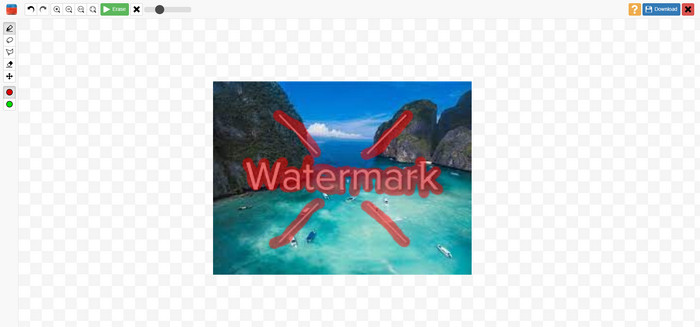
Ciri, Kebaikan dan Keburukan Inpaints
Ciri-ciri
◆ Alih keluar elemen yang tidak diingini daripada foto.
◆ Membaiki foto lama.
◆ Mampu melakukan retouch muka
Kelebihan
- Menawarkan antara muka yang intuitif, yang mudah digunakan.
- Ia boleh mengalih keluar tera air serta-merta. Ia boleh mengeluarkan tera air serta-merta.
Keburukan
- Tidak berprestasi baik pada foto dengan latar belakang yang rumit.
- Beli langganan untuk mengalami ciri hebat.
Cara menggunakan Inpaint untuk membuang tera air
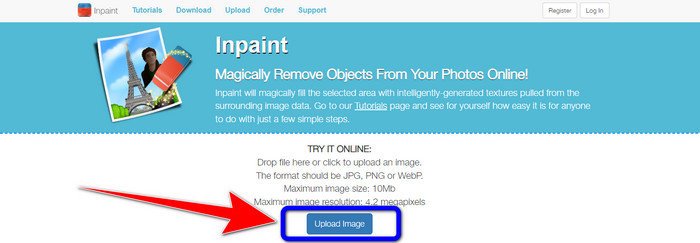
Langkah 1: Layari laman web Inpaint. Kemudian, klik butang Upload Image untuk menambah foto anda yang mempunyai tera air yang ingin anda buang.
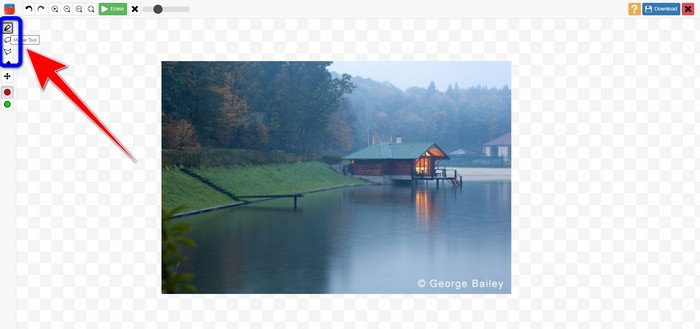
Langkah 2: Selepas menambah foto anda, anda mesti menandakan tera air menggunakan alat penanggal tera air. Alat ini ialah Marker, Polygonal dan Lasso.
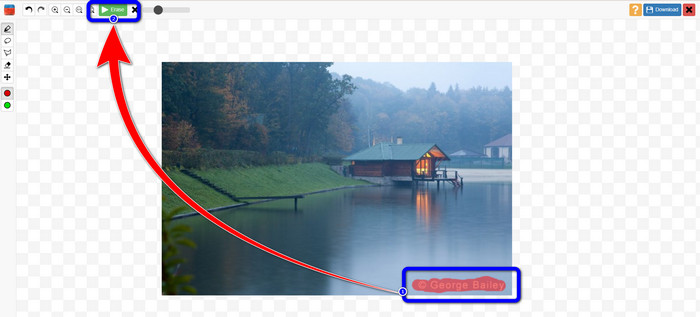
Langkah 3: Apabila anda selesai menandakan tera air pada foto anda, klik butang Erase di bahagian kiri atas skrin anda dan tunggu proses penyingkiran.
Langkah 4: Setelah tera air hilang, klik butang Download dan simpan hasilnya pada desktop anda.
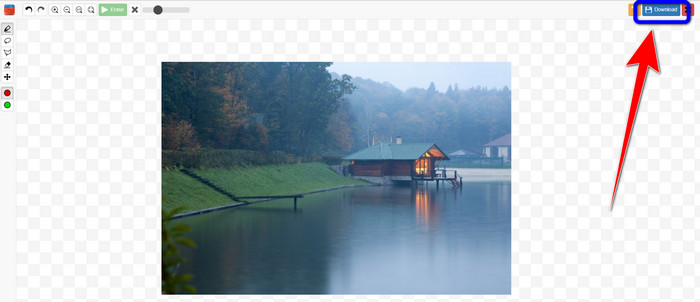
Bahagian 2: Alternatif Terbaik untuk Mengecat untuk Mengeluarkan Tera Air daripada Foto Dalam Talian
Selepas mengetahui kaedah berkesan cara menggunakan Inpaint untuk membuang tera air, berikut ialah alternatif terbaik yang boleh anda gunakan untuk mengalih keluar tera air daripada foto anda.
Penghapus Tera Air Percuma FVC
Alat dalam talian terbaik yang boleh anda gunakan selain Inpaint ialah FVC Free Watermark Remover. Perisian dalam talian ini membolehkan anda menghapus semua elemen yang tidak diperlukan daripada imej anda, seperti tera air, logo, teks, tandatangan dan banyak lagi. Anda boleh menggunakan pelbagai alat penyingkir, seperti Brush, Polygonal dan Lasso. Tetapi bukan itu sahaja. Perisian dalam talian ini mempunyai ciri Crop, yang bermaksud anda boleh membuang sebarang tera air dengan memotong foto anda. Proses penyingkirannya pantas, jadi anda tidak perlu menghabiskan banyak masa. Selepas membuang tera air, anda boleh menyimpan hasil akhir dalam format yang sama. Ia juga menyokong pelbagai format imej, seperti JPG, PNG, BMP dan lain-lain. Selain itu, penanggal tera air ini mempunyai antara muka yang mudah difahami dengan langkah-langkah ringkas untuk diikuti, yang sesuai untuk pengguna bukan profesional.
Ciri-ciri
◆ Mampu memangkas imej untuk menghapuskan tera air.
◆ Eksport imej dengan kualiti asal.
◆ Alih keluar unsur menjijikkan daripada foto menggunakan alat Lasso, Berus dan Poligon.
Kelebihan
- Sesuai untuk pengguna bukan profesional.
- Ia mempunyai antara muka pengguna yang boleh difahami.
- Percuma sepenuhnya.
- Ia mempunyai proses penyingkiran yang cepat.
- Menjamin privasi setiap pengguna.
- Tidak perlu memasang aplikasi.
Keburukan
- Untuk mengendalikan aplikasi, sambungan internet diperlukan.
Menggunakan Alat Watermark Remover
Memandangkan kawasan tera air berada di tengah-tengah foto anda, kami akan menggunakan alat penghilang tera air dan bukannya alat pemangkasan. Ikuti langkah mudah di bawah untuk mengalih keluar tera air daripada foto anda menggunakan FVC Free Watermark Remover.
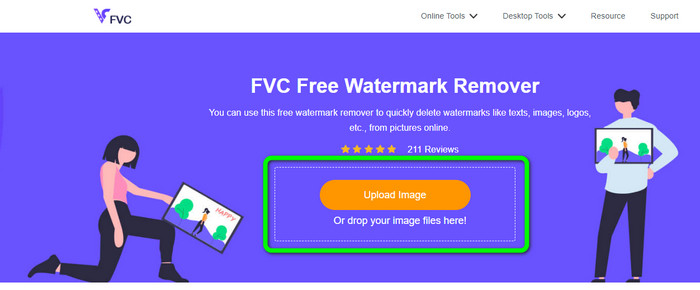
Langkah 1: Pergi ke laman web FVC Free Watermark Remover. Klik butang Upload Image untuk memuat naik imej anda yang mempunyai tera air. Anda juga boleh menyeret fail anda terus ke dalamnya.
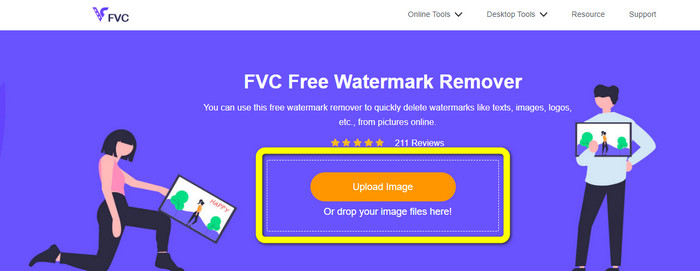
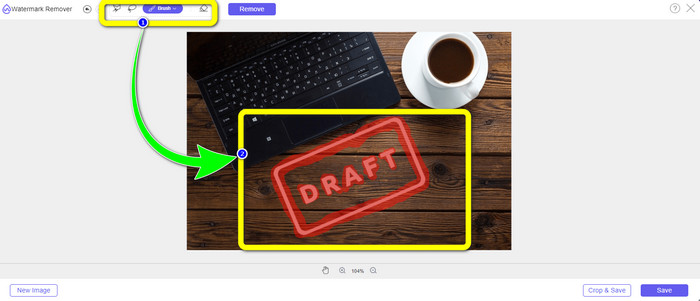
Langkah 2: Tandakan tera air menggunakan alat penyingkir yang anda boleh lihat di bahagian atas antara muka.
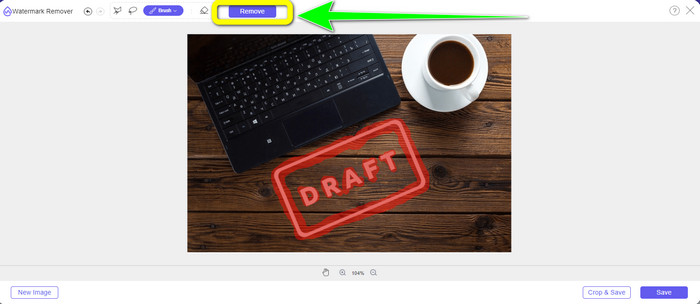
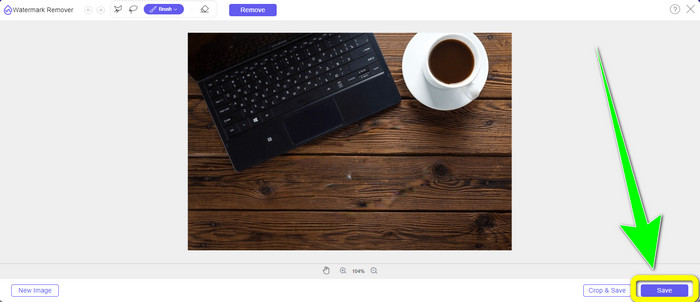
Langkah 3: Apabila anda selesai menandakan tera air pada imej anda, klik butang Remove untuk membuang tera air dan tunggu proses penyingkiran pantas itu.
Langkah 4: Setelah tera air dibuang sepenuhnya daripada foto anda, klik butang Save untuk memuat turun foto tanpa tera air.
Menggunakan Alat Pangkas (Cropping Tool)
Dalam kaedah ini, anda perlu mempertimbangkan kawasan tera air dari foto anda. Jika tera air berada di sudut atau tepi imej anda, anda boleh menggunakan alat pemangkasan. Ikuti langkah mudah di bawah untuk mengetahui cara memangkas foto untuk menghapuskan tera air.
Langkah 1: Klik butang Upload Image untuk memasukkan foto anda yang mempunyai tera air.
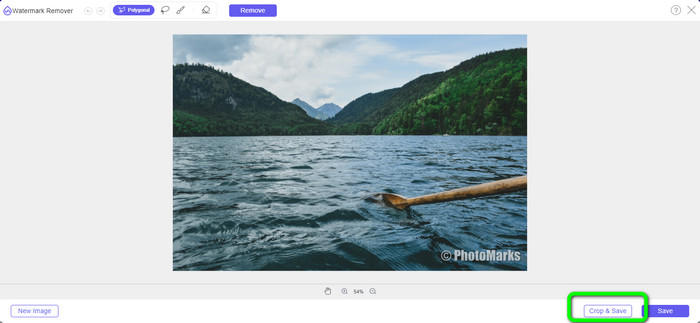
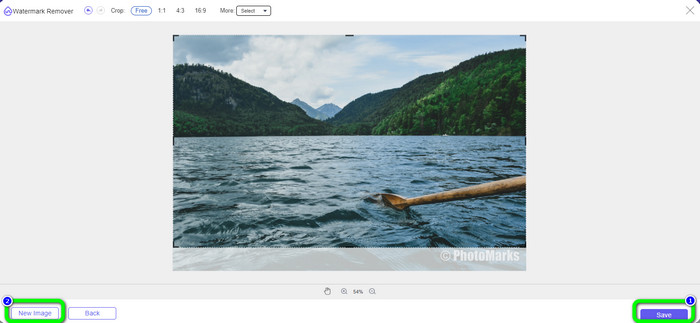
Langkah 2: Selepas memasukkan foto, klik butang Crop & Save di bahagian bawah kanan antara muka.
Langkah 3: Di bahagian atas antara muka, terdapat pilihan pemotongan yang boleh anda pilih. Pilihan ini akan membantu anda memotong foto anda. Tetapi jika anda mahu memotong foto secara manual, klik pilihan Free.
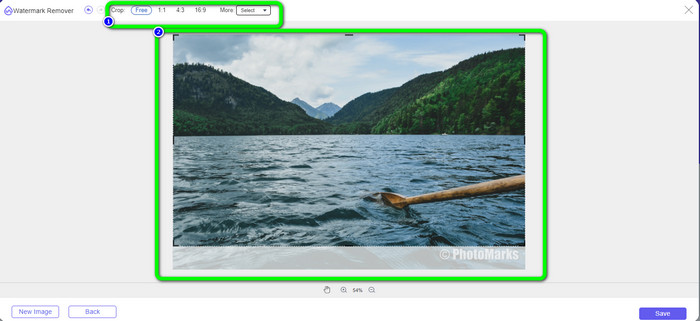
Langkah 4: Selepas membuang tera air dengan memotong foto, tekan butang Save di bahagian bawah kanan antara muka untuk memuat turun foto anda tanpa tera air. Kemudian, jika anda masih mahu memotong foto lain, klik butang New Image di bahagian bawah kiri antara muka.
Berkaitan dengan:
Cara Mudah Menghapus Tera Air Reddit daripada Imej
Cara Menghapus Tera Air dalam Lightroom Mobile [Selesai]
Bahagian 3: Soalan Lazim tentang Inpaint Watermark Remover
Bilakah saya harus menggunakan Inpaint?
Anda boleh menggunakan Inpaint untuk menghapuskan unsur yang tidak diingini daripada foto anda, seperti orang, tera air, logo, pelekat dan banyak lagi. Dengan alat ini, anda boleh menjadikan foto anda lebih hebat dan menyenangkan mata penonton anda.
Bolehkah saya menggunakan Inpaint pada komputer saya?
Ya awak boleh! Anda boleh memuat turun Inpaint kerana ia menawarkan versi desktop. Aplikasi yang boleh dimuat turun ini mempunyai lebih banyak ciri hebat daripada versi dalam talian. Anda boleh melampirkan imej tanpa had, dan ia memberikan kualiti pemulihan yang lebih tinggi dengan algoritma pengecatan yang lebih baik.
Adakah Inpaint penghilang tera air yang lebih baik?
Inpaint boleh diharap untuk membuang tera air daripada foto. Namun, ada hadnya. Ia mempunyai had saiz fail dan resolusi, yang tidak baik untuk pengguna. Anda boleh menggunakan FVC Free Watermark Remover jika anda mahukan penanggal tera air yang lebih baik. Ia tidak mempunyai sebarang had, dan anda boleh membuang tera air daripada foto secara percuma.
Kesimpulannya
Seperti yang anda lihat, artikel ini telah memberikan ulasan jujur tentang Inpaint Watermark Remover. Selain itu, ia menawarkan alternatif terbaik yang boleh anda gunakan untuk membuang tera air daripada foto anda. Jika anda mahukan penanggal tera air percuma 100%, anda boleh menggunakan FVC Free Watermark Remover.
-
 Cara Mengalih Keluar Tera Air daripada Video dalam After Effects Dengan Mudah
 Artikel ini akan membantu mengalih keluar tera air daripada video menggunakan After Effects. Juga, ia akan menyediakan alternatif terbaik untuk menghapuskan objek yang mengganggu.
-
 Panduan Langkah demi Langkah tentang Cara Mengalih Keluar Emoji daripada Video
 Merasa jengkel dengan emoji pada video anda? Siaran ini akan membawakan anda prosedur terbaik untuk mengalih keluar emoji serta-merta daripada video anda menggunakan alat yang hebat.
-
 Cara Cemerlang tentang Cara Mengalih Keluar Pelekat daripada Foto dan Video
 Adakah anda mahu mengalih keluar pelekat daripada video dan foto dengan mudah? Berikut ialah cara yang berkesan, termasuk kaedah yang paling boleh dipercayai dan paling mudah yang boleh anda cuba.
