


 Video Converter Ultimate
 Perakam Skrin
 Pembaikan Video
 Muat Turun Selamat
Cara Mengubah Saiz Gambar atau Imej dalam Word [2 Cara]
Apabila kita mengimport imej dalam Microsoft Word, kadangkala saiz asal imej itu dikekalkan. Selalunya kita tidak memerlukan saiz asal dalam dokumen kerana ia merosakkan susunan kerja yang sedang kita buat. Selain itu, apabila anda mempunyai imej yang besar dalam dokumen, saiz failnya juga biasanya besar. Dan kita tidak mahu perkara itu berlaku pada fail kita. Oleh itu, dalam artikel ini, kami akan mengajar anda dua kaedah tentang cara mengubah saiz gambar atau imej dalam Word. Mengubah saiz imej juga boleh dilakukan menggunakan FVC Free Image Upscaler. Jadi duduk santai dan hirup secawan kopi sambil membaca halaman ini.

Bahagian 1. Cara Mengubah Saiz Gambar dalam Word
Microsoft Word ialah pemproses kata komersial popular yang dibangunkan oleh Microsoft. Dengan Microsoft Word, anda boleh mencipta dokumen yang boleh anda kongsi dengan orang lain atau siarkan pada platform yang berbeza. Ramai profesional menggunakan program ini dalam bidang kerja mereka. Dan ada kalanya anda perlu mengubah saiz imej yang anda import pada apl. Oleh itu, baca bahagian ini secara berterusan jika anda ingin mengubah saiz imej anda dalam Microsoft Word.
Kaedah 1
Selalunya, kesilapan kami semasa bekerja dengan imej pada Word ialah kami hanya mengubah saiz ketinggian atau lebar imej, bukan kedua-duanya. Apabila kita mengubah saiz imej, kita tidak boleh memutarbelitkan imej. Oleh itu, apabila kita mengubah saiz foto, kita mesti memastikan bahawa lebar dan ketinggian saiz bertentangan dilaraskan secara automatik. Ini bercakap dengan nisbah bidang imej.
Langkah 1. Jika Microsoft Word masih belum dimuat turun pada desktop anda, muat turunnya sekarang. Kemudian buka dokumen sedia ada yang mengandungi imej, atau anda boleh mencipta dokumen baharu dan menyisipkan imej. Untuk menyisipkan imej, pergi ke Insert > Pictures, kemudian buka imej daripada folder komputer anda.
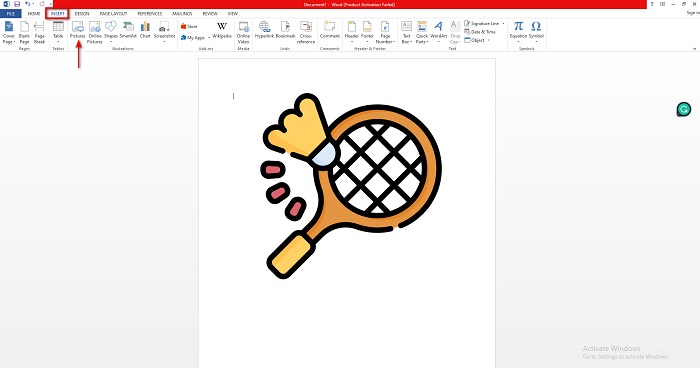
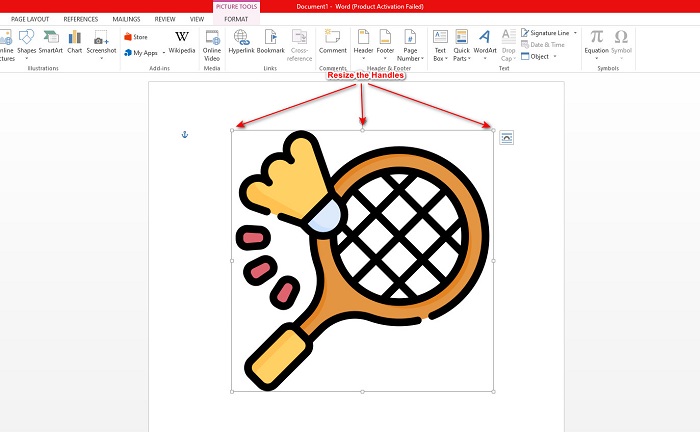
Langkah 2. Seterusnya, klik pada gambar supaya pemegang ubah saiz (resize handlebars) muncul. Kemudian, anda akan melihat tab Picture Tools > Format muncul pada Ribbon. Klik tab ini untuk memaparkan pilihan yang tersedia.
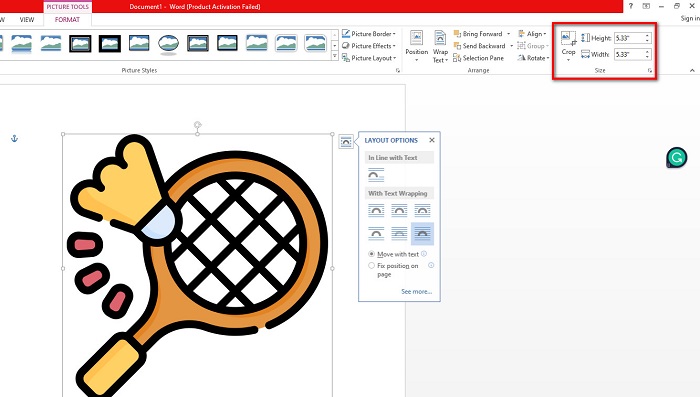
Langkah 3. Selepas itu, sebaik sahaja anda klik Format, anda boleh menggunakan fungsi dalam kumpulan Size untuk memasukkan saiz tepat ketinggian atau lebar foto anda. Anda boleh menanda anak panah atas dan bawah bersebelahan height dan width untuk melaraskan saiz mengikut keutamaan anda.
Langkah 4. Tetapi jika anda mahu melaraskan saiz imej secara manual, anda boleh menggunakan tetikus dan memegang serta menyeret pemegang pengubah saiz secara manual. Seret pemegang ke arah bahagian tengah imej jika anda mahu mengecilkan atau mengurangkan saiznya. Seret pemegang ke arah tepi skrin jika anda mahu membesarkan atau menambah saiznya.
Langkah 5. Sentiasa ingat bahawa apabila anda mengubah saiz imej secara manual dalam Word, adalah lebih baik menggunakan pemegang ubah saiz di bahagian bucu. Ini akan memastikan kedua‑dua ketinggian dan lebar gambar anda diubah saiz secara serentak dan mengekalkan nisbah ketinggian dan lebar foto anda.
Kaedah 2
Pilihan lain yang boleh anda gunakan untuk mengubah saiz imej menggunakan Microsoft Word ialah dengan menggunakan peratusan. Jika anda ingin mengubah saiz gambar anda dengan perkadaran yang tepat menggunakan peratusan, anda boleh menggunakan kaedah ini.
Langkah 1. Pilih gambar yang anda mahu ubah saiz dengan klik kiri pada imej tersebut.
Langkah 2. Kemudian pergi ke tab Picture Format, kemudian tandakan Position kemudian More Layout Options.
Langkah 3. Seterusnya, klik tab Size. Dan pada panel Scale, tandakan kotak Lock Aspect Ratio. Anda kini boleh memasukkan peratusan yang anda mahu untuk ketinggian dan lebar imej anda.
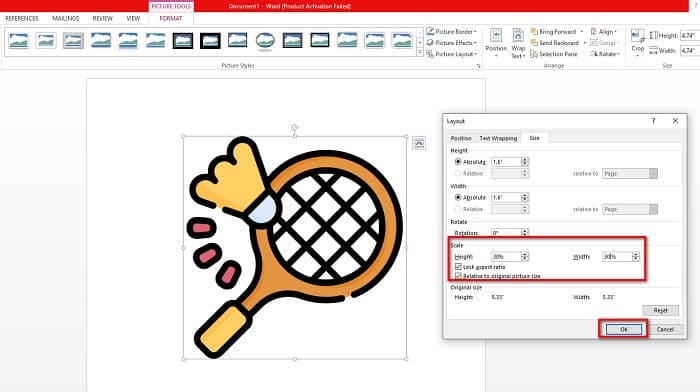
Langkah 4. Akhir sekali, tekan OK untuk menyimpan perubahan yang anda buat pada saiz imej anda.
Bahagian 2. Cara Mengubah Saiz Imej Dalam Talian
Kami melindungi belakang anda jika anda ingin menggunakan aplikasi dalam talian untuk mengubah saiz imej. Dalam bahagian ini, kami akan menunjukkan kepada anda pengubah semula foto dalam talian yang terbaik dan cara anda boleh menggunakannya untuk mengubah saiz foto anda.
FVC Free Image Upscaler ialah penukar saiz imej dalam talian yang boleh anda gunakan untuk melaraskan saiz imej anda. Anda boleh mengubah saiz foto dengan alat ini dengan mengubah atau menambah pembesaran gambar anda. Sebagai contoh, jika anda mempunyai imej yang kabur, anda boleh menggunakan FVC Free Image Upscaler untuk menambah baiknya. Selain itu, teknologi AI (Kecerdasan Buatan) yang digunakan akan mengesan bahagian imej yang berkualiti rendah, kemudian menambah baik bahagian tersebut. Alat dalam talian ini juga menyokong format imej yang paling biasa, seperti PNG, JPG, JPEG dan WebP. Ia juga sesuai untuk pemula kerana mempunyai antara muka yang mudah digunakan.
Tambahan pula, anda boleh meningkatkan imej anda dengan pembesaran 2x, 4x, 6x dan 8x. Dan jika anda ingin menyemak keputusan sebelum menyimpan output, alat ini membolehkan anda mempunyai Pratonton output anda. Apa yang menarik tentang FVC Free Image Upscaler ialah ia selamat digunakan dan tidak memerlukan anda melog masuk untuk mendapatkan akaun.
Bagaimana untuk mengubah saiz imej dalam talian menggunakan FVC Free Image Upscaler
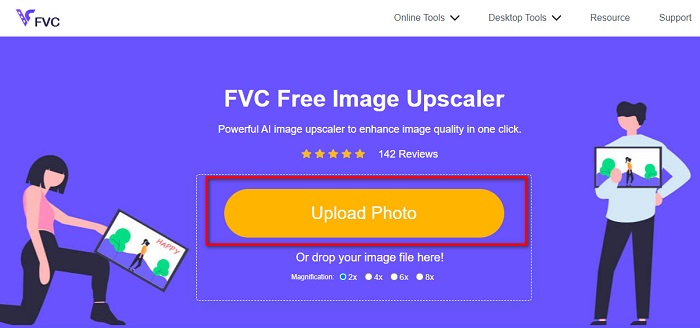
Langkah 1. Buka pelayar anda dan cari FVC Free Image Upscaler dalam kotak carian anda. Anda juga boleh klik pautan ini untuk pergi terus ke halaman utama mereka. Kemudian, klik butang Upload Photo untuk melancarkan program pada peranti anda.
Langkah 2. Seterusnya, klik butang Upload Photo sekali lagi untuk mengimport imej yang anda mahu ubah saiznya. Dalam fail komputer anda, cari imej tersebut, kemudian klik Open untuk memuat naiknya.
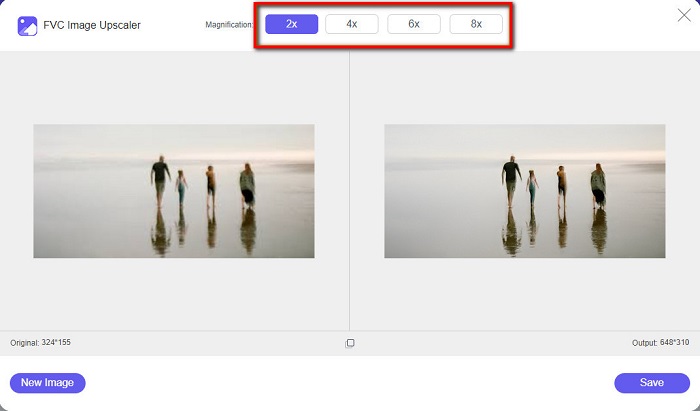
Langkah 3. Seterusnya, pilih pembesaran yang anda mahu untuk imej anda. Anda boleh memilih antara 2x, 4x, 6x dan 8x. Sentiasa ingat bahawa semakin tinggi pembesaran, semakin besar saiz failnya.
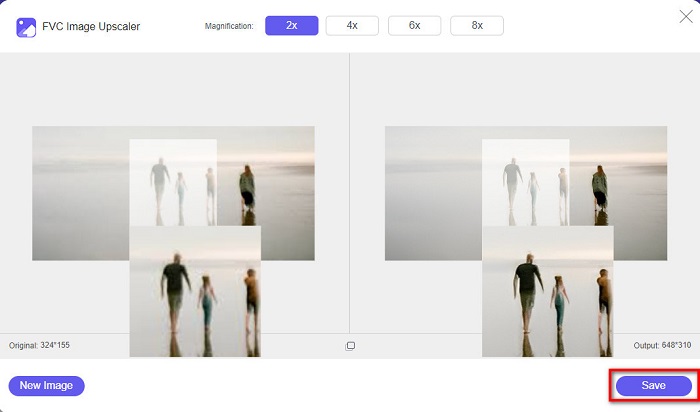
Langkah 4. Dan untuk pratonton hasil anda, seret kursor di sebelah kanan imej untuk melihat perubahan dan penambahbaikan. Klik butang Save apabila anda berpuas hati dengan hasil daripada penukar saiz foto ini.
Bahagian 3. Soalan Lazim tentang Cara Mengubah Saiz Gambar dalam Word
Adakah imej akan menjadi kabur selepas saya mengubah saiznya dalam Microsoft Word?
Tidak. Apabila anda mengubah saiz foto anda dalam Microsoft Word, kualiti imej tidak akan terjejas. Tetapi jika anda menghadapi masalah seperti ini, gambar anda mungkin menjadi kabur disebabkan isu pemampatan.
Adakah saiz fail akan berkurangan jika saya mengecilkan imej saya dalam Word?
ya. Saiz fail dokumen anda mungkin berkurangan jika anda mengecilkan imej di dalamnya. Imej yang diimport ke dalam dokumen mungkin mempunyai resolusi tinggi. Oleh itu, apabila anda mengubah saiz imej, saiz keseluruhan dokumen akan terjejas.
Bolehkah saya mengubah saiz Imej dalam Excel?
Sudah tentu. Anda boleh mengubah saiz imej atau objek yang diimport dalam Excel dengan mengklik imej dan melaraskan hendal.
Kesimpulannya
Sangat mudah untuk mengubah saiz imej dalam Word, terutamanya jika anda mengikuti langkah‑langkah di atas. Jadi, lain kali apabila anda mengimport imej dalam Word dan mahu melaraskan saiznya, anda sudah tahu apa yang perlu dilakukan. Tetapi jika anda lebih suka menggunakan aplikasi dalam talian untuk mengubah saiz imej bagi Word, anda boleh menggunakan FVC Free Image Upscaler.
-
 5 Penubah GIF Terbaik Tersedia Di Semua Platform #91;2022]
 Ingin tahu pengubahsuai GIF yang boleh anda gunakan? Dalam kes itu, maklumat yang diberikan di bawah akan bercakap tentang penyusun semula yang boleh anda gunakan pada GIF anda pada semua platform.
-
 Apl Photo Resizer Terbaik Dalam Talian, Luar Talian, Android dan iPhone
 Apakah apl pengubahsuai foto terbaik? Klik halaman untuk mengetahui lima teratas apl pengubahsuai foto paling berkuasa yang boleh anda gunakan untuk meningkatkan atau mengubah saiz fail anda.
-
 Cara Mengubah Saiz Gambar dalam PowerPoint [Cara Terpantas untuk Menukar Saiz]
 Mempelajari cara mengubah saiz gambar dalam PowerPoint adalah penting terutamanya jika anda ingin menggunakannya dalam pembentangan anda. Baca artikel ini untuk mengetahui cara melakukannya.
