


 Video Converter Ultimate
 Perakam Skrin
 Pembaikan Video
 Muat Turun Selamat
Panduan Komprehensif Cara Menukar Video kepada GIF dengan Alat Terbaik
Adakah anda muak dan bosan menatal tanpa henti melalui suapan media sosial dan melihat imej statik lama yang sama? Mengapa tidak menambah sedikit kehidupan pada kehadiran dalam talian anda dengan GIF? Animasi pendek dan gelung ini telah menjadi semakin popular sejak beberapa tahun kebelakangan ini, dan mudah untuk mengetahui sebabnya. Ia bukan sahaja menarik perhatian, tetapi ia juga boleh menyampaikan emosi atau konsep yang kompleks dengan cara yang tidak dapat dilakukan oleh imej pegun.
Berita baiknya ialah anda tidak perlu menjadi animator profesional untuk mencipta GIF anda sendiri. Dalam hantaran ini, kami akan menunjukkan cara untuk menukar video kepada GIF, supaya anda boleh mula berkongsi animasi tersuai dengan dunia, meningkatkan keterlihatan dalam talian anda dan menarik perhatian khalayak dengan animasi yang memukau hari ini!

Bahagian 1. Tukar Video kepada GIF pada Komputer
Mengubah video kepada GIF ialah cara yang menyeronokkan dan kreatif untuk menggunakan semula kandungan sedia ada. Jika anda mempunyai video yang anda suka tetapi tidak semestinya mahu berkongsi keseluruhannya, anda boleh menukarnya dengan mudah kepada GIF dan menyerlahkan detik atau adegan tertentu. Ini membolehkan anda memberi nafas baharu kepada kandungan lama anda dan memastikan kehadiran dalam talian anda sentiasa segar dan menarik. Oleh itu, program berikut akan menunjukkan proses cara membuat GIF daripada video.
1. Video Converter Ultimate (Cara Luar Talian)
FVC Video Converter Ultimate ialah aplikasi desktop serba guna yang membolehkan anda menukar video kepada pelbagai format, termasuk GIF. Dengan pembuat GIF terbina dalam, anda boleh dengan mudah menukarkan video kegemaran anda kepada GIF yang boleh dikongsi, sesuai untuk media sosial, aplikasi pemesejan dan banyak lagi.
Ciri pembuat GIF dalam FVC Video Converter Ultimate menawarkan pelbagai pilihan penyesuaian, termasuk keupayaan untuk memilih masa mula dan tamat video, melaraskan kadar bingkai dan saiz GIF, dan memilih kiraan gelung. Selain itu, anda boleh menambah teks atau tera air imej pada GIF anda untuk tujuan pemperibadian atau penjenamaan. Untuk menggunakan pembuat GIF ini daripada video, anda boleh mengikuti langkah yang diberikan di bawah:
Langkah 1. Dapatkan program dan pasang
Mula-mula, anda mesti memasang program ini pada komputer anda. Untuk berbuat demikian, klik mana-mana butang Muat Turun Percuma di bawah. Kemudian, teruskan memasang program dengan mengikut panduan pemasangan. Selepas itu, lancarkan program tersebut.
Muat Turun PercumaUntuk Windows 7 atau lebih baharuMuat Turun Selamat
Muat Turun PercumaUntuk MacOS 10.7 atau lebih baharuMuat Turun Selamat
Langkah 2. Akses pembuat GIF
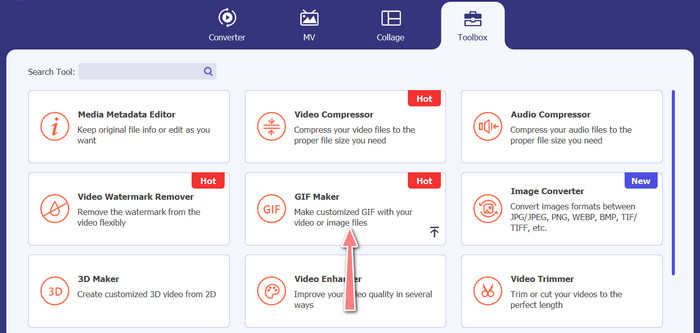
Sekarang, setelah program dilancarkan dan diakses, anda boleh mulakan proses dengan membuka GIF Maker dalam program. Pergi ke tab Toolbox dan cari GIF Maker. Kemudian, pada antara muka seterusnya, anda akan melihat ruang muat naik.
Langkah 3. Muatkan video
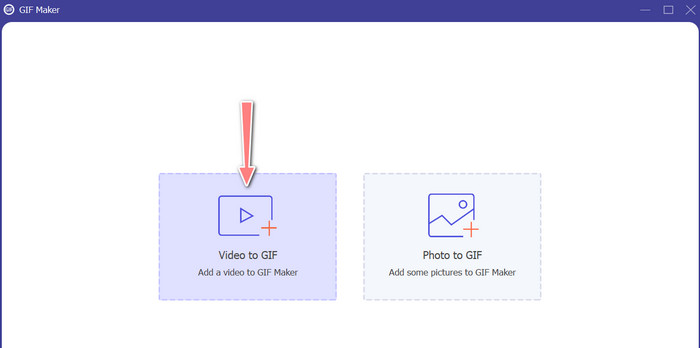
Kali ini, klik butang Video to GIF dan pilih video yang ingin anda tukar kepada GIF. Ia akan membenarkan anda memilih dari pemacu tempatan komputer anda. Selepas memilih video sasaran, anda boleh mengedit video dan mula menetapkan cara membuat GIF daripada video.
Langkah 4. Cipta GIF daripada video
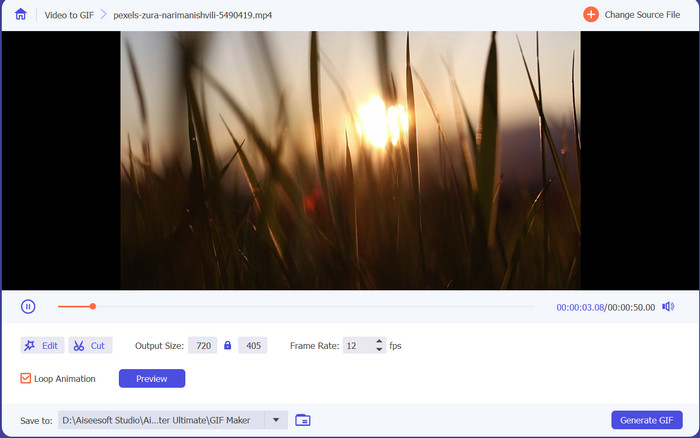
Sebaik sahaja anda mengakses GIF Maker, anda boleh memotong video yang dimuat naik, mengedit saiz keluaran, melaraskan kadar bingkai, atau mengeditnya. Selain itu, ia membenarkan anda mengaktifkan atau menyahaktifkan animasi gelung. Akhir sekali, klik butang Generate GIF jika anda berpuas hati dengan hasilnya.
Kelebihan
- Algoritma pemprosesan video lanjutan untuk mencipta GIF berkualiti tinggi.
- Laraskan kadar bingkai, saiz dan kualiti GIF.
- Antara muka mesra pengguna.
Keburukan
- Penukaran mungkin perlahan, bergantung pada perkakasan komputer.
2. GIMP
GIMP (Program Manipulasi Imej GNU) ialah perisian penyuntingan imej sumber terbuka yang teguh dan serba boleh yang menawarkan pengguna dengan pelbagai alat dan ciri untuk mencipta dan memanipulasi imej. Salah satu ciri utama GIMP ialah keupayaannya untuk mencipta GIF animasi. Dengan video ini kepada pembuat GIF, anda boleh membuat GIF animasi dengan mudah dengan menggabungkan berbilang imej atau bingkai ke dalam satu animasi. Anda boleh mengimport imej ke dalam GIMP, menambah lapisan dan menggunakan ciri animasi untuk mencipta animasi yang lancar dan lancar. Anda juga boleh menambah teks, bentuk dan elemen lain pada GIF anda untuk menjadikannya lebih menarik dan menarik. Untuk membuat GIF daripada video, lihat langkah di bawah.
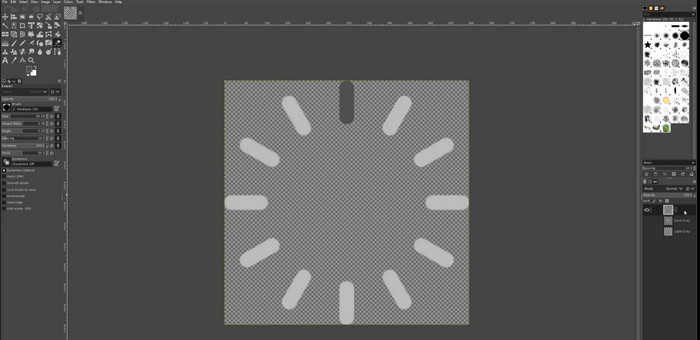
Langkah 1. Buka GIMP dan import fail video anda dengan pergi ke File > Open dan pilih fail video yang ingin anda gunakan.
Langkah 2. Setelah anda mengimport video, GIMP akan meminta anda memilih kadar bingkai. Pilih kadar bingkai yang anda mahu untuk GIF anda, kemudian klik Import. Anda akan melihat bingkai video sebagai lapisan berasingan dalam panel Layers. Anda boleh membuang mana-mana bingkai yang anda tidak mahu dalam GIF dengan klik kanan padanya dan memilih Delete Layer.
Langkah 3. Klik kanan pada lapisan pertama dan pilih Duplicate Layer daripada menu. Pilih salinan tersebut dan pergi ke Filters > Animation > Blend. Tetapkan kelegapan lapisan kepada 50% dan tetapkan mod adunan kepada Addition.
Langkah 4. Pergi ke File > Export As dan pilih format fail GIF untuk mengeksport GIF. Namakan fail anda dan pilih folder tempat anda mahu menyimpannya. Pastikan anda memilih As Animation, serta sela masa bingkai yang anda inginkan dalam dialog eksport. Anda juga boleh memilih berapa kali anda mahu animasi diulang atau jika anda mahu ia berulang tanpa henti.
Kelebihan
- Video ke GIF dalam GIMP adalah percuma dan ia adalah sumber terbuka.
- Tersedia pada pelbagai platform.
- Alat penyuntingan imej yang berkuasa.
Keburukan
- Keluk pembelajaran yang curam.
- Kurang integrasi dengan perisian lain.
3. Penukar Video Percuma Dalam Talian
Jika anda ingin serta-merta menukar video kegemaran anda kepada GIF, anda boleh menggunakan Free Video Converter Online oleh FVC. Ia membolehkan anda memuat naik banyak format fail video dan menukarkannya kepada pelbagai format, termasuk GIF. Oleh itu, jika anda sedang mencari penukar video kepada GIF dalam talian, anda patut mempertimbangkan alat ini. Selain itu, prosesnya ringkas dan tidak mengambil banyak masa. Apa yang perlu anda lakukan hanyalah memuat naik fail; penukaran hanya satu klik sahaja. Sekarang, berikut ialah langkah-langkah cara menukar video kepada GIF secara percuma dalam talian.
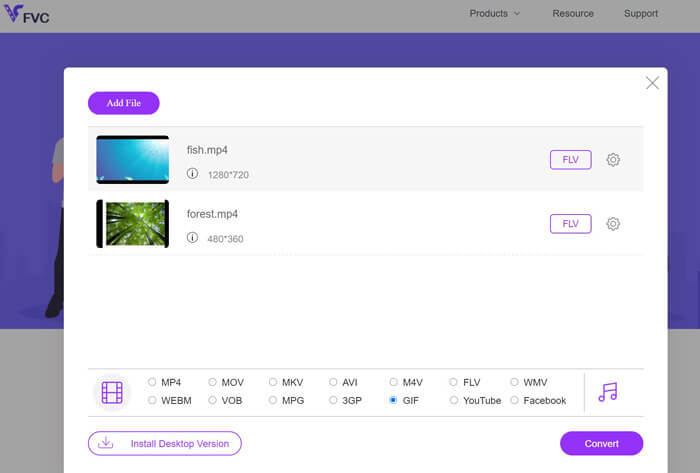
Langkah 1. Lancarkan pelayar pada komputer anda dan pergi ke laman web rasmi program. Dari halaman utama, anda sudah boleh melihat butang muat naik.
Langkah 2. Sekarang, tekan butang Add Files to Upload, dan ia akan meminta anda memuat turun pelancar untuk membolehkan pemuatan naik. Pasang pelancar tersebut, dan anda sudah bersedia.
Langkah 3. Selepas itu, tambah video pilihan anda daripada komputer. Kemudian, pilih format dengan menetapkan GIF sebagai format video keluaran.
Langkah 4. Anda boleh klik ikon gear di sebelah lakaran kecil video anda untuk melaraskan beberapa tetapan keluaran. Akhir sekali, tekan butang Convert untuk menukar video kepada GIF.
Kelebihan
- Tukar fail tanpa kehilangan kualiti.
- Menyokong banyak format fail.
Keburukan
- Pergantungan pada sambungan internet.
Ezgif ialah alat dalam talian percuma yang membolehkan anda memangkas, mengubah saiz, menambah teks atau kesan dan menukar antara format imej dan video yang berbeza. Ia juga mempunyai alat untuk membuat GIF yang membolehkan pengguna membuat GIF animasi daripada fail video atau jujukan imej. Secara keseluruhannya, Ezgif ialah alat yang berguna untuk pengeditan imej asas dan GIF, dan alat pembuat GIFnya memudahkan untuk membuat GIF animasi. Tetapi ia mungkin tidak sesuai untuk tugas penyuntingan yang lebih rumit, dan hakikat bahawa ia mempunyai had pada saiz dan kawalan fail mungkin mengganggu sesetengah pengguna. Ketahui cara membuat GIF dengan video menggunakan program ini melalui langkah yang diberikan di bawah.
4. EZGIF
Ezgif ialah alat dalam talian percuma yang membolehkan anda memangkas, mengubah saiz, menambah teks atau kesan dan menukar antara format imej dan video yang berbeza. Ia juga mempunyai alat untuk membuat GIF yang membolehkan pengguna membuat GIF animasi daripada fail video atau jujukan imej. Secara keseluruhannya, Ezgif ialah alat yang berguna untuk pengeditan imej asas dan GIF, dan alat pembuat GIFnya memudahkan untuk membuat GIF animasi. Tetapi ia mungkin tidak sesuai untuk tugas penyuntingan yang lebih rumit, dan hakikat bahawa ia mempunyai had pada saiz dan kawalan fail mungkin mengganggu sesetengah pengguna. Ketahui cara membuat GIF dengan video menggunakan program ini melalui langkah yang diberikan di bawah.
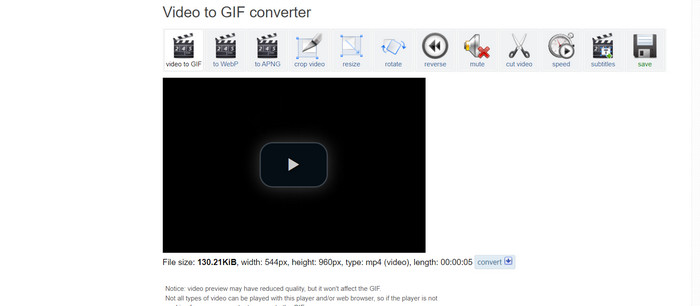
Langkah 1. Pergi ke laman EZGIF. Kemudian, pilih pilihan Video to GIF pada EZGIF.
Langkah 2. Klik Choose File untuk memuat naik fail video yang anda mahu tukar kepada GIF. Anda juga boleh memasukkan URL video tersebut.
Langkah 3. Selepas anda memuat naik video, anda boleh menggunakan peluncur untuk memilih di mana GIF bermula dan berakhir. Anda juga boleh menggunakan pilihan untuk menambah teks, menambah penapis, atau menukar saiz GIF.
Langkah 4. Klik butang Convert to GIF apabila anda berpuas hati dengan tetapan anda. Selepas penukaran selesai, anda boleh klik butang Download untuk menyimpan GIF anda.
Kelebihan
- Ia menyediakan pelbagai ciri dan a Editor GIF.
- Cipta GIF daripada jujukan imej.
- Percuma sepenuhnya untuk digunakan.
Keburukan
- Laman web memaparkan iklan.
- Fungsi penyuntingan terhad.
Bahagian 2. Tukar Video kepada GIF pada Android dan iPhone
Apl mudah alih GIPHY ialah alat berkuasa untuk mencipta dan berkongsi GIF animasi di mana-mana sahaja. Dengan apl ini, anda boleh dengan mudah menukar video dan foto kepada GIF yang boleh digunakan di media sosial, aplikasi pemesejan dan banyak lagi. Apl ini juga menyediakan akses kepada perpustakaan besar GIF sedia ada yang boleh dicari dan dikongsi serta-merta. Sama ada anda mencari GIF reaksi, meme lucu atau klip haiwan comel, anda pasti menemuinya di GIPHY. Ikuti arahan untuk menukar video kepada GIF pada peranti Android dan iOS.
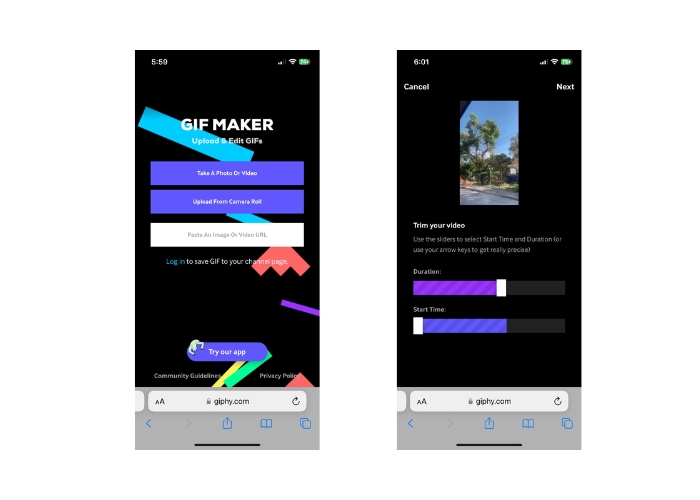
Langkah 1. Dapatkan apl GIPHY dari App Store (iOS) atau Google Play Store dan pasang pada telefon anda (Android). Untuk membuat GIF baharu, buka apl dan ketik ikon kamera.
Langkah 2. Pilih video atau foto yang ingin anda gunakan untuk membuat GIF.
Langkah 3. Gunakan editor untuk memotong bahagian video anda, menambah penapis, menukar kelajuan, atau menukar pilihan gelung.
Langkah 4. Ketik butang yang bertulis Create GIF untuk menghasilkan GIF anda. Setelah GIF anda siap, anda boleh menyimpannya ke galeri (camera roll) atau menghantarnya terus ke media sosial atau aplikasi pemesejan.
Kelebihan
- Percuma untuk digunakan.
- Keserasian merentas platform.
- Pustaka besar GIF pra-dibuat.
Keburukan
- Isu hak cipta.
- Panjang video terhad.
Bahagian 3. Soalan Lazim tentang Menukar Video kepada GIF
Bagaimanakah cara saya berkongsi GIF saya selepas menciptanya?
Sebaik sahaja anda telah mencipta GIF anda, anda boleh berkongsinya di media sosial, apl pemesejan atau platform lain dengan memuat naiknya secara terus atau menggunakan pautan ke fail. Banyak alatan penciptaan GIF turut menawarkan pilihan perkongsian terbina dalam untuk memudahkan anda berkongsi GIF anda dengan orang lain.
Apakah had untuk mencipta GIF daripada video?
Mencipta GIF daripada video boleh mengakibatkan kehilangan kualiti, kerana GIF biasanya resolusi yang lebih rendah dan mempunyai palet warna yang terhad. Selain itu, mungkin terdapat had pada panjang dan saiz GIF yang terhasil, bergantung pada alat yang anda gunakan.
Apakah panjang ideal untuk GIF yang dibuat daripada video?
Panjang ideal untuk GIF yang dibuat daripada video bergantung pada penggunaan yang dimaksudkan dan platform tempat ia akan dikongsi. Untuk platform media sosial, panjang yang disyorkan biasanya antara 3-6 saat.
Kesimpulannya
Dengan pelbagai penukar dalam talian, perisian dan apl mudah alih yang tersedia untuk mencipta GIF daripada video, tidak pernah semudah ini untuk berkongsi kandungan animasi yang menyeronokkan dengan rakan dan pengikut. Untuk beberapa cadangan bagi mencipta GIF daripada video dengan kualiti yang baik, adalah penting untuk memilih video dengan pencahayaan yang baik, gegaran kamera yang minimum, dan durasi yang sesuai dengan platform yang disasarkan.
-
 Panduan Langkah demi langkah Menukar MP4 ke GIF di Desktop atau Dalam Talian
 Mencari kaedah terbaik untuk menukar video MP4 anda menjadi GIF animasi? Berikut adalah panduan terperinci untuk melakukannya di Photoshop, Windows Movie Maker, penukar video dalam talian dan banyak lagi.
-
 Gelung GIF dengan Looper GIF Animasi Terbaik pada Windows & Mac
 Ingin tahu rahsia untuk GIF gelung terbaik? Nak buat satu? Jika ya, anda berada di tempat yang betul. Jadi, pelajari cara membuat gelung dengan gelung terbaik yang tersedia.
-
 Cara Memisahkan GIF dan Menyesuaikan Fail GIF Animasi Kegemaran
 Ketahui cara membahagikan GIF kepada bingkai dan menyesuaikannya agar sesuai dengan keperluan anda dengan panduan kami yang mudah diikuti. Jimat masa dan gunakan hanya bahagian GIF yang anda perlukan.
