


 Video Converter Ultimate
 Perakam Skrin
 Pembaikan Video
 Muat Turun Selamat
Cara Menetapkan Lagu Spotify Nada Dering Anda - Panduan Langkah Penuh
Spotify menawarkan pustaka muzik, podcast dan kandungan audio lain yang sangat luas kepada pengguna di seluruh dunia. Berjuta-juta lagu tersedia untuk didengar secara on-demand. Jika anda juga mahu menetapkan muzik indah yang ditawarkannya sebagai nada dering telefon pintar anda, anda perlu memuat turun fail audio yang dipilih ke peranti anda terlebih dahulu. Berita baiknya ialah prosedur ini tidak rumit. Dalam artikel ini, kami akan menghuraikan keseluruhan operasi tentang cara menjadikan lagu Spotify sebagai nada dering anda kepada tiga bahagian dan menganalisis setiap bahagian dengan terperinci untuk anda. Semasa menyediakan nada dering, anda mungkin perlu memotong sebahagian daripada audio. Dengan mengambil kira perkara ini, kami juga akan mengesyorkan salah satu alat penyuntingan audio dan video yang paling profesional. Beberapa soalan lazim tentang penyetelan nada dering juga akan dijawab.

Bahagian 1. Muat turun Lagu Spotify untuk Nada Dering
Bolehkah anda menggunakan Spotify untuk nada dering? Jawapannya ya, sudah tentu. Apa yang anda perlu tahu sebelum meneruskan secara rasmi ialah anda tidak boleh memuat turun muzik terus ke peranti anda melalui Spotify pada masa ini dan menetapkannya sebagai nada dering anda. Oleh itu, kami memerlukan bantuan beberapa alat. Menurut tinjauan kami, Spotify Downloader adalah pilihan yang cukup baik. Apa yang anda perlu lakukan ialah membuka tapak web rasminya dalam penyemak imbas anda, salin pautan ke muzik kegemaran anda, dan tampalkannya ke bahagian yang sepadan. Oleh itu, anda akan dapat memuat turun fail terus ke komputer anda. Jika anda mempunyai sebarang masalah dengannya, kami akan menerangkan langkah-langkah dalam bahagian berikut.
Berikut ialah perkara yang anda perlu lakukan untuk memuat turun lagu Spotify untuk nada dering dengan Spotify Downloader.
Langkah 1. Masuk ke laman web rasmi Spotify Downloader menggunakan pelayar anda.
Langkah 2. Buka aplikasi Spotify pada telefon anda. Kemudian, cari audio yang anda ingin muat turun.
Langkah 3. Ketik ikon tiga titik, dan pilih Kongsi > Salin Pautan.
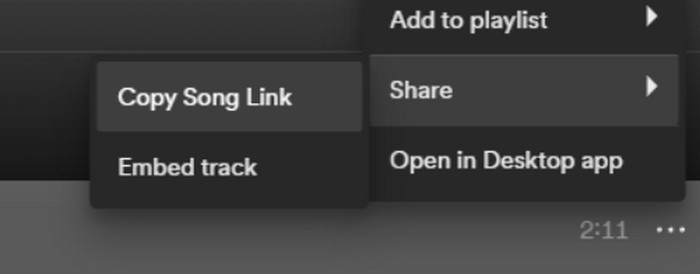
Langkah 4. Kini, anda boleh pergi ke halaman Spotify Downloader. Tampalkan pautan yang disalin dan klik Hantar.
Langkah 5. Apabila proses selesai, klik Muat turun.

Bahagian 2. Jadikan Lagu Spotify Nada Dering Anda
Selepas memuat turun muzik kegemaran anda ke peranti anda, anda boleh mula mengeditnya. Kami boleh mengedit klimaks lagu atau bahagian lagu kegemaran anda dan menjadikan lagu Spotify sebagai nada dering anda. Perlu diingatkan bahawa telefon iPhone dan Android menyokong format audio nada dering yang berbeza. Pada masa ini, iPhone hanya menyokong nada dering dalam format M4R, manakala telefon Android pada masa ini menyokong MP3, M4A, WAV dan OGG. Jika anda mendapati format fail audio anda tidak memenuhi keperluan di atas, anda boleh menggunakan penukar format profesional untuk membantu anda.
Dalam kes ini, kami mengesyorkan anda mencuba alat penyuntingan audio serba guna, FVC yang dipilih khas Video Converter Ultimate, untuk merealisasikan penyuntingan lagu sehenti. Selain penukaran format teras, ia juga menyokong penyuntingan panjang audio, pelarasan volum dan trek audio, serta menambah kesan fade-in atau fade-out pada nada dering anda. Anda hampir tidak perlu menunggu lama semasa menggunakannya untuk memproses fail anda. Ia akan membantu anda mengubah suai parameter audio anda dengan sangat cekap.
Muat Turun PercumaUntuk Windows 7 atau lebih baharuMuat Turun Selamat
Muat Turun PercumaUntuk MacOS 10.7 atau lebih baharuMuat Turun Selamat
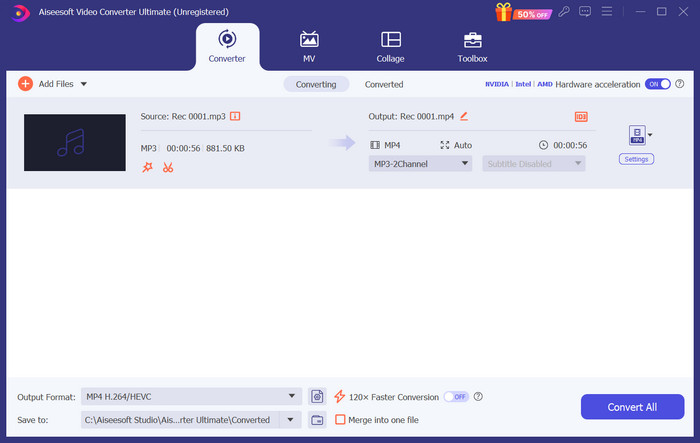
Di sini, kami akan mengajar anda cara membuat nada dering daripada Spotify dengan FVC Video Converter Ultimate.
Langkah 1. Muat turun dan pasang FVC Video Converter Ultimate pada komputer anda. Pastikan anda telah menyimpan lagu kegemaran anda pada peranti anda.
Langkah 2. Buka perisian ini pada desktop anda, dan klik Tambah Fail untuk memuat naik lagu Spotify ke platform ini.
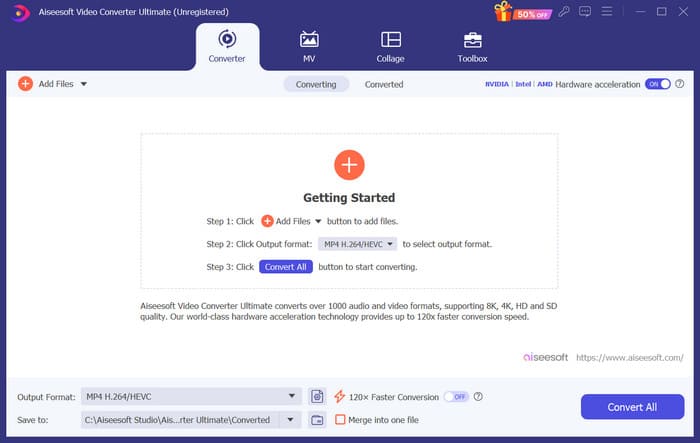
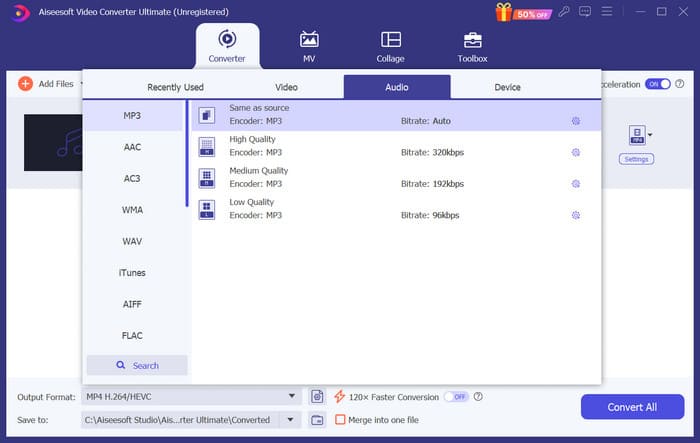
Langkah 3. Untuk menukar format nada dering anda, tarik turun menu di sebelah Format Keluaran. Kemudian, anda boleh memilih format sasaran daripada semua pilihan di bawah Audio.
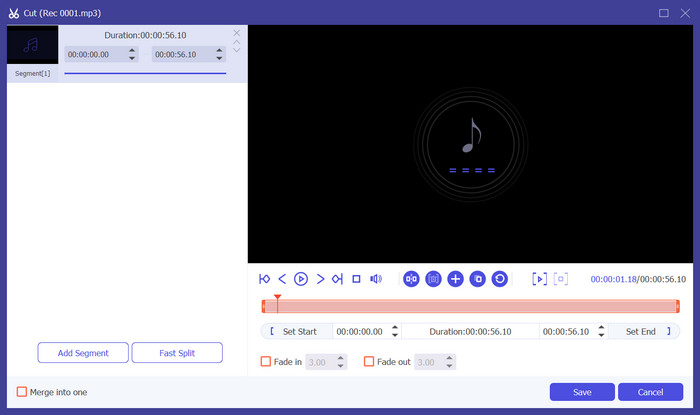
Langkah 4. Untuk memilih sebahagian daripada lagu sebagai nada dering telefon anda, klik Potong. Anda kemudian akan masuk ke halaman pemangkasan. Seret peluncur untuk memilih bahagian yang anda mahu kekalkan. Dalam tetingkap ini, anda juga boleh menambah kesan fade-in dan fade-out pada nada dering anda.
Langkah 5. Untuk menukar volum atau Trek Audio fail anda, klik Edit. Pada halaman baharu, anda malah boleh pratonton hasil suntingan secara langsung. Untuk mengekalkan perubahan, klik OK.
Langkah 6. Setelah anda selesai menetapkan nada dering anda, klik Tukar Semua untuk mengeksport fail.
Bahagian 3. Tetapkan Lagu Spotify sebagai Nada Dering
Memandangkan kami telah menyediakan nada dering baharu kami dan telah mengeditnya mengikut panjang yang betul, kami perlu mengambil langkah terakhir: tetapkan lagu Spotify sebagai nada dering untuk panggilan masuk pada telefon anda. Memandangkan peranti berbeza beroperasi secara berbeza, kami akan membimbing anda dalam menyediakannya pada peranti anda daripada kedua-dua telefon iPhone dan Android.
Android
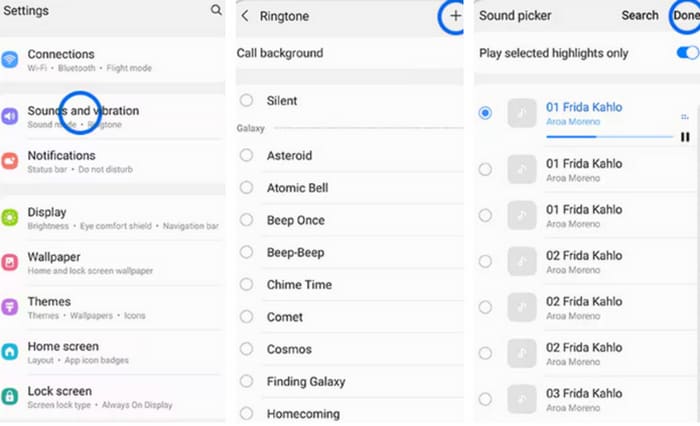
Dalam bahagian ini, kami akan membimbing anda melalui menetapkan lagu Spotify kepada nada dering pada telefon Android anda. Kami akan menggunakan telefon Samsung sebagai contoh. Sebelum kita mula, anda harus memindahkan lagu Spotify anda ke telefon anda. Transformasi melalui kabel USB atau Bluetooth ialah kedua-dua laluan yang boleh dirujuk.
Langkah 1. Pergi ke Tetapan pada telefon anda, dan ketik Bunyi & getaran > Nada dering telefon > Bunyi Saya.
Langkah 2. Ketik Tambah, dan pilih lagu Spotify yang telah disunting daripada semua fail pada telefon mudah alih anda.
Langkah 3. Untuk menyimpan pelarasan, ketik Selesai. Kini, anda telah berjaya menambah lagu Spotify sebagai nada dering Samsung anda.
iPhone
Jika anda mahu membuat nada dering untuk iPhone anda, anda mungkin perlu menggunakan alat pihak ketiga. Alat yang paling popular ialah GarageBand, dan kami akan menerangkan cara menetapkan lagu Spotify sebagai nada dering iPhone.
Langkah 1. Muat turun dan jalankan GarageBand pada iPhone anda. Pilih Projek.
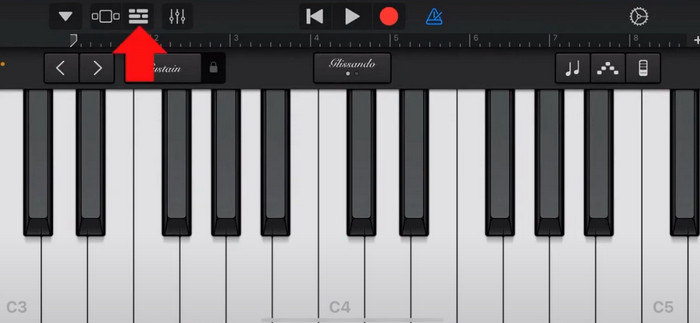
Langkah 2. Selepas itu, pilih Loop > Fail. Untuk memilih lagu Spotify anda, pilih Semak item daripada aplikasi Fail.
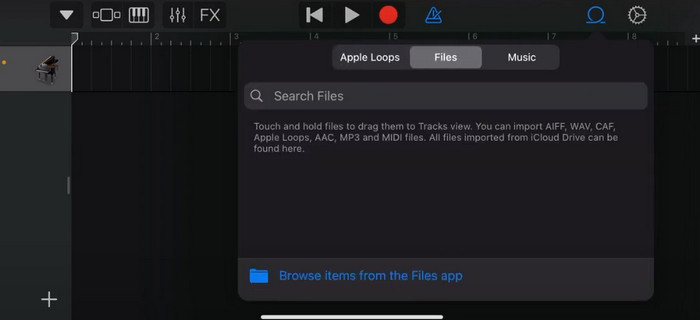
Langkah 3. Letakkan fail Spotify yang telah dipotong pada garis masa.
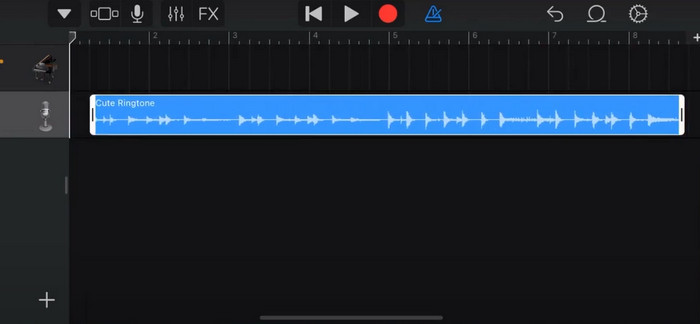
Langkah 4. Nyahdayakan Metronom. Kemudian ketik ikon anak panah ke bawah dan pilih Lagu Saya.
Langkah 5. Tekan dan tahan klip lagu, dan ketik Kongsi.
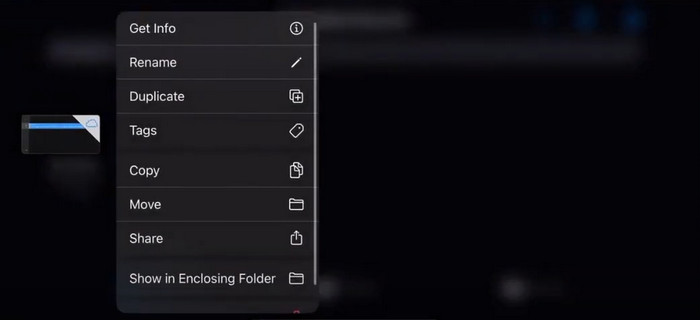
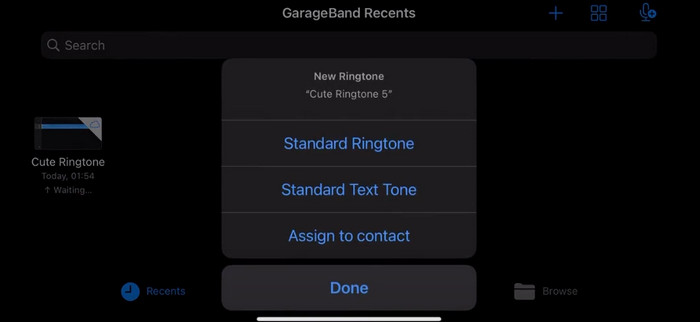
Langkah 6. Pilih Nada dering > Eksport. Ketik Guna bunyi sebagai > Nada Dering Standard.
Bahagian 4. Soalan Lazim untuk Menjadikan Lagu Spotify Nada Dering Anda
Bolehkah saya menggunakan lagu Spotify sebagai nada dering secara langsung?
Spotify tidak membenarkan pengguna menggunakan terus lagu daripada aplikasi sebagai nada dering pada peranti mudah alih. Walau bagaimanapun, terdapat kaedah alternatif yang boleh anda gunakan untuk menetapkan lagu Spotify sebagai nada dering. Anda boleh membeli lagu yang anda suka daripada kedai muzik digital seperti iTunes atau Muzik Google Play. Terdapat alat pihak ketiga yang tersedia yang membolehkan anda menukar lagu Spotify kepada fail MP3.
Bagaimanakah saya boleh membuat nada dering tersuai untuk iPhone saya tanpa iTunes?
Jika anda ingin mencipta nada dering tersuai untuk iPhone anda tanpa menggunakan iTunes, anda boleh menggunakan GarageBand, aplikasi muzik yang tersedia pada peranti iOS. Kaedah ini membolehkan anda memperibadikan nada dering anda dengan klip audio kegemaran anda pada peranti anda.
Bagaimana untuk menukar Spotify kepada nada dering iPhone tanpa komputer?
Menukar lagu Spotify terus kepada nada dering iPhone tanpa menggunakan komputer adalah sukar. Walau bagaimanapun, anda boleh mencari beberapa kaedah alternatif untuk mencapai hasil yang serupa. Contohnya, anda boleh menggunakan apl pembuat nada dering atau pilih GarageBand.
Kesimpulannya
Di atas, kami telah memberikan anda gambaran keseluruhan yang lengkap tentang cara menetapkan lagu Spotify sebagai nada dering untuk panggilan masuk. Kami telah merangkumi semua langkah dan menyediakan anda alat penyuntingan audio terkini, Video Converter Ultimate yang disyorkan FVC, untuk membantu anda mempersonalisasikan lagu anda. Jika anda mahu, alat ini juga membantu anda dengan mudah menjadikan video sebagai nada dering anda. Kami percaya anda akan mendapat panduan yang anda perlukan.
-
 Panduan Terbaik Cara Menukar WAV kepada Nada Dering dalam Masa Yang Cepat
 Ingin menukar WAV kepada nada dering dengan mudah? Alat mesra pengguna kami menyelesaikan tugas! Nikmati penukaran audio berkualiti tinggi dalam sekelip mata - tiada masalah teknologi. Cuba mereka hari ini!
-
 Cara Menjadikan Memo Suara Sebagai Nada Dering pada iPhone & Android
 Jika anda ingin menjadikan memo suara menjadi nada dering, baca artikel ini. Sama ada anda pengguna iPhone atau pengguna Android, anda boleh mencari penyelesaian dalam kandungan kami.
-
 5 Pemotong MP3 untuk Memotong Sebarang Audio Dengan Mudah [2024 Dikemas Kini]
 Adakah anda memerlukan pemotong MP3 untuk memangkas audio? Dalam kes itu, baca artikel ini kerana kami menyediakan alat untuk bergantung pada pemotongan audio yang mudah.
