


 Video Converter Ultimate
 Perakam Skrin
 Pembaikan Video
 Muat Turun Selamat
Panduan Terperinci tentang Cara Membalikkan Audio dalam Audacity [2024]
Membalikkan trek audio boleh menambah dimensi dan warna yang unik pada produksi muzik anda, menjana kesan bunyi yang menawan untuk penceritaan kreatif. Gaya ini digunakan secara meluas dan semakin popular apabila memperkayakan projek audio dengan kedalaman dan keaslian. Jadi, jika anda mengedit audio dalam Audacity dan ingin menambah kelainan dengan membalikkannya, anda berada di tempat yang betul!
Dalam artikel ini, kami akan membimbing anda melalui langkah terperinci tentang cara membalikkan audio dalam Audacity dan berkongsi petua berharga untuk membantu anda memanfaatkan sepenuhnya ciri ini. Pada penghujung panduan ini, anda akan bersedia untuk membalikkan trek audio anda dan meneroka ufuk kreatif baharu dengan mudah. Jadi, bersedia untuk mengubah projek audio anda dan temui potensi menarik audio terbalik!

Bahagian 1. Cara Membalikkan Audio dalam Audacity
Audacity ialah program yang direka untuk memperkasakan pengguna mengedit fail audio tanpa memerlukan alat premium yang mahal, memastikan output berkualiti tinggi tanpa kos. Sebagai alat sumber terbuka, ia boleh diakses secara bebas oleh semua orang dan menawarkan senarai panjang ciri yang biasanya ditemui dalam perisian berbayar. Di antara pelbagai keupayaannya, Audacity menonjol dengan keupayaannya untuk membalikkan trek audio. Ciri ini membolehkan pengguna hanya kreatif dengan cara mereka mahu audio mereka berbunyi. Biasanya, editor membalikkan audio mereka kerana ia menambahkan kesan unik pada projek mereka.
Berikut ialah cara anda boleh membalikkan audio dalam Audacity.
Langkah 1. Muat turun dan pasang Audacity pada komputer anda.
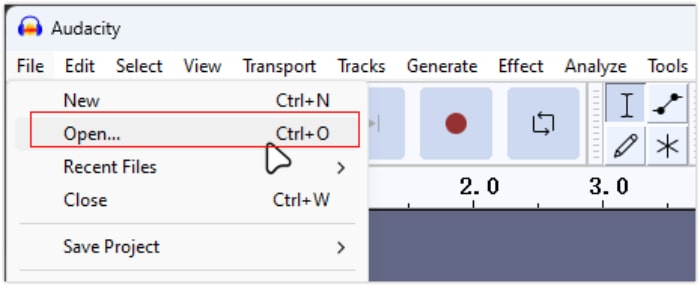
Langkah 2. Lancarkan alat tersebut, pergi ke menu File di penjuru kiri atas, dan pilih Open. Dari situ, semak imbas komputer anda untuk mencari dan memilih fail audio atau seret dan lepaskan fail audio yang ingin anda balikkan ke dalam program.
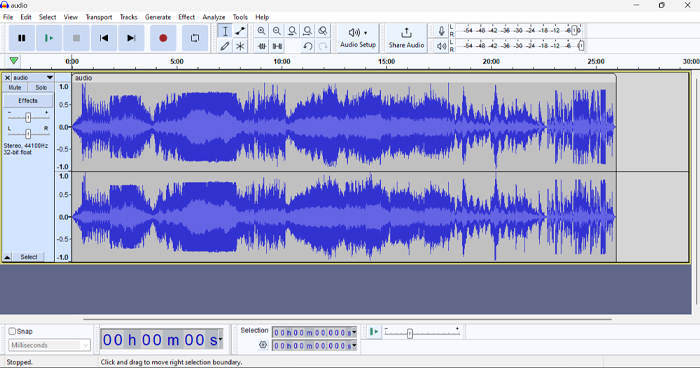
Langkah 3. Sekarang, klik pada trek audio, pergi ke tab Select, dan pilih All untuk memilih keseluruhan fail audio.
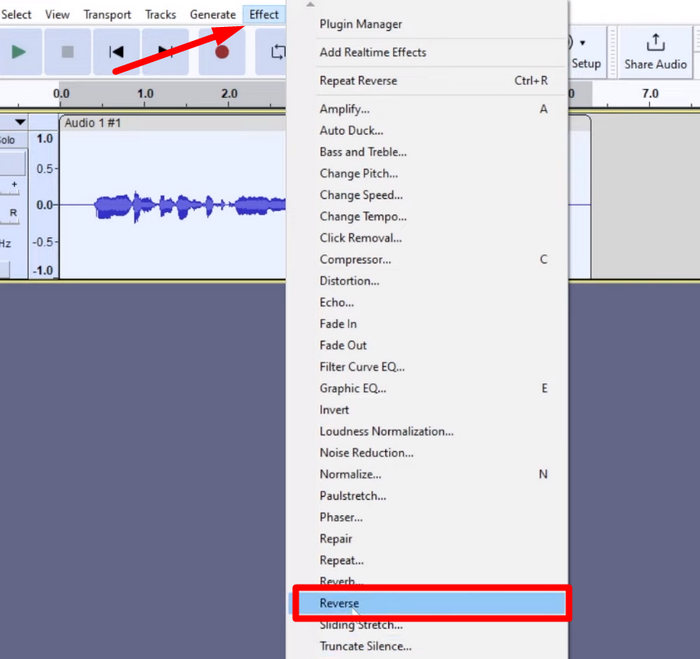
Langkah 4. Untuk membalikkan audio, pergi ke tab Effect dan pilih Reverse daripada menu jatuh bawah. Audacity akan memproses dan membalikkan klip audio yang dipilih.
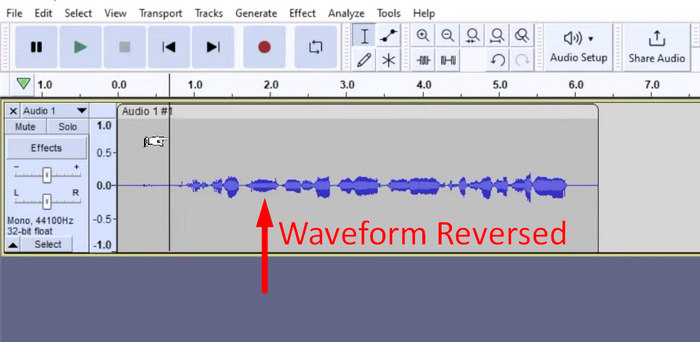
Langkah 5. Anda boleh pratonton audio yang telah dibalikkan dengan menekan Spacebar pada papan kekunci anda. Sebagai alternatif, gunakan kawalan main balik di bahagian kiri atas tetingkap Audacity dan klik butang Play.
Langkah 6. Akhir sekali, untuk mengeksport fail audio yang telah dibalikkan, kembali ke menu File dan di bawahnya pilih Export. Dengan cara itu, audio anda akan disimpan sebagai fail baharu. Sementara itu, jangan lupa untuk memilih format fail audio pilihan anda sebelum mengeksportnya.
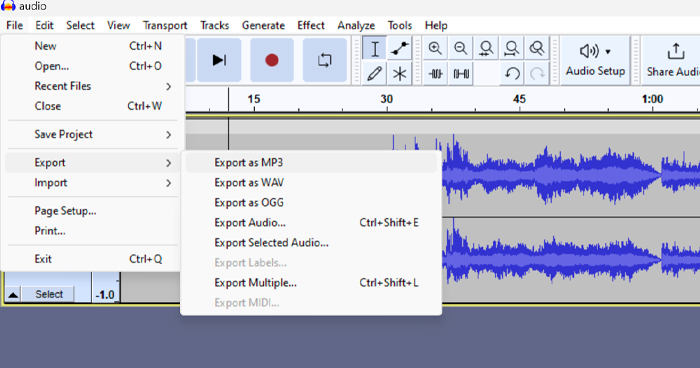
Disebabkan beberapa isu mengenai kehilangan kerja secara tidak dijangka, simpan projek anda secara kerap semasa mengedit untuk mengelakkan sebarang kehilangan kemajuan. Anda boleh menyimpan kerja anda dengan cepat dengan menggunakan Ctrl + S pada Windows atau Cmd + S pada Mac. Selain itu, pertimbangkan untuk menggunakan nama fail deskriptif dan menyusun fail anda dalam folder khusus untuk memastikan projek anda teratur dan mudah diakses.
Bahagian 2. Cara Membalikkan Bahagian Audio dalam Audacity
Terdapat keadaan di mana pengguna hanya mahu membalikkan sebahagian audio dalam Audacity, mungkin kerana hanya terdapat bahagian tertentu yang mereka ingin tekankan atau mencipta kesan yang berbeza. Langkah-langkah di bawah adalah hampir sama dengan cara membalikkan keseluruhan trek. Walau bagaimanapun, memilih sebahagian daripada audio agak rumit dan memerlukan penekanan dalam langkah-langkah untuk mengelakkan kekeliruan, terutamanya untuk pemula.
Berikut ialah cara membalikkan sebahagian audio dalam Audacity.
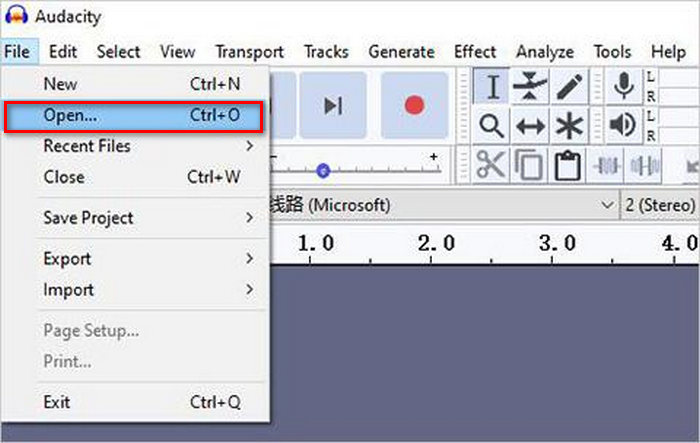
Langkah 1. Apabila anda berada pada antara muka utama alat tersebut, pergi ke menu File di penjuru kiri atas dan pilih Open. Dari situ, semak imbas komputer anda untuk mencari dan memilih fail audio atau seret dan lepaskan fail audio yang ingin anda balikkan ke dalam program.
Langkah 2. Kini, untuk memilih sebahagian audio yang anda mahu balikkan, gunakan fungsi Zoom untuk mengezum masuk pada trek gelombang dan seret tetikus anda untuk memilih bahagian atau segmen audio yang hanya anda ingin balikkan.
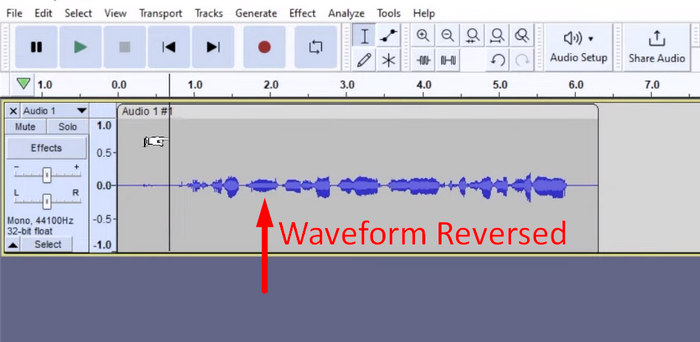
Langkah 3. Untuk membalikkan audio, pergi ke tab Effect dan pilih Reverse daripada menu jatuh bawah. Audacity akan memproses dan membalikkan klip audio yang dipilih.
Langkah 4. Anda boleh pratonton audio yang telah dibalikkan dengan menekan Spacebar pada papan kekunci anda. Sebagai alternatif, gunakan kawalan main balik di bahagian kiri atas tetingkap Audacity dan klik butang Play.
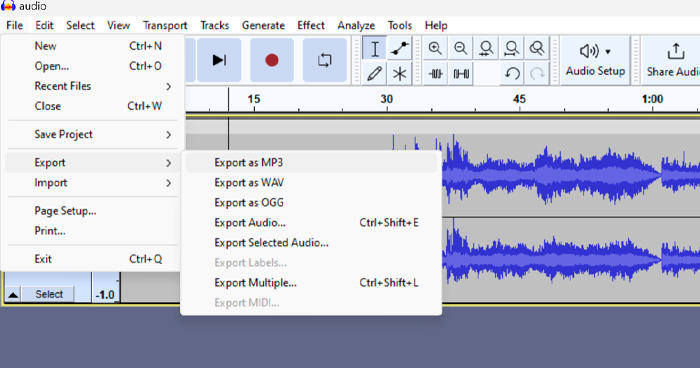
Langkah 5. Akhir sekali, untuk mengeksport fail audio yang telah dibalikkan, pilih Export di bawah menu File. Pilih Export as dan pilih format fail audio pilihan anda sebelum mengeksportnya.
Apabila memilih bahagian tertentu audio untuk dibalikkan dalam Audacity, pastikan anda mengezum masuk dengan tepat pada bentuk gelombang supaya anda dapat melihat dengan jelas di mana bahagian itu bermula dan berakhir. Ini membantu membuat pemilihan yang tepat dan mengelakkan termasuk bahagian audio yang tidak diingini. Selain itu, sebelum membalikkan, gunakan alat Clip Split jika perlu untuk membahagikan audio kepada segmen kecil, sebagai contoh, memotong audio MP3, supaya lebih mudah untuk memanipulasi dan menyunting bahagian tertentu secara bebas. Pendekatan ini meningkatkan kawalan ke atas suntingan anda dan memastikan audio yang dibalikkan mencapai kesan yang diingini dengan lancar.
Bahagian 3. Audio/Video Songsang dengan Alternatif Audacity
Sementara itu, jika anda mengutamakan cara yang lebih ringkas dan mudah untuk membalikkan audio atau video, anda boleh menggunakan alternatif Audacity ini, iaitu Video Converter Ultimate pilihan FVC. Pakej menyeluruh untuk video dan audio ini mungkin terkenal dengan keupayaan penukarannya yang berkuasa, tetapi selain itu, alat ini juga sangat sesuai untuk pengguna yang memerlukan cara yang mudah untuk membalikkan audio atau video.
Langkah 1. Pada komputer anda, muat turun dan pasang Video Converter Ultimate pilihan FVC.
Muat Turun PercumaUntuk Windows 7 atau lebih baharuMuat Turun Selamat
Muat Turun PercumaUntuk MacOS 10.7 atau lebih baharuMuat Turun Selamat
Langkah 2. Lancarkan alat tersebut dan pergi ke tab Moretools. Dari situ, pilih Video Reverser.
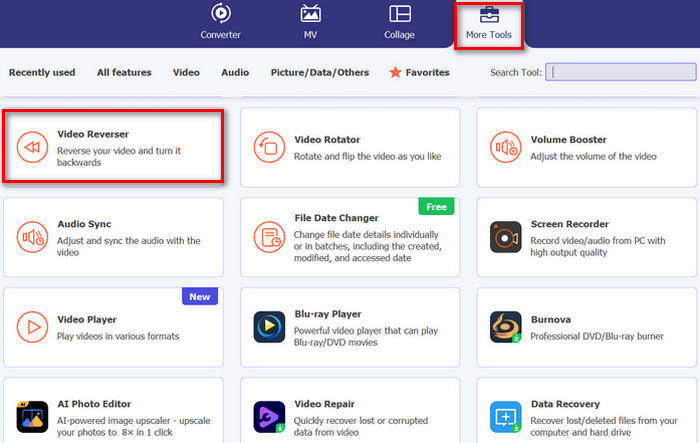
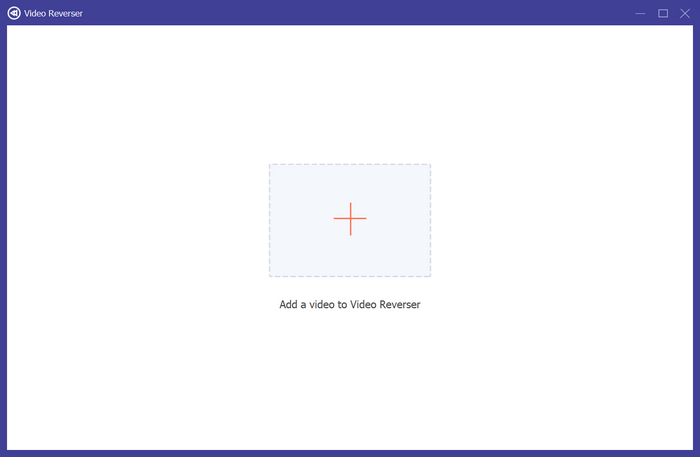
Langkah 3. Sekarang, import audio atau video yang anda mahu balikkan dengan mengklik butang Add a Video to Video Reverser.
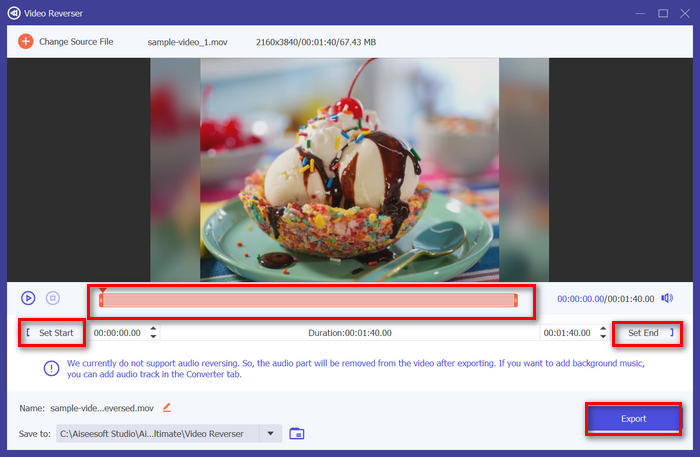
Langkah 4. Setelah anda berada dalam antara muka Video Reverser, jika anda ingin membalikkan keseluruhan trek, anda boleh terus pergi ke butang Export untuk membalikkan fail anda secara automatik. Tetapi jika anda hanya mahu membalikkan sebahagian, anda boleh menggelongsorkan bar dan dengan teliti memilih bahagian audio atau video yang anda mahu balikkan. Sebagai alternatif, anda boleh terus mengekod masa mula dan masa tamat bahagian fail yang anda ingin balikkan. Setelah selesai, hanya klik butang Export.
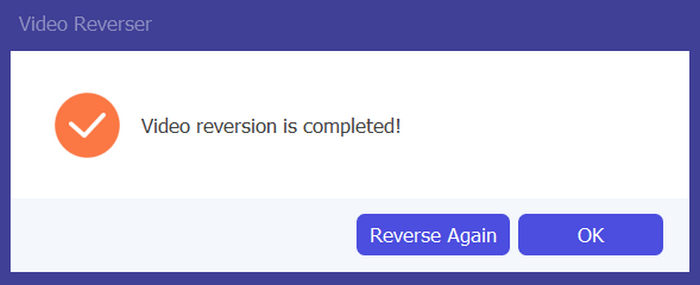
Langkah 5. Apabila proses pengeksportan selesai, anda akan menerima mesej ini, dan anda boleh mengakses video yang telah dibalikkan dalam folder pada komputer anda.
Itulah anda mempunyainya! Mudah peasy, kan? Anda tidak perlu keliru dengan antara muka yang kompleks. Dengan Video Converter Ultimate yang dipilih FVC, semua yang anda perlukan berada di hujung jari anda.
Bahagian 4. Soalan Lazim tentang Membalikkan Audio dalam Audacity
Bagaimana untuk membuat asal kesan audio terbalik dalam Audacity?
Jika anda telah membalikkan dalam Audacity dan ingin membuat asalnya, anda boleh kembali kepada audio asal dengan mudah. Cuma pergi ke menu Edit di penjuru kiri sebelah atas antara muka Audacity dan pilih Undo Reverse. Selain itu, anda boleh menggunakan pintasan papan kekunci Ctrl + Z untuk Windows atau Cmd + Z untuk Mac untuk membuat asal tindakan terakhir. Ini akan mengembalikan audio kepada keadaan asalnya sebelum kesan terbalik digunakan.
Apakah format audio yang Audacity menyokong untuk membalikkan audio?
Audacity menyokong pelbagai format audio popular, seperti WAV, MP3, FLAC, AIFF dan OGG.
Bolehkah anda memesongkan audio dalam Audacity?
ya. Anda boleh memesongkan audio dalam Audacity. Audacity menawarkan beberapa kesan dan alatan yang membolehkan anda menggunakan herotan pada trek audio anda. Untuk menambah ini, pergi ke Kesan, klik Herotan dan Modulasi, dan pilih Herotan.
Bolehkah anda menukar audio dalam Audacity?
Ya, boleh. Audacity menyokong banyak format audio. Jika anda mendapati mana-mana fail audio anda tidak serasi dengan peranti anda, sebagai contoh, anda boleh menggunakan Audacity untuk menukar AIFF kepada MP3 dengan mudah.
Kesimpulannya
Sebagai kesimpulan, mempelajari cara membalikkan audio dalam Audacity adalah mudah dan menambah kesan unik pada projek audio atau video anda. Ikuti langkah terperinci ini untuk mula membalikkan trek audio anda hari ini. Untuk alternatif yang lebih mudah, cubalah Video Converter Ultimate pilihan FVC. Sedia untuk berkreatif? Cuba mana-mana kaedah ini sekarang!
-
 Sertailah MOV secara percuma - Cara Menggabungkan Dua Fail MOV menjadi Satu
 Mungkin sukar bagi pemula untuk menggabungkan beberapa klip video MOV bersama. Jadi, adakah cara mudah dan cepat untuk menggabungkan fail MOV? Sekiranya ada, maka bagaimana menggunakannya? Catatan ini akan membantu anda mendapatkan jawapan ini.
-
 4 Cara Menggabungkan Video secara Percuma di Windows / Mac / Dalam Talian
 Inilah 4 cara cepat untuk menggabungkan video menjadi video baru. Tiada had saiz fail atau format video. Anda boleh bergabung dengan 2, 3, 4 dan lebih banyak lagi klip video dalam format dan resolusi yang berbeza dengan berjaya.
-
 Panduan Konkrit untuk Bergabung dengan Fail M4V di Windows dan Mac secara percuma
 Sekiranya anda mencari penyelesaian untuk menggabungkan fail video M4V menjadi satu, jangan ketinggalan petikan ini. Di sini kita akan membincangkan dua kaedah terbaik untuk menggabungkan fail video M4V.
