Panduan pengguna

Penyelesaian Penukaran Video / Audio

Bermula

FVC Free FLV to Audio Converter adalah penukar video percuma ke audio terbaik. Ia dapat mengekstrak trek audio dari fail video FLV. Lebih-lebih lagi, ia menyokong menukar fail audio antara format audio yang berbeza.
Antara Muka Utama

Muat turun & Pasang

Muat turun pakej pemasangan berdasarkan sistem operasi komputer anda. Kemudian, klik dua kali fail persediaan dan ikuti arahan di skrin untuk memasang program.

Keutamaan

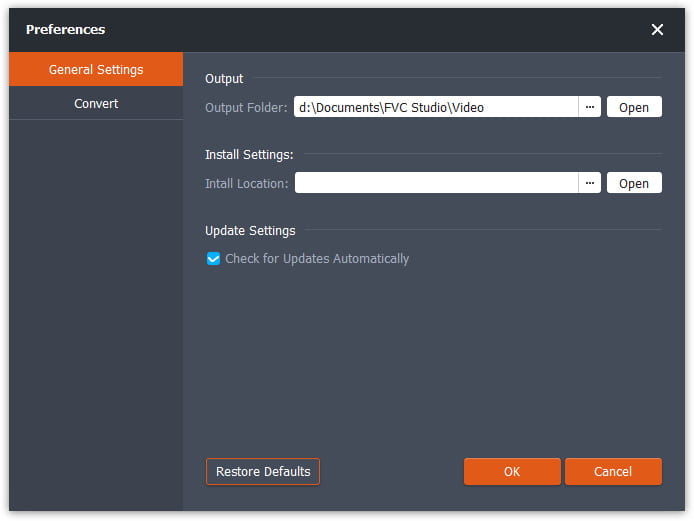
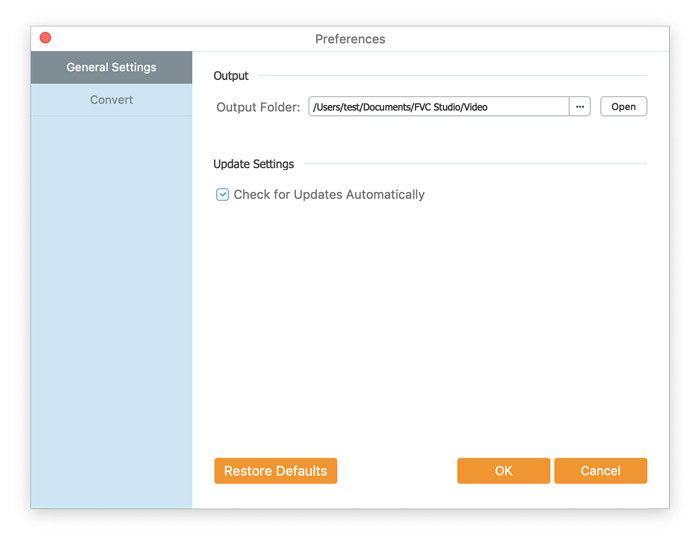
Before you start the conversion, it’s recommended to tweak the default settings. You can click the Menu icon and click on Preferences… to configure the specific settings. For example, you are free to choose the output folder to store your converted files.

Keutamaan

Tukar FLV ke Audio

Sekarang anda boleh mengikuti langkah-langkah ini untuk menukar fail FLV ke format audio.

Step 1. Launch FVC Free FLV to Audio Converter

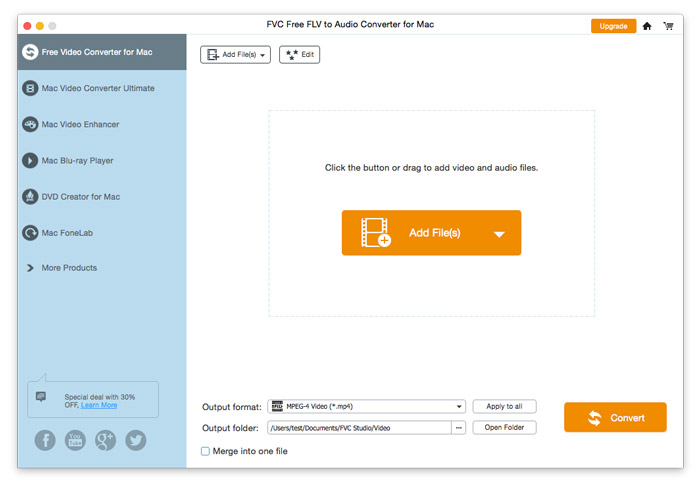
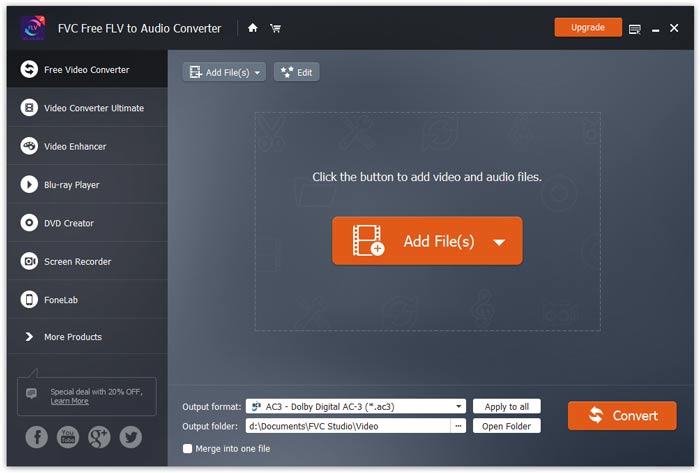
Lancarkan FVC Free FLV to Audio Converter, dan anda akan melihat antara muka yang bersih.

Antara Muka Utama

Step 2. Add an FLV file into the program

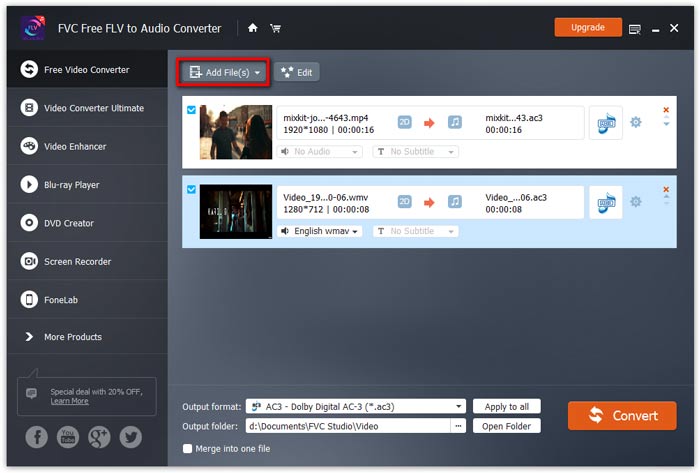
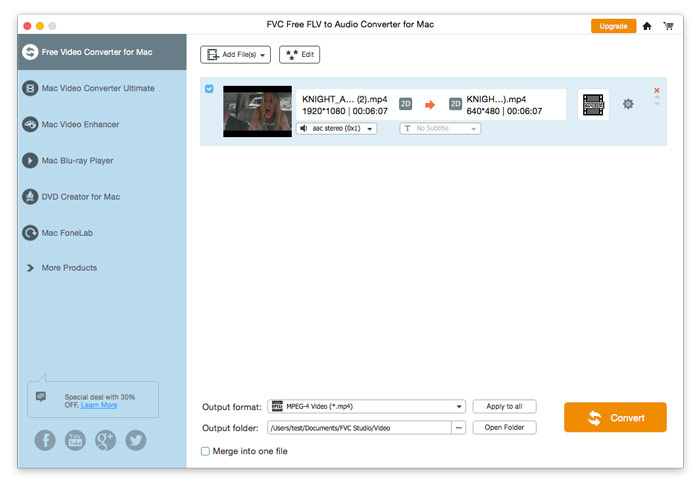
Click the Add File(s) button and choose FLV files you want to process in the dialogue opening subsequently. After the files are added to the program, they will be displayed on the file list.

Tambah Fail FLV

Step 3. Select the output format

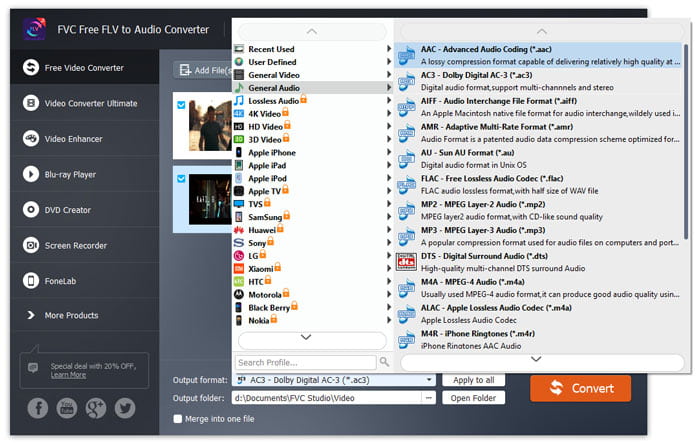
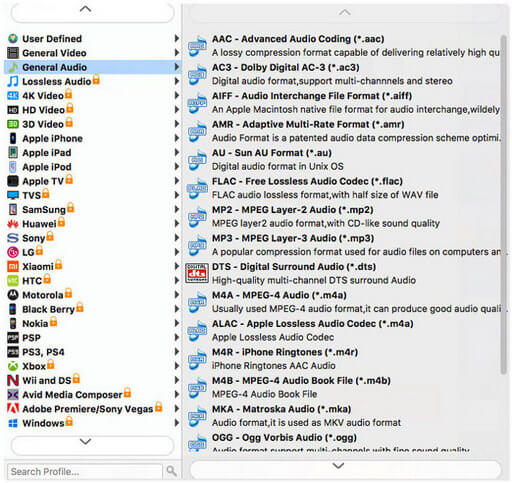
Click to open Output format drop-down list, then choose the audio format from the General Audio profile list. It can convert your FLV files to MP3, WMA, AAC, M4A, and so on.

Pilih Format Audio

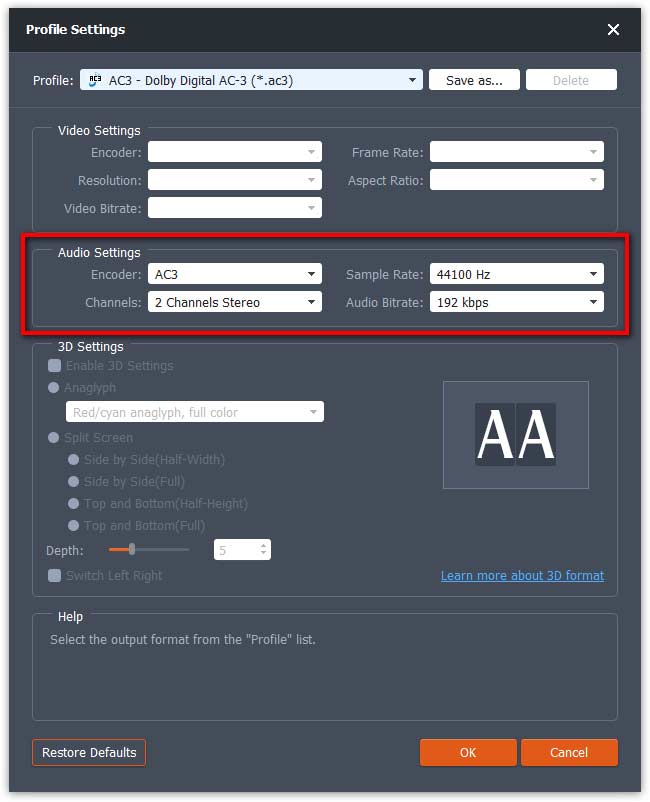
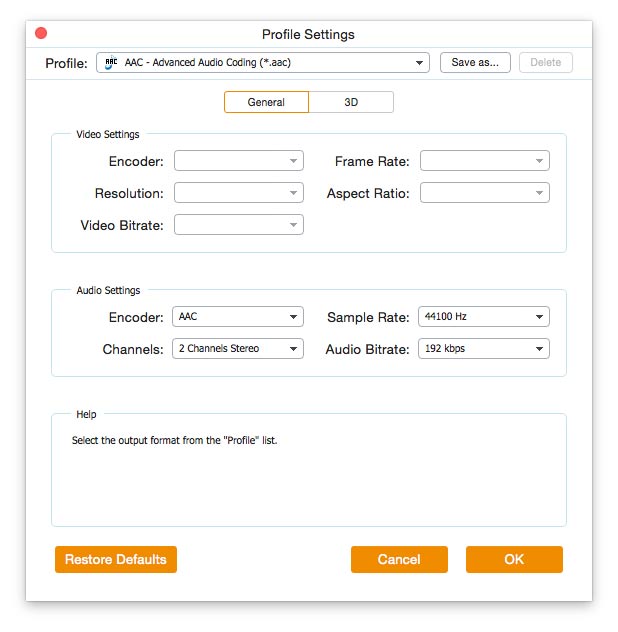
If you’re not satisfied with the original profile parameter settings, you can click the Cogwheel icon and adjust the encoder, channel, sample rate, and audio bitrate in the Profile settings window.

Tetapan Profil

Step 4. Start converting FLV to Audio

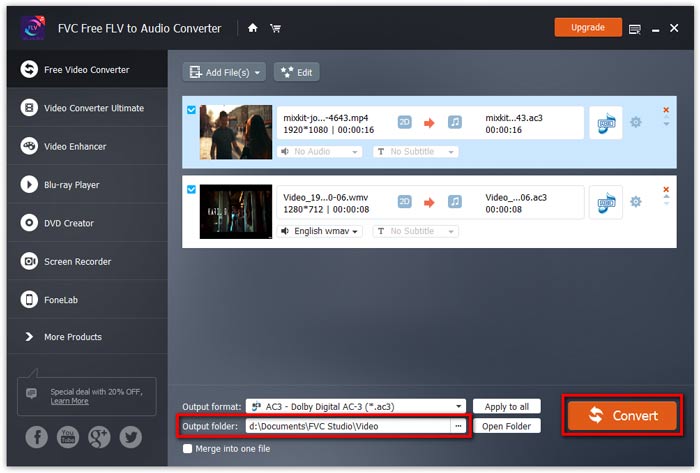
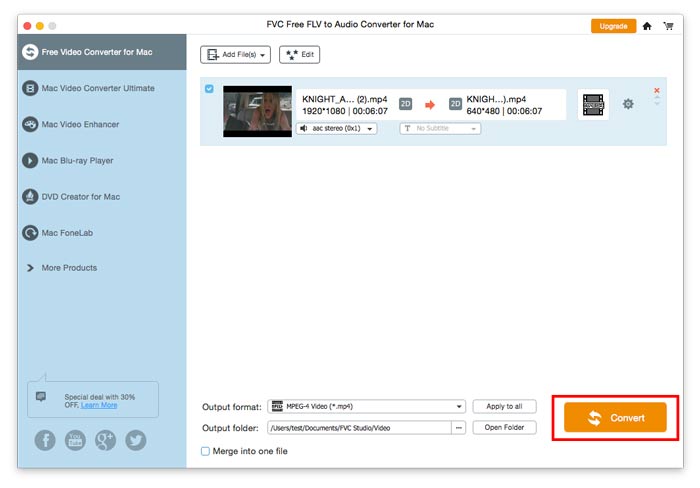
Go to Output folder to choose the destination folder for saving output files, and then click OK button to return to the main window. Finally, click the Convert button to start the conversion.

Mulakan Penukaran

Panduan pengguna

Penyelesaian Penukaran Video / Audio

Bermula

FVC Free FLV to Audio Converter adalah penukar video percuma ke audio terbaik. Ia dapat mengekstrak trek audio dari fail video FLV. Lebih-lebih lagi, ia menyokong menukar fail audio antara format audio yang berbeza.

Antara Muka Utama

Muat turun & Pasang

Muat turun pakej pemasangan berdasarkan sistem operasi komputer anda. Kemudian, klik dua kali fail persediaan dan ikuti arahan di skrin untuk memasang program.

Keutamaan

Before you start the conversion, it’s recommended to tweak the default settings. You can click the Menu icon and click on Preferences… to configure the specific settings. For example, you are free to choose the output folder to store your converted files.

Keutamaan

Tukar FLV ke Audio

Sekarang anda boleh mengikuti langkah-langkah ini untuk menukar fail FLV ke format audio.

Step 1. Launch FVC Free FLV to Audio Converter

Lancarkan FVC Free FLV to Audio Converter, dan anda akan melihat antara muka yang bersih.

Antara Muka Utama

Step 2. Add an FLV file into the program

Click the Add File(s) button and choose FLV files you want to process in the dialogue opening subsequently. After the files are added to the program, they will be displayed on the file list.

Tambah Fail FLV

Step 3. Select the output format

Click to open Output format drop-down list, then choose the audio format from the General Audio profile list. It can convert your FLV files to MP3, WMA, AAC, M4A, and so on.

Pilih Output Audio

If you’re not satisfied with the original profile parameter settings, you can click the Cogwheel icon and adjust the encoder, channel, sample rate, and audio bitrate in the Profile settings window.

Tetapan Profil

Step 4. Start converting FLV to Audio

Go to Output folder to choose the destination folder for saving output files, and then click OK button to return to the main window. Finally, click the Convert button to start the conversion.

Mulakan Penukaran