


 Video Converter Ultimate
 Perakam Skrin
 Pembaikan Video
 Muat Turun Selamat
Pemisah GIF: Alat Teratas untuk Membahagi dan Menyesuaikan Imej Animasi
Jika anda pernah mahu menggunakan bahagian tertentu GIF tetapi mendapati diri anda terperangkap dengan keseluruhan animasi, anda tidak bersendirian. GIF popular kerana keupayaannya untuk menyampaikan emosi dan reaksi dalam masa yang singkat, tetapi kadangkala kita hanya memerlukan sebahagian daripada perkara itu untuk menyampaikan mesej kita. Di sinilah pentingnya pemisahan fail GIF dimainkan.
Dengan bantuan penyebar GIF, anda boleh dengan mudah mengekstrak bahagian tepat daripada GIF yang anda perlukan dan menggunakannya untuk projek anda atau hantaran media sosial. Artikel ini akan memperkenalkan beberapa penyebar GIF terbaik yang terdapat di pasaran hari ini.

Bahagian 1. Cara Mudah Memisahkan GIF
1. FVC Video Converter Ultimate
Jika anda hanya perlu memotong sebahagian kecil daripada GIF, anda boleh menggunakan FVC Video Converter Ultimate. Ia ialah perisian serba guna yang menawarkan pelbagai ciri untuk penukaran dan penyuntingan video. Selain itu, alat ini menyokong pelbagai format video dan membolehkan pengguna melaraskan tetapan video seperti resolusi, bitrate dan kadar bingkai. Walaupun ia tidak mempunyai fungsi khusus untuk membahagi fail GIF, fungsi pemangkas video boleh melaksanakan tugas ini.
FVC Video Converter Ultimate boleh menjadi alat yang berharga untuk mereka yang mencari cara yang mudah dan mudah untuk memisahkan fail GIF. Dengan antara muka intuitif dan ciri pemangkasan video yang mudah digunakan, ia menyediakan penyelesaian yang mudah untuk pengguna yang hanya perlu membuat suntingan kecil pada GIF mereka. Selain itu, ia dilengkapi dengan pelbagai ciri lain, seperti pemprosesan kelompok dan pecutan GPU, yang menjadikannya alat penukaran dan penyuntingan video yang komprehensif. Jika anda ingin mengetahui cara membahagi GIF di luar talian, berikut ialah langkah yang boleh anda ikuti:
Langkah 1. Dapatkan perisian
Untuk bermula, pilih sahaja pautan daripada senarai butang Muat Turun Percuma di bawah. Selepas itu, ikut sahaja arahan pada skrin untuk melengkapkan pemasangan program pada peranti anda. Setelah pemasangan selesai, anda boleh menjalankan aplikasi dan masuk ke menu utamanya.
Muat Turun PercumaUntuk Windows 7 atau lebih baharuMuat Turun Selamat
Muat Turun PercumaUntuk MacOS 10.7 atau lebih baharuMuat Turun Selamat
Langkah 2. Lampirkan fail imej GIF
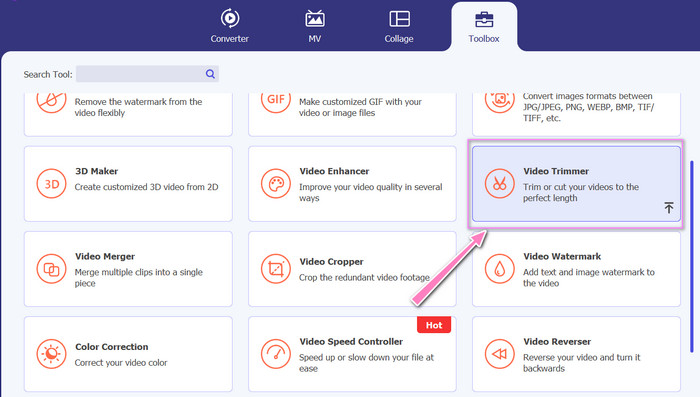
Pilih alat Video Trimmer daripada menu Toolbox. Setelah selesai, pilih butang + untuk memuat naik GIF.
Langkah 3. Bahagikan fail GIF
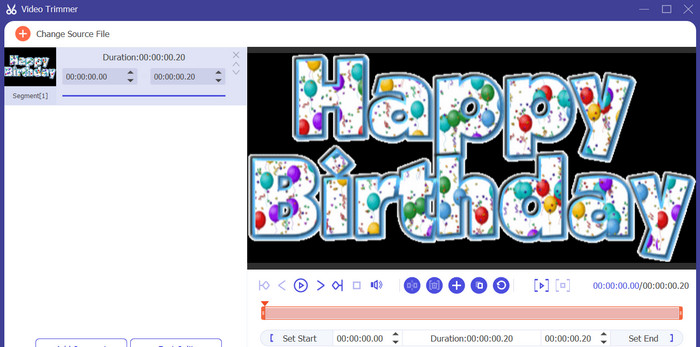
Sebaik sahaja GIF telah dimuat naik, ia akan ditunjukkan pada antara muka program untuk membuat perubahan. Pilih titik permulaan dan penamat GIF yang ingin anda padamkan menggunakan peluncur.
Langkah 4. Simpan GIF yang anda cipta
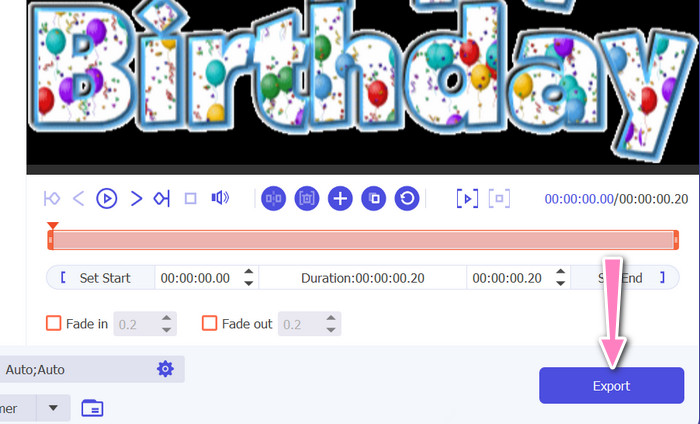
Apabila anda selesai menyesuaikan GIF, klik butang Export di sudut kanan bawah alat untuk memulakan proses rendering.
2. EZGIF
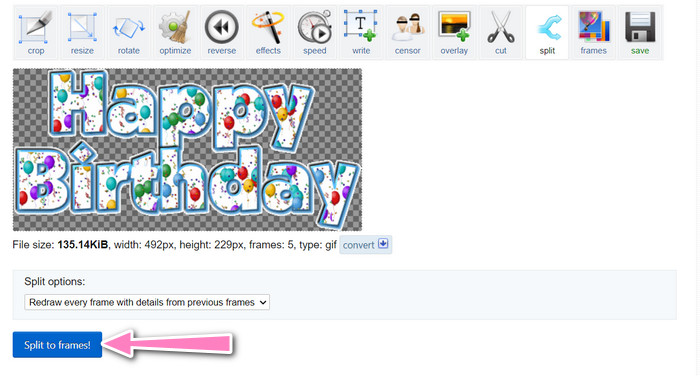
EZGIF ialah alat dalam talian yang menawarkan pelbagai ciri untuk bekerja dengan fail GIF. Laman web ini menyediakan pelbagai alat untuk mencipta, menyunting dan mengoptimumkan GIF, termasuk penukaran saiz GIF, pemangkasan dan pembahagian. Ia juga termasuk fungsi untuk menambah teks dan kesan khas pada GIF anda malah membolehkan anda menukar video dan imej kepada format GIF. Oleh itu, jika anda ingin membahagi GIF kepada bingkai secara dalam talian, ini ialah pilihan yang tepat. Selain itu, EZGIF ialah platform mesra pengguna yang tidak memerlukan sebarang muat turun atau pemasangan, menjadikannya mudah diakses daripada mana-mana pelayar web. Ketahui cara alat ini berfungsi dan bahagikan GIF kepada imej.
Langkah 1. Untuk membahagi GIF menggunakan Ezgif, buka laman web EZGIF dalam pelayar web anda.
Langkah 2. Pilih pilihan Split daripada menu atas, kemudian laraskan tetapan mengikut keperluan.
Langkah 3. Klik butang Choose File untuk memuat naik fail GIF yang anda ingin bahagikan. Sebagai alternatif, anda boleh seret dan lepas fail tersebut ke antara muka EZGIF.
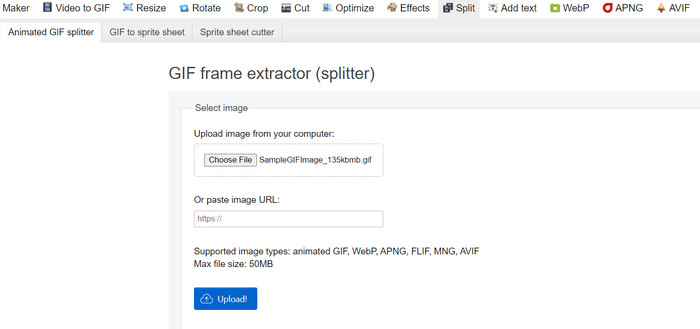
Langkah 4. Seterusnya, pilih kaedah pembahagian yang anda ingin gunakan. Anda boleh membahagi GIF mengikut bilangan bingkai tertentu, mengikut sela masa tertentu, atau dengan memilih bingkai tertentu untuk dikekalkan.
Langkah 5. Laraskan tetapan untuk kaedah pembahagian yang anda pilih. Klik butang Split to frames! untuk memulakan proses pembahagian. Terdapat juga pilihan yang tersedia untuk membahagi GIF kepada PNG atau JPG, bergantung pada keperluan anda.
Bahagian 2. Cara Profesional untuk Membahagi Fail GIF
Membahagi GIF kepada bingkai dalam Photoshop boleh direalisasikan. Ia menawarkan banyak fleksibiliti dan kawalan apabila bekerja dengan GIF beranimasi. Dengan Photoshop, anda boleh membuka fail GIF dan menyunting setiap bingkai animasi secara individu, membolehkan anda membuat pelarasan dan menambah penapis pada setiap bingkai secara berasingan. Ini bermakna anda boleh mencipta animasi yang kompleks, menambah teks atau grafik, dan melaraskan pemasaan setiap bingkai untuk menghasilkan animasi yang lancar dan kemas. Untuk mengetahui lebih lanjut tentang pilihan penyuntingan yang tersedia dalam Photoshop untuk GIF, rujuk langkah-langkah di bawah:
Langkah 1. Buka fail GIF dalam Photoshop dengan pergi ke File > Open dan memilih fail tersebut.
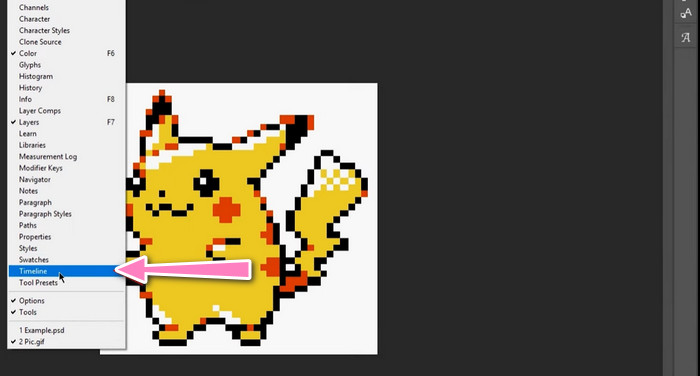
Langkah 2. Setelah fail dibuka, pergi ke Window > Timeline untuk membuka panel Timeline.
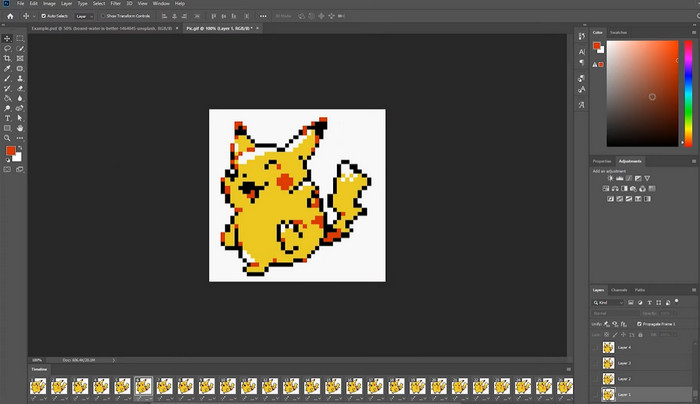
Langkah 3. Dalam panel Timeline, anda sepatutnya melihat setiap bingkai animasi diwakili sebagai lapisan berasingan. Jika anda tidak melihat panel Timeline, klik butang menu di sudut kanan atas panel dan pilih Create Frame Animation.
Langkah 4. Untuk membahagi GIF, klik butang menu dalam panel Timeline dan pilih Make Frames From Layers. Ini akan mencipta bingkai berasingan bagi setiap lapisan dalam animasi.
Langkah 5. Kini anda boleh menyunting setiap bingkai secara individu dengan memilihnya dalam panel Timeline dan membuat sebarang perubahan yang diingini.
Langkah 6. Pergi ke File > Export > Layers to Files untuk mengeksport setiap bingkai sebagai fail berasingan. Dalam kotak dialog eksport, pilih format fail dan folder destinasi yang anda inginkan, kemudian klik Run untuk mengeksport fail-fail tersebut.
Bahagian 3. Soalan Lazim tentang Pemisahan GIF
Bolehkah saya membahagikan GIF kepada bahagian atau selang masa tertentu?
Ya, anda boleh membahagikan GIF kepada bahagian tertentu atau selang masa menggunakan alatan dalam talian atau perisian penyuntingan imej.
Bolehkah saya menggunakan perisian penyuntingan video untuk memisahkan GIF?
Ya, banyak aplikasi perisian penyuntingan video boleh digunakan untuk memisahkan GIF. Contohnya, FVC Video Converter Ultimate, Adobe Premiere Pro dan Final Cut Pro X ialah pilihan yang popular.
Bagaimanakah cara saya melaraskan pemasaan bingkai individu dalam GIF?
Anda boleh melaraskan masa bingkai individu dalam GIF menggunakan alat dalam talian atau perisian penyuntingan imej seperti Photoshop.
Kesimpulannya
Membahagi fail GIF boleh menjadi teknik yang berguna untuk mencipta animasi baharu, menyunting yang sedia ada atau berkongsi bingkai atau bahagian tertentu. Sama ada anda lebih suka menggunakan alat dalam talian atau perisian penyuntingan imej seperti Photoshop, terdapat beberapa pilihan yang tersedia untuk membahagi GIF. Dengan mengikuti langkah-langkah yang digariskan dalam artikel ini dan meneroka pelbagai alat yang ada, anda boleh dengan mudah membahagi GIF anda dan mencipta animasi baharu.
-
 Kaedah Cemerlang tentang Cara Membahagikan Video dengan Berkesan
 Artikel ini akan menerangkan cara membahagikan video kepada beberapa bahagian. Jadi, jika anda berminat, klik siaran ini kerana kami menawarkan anda cara yang paling mudah untuk dicuba.
-
 Ketahui 4 Cara Cara Membuat GIF daripada Imej [Dalam Talian & Luar Talian]
 Adakah anda ingin tahu cara membuat GIF daripada kompilasi imej anda? Kemudian klik pautan ini dan baca contoh berikut.
-
 3 Cara Paling Mudah untuk Menambah Tera Air pada GIF Dalam Talian & Luar Talian
 Menambah tera air pada GIF boleh semudah 1-2-3 jika anda menggunakan alat yang betul dengan betul. Alat di pasaran terlalu luas, tetapi kami akan membentangkan tiga alat yang anda boleh bergantung.
