


 Video Converter Ultimate
 Perakam Skrin
 Pembaikan Video
 Muat Turun Selamat
Cara Mudah Menghapus Tera Air Dari Gambar Graduasi
Tera air menyusahkan apabila anda melihatnya dalam mana-mana foto, dan ia merosakkan kualiti foto. Anda akan melihat tera air pada foto apabila pencipta tidak mahu karyanya dicuri. Dan jika anda seorang pelajar, anda mungkin akan melihat tera air pada gambar tamat pengajian anda, yang menunjukkan nama studio atau jurugambar yang mengambilnya.
Jika anda mahu membuang tera air pada gambar graduasi anda, anda memerlukan alat yang dapat membantu menghilangkan tera air tersebut. Dalam artikel ini, kami menyenaraikan tiga penghapus tera air yang paling banyak digunakan, dan anda juga akan mempelajari langkah-langkah untuk menghapus tera air daripada gambar graduasi.

Bahagian 1. Bagaimana Buang Tera Air Dari Gambar Graduasi Dalam Talian
Terdapat banyak alat penghilang tera air yang anda akan lihat di internet. Walau bagaimanapun, tidak semuanya percuma dan mudah digunakan. Selain itu, dalam bahagian ini, anda akan tahu cara membuang tera air dengan mudah dan cekap.
FVC Free Watermark Remover ialah penghapus tera air dalam talian yang membolehkan anda membuang tera air pada gambar graduasi anda dengan mudah. Alat dalam talian ini popular kerana anda tidak perlu memuat turun apa-apa sebelum menggunakannya. Selain itu, ia menyokong format imej yang paling biasa, seperti PNG, JPG, JPEG, BMP dan banyak lagi. Dan walaupun anda menghapus tera air pada imej anda, ia akan mengekalkan format imej yang sama seperti sebelumnya apabila anda memuat turunnya.
Menggunakan pengalih tanda air ini, anda boleh memilih daripada pratetap pengalih keluar dalam memilih kawasan tera air. Anda boleh memilih antara poligon, laso atau berus. Tambahan pula, anda boleh menggunakan alat ini untuk memadamkan perkara lain yang tidak perlu pada imej anda.
Kelebihan
- Ia mempunyai antara muka perisian operasi yang pantas.
- Ia selamat digunakan.
- Ia adalah 100% percuma untuk digunakan.
- Tersedia pada semua penyemak imbas web, termasuk Google, Firefox dan Safari.
Keburukan
- Ia bergantung kepada internet.
Bagaimana untuk menghilangkan tera air pada gambar tamat pengajian menggunakan FVC Free Watermark Remover:
Langkah 1. Pada pelayar yang anda gunakan, cari FVC Free Watermark Remover. Anda boleh klik pautan ini untuk pergi terus ke laman web mereka.
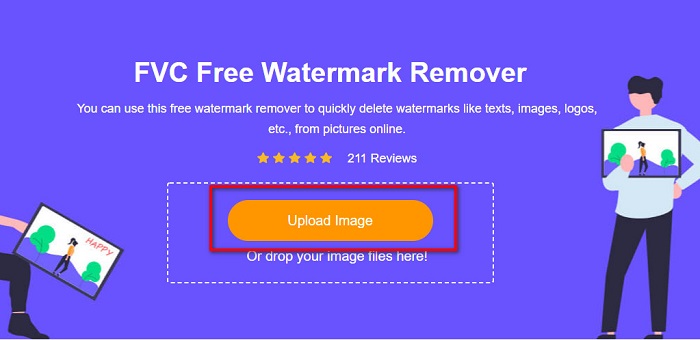
Langkah 2. Pada antara muka utama perisian, klik butang Upload Image. Folder komputer anda akan dipaparkan dan di situ anda pilih foto graduasi dan memuat naiknya.
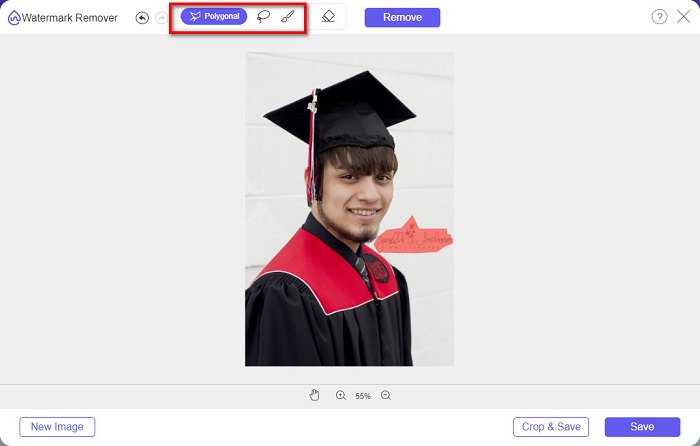
Langkah 3. Seterusnya, pilih alat penghapus yang anda mahu gunakan untuk membuang tera air. Pilih antara Polygonal, Lasso, atau Brush. Kemudian, pilih kawasan tera air yang anda mahu buang.
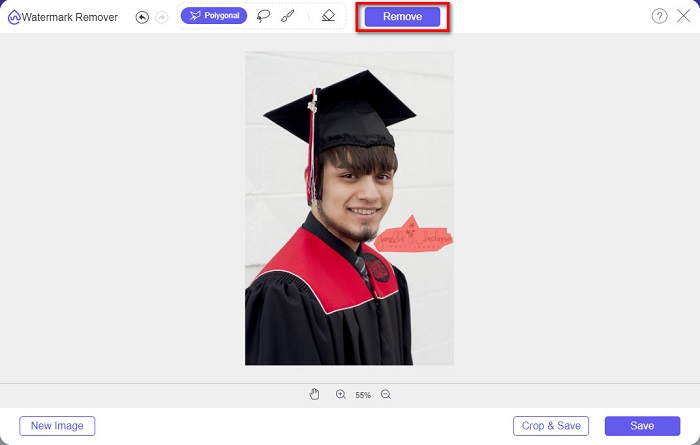
Langkah 4. Selepas memilih kawasan tera air, klik butang Remove untuk memadam tera air tersebut.
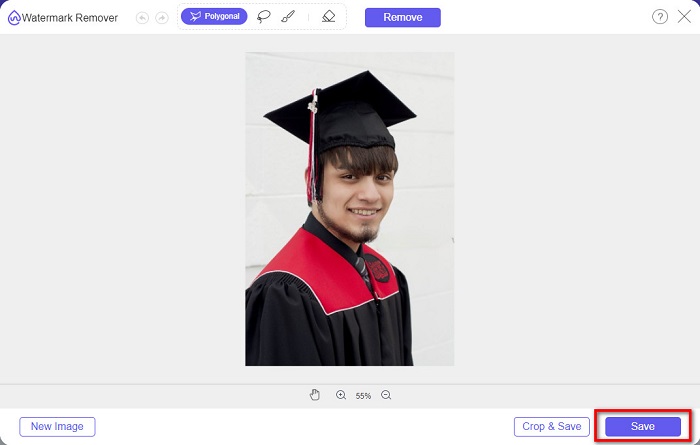
Langkah 5. Anda akan melihat bahawa tera air telah dibuang. Klik butang Save untuk memuat turun imej ke peranti anda. Selain itu, alat penghapus tera air dalam talian ini juga merupakan penghapus tera air Photobucket.
Bahagian 2. Cara Menghilangkan Tera Air Dari Gambar Graduasi Menggunakan Inpaint
Kadangkala orang ramai membuat semula tera air untuk mendapatkan foto kepada rupa asalnya. Tetapi bagaimana mereka melakukannya? Profesional menggunakan editor foto dan melukis label piksel demi piksel, menghasilkan beberapa jam bekerja. Walau bagaimanapun, terdapat alat lain yang akan membantu anda menjadikan hidup anda mudah. Dalam bahagian ini, anda akan belajar cara menggunakan Inpaint dan kelebihannya.
Inpaint ialah penghapus tera air dalam talian yang juga dapat membantu anda membuang tera air pada gambar graduasi anda. Aplikasi perisian dalam talian ini turut mempunyai versi boleh muat turun pada Windows dan Mac. Selain itu, ia membolehkan anda membuang perkara yang tidak diingini pada foto anda, seperti logo, teks, objek dan sebagainya. Lebih menarik lagi, ia mempunyai ciri untuk membaik pulih foto lama dan mengembalikannya kepada kualiti asal. Ia juga mempunyai alat penghapus untuk memilih kawasan tera air yang anda mahu buang.
Kelebihan
- Ia mempunyai antara muka perisian yang mudah digunakan.
- Ia membolehkan anda melakukan retouching muka digital.
- Ia membolehkan anda mengisi kawasan hitam Panorama.
- Boleh diakses pada hampir semua pelayar web, seperti Google dan Firefox.
Keburukan
- Ia bergantung kepada internet.
Bagaimana untuk membuang tera air daripada gambar tamat pengajian menggunakan Inpaint:
Langkah 1. Cari Inpaint dalam pelayar anda, kemudian pergi ke laman web mereka. Selepas itu, pada antara muka utama perisian, klik butang Upload Image untuk memuat naik gambar graduasi anda.
Langkah 2. Seterusnya, pilih alat penghapus yang anda mahu gunakan untuk menanda kawasan tera air. Pilih antara marker tool, lasso tool, dan polygonal lasso tool.
Langkah 3. Kemudian, dengan menggunakan alat yang anda pilih, tandakan kawasan tera air yang anda mahu buang.

Langkah 4. Akhir sekali, klik butang Erase untuk membuang tera air pada gambar graduasi anda. Kemudian klik butang Download untuk memuat turun foto tersebut.
Bahagian 3. Cara Buang Tera Air Dari Gambar Graduasi Menggunakan Photoshop
Adobe Photoshop adalah perisian penyuntingan paling terkenal yang digunakan oleh ramai profesional. Tetapi apa yang ramai pengguna tidak tahu ialah ia bukan sekadar perisian penyuntingan; ia juga boleh mengalih keluar tera air yang tidak diingini pada foto anda. Untuk mengetahui cara mengalih keluar tera air daripada foto anda, baca bahagian ini secara menyeluruh.
Adobe Photoshop ialah perisian penyuntingan foto yang paling popular dengan banyak ciri penyuntingan. Ramai profesional menggunakan aplikasi penyuntingan ini kerana anda boleh menyunting imej anda dengan pelbagai cara yang profesional. Ia mengandungi alat yang membolehkan anda menyunting imej secara terperinci. Selain itu, ia menghasilkan output berkualiti tinggi yang boleh anda kongsi di mana-mana platform media sosial.
Kelebihan
- Ia mempunyai banyak ciri penyuntingan lanjutan untuk digunakan.
- Ia mengandungi banyak alat untuk digunakan untuk menyunting.
- Ia menghasilkan output berkualiti tinggi.
- Ia membolehkan anda mengedit dan mencipta imej sama ada cetakan dan web.
Keburukan
- Ia mempunyai antara muka perisian yang sukar digunakan.
- Anda perlu membeli aplikasi untuk memuat turunnya.
Bagaimana untuk mengalih keluar sebarang tera air pada foto anda menggunakan Adobe Photoshop:
Langkah 1. Muat turun Adobe Photoshop pada peranti anda, kemudian jalankan aplikasinya. Pada antara muka utama pengguna, buka imej tersebut dalam Photoshop.
Langkah 2. Pilih kawasan tera air. Anda boleh menggunakan Pen tool, Quick Selection tool, atau Magic Wand tool.
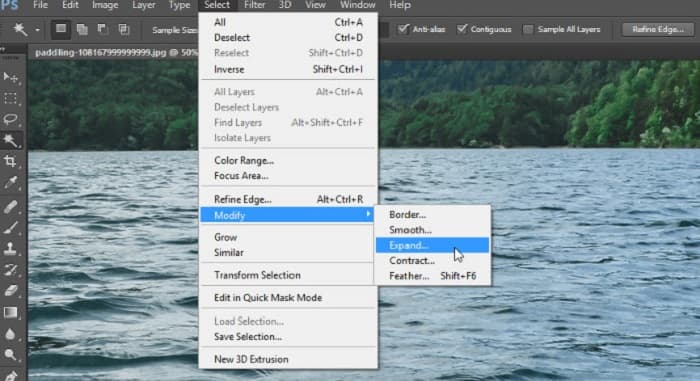
Langkah 3. Pergi ke Select > Modify > Expand untuk memasukkan piksel latar belakang.
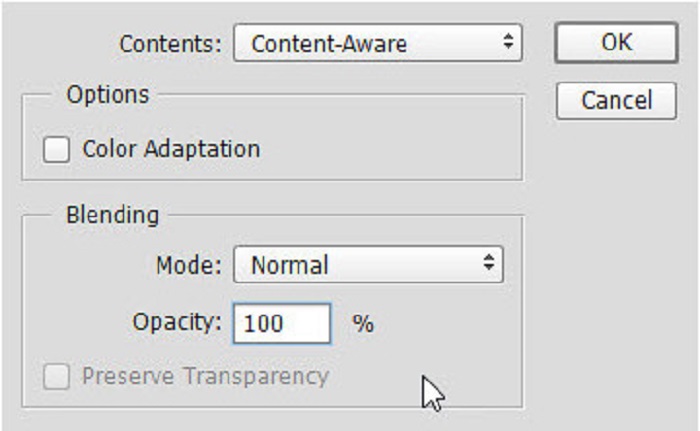
Langkah 4. Pergi ke Edit > Fill, kemudian pilih Content-Aware dalam bahagian Contents.
Langkah 5. Seterusnya, tekan CTRL+D. Anda akan melihat tera air telah diisi dengan latar belakang. Kemudian, untuk menghapuskan garisan luar tera air, gunakan Clone Stamp Tool.
Langkah 6. Tekan dan tahan kekunci Alt dan jejak garisan luar tera air. Setelah anda selesai menghapus kesan-kesannya, anda akan perasan bahawa tera air telah dibuang.
Bahagian 4. Soalan Lazim tentang Mengeluarkan Tera Air Daripada Imej Pengijazahan
Adakah mengalih keluar tera air daripada gambar tamat pengajian merosakkan kualiti?
Mengalih keluar tera air daripada gambar tamat pengajian tidak semestinya akan merosakkan kualiti. Walau bagaimanapun, apabila anda mengalih keluar tera air, sesetengah alatan masih meninggalkan kesan.
Bolehkah anda mengalih keluar tera air pada Canva?
ya. Canva mempunyai ciri yang membolehkan anda mengalih keluar tera air secara percuma. Cuma klik butang Alih Keluar Tera Air untuk berbuat demikian.
Bolehkah anda mengalih keluar tera air pada PDF?
Dengan menggunakan alat yang dinyatakan di atas, anda boleh membuang sebarang tera air daripada fail PDF anda.
Kesimpulannya
Memandangkan anda telah mempelajari cara menghapus tera air daripada gambar graduasi, kini anda boleh melakukannya sendiri dan mencuba alat yang dibentangkan di atas. Menghapus tera air menjadi mudah dengan menggunakan penghapus tera air. Namun begitu, ramai orang mengesyorkan menggunakan FVC Free Watermark Remover kerana ia mudah dan senang digunakan.
-
 Cara Mengalih Keluar Tera Air Lumion pada Windows & Mac Dengan Mudah
 Perlu mengalih keluar tera air Lumion untuk mempersembahkannya secara profesional? Nah, terdapat alat yang boleh anda gunakan untuk membantu anda menghilangkan tera air yang ditinggalkannya.
-
 Cara Mengalih Keluar Tera Air Weibo pada Video & Imej Dengan Mudah
 Menghadapi masalah mengalih keluar Tera Air Weibo pada video dan imej yang dieksport? Dalam kes itu, anda mesti mengeluarkan tera air yang kami senaraikan di bawah yang boleh membantu anda.
-
 Ketahui Cara Membuang Tera Air Movavi secara Percuma $91;Mesti Ada!$93;
 Mengeksport video atau imej pada Movavi akan meninggalkan tera air, tetapi adakah mungkin untuk mengalih keluarnya? Untuk mengajar cara membuang tera air secara percuma baca ini.
